You just coded your IBM MQ application, ran it for the first time, and got an error.
Don't panic — it happens even to the best developers.
There are many reasons why an IBM MQ application might fail, so how do you know whether the problem is with messaging code, MQ API calls, or MQ-related objects?
If your error message contains an MQ reason code, such as AMQ2035 2035 MQRC_NOT_AUTHORIZED, then something likely went wrong with the interaction with IBM MQ.
Often, the error message makes the problem obvious, and you can fix your code and move on. However, sometimes more debugging is required. The following sections walk through some basic debugging steps and provide hints to help you move forward.
Common IBM MQ problems or errors and how to fix them
This article reviews common issues that many new MQ application developers see, from compilation errors to connection problems, and from configuration errors to security issues.
My application has not compiled yet
You might try to compile your code and keep getting errors that look like this:
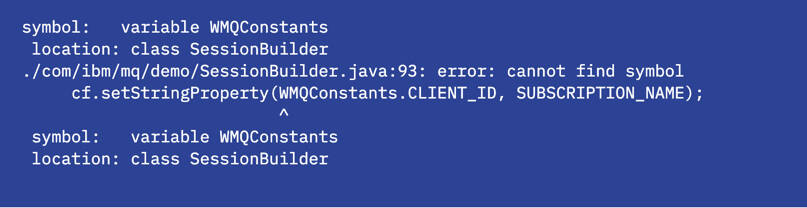
If your code isn't compiling for any reason, here are the common culprits:
- Do you have a JDK installed in order to use
javac? Try typingjava -versionon a command line to check. - Do you have the
jms.jarandcom.ibm.mq.allclient.jaravailable? - Check your
classpath. Have you typed the location of the jars correctly? - Make sure you are using the correct file directory separators for your operating system in commands.
I got an MQ reason code. What next?
You might try to run your code and get exceptions like the ones shown here:
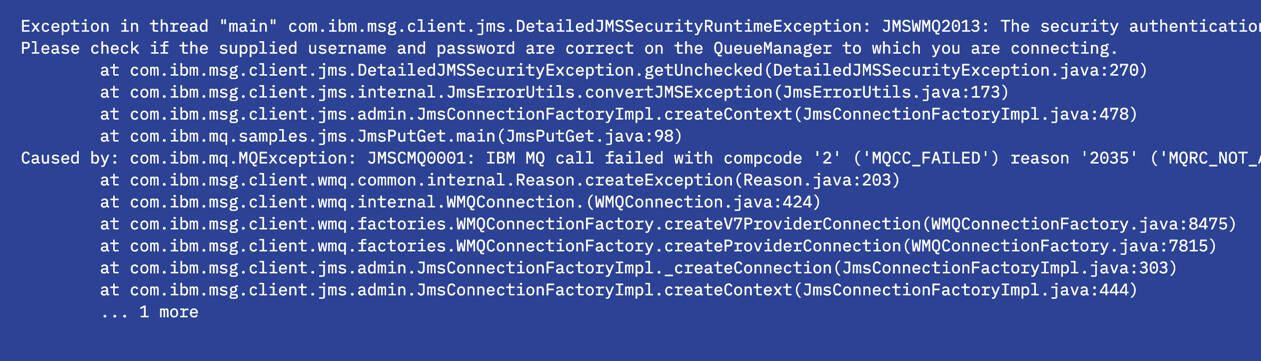
Reviewing the exception details can give you some useful information. In the example above, you can see the connection information that the application is trying to use: queue manager name, connection mode, host name, and port. It also provides information about what the problem might be. On the seventh line, you can see the return code that was issued at the point where the application failed, in this case 2035. A list of MQ reason codes is documented in IBM MQ API completion and reason codes in the IBM MQ Docs.
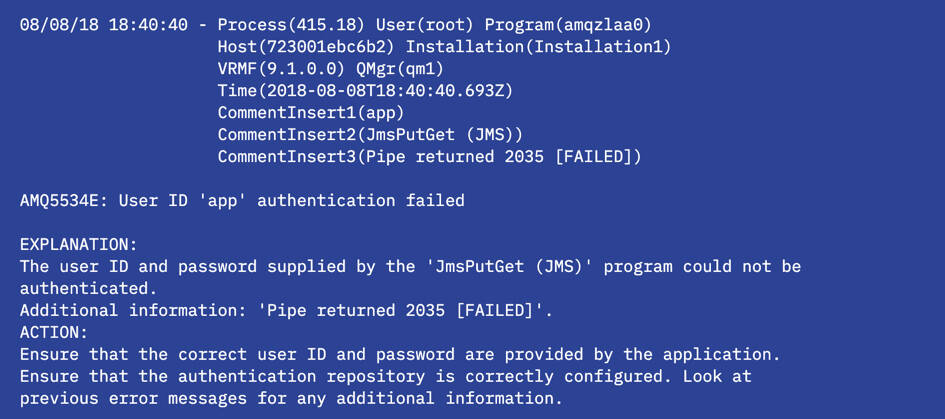
The IBM MQ queue manager error logs are a good place to get more detail about the problem. Essentially, you are looking for the queue manager's perspective on what went wrong. The error logs are located in the MQ data directory on the system where the queue manager is running.
In Docker containers:
docker exec -ti <container_id> /bin/bash
cd /var/mqm/qmgrs/<your_queue_manager_name>/errors/
On Linux:
cd /var/mqm/qmgrs/<your_queue_manager_name>/errors/
On Windows systems:
cd <mq_installation_path>\QMGRS\<your_queue_manager_name>\ERRORS\
Next, look in the error log file. The most recent log entries are added to the bottom of the file. You can use an editor to view the logs or, for example, in Docker or Linux, run:
cat AMQERR01.LOG
Here you can see an entry from when a 2035 return code was produced:
Connection problems
One of the most common places to find problems is in the initial connection. This issue can give you a reason code such as 2538 MQRC_HOST_NOT_AVAILABLE or 2059 MQRC_Q_MGR_NOT_AVAILABLE. Here are some initial things to check:
Check you can ping the host where the queue manager is running.
Check that you are using the correct port for the connection to the queue manager.
The MQ Badge Challenge application uses port 1414 unless you set the
MQ_BADGE_QM_PORTenvironment variable to a different value. You might need to do this if you cannot use port 1414, for example, if you have multiple Docker instances or queue managers running and port 1414 is already in use. To use a different port number, expose a different port and then set the environment variable.In a Windows terminal:
set MQ_BADGE_QM_PORT=<your_port>On Linux:
export MQ_BADGE_QM_PORT=<your_port>Check that you are using the correct host for the connection to the queue manager.
The MQ Badge Challenge application uses
localhostunless you set theMQ_BADGE_QM_HOSTNAMEenvironment variable to a different value. You can run this command in a Windows terminal to use a different host address in your application:set MQ_BADGE_QM_HOSTNAME=<your_ip_address>Check that you are using the correct queue manager and channel names in your application connection details. These names are case-sensitive. In the MQ Badge Challenge application, the
MQ_BADGE_QM_NAMEandMQ_BADGE_QM_CHANNELenvironment variables are also available if you do not want to use the default values.Check that your queue manager is running:
On the system where your queue manager is hosted, run the
dspmqcommand directly in a terminal window:dspmqFor Docker instances, use the following command to gain command-line access and run
dspmq:docker exec -ti <container_id> dspmqThe output of
dspmqlists the queue managers on the system and their status:
Configuration errors
Your application connects, but it fails to run.
The main thing to check is whether all your MQ object names match what is expected. For example, the following error is produced when the wrong queue name is used:
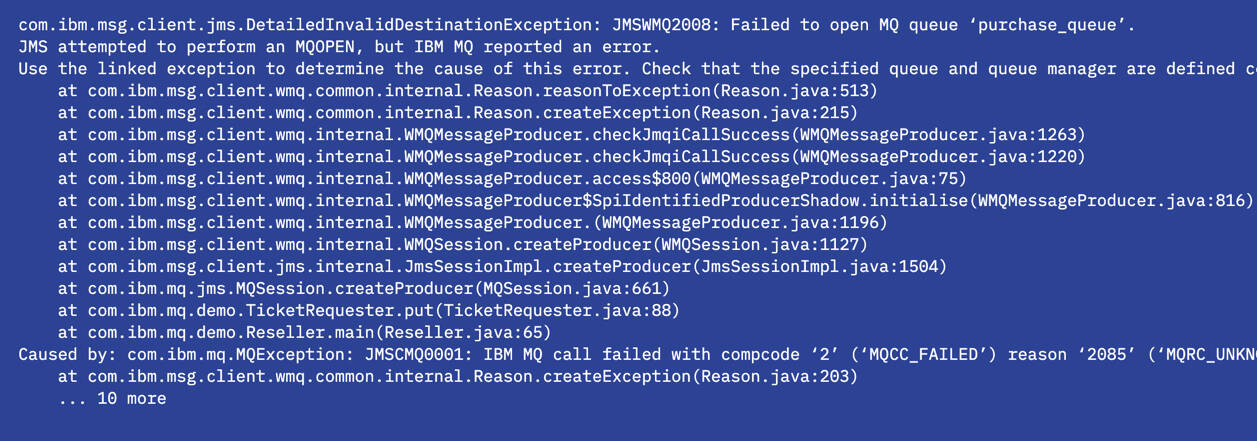
In this case, the logs show that the queue purchase_queue does not exist. Next, check your configuration by using runmqsc or change your code accordingly. See Interact with the queue manager using MQSC commands for more information.
Authorization issues
Another common area that can cause problems is authentication. Security problems generally return reason code AMQ2035 2035 MQRC_NOT_AUTHORIZED. If you see this code, you know that a connection was attempted, but there is likely a problem with the username or password that was used. Looking in the error logs tells you which user ID is being authenticated.
In the MQ Badge Challenge application, the username and password are coded in the application and supplied to the queue manager. Check that the correct values are set. If you are using values other than the default application username and password, you can change them in the code or override the defaults by setting the MQ_BADGE_USERNAME and MQ_BADGE_PASSWORD environment variables.
For more information, read Planning IBM MQ client application security in the IBM MQ Docs.
Publish/subscribe errors
Problems with publish/subscribe are usually due to one of the following reasons:
- The subscriber topic strings do not match with the publisher.
- The subscription was created after the publication was sent.
- An error occurred in the publication but was not checked by the publishing application.
These would result in not receiving the messages you were expecting.
Interact with the queue manager using MQSC commands
MQSC commands let you perform administration tasks to configure your queue manager and work with queue manager objects such as channels and queues.
It can be helpful to know how to find the attributes that are set on different MQ objects, such as queue managers, queues, or channels, particularly if you are not familiar with the default settings. One way to do this is to use MQSC. For more information, see Administering IBM MQ using MQSC commands in the IBM MQ Docs.
For Docker instances, you need command-line access in the container that is running the queue manager:
docker exec -ti <container_id> /bin/bash
From here (or the command line of any platform):
runmqsc <your_queue_manager_name>
When you see the following message, the interface is ready for your input:

You can use the DISPLAY command to explore some of the objects in the MQ Badge Challenge. For example: DISPLAY CHANNEL(DEV.APP.SVRCONN), DISPLAY TOPIC('newTickets'), and DISPLAY QUEUE('purchase').
The output of the DISPLAY QUEUE('purchase') command will look something like this:
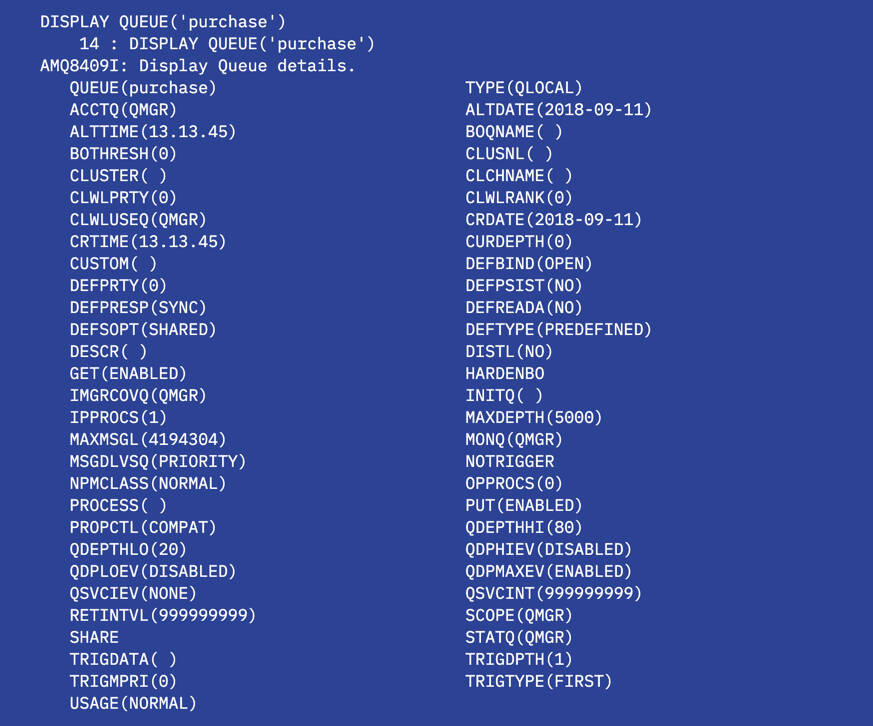
Important attributes to note here are MAXDEPTH, which is the number of messages the queue can hold, and CURDEPTH, which is the number of messages currently held on the queue. If the number of messages on the queue reaches MAXDEPTH, the application fails with reason code 2053 MQRC_Q_FULL. You can solve this problem by increasing the default MAXDEPTH value of 5000, or by making sure that the sending application can handle reason code 2053 (MQRC_Q_FULL) by, for example, pausing the application or putting the messages to another queue.
Interact with the queue manager using the MQ Console
Another way to interact with your queue managers is with the MQ Console. In addition to browsing and changing object attributes, you can use the console to help validate your setup by putting a test message on a queue. Another way to validate your setup is to run the samples, such as amqsputc, if you have access to them.
If you cannot connect in your browser, check these:
You might find that going to
https://localhost:9443/ibmmq/console/doesn't work if you are running your queue manager in Docker. Check the IP address or hostname your container is mapped to and use that in place oflocalhost.Check if port 9443 has been assigned for the MQ Console to use when you started your container. Make sure you are using the right port number if you changed this for any reason.
TLS issues
If you have been making changes to your queue manager key repository, adding or removing certificates, or otherwise changing the security configuration on your queue manager, you might find that things are not working as expected.
In many cases, the SSL cache on the queue manager just needs a refresh. If so, you can fix this issue by using runmqsc to enter the queue manager and refresh the cache.
    runmqsc <your queue manager name>
    REFRESH SECURITY(*) TYPE(SSL)
Run your application again to confirm that the changes resolved the issue.
If you are running a Java application, you can access extra security debugging information by adding these command-line arguments when you run the application:
-Djavax.net.debug=true -Djavax.net.debug=ssl:handshake
Installing the Node.js ibmmq package has warnings or errors about installation scripts
The npm command used to install Node.js packages is being enhanced to improve supply-chain
integrity. From version 11.16, it issues a warning (which will be elevated to an error in v12) when
a package tries to execute scripts during installation. You must grant explicit permission
for these scripts to run.
Depending on platform and environment, the ibmmq package might try to run both a post-install script and a compile script. So, these warnings might appear.
If a program lists ibmmq as a dependency, running npm install for that package now shows this output:
npm warn allow-scripts 1 package has install scripts not yet covered by allowScripts:
npm warn allow-scripts ibmmq@2.1.9 (install: node-gyp-build; postinstall: node postinstall.mjs)
npm warn allow-scripts
npm warn allow-scripts Run `npm approve-scripts --allow-scripts-pending` to review, or `npm approve-scripts <pkg>` to allow.
The simplest and preferred solution is to run npm approve-scripts ibmmq in your application directory. This command adds the permission to your package.json file.
...
 "allowScripts": {
    "ibmmq@2.1.9": true
  }
...
Installation should then proceed without problems.
Summary
This article covered the most common types of errors with IBM MQ applications. You can now continue developing with a stronger troubleshooting foundation.
For more troubleshooting information:
Visit IBM MQ problem determination: making initial checks in the IBM MQ Docs for detailed guidance.
Review IBM MQ best practices for building applications to strengthen your development approach.