Blog post
Enable SFTP integration for containerized apps
Securely transfer files from on premises to AWS using containersIn a previous blog post, we discussed our approach to addressing the requirements for migrating unstructured data files from on-premises storage to AWS. This unstructured data was the result of an integration scenario in which data produced by one application is consumed by another. Line-of-business applications like these require secure and reliable data transfer methods. Non-secure data transfers can result in costly data breaches and regulatory non-compliance, which can have severe consequences for businesses.
About SFTP
SFTP, or Secure File Transfer Protocol, provides a secure method for transferring files over the internet through high-level encryption and data protection. Due to its enhanced security features and reliability, it has become the preferred method of file transfer for many businesses. While there are modern integration tools and APIs available for connecting cloud-based systems, businesses that rely on legacy applications such as mainframes often still use SFTP servers for integration between their line-of-business applications because alternative integration methods would require significant code changes to the applications. Some applications use SFTP client libraries (available in most programming languages) or scheduled jobs (using shell scripts) to transfer data between systems.
SFTP use case for a containerized application
One common challenge we encounter in migration and modernization engagements occurs when an application contains a batch component that performs SFTP. This situation can restrict the migration disposition to rehosting or reinstalling on IaaS, which might not be the most efficient solution.
In this blog post, we'll explore how to enable such applications to continue using SFTP during migration from on premises to Amazon Web Services (AWS) on a container. This approach enables the application to be hosted on any container platform, such as Amazon Elastic Kubernetes Service (Amazon EKS) or Red Hat OpenShift on AWS (ROSA).
Scenario
We have two line-of-business applications: Application A, which is located on premises, and Application B, which is on AWS. A third application, Application C, currently resides on premises on a virtual machine (VM) and serves as an intermediary. Application C fetches a file from Application A using SFTP, processes it, and sends it to Application B through another SFTP server on AWS. Application C needs to be migrated to AWS to co-locate with Application B.
Application A is a legacy application running on a mainframe, which restricts us from making any changes to the SFTP integration method, such as using AWS Transfer Family and having the data pushed from on premises. Application B was recently rehosted on an Amazon Elastic Compute Cloud (Amazon EC2) instance in AWS and hosts a custom off-the-shelf (COTS) application that heavily relies on SFTP-based integration.
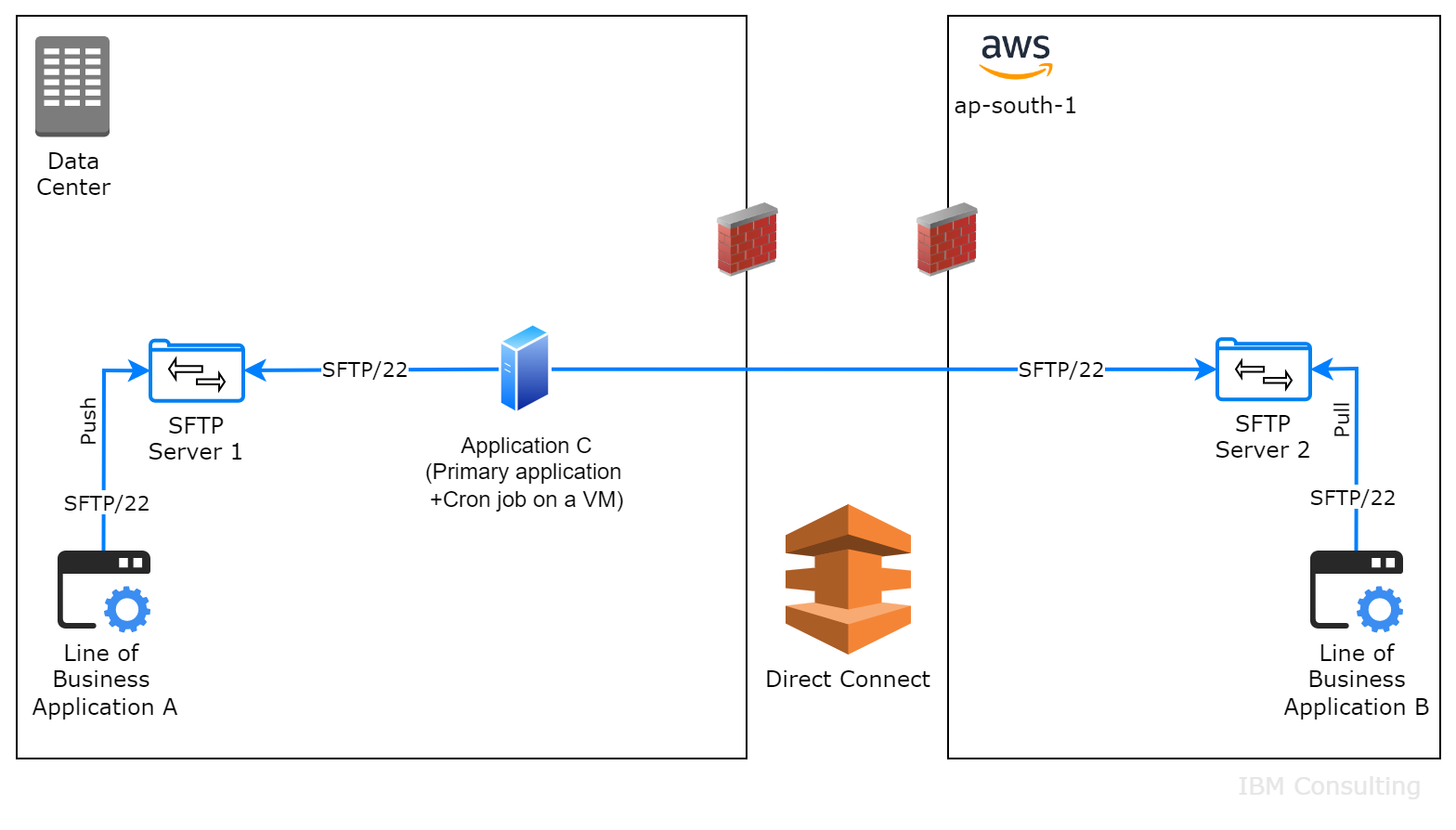 Figure 1: Current on-premises architecture
Objective
Our objective is to containerize Application C as we migrate it to AWS. To achieve this containerization, we will create a batch container that can securely connect to the SFTP server using passwordless authentication. The container will be deployed as a Kubernetes CronJob, enabling us to schedule transactions at desired time intervals.
Solutions
For the purposes of this blog, we will use Amazon Elastic Kubernetes Service (Amazon EKS) as our preferred container platform. To achieve our objective of securely connecting to the SFTP server, we have identified three possible solutions:
- Keeping the SSH private keys in an external vault and fetching them on demand when the container or pod runs.
- Storing the SSH private keys in a Kubernetes Secret and mounting the Secret as a volume, enabling the pod to read the keys from the mount path when it runs.
- Packaging the SSH private keys inside the container image, enabling the pod to read the keys locally when it runs.
In the following sections, we will explore each of these solutions in detail to determine which one best meets our requirements.
1. Store and use SSH keys in an external vault
Let’s look at how we can use AWS Secrets Manager as the vault to store the SSH private keys.
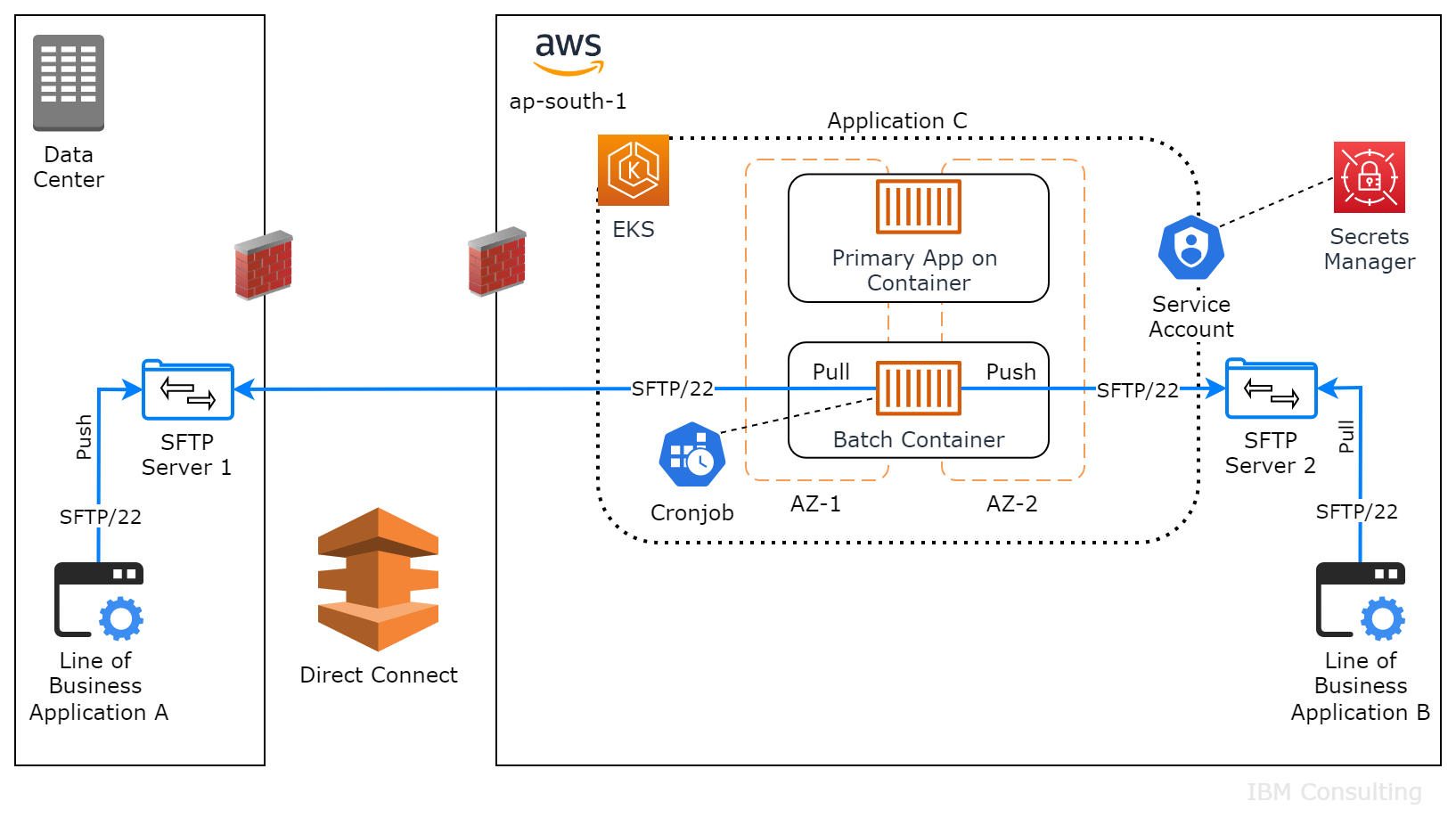 Figure 2: Target architecture with AWS EKS and AWS Secrets Manager
Complete the following steps:
- Create a container image with an SFTP client. Use a Red Hat Enterprise Linux (RHEL) 8 base image and install openssh-clients and other necessary software. Include a bash shell script (for example,
sftpjob.sh) that will perform the SFTP transactions. (Note: This step is required in each solution but the actual script might require some modifications to suit the different approaches.)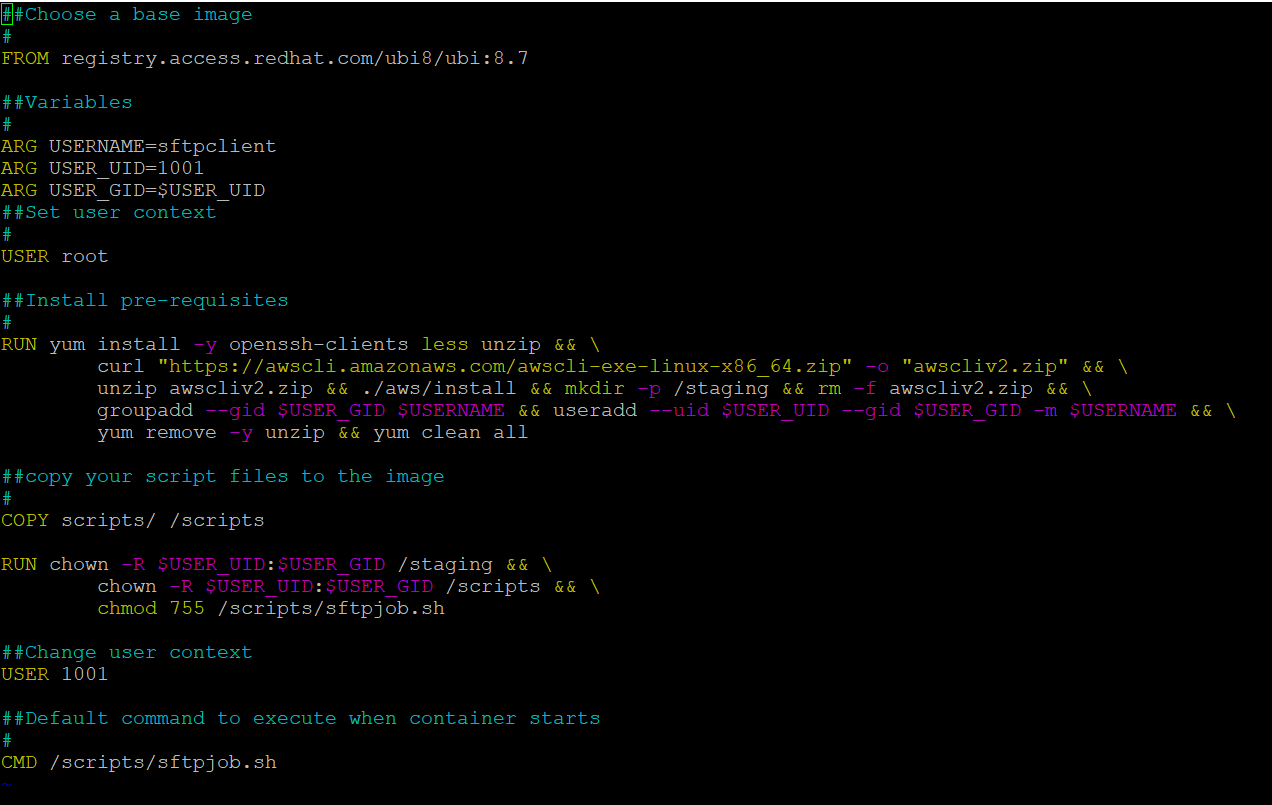

- Store the container image in a registry that the Amazon EKS cluster can access (for example, Amazon Elastic Container Service or Quay.io).
- Create SSH key pairs for authentication with the SFTP server. Configure user accounts on the SFTP servers with their respective public keys and store the private keys securely in AWS Secrets Manager.
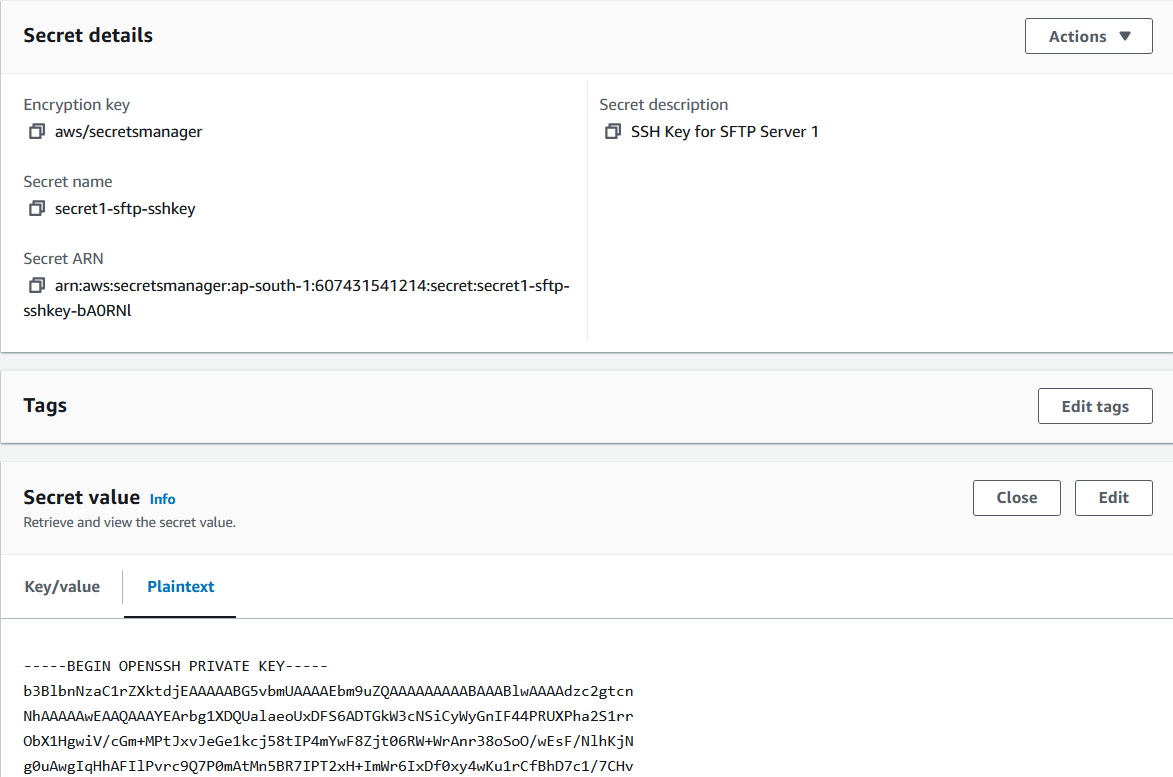
- Create a service account for the Amazon EKS cluster and attach policies to enable it to retrieve the private keys from AWS Secrets Manager.

- Ensure connectivity to the SFTP server. Open the firewalls from every Amazon EKS cluster worker node to the SFTP server on port 22 to enable communication. The pods will use the node’s network to communicate outside the cluster.
- Create a Kubernetes CronJob to run the container image and trigger the SFTP job at desired intervals (for example, every 15 minutes).

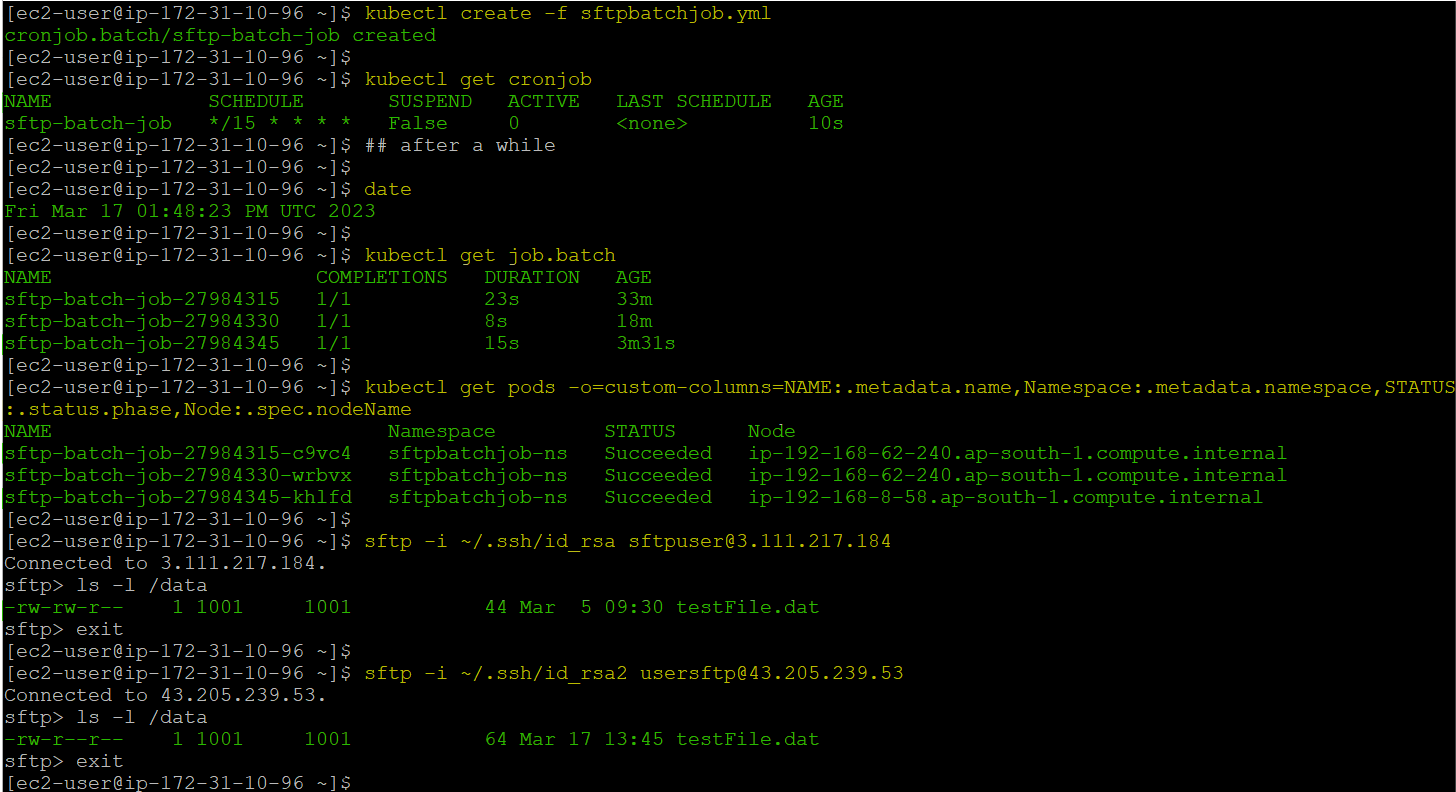
SFTP job output
Run the appropriate commands to view the SFTP job’s output. These commands will show how the pods executed from different worker nodes and transferred files from SFTP server 1 to SFTP server 2.
2. Store and use the SSH keys in a Kubernetes Secret
This solution uses native Kubernetes Secrets to store the SSH keys, making them available to the pods without additional configurations. Complete the following steps:
- Create the container image as explained in the first approach.
- Store the image in a private (internal) container registry accessible to the Amazon EKS cluster.
- Add the SSH private key to a Kubernetes Secret in the application namespace.
- Deploy the CronJob and mount the Secret as a volume on the pod at a desired location where the script can access it. Note: Kubernetes Secrets are stored in base64-encoded form in etcd and are not encrypted.
3. Package the SSH keys in the container image
In this solution, we will not use any external vault but will instead import the SSH private keys into the container image during the build process. Complete the following steps:
- Create the container image as explained in approach 1 and package the SSH private key inside the container image.
- Store the image in a private (internal) container registry accessible to the Amazon EKS cluster.
- Deploy the CronJob, and when it runs, the keys will be available locally for the pod to use and perform the SFTP transactions.
Note: This approach of keeping the SSH private keys inside the container images can be applied in some scenarios. However, it leads to the creation of new container images when key rotation is required. AWS Secrets Manager addresses this problem by only updating the Secrets. We therefore prefer this solution.
Solution comparison
The following image shows how the three solutions compare to each other:
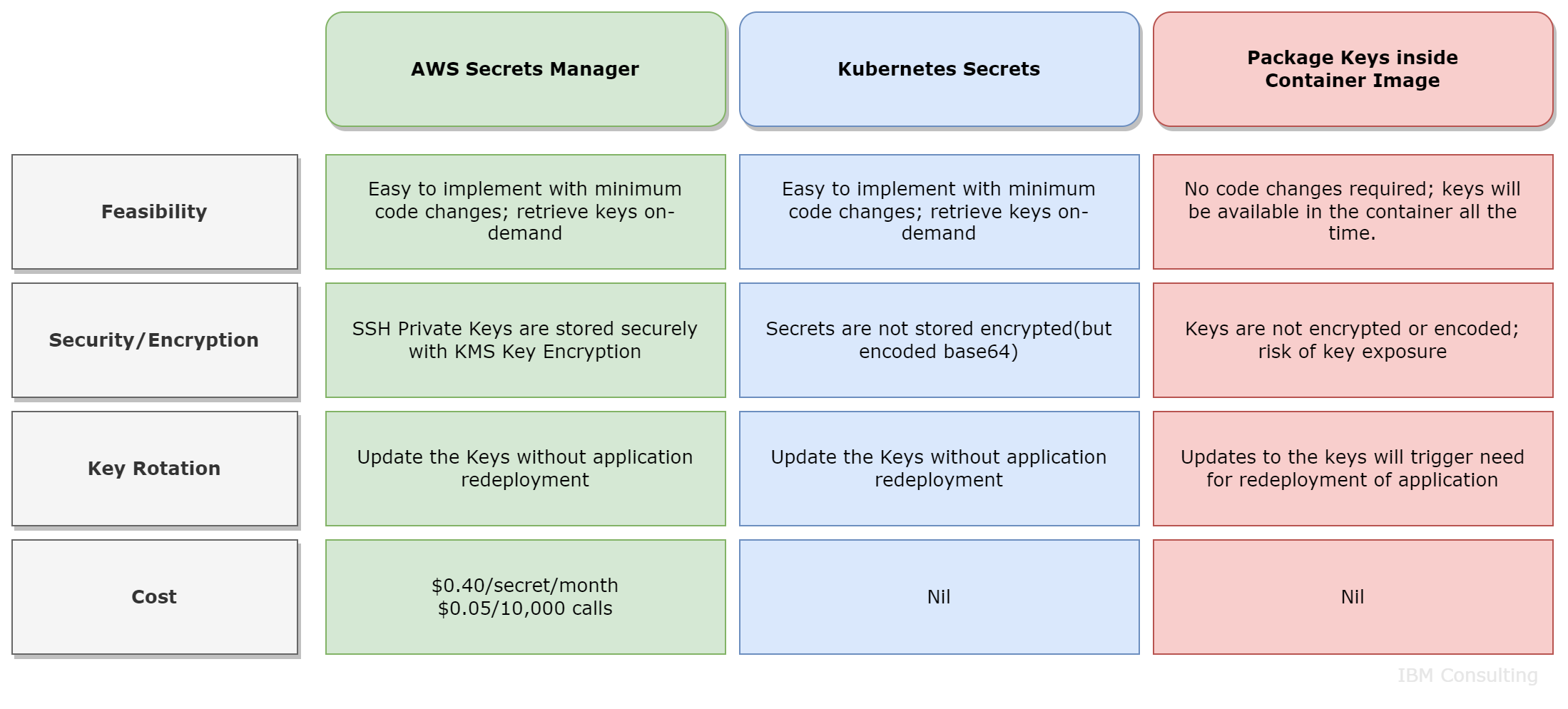 Overall, your preferred approach will depend on the specific requirements and security needs of the application. We recommend using AWS Secrets Manager because it provides a secure and scalable way to manage secrets such as SSH private keys.
Other considerations
During the implementation of this solution, we took several considerations into account:
- Due to limitations beyond the scope of this post, the code snippets show the use of public resources (such as Quay.io and public IP addresses for SFTP servers). Best practices suggest using private (internal) resources in actual environments. If you use public SFTP sites, ensure that you have proper controls in place, such as restricting access by limited IP addresses.
- If the Kubernetes node group is auto-scale enabled, ensure the IP address range available for the auto-scaling group has connectivity with the SFTP server. Consider factors such as network latency, bandwidth limitations, and firewall settings to ensure reliable and efficient data transfer.
- In the case of Openshift/ROSA deployments, you need to configure security context constraints (SCCs) to allow for a non-root user ID inside the container.
- Depending on the use case or scenario, regular pod deployments (other than CronJobs) with SFTP clients (or client libraries) can follow a similar pattern to achieve the application objectives.
- Industry best practices suggest rotating SSH keys every six months to one year, depending on the scenario, making it efficient to have an external vault.
- By utilizing native logging and monitoring solutions on the cloud platform, you can monitor the transactions for any errors. Monitoring the SFTP server container's performance and logs can help detect issues and ensure reliable data transfer.
- Kubernetes CronJobs can be run at minimum intervals of one minute. For more fine-grained intervals, you can use other technologies, such as Spring Quartz (Java).
- If using alternative methods for B2B integrations is within your scope, as can be the case with modern applications, consider AWS Transfer Family and AWS Storage Gateway. AWS Transfer Family now supports AS2 protocol over HTTPS with an Amazon Simple Storage Service (S3) bucket as a back end. It complements the existing secure protocols like SFTP and FTPS to provide a secure, scalable, and reliable transactional data exchange platform. Alternatively, AWS Storage Gateway can be used to make files available for multiple applications in on-premises servers and AWS and also allows for both online (synchronous) and offline availability. However, in the current use case, all the applications involved restrict the use of any alternatives to SFTP.
Summary
When you integrate line-of-business applications, SFTP plays a crucial role in ensuring that the data transfer between different applications is secure and efficient. Enabling SFTP for containerized applications using CronJobs removes the need for an additional Amazon EC2 instance to run batch jobs. Based on the cost of Amazon EC2, this can result in a cost savings of at least 60% in the migrated application's total cost of ownership. We found this use case to be repeatable across various client engagements.
We’ve demonstrated how organizations can use Kubernetes pods to connect to SFTP servers and securely transfer data between applications by utilizing keys stored in an external vault such as AWS Secrets Manager. By containerizing batch applications, companies migrating to AWS can maintain secure integrations with legacy applications while achieving cost savings.