Article
Introduction to KEDA
Automatically scale your containers on KubernetesKEDA (Kubernetes-based Event Driven Autoscaler) is a lightweight, open source solution that automatically scales your Kubernetes containers based on event source metrics, before CPU or memory usage spikes.
Event-driven applications are inherently easy to scale, but Kubernetes' built-in Horizontal Pod Autoscaler (HPA) reacts only to resource metrics, making it slow to respond to sudden data bursts. KEDA bridges that gap. This article introduces KEDA using a Kafka trigger, explains the key properties, and shows how KEDA controls pod scaling in practice.
What is KEDA?
KEDA (Kubernetes-based Event Driven Autoscaler) is an Apache 2.0-licensed open source project that was created by Microsoft and Red Hat, but has since become a Cloud Native Computing Foundation (CNCF) sandbox project. The aim of KEDA is to provide better scaling options for your event-driven applications on Kubernetes.
Currently on Kubernetes, the Horizontal Pod Autoscaler (HPA) only reacts to resource-based metrics such as CPU or memory usage or custom metrics. For event-driven applications with sudden data bursts, scaling up can be slow. Additionally, the HPA must scale back down once the data stream slows and remove the extra pods, meaning you pay for unneeded resources.
KEDA is more proactive. It monitors your event source and feeds this data back to the HPA resource as a custom metric for you. This way, KEDA can scale any container based on the number of events that need to be processed, before the CPU or memory usage goes up. You can also explicitly set which deployments KEDA should scale for you. So, you can tell it to only scale a specific application, for example, the consumer.
You can add KEDA to your existing clusters, so there is a lot of flexibility for how you want to use it. You don't need to do a code change and you don't need to change your other containers. It only needs to be able to look at your event source and the deployments you are interested in scaling.
The following diagram provides a high-level view of what KEDA does.
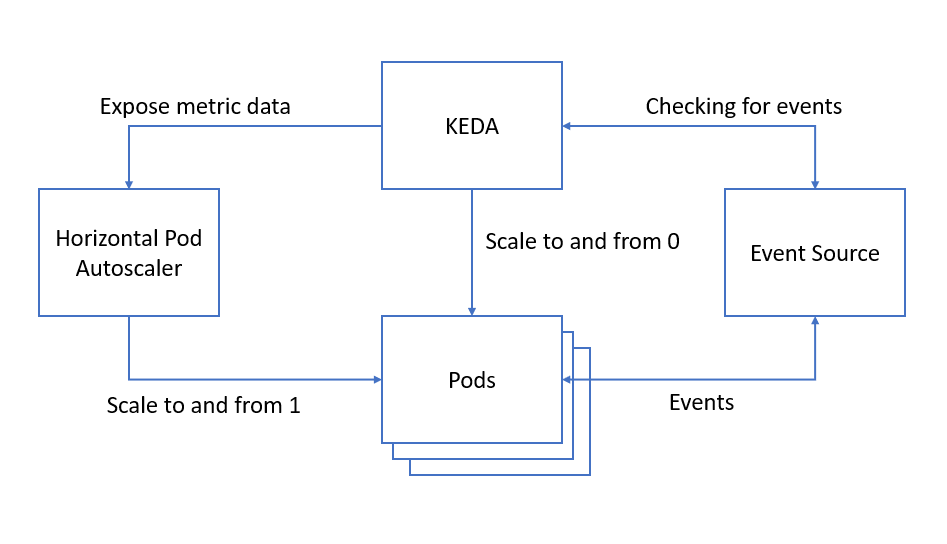
KEDA monitors your event source and regularly checks if there are any events. When needed, KEDA activates or deactivates your pod depending on whether there are any events by setting the deployment's replica count to 1 or 0, depending on your minimum replica count. KEDA also exposes metrics data to the HPA which handles the scaling to and from 1.
The following sections describe how to deploy and use KEDA.
Deploying KEDA
The instructions for deploying KEDA are straightforward and can be found in the KEDA deploy documentation.
There are three ways to deploy KEDA into your Kubernetes cluster:
- Helm
- Operator Hub
- Deploy YAMLs
This article focuses on the third option, although the contents should be the same.
A KEDA deployment contains the KEDA operator, roles, and role bindings, as well as these custom resources:
ScaledObject: The ScaledObject maps an event source to the deployment that you want to scale.TriggerAuthentication: If required, this resource contains the authentication configuration needed for monitoring the event source.
The scaled object controller also creates the HPA for you.
ScaledObject properties
The following code snippet shows the ScaledObject from the sample repository.
apiVersion: keda.k8s.io/v1alpha1
kind: ScaledObject
metadata:
  name: consumer-scaler
  labels:
    deploymentName: consumer-service
  namespace: keda-sample
spec:
  scaleTargetRef:
    deploymentName: consumer-service
  pollingInterval: 1
  cooldownPeriod:  30
  minReplicaCount: 0
  maxReplicaCount: 10
  triggers:
    - type: kafka
      metadata:
        topic: messages
        brokerList: my-cluster-kafka-bootstrap.kafka:9092
        consumerGroup: testSample
        lagThreshold: '5'
The ScaledObject and the deployment referenced in deploymentName need to be in the same namespace.
The following sections describe each property in the spec section.
scaleTargetRef is the reference to the deployment that you want to scale. In this example, the consumer-service app is scaled depending on the number of events coming through to Kafka.
scaleTargetRef:
  deploymentName: consumer-service
The polling interval is in seconds. This is the interval in which KEDA checks the triggers for the queue length or the stream lag.
pollingInterval: 1 # Default is 30
The cooldown period is also in seconds, and it is the period of time to wait after the last trigger activated before scaling back down to 0.
cooldownPeriod: 30 # Default is 300
But what does activated mean and when is a trigger activated? Having a look at the code and the documentation, activated is the time at which KEDA last checked the event source and found that there were events. At that point, the trigger is set to active.
The next time KEDA looks at the event source and finds it empty, the trigger is set to inactive and kicks off the cooldown period before scaling down to 0.
This timer is cancelled if any events are detected again in the event source.
This could be interesting to balance with the polling interval to make sure it doesn't scale down too fast before the events are done being consumed!
The following code sets the minimum number of replicas that KEDA will scale a deployment down to.
minReplicaCount: 0 # Default is 0
maxReplicaCount sets the maximum number of replicas that KEDA will scale up to, as you can see here:
maxReplicaCount: 10 # Default is 100
This is the list of triggers to use to activate the scaling. In this example, I use Kafka as my event source.
triggers:
  - type: kafka
Kafka trigger
Although KEDA supports multiple types of event sources, this article uses the Kafka scaler. You can see the YAML for this below:
triggers:
  - type: kafka
    metadata:
      topic: messages
      brokerList: my-cluster-kafka-bootstrap.kafka:9092
      consumerGroup: testSample
      lagThreshold: '5'
Kafka scaler configuration
The following code snippets show you the Kafka trigger properties to use with KEDA:
The following code is the name of the topic that you want to check the events in.
topic: messages
Here you can list the brokers that KEDA should monitor on as a comma-separated list.
brokerList: kafka-cluster-kafka-bootstrap.keda-sample:9092
This is the name of the consumer group and should be the same one as the one that is consuming the events from the topic so that KEDA knows which offsets to look at.
consumerGroup: testSample
In the documentation, the lagThreshold property is described as how much the event stream is lagging, which might suggest a time-based metric.
In reality, the lag refers to the number of records that haven't been read yet by the consumer. KEDA checks against the total number of records in each of the partitions and the last consumed record. After some calculations, this is used to identify how much it should scale the deployments.
lagThreshold: '3' # Default is 10
For Kafka, the number of partitions in your topic affects how KEDA handles the scaling as it will not scale beyond the number of partitions you requested for your topic.
KEDA in practice
The KEDA introduction sample repository contains a simple consumer service that uses Kafka as the event source. Grab the code and follow along with the experiments below. Instructions for starting the services are in the README.
The repository contains a basic consumer service that outputs the messages from the Kafka topic, along with the KEDA scaler.
The following output shows the keda-sample namespace before KEDA starts:
$ kubectl get all -n keda-sample
NAME                                    READY   STATUS    RESTARTS   AGE
pod/consumer-service-7d4bd5df95-l474d   1/1     Running   0          2m56s

NAME                       TYPE        CLUSTER-IP       EXTERNAL-IP   PORT(S)    AGE
service/consumer-service   ClusterIP   10.107.101.221   <none>        8090/TCP   2m56s

NAME                               READY   UP-TO-DATE   AVAILABLE   AGE
deployment.apps/consumer-service   1/1     1            1           2m56s

NAME                                          DESIRED   CURRENT   READY   AGE
replicaset.apps/consumer-service-7d4bd5df95   1         1         1       2m56s
You can see that there is one pod for the consumer-service currently active.
The following output shows what happens after you start the KEDA scaler:
$ kubectl get all -n keda-sample
NAME                       TYPE        CLUSTER-IP       EXTERNAL-IP   PORT(S)    AGE
service/consumer-service   ClusterIP   10.107.101.221   <none>        8090/TCP   5m23s

NAME                               READY   UP-TO-DATE   AVAILABLE   AGE
deployment.apps/consumer-service   0/0     0            0           5m23s

NAME                                          DESIRED   CURRENT   READY   AGE
replicaset.apps/consumer-service-7d4bd5df95   0         0         0       5m23s

NAME                                                            REFERENCE                     TARGETS             MINPODS   MAXPODS   REPLICAS   AGE
horizontalpodautoscaler.autoscaling/keda-hpa-consumer-service   Deployment/consumer-service   <unknown>/5 (avg)   1         10        0          3s
The HPA is created and the consumer-service pod is removed.
Send a message to the Kafka topic:
$ kubectl -n kafka run kafka-producer -ti --image=strimzi/kafka:0.18.0-kafka-2.5.0 --rm=true --restart=Never -- bin/kafka-console-producer.sh --broker-list my-cluster-kafka-bootstrap:9092 --topic messages
If you don't see a command prompt, try pressing enter.
>Hello World
$ kubectl get pods -n keda-sample
NAME                                READY   STATUS    RESTARTS   AGE
consumer-service-7d4bd5df95-j96w8   1/1     Running   0          33s
A new consumer-service pod is running. Once the cooldown period passes, the pod is removed because there are no more events in the topic.
$ kubectl get pods -n keda-sample
No resources found in keda-sample namespace.
The following output shows what happens when you send many messages at once to Kafka:
$ kubectl get pods -n keda-sample
NAME                                READY   STATUS    RESTARTS   AGE
consumer-service-7d4bd5df95-5pp78   1/1     Running   0          17s
consumer-service-7d4bd5df95-hs8qh   1/1     Running   0          8s
There are two pods up!
In a more realistic scenario where there is a stream of messages, you can limit the number of messages that get through for a specified amount of time.
The following command sends 100 messages to the topic, throttled at 3 per second.
kubectl -n kafka run kafka-producer -ti --image=strimzi/kafka:0.18.0-kafka-2.5.0 --rm=true --restart=Never -- bin/kafka-producer-perf-test.sh --topic messages --throughput 3 --num-records 100 --record-size 4 --producer-props bootstrap.servers=my-cluster-kafka-bootstrap:9092
Run the following command:
You can see more pods getting created over time to help handle the events that are coming in.
$ kubectl get pods -n keda-sample
NAME                                READY   STATUS              RESTARTS   AGE
consumer-service-7d4bd5df95-j2s5s   0/1     ContainerCreating   0          1s
consumer-service-7d4bd5df95-sq2cb   1/1     Running             0          15s
consumer-service-7d4bd5df95-w6j7g   0/1     ContainerCreating   0          1s
consumer-service-7d4bd5df95-whghl   0/1     ContainerCreating   0          1s
Now there are five pods up. It won't create more than five as I specified five partitions for my Kafka topic.
$ kubectl get pods -n keda-sample
NAME                                READY   STATUS    RESTARTS   AGE
consumer-service-7d4bd5df95-j2s5s   1/1     Running   0          86s
consumer-service-7d4bd5df95-sq2cb   1/1     Running   0          100s
consumer-service-7d4bd5df95-vfc9k   1/1     Running   0          71s
consumer-service-7d4bd5df95-w6j7g   1/1     Running   0          86s
consumer-service-7d4bd5df95-whghl   1/1     Running   0          86s
And once no more events are found in the topic, the deployments get scaled back down.
$ kubectl get pods -n keda-sample
NAME                                READY   STATUS        RESTARTS   AGE
consumer-service-7d4bd5df95-j2s5s   0/1     Terminating   0          3m12s
consumer-service-7d4bd5df95-sq2cb   0/1     Terminating   0          3m26s
consumer-service-7d4bd5df95-vfc9k   0/1     Terminating   0          2m57s
consumer-service-7d4bd5df95-w6j7g   0/1     Terminating   0          3m12s
Scaling Kubernetes jobs
KEDA doesn't just scale deployments, but it can also scale your Kubernetes jobs. Instead of having many events processed in your deployment and scaling up and down based on the number of messages needing to be consumed, KEDA can spin up a job for each message in the event source.
Once a job completes processing its single message, it terminates.
You can configure how many parallel jobs should be run at a time as well, similar to the maximum number of replicas you want in a deployment.
KEDA offers this as a solution to handling long-running executions as the job only terminates once the message processing has completed as opposed to deployments which terminate based on a timer.
Summary and next steps
To explore more KEDA capabilities, try the other KEDA scalers documentation using samples created by the KEDA community in their KEDA samples GitHub repository.
You can also join the KEDA community on their dedicated Slack channel or participate in their community meetings. The information on how exactly to get involved in the community can be found on KEDA's community page.