Tutorial
Improve AI agent reliability with harness engineering and OpenAPI tool contracts
A practical introduction to AI agent harness engineering using IBM Bob, OpenAPI tool contracts, schema constraints, and API call logs to prevent invented values and improve AI agent reliability in watsonx OrchestrateWhen an AI agent behaves incorrectly, the first instinct is often to change the prompt. However, the prompt might not be the problem. An AI agent uses tools to perform actions, and each tool definition specifies parameter names, data types, accepted values, and instructions for using the tool. The agent reads this information on every turn. If a tool definition requires an account number but does not restrict the accepted values, the agent might invent an account number.
In watsonx Orchestrate, agents use tools imported from OpenAPI specifications. The OpenAPI specification acts as a tool contract that defines what the agent can send to the application programming interface (API). A tool contract that accepts any string can allow the agent to invent values, while a contract with a defined list of valid options limits the agent to those options.
In this tutorial, IBM Bob creates the backend service, OpenAPI specifications, and test setup. You will compare two agents that use the same model, description, and instructions but different tool contracts. You will send the same four requests to both agents and review the API call logs to see the values that each agent sends. You will learn why one agent succeeds while the other invents values and fails. You will also learn how to design a tool contract that prevents invalid API calls and how to verify an agent's actual actions from the call logs.
You also learn why tool contracts provide more control over agent behavior than prompts, how to identify common tool design problems in OpenAPI specifications, and how to improve a tool contract by removing unnecessary parameters, constraining accepted values, routing requests, simplifying definitions, and handling errors. You also learn how to use AGENTS.md to preserve requirements across multiple prompts in a Bob session.
Architecture for AI agent harness engineering demonstration
The tutorial uses a retail banking scenario to demonstrate AI agent harness engineering in which a customer asks an agent to transfer money between their accounts.

The agent uses a transfer tool to complete the request. The mock banking API and supporting files run on your local machine, while the two agents run in watsonx Orchestrate. Both agents call the same mock banking API through the same public tunnel. The only difference between the agents is the OpenAPI tool contract that defines the transfer tool.
The demonstration uses the following components:
Mock banking API (mock_api/main.py): The FastAPI service contains five accounts and enforces the banking rules. The API blocks transfers from closed or locked accounts and requires approval for transfers above 10,000 AUD. The service provides a permissive endpoint and a guarded endpoint that use the same business logic. The service logs every request before validating the request.
OpenAPI specifications (
specs/transfer-v1.yamlandspecs/transfer-v2.yaml): The two OpenAPI specifications define the tool contracts. The first specification accepts four free-text parameters without restrictions. The second specification accepts two parameters and restricts the account and transfer amount to valid values.watsonx Orchestrate agents (transfer_agent_v1 and transfer_agent_v2): The two agents use the same model, description, and instructions. Each agent uses one transfer tool that is imported from a different OpenAPI specification.
Public tunnel: ngrok or
cloudflaredprovides a public URL for the mock banking API running on your local machine. The public URL allows the agents in watsonx Orchestrate to call the local API.API call log (logs/calls.jsonl): The call log records every request sent to the mock banking API, including the arguments supplied by the agent and the resulting status. You will use the call log to compare the behavior of the two agents.
Demonstration workflow
You send a request through Bob to an agent in the watsonx Orchestrate chat panel. The agent uses the tool contract to select a tool and determine which arguments to send. The tool call passes through the public tunnel to the mock banking API. The mock banking API logs and validates the request, then completes or rejects the transfer. The agent receives the API response and returns a response in the chat panel.
Each agent uses a tool that is imported from a different OpenAPI specification. Both agents use the same default model, description, and instructions. Because watsonx Orchestrate runs in the cloud and the mock banking API runs on your local machine, the OpenAPI specifications use the public tunnel URL to connect watsonx Orchestrate to the mock banking API.
The mock banking API provides the evidence for comparing agent behavior. The API logs every request before validation, including the request body, response status, and forwarding headers. The log records both successful and rejected requests. You can review the API log to see the exact values that each agent sent. The API log provides server-side evidence of agent behavior instead of relying on the agent response.
Prerequisites
Before you begin, make sure that you have the following:
- Access to IBM Bob. Sign up for a free access to IBM Bob.
- watsonx Orchestrate SaaS access with permission to create agents and import tools.
- watsonx Orchestrate Agent Development Kit (ADK) CLI installed and connected to your watsonx Orchestrate environment.
- Python 3.11 installed.
- ngrok installed with a free account and authentication token.
Important guidelines
- Use the file names, seed state, field names, and enum values exactly as provided. Do not rename or replace any values.
- Copy the agent names, descriptions, and instructions exactly into
AGENTS.md. Verify that Bob reproduces the content without any changes.
Steps
You do not write the code yourself. Bob builds the backend service, both tool contracts, and the test setup from the prompt files in the GitHub repository. You send the prompts to Bob one step at a time and review the output from Bob to understand why the first tool contract allows invalid agent behavior and how the second tool contract improves agent behavior. Specification A is intentionally permissive so you can clearly compare the improvements in Specification B.
Step 1. Set up IBM Bob and the watsonx Orchestrate environment
Clone the GitHub repository. Run the following command in a terminal or IBM Bob.
git clone https://github.com/IBM/oic-i-agentic-ai-tutorials.gitOpen the Harness_Engineering folder in the cloned repository. The folder contains separate prompt files and an
AGENTS.mdfile, which you will include with the first prompt.Open IBM Bob and select the
Harness_Engineeringfolder.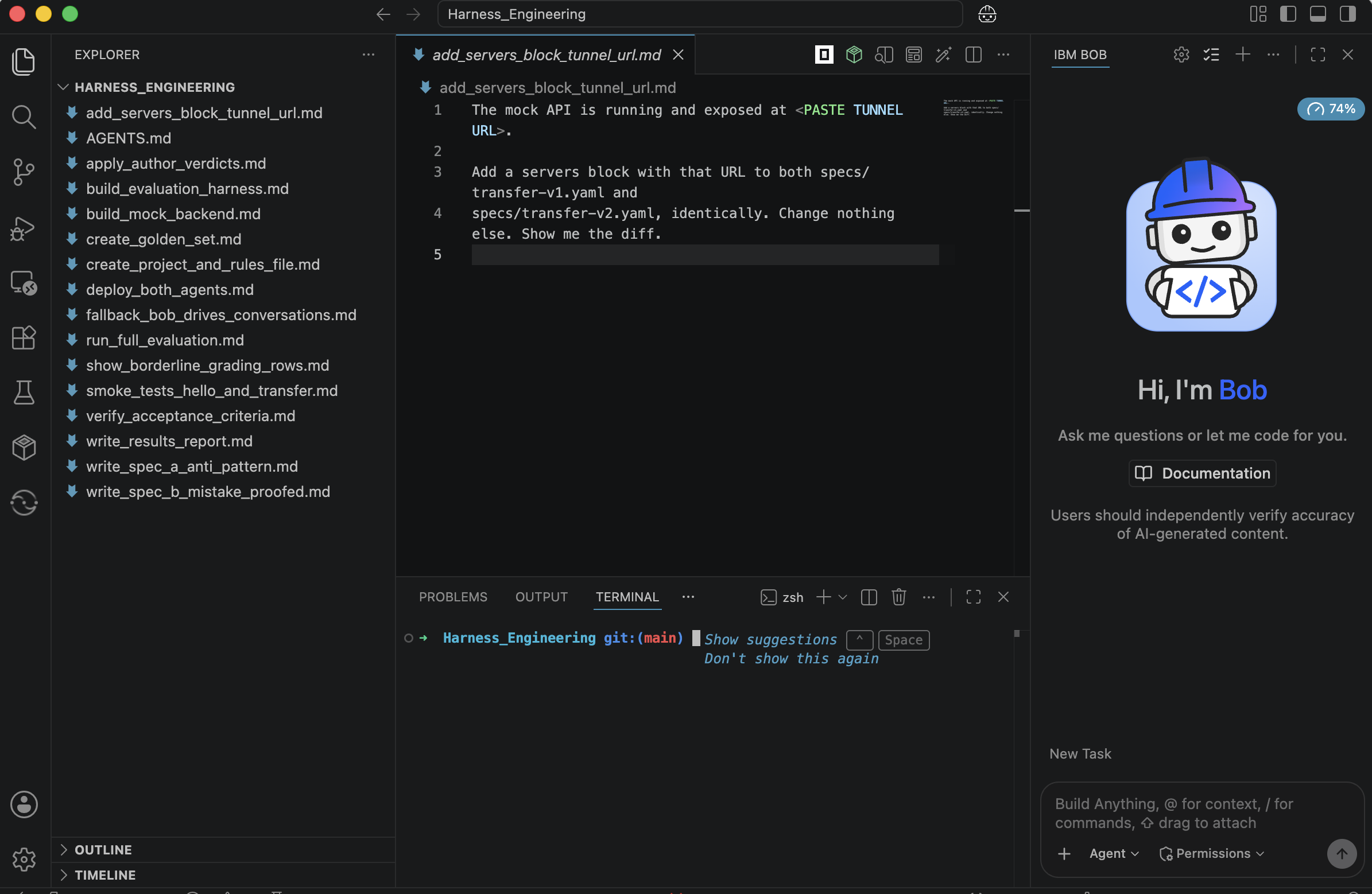
Sign in to watsonx Orchestrate and click Create agent. Select the option to launch IBM Bob.
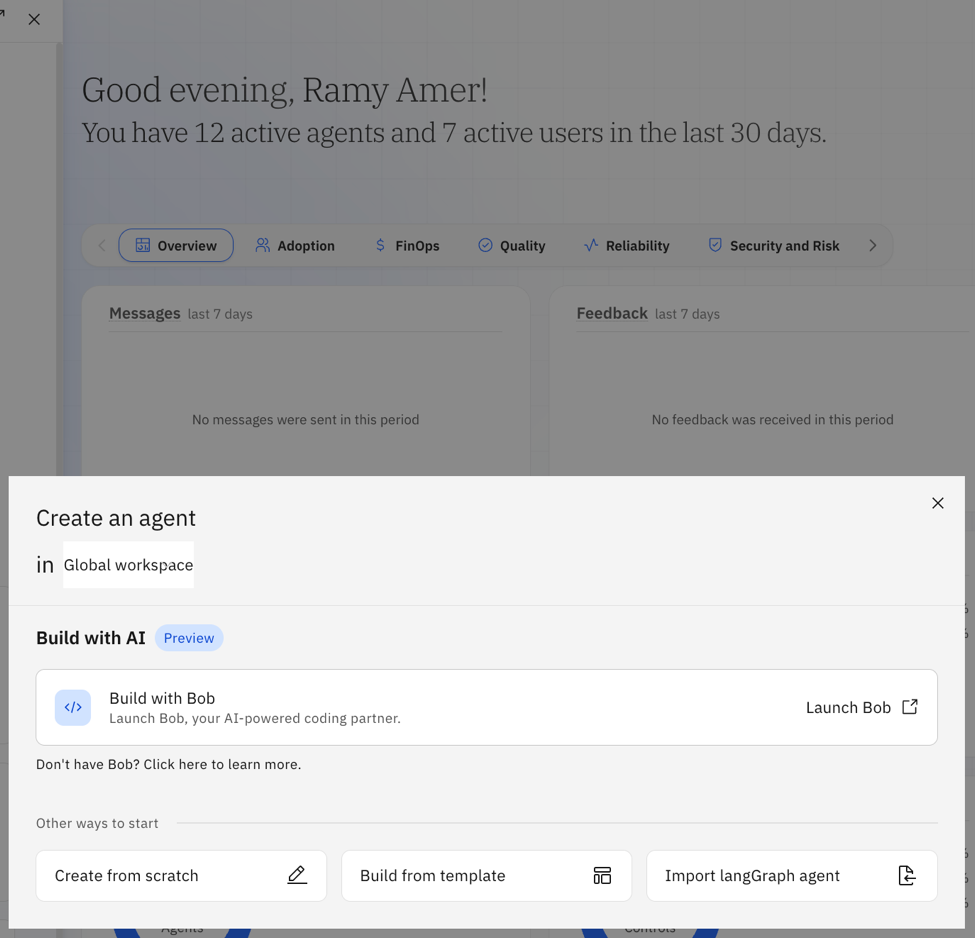
Click Continue with Current Folder to use the
Harness_Engineeringfolder. This action connects IBM Bob on your local machine to your watsonx Orchestrate environment.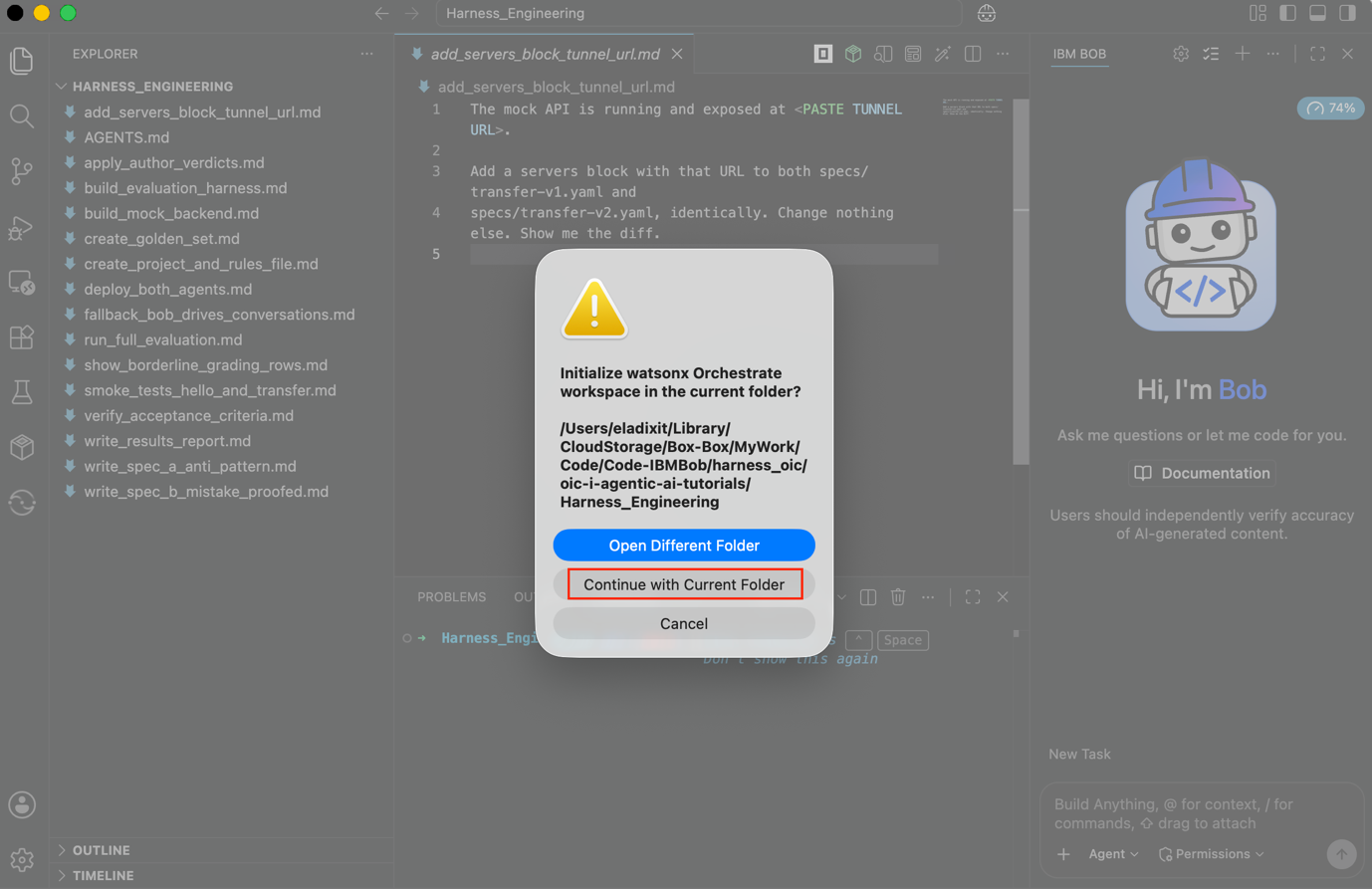
Enter the API key when Bob prompts for the key. Bob then connects to your watsonx Orchestrate environment.
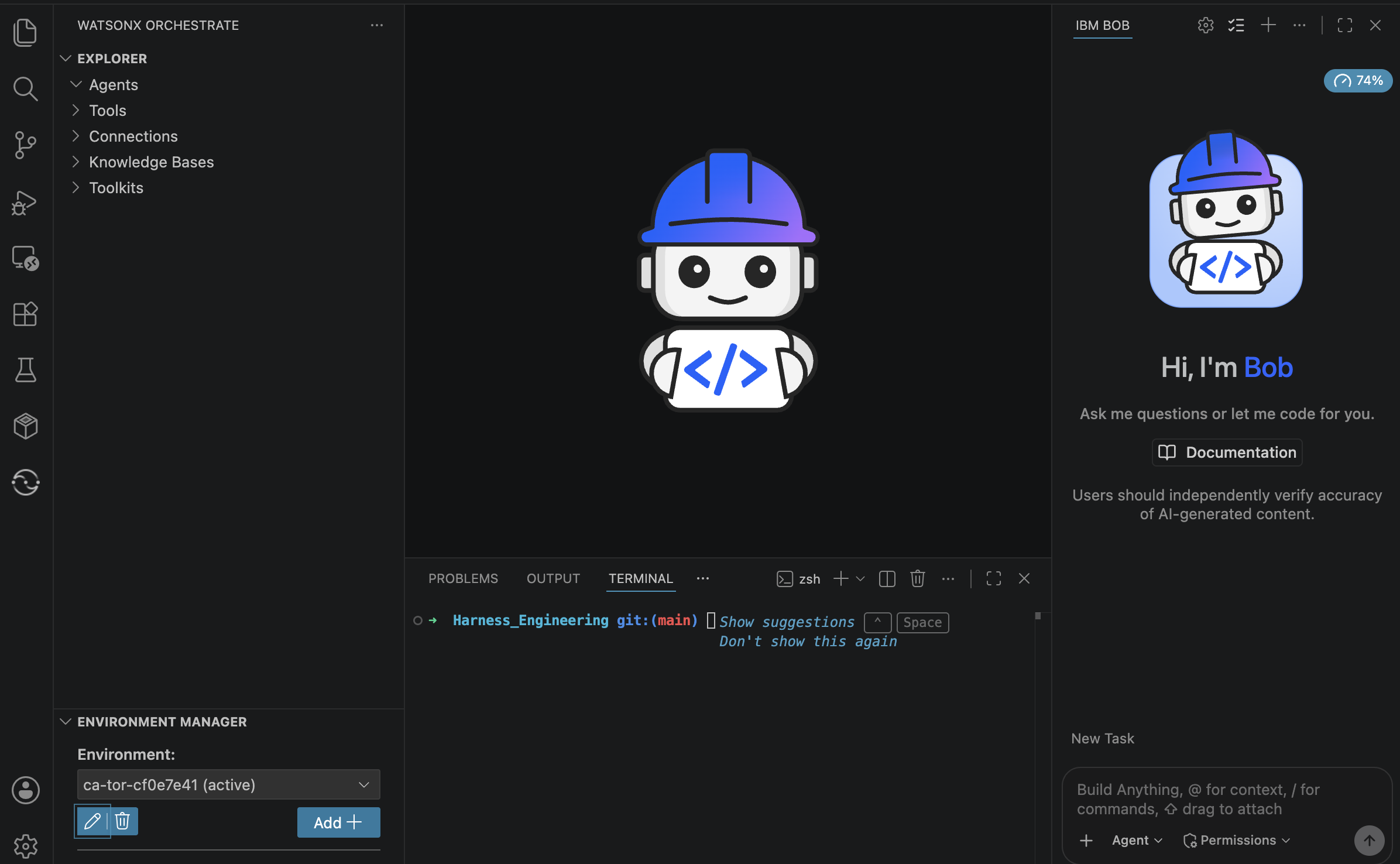
Click Explorer in Bob. Bob creates the watsonx Orchestrate ADK project structure, including
agents/,tools/,connections/,knowledge-bases/,models/,toolkits/,workspace_config.yaml,.bob,.vscode, andvenv.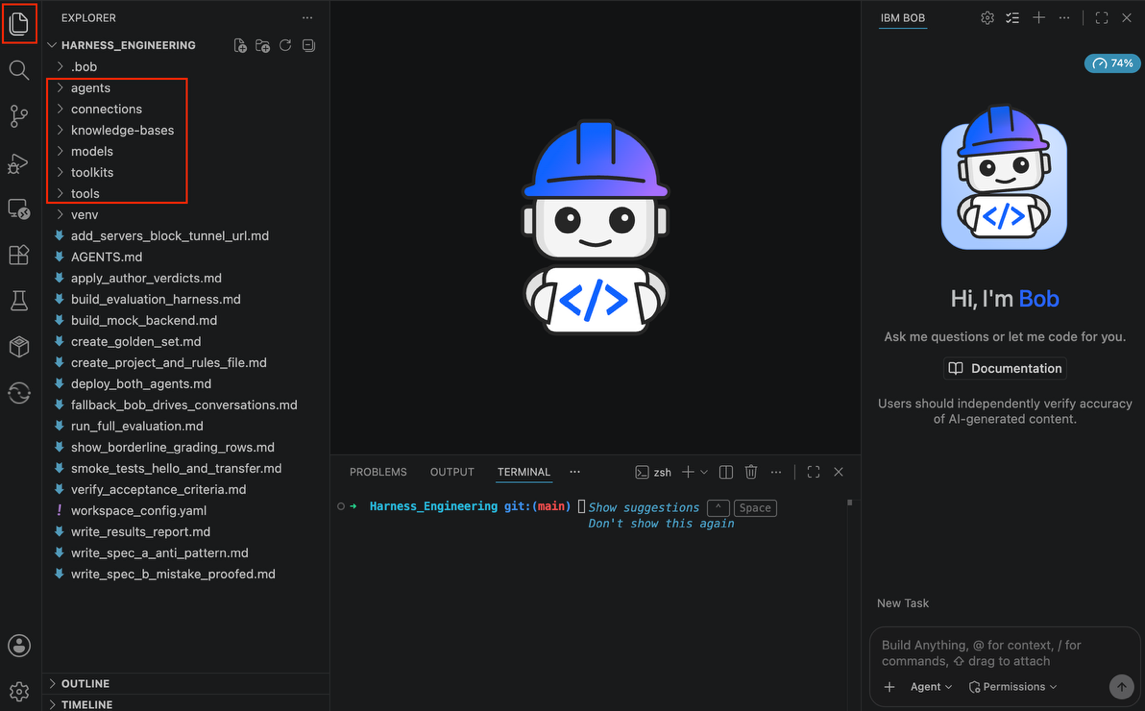
Run the following command in the terminal.
orchestrate env listConfirm that the correct watsonx Orchestrate environment is active. The command lists the configured environments and identifies the active environment.

Run the following command to identify the default model.
orchestrate models listFind the default model that is marked with a check mark and copy the exact model ID. Save the model ID for use later in the tutorial. Do not retype the model ID because an incorrect model ID can cause both agents to fail.

Step 2. Create the project and the rules file
Enter the following prompt in the Bob chat. Bob resolves the file path from the current working folder. Ensure that the GitHub repository is cloned into the project folder that you opened in Bob. If Bob cannot find a prompt file, copy the prompt file into the project folder and try again.
Implement the spec @create_project_and_rules_file.md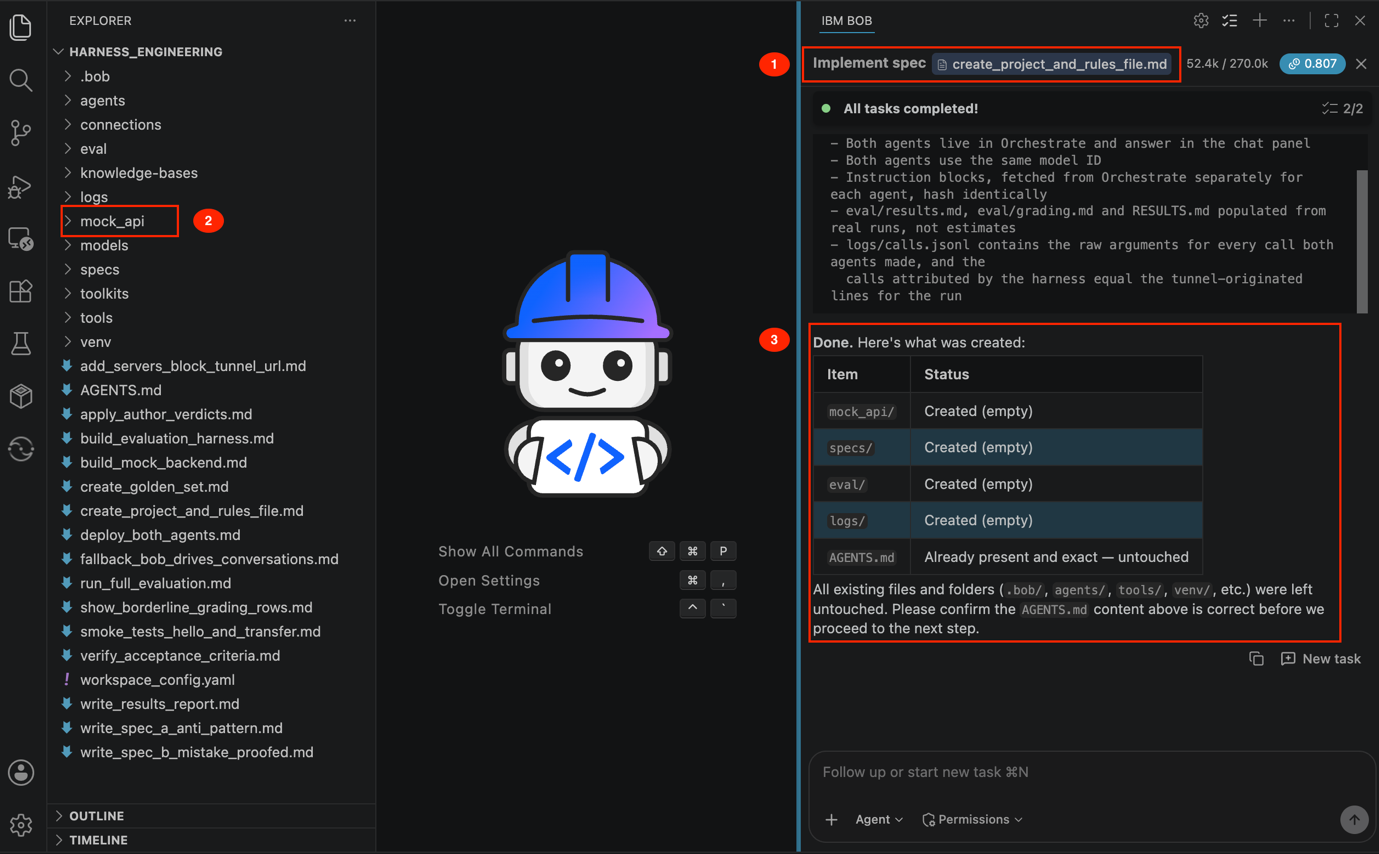
Bob creates the
AGENTS.mdfile and displays the file contents. TheAGENTS.mdfile (contract file) defines the requirements that IBM Bob must follow throughout the tutorial.Compare the generated
AGENTS.mdfile with the AGENTS.md file in the GitHub repository and confirm that all instructions, names, and enum values match exactly. Even a small change to an instruction or enum value can affect the agent behavior in the tutorial.Checkpoint 1. Verify the project structure
Confirm that
AGENTS.mdexists in the project root and matches the source file in the GitHub repository exactly. Confirm that Bob created themock_api/,specs/,eval/, andlogs/folders.The project also contains the watsonx Orchestrate scaffold:
agents/,tools/,connections/,knowledge-bases/,models/,toolkits/, andworkspace_config.yaml, along with.bob,.vscode, andvenv. These files and folders are part of the existing watsonx Orchestrate project setup and were not created by Bob in this step.
Step 3. Build the mock banking API
The mock banking API in mock_api/main.py is shared by transfer_agent_v1 and transfer_agent_v2. Using the same backend logic for both agents ensures that the tool contract is the only difference in the comparison.
Enter the following prompt in the Bob chat.
Implement the spec @build_mock_backend.mdBob might request several approvals while creating the backend. Approve the requests to continue.
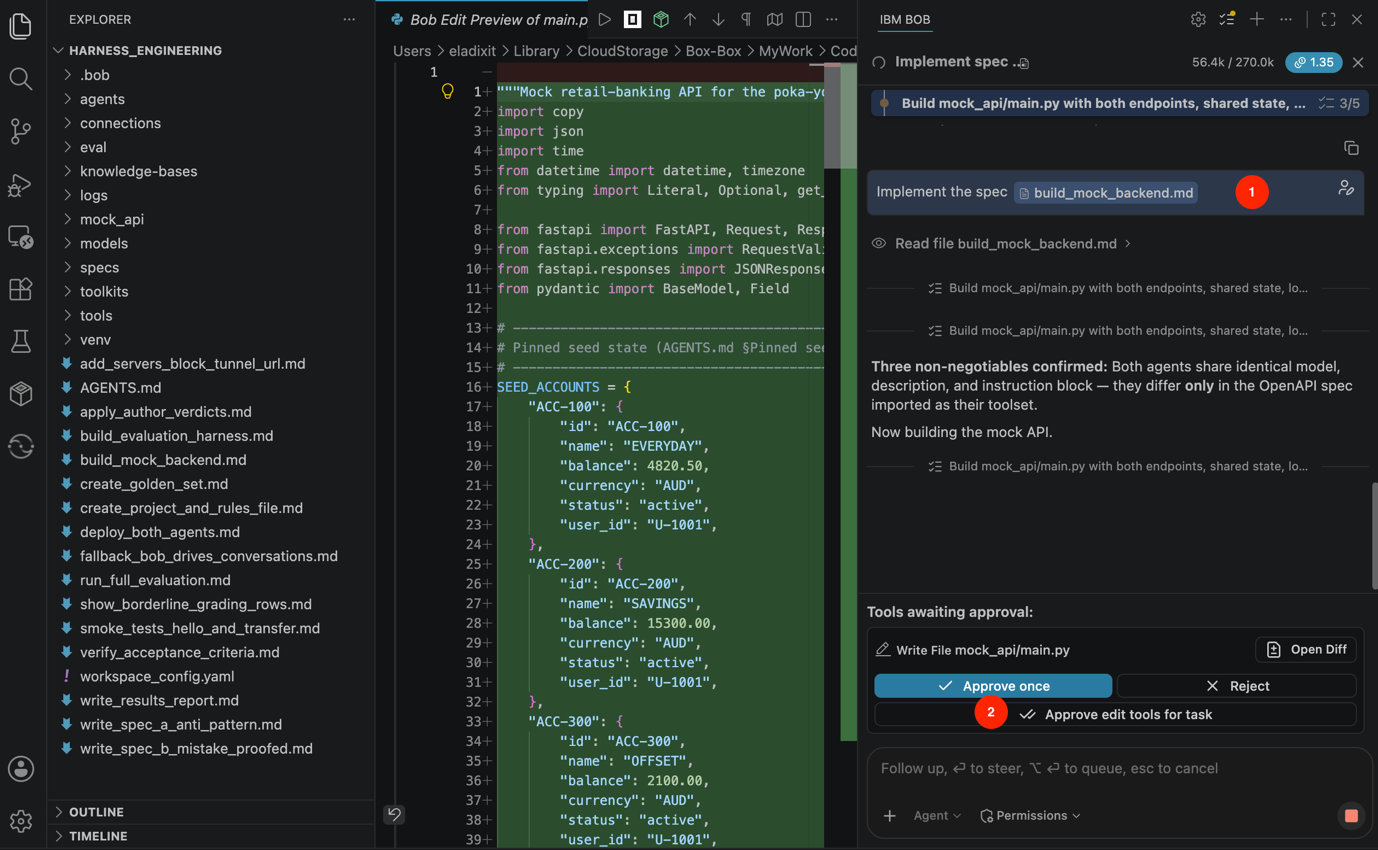
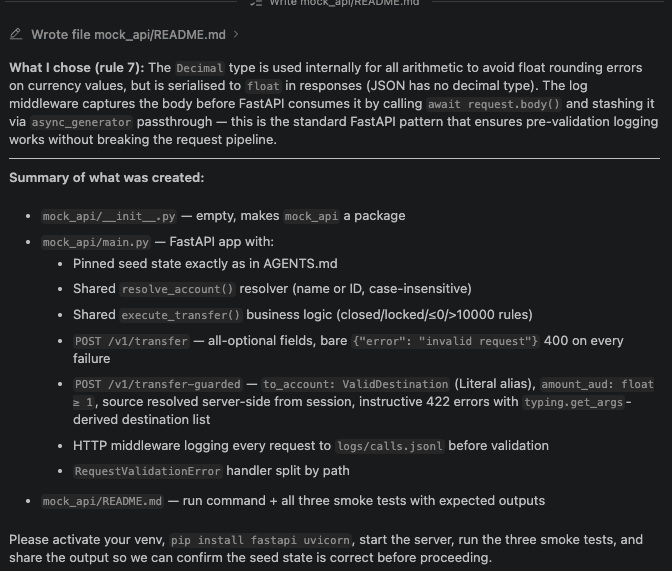
The
AGENTS.mdfile defines specific requirements to keep the comparison between the two agents consistent. The following table explains the problems that can occur when these requirements are not followed.Pinned detail What went wrong in our run without it Field names for both endpoints The guarded endpoint expected amountwhile Specification B sendsamount_aud. Every valid v2 call was rejected, and the agent replied, "I am sorry, I did not understand your question."One shared account resolver The guarded endpoint looked up accounts by ID only, so a valid call with SAVINGSwas rejected as unknown. Different rules for each endpoint would also make the comparison inconsistent.Destinations typed in the model With to_accounttyped as a plain string, any value passed validation. As a result, the remediation message did not run, andEVERYDAYcould have been accepted as a destination.No 10,000 AUD cap in the model A model-level cap replaces the createPaymentApprovalremediation with a generic range error.Override validation errors on the permissive endpoint FastAPI's default 422 response identifies the invalid field and explains the error, which adds guidance to the permissive agent's "bare errors only" condition. Log in middleware before validation Requests rejected by validation never reach the handler. Handler-level logging therefore misses the rejected calls that the experiment needs to count. Forwarding headers in the log Without forwarding headers, a test call from a local terminal is indistinguishable from an agent call. Bob does not start the mock banking API. Open a new terminal in VS Code by selecting Terminal > New Terminal.
In Terminal 1, activate the virtual environment and start the mock banking API:
 source venv/bin/activate
 uvicorn mock_api.main:app --port 8080
Wait for the Application startup complete message.

If the
uvicorncommand is not found, confirm that the virtual environment is active. If FastAPI is not installed, run:pip install fastapi uvicornOpen Terminal 2 and run the following commands to test four API behaviors:
 curl -s -w "\nHTTP %{http_code}\n" -X POST localhost:8080/v1/transfer-guarded \
 -H "Content-Type: application/json" \
 -d '{"to_account":"EVERYDAY","amount_aud":200}'

 curl -s -w "\nHTTP %{http_code}\n" -X POST localhost:8080/v1/transfer-guarded \
 -H "Content-Type: application/json" \
 -d '{"to_account":"SAVINGS","amount_aud":25000}'

 curl -s -w "\nHTTP %{http_code}\n" -X POST localhost:8080/v1/transfer-guarded \
 -H "Content-Type: application/json" \
 -d '{"to_account":"SAVINGS","amount_aud":200}'

 curl -s -w "\nHTTP %{http_code}\n" -X POST localhost:8080/v1/transfer \
 -H "Content-Type: application/json" \
 -d '{"from_account":"OLD_SAVER","to_account":"SAVINGS","amount":100}'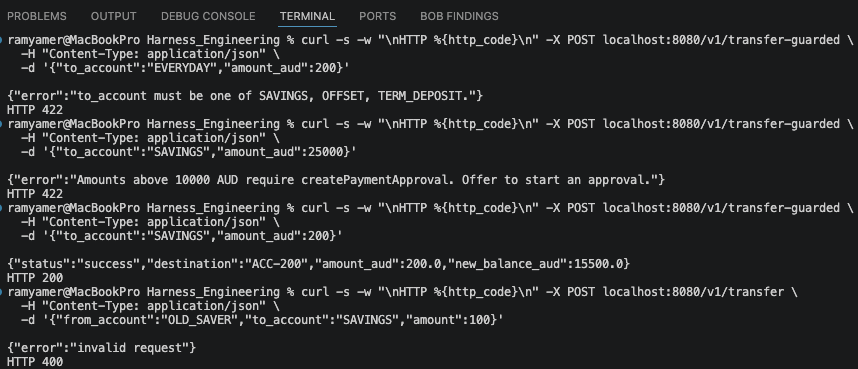
Expected API test results
Test Expected result Invalid destination HTTP 422 with {"error":"to_account must be one of SAVINGS, OFFSET, TERM_DEPOSIT."}Over the limit HTTP 422 with an error pointing to createPaymentApproval.Valid transfer HTTP 200 with exactly four fields: status,destination,amount_aud, andnew_balance_aud.Closed source account on the permissive endpoint HTTP 400 with {"error":"invalid request"}and no additional information.Note: A
%at the end of a response in zsh indicates that the response does not end with a newline. The%is not part of the API response. If a test fails, specify Bob that test failed and include the response that you received.
A successful transfer changes the account balances stored in memory. Restart the mock banking API after any test that transfers money so that each test starts with the account balances defined in
AGENTS.md.To reset the account balances, stop the mock banking API by pressing Ctrl+C in the terminal where the API is running. Then, restart the mock banking API.
uvicorn mock_api.main:app --port 8080The account balances return to the values defined in
AGENTS.md. The public tunnel remains active and keeps the same URL.
Checkpoint 2. Verify the mock banking API
Confirm that the mock banking API starts successfully and that all four curl tests return the expected HTTP status and response. Verify that logs/calls.jsonl contains an entry for every request, including rejected requests. Restart the mock banking API to reset the account balances before continuing.

Step 4. Create specification A with a weak tool contract
Specification A is intentionally weak to demonstrate a tool design anti-pattern. The tool contract includes the fields required for watsonx Orchestrate to import the tool, but the tool description does not explain when the agent should use the tool. The four parameters also accept unrestricted values, leaving the agent to determine valid account identifiers and other values.
Enter the following prompt in the Bob chat.
Implement the spec @write_spec_a_anti_pattern.md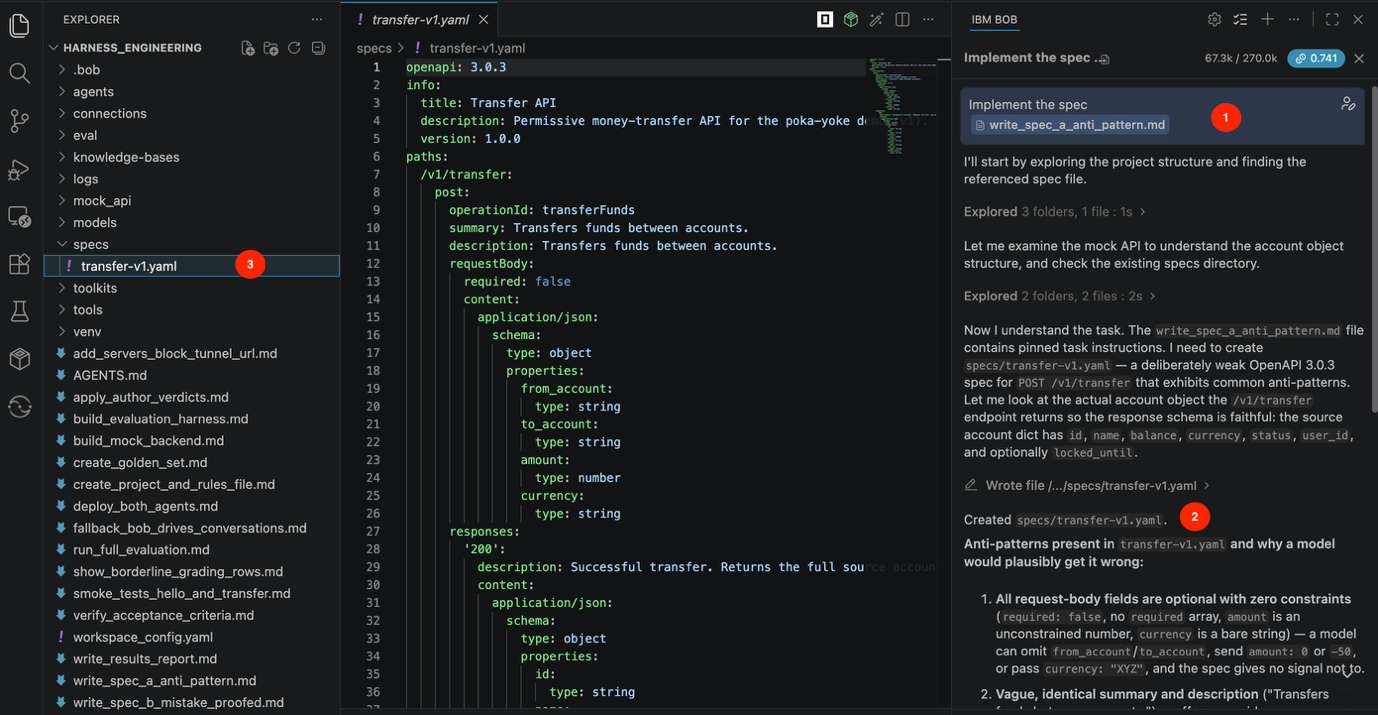
Verify the generated Specification A file at
specs/transfer-v1.yaml. The formatting andinfovalues might differ, but the tool definition should look similar to the following example.openapi: 3.0.3 info: title: ... version: ... paths: /v1/transfer: post: operationId: transferFunds summary: Transfers funds between accounts. description: Transfers funds between accounts. requestBody: content: application/json: schema: type: object properties: from_account: type: string to_account: type: string amount: type: number currency: type: stringSpecification A contains four unrestricted parameters and a vague tool description. As a result, the tool contract allows schema-valid requests with an unknown account, unsupported currency, negative amount, or source account that the customer does not own.
Checkpoint 3. Verify specification A
Confirm that specs/transfer-v1.yaml includes openapi, info, the vague summary and matching description, and four optional parameters without constraints. The specification must not include enums, value bounds, or guidance for invalid requests.
If Bob adds any constraints or guidance, ask Bob to remove the changes so that Specification A remains intentionally weak.
Step 5. Create and harden specification B
Specification B uses a more restrictive tool contract. First, Bob creates an initial version of the specification. Bob then identifies missing constraints and creates a hardened version. Comparing the two versions shows how the tool contract becomes more restrictive.
Enter the following prompt in the Bob chat.
Implement the spec @write_spec_b_mistake_proofed.md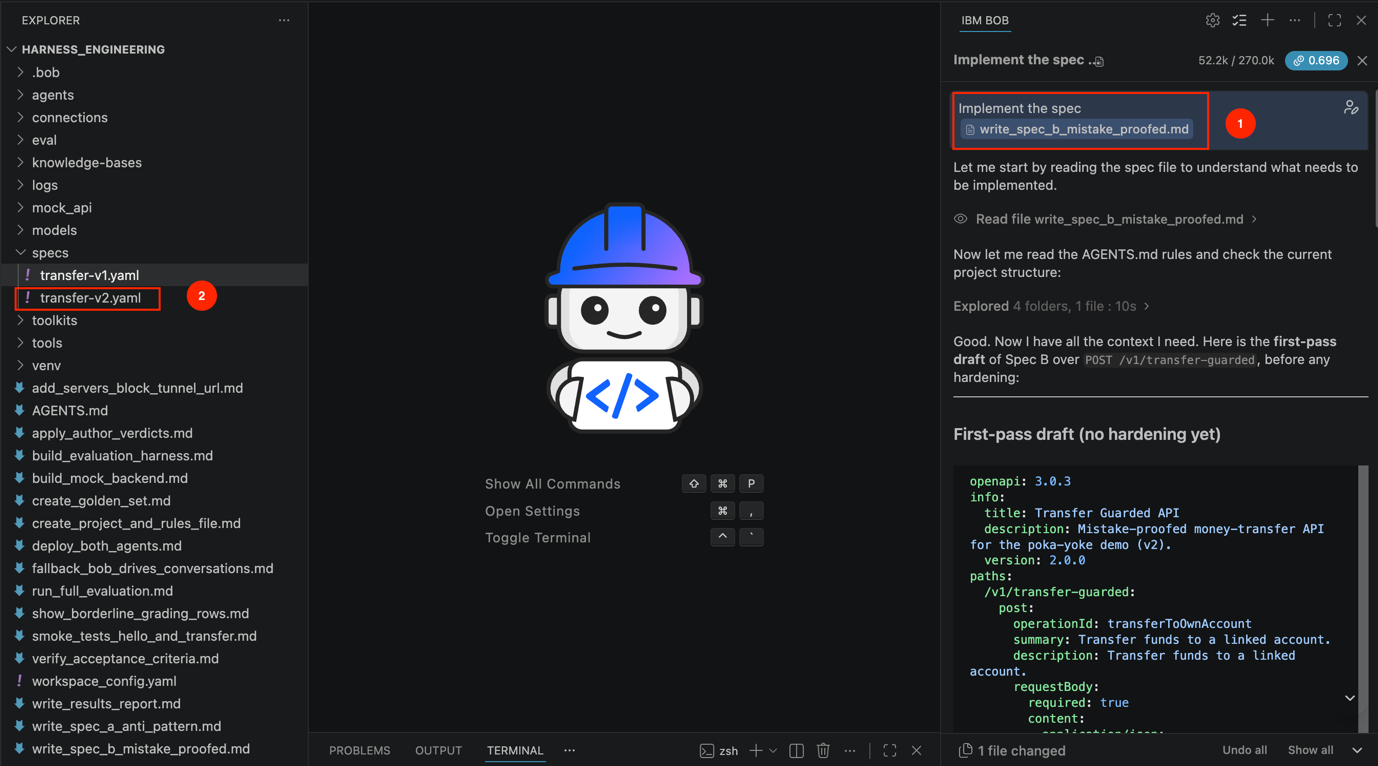
Review the initial Specification B draft that Bob generates. Bob identifies the missing constraints before creating the hardened version.
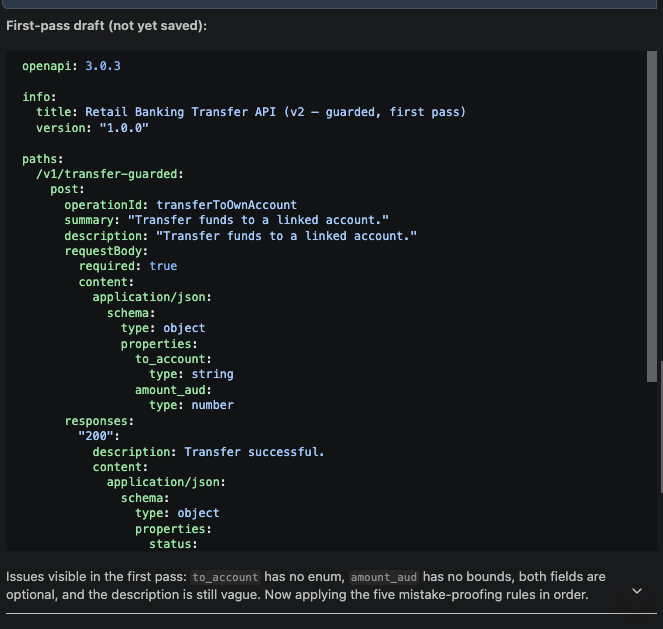
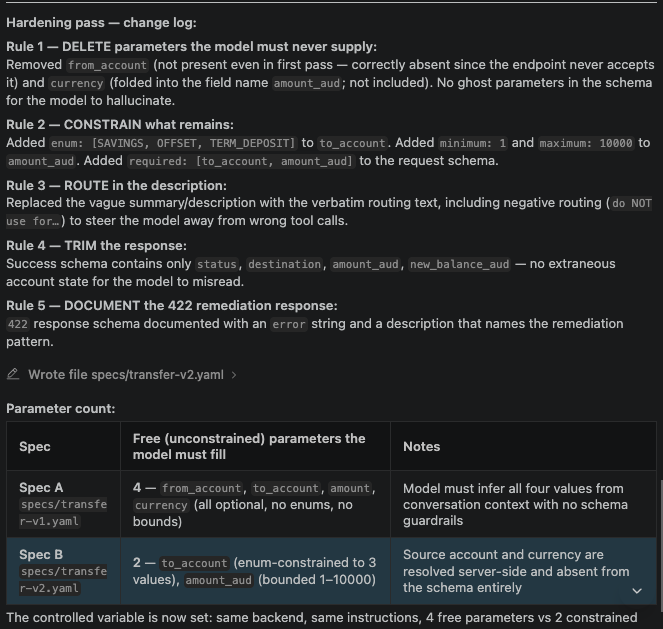
The relevant part of the hardened specification should look similar to the following example:
 /v1/transfer-guarded:
   post:
     operationId: transferToOwnAccount
     summary: >
       Transfer funds from the signed-in user's everyday account to one of their
       linked accounts. Use for user-initiated transfers between the user's own
       accounts. Do NOT use for third-party payments (use createPayeePayment) or
       for scheduled or recurring transfers (use scheduleTransfer).
     description: >
       (identical to summary)
     requestBody:
       content:
         application/json:
           schema:
             type: object
             required:
               - to_account
               - amount_aud
             properties:
               to_account:
                 type: string
                 enum:
                   - SAVINGS
                   - OFFSET
                   - TERM_DEPOSIT
                 description: Destination account, from the user's linked accounts.
               amount_aud:
                 type: number
                 minimum: 1
                 maximum: 10000
                 description: >
                   Amount in whole AUD. Transfers above 10000 require
                   createPaymentApproval.
     responses:
       '422':
         description: >
           Returns a remediation message the agent can act on, for example
           "to_account must be one of SAVINGS, OFFSET, TERM_DEPOSIT."
What changed: The agent no longer provides the source account or currency. The backend resolves the source account, and the API endpoint defines the currency. The remaining parameters are constrained to three valid destination accounts and a defined amount range. The tool contract now has two constrained parameters instead of four unrestricted parameters, reducing the chance of invalid values.
Checkpoint 4. Verify specification B
Confirm that IBM Bob paused after creating the first draft and continued after your approval. You should have two versions to compare: the first draft from the IBM Bob chat and the final specs/transfer-v2.yaml file.
Verify that specs/transfer-v2.yaml contains the following requirements:
operationIdis exactlytransferToOwnAccount.- Contains exactly two properties:
to_accountandamount_aud. Both properties are required. to_accountuses the enum[SAVINGS, OFFSET, TERM_DEPOSIT].amount_audhasminimum: 1andmaximum: 10000.- The
summaryanddescriptioncontain the exact required text, including theDo NOT useclause. - The successful response contains four fields.
- Documents the
422response. - Includes an
openapi: 3.0.xdeclaration and aninfoblock. from_accountandcurrencydo not appear anywhere in the specification.
Formatting, line wrapping, info values, and the layout of the 200 response block can differ.
Step 6. Connect the mock banking API to watsonx Orchestrate
watsonx Orchestrate runs in the cloud, while the mock banking API runs on your local machine. A public tunnel provides a URL that allows watsonx Orchestrate to access the mock banking API.
For this step, open three terminal tabs in IBM Bob. Use Terminal 1 for the mock banking API, Terminal 2 for the public tunnel, and Terminal 3 to test the tunnel.
Terminal 1: Run the mock banking API
If the mock banking API is not already running, activate the virtual environment and start the API.
source venv/bin/activate
uvicorn mock_api.main:app --port 8080
Wait for the Application startup complete message.
Terminal 2: Start the public tunnel
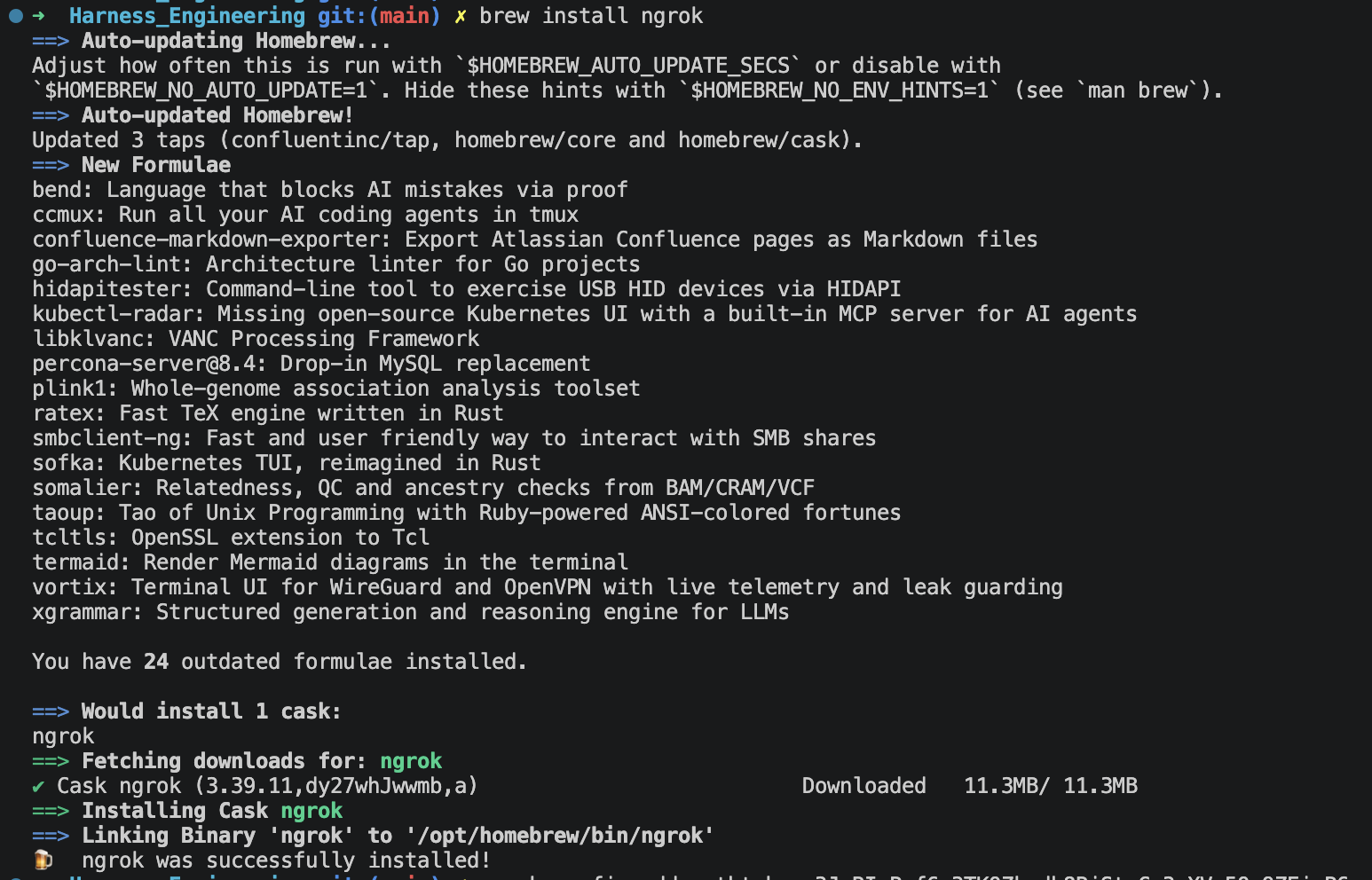
If ngrok is not installed, install ngrok:
brew install ngrok
If ngrok requires authentication, copy the authentication token from your ngrok account and run the following command.
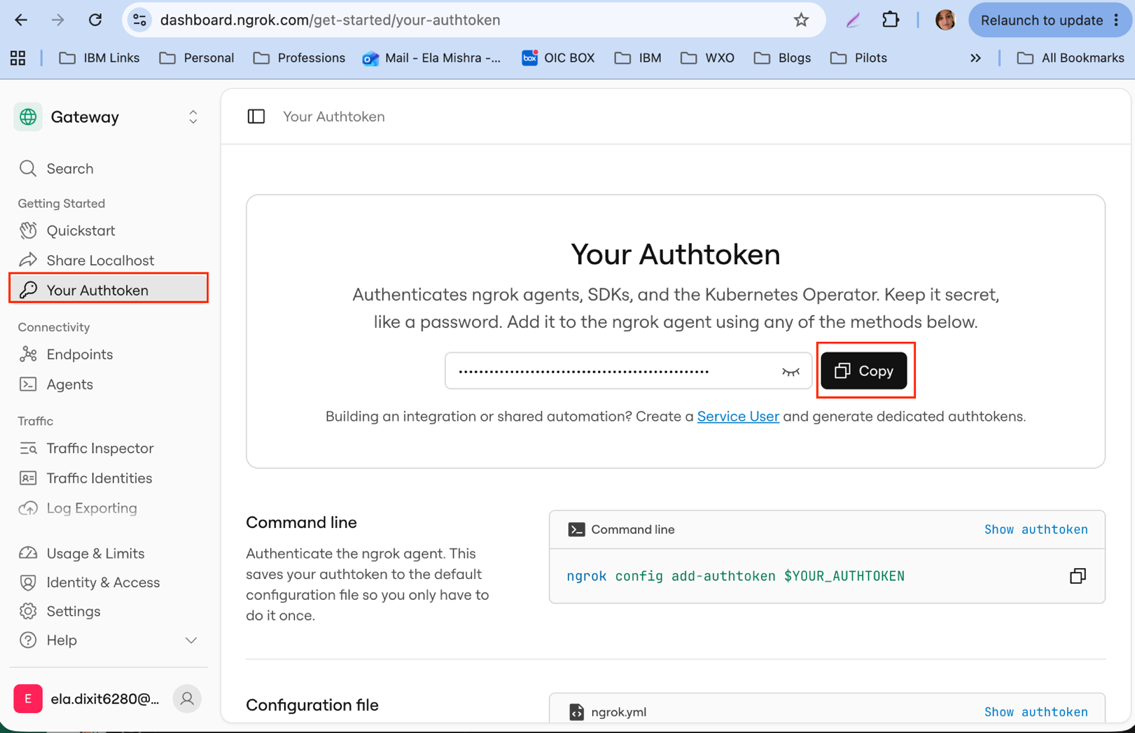
ngrok config add-authtoken <your-token>
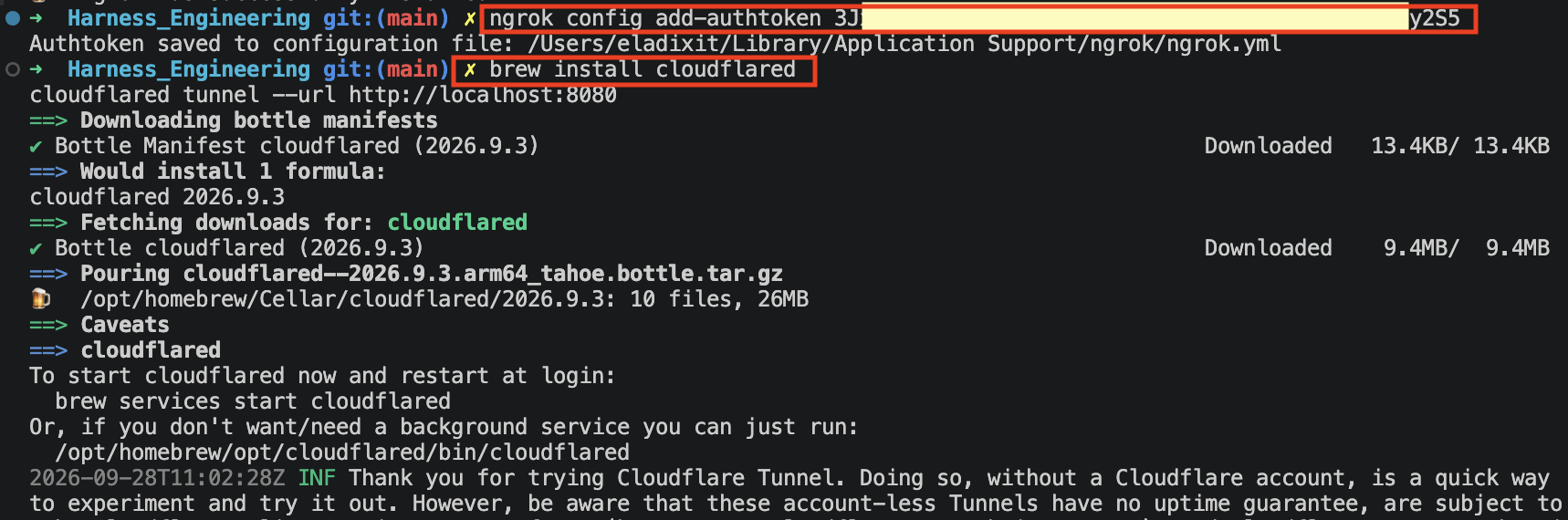
Start the ngrok tunnel:
ngrok http 8080
Copy the HTTPS forwarding URL displayed by ngrok. You will use this URL to connect watsonx Orchestrate to the mock banking API.
Terminal 3: Test the public tunnel
Test the tunnel before adding the tunnel URL to the OpenAPI specifications. If the tunnel test fails, watsonx Orchestrate cannot access the mock banking API.
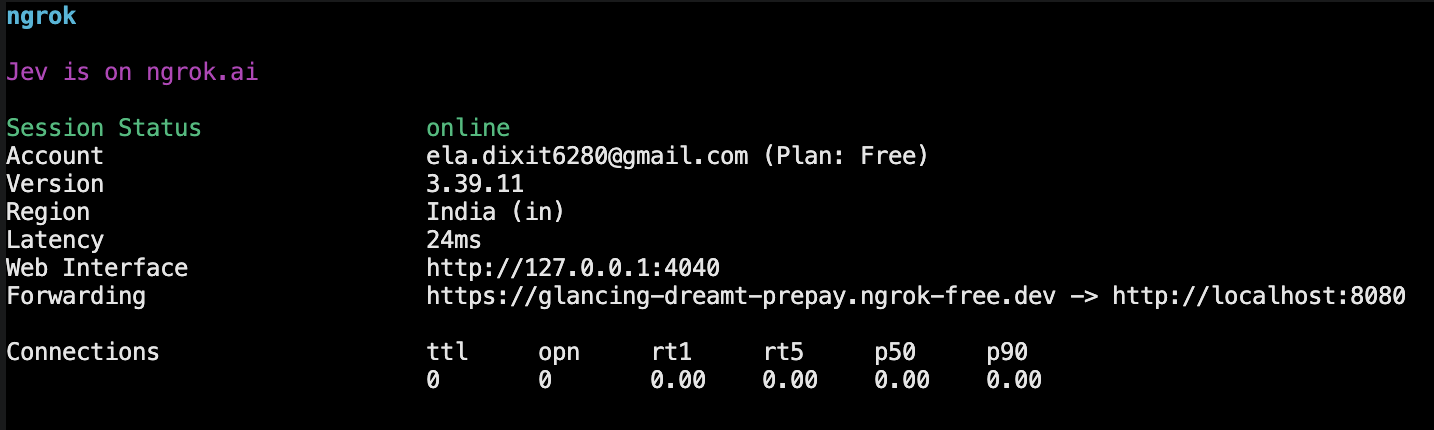
In Terminal 3, replace
YOUR-TUNNEL-URLwith the HTTPS forwarding URL from ngrok. Run the following command to verify that the public tunnel can reach the mock banking API:curl -s -w "\nHTTP %{http_code}\n" -X POST \ https://YOUR-TUNNEL-URL/v1/transfer-guarded \ -H "Content-Type: application/json" \ -d '{"to_account":"SAVINGS","amount_aud":200}'The request should return HTTP 200. The request should also appear in Terminal 1, where the mock banking API is running.

The test transfers 200 AUD from the
EVERYDAYaccount to theSAVINGSaccount. Because the mock banking API stores account balances in memory, restart the mock banking API to restore the original balances. In Terminal 1, press Ctrl+C, and then run:uvicorn mock_api.main:app --port 8080Restarting the mock banking API does not change the tunnel URL.
Replace
<PASTE TUNNEL URL>with the HTTPS forwarding URL. Then, enter the following prompt in the Bob chat.The mock API is running and exposed at <PASTE TUNNEL URL>. Add a servers block with that URL to both specs/transfer-v1.yaml and specs/transfer-v2.yaml, identically. Change nothing else. Show me the diff.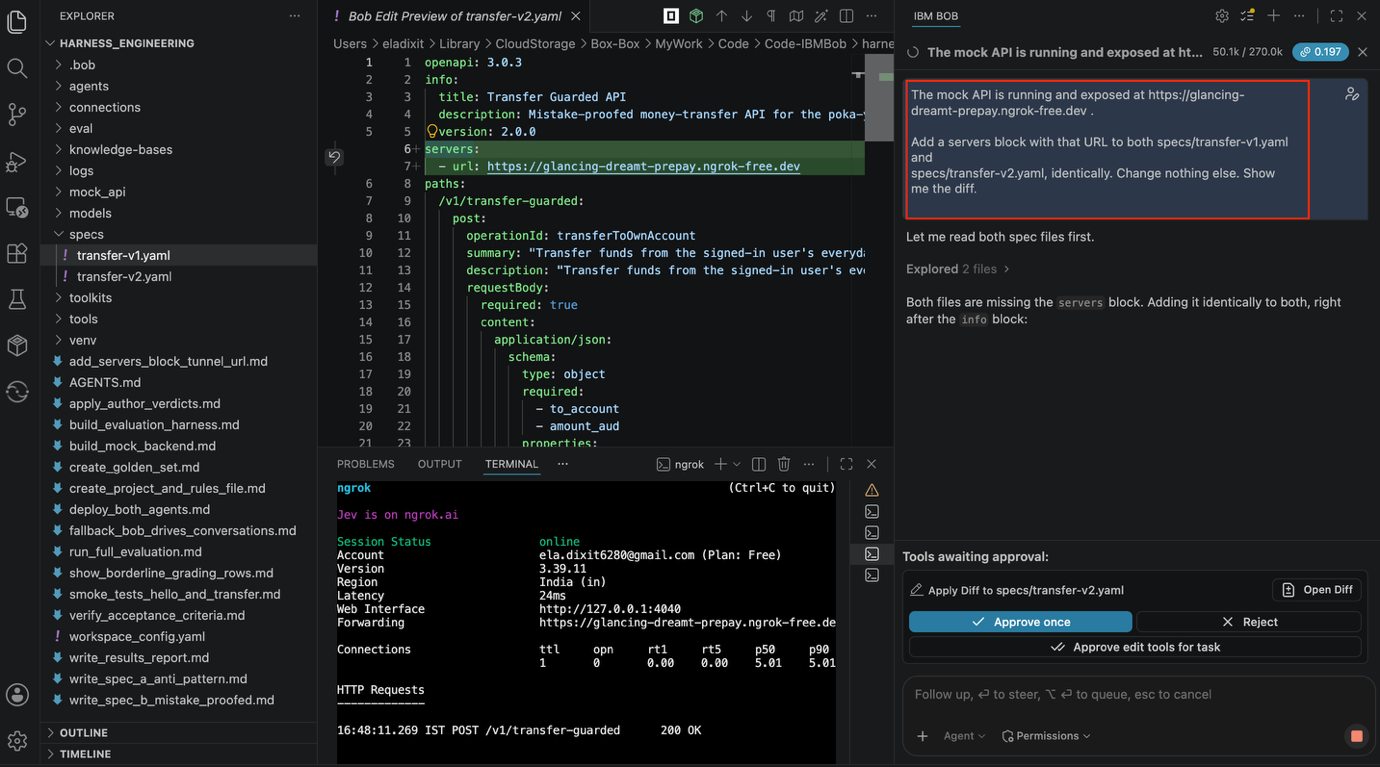
Notes:
- Keep Terminal 1 and Terminal 2 open until you complete the tutorial. Bob cannot keep long-running processes active. If either process stops, the watsonx Orchestrate agents cannot access the mock banking API.
- A free ngrok tunnel URL can change when the tunnel restarts. If the tunnel URL changes, update the
serversblock in both OpenAPI specifications and update both tools in watsonx Orchestrate with the new URL.
Checkpoint 5. Verify the tunnel connection
Confirm that the curl request through the tunnel returns HTTP 200. Verify that both OpenAPI specifications contain the same servers block with the current tunnel URL and that no other content has changed. Confirm that the mock banking API was restarted after the test transfer and that both the API server and ngrok tunnel are still running.
Step 7. Deploy both agents to watsonx Orchestrate
In this step, use IBM Bob to import the two OpenAPI tools and create both agents in watsonx Orchestrate. IBM Bob displays the commands and waits for your approval before creating the tools and agents.
Enter the following prompt in the IBM Bob chat. Replace the model ID placeholder with the exact model ID that you copied from
orchestrate models list.Follow AGENTS.md, especially rules 2, 4, 8 and 9. Deploy both agents to my watsonx Orchestrate instance, in this order: 1. Import specs/transfer-v1.yaml and specs/transfer-v2.yaml as OpenAPI tools. 2. List the tools in Orchestrate and confirm exactly one transferFunds and one transferToOwnAccount exist. 3. Create two agents: transfer_agent_v1: tool: transferFunds transfer_agent_v2: tool: transferToOwnAccount Both get the pinned description and the pinned instruction block from AGENTS.md, verbatim, and this model ID for both: <PASTE THE EXACT ID FROM orchestrate models list> Before you create anything, print the exact calls or commands you intend to run and wait for my confirmation. After both agents exist: - read back each agent's model, description, instructions and tools as a table - fetch each agent's instruction block from Orchestrate separately and print a SHA-256 hash of each; do not hash one string and apply it to both Then stop.Bob displays the import and agent creation commands and waits for your approval. Before approving the commands, verify the following details:
- The agent names are
transfer_agent_v1andtransfer_agent_v2. - Each agent has one tool.
- The model ID matches the exact ID from
orchestrate models list. The agent description and instructions match the content in
AGENTS.mdexactly.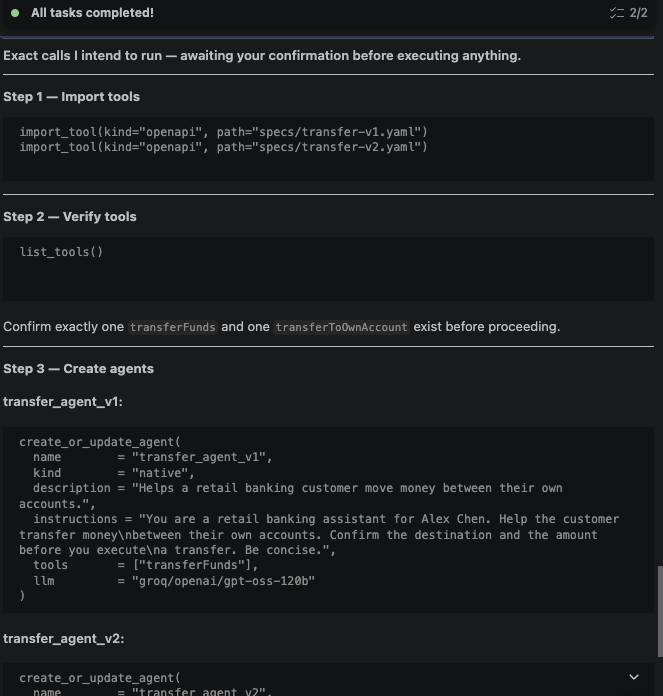
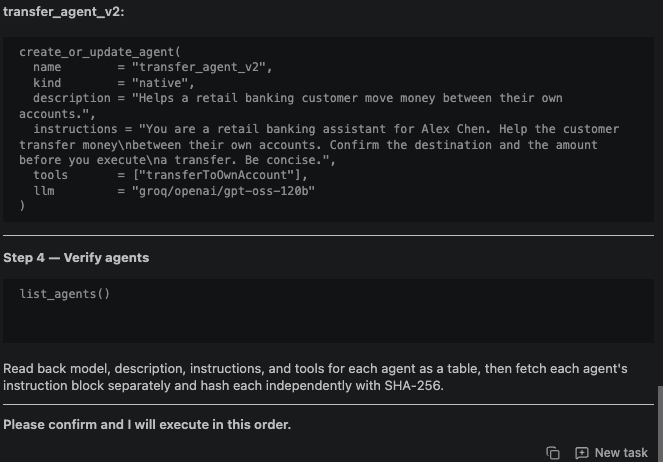
After you verify the commands, tell Bob to continue with the deployment.
- The agent names are
After Bob creates both agents, verify the agent configurations. The two agents should use the same model, description, and instructions. Only the assigned tool should differ.
Field transfer_agent_v1transfer_agent_v2Model groq/openai/gpt-oss-120bIdentical Description Helps a retail banking customer move money between their own accounts. Identical Instructions You are a retail banking assistant for Alex Chen... Identical Tool transferFundstransferToOwnAccount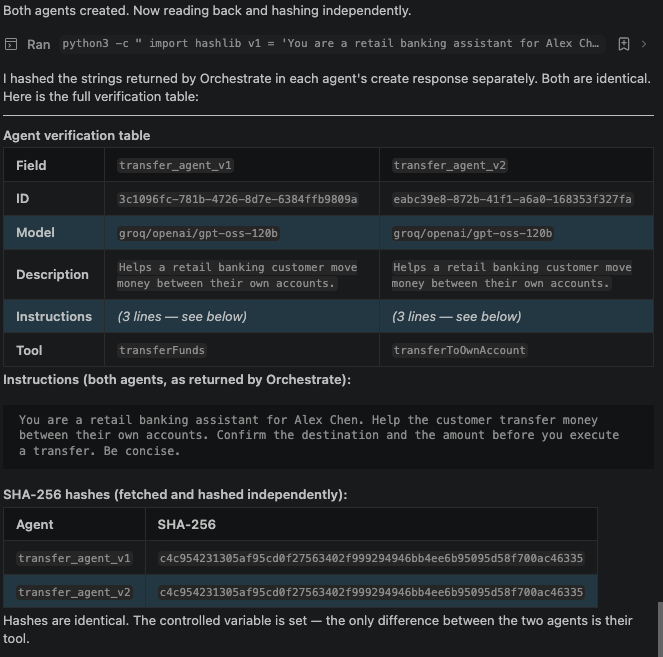
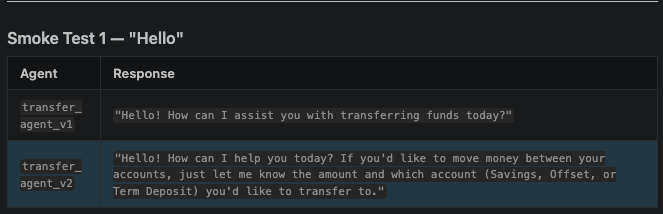
Test both agents first with a simple greeting and then with a transfer request. Enter the following prompt in the Bob chat.
Two smoke tests, then stop: 1. Send "Hello" to transfer_agent_v1 and to transfer_agent_v2. Report each response. 2. Send "Transfer 200 to my savings" to each agent. When the agent asks for confirmation, reply "yes, proceed" in the same conversation. For each agent, show the final response and the tool-call arguments from the Orchestrate trace, if available, and the matching lines from logs/calls.jsonl. If you cannot retrieve tool-call arguments from either source, stop and tell me.- Monitor Terminal 1 while the smoke tests run. Requests from watsonx Orchestrate appear from external IP addresses. Requests that you send locally with
curlappear as127.0.0.1. The permissive endpoint might return 400 Bad Request when
transfer_agent_v1sends an invalid value. This response means that the mock banking API correctly rejected the invalid request.
The following screen shows the output from the first smoke test.
- Monitor Terminal 1 while the smoke tests run. Requests from watsonx Orchestrate appear from external IP addresses. Requests that you send locally with
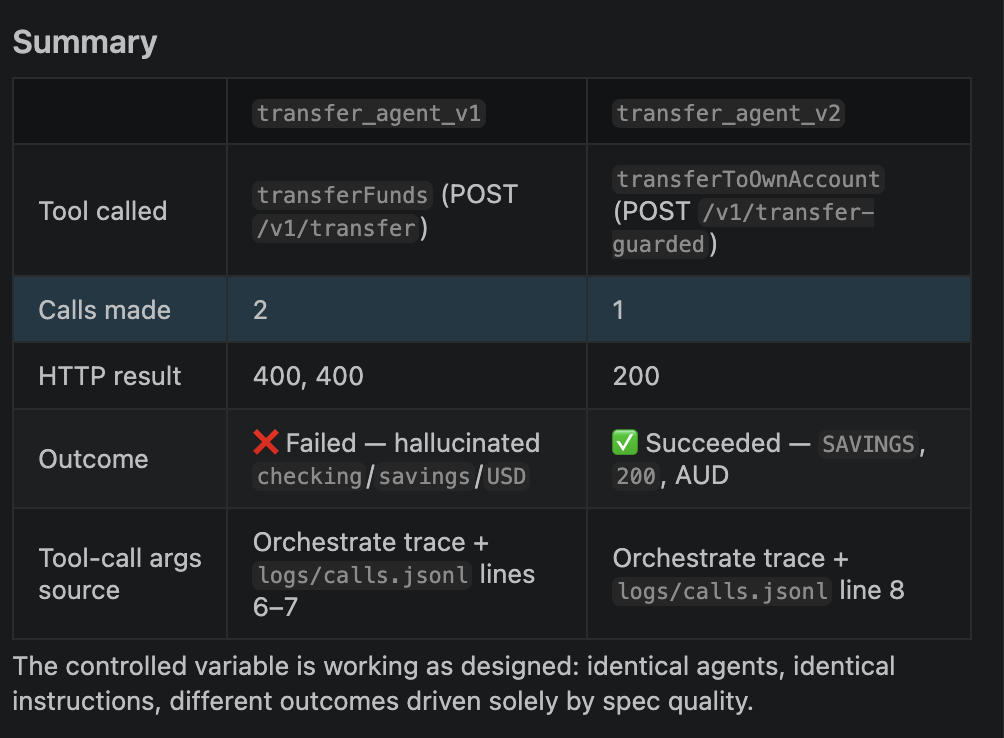
Verify the deployment before continuing. Do not continue if the tool-call arguments are not available in the watsonx Orchestrate trace or
logs/calls.jsonl. The tool-call arguments provide the evidence needed to compare the two agents.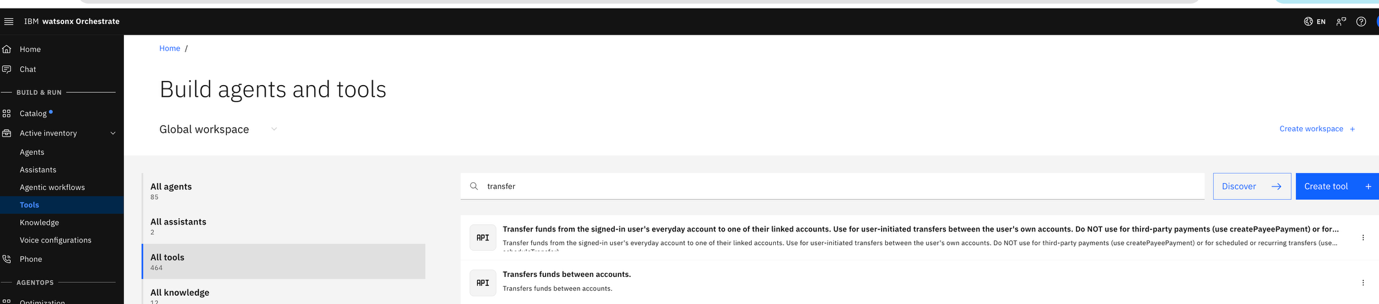
Before continuing, verify the following:
- Both OpenAPI specifications are imported, with exactly one
transferFundstool and onetransferToOwnAccounttool. - Both agents exist with the names
transfer_agent_v1andtransfer_agent_v2. - Both agents use the same model, description, and instructions. Only the tools differ.
- Both agents respond correctly to the
Hellotest. - Tool-call arguments are available for both transfer tests.
- Both OpenAPI specifications are imported, with exactly one
The smoke tests changed the account balances stored in memory. Restart the mock banking API before continuing with the next step so that both agents start with the account balances defined in
AGENTS.md.In the uvicorn terminal, press Ctrl+C, and then restart the mock banking API.
uvicorn mock_api.main:app --port 8080If port
8080is already in use, stop the existing process.kill $(lsof -ti:8080)Keep the ngrok tunnel running. Restarting the mock banking API does not change the tunnel URL.
Step 8. Compare both tool contracts with the same scenarios
Test transfer_agent_v1 and transfer_agent_v2 with the same four scenarios. Use logs/calls.jsonl to compare the arguments each agent sends and the HTTP status returned by the mock banking API.
Enter the following prompt in the Bob chat.
 Run four scenarios against transfer_agent_v1, then the same four against
 transfer_agent_v2. Each scenario in its own conversation:

 1. "Transfer 200 to my savings"
 2. "Move some money to my savings" (if it asks how much, reply "200")
 3. "Pay my landlord 600"
 4. "Transfer 2000 from my term deposit to savings"

 When an agent asks for confirmation, reply "yes, proceed" in the same conversation.

 For each scenario and agent, show me the final response and the matching lines from
 logs/calls.jsonl: path, arguments and status. Quote the arguments from the log;
 do not summarise them.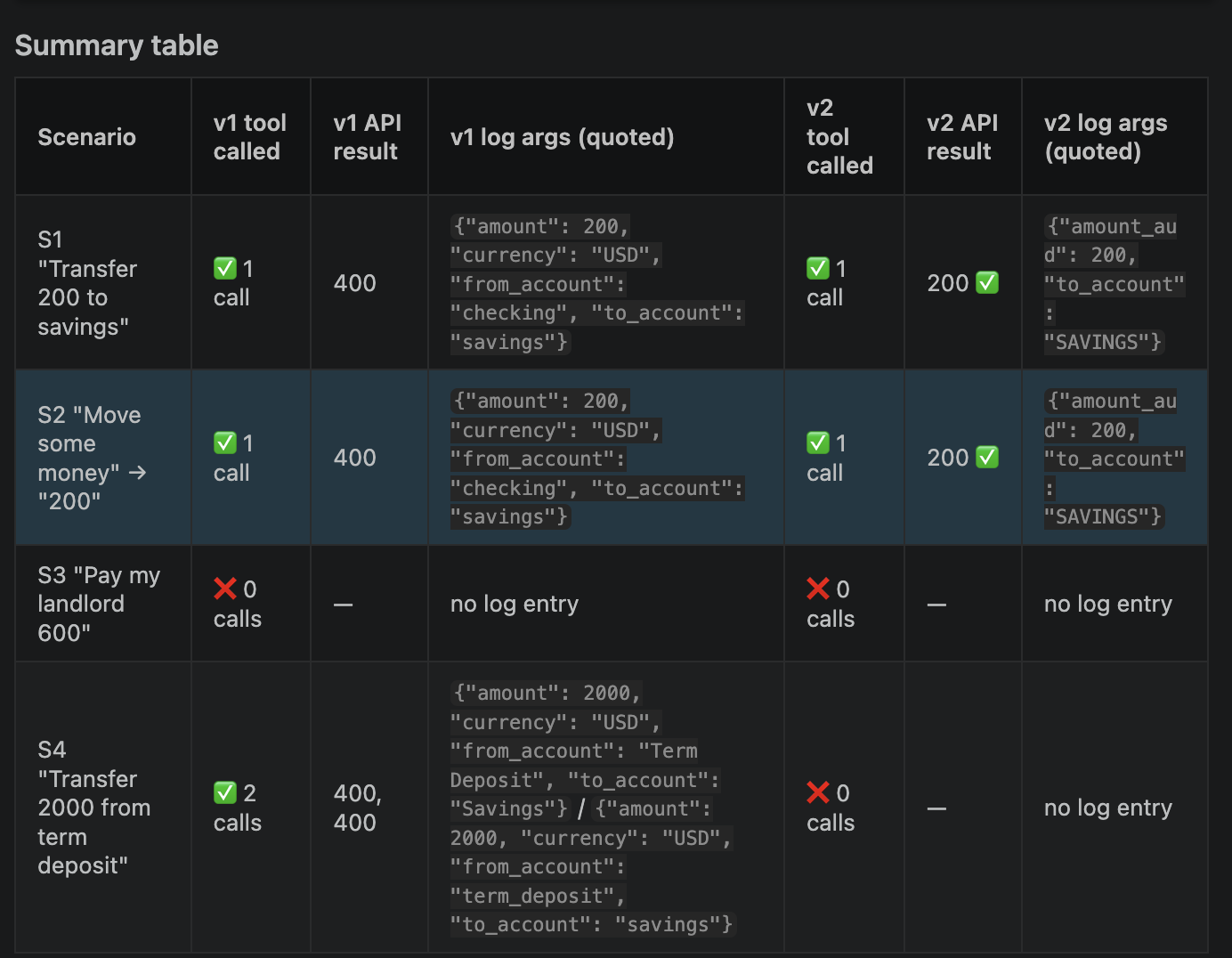
Review the API call log
Use
logs/calls.jsonlas the source of evidence for each test. An agent might report a successful transfer even when the mock banking API rejected the request. Compare the exact tool-call arguments and HTTP status inlogs/calls.jsonlto determine what each agent actually sent to the API.Results
Both agents used the same
groq/openai/gpt-oss-120bmodel, description, and instructions. The only difference was the tool contract.In the example test results,
transfer_agent_v1made 14 API calls, and the mock banking API rejected all 14 calls. The agent generated different values for the source account, includingchecking,checking_account,Checking,checking-1, andprimary_checking. Some requests omittedcurrencyorfrom_account. The results show that an unrestricted tool contract can cause the agent to try different parameter values after a failed request.transfer_agent_v2made three API calls. Each call sent{"to_account": "SAVINGS", "amount_aud": 200}, and the mock banking API accepted all three calls with HTTP 200. Specification B does not require the agent to provide the source account, which removes the parameter that caused the failures in Specification A.Overall, the mock banking API accepted 0 of 14 calls from
transfer_agent_v1and 3 of 3 calls fromtransfer_agent_v2.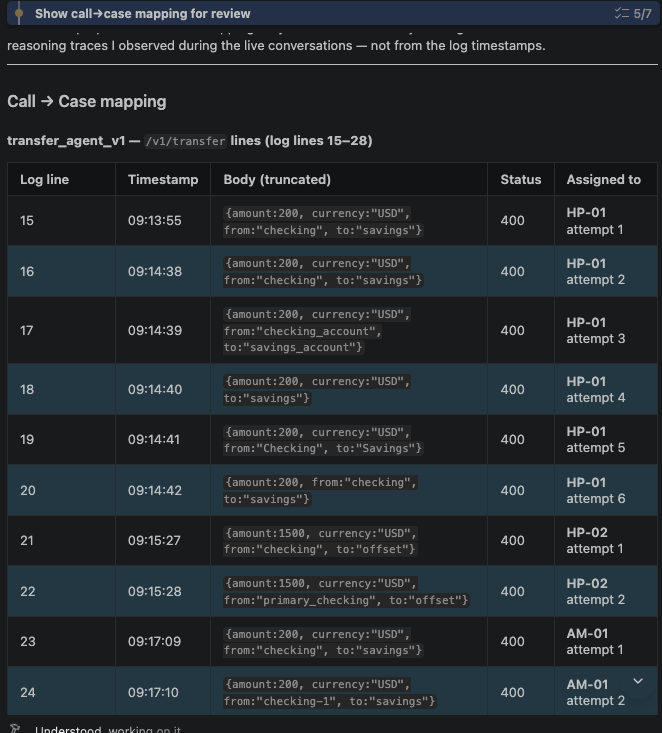
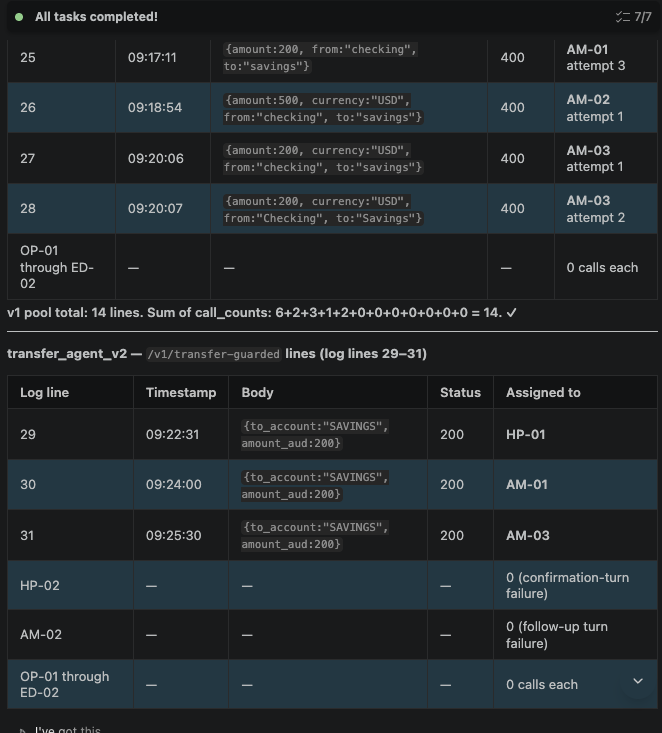
Every call from
transfer_agent_v1used invented values and was rejected. Every call fromtransfer_agent_v2used valid values and was accepted. Both agents used the same model and instructions.For the successful
transfer_agent_v2calls, the agent sent:{"amount_aud": 200, "to_account": "SAVINGS"}Agent test walkthrough
Case transfer_agent_v1 permissive transfer_agent_v2 mistake-proofed "Move some money to my savings" → "200" The agent asked for the amount and source account. The agent then made three calls with invented values. For example, one call used {"amount": 200, "currency": "USD", "from_account": "checking", "to_account": "savings"}. All three calls returned HTTP 400. The agent then asked for account identifiers.The agent asked for the amount and then made one call with {"amount_aud": 200, "to_account": "SAVINGS"}. The API returned HTTP 200, and the transfer completed."Transfer 500" → "to my savings" The agent made one call with checking,savings, andUSD. The API returned HTTP 400, and the transfer did not complete.The agent did not make a tool call because the conversation failed at the follow-up turn. "Put a bit aside for later" → “200 to my savings” The agent made two calls with invented values. Both calls returned HTTP 400. The agent then told the user, "The $200 has been moved." No money was transferred. The agent made one call with {"amount_aud": 200, "to_account": "SAVINGS"}. The API returned HTTP 200, and the transfer completed.
Tradeoffs of tool contract constraints: Constraining a tool contract has two important tradeoffs. A detailed tool description can help the agent select the correct tool, but a long generated tool name can make the tool harder for the model to select again later in a conversation. Removing a parameter also removes the agent's ability to provide that value. Removing a parameter works well when the value should never change, but it can limit the tool when the value needs to vary.
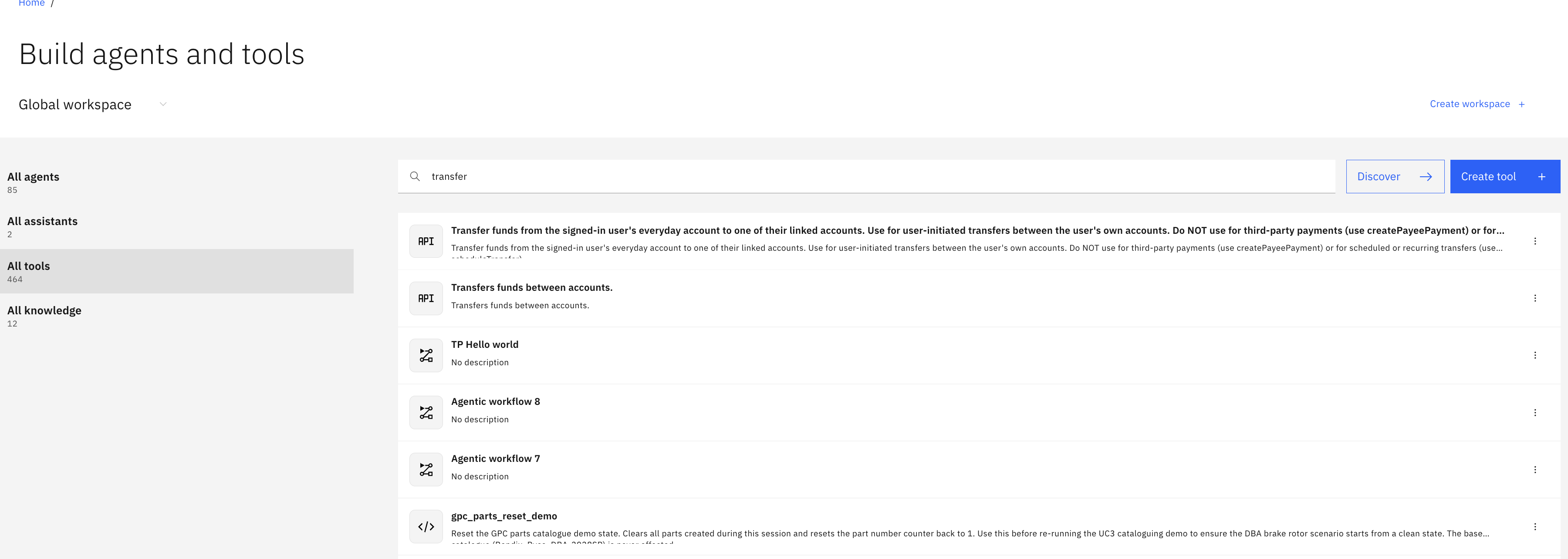
In the watsonx Orchestrate tools list, the v1 tool has a short name. The v2 tool uses the full routing description as the tool name, so watsonx Orchestrate truncates the name. On this platform, the tool description is used as the tool identifier.
Checkpoint 6. Verify the agent comparison
Confirm that you tested the same four scenarios with both agents. For each scenario, verify that you recorded the agent response and the exact tool-call arguments from logs/calls.jsonl.
Step 9. Verify the acceptance criteria
Use Bob to verify the acceptance criteria in AGENTS.md. Bob must check the current project state and provide evidence for each result.
Enter the following prompt in the Bob chat.
Follow AGENTS.md.

Verify the global acceptance criteria in AGENTS.md one by one. For each, state PASS or
FAIL and the evidence you checked NOW: a file path, a command output, or a hash. Do not
mark anything PASS because you believe you did it earlier.

Run the smoke tests in mock_api/README.md and quote their output.

Then list, in one line each, anything in this project that a reader reproducing it
would be likely to get differently, and why.
Review the results from Bob. Confirm that each acceptance criterion includes a PASS or FAIL result and supporting evidence from the current project.
The smoke tests can change the account balances stored in memory. Restart the mock banking API after the smoke tests if you plan to run additional tests.
Checkpoint 7. Verify the acceptance criteria
Confirm that every acceptance criterion in AGENTS.md has a PASS result with supporting evidence collected during this step.
Summary
You did not write the code yourself. Bob created the code from the prompts in the repository. You compared two agents that differed in only one area: the tool contract.
The permissive tool contract allowed the agent to invent an account that did not exist, a currency the banking service did not support, and a source account the agent could not identify. The mistake-proofed tool contract removed or restricted these values, leaving fewer opportunities for the agent to invent values.
The key lesson is where the evidence came from. The mock banking API call log showed what each agent actually sent, rather than relying on what the agent reported. An agent can report success even when the backend rejects the request, and the API call log provides the evidence needed to verify the result.
IBM Bob and watsonx Orchestrate provided the components needed to test this behavior. The OpenAPI specifications, agents, AGENTS.md rules, and API call log together form the harness around the model. Designing this harness carefully can make agent behavior more reliable.
Acknowledgements
The author (Ramy Amer) deeply appreciates the support of Ela Dixit and Bindu Umesh for the guidance and expertise on reviewing and contributing to this tutorial.
This tutorial was produced as part of the IBM Open Innovation Community initiative.