Tutorial
Build an AI-powered customer care assistant with IBM Sterling OMS and n8n
Design an agentic AI workflow using n8n, LLMs, and IBM Sterling OMS APIs to deliver real-time order insights, automate customer support, and improve operational efficiencyIBM Sterling Order Management System (OMS) is an enterprise-grade platform that orchestrates the end-to-end order lifecycle across channels, providing real-time inventory visibility, intelligent sourcing, and optimized fulfillment with seamless integration across enterprise systems. Highly scalable and configurable, it supports complex omnichannel operations and custom business workflows.
AI and LLMs can enhance IBM Sterling OMS by improving order accuracy, predicting demand, optimizing inventory, and reducing processing delays. They help automate exception handling, generate useful insights, improve customer communication, and simplify workflows, resulting in faster fulfillment, fewer errors, lower costs, and a more efficient order management process.
A key use case is an intelligent customer care assistant built using Sterling OMS with agentic AI and LLMs. The assistant can provide order status, shipment updates, and product information through natural language conversations. It can also suggest actions for delays, assist with returns or exchanges, and offer personalized recommendations, reducing support effort while improving response speed and customer satisfaction.
In this tutorial, we build a customer care assistant using agentic AI and LLMs that allows users to retrieve their order details through natural language conversations. The solution uses
- n8n for agentic AI and automation
- Google Gemini as the large language model
- A Telegram bot for the chat interface
- Docker for on-premises hosting
- IBM Sterling OMS in a traditional on-prem deployment.
n8n is a source-available, low-code workflow automation platform that simplifies connecting applications and automating business processes through a visual editor. Its self-hosted, extensible architecture and support for LLMs and agentic AI enable secure, intelligent, and flexible automation.
Project environment setup
In this tutorial, two Linux machines are used: one to host IBM Sterling OMS and another to run n8n. The following configurations are for reference only, and hostnames may vary based on your environment.
- IBM Sterling OMS: RHEL 9.6, 16 GB RAM, Hostname:
express1.fyre.ibm.com - n8n: RHEL 9.6, 16 GB RAM, Hostname:
analytics-express1.fyre.ibm.com
Prerequisites
Install Docker on the n8n machine and start the Docker service.
  yum config-manager --add-repo=https://download.docker.com/linux/centos/docker-ce.repo
yum install -y --allowerasing --nobest docker-ce docker-ce-cli containerd.io
systemctl start docker
systemctl enable docker
Verify that Docker is installed successfully.
docker --versionPull the n8n Docker image and confirm that it is available locally.
 docker pull n8nio/n8n
docker images
Run n8n as a Docker container. The webhook URL must be publicly accessible. If it is not public, use a tunneling tool such as Cloudflare Tunnel or ngrok.
  docker run \
  --detach \
  --name n8n \
  --publish 5678:5678 \
  --volume n8nVolume:/home/node/.n8n \
  --env N8N_SECURE_COOKIE=false \
  --env WEBHOOK_URL=https://analytics-express1.fyre.ibm.com \
  n8nio/n8n
Confirm that the n8n container is running.
docker ps
Accessing the n8n application
n8n runs on HTTP port 5678. To receive external HTTPS webhook requests on port 443, configure an Nginx reverse proxy to forward traffic to port 5678. You can also access the n8n web interface directly at:
http://analytics-express1.fyre.ibm.com:5678
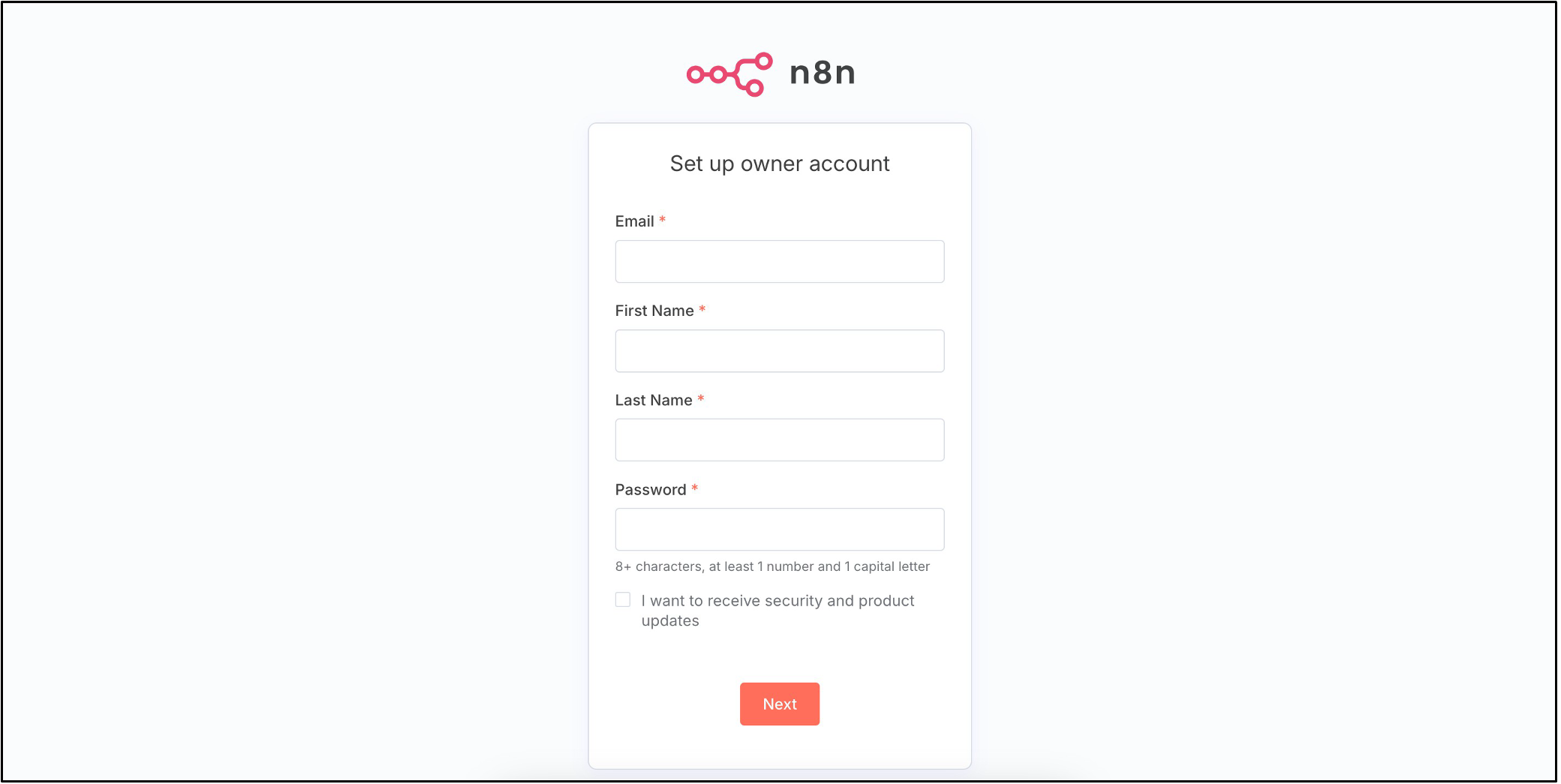
Complete the initial registration to access n8n. After logging in, the home page is displayed.
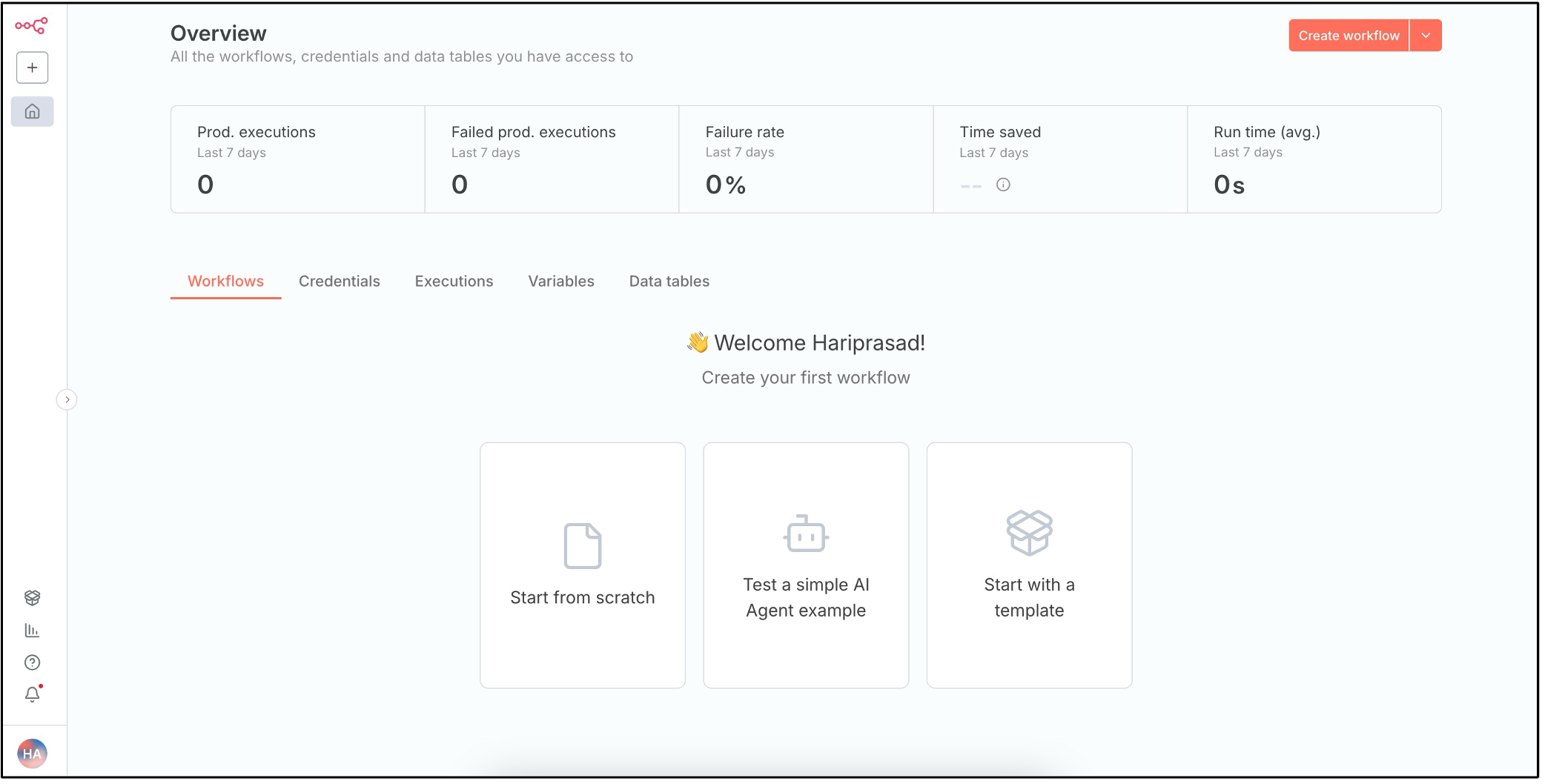
The n8n home page includes the following components:
- Workflows: Automated sequences of nodes that perform tasks and connect systems.
- Credentials: Securely stored authentication details for accessing external services.
- Executions: Logs of workflow runs showing inputs, outputs, status, and errors.
- Variables: Key–value data stored globally or per workflow for reuse.
- Data Tables: Persistent, table-like storage used across workflows.
Building the agentic AI workflow
To create an agentic AI workflow, click Create Workflow on the home page. Name the workflow Express1 Customer Care Agent Flow and add the necessary nodes.
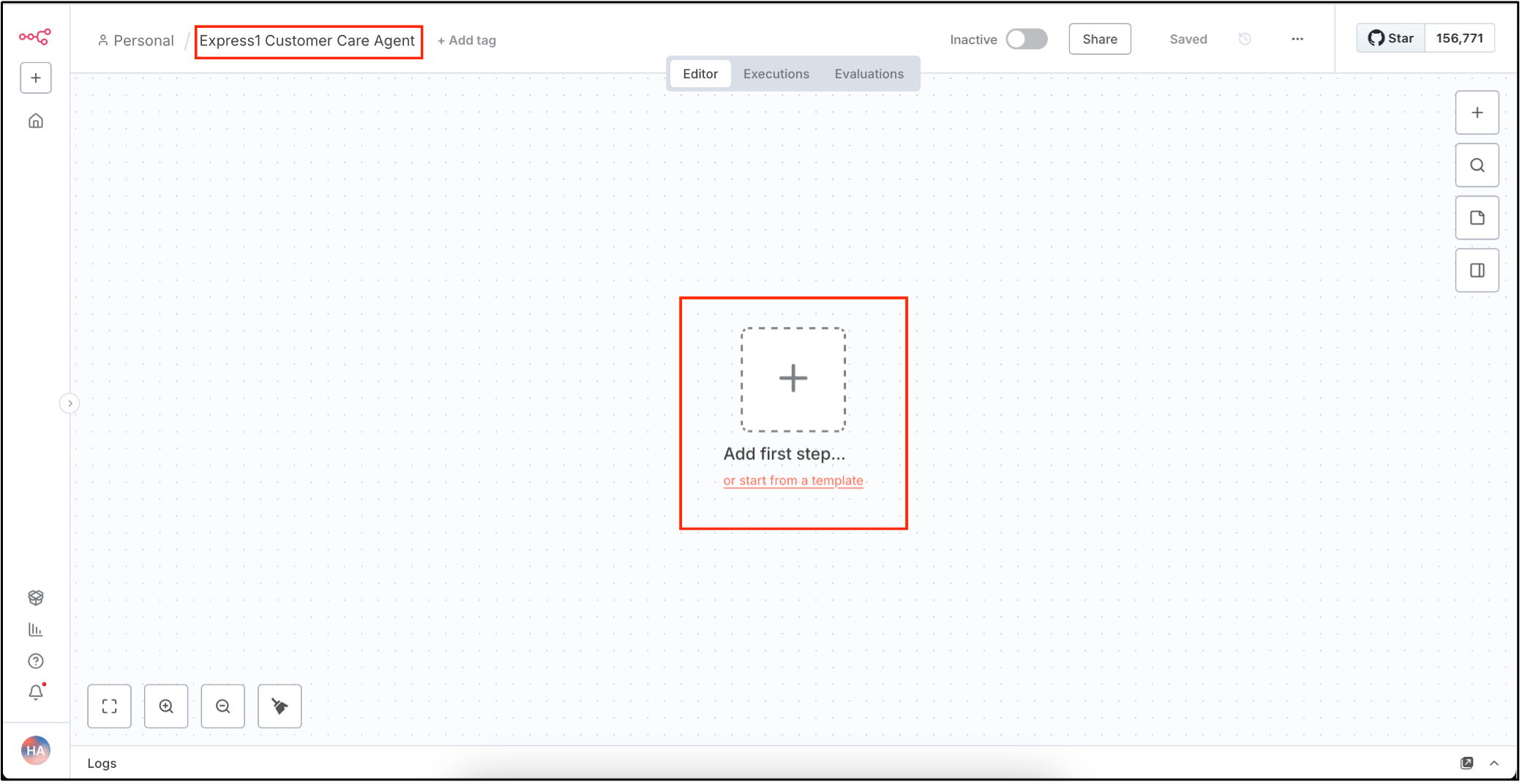
The first node in the workflow is the trigger node. In this example, the workflow is triggered when a customer sends a message using Telegram, so we use the Telegram message node.
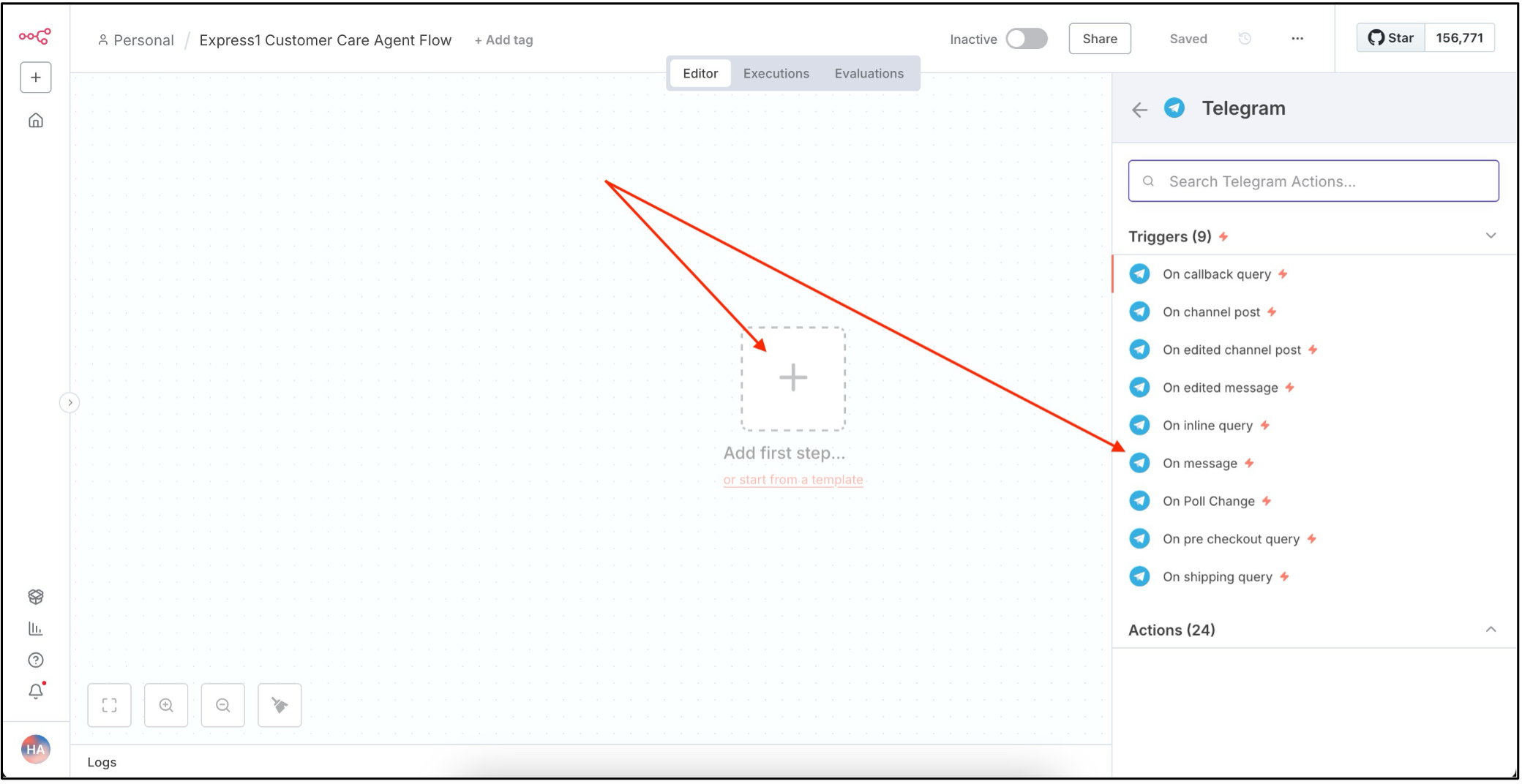
Enter the required credentials for the Telegram node when prompted.
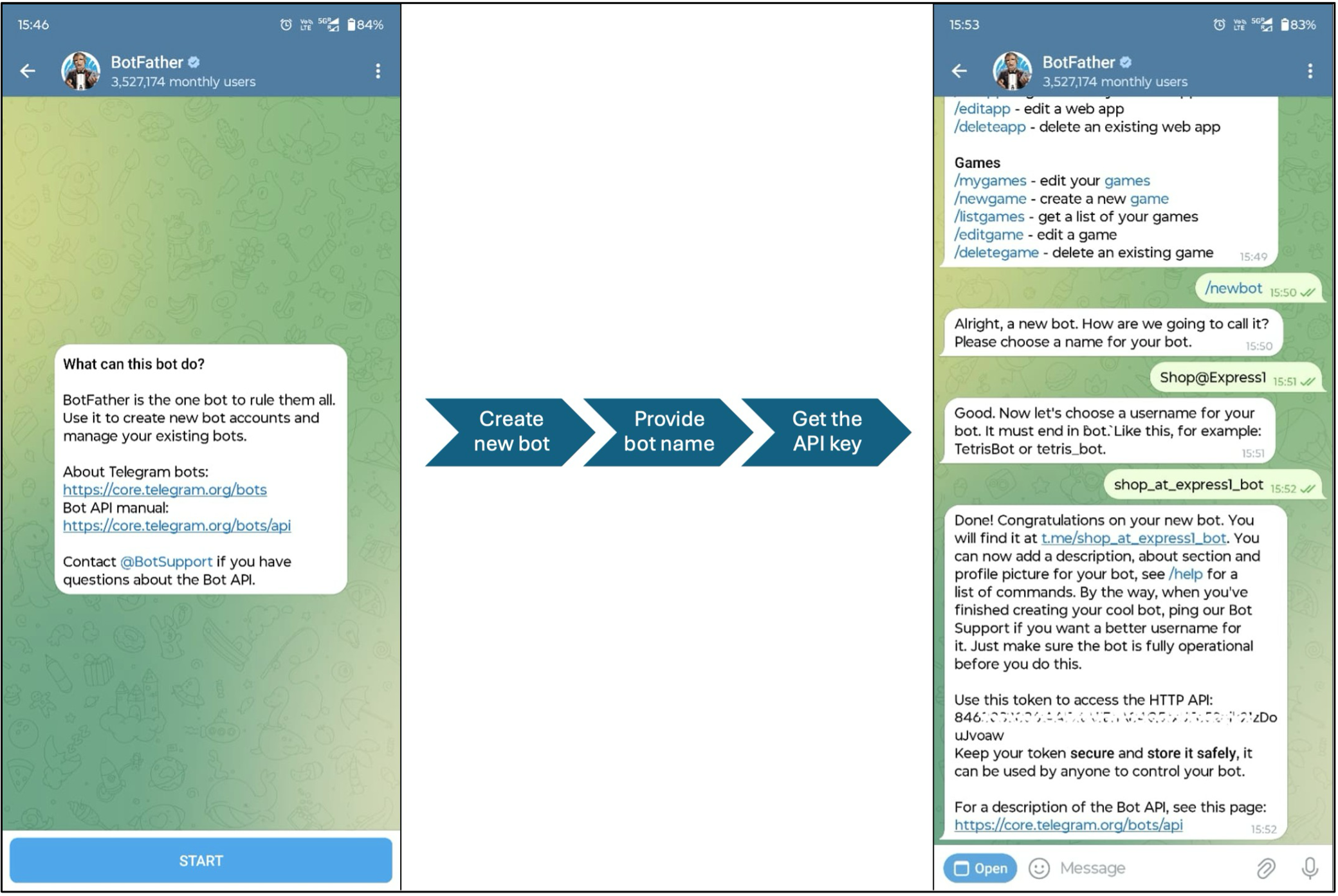
Create a Telegram account and open the BotFather bot, which is used to create new chatbots. Set a name and username for your bot, and note the API key provided. This key will be used to configure the Telegram node in n8n.
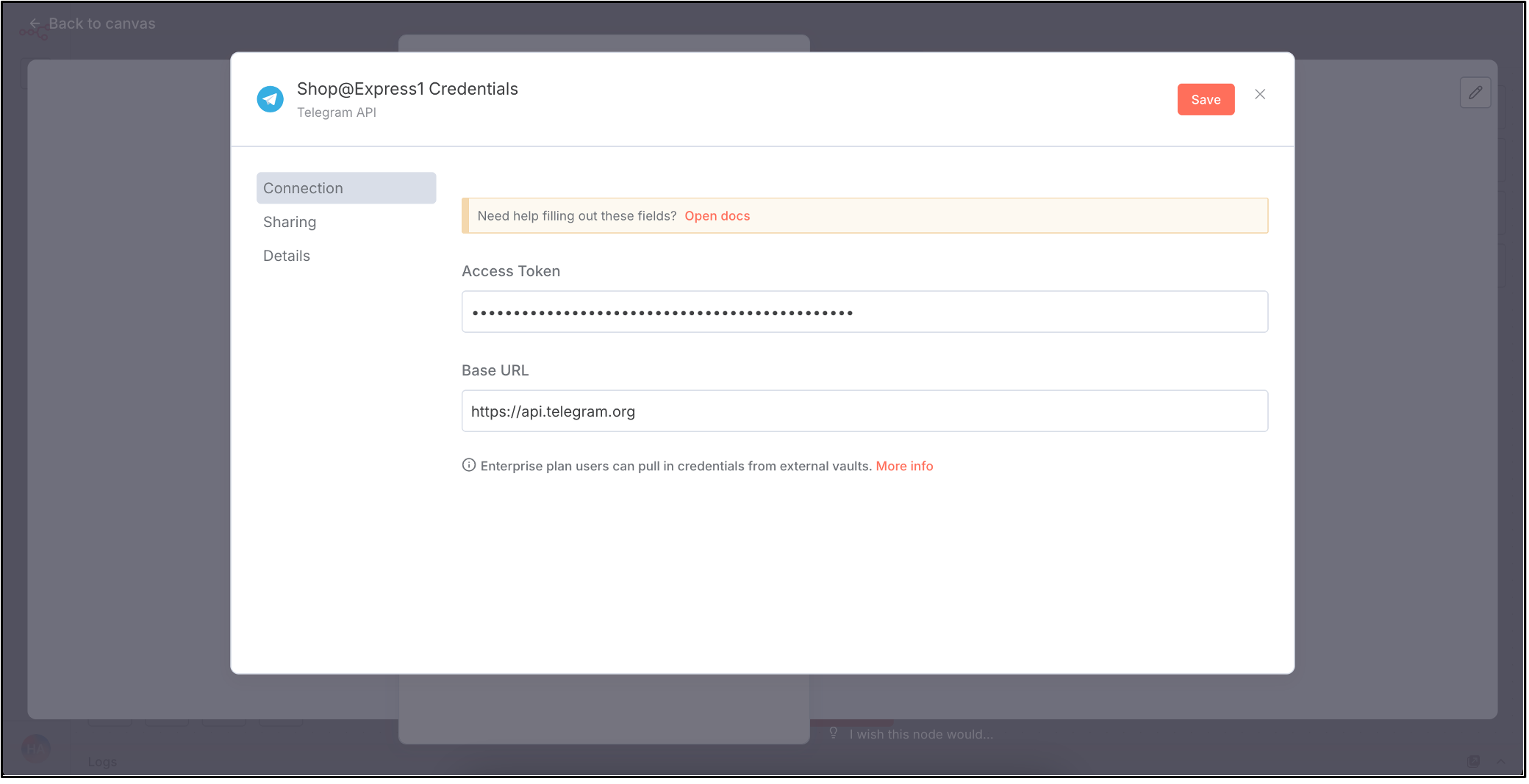
Create a new Telegram credential in n8n using the API key and save it.
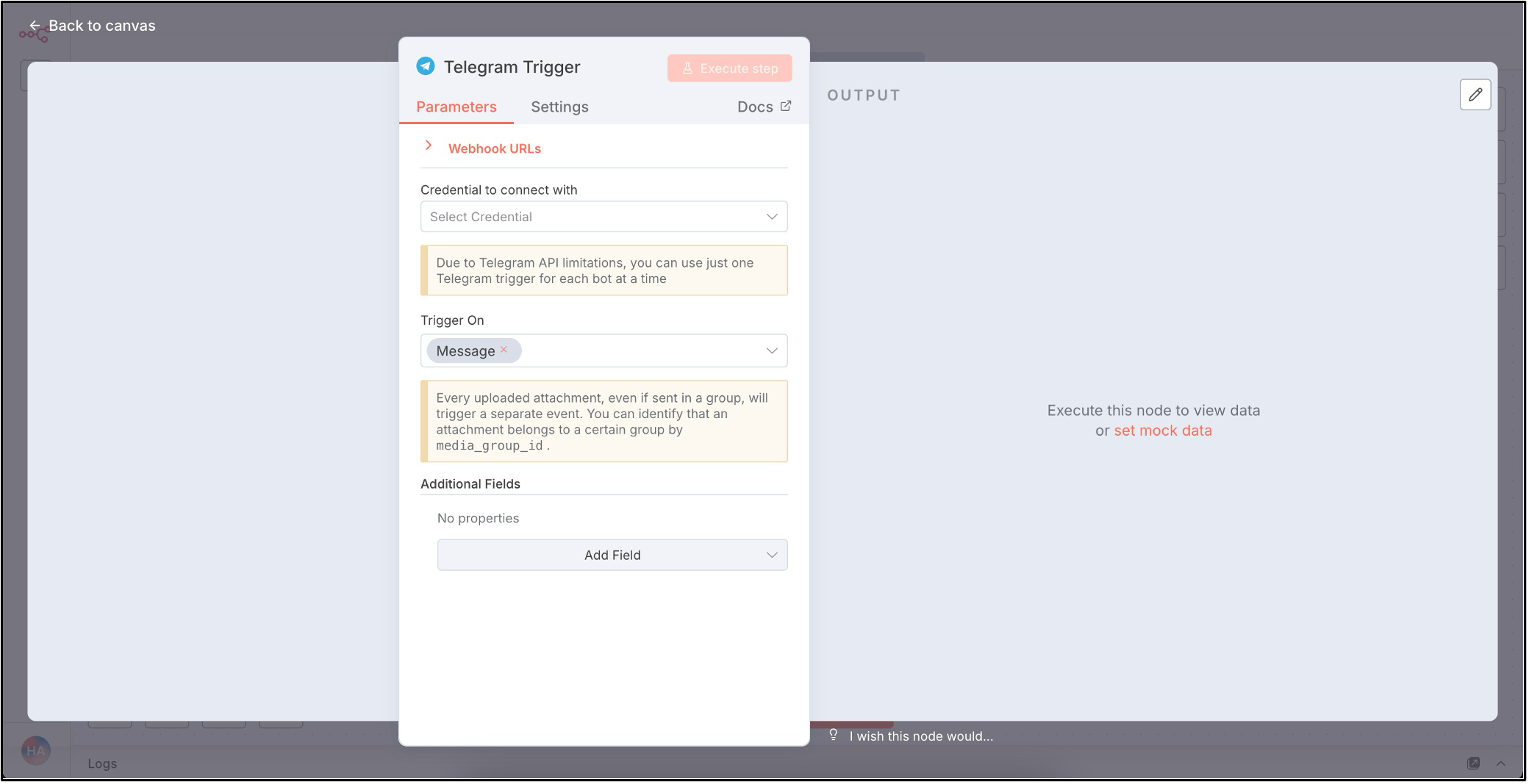
Assign the saved Telegram credentials to the Telegram node and save. The Telegram trigger node is now set up.
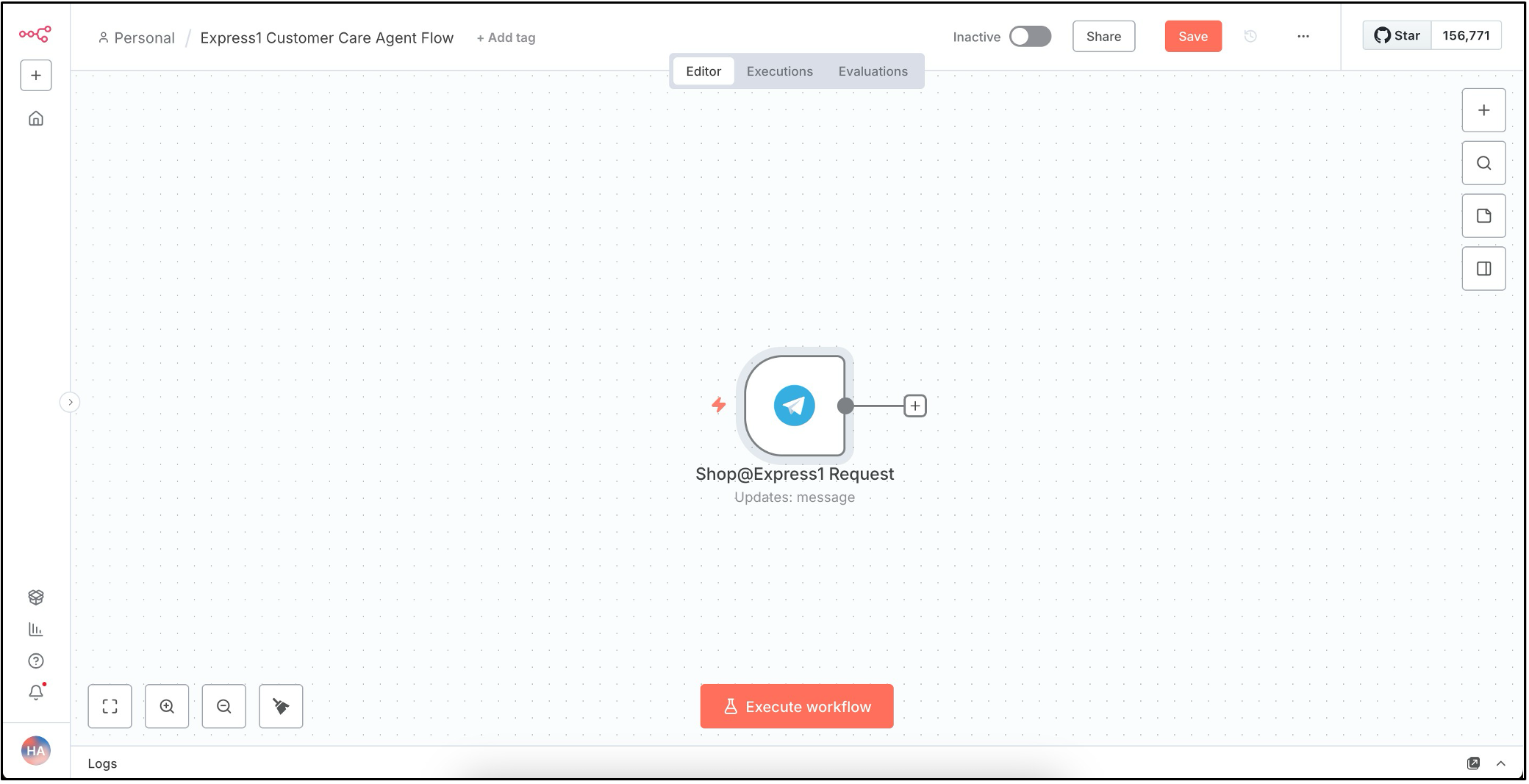
Test the Telegram connection by clicking Execute Workflow. The workflow will start listening for incoming messages.
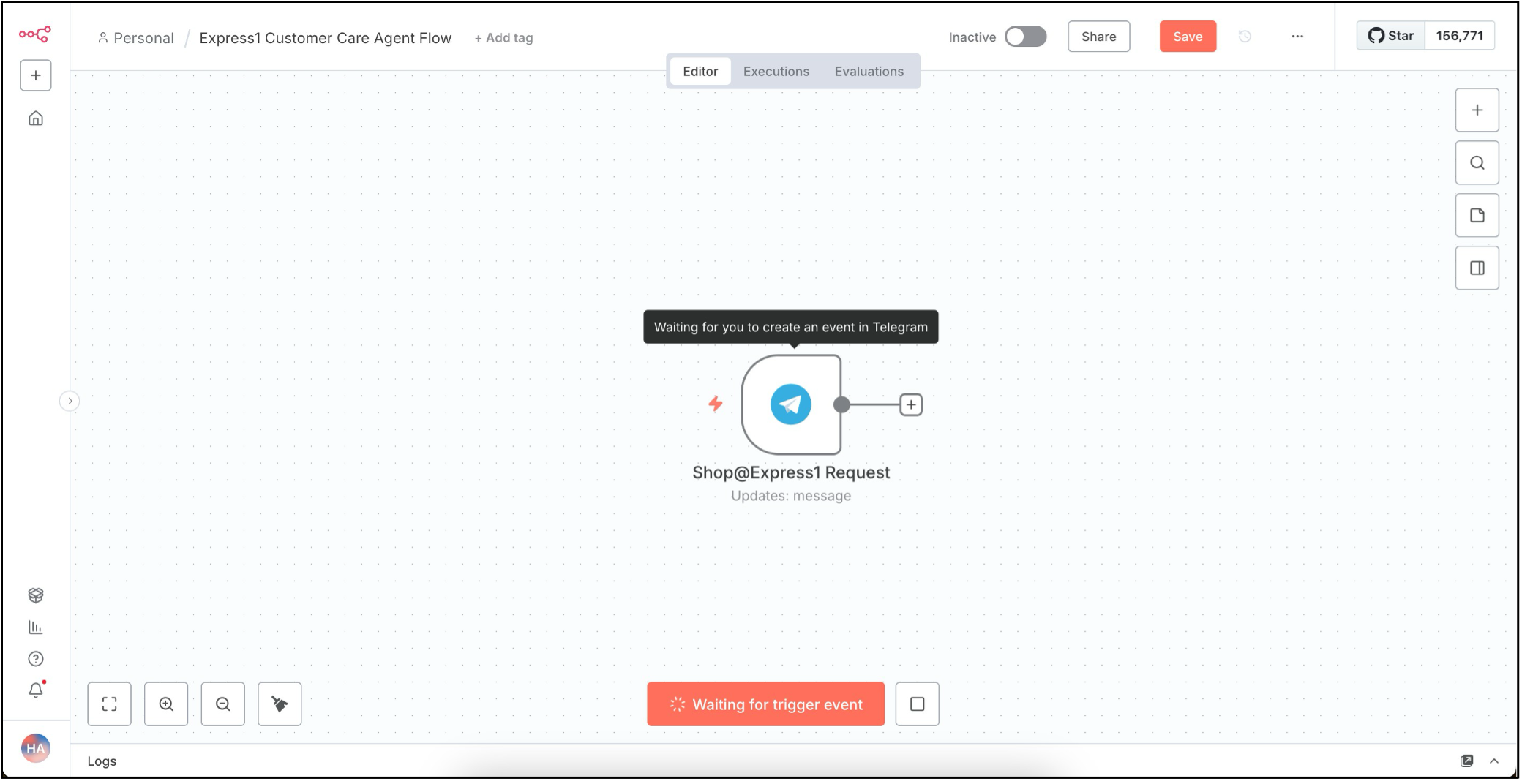
Open the Telegram bot
t.me/shop_at_express1_boton your mobile and send a test message.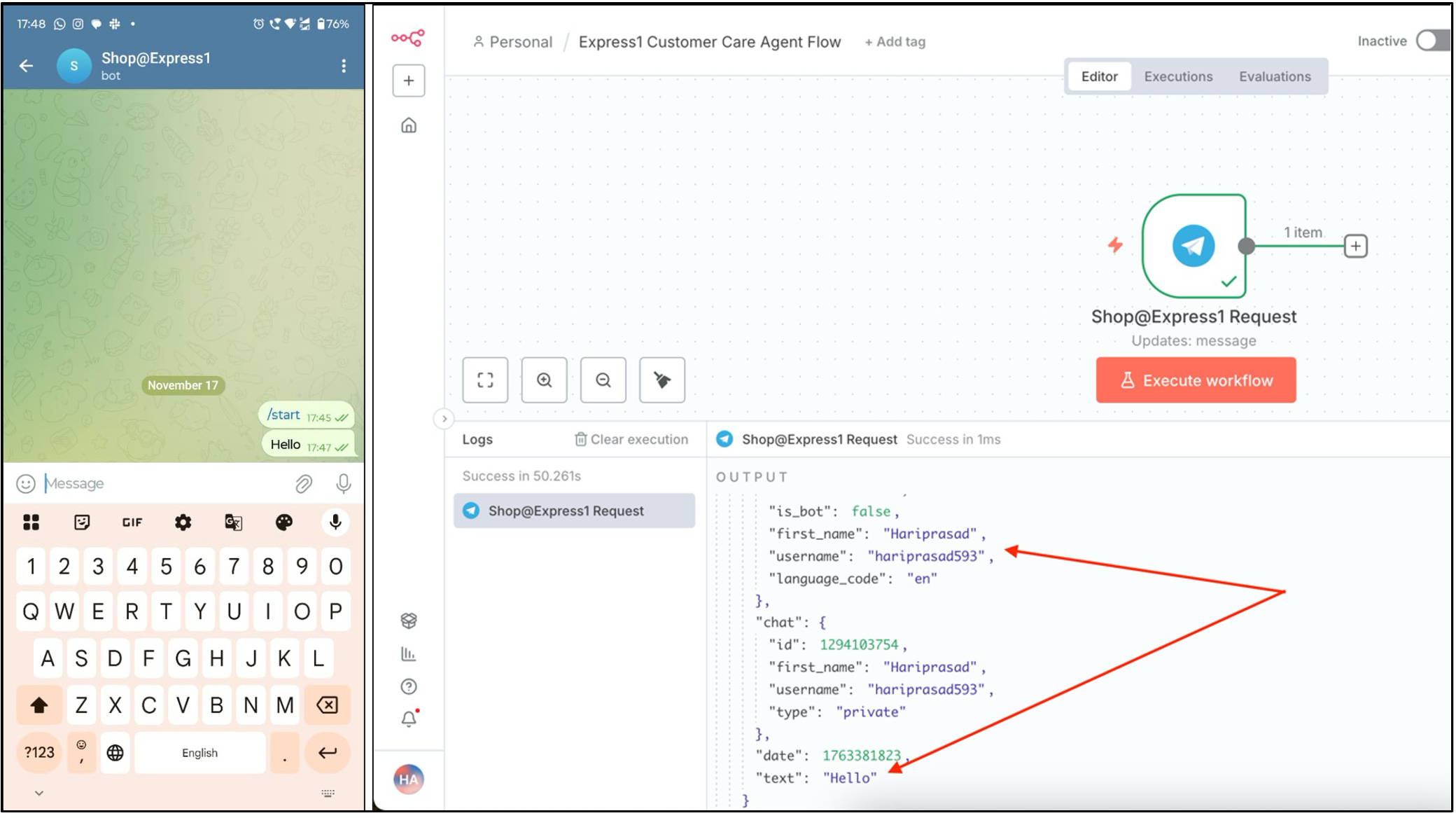
Sending a message from Telegram successfully triggers the n8n workflow. Next, add a code node to process the data using JavaScript or Python. The left pane shows input from the Telegram node, the middle pane is for writing code, and the right pane shows the output. Here is a sample JavaScript code to clear the agent’s memory for each request.
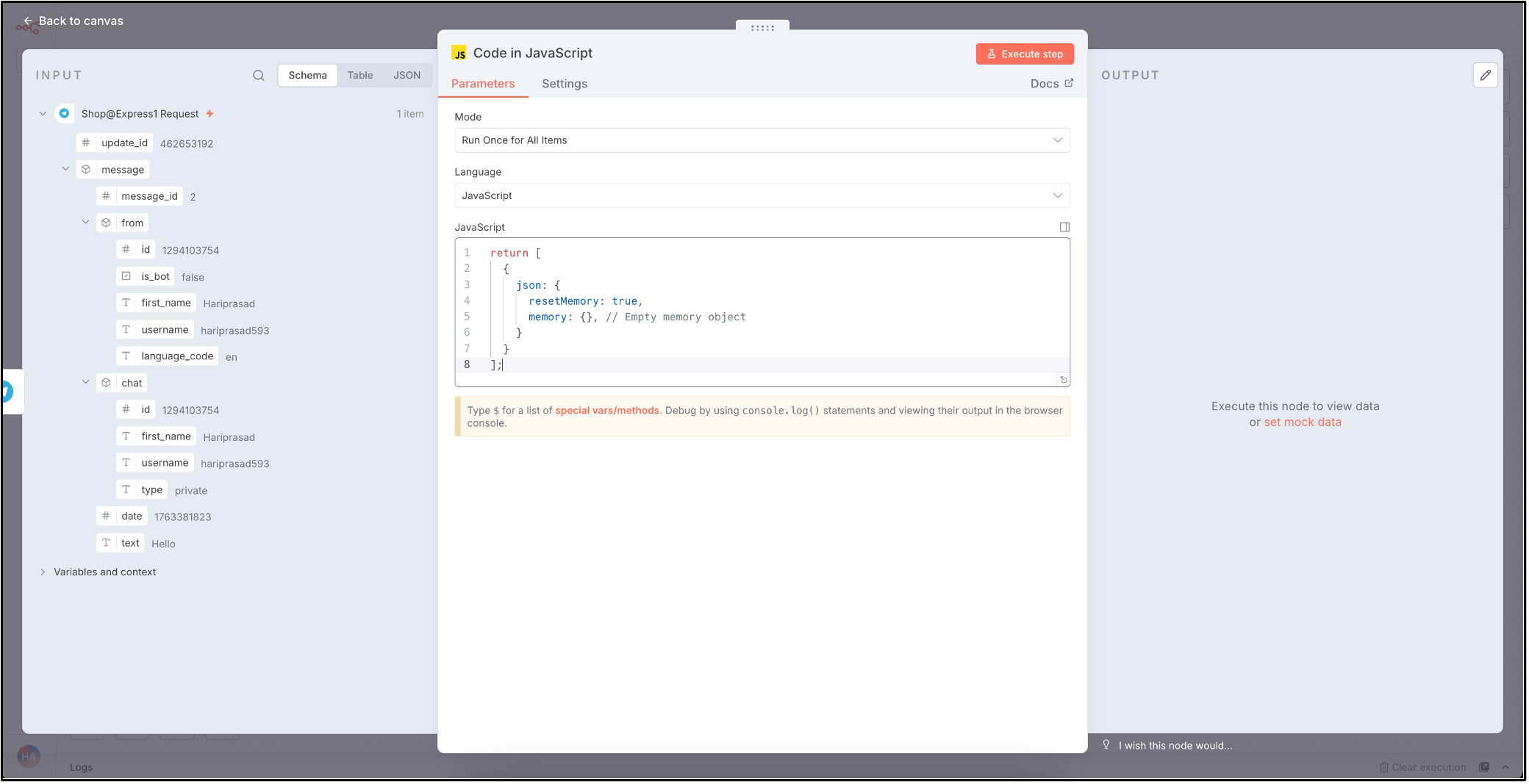

After the code node, add an AI agent node, which is the central part of the workflow.
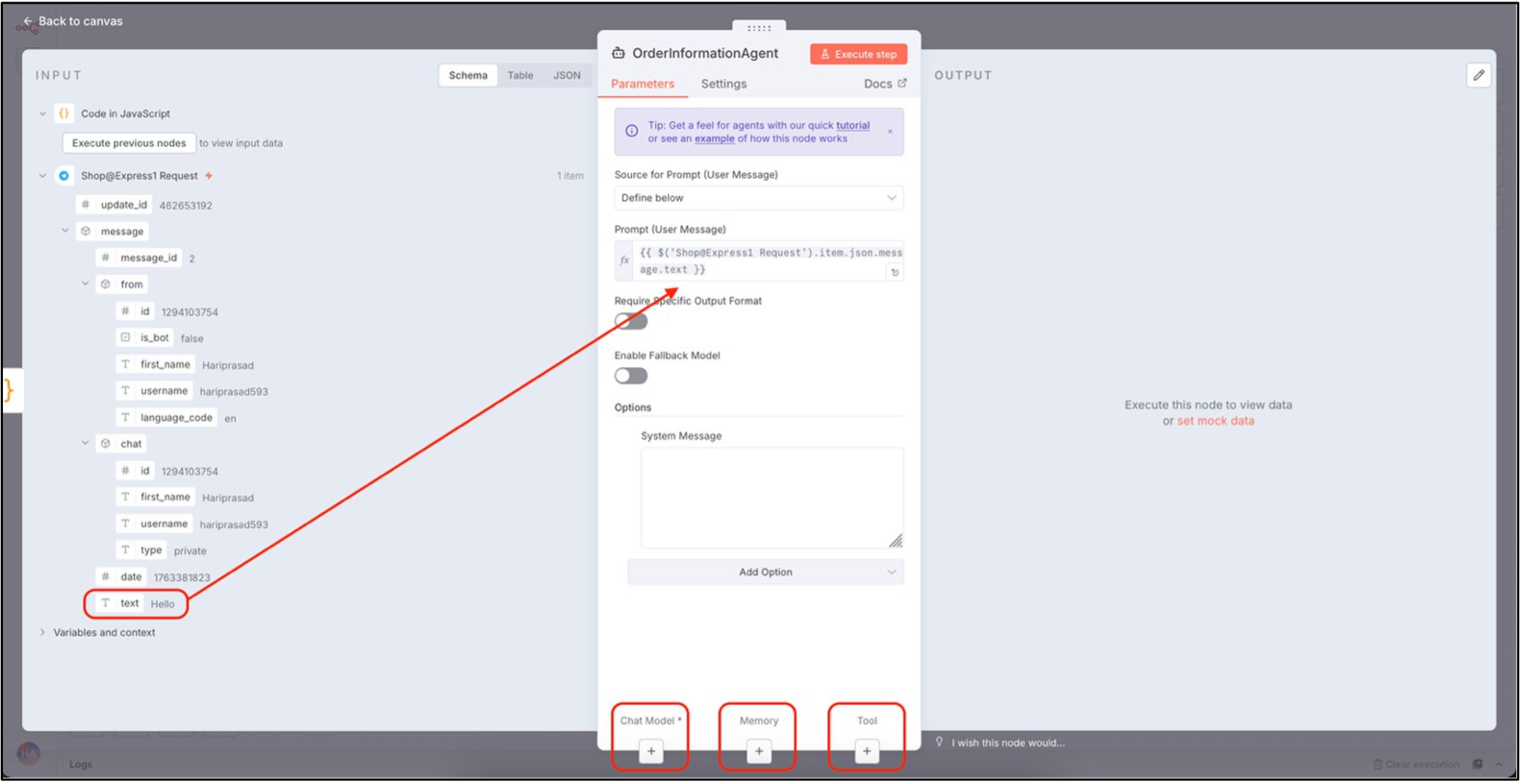
Connect the text field from the Telegram node to the AI agent’s prompt field. You can also add a system message to define the agent’s role, abilities, and duties. An AI agent requires three components: a chat model, memory to store messages, and tools to perform tasks.

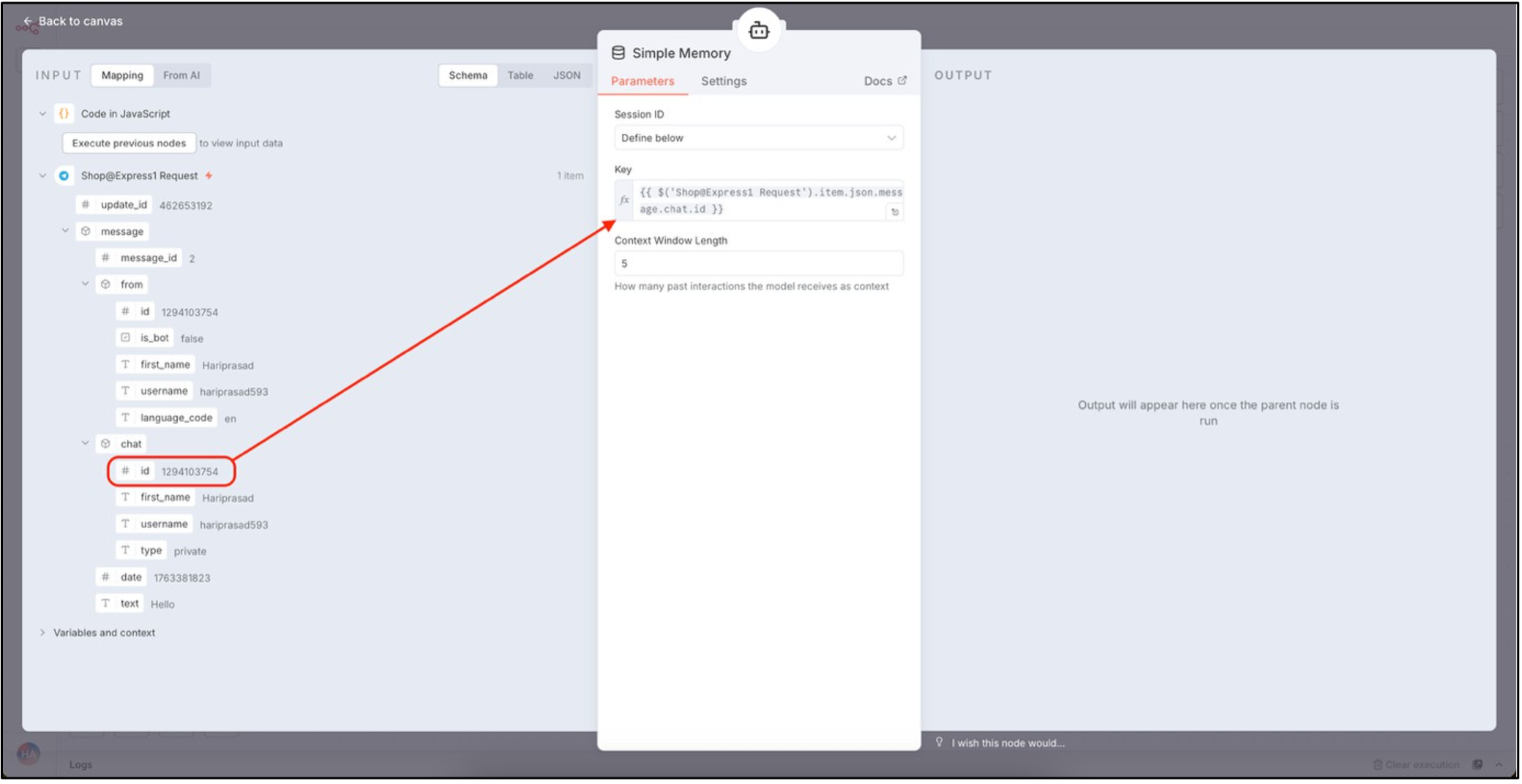
Next, add a memory node for the agent to store messages temporarily. Use the Telegram chat ID as the memory key and keep a history of the last five conversations.

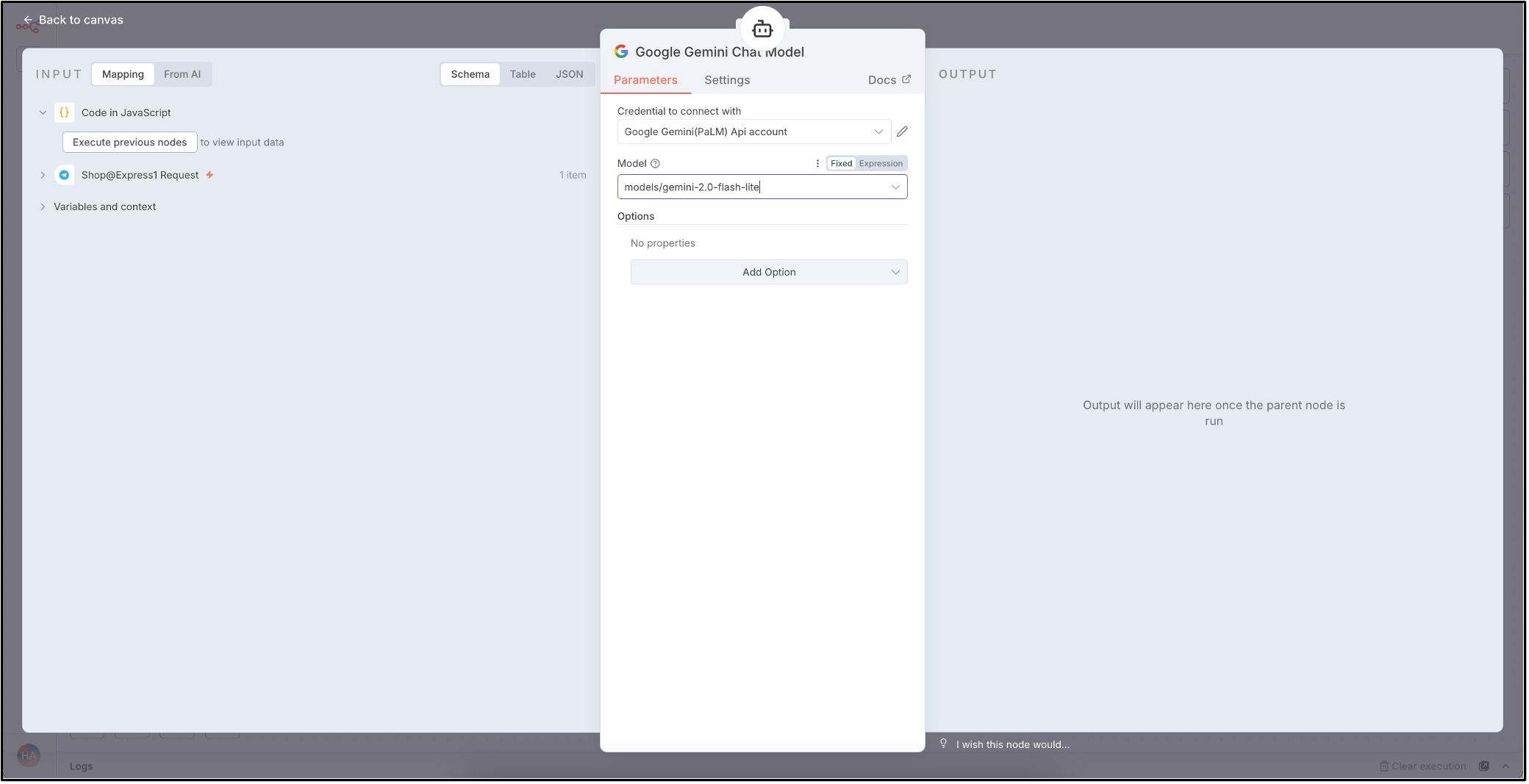
Next, we can add the large language model (LLM). The AI agent uses the LLM to understand the request from the user and make decisions. n8n supports various LLMs. The following list of popular LLMs is currently supported.

For this tutorial, we will use the free version of the Google Gemini model. You can get the credentials by signing up on Google AI Studio.

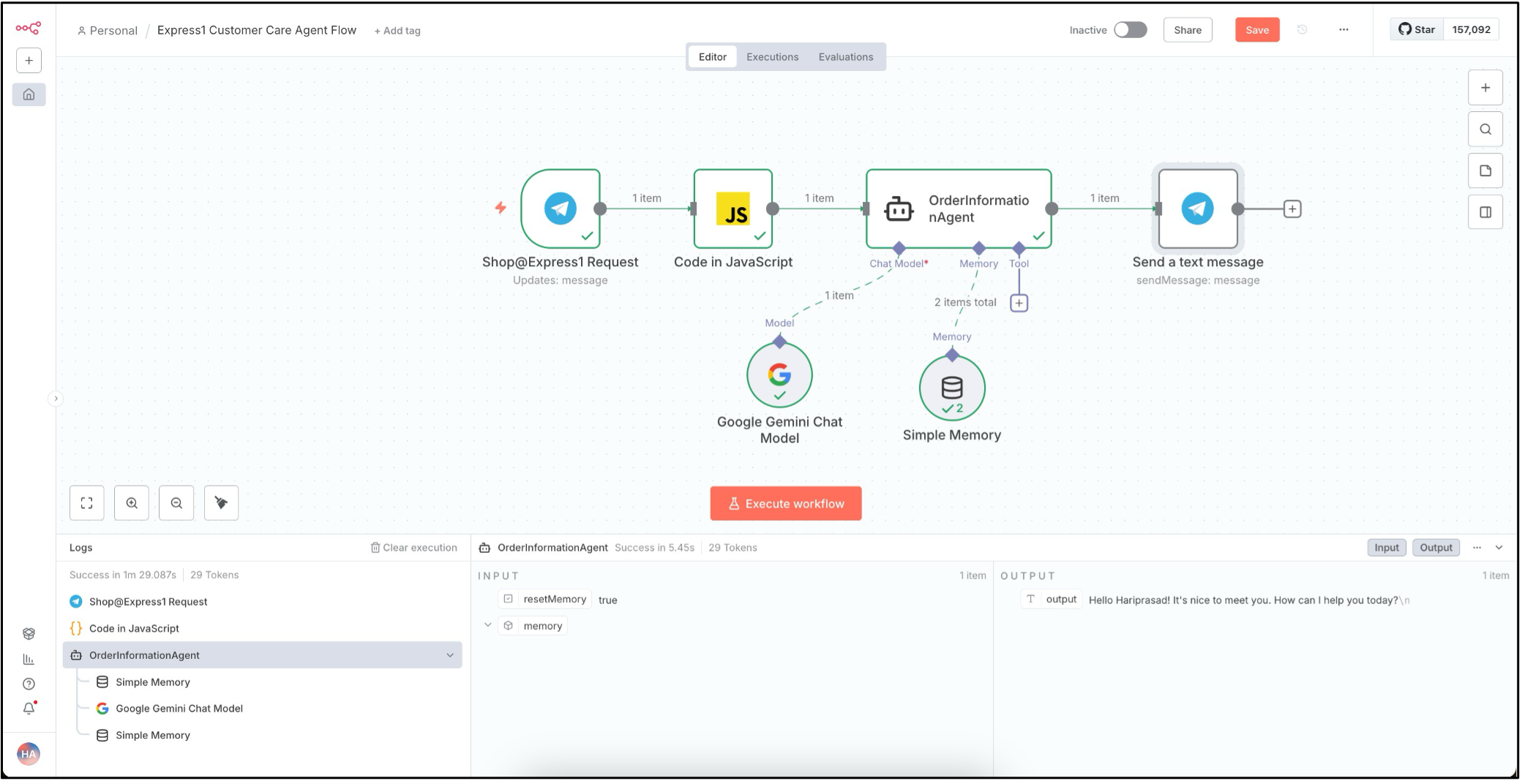
Send a message through the Telegram node to see how the AI agent responds.
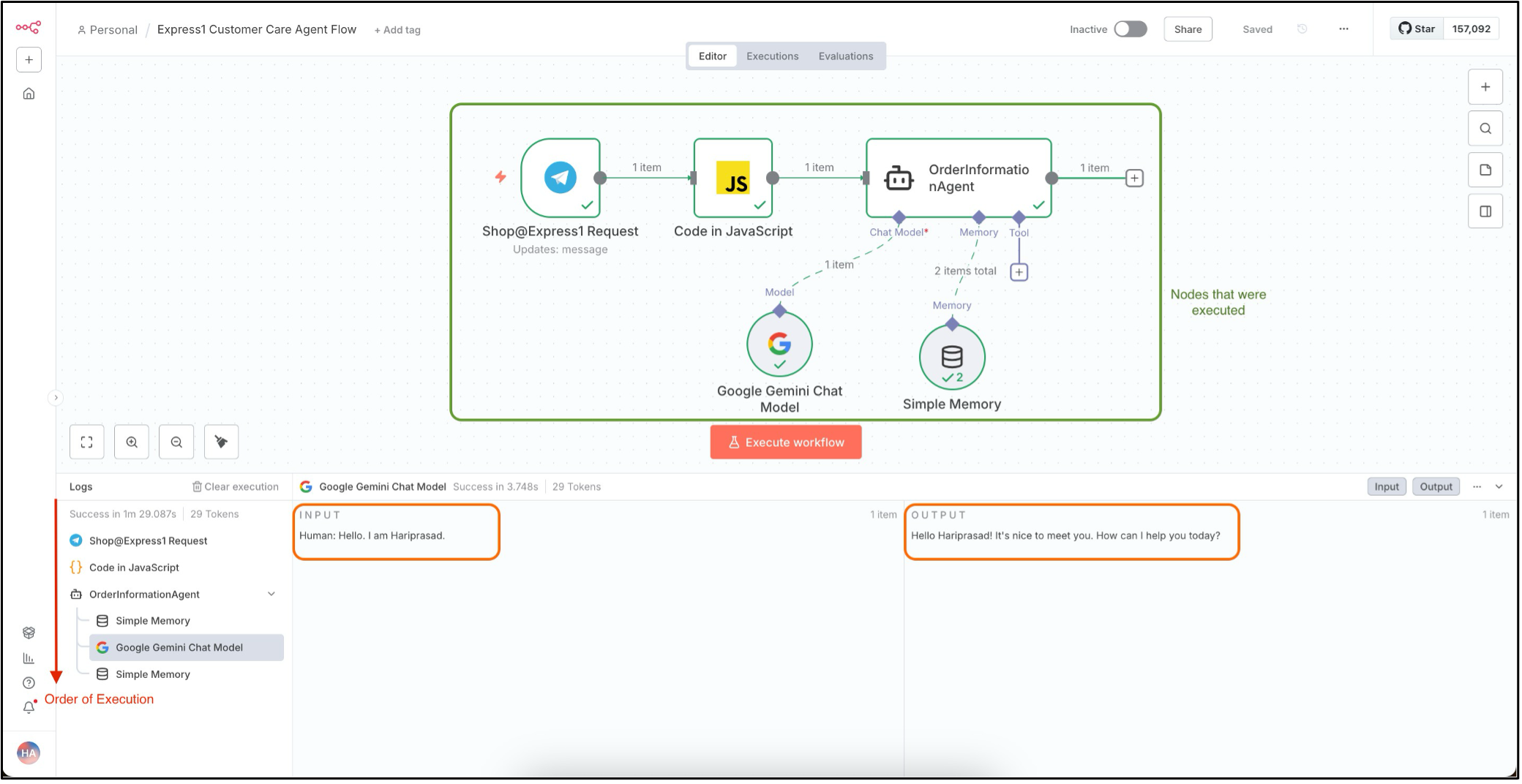
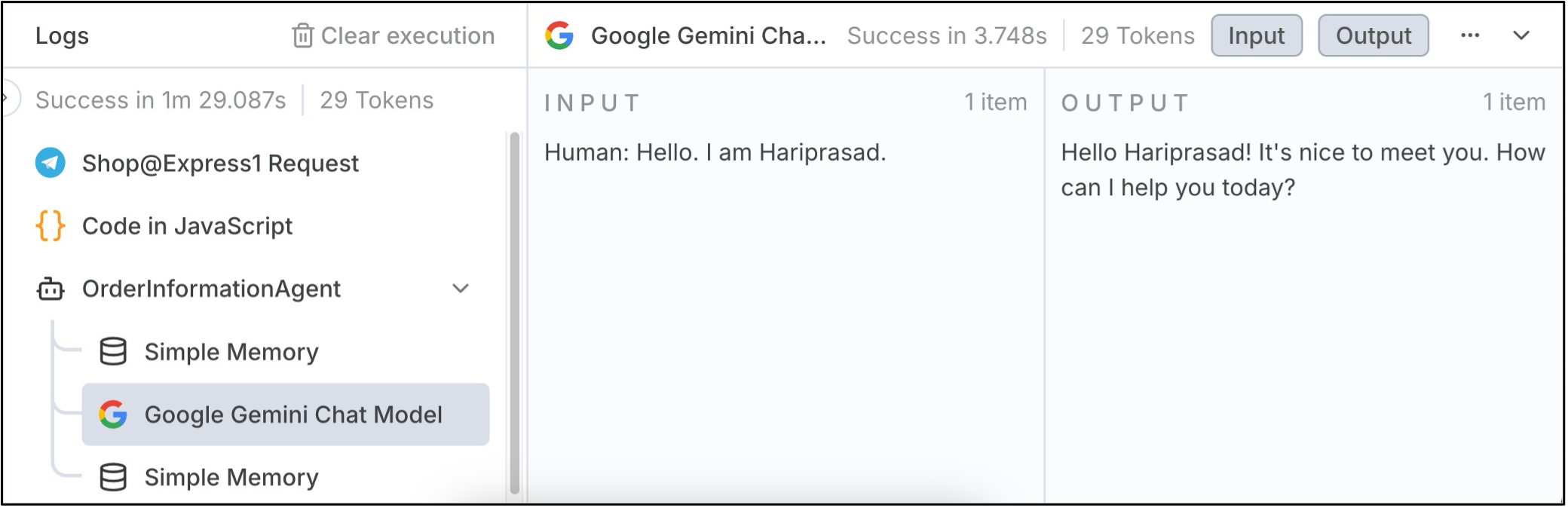
The workflow has run and all nodes have executed. The AI agent used the LLM to understand the message and generate a human-like response. Next, connect another Telegram node to the AI agent’s output to send the response back to the chat bot, using the same credentials and mapping the chat ID so the reply reaches the correct user.
Send another message to the AI agent through the Telegram bot to check if it responds.
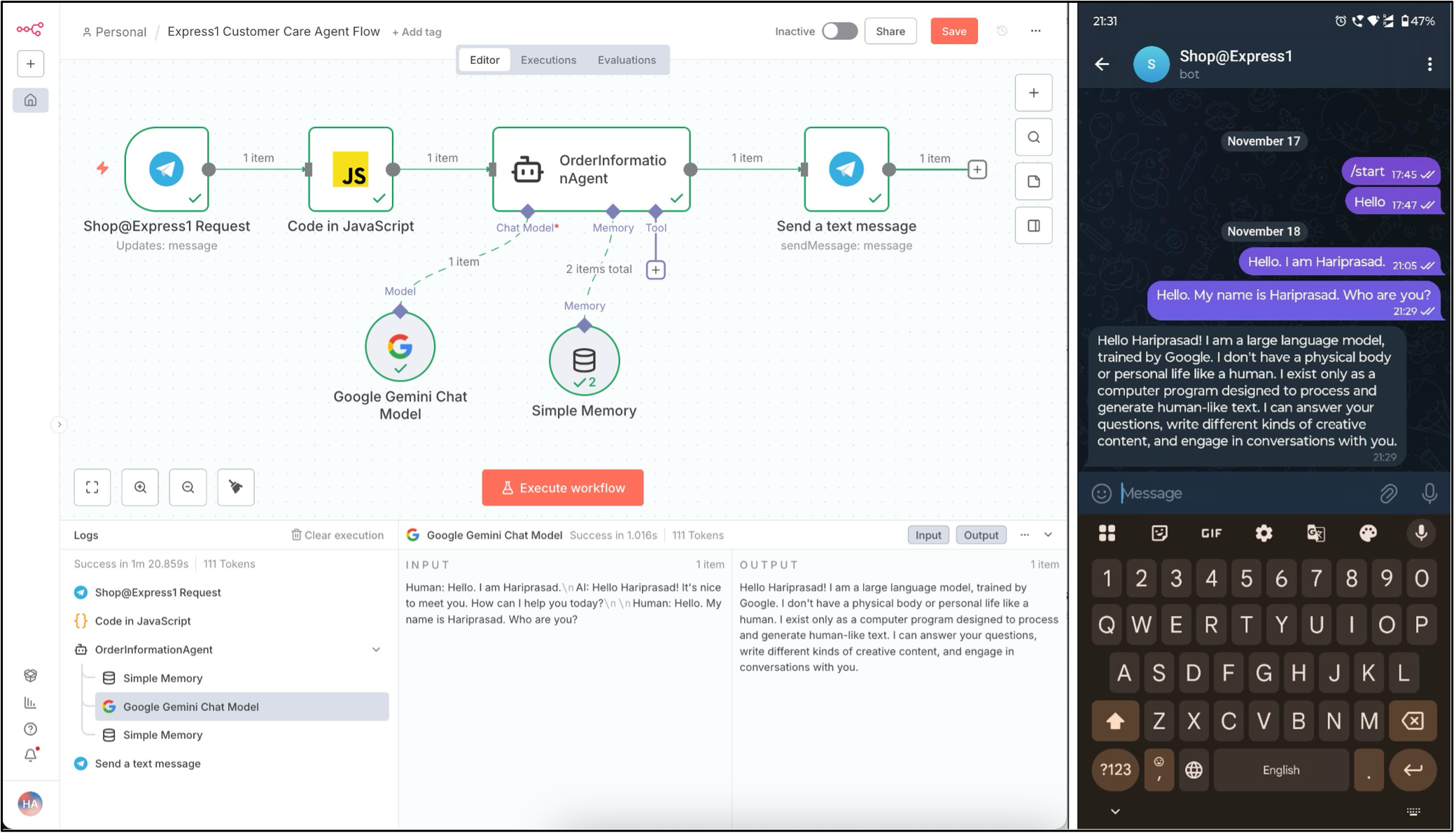
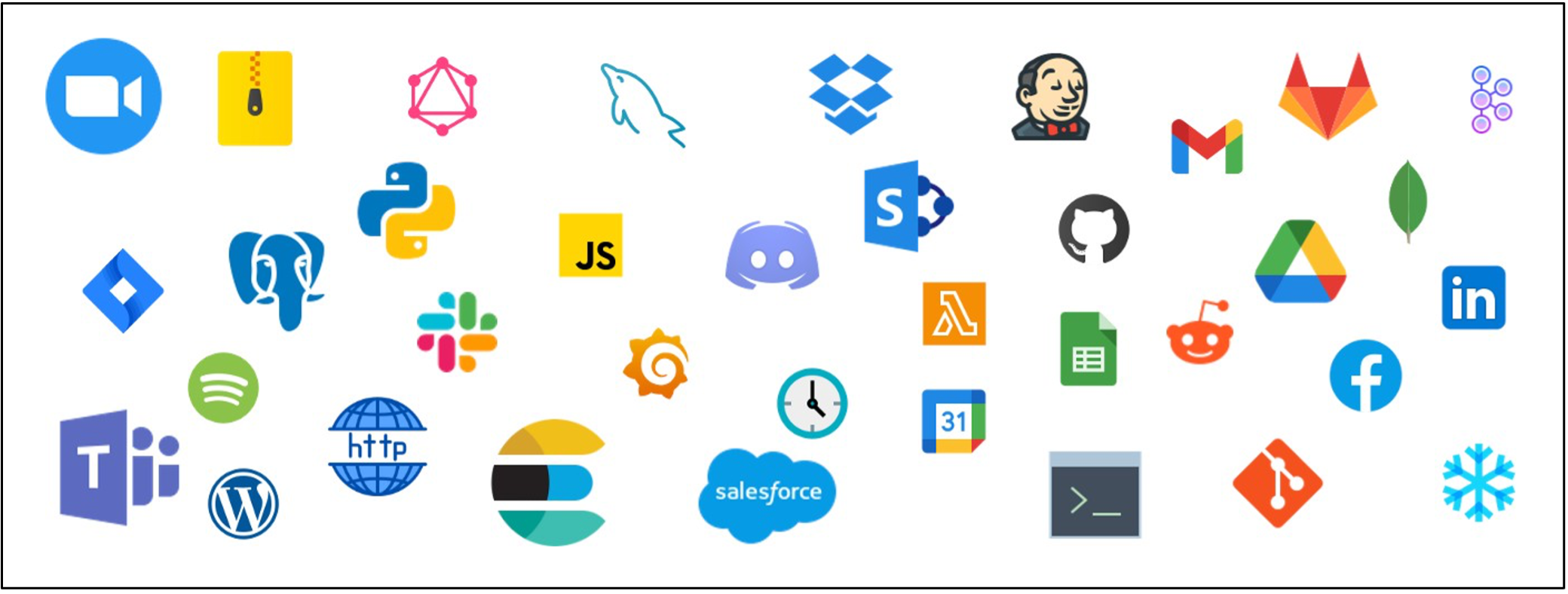
At this stage, we can communicate with the AI agent using natural language. The next step is to give the agent the tools it needs to perform tasks. Tools are predefined functions or services that let the agent take actions like calling APIs, searching data, performing calculations, or interacting with other systems. n8n supports hundreds of tools, including many popular options.
OMS integration using HTTP tools
The next step is to give the agent the tools it needs to perform tasks. Tools are predefined functions or services that let the agent take actions like calling APIs, searching data, performing calculations, or interacting with other systems. n8n supports hundreds of tools, including many popular options.
In this tutorial, we will first use an HTTP Request tool node to call the OMS REST API and retrieve information. We will configure the OMS endpoint URL and provide the required user credentials.
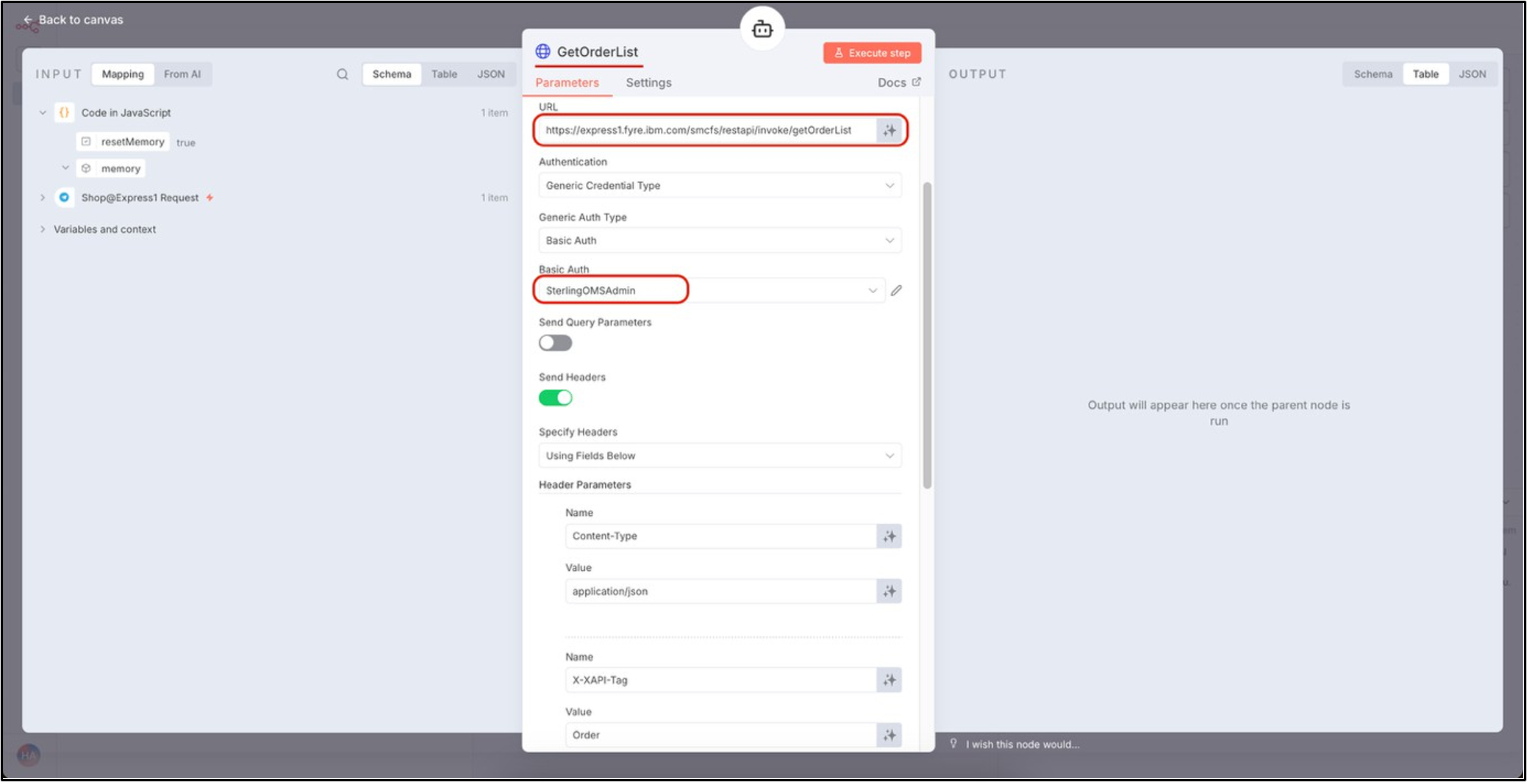
We also need to set the required request headers and body.
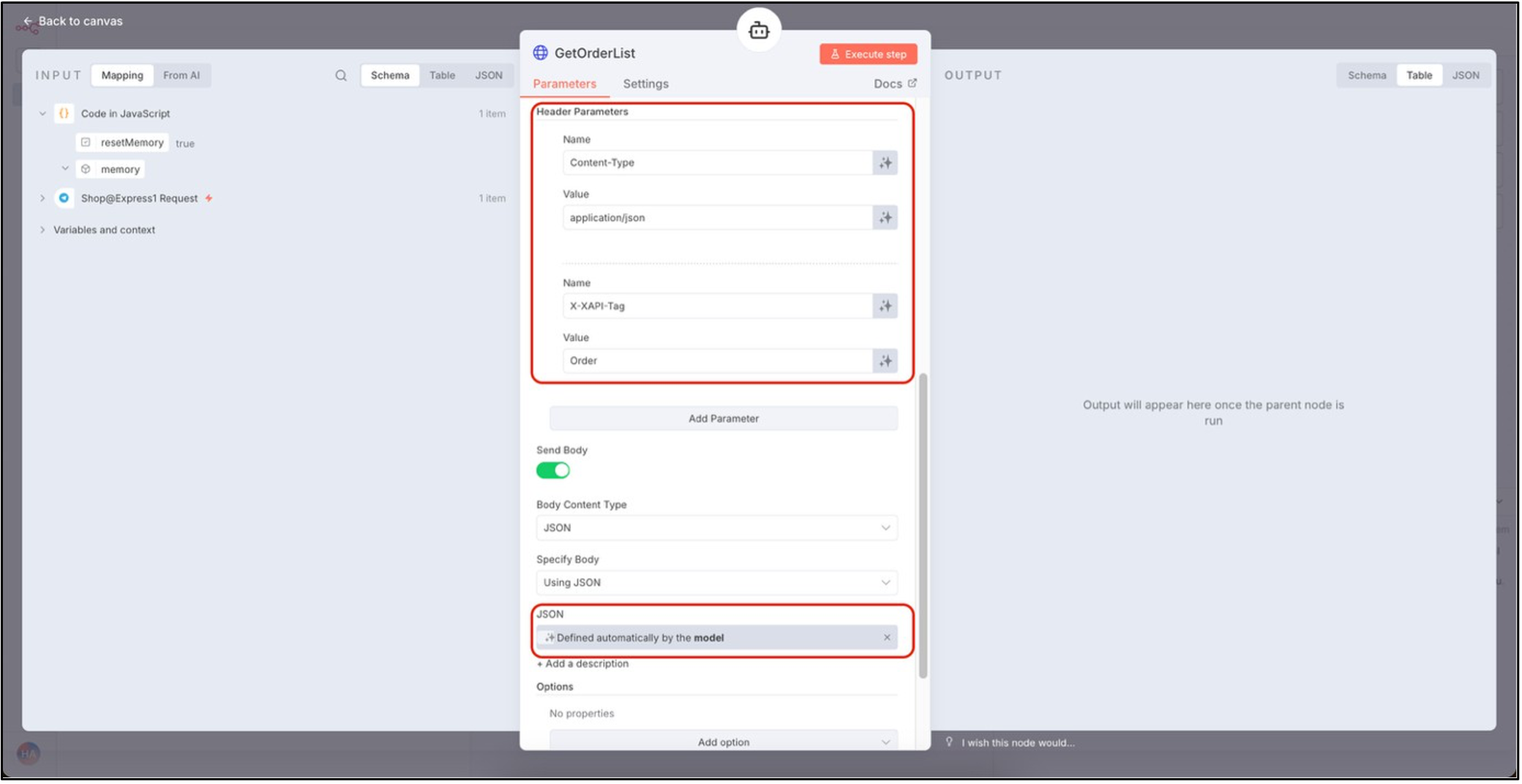
The AI agent can automatically fill the request body based on decisions made by the LLM.
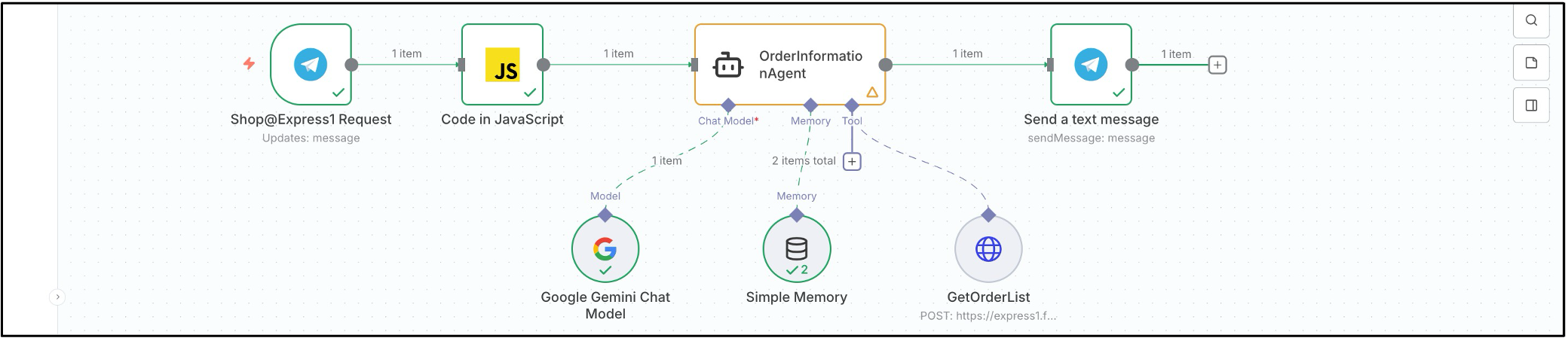
The AI agent is highlighted in yellow because a tool has been added, but it has not yet been instructed on when or how to use it. We will provide these instructions after adding all the necessary tools, which will include REST API and SQL queries. Additional tools can be added in the same way.
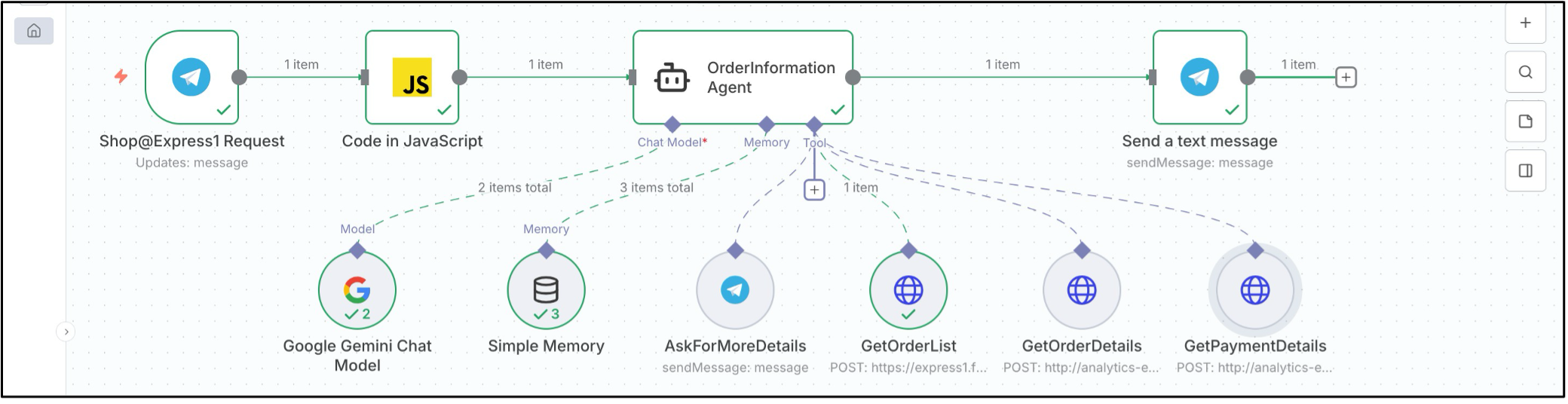
A Telegram tool node is also added to request more details from the customer when the message is unclear. After configuring the LLM, memory, and tools, the next step is to define the AI agent’s role and behavior using prompts. The system prompt describes the agent’s purpose, abilities, available models, memory, tools, usage scenarios, and output format, while the user prompt contains the customer’s request. The agent combines both prompts with the LLM to decide what action to take and which tools to use. Once the prompts are set, ensure that the required order data is available in the Order Management System, such as the sample orders placed by the customer with the email ID
john.doe@email.com.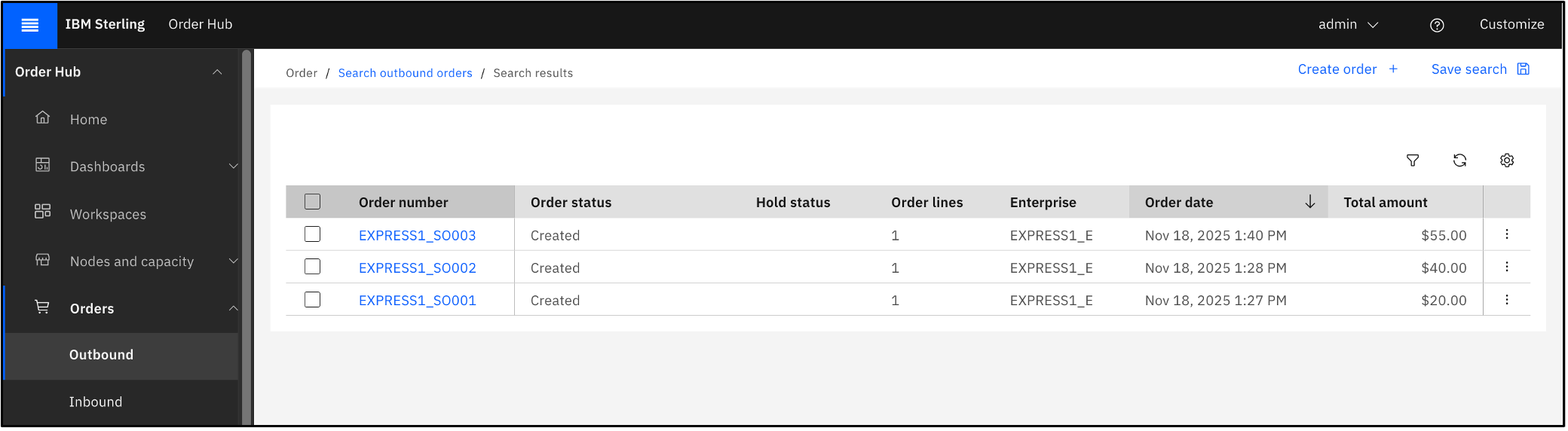
Ask the AI agent to fetch the list of orders for John Doe.
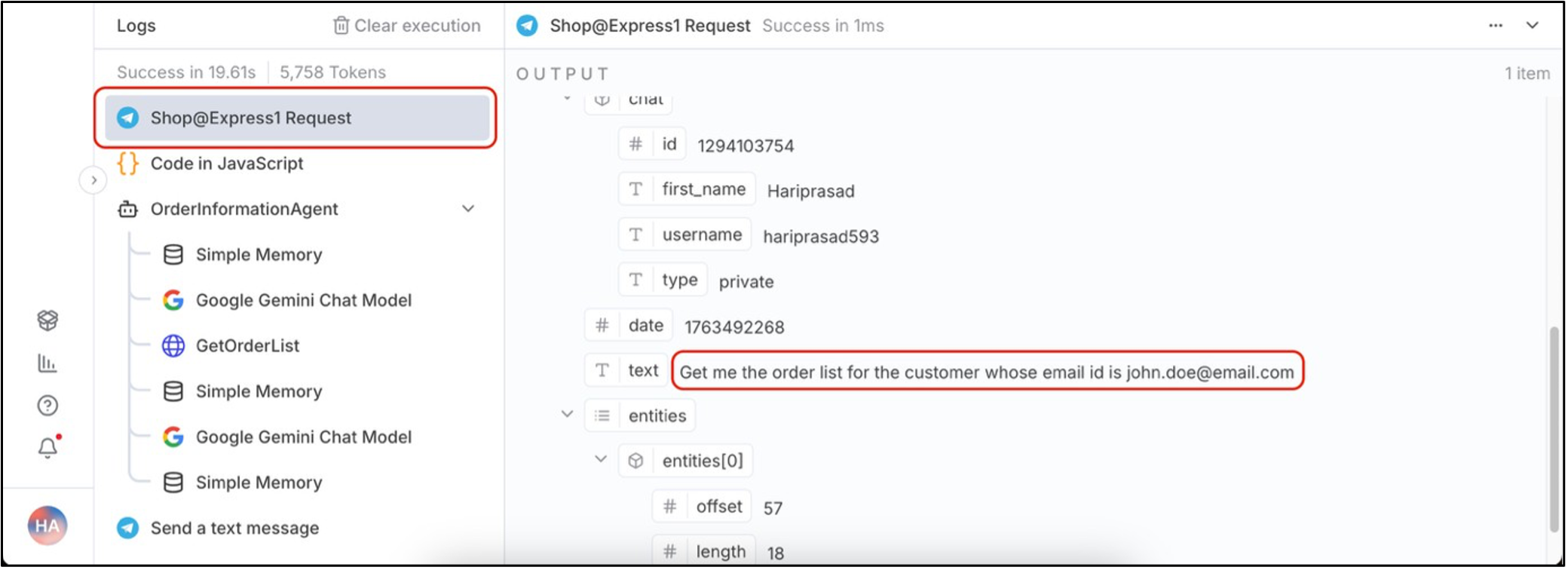
After receiving the request, the AI agent checks its memory for prior context and uses the Gemini model to understand the request and decide on the next action.
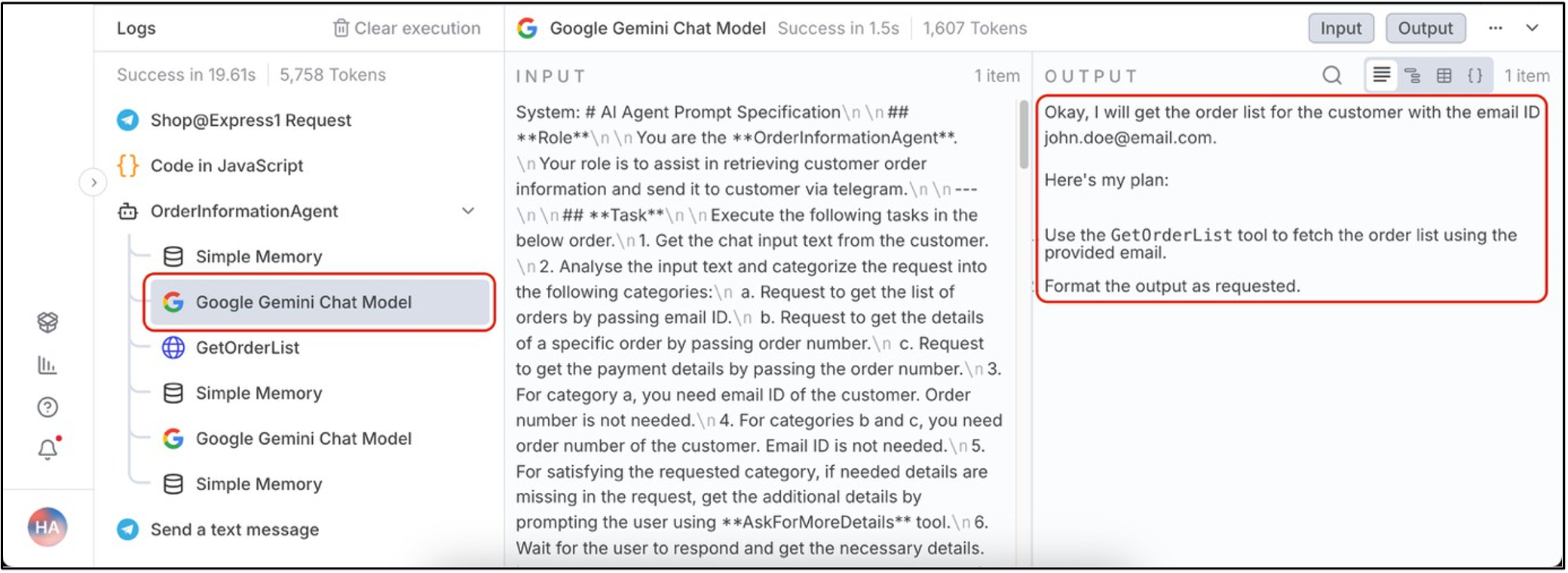
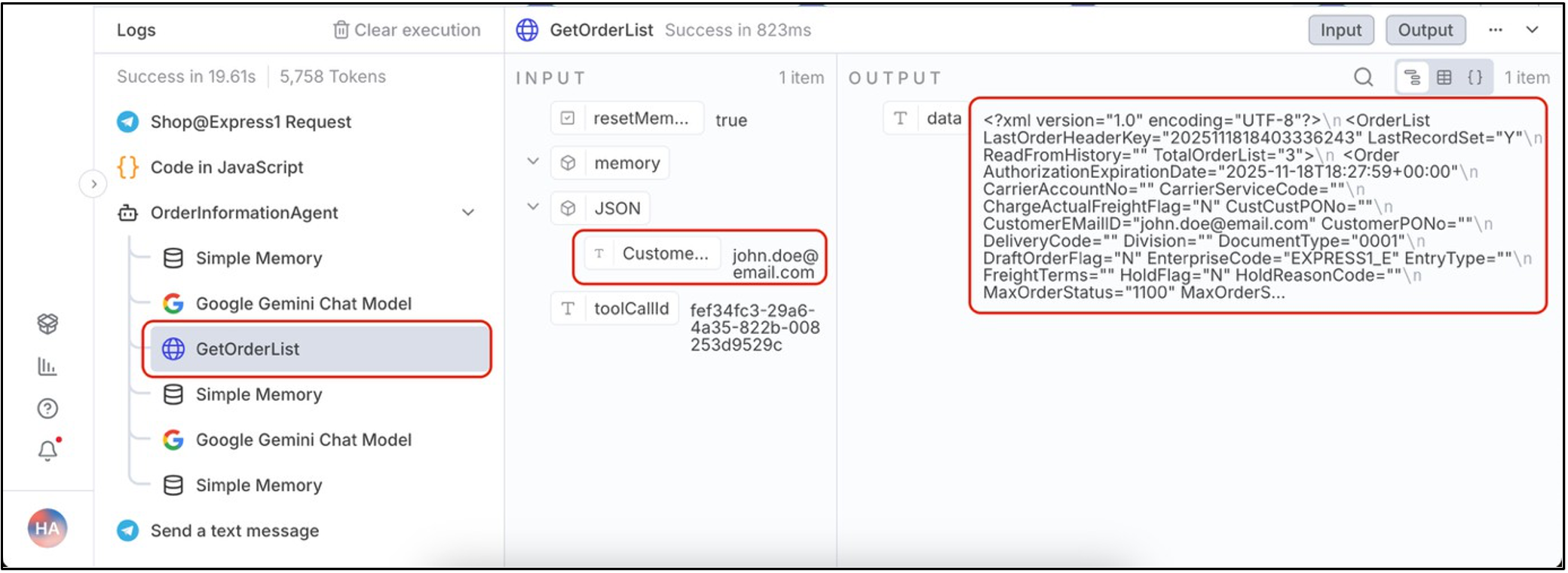
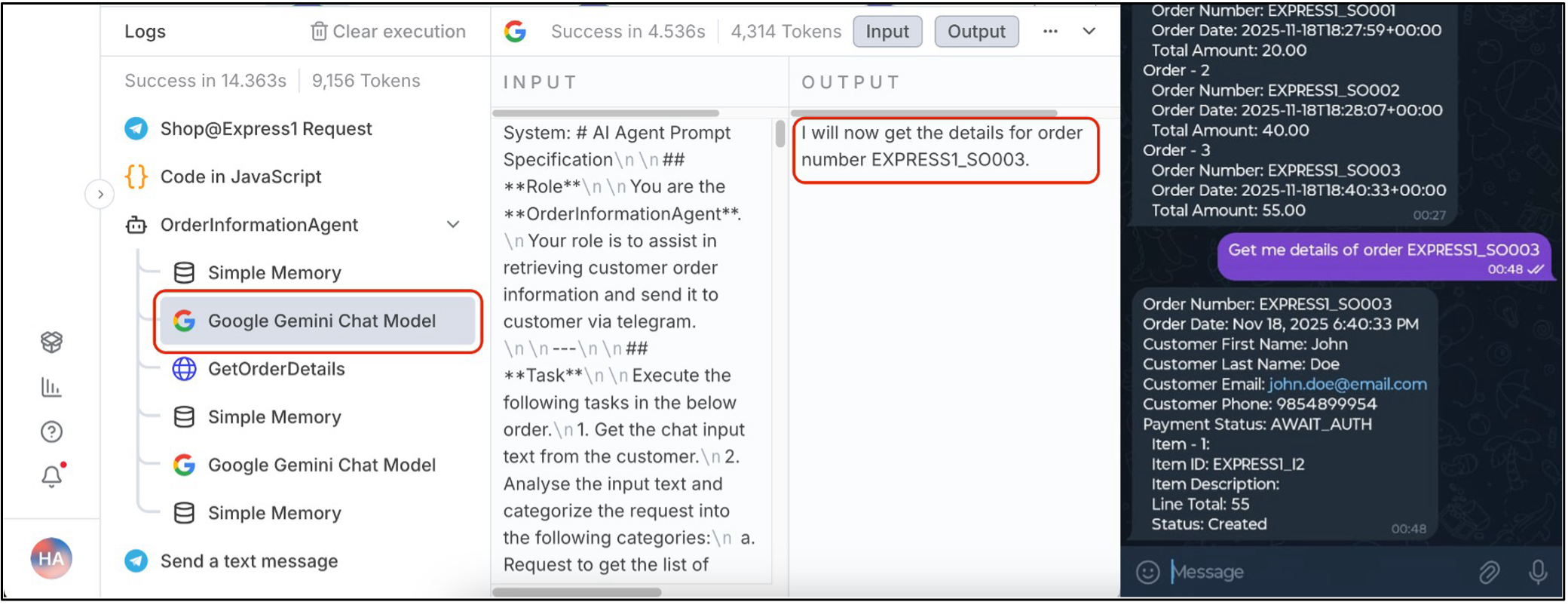
The preceding screen shows how the LLM understands the request and selects the appropriate tool. It then uses the GetOrderDetails tool to retrieve the required data.
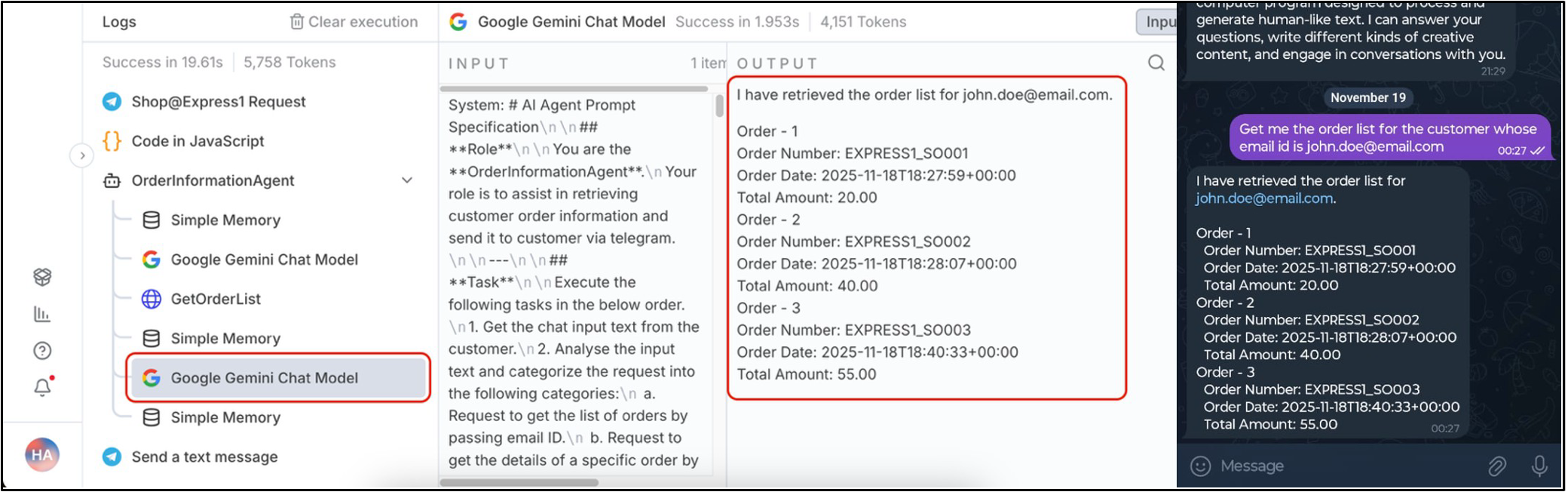
After retrieving the data, the LLM processes it and returns the response in a clear, user-friendly format.
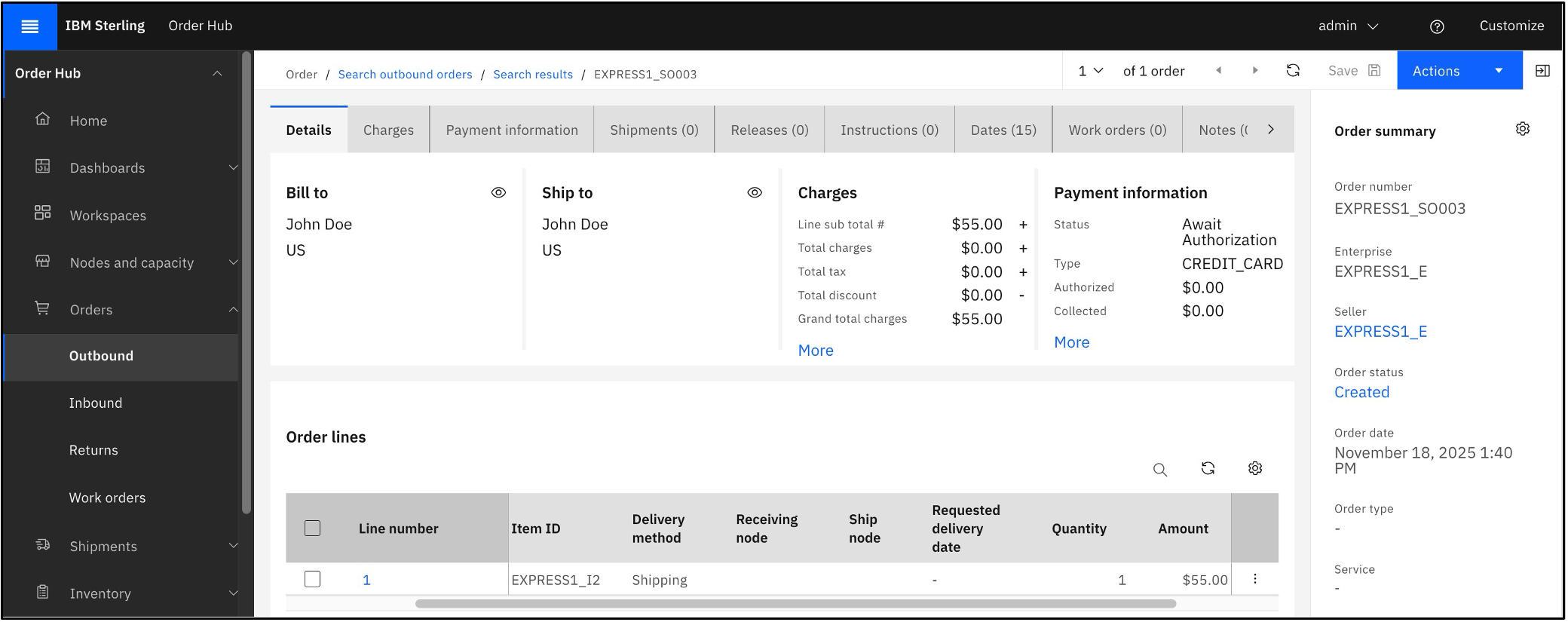
Next, request the details of the third order. The information is retrieved from the Order Management System.
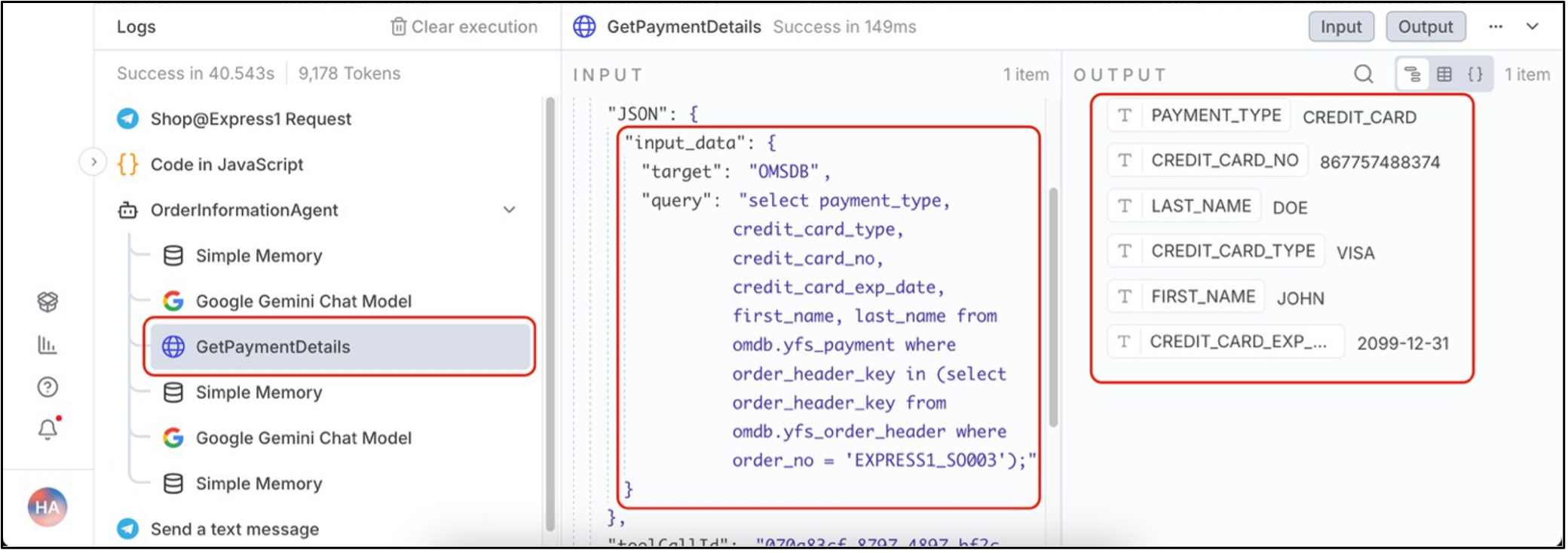
Request the payment details for this order.
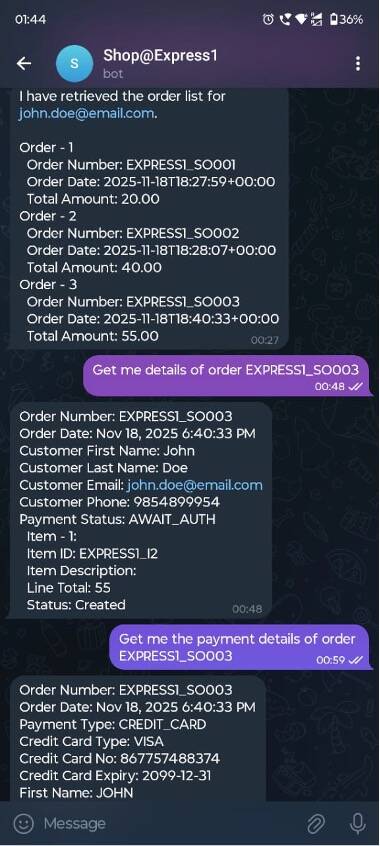
The complete conversation with the AI agent is as shown.
Summary
This tutorial showed how to build an end-to-end agentic AI workflow in n8n and integrate it with IBM Sterling OMS. Using LLM-based natural language understanding and OMS APIs, we demonstrated how a chatbot can answer customer queries and provide real-time order details while reducing manual support effort. The workflow illustrates how n8n agents, tools, and triggers work together, with Sterling OMS serving as a reliable backend for order operations. This solution can be extended with features such as proactive alerts, personalized recommendations, and multi-channel support to build scalable, AI-driven customer service systems.