Tutorial
Build enterprise search with Docling for IBM watsonx and OpenSearch
Parse complex policy PDFs with Docling for IBM watsonx and index structured chunks in OpenSearch for keyword, semantic, and hybrid retrievalEnterprise policy knowledge often lives in PDFs, scanned forms, and tables. Plain text extraction can flatten the layout, break tables, and miss image-only pages. Keyword search also struggles when employees ask questions in natural language or use different words than the original document.
In this tutorial, you combine Docling for IBM watsonx with OpenSearch to solve this problem. Docling for IBM watsonx converts PDFs, scanned images, and tables into structured, layout-aware output. It preserves reading order, table structure, OCR text, bounding boxes, and page provenance. OpenSearch then indexes that structured content as searchable chunks with text, metadata, and locally generated embeddings. Users can run keyword, semantic, and hybrid search from one index.
This tutorial shows you how to build a sample application, NexValue Financial Enterprise Search, and you learn how to:
- Call Docling for IBM watsonx with explicit API options (OCR, table extraction, output format, page range) and verify connectivity.
- Inspect reading order, classified elements, tables, OCR text, bounding boxes, and page provenance before indexing.
- See how parsed elements map to search-ready chunks before they reach OpenSearch.
- Generate embeddings locally and bulk-index chunks into OpenSearch 3.5 with the correct mappings
- Run and compare keyword, semantic, and hybrid search
- Explain why hybrid retrieval fits enterprise policy search better than keyword-only or semantic-only search.
Sample application architecture
NexValue Financial is a financial services company with internal KYC procedures, AML policies, retention schedules, and compliance FAQs. Analysts and operations staff need fast, accurate access to policy content buried in long PDFs and scanned forms.
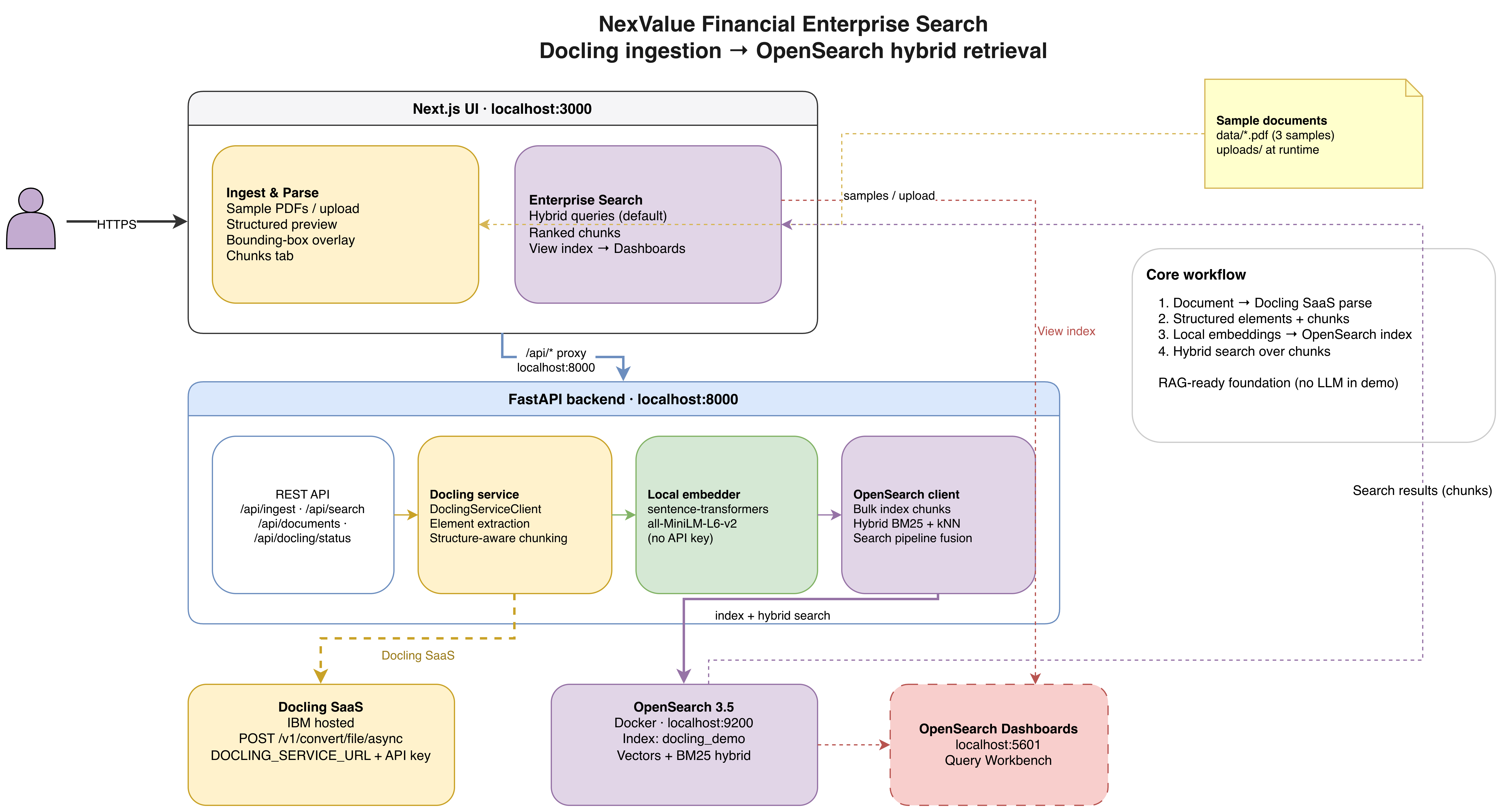
The following table describes each layer of the NexValue Financial Enterprise Search sample application:
| Layer | Technology | Role |
|---|---|---|
| API | FastAPI (port 8000) | Receives document upload and search requests. It calls Docling for IBM watsonx, prepares chunks, generates embeddings, and sends indexing and query requests to OpenSearch. |
| Parsing | Docling for IBM watsonx | Converts PDFs and scanned images into layout-aware structured output. It preserves reading order, table structure, OCR text, bounding boxes, and page provenance. |
| Embeddings | sentence-transformers/all-MiniLM-L6-v2 (local) |
Runs inside the FastAPI backend with no external embedding API required. Vectorizes each chunk's text at index time and embeds search queries at retrieval time. Vectors are stored in the chunk_text_vector field; OpenSearch does not generate embeddings itself. |
| Search | OpenSearch 3.5 | Stores all chunks in the docling_demo index with both BM25 and kNN mappings. Executes keyword, semantic, and hybrid queries; hybrid scoring is handled by the docling-hybrid-pipeline search pipeline. |
| Dashboards | OpenSearch Dashboards (port 5601) | Provides the Query Workbench for inspecting indexed documents and verifying mappings during development. |
| UI | Next.js (port 3000) | Lets you upload or select documents, preview Docling's structured extraction output, and run enterprise search queries against the indexed chunks. |
This tutorial focuses on the retrieval layer rather than an LLM chat experience. By the end, you have a search-ready knowledge base made up of structured chunks with text, metadata, page provenance, and vectors. You can use these chunks later as the retrieval input for a RAG pipeline.
Prerequisites
- Python 3.10+, for the backend, the Docling client, and the
sentence-transformersembedding model - Node.js 18+, for the frontend
- A container runtime, such as Rancher Desktop with the
dockerd (moby)container engine and with Docker CLI integration enabled. You can also use Docker Desktop, Podman, or Colima with Compose support. OpenSearch 3.5 and OpenSearch Dashboards run as local containers. - Docling for IBM watsonx free trial. Learn more about Docling in the open source Docling documentation.
- OpenSearch 3.5. Learn more about setting up enterprise search in the OpenSearch hybrid search guide.
You also need approximately 4GB of RAM for the OpenSearch container and embedding model load.
Steps
- Get Docling for IBM watsonx credentials
- Clone the repo and configure your environment
- Start OpenSearch and verify connectivity
- Start the React UI for visual validation
- Configure and call the Docling API
- Inspect and validate the converted documents before indexing them
- Prepare structured output for OpenSearch
- Verify the OpenSearch index and embeddings
- Verify the indexed documents
- Run keyword, semantic, and hybrid searches
Step 1. Get Docling for IBM watsonx credentials
The backend uses Docling for IBM watsonx to parse and convert documents. The backend needs to connect to Docling for IBM watsonx using the Docling service URL and API key (its credentials).
- Register for the Docling for IBM watsonx free trial.
- In the IBM SaaS Console, open your Docling for IBM watsonx subscription.
- Go to Instances and open your running instance.
- In the workbench, open API keys, create a key, and save it as
DOCLING_API_KEY. Open Integrate and copy the Service URL as
DOCLING_SERVICE_URL.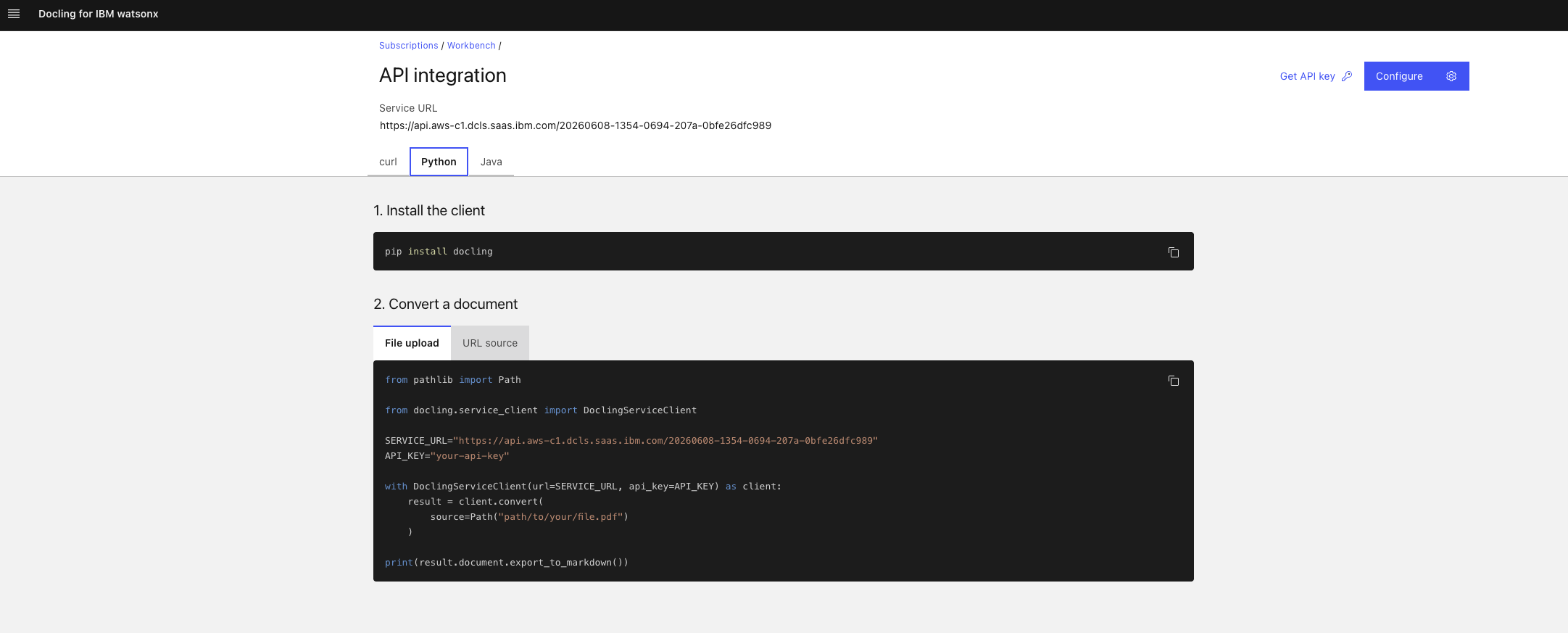
Step 2. Clone the repo and configure your environment
Now that you have the Docling for IBM watsonx credentials, you need to clone the GitHub repository for the sample app and create your .env file manually.
Clone the GitHub repo for the sample application.
git clone https://github.com/betloreilly/docling_opensearch.gitChange directories to
docling_opensearch.Create an isolated Python virtual environment and install the required dependencies for the tutorial. This environment keeps your tutorial dependencies separate from other Python projects on your machine.
 python3 -m venv .venv
 source .venv/bin/activate
 pip install -r requirements.txt
Change directories to
frontendand install the Node.js packages required to run the UI. This downloads the dependencies listed infrontend/package.json, including React and Next.js, so that the frontend application can start.cd frontend npm install cd ..Copy the example environment file.
cp .env.example .envEdit the
.envfile and specify your Docling for IBM watsonx credentials. Also, updateOPENSEARCH_PASSif you want to use a different password than the default shown in the example file. Lastly, ensure that theEMBEDDING_MODELvalues are set to the following values.DOCLING_SERVICE_URL=https://your-docling-service-url DOCLING_API_KEY=your-api-key OPENSEARCH_URL=https://localhost:9200 OPENSEARCH_USER=admin OPENSEARCH_PASS=YourStrongPass123! OPENSEARCH_INDEX=docling_demo OPENSEARCH_HYBRID_PIPELINE=docling-hybrid-pipeline EMBEDDING_MODEL=sentence-transformers/all-MiniLM-L6-v2 VECTOR_DIM=384 KEYWORD_WEIGHT=0.4 VECTOR_WEIGHT=0.6 CHUNK_SIZE_WORDS=200 CHUNK_OVERLAP_WORDS=40Regenerate the three NexValue sample PDFs. The GitHub repo includes three NexValue sample PDFs: a core AML/KYC policy, a complex retention table, and a scanned KYC form for OCR.
npm run samples
Step 3. Start OpenSearch and verify connectivity
Next, you need to start the OpenSearch 3.5 and OpenSearch Dashboards containers, and confirm the cluster is ready before you can index the structured documents. It is important to isolate infrastructure readiness early so you can debug each layer separately.
Start the containers.
docker compose up -dOpen OpenSearch Dashboards in your browser at
http://localhost:5601and log in with the default credentialsadmin/YourStrongPass123!. If you set a different password in your.envfile, use that password instead. A successful login confirms the Dashboards UI container is up.Verify that the OpenSearch REST API is reachable by running the following
curlcommand.curl -k -u admin:YourStrongPass123! https://localhost:9200If the OpenSearch REST API is reachable, a JSON object with cluster information and version details is returned.
Wait 30–60 seconds after startup before your first index operation.
Step 4. Start the React UI for visual validation
Run the UI now so you can validate parsing quality and retrieval behavior as you proceed.
Start the backend.
npm run backendYou can confirm Docling connectivity through the backend at any time:
curl http://localhost:8000/api/docling/statusStart the front end.
npm run frontendOpen the UI:
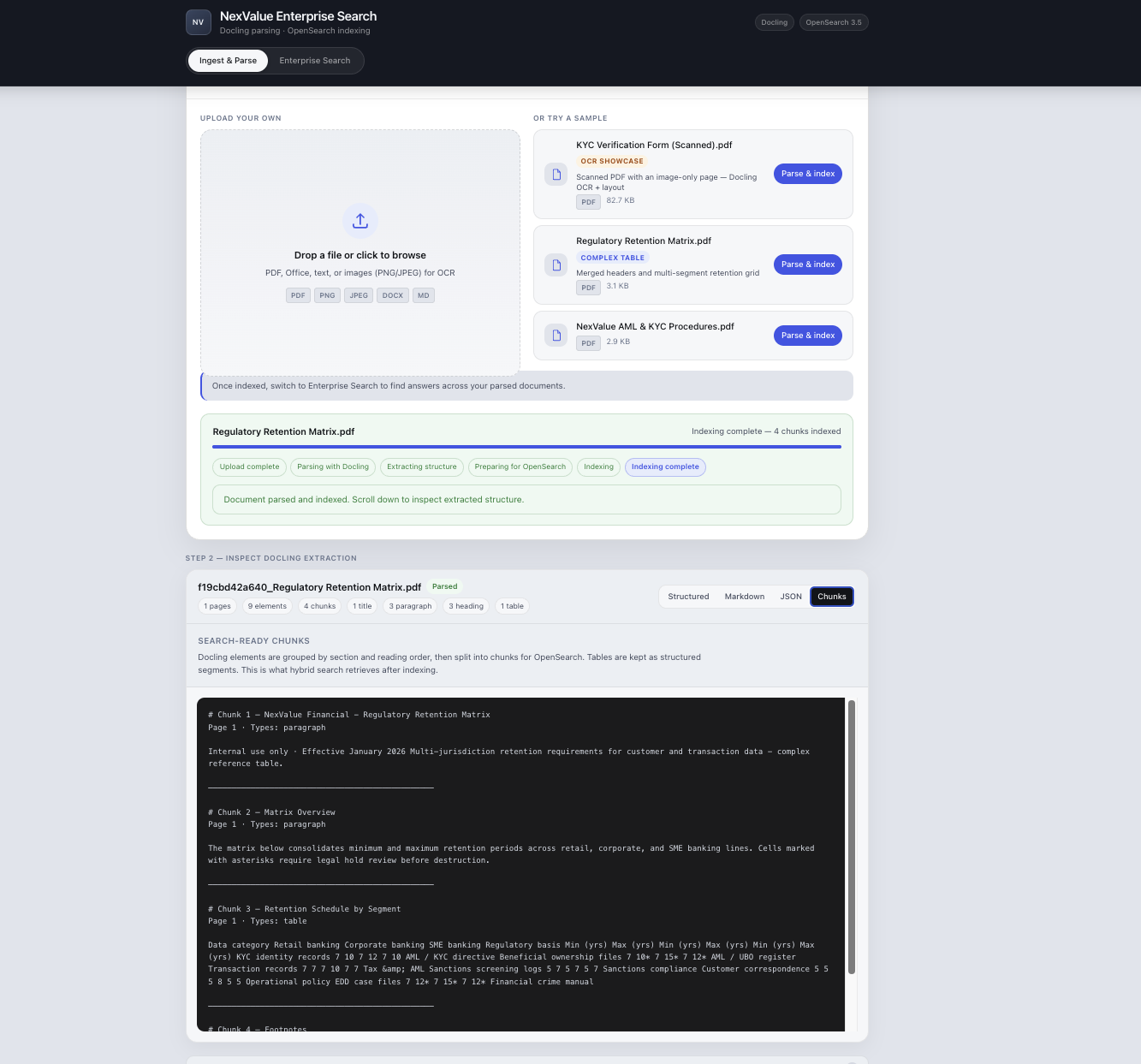
http://localhost:3000.Parse and index a sample PDF file. Select a sample file, click Parse & index, and in Structured, click an element to see its layout box on the PDF preview and which search chunk it maps to. Open Chunks to see exactly what OpenSearch indexes.
Click Enterprise Search and try this suggested query, "What documents are required for customer due diligence?". Review the ranked chunks with document name, section title, page number, and element types. Click View index to open OpenSearch Dashboards Query Workbench.
Step 5. Configure and call the Docling API
In this step, you submit a document conversion request for one sample file — NexValue AML & KYC Procedures.pdf — using explicit pipeline options, and then poll and fetch the result. The goal is to learn the Docling for IBM watsonx async API flow hands-on: submit a conversion, poll for task status, fetch the result, and download the artifacts. You validate the other two sample PDFs through the UI in Step 6.
Docling for IBM watsonx is a managed service. You do not build the document-processing engine. Your engineering work is choosing API options that maximize extraction quality for each document type.
In the Docling for IBM watsonx Workbench, open API examples to see curl, Python, and Java samples for your instance. The Configure pipeline panel on the right maps directly to the options you pass in your conversion request.
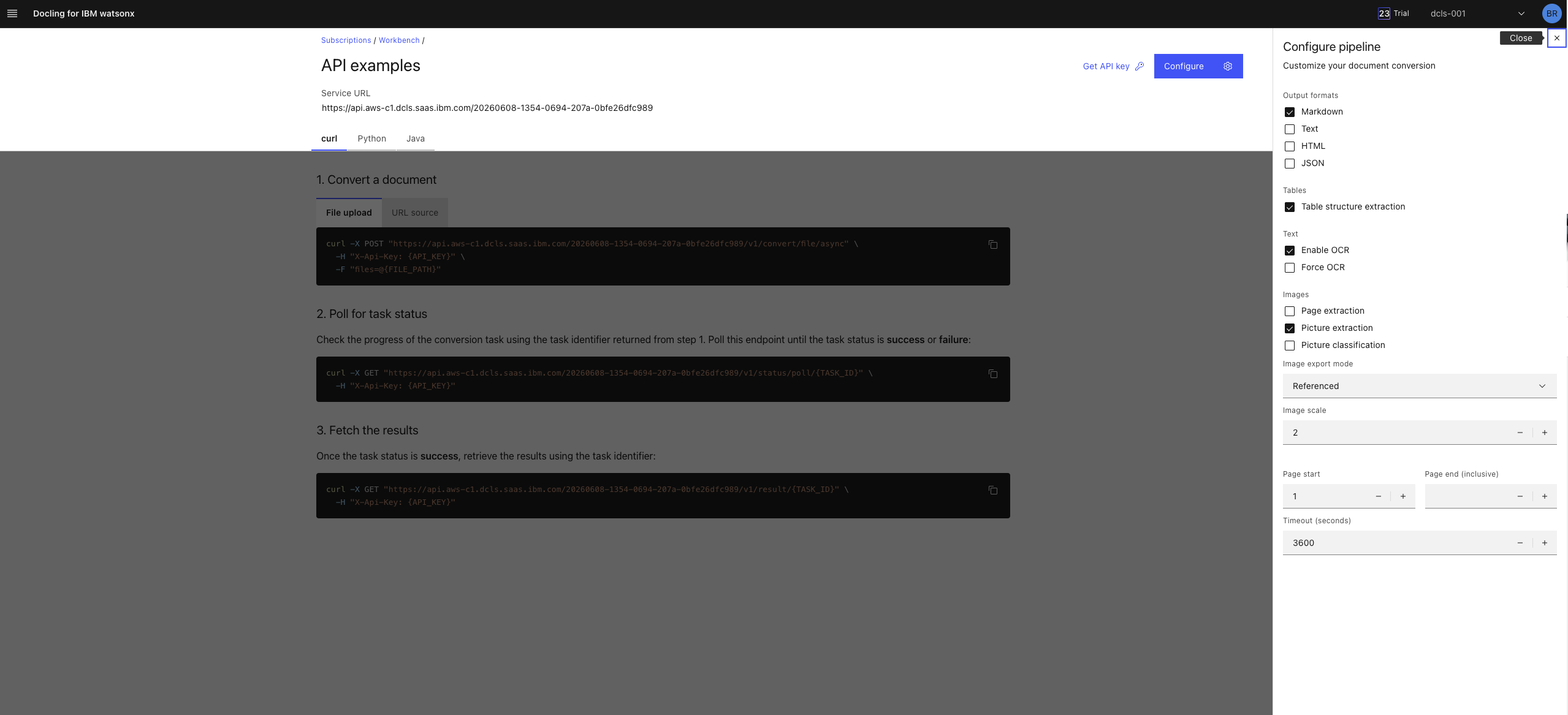
The Docling for IBM watsonx Workbench shows a three-step async workflow:
- Convert a document —
POST /v1/convert/file/async - Poll for task status —
GET /v1/status/poll/TASK_ID - Fetch the results —
GET /v1/result/TASK_ID
Convert a document
Use the following curl command to convert the NexValue AML & KYC Procedures.pdf sample file, which was built using the configure pipeline settings. This command specifies both JSON and MD output formats (as required), extracts the table structure, enables OCR, does not force OCR, extracts pictures, does not classify pictures, and has a timeout value of 60 minutes (3600 seconds).
source .env
mkdir -p parsed

RESPONSE=$(curl -s -X POST "$DOCLING_SERVICE_URL/v1/convert/file/async" \
  -H "X-Api-Key: $DOCLING_API_KEY" \
  -F "files=@data/NexValue AML & KYC Procedures.pdf" \
  -F 'target_type=presigned_url' \
  -F 'to_formats=json' \
  -F 'to_formats=md' \
  -F 'do_table_structure=true' \
  -F 'do_ocr=true' \
  -F 'force_ocr=false' \
  -F 'include_images=true' \
  -F 'do_picture_classification=false' \
  -F 'document_timeout=3600')

echo "$RESPONSE"
TASK_ID=$(echo "$RESPONSE" | jq -r .task_id)
Save the task_id from the response. In the next substeps for polling and fetching, replace $TASK_ID with that value.
Poll the status
The following script polls the /v1/status/poll/$TASK_ID endpoint every 3 seconds and prints the current task_status on each attempt. It stops automatically when task_status returns either success or failure. If the final status is failure, inspect the poll response for an error_message field.
until STATUS=$(curl -s -H "X-Api-Key: $DOCLING_API_KEY" \
  "$DOCLING_SERVICE_URL/v1/status/poll/$TASK_ID" | jq -r .task_status); \
  [ "$STATUS" = "success" ] || [ "$STATUS" = "failure" ]; do
  echo "task_status=$STATUS"
  sleep 3
done
echo "task_status=$STATUS"
Fetch the result
Retrieve the results of the document conversion using the
task_idcurl -s -H "X-Api-Key: $DOCLING_API_KEY" \ "$DOCLING_SERVICE_URL/v1/result/$TASK_ID" > parsed/docling_result.jsonThe
/v1/result/{task_id}response is a conversion summary with artifact download links. It is not the fullDoclingDocumentJSON at the top level. The presigned artifact URLs in the result expire after about one hour. Download artifacts soon after fetching the result.Confirm that the async job succeeded and artifacts were produced:
 jq '{
   num_succeeded,
   status: .documents[0].status,
   artifact_types: [.documents[0].artifacts[].artifact_type]
 }' parsed/docling_result.json
The expected result is
num_succeededis1,statusis"success", andartifact_typeslists the formats that you requested (for examplemarkdownorjson).Download a markdown artifact for a quick read:
curl -s "$(jq -r '.documents[0].artifacts[] | select(.artifact_type=="markdown") | .uri' parsed/docling_result.json)" | head -40Download the JSON artifact and save it to
parsed/docling_document.json. You inspect this file in Step 6 to verify element types, bounding boxes, and page provenance before indexing. The first command extracts the presigned download URL fromparsed/docling_result.json. The second command downloads the file only if the URL is not empty.JSON_URI=$(jq -r '.documents[0].artifacts[] | select(.artifact_type=="json") | .uri' parsed/docling_result.json) test -n "$JSON_URI" && curl -s "$JSON_URI" -o parsed/docling_document.jsonAfter running these commands, confirm the file was saved:
ls -lh parsed/docling_document.jsonIf
JSON_URIis empty and the file was not created, the JSON artifact was not produced. Re-run the convert command from substep 1 and confirm thattarget_type=presigned_urlis set and that both-F 'to_formats=json'and-F 'to_formats=md'lines are present.
Step 6. Inspect and validate the converted documents before indexing them
Always validate parsing quality before creating chunks or vectors. Bad parsing propagates into chunking, embeddings, and retrieval results. In this step, you validate NexValue AML & KYC Procedures.pdf using the artifacts you downloaded in Step 5, and then validate the other two sample PDFs through the UI.
Look for these potential parsing issues in any document you inspect:
- Reading order. Elements should appear in the sequence a human would read them, not in raw PDF stream order.
- Classified elements. Titles, headings, paragraphs, tables, images, and captions are typed separately.
- Tables. Row and column structure is preserved instead of flattened text.
- Bounding boxes. Each element carries layout coordinates on the source page.
- Page provenance. Page numbers tie content back to the original document.
Validate the primary PDF using curl artifacts
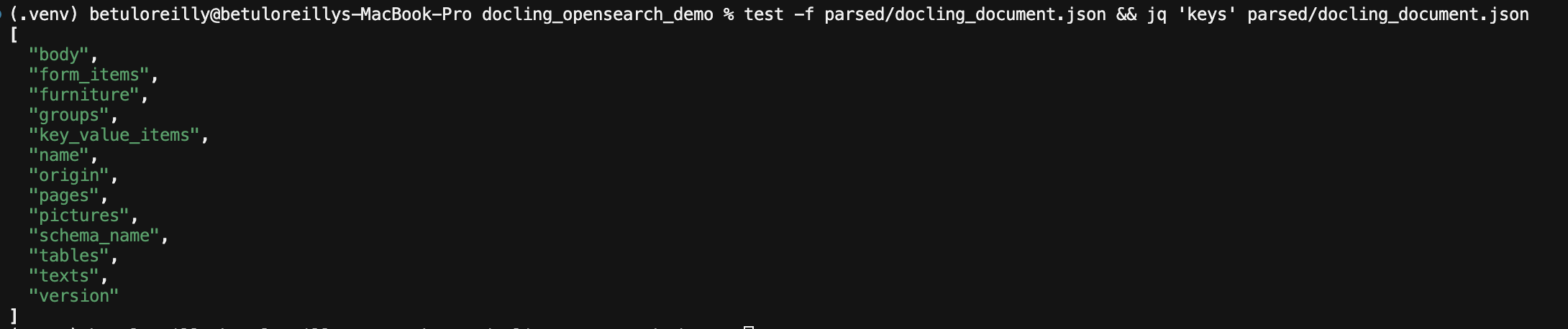
The two commands below check different things. The JSON artifact is the full structured DoclingDocument — it contains typed elements, bounding boxes, and page provenance, and is what the backend uses for chunking. The markdown artifact is a human-readable rendering of the same content, useful for a quick visual check that text and tables came through in the right reading order.
Run the JSON check first:
test -f parsed/docling_document.json && jq 'keys' parsed/docling_document.json
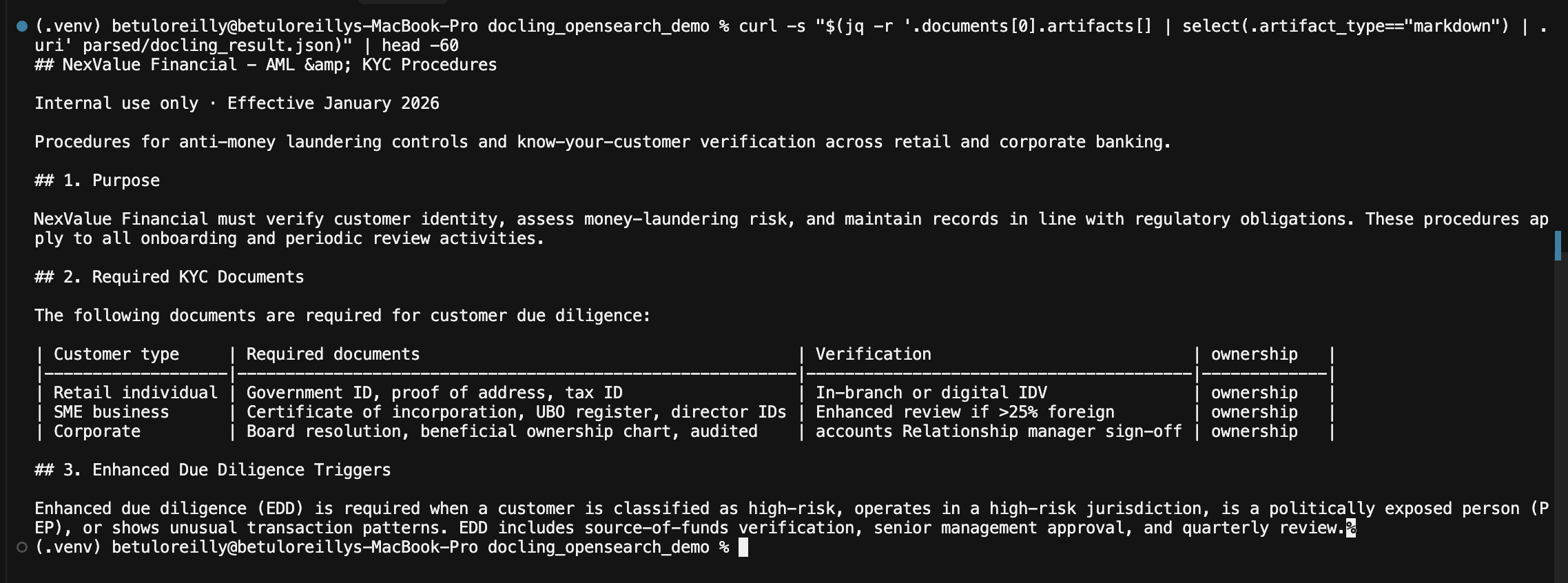
Then run the markdown check to visually confirm reading order and table structure:
curl -s "$(jq -r '.documents[0].artifacts[] | select(.artifact_type=="markdown") | .uri' parsed/docling_result.json)" | head -60
Validate the other two sample PDFs through the UI
You do not need to repeat the full curl workflow for the other two sample PDFs. The UI runs the same backend flow — parsing with Docling for IBM watsonx, chunking, embedding, and indexing into OpenSearch — with a single click. Use it to visually confirm that each document type extracts correctly before moving on to indexing.
OpenSearch, the backend, and the frontend were all started in Steps 3 and 4. If any of them have stopped, restart them using docker compose up -d (OpenSearch), npm run backend, and npm run frontend before continuing. Then open http://localhost:3000.
Select
Regulatory Retention Matrix.pdf, click Parse & index, then open the Structured and Chunks tabs. Confirm that table rows and columns are preserved as discrete elements and that those elements map to search-ready chunks with section titles and page numbers.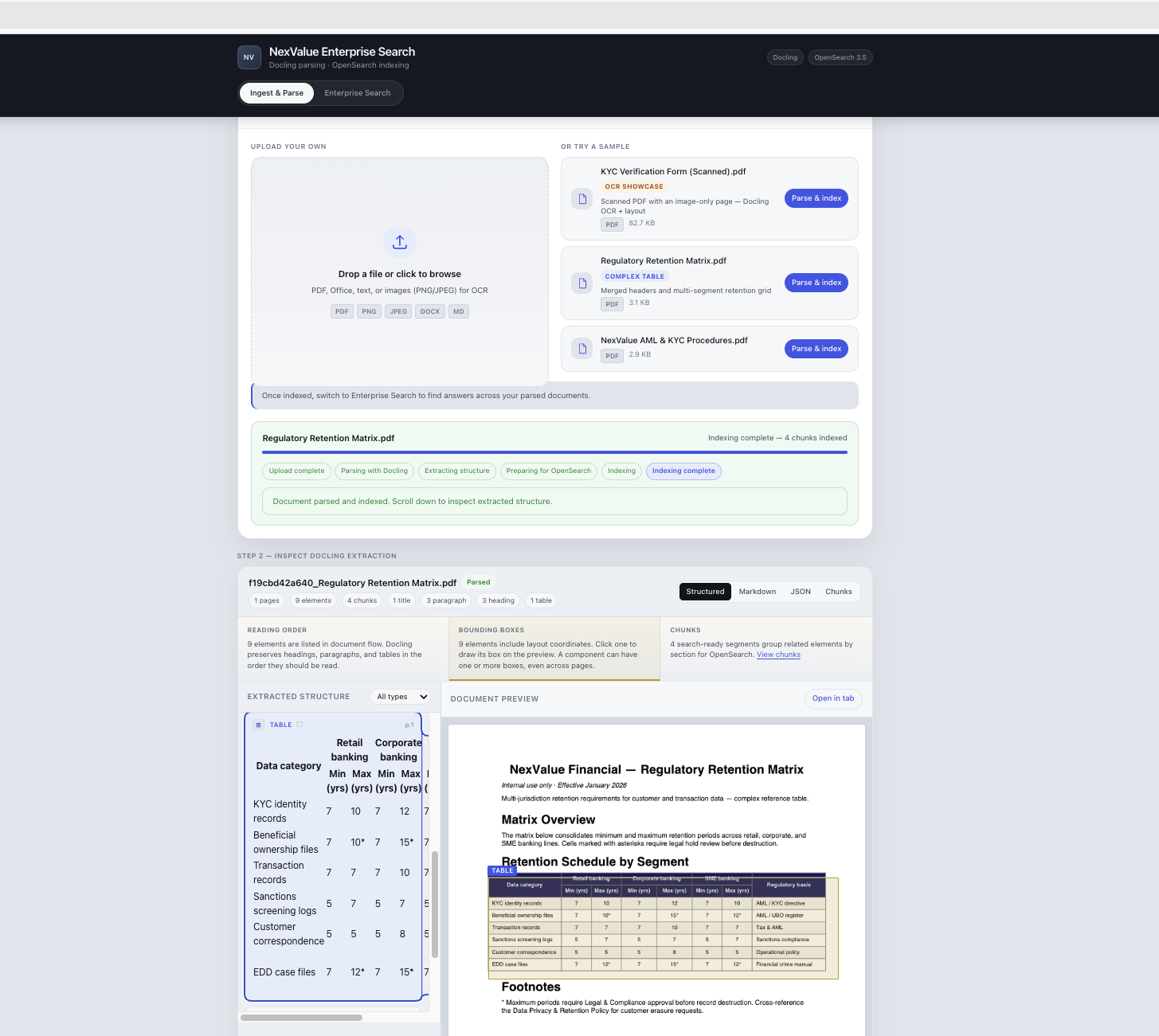
Select
KYC Verification Form (Scanned).pdf, click Parse & index, then open the Structured and Chunks tabs. Confirm that OCR text appears for the scanned pages (text that a plain extractor would have skipped) and that page provenance is populated for each chunk.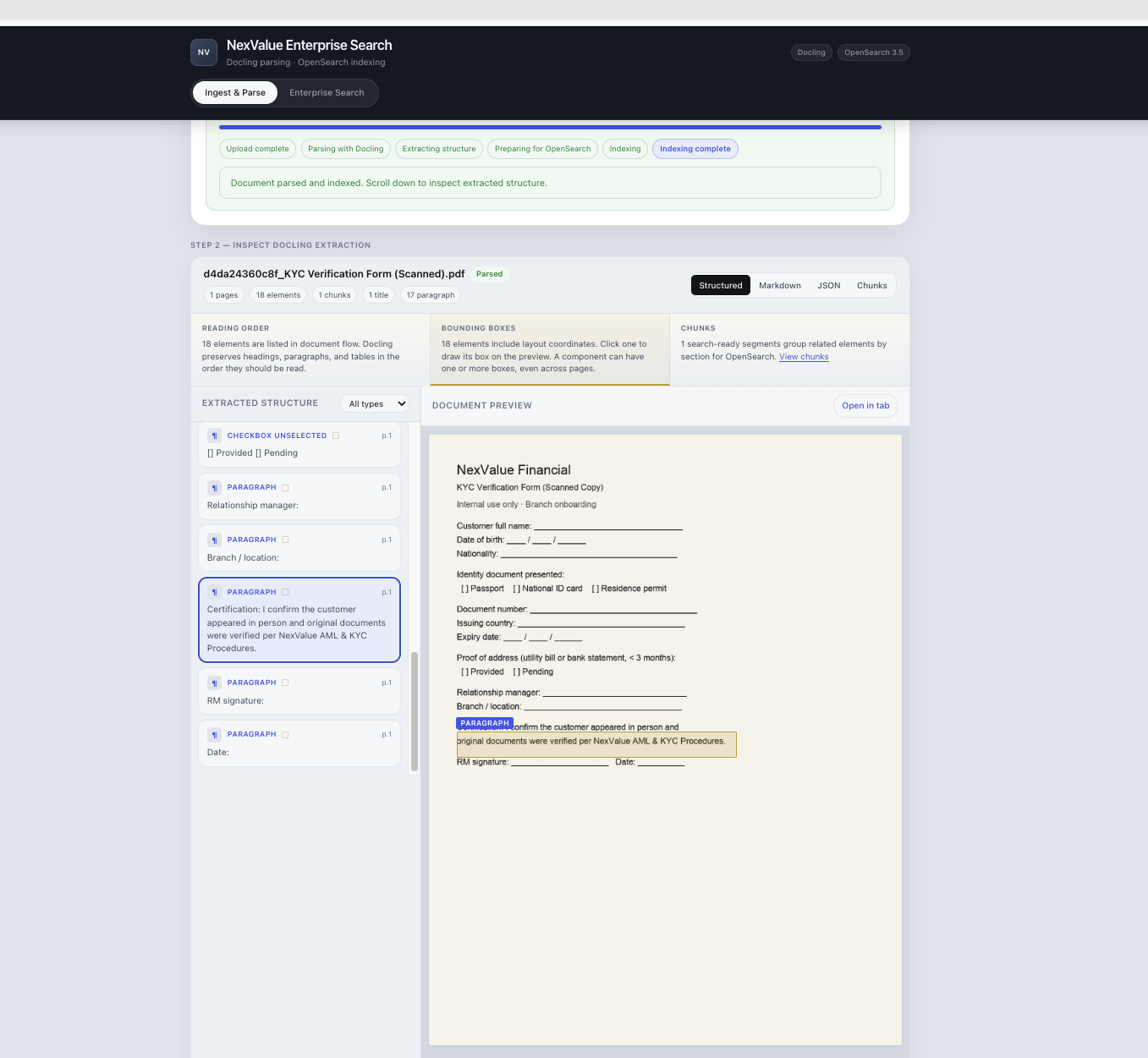
Validation checklist
Use this checklist to confirm all three documents are ready before moving on to chunking and indexing:
NexValue AML & KYC Procedures.pdf(validated via curl artifacts):- Titles and section headers are present in the JSON keys output
- Markdown export reads naturally in reading order
- Page numbers and bounding-box provenance are populated
Regulatory Retention Matrix.pdf(validated via UI):- Table elements exist with preserved row and column structure
- Section titles and page numbers appear in the Chunks tab
KYC Verification Form (Scanned).pdf(validated via UI):- OCR text appears for image-only pages
- Page provenance is populated for each chunk
Step 7. Prepare structured output for OpenSearch
Next you transform the parsed Docling output into retrieval-ready chunks with section titles, page numbers, and element type metadata. OpenSearch retrieval quality depends on chunk boundaries and metadata richness. Chunks grouped by section and reading order retrieve more accurately than arbitrary text splits.
The parse_document and _build_chunks functions in backend/services/docling_service.py handle this transformation. Here is how chunking works:
- Iterates classified elements in reading order.
- Groups text under the current section heading.
- Splits long sections using
CHUNK_SIZE_WORDS(default 200) andCHUNK_OVERLAP_WORDS(default 40). - Creates dedicated chunks for tables (HTML structure flattened to searchable text).
- Attaches
section_title,page_number, andelement_typesto each chunk.
Each chunk is represented by the DocumentChunk model defined in backend/models/schemas.py, and the full parsed result is represented by ParsedDocument. These are exactly the structures that OpenSearch indexes.
Make sure that OpenSearch is still running. Start the backend and submit a sample ingest job:
npm run backend
In a second terminal, run this OpenSearch job:
JOB=$(curl -s -X POST "http://localhost:8000/api/ingest/sample/NexValue%20AML%20%26%20KYC%20Procedures.pdf")
echo "$JOB" | jq '{job_id, document_id, status}'

JOB_ID=$(echo "$JOB" | jq -r .job_id)
DOC_ID=$(echo "$JOB" | jq -r .document_id)

until STATUS=$(curl -s "http://localhost:8000/api/jobs/$JOB_ID" | jq -r .status); \
  [ "$STATUS" = "complete" ] || [ "$STATUS" = "error" ]; do
  sleep 3
done

curl -s "http://localhost:8000/api/jobs/$JOB_ID" | jq '{status, message, error}'
When the job completes, inspect the cached output:
jq '{
  chunk_count: .metadata.chunk_count,
  first_chunk: .chunks[0] | {section_title, page_number, element_types, text: .text[0:120]}
}' "parsed/${DOC_ID}.json"
Parsed JSON is cached under parsed/. Uploads are stored under uploads/.
Step 8. Verify the OpenSearch index and embeddings
When the ingest job in Step 7 completed, the backend automatically handled three things: it vectorized each chunk using backend/services/embedder.py (which runs sentence-transformers/all-MiniLM-L6-v2 locally), created the docling_demo index with vector-capable mappings using ensure_index in backend/services/opensearch_service.py, and registered the docling-hybrid-pipeline search pipeline using ensure_hybrid_pipeline. You do not need to run any additional commands to create the index or generate embeddings since both happen as part of the ingest job.
The embedding model, vector dimensions, index name, and hybrid pipeline name are all set in the .env file you previously configured: EMBEDDING_MODEL, VECTOR_DIM, OPENSEARCH_INDEX, and OPENSEARCH_HYBRID_PIPELINE.
The sample application creates the following index mapping in backend/services/opensearch_service.py via the _index_mapping function:
| Field | Type | Purpose |
|---|---|---|
chunk_text |
text |
BM25 keyword search |
section_title, document_title |
text |
Section and document name matching |
page_number |
integer |
Page provenance |
element_types |
keyword |
Filter by element type (table, paragraph, etc.) |
chunk_text_vector |
knn_vector (384 dimensions) |
kNN semantic search |
chunk_id, doc_id, source_file |
keyword |
Identity and deduplication |
Verify the mapping was created correctly by running the following command:
curl -k -u admin:YourStrongPass123! \
  "https://localhost:9200/docling_demo/_mapping?pretty"
Confirm that chunk_text_vector exists with "dimension": 384.
Step 9. Verify the indexed documents
The ingest job in Step 7 already indexed all chunks into OpenSearch. Each indexed document contains chunk_text, section_title, document_title, page_number, element_types, chunk_text_vector, and ingested_at, written by the index_document function in backend/services/opensearch_service.py.
Run the following commands to confirm the documents are present and complete.
Check the total document count:
 curl -k -u admin:YourStrongPass123! \
   "https://localhost:9200/docling_demo/_count?pretty"
Spot-check one indexed chunk and confirm that
chunk_text,section_title,page_number, andelement_typesare all present:curl -k -u admin:YourStrongPass123! \ "https://localhost:9200/docling_demo/_search?size=1&pretty"Inspect the index visually in OpenSearch Dashboards Query Workbench at
http://localhost:5601: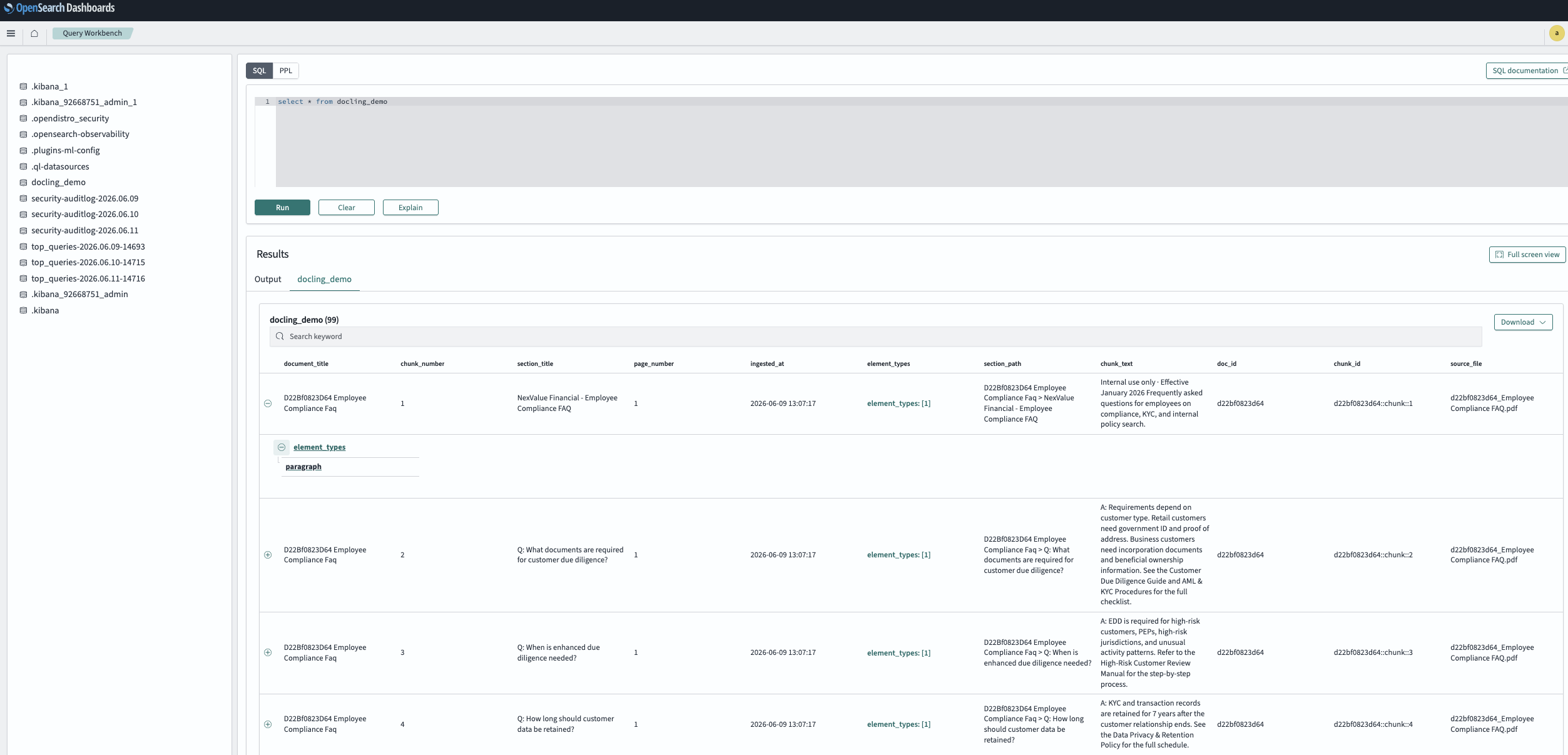
Step 10. Run keyword, semantic, and hybrid searches
Now, run all three retrieval modes against the same question set and compare the ranked results. A side-by-side comparison is the fastest way to tune the weights, chunking, and indexing strategy for your enterprise policy search.
Review the strengths and limitations of each of the retrieval modes:
| Mode | Mechanism | Strength | Limitation |
|---|---|---|---|
| Keyword | BM25 on chunk text and section titles | Exact terms, acronyms, product codes | Misses paraphrased questions |
| Semantic | kNN on pre-indexed chunk_text_vector |
Natural-language questions, synonyms | Can drift on rare acronyms |
| Hybrid | BM25 + kNN in one request; scores normalized and fused | Balances precision and intent | Requires tuning weights for your corpus |
In this sample application, hybrid retrieval works in this way:
- At index time, the backend embeds each chunk locally with
sentence-transformers/all-MiniLM-L6-v2and stores vectors in OpenSearch. - At query time, the backend embeds the user query with the same model.
- OpenSearch runs a hybrid query through the
docling-hybrid-pipelinesearch pipeline with anormalization-processor. - Keyword and vector scores are fused using
KEYWORD_WEIGHT(default 0.4) andVECTOR_WEIGHT(default 0.6).
With OpenSearch running, start the backend (npm run backend) and run each mode:
Run the keyword search:
 curl -s -X POST http://localhost:8000/api/search \
   -H "Content-Type: application/json" \
   -d '{"query":"When is enhanced due diligence required?","mode":"keyword","size":5}' \
   | jq '.hits[] | {score, section_title, page_number, chunk_text: .chunk_text[0:120]}'
Run the semantic search:
 curl -s -X POST http://localhost:8000/api/search \
   -H "Content-Type: application/json" \
   -d '{"query":"When is enhanced due diligence required?","mode":"semantic","size":5}' \
   | jq '.hits[] | {score, section_title, page_number, chunk_text: .chunk_text[0:120]}'
Run the hybrid search:
 curl -s -X POST http://localhost:8000/api/search \
   -H "Content-Type: application/json" \
   -d '{"query":"When is enhanced due diligence required?","mode":"hybrid","size":5}' \
   | jq '.hits[] | {score, section_title, page_number, chunk_text: .chunk_text[0:120]}'
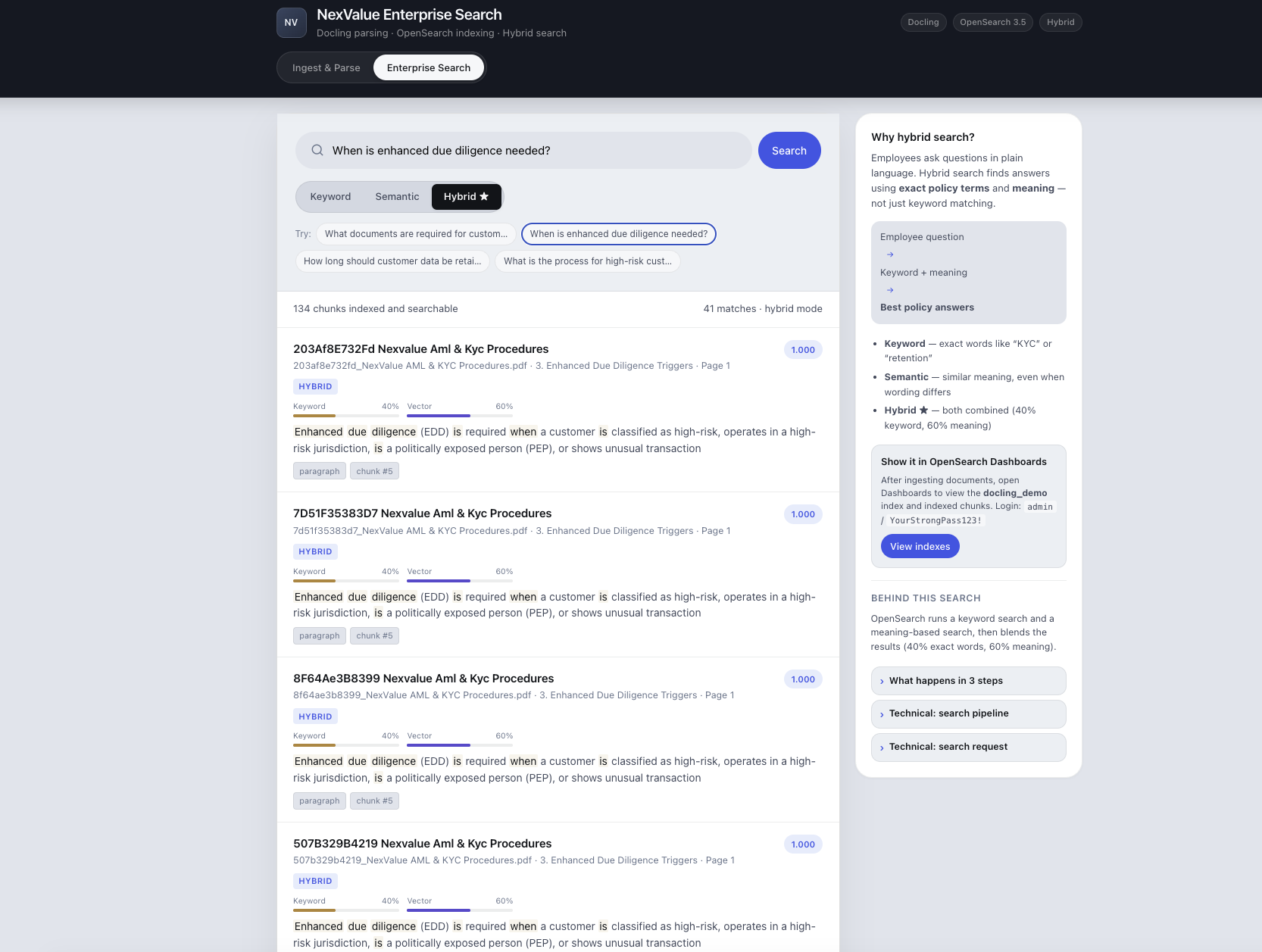
Repeat these three commands for each of these queries:
- What documents are required for customer due diligence?
- When is enhanced due diligence needed?
- How long should customer data be retained?
For each query, compare these attributes across the three modes:
- Top result relevance
- Section-title precision
- Page provenance correctness
- Whether paraphrased queries improve under semantic or hybrid modes
Summary
In this tutorial, you built NexValue Financial Enterprise Search, a working enterprise search application that combines Docling for IBM watsonx with OpenSearch 3.5.
You used the Docling async API to convert a complex PDF into structured, layout-aware output, inspected the parsed elements before indexing, and validated two additional document types through the UI. The FastAPI backend then chunked the parsed output by section and reading order, generated embeddings locally with sentence-transformers/all-MiniLM-L6-v2, and indexed the content into OpenSearch using BM25 for keyword search and vector mappings for semantic search.
By running the same query across keyword, semantic, and hybrid search modes, you saw how hybrid retrieval combines exact-term precision with natural-language intent. This balance is especially important for enterprise policy search, where employees often ask questions in everyday language while the source documents use formal, domain-specific terminology.
Each indexed chunk also includes full metadata, such as section titles, page numbers, and element types. This makes the knowledge base easier to inspect, filter, cite, and extend into a RAG pipeline.
Next steps
Now that you have the sample app running, try these tasks:
- Add more documents: ingest your own policy corpus and compare chunk quality before indexing at scale
- Tune chunking: adjust
CHUNK_SIZE_WORDSandCHUNK_OVERLAP_WORDSin.envfor longer sections or finer granularity - Tune hybrid weights: experiment with
KEYWORD_WEIGHTandVECTOR_WEIGHTfor acronym-heavy vs conversational queries - Validate retrieved chunks: use Dashboards Query Workbench and the Chunks tab to confirm the right passages surface for representative employee questions
- Extend retrieval into RAG later: the indexed chunks already carry text, section titles, page numbers, and element metadata suitable for a downstream LLM context window