Tutorial
Gitlab Runner for Linux on IBM Power
Installing and testing GitLab Runner for Linux on IBM PowerIntroduction
GitLab is a robust tool that is designed to manage the entire software development lifecycle. This includes issue tracking and project management, managing the process of code sharing among team members, error tracking, managing project documentation in wiki space, and testing/deploying code changes using a continuous integration and continuous delivery (CI/CD) pipeline.
With GitLab gaining popularity in the recent years with the various features it provides, its demand has increased. Several GitLab customers use IBM Power, which leads to the need for GitLab on IBM Power Architecture. The GitLab Runner includes support for Linux on IBM Power and provides built binary files and images for Gitlab Runner from GA 14.3 release onwards.
This tutorial shows how to register GitLab Runner on Linux for IBM Power and test its basic features. We will look at the various executors and test them with the Gitlab Runner for Power Architecture.
Prerequisites
The following resources or dependencies are needed to test Gitlab Runner:
Make sure that an IBM Power virtual machine (VM) is available to install Gitlab Runner.
You can use the IBM Power Systems Virtual Server service on IBM Cloud.
Refer to the following steps to create an instance in Power Virtual Server using the
ibmcloudcommand in IBM Cloud CLI:Log in to IBM Cloud.
ibmcloud login --no-region --apikey $APY_KEYSet the Cloud Resource Name (CRN) for the target Power Virtual Server.
ibmcloud pi st "$CRN"To get the CRN you can use the following command:
ibmcloud pi service-list --json | jq -r '.[] | "\(.CRN),\(.Name)"Create a public network.
ibmcloud pi netcpu --dns-servers "1.1.1.1 9.9.9.9 8.8.8.8" $NETWORK_NAMEIf required, create additional storage (optional).
ibmcloud pi volume-create "$VOLUME_NAME" --type "$VOLUME_TIER" --size "$VOLUME_SIZENote: Tier can be tier1 or tier3 and size is set in GB.
Get the ID of the available images.
ibmcloud pi image-list-catalogCreate a VM by specifying the required values as shown below.
ibmcloud pi instance-create INSTANCE_NAME --image IMAGE_ID --memory MEMORY_IN_GB --network NETWORK_NAME --volumes "VOLUME_NAME" --processors PROCESSOR_ALLOCATION --processor-type PROCESSOR_TYPE --key-name SSH_KEY --sys-type SYSTEM_TYPEExample:
ibmcloud pi instance-create alpine-linux-01 --image Ubuntu2004 --memory 32 --network alpine-linux-public-network --volumes "alpine-linux-712bd2e567 alpine-linux-1964353adf" --processors 0.50 --processor-type shared --key-name abcd --sys-type s9222
You can also use the script available in GitHub to run the above-mentioned steps with ease.
Note: For performing the steps in this tutorial, the test team used a RHEL 8.3 VM.
Install Docker Engine
You can use the following commands to install the latest version of Docker on Power from Unicamp.
mkdir /root/docker; cd /root/docker
wget https://oplab9.parqtec.unicamp.br/pub/repository/rpm/open-power-unicamp.repo;
sudo mv open-power-unicamp.repo /etc/yum.repos.d/; sudo yum -y update; sudo yum -y install docker-ce;
service docker start
Estimated time
It takes around 60 minutes to install Gitlab Runner on ppc64le and test the various executors.
Install GitLab Runner
Perform the following steps to install GitLab Runner:
Add the official GitLab repository.
# For Debian/Ubuntu/Mint
curl -L "https://packages.gitlab.com/install/repositories/runner/gitlab-runner/script.deb.sh" | sudo bash
# For RHEL/CentOS/Fedora
curl -L "https://packages.gitlab.com/install/repositories/runner/gitlab-runner/script.rpm.sh" | sudo bash
Install the latest version of GitLab Runner.
# For Debian/Ubuntu/Mint
sudo apt-get install gitlab-runner
# For RHEL/CentOS/Fedora
sudo yum install gitlab-runner
You can also download the required package (deb or rpm) for your system.
curl -Lf https://gitlab-runner-downloads.s3.amazonaws.com/latest/rpm/gitlab-runner_ppc64le.rpm
Use the downloaded package to install Gitlab Runner locally.
yum localinstall gitlab-runner_ppc64le.rpm
Register GitLab Runner
Registering a runner is the process of binding the runner with a GitLab instance.
As a prerequisite, you need to create a project and acquire the registration token:
- Create a user account in GitLab and then, create a project. Refer to the sample repository used in this tutorial.
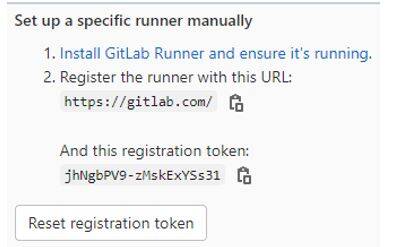
In the GitLab repository, click Settings -> CI/CD. In the Runners section, click Expand to view the GitLab instance URL and token which will be used to register the runner.
Runner executors
A Gitlab Runner executor determines the environment in which each job runs. GitLab Runner implements a number of executors and users can select an appropriate executor as per their needs.
The following executors have been tested for the Gitlab Runner for ppc64le architecture:
- Shell
- SSH
- Docker
- Docker Machine
- Kubernetes
In this tutorial, let us test the Docker and Docker Machine executors provided by GitLab Runner.
Docker executor
When using the Docker executor, a new container is created by the Docker Engine for each build triggered on the GitLab CI. The build runs in the newly created container using the image that is set up in the .gitlab-ci.yml file. Perform the following steps to test the Docker executor:
Register the runner.
Run the following command to register the runner.
#gitlab-runner register
Runtime platform arch=ppc64le os=linux pid=378397 revision=3574bc9c version=13.12.0~beta.23.g3574bc9c

Running in system-mode.Enter the GitLab instance URL (for example, https://gitlab.com/):
https://gitlab.com/
Enter the registration token:
jhNgbPV9-zMskExYSs31
Enter a description for the runner:
[sonia1.fyre.ibm.com]: ppc64le docker executor for power
Enter tags for the runner (comma-separated):
dock-ppc
Registering runner… succeeded runner= zz1vnEJW
Enter an executor: custom, docker-ssh, docker+machine, kubernetes, docker, parallels, shell, ssh, virtualbox, docker-ssh+machine:
docker
Enter the default Docker image (for example, ruby:2.6):
alpine:latest
Runner registered successfully. Feel free to start it, but if it’s running already the config should be automatically reloaded!
After the runner is registered successfully, go to the GitLab repository and click Settings -> CI/CD. In the Runners section, click Expand. The newly registered runner should be listed in the Available specific runners section.
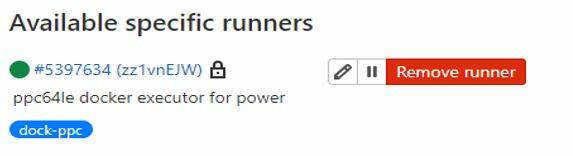
Note: Run the
gitlab-runner verifycommand in case the state of the runner is shown as Unavailable on the CI.In the gitlab-ci.yml file in your GitLab project, make sure to add the runner tag for registering the runner in the
tagsfield (in this example,dock-ppc).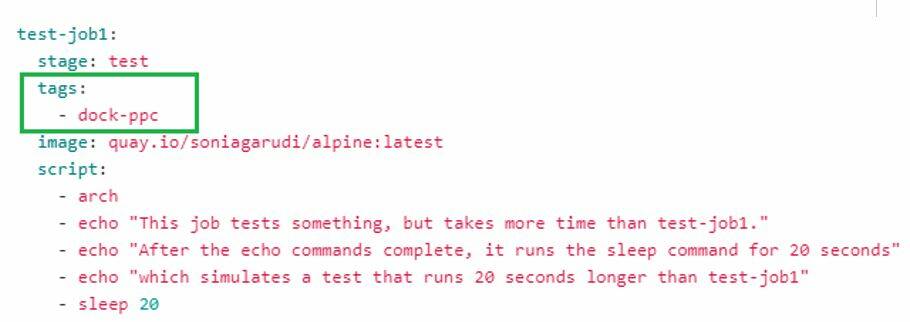
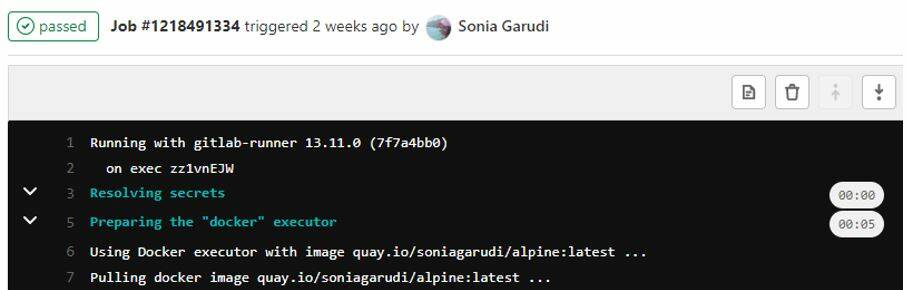
Notice that when a new build is triggered, it uses the registered Docker executor.
Docker machine executor
Docker machine executor is based on the autoscale mechanism. As mentioned in the official Gitlab documentation, Docker Machine has been deprecated by Docker. GitLab maintains a fork of docker-machine for the users who require the Docker Machine executor.
When GitLab Runner is configured to use this executor, a new machine is built by Docker Machine for every build triggered on the GitLab CI. The machine is created in the configured cloud provider. You can find all the supported provider parameters listed in the GitLab repository. This example uses the OpenStack cloud platform for testing.
Docker Machine doesn't support Power Architecture. However, you can build Docker Machine for Linux on IBM Power and use it to register and test the autoscale ability of the Docker machine executor for ppc64le using the following steps:
Build
docker-machine.$ mkdir docker-machine $ cd docker-machine $ export GOPATH="$PWD" $ go get github.com/docker/machine $ cd src/github.com/docker/machine $ make build $ mv bin/docker-machine /usr/local/bin/docker-machine $ docker-machine –helpRegister
gitlab-runnerand select thedocker+machineexecutor when prompted.$ sudo gitlab-runner register Runtime platform arch=ppc64le os=linux pid=10554 revision=7f7a4bb0 version=13.11.0 Running in system-mode. Enter the GitLab instance URL (for example, https://gitlab.com/): https://gitlab.com/ Enter the registration token: <registration token> Enter a description for the runner: [runner1.novalocal]: hdc runner Enter tags for the runner (comma-separated): hdc Registering runner... succeeded runner=jhNgbPV9 Enter an executor: docker, parallels, docker+machine, docker-ssh+machine, kubernetes, custom, docker-ssh, shell, ssh, virtualbox: docker+machine Enter the default Docker image (for example, ruby:2.6): alpine:latest Runner registered successfully. Feel free to start it, but if it's running already the config should be automatically reloaded!Edit the config.toml file and configure the runner to use Docker Machine.
[runners.machine]
 IdleCount = 0
MachiineDriver = "openstack"
 MachineName = "gitlab-runner-%s"
 MachineOptions = [
     "openstack-auth-url=<auth_url> ",
     "openstack-flavor-id=<flavour-id>",
     "openstack-image-name=<image-name>",
     "openstack-tenant-name=<tenant-name> ",
     "openstack-tenant-id=<tenant-id<",
     "openstack-domain-name=<domain-name>",
     "openstack-net-id=<net-id>",
     "openstack-sec-groups=<sec-group>",
     "openstack-username=<openstack-username>",
     "openstack-password=<openstack-password>",
     "openstack-keypair-name=<keypair-name>",
     "openstack-private-key-file=<private-keyfile-location>",
     "openstack-ssh-user=<ssh-user>",
     "openstack-floatingip-pool=<floating-ips>",
     "openstack-availability-zone=<availability-zone>"
     ]
Check GitLab Runner autoscaling to find more detailed information about it.
Note: As mentioned in the Install and register GitLab Runner for autoscaling with Docker Machine documentation, if you are using Docker Machine for the first time, it is recommended to run the
docker-machine createcommand manually with your chosen driver and all options from the MachineOptions section. This will set up the Docker Machine environment properly and will enable you to validate the specified options. After this, you can destroy the machine using thedocker-machine rm <machine_name>command.Restart Gitlab Runner.
$ gitlab-runner restart
$ gitlab-runner verify
Check if the runner is listed in the GitLab CI Setting -> CI/CD -> Expand Runners section of your Gitlab project
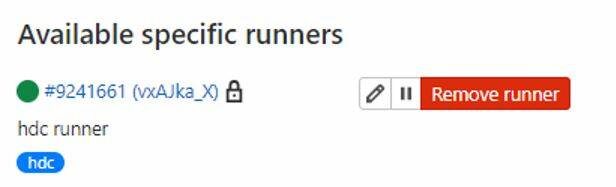
In your GitLab project's .gitlab-ci.yml file, make sure to add the runner tag used for registering the runner in the
tagsfield (in this example,hdc).Notice that when the build is triggered, it will use the registered
docker+machineexecutor and creates a new instance in OpenStack. You can list the new instance on the OpenStack UI or by using thedocker-machine lscommand.
Summary
This tutorial described how to install GitLab Runner on Power and use different GitLab executors. With the aim of having GitLab on IBM Power, we have achieved the first step of providing support for GitLab Runner on Power. The future aim is to enable Gitlab Runner Operator support for IBM Power (currently available for x86_64 only). The availability of GitLab on IBM Power can benefit a lot of users.
Take the next step
Join the Power Developer eXchange Community (PDeX). PDeX is a place for anyone interested in developing open source apps on IBM Power. Whether you're new to Power or a seasoned expert, we invite you to join and begin exchanging ideas, sharing experiences, and collaborating with other members today!