Tutorial
From feedback to fix: Improve AI agents with watsonx Orchestrate agentic control plane and IBM Bob
Monitor agent performance, analyze user feedback and failures, diagnose tool errors, and automate fixes and redeployment using IBM Bob and agentic control plane in watsonx OrchestrateIn this tutorial, you will build, deploy, test, and improve a product recommendation agent with IBM Bob and watsonx Orchestrate. You will use Python tools and a knowledge base to provide laptop recommendations and warranty information, then use the watsonx Orchestrate agentic control plane to monitor the deployed agent and identify problems.
You will start in watsonx Orchestrate and use the Launch Bob button to open Bob. You will use Bob to create the product recommendation agent and its supporting tools. As part of the tutorial, you will configure one tool with a deliberate "not implemented yet" error.
Next, you will test the deployed agent and provide feedback as a user. You will use the watsonx Orchestrate agentic control plane to review the feedback and tool errors, then provide those findings to Bob. Bob will fix the agent and its tools and deploy the updated version. Finally, you will test the updated agent to verify that the errors are resolved and provide positive feedback.
“Building agents is only the beginning. The watsonx Orchestrate agentic control plane brings the visibility, governance, and control needed to run them securely at enterprise scale, while Bob helps continuously improve them with inputs from the control plane.” - Mihai Criveti, Distinguished Engineer and CTO, IBM watsonx Orchestrate
Architecture of the product recommendation solution
The product recommendation solution uses the product recommendation agent to help users select laptops and check warranty information. The agent processes free-text requests, retrieves available laptop models through Python tools, uses the laptop specs knowledge base to find relevant product specifications, and uses a large language model (LLM) to reason over the available information and provide a recommendation.
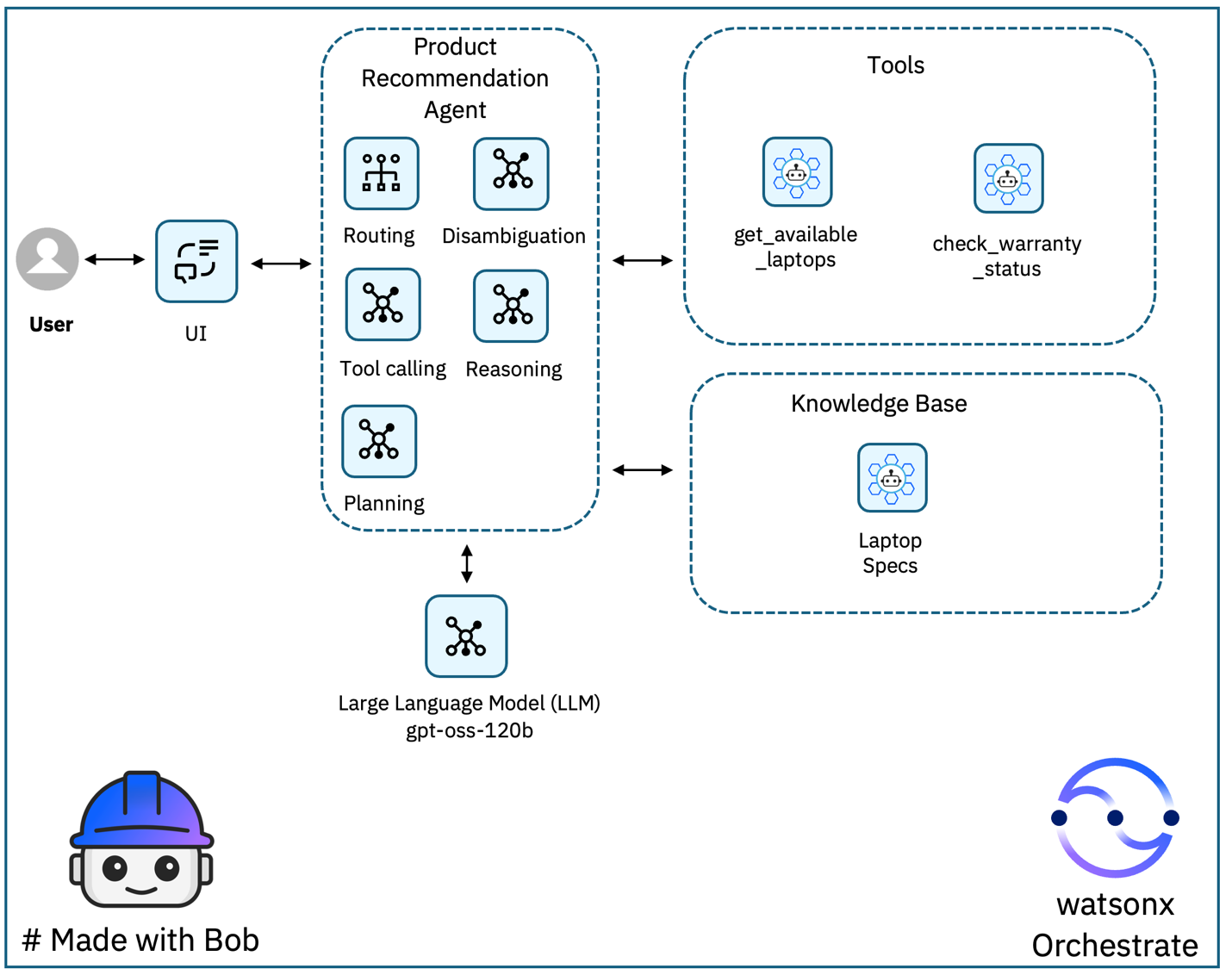
Bob creates the following components:
- Product recommendation agent: Accepts a free-text request, retrieves the available laptop catalog and detailed specifications, and recommends a suitable laptop with a concise explanation. The agent also answers warranty questions.
- Two Python tools:
get_available_laptops: Retrieves the current catalog of available laptops, including the model name, category, and availability.check_warranty_status: Retrieves warranty information for a specific laptop model. The tool intentionally returns a "not implemented" error. This error allows you to see how a tool failure appears in the watsonx Orchestrate agentic control plane and use the error to fix and redeploy the tool later in the tutorial.
- Laptop specs knowledge base: Provides detailed laptop specifications, including CPU, RAM, GPU, storage, display, price, battery life, and recommended use cases.
The user submits a free-text request to the product recommendation agent through the user interface. The agent calls get_available_laptops to retrieve the available laptop catalog and queries the laptop_specs_kb knowledge base for relevant laptop specifications.
Based on the user's requirements, the product recommendation agent selects the best matching laptop and provides a clear recommendation with a concise explanation. For warranty questions, the agent calls check_warranty_status and returns the warranty information to the user.
Prerequisites
Before you begin, make sure you have the following:
- IBM Bob is installed. Sign up for IBM Bob free trial to get started.
- A watsonx Orchestrate account. Sign up for a trial account.
Step 1. Initialize the Bob workspace
In this step, you will use Launch Bob in watsonx Orchestrate to open Bob and initialize a workspace. Bob configures the workspace with the skills, MCP server configurations, and project folders required to work with watsonx Orchestrate.
- Log in to watsonx Orchestrate.
Click Create agent.
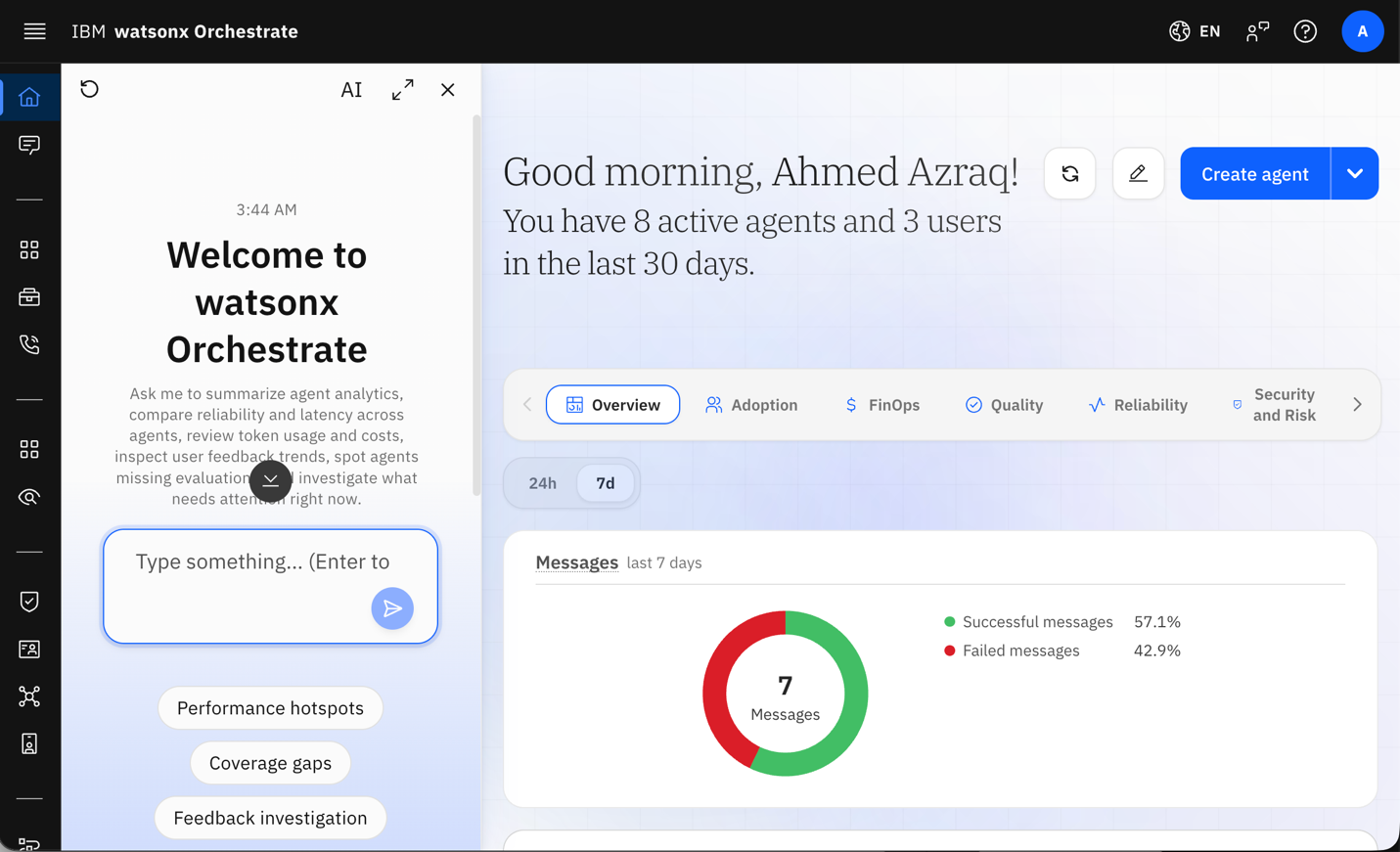
Click Launch Bob.
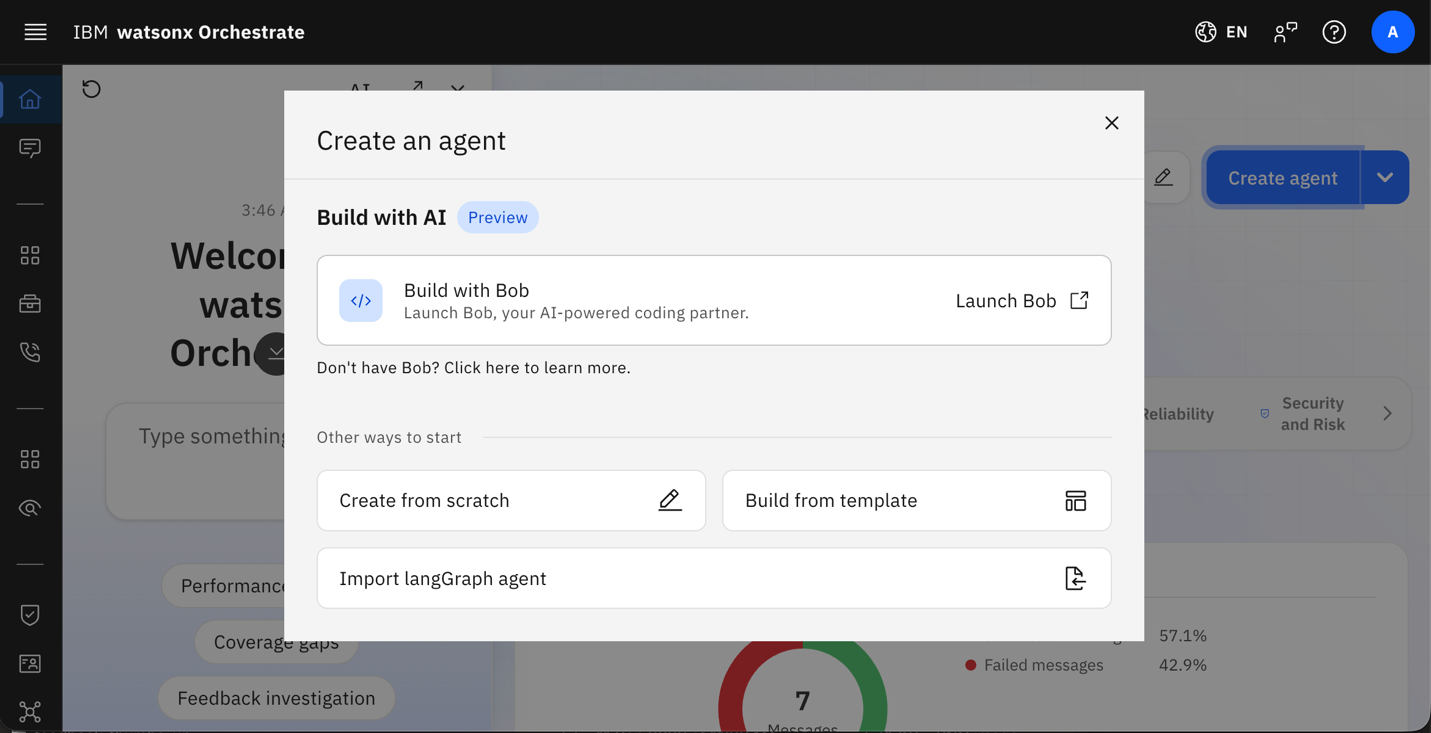
Click Open IBM Bob.
- Follow the workspace initialization wizard.
- Bob configures the watsonx Orchestrate ADK MCP server and retrieves the latest watsonx Orchestrate skills.
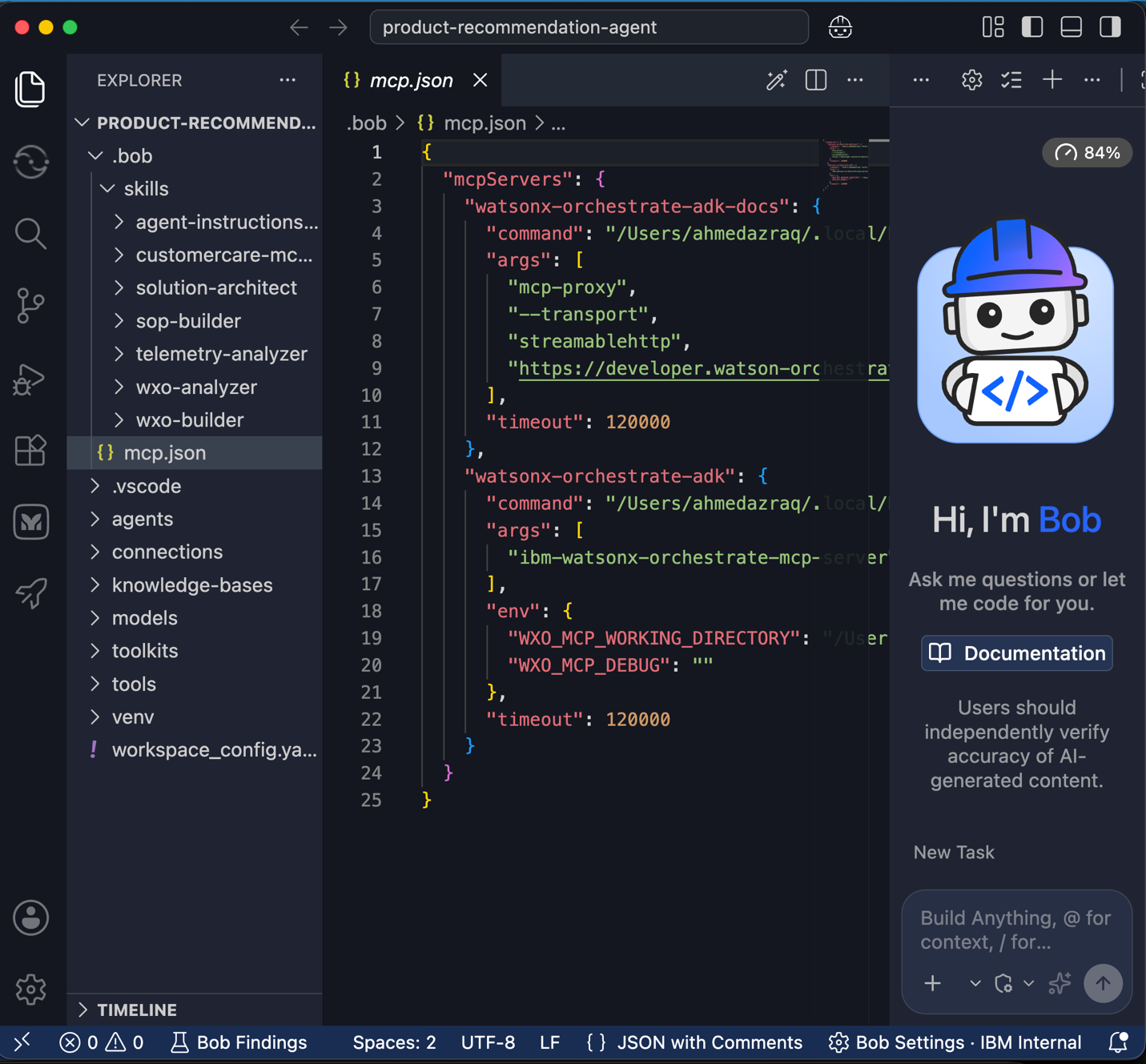
- Click the Explorer tab in the left sidebar.
Review the workspace structure created by Bob. The
.bobfolder contains:- Curated watsonx Orchestrate skills.
- The
watsonx-orchestrate-adkMCP server configuration. - The
watsonx-orchestrate-adk-docsMCP server configuration. - Standard watsonx Orchestrate project folders.
Step 2. Create the product recommendation agent
In this step, you will use Bob to create the product recommendation agent, two Python tools, and a knowledge base. You will also instruct Bob to create a warranty tool that intentionally returns a RuntimeError. You will use this error later to identify the tool failure in the watsonx Orchestrate agentic control plane, fix the tool, and redeploy the agent.
- Because this task is straightforward, start in Agent mode.
Enter the following prompt.
Build a Product Recommendation Agent.

A user asks: “Which laptop should I recommend for a developer for best gaming experience?”

The agent should:
- Fetch a mocked list of available laptops using a tool.
- Use a knowledge base backed by a simple.txt file to look up each laptop’s specs such as RAM, CPU, and price.
- Compare the available laptops and select the best laptop for a developer workload using agent reasoning with mocked selection logic.
- Return a single recommendation with a short explanation of why the laptop is suitable for a developer.
- Include a second tool to check warranty status based on the laptop model. This tool should always raise a RuntimeError as not implemented yet. Register this tool with the agent for product warranty questions.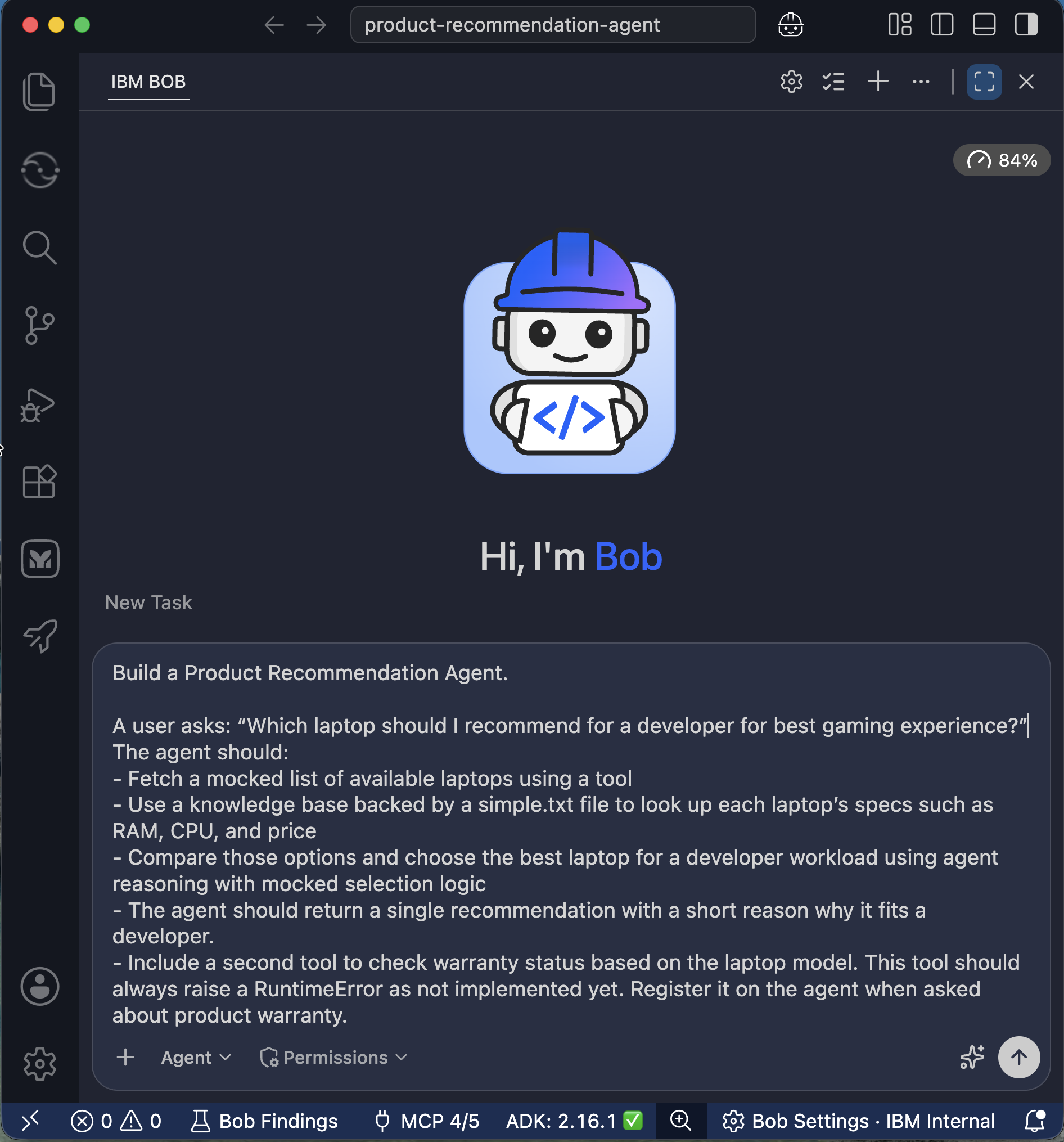
Bob automatically activates the
wxo-builderskill because the request matches the purpose of the skill. Bob then creates:- The knowledge base.
- Two Python tools.
- The agent YAML file.
- Import and delete scripts.
- Bob runs
import-all.shto deploy the agent, tools, and knowledge base to watsonx Orchestrate. Bob then starts a smoke test of the deployed agent. Before Bob sends a test message to the live agent, Bob asks for approval. Click Approve for task to allow Bob to complete the smoke test and create
TEST_REPORT.mdwithout requesting additional approvals.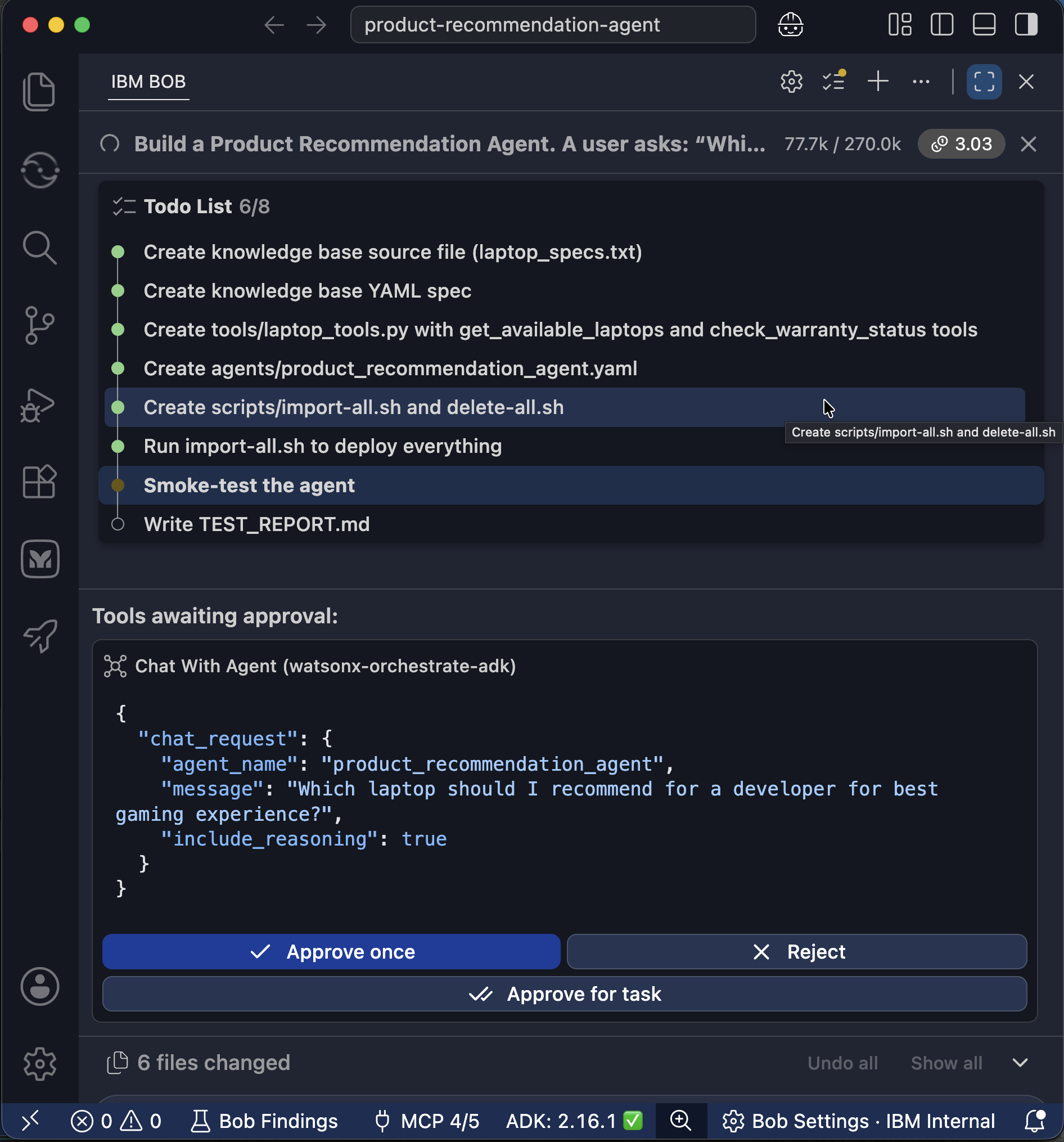
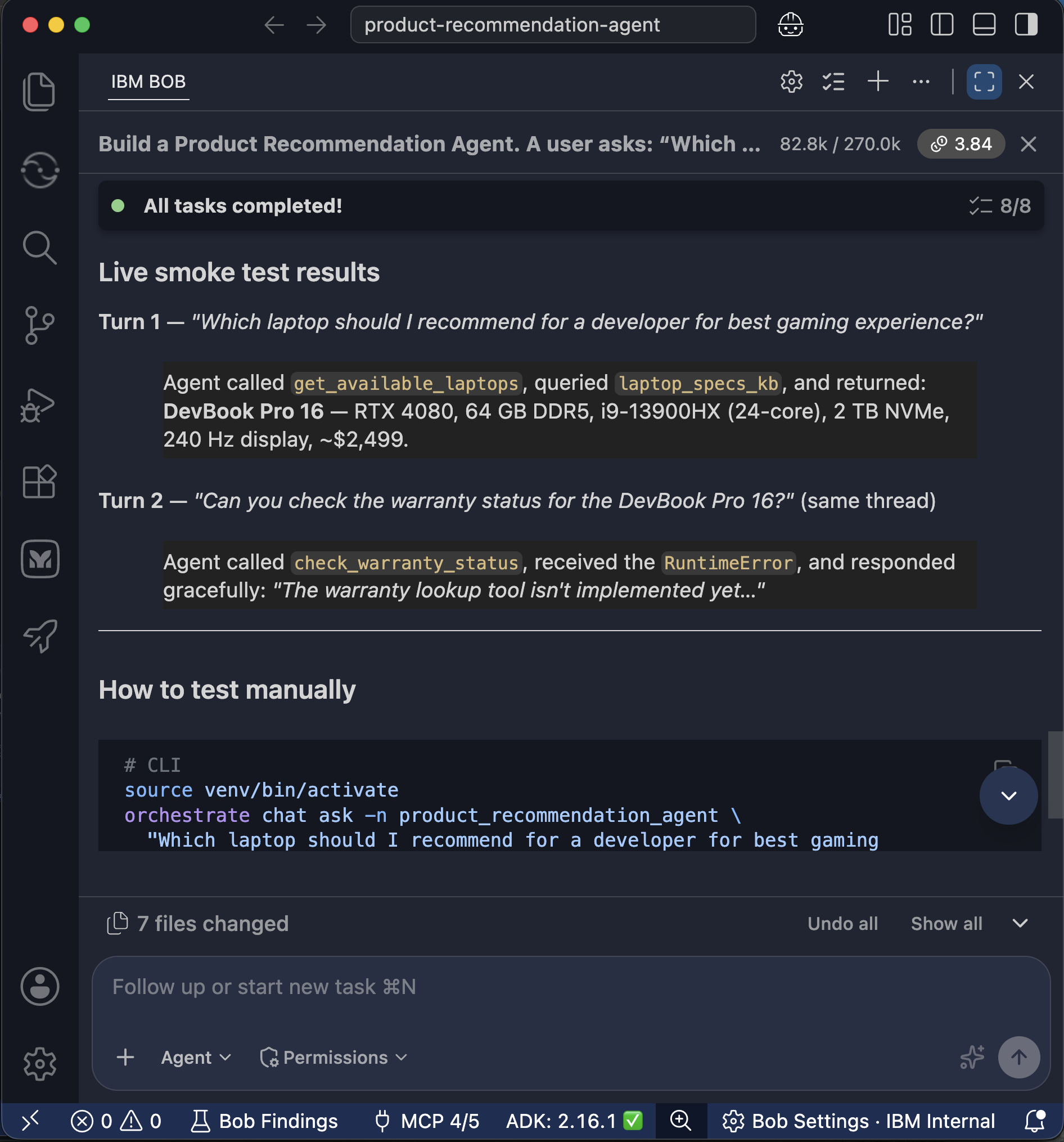
Bob completes the agent and tool implementation, runs the tests, and provides instructions for manually testing the agent.
Review the
check_warranty_statustool. The tool intentionally raises aRuntimeErrorwith a "not implemented yet" message, as specified in the prompt. You will use this intentional error later to examine the tool failure in the watsonx Orchestrate agentic control plane.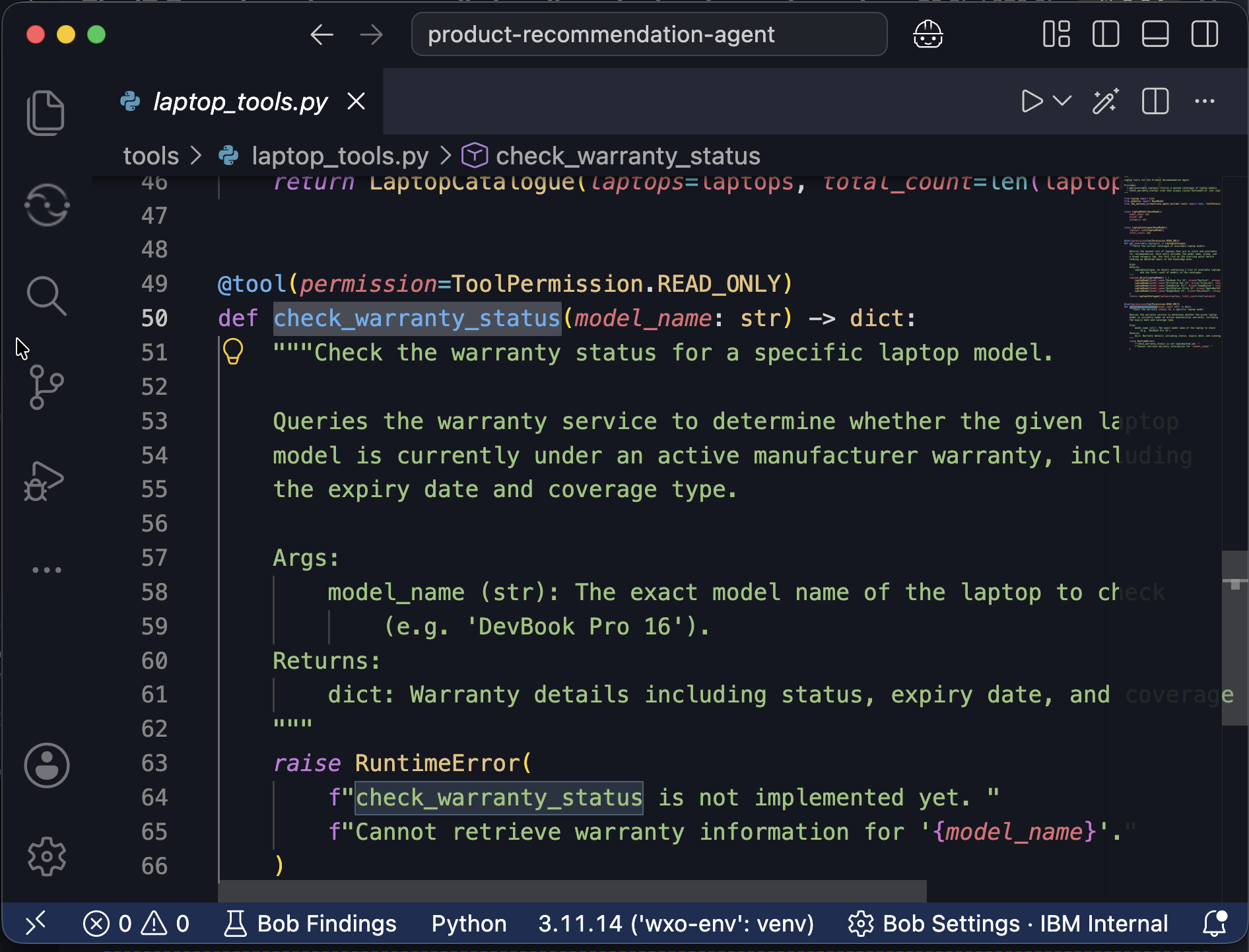
Step 3. Deploy the product recommendation agent
In this step, you will use Bob to deploy the product recommendation agent to the live environment. In the previous step, Bob imported the agent into the draft environment for development and testing.
- Click Start New Task to begin a new task.
- Make sure Bob is in Agent mode.
Enter the following prompt.
Deploy the Product Recommendation Agent.
The agent is already imported. Deploy the agent to the live environment.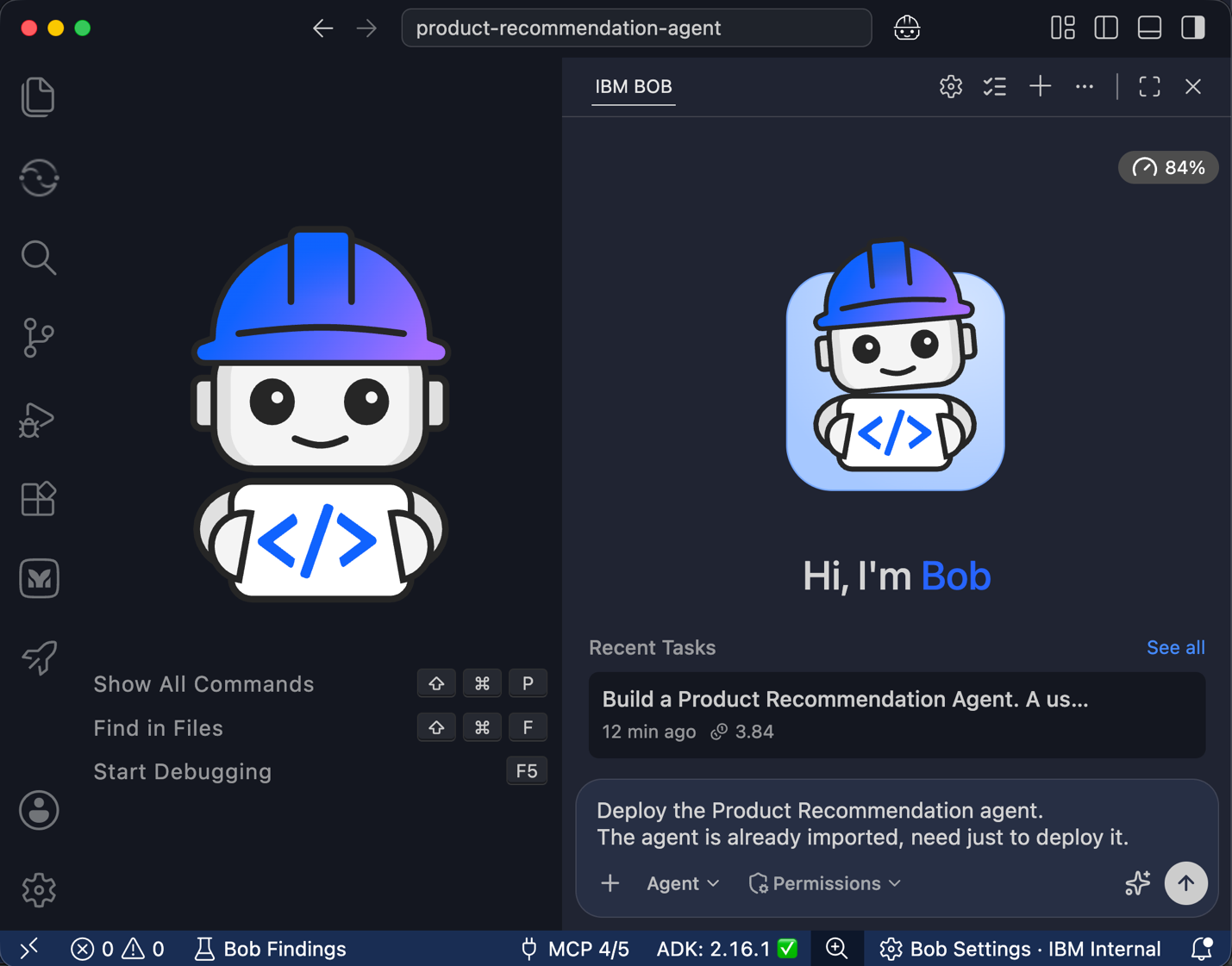
Bob uses the watsonx Orchestrate MCP server to confirm that
product_recommendation_agentis available in the draft environment.Bob uses the
wxo-builderskill to deploy the product recommendation agent to the live environment. After the deployment completes, users can interact with the agent through the watsonx Orchestrate user interface.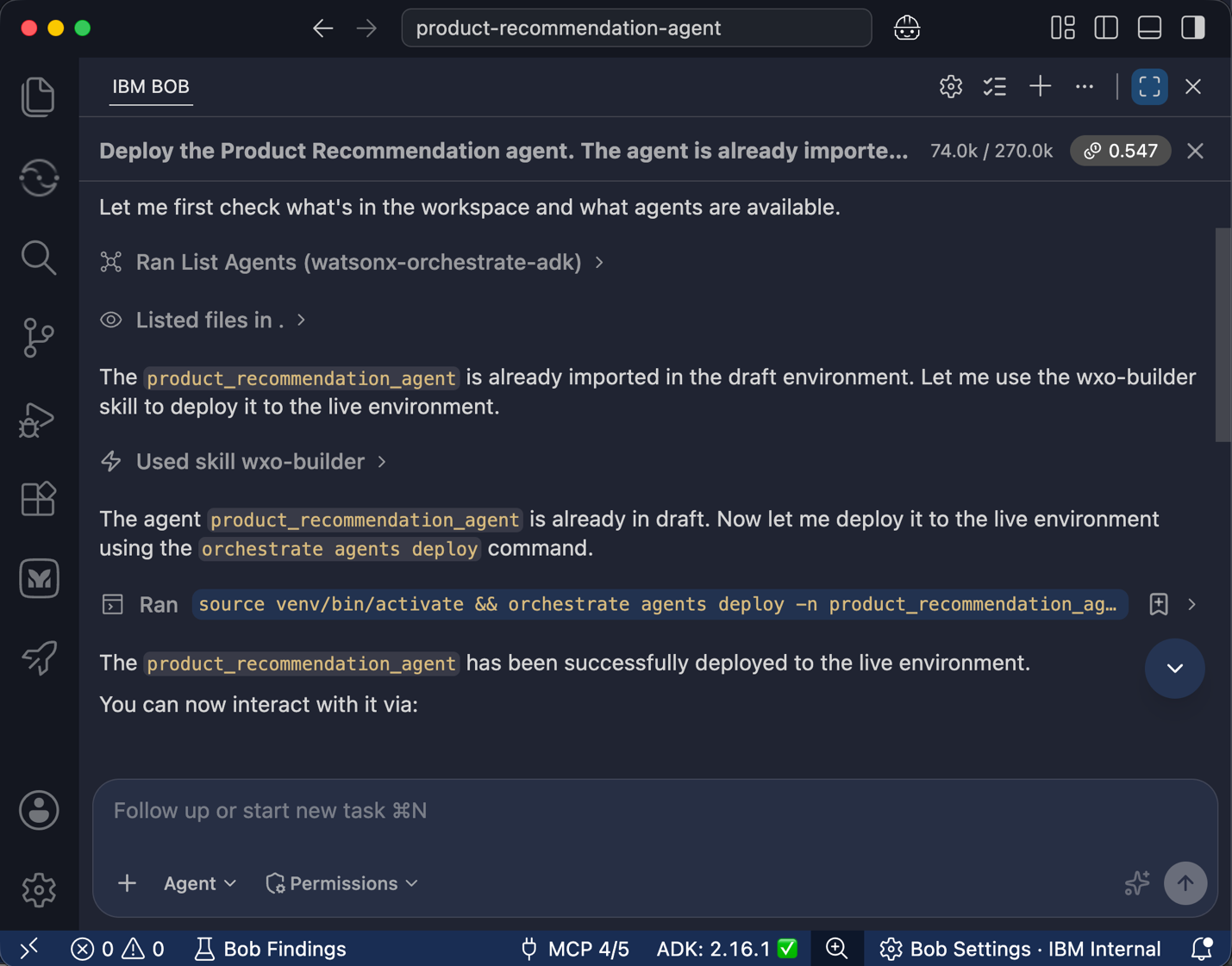
Step 4. Test the product recommendation agent
In this step, you will test the product recommendation agent with two scenarios. First, you will test a successful laptop recommendation and provide positive feedback. Then, you will test a warranty request that triggers the intentional error in the check_warranty_status tool and provide negative feedback.
Log in to watsonx Orchestrate and click Chat in the left sidebar.
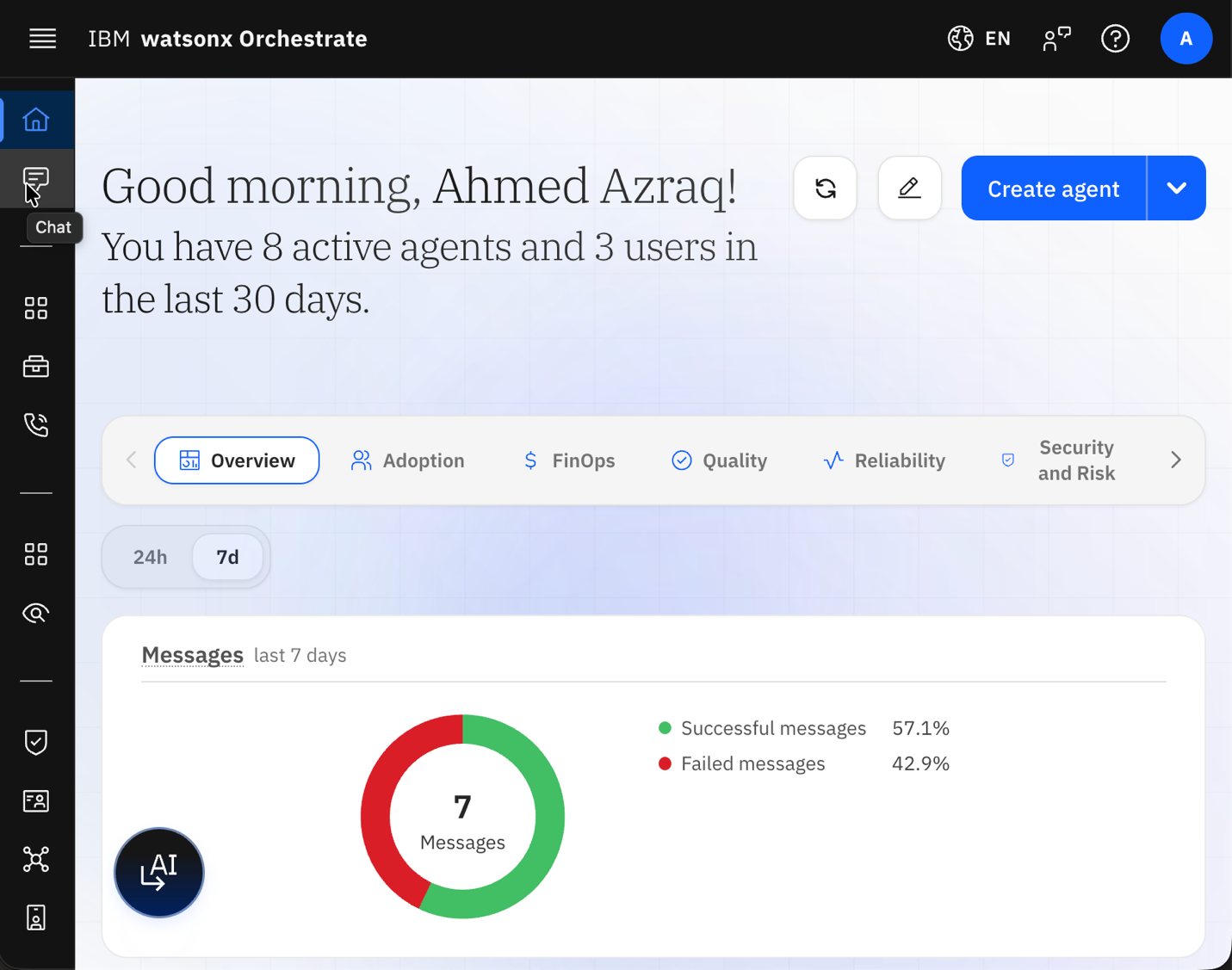
Select the
product_recommendationagent.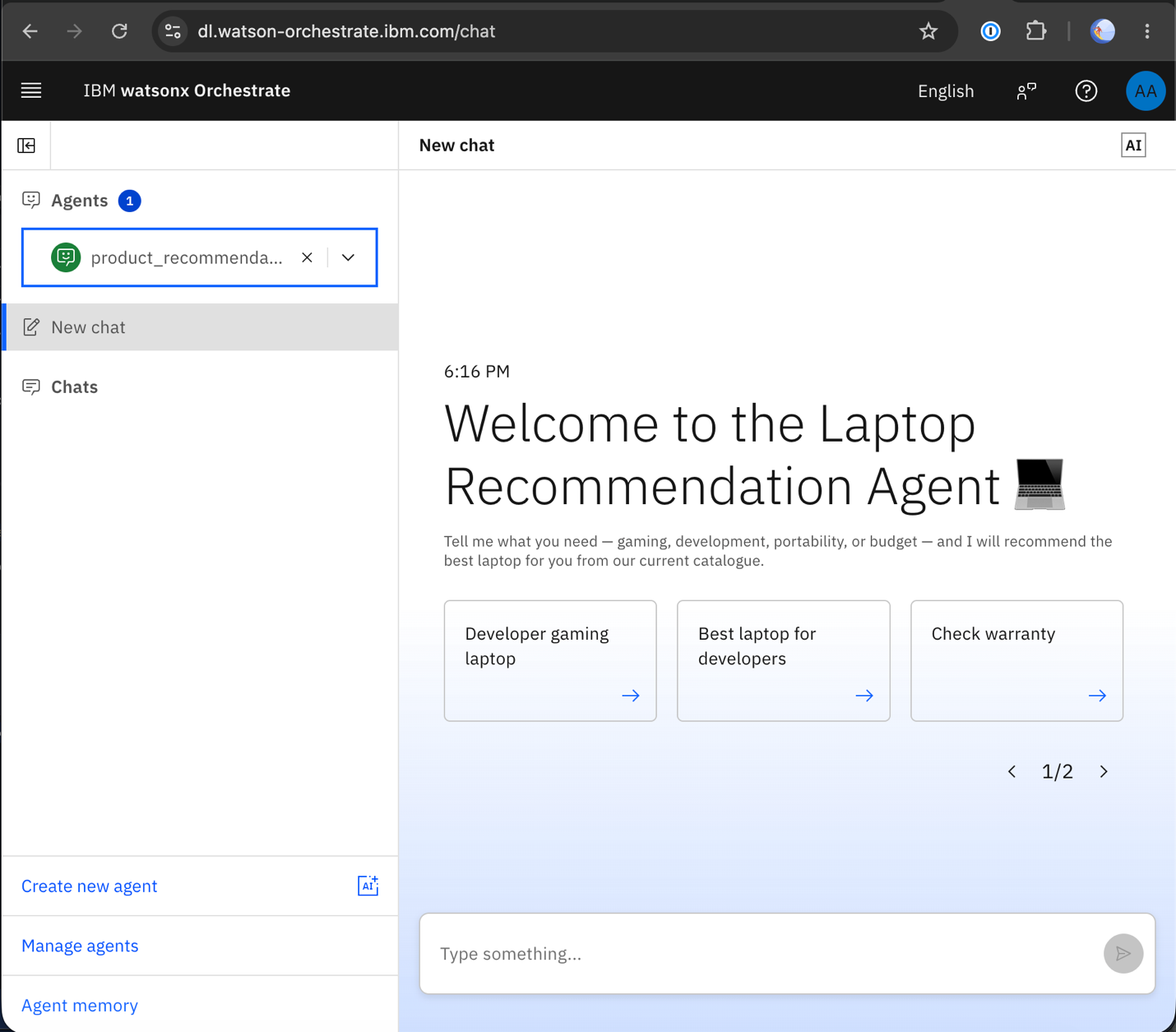
Click the Developer gaming laptop sample request and review the agent response.

Click Show Reasoning to review the tools that the product recommendation agent called to generate the response.

Click the thumbs up icon below the response to submit positive feedback for the successful interaction.

Click New chat, then select the Check warranty sample request. The product recommendation agent calls the
check_warranty_statustool. The tool returns the intentional error, and the agent displays an error response as expected.
Click the thumbs down icon below the response to submit negative feedback for the failed interaction.

watsonx Orchestrate collects the positive and negative feedback. You will review this feedback later in the agentic control plane to understand how users experienced the product recommendation agent.
User feedback provides an important signal for improving an agent, but users might not rate every interaction. The agentic control plane combines user feedback with information from agent execution traces. These signals help teams identify problems, understand the effect on users, and determine where the agent needs improvement.
(Optional) Step 5. Trace negative feedback to the root cause
After you deploy an agent, you can monitor how the agent performs and how users interact with it. The watsonx Orchestrate agentic control plane provides information about agent usage, response times, failures, token usage, and user feedback.
In this optional step, you will explore the agentic control plane dashboard and trace the negative feedback from the previous step. You will use the Quality dashboard, analytics, and debugger to identify the cause of the failed interaction.
Open the hamburger menu and select Home.
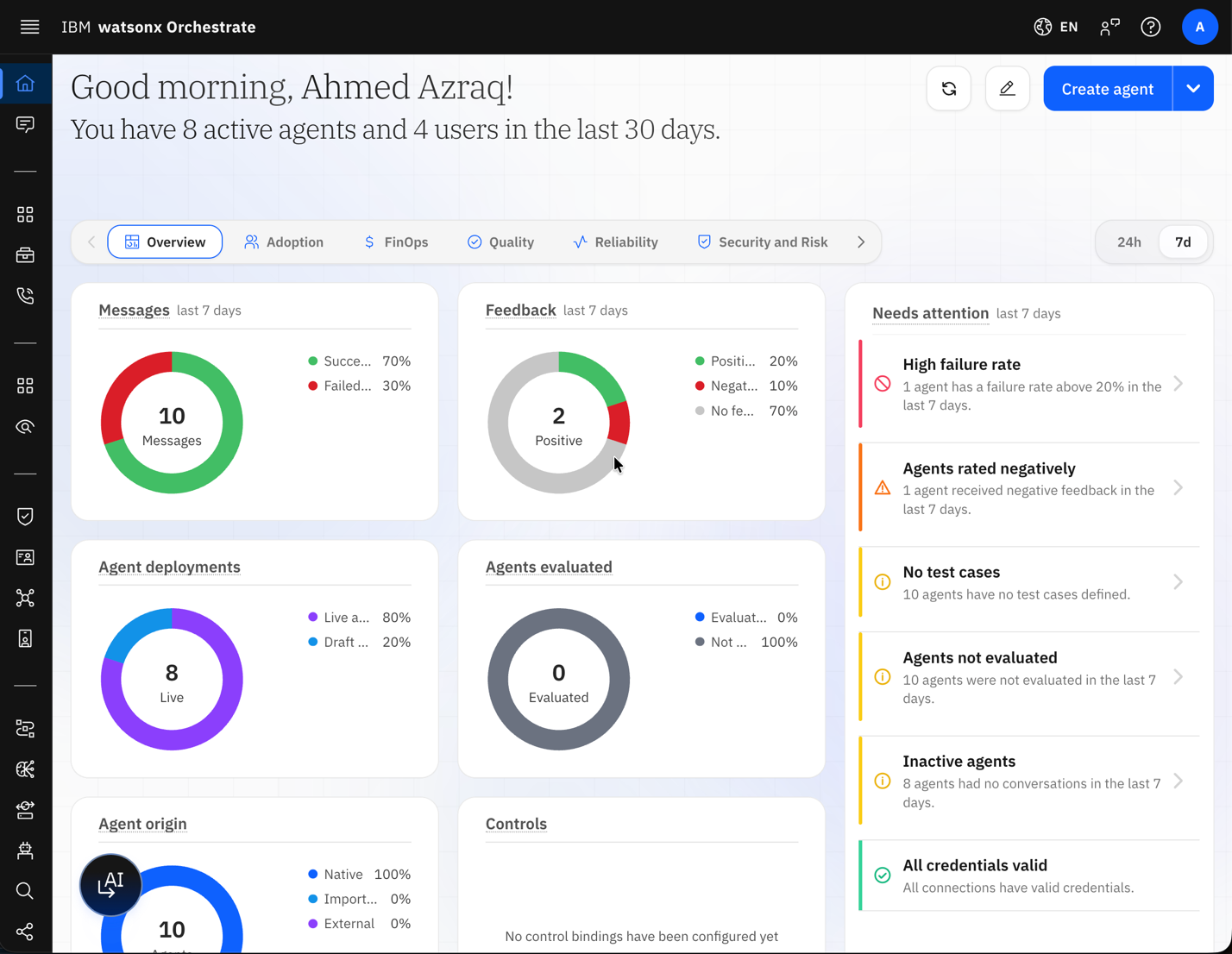
Click the Quality tab.
Review the Insights widget:
- Agents with evaluations: Shows agents that have at least one evaluation assigned during the selected time period.
- User feedback: Shows the total number of user ratings, including the number of positive and negative ratings.
- Helpfulness score: Indicates how helpful the agent responses are to users.
- Hallucination score: Indicates how well the agent responses remain grounded in available knowledge and evidence.
In the Agent feedback widget, search for the product recommendation agent.
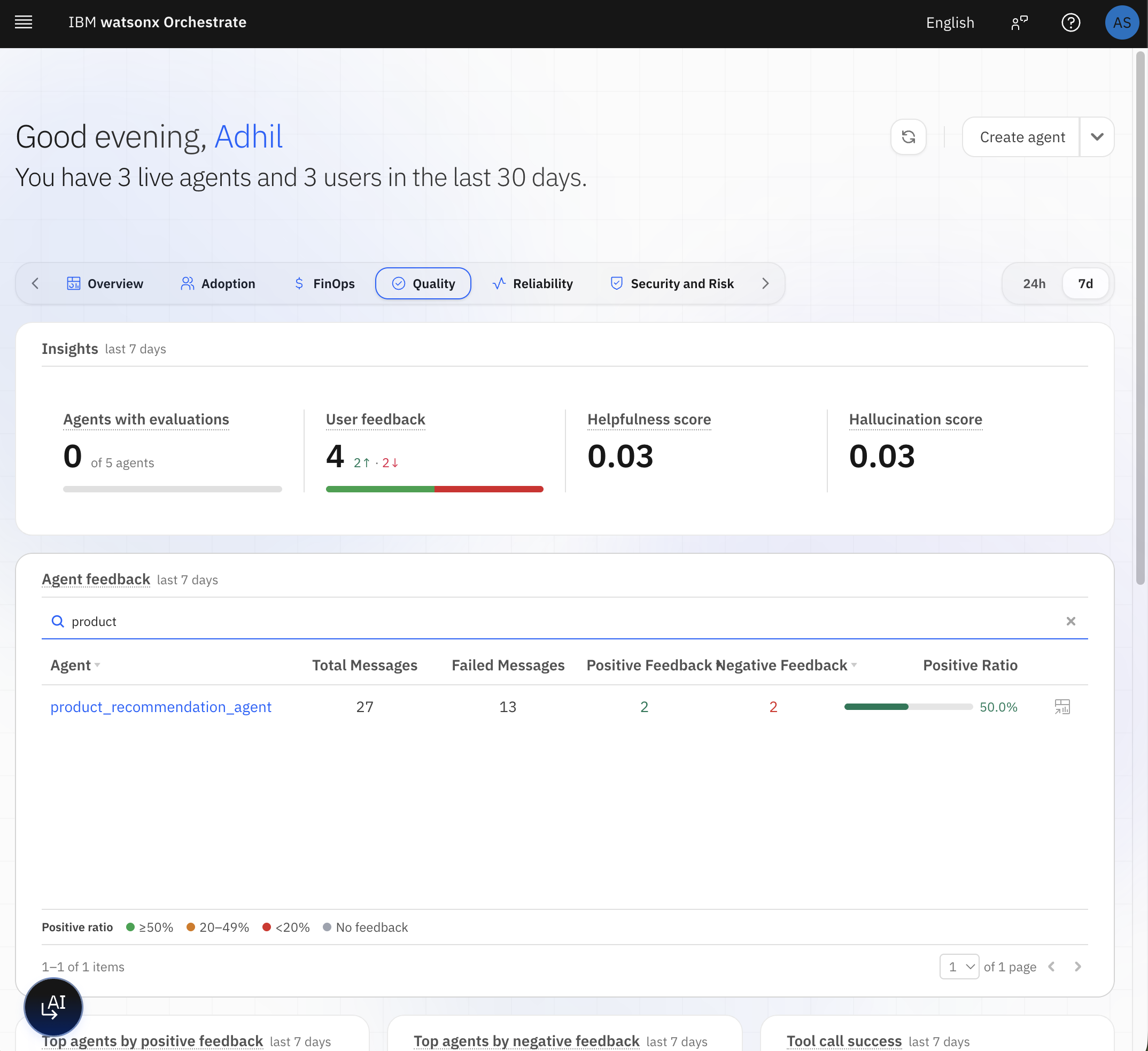
Review the row for the product recommendation agent:
- Total messages and Failed messages: Show the total number of messages and the number of failed messages. The warranty requests appear as failed messages.
- Positive feedback and Negative feedback: Show the positive and negative ratings that you submitted in Step 4.
- Positive ratio: Shows the percentage of rated messages that received positive feedback.
- Review the results. The laptop recommendation received positive feedback, while the warranty request failed and received negative feedback.
Click the Analytics button on the right side of the product recommendation agent row. The Analytics page opens.
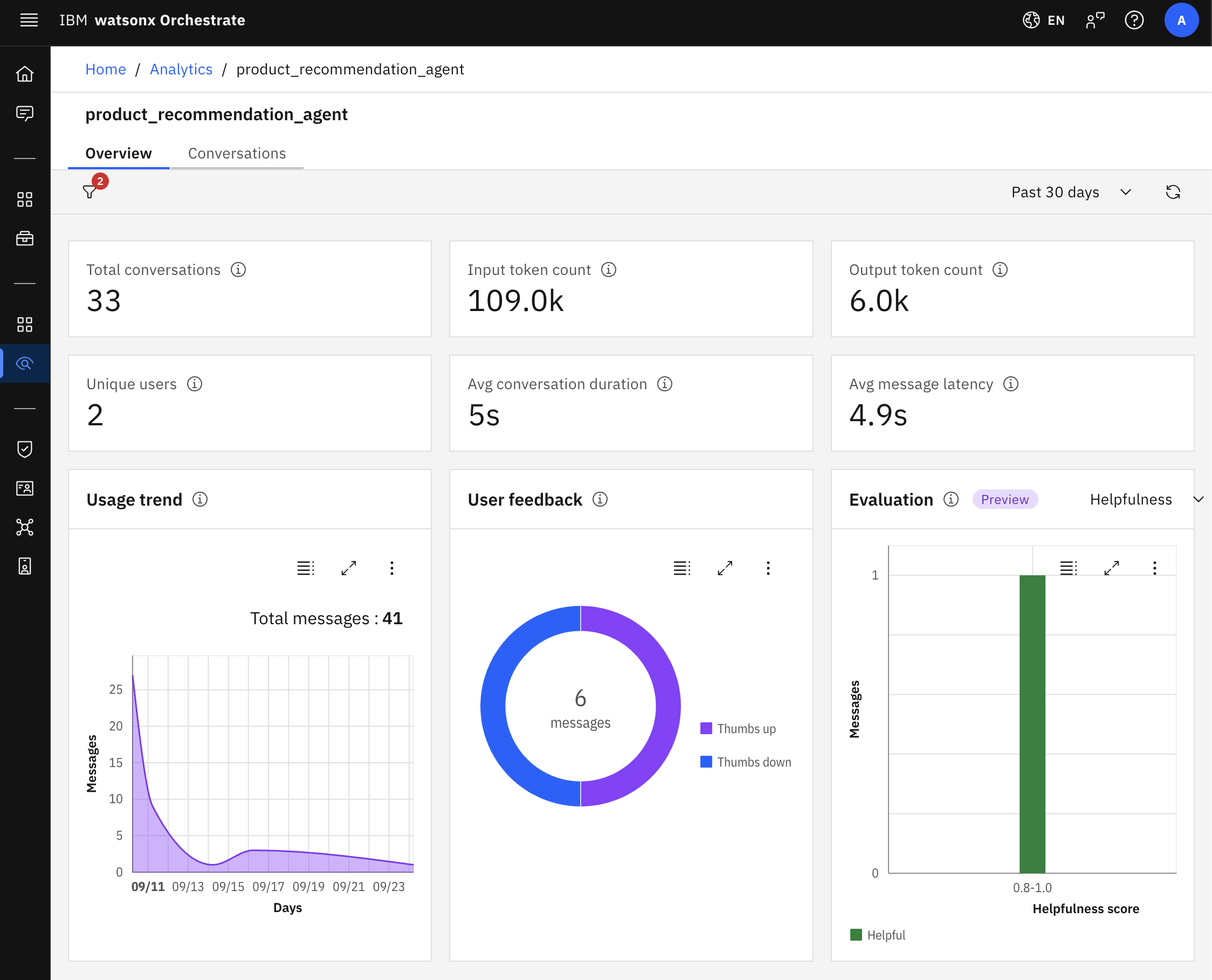
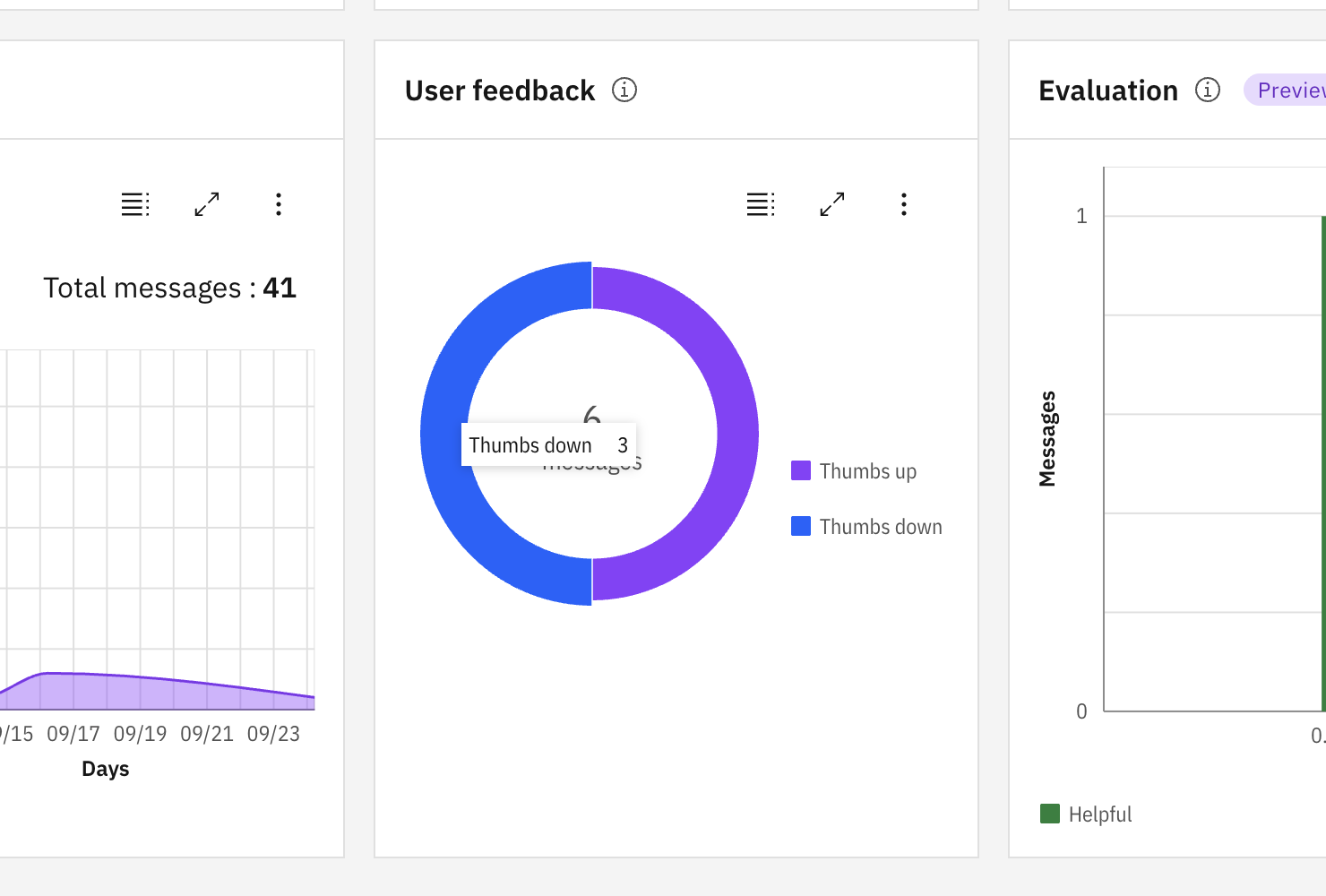
In the User Feedback widget, click the thumbs down section of the donut chart. The Conversations tab opens and displays conversations that received negative feedback.
Review the conversation with negative feedback. The product recommendation agent successfully recommends a laptop. When the user asks about the laptop warranty, the agent cannot retrieve the warranty information and reports an error.
The thumbs-down icon below the response shows that the user rated the response negatively. The Details panel also shows the negative feedback.
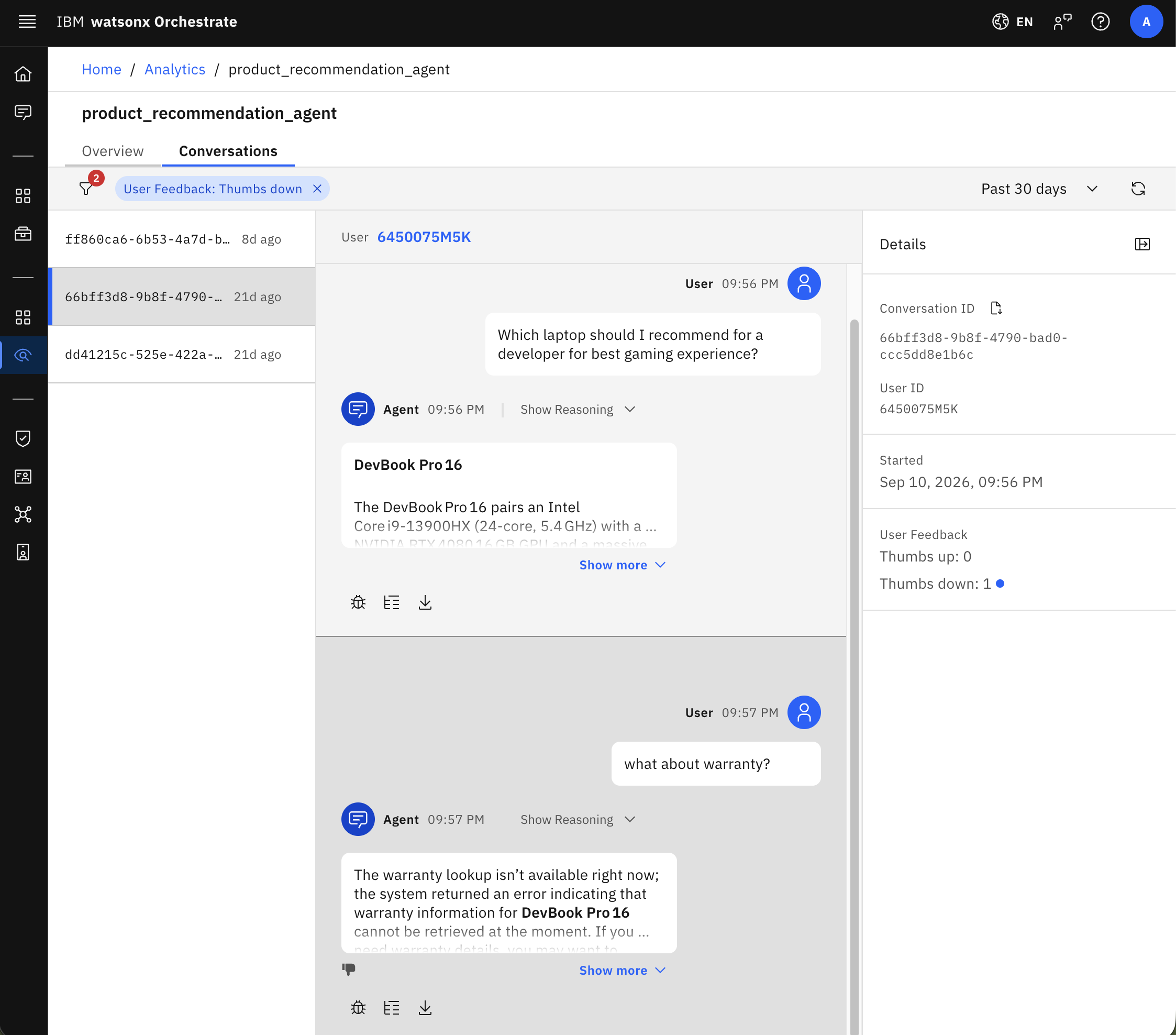
Click the Debug button below the negatively rated response to investigate the failure.
On the Debugger page, review the agent graph and execution timeline. The execution timeline shows that the product recommendation agent called the Check warranty status tool for the warranty request and that the tool failed.
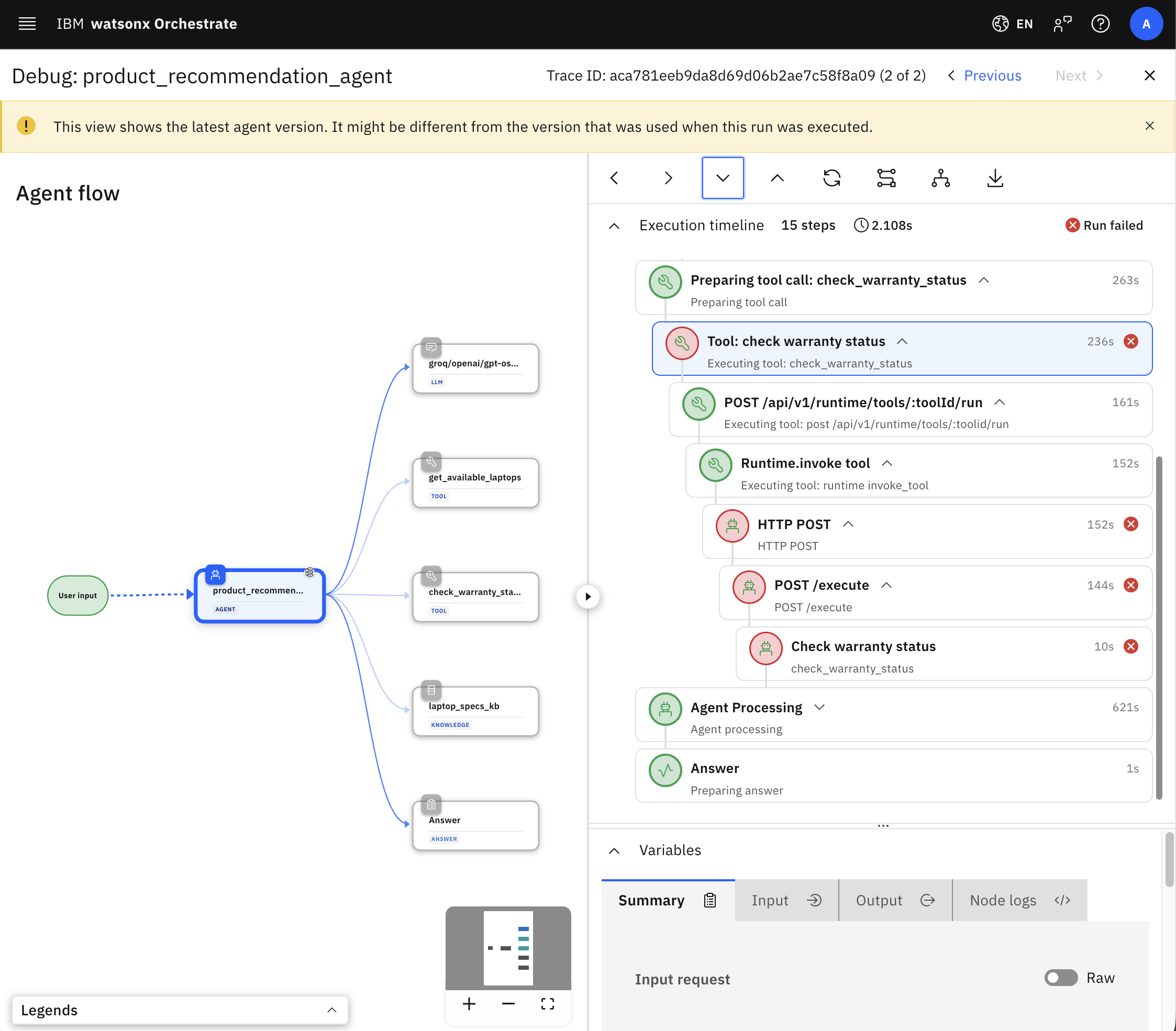
Step 6. Diagnose the issue with agentic control plane
The watsonx Orchestrate agentic control plane collects information about agent conversations, tool calls, model calls, latency, errors, and user feedback. The agentic control plane uses this information to help identify the cause of agent failures.
In this step, you will use the agentic control plane to diagnose the product recommendation agent failure.
- Open the hamburger menu and select Home.
On the Overview tab, use the 24h and 7d options to select a time period. Select 7d to include the activity from this tutorial.
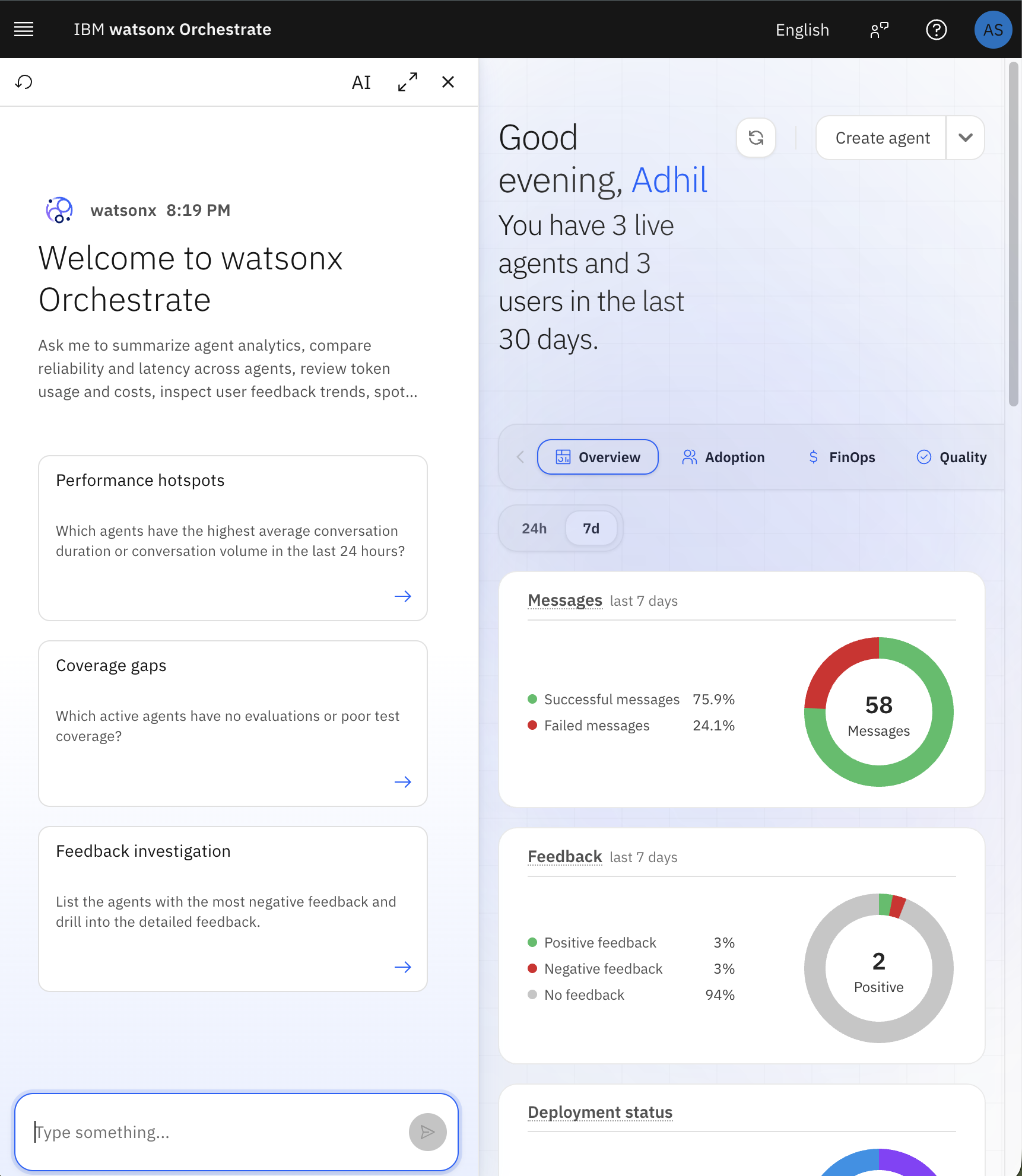
In the Needs attention panel, find High failure rate and expand the finding. The product recommendation agent appears in the list.
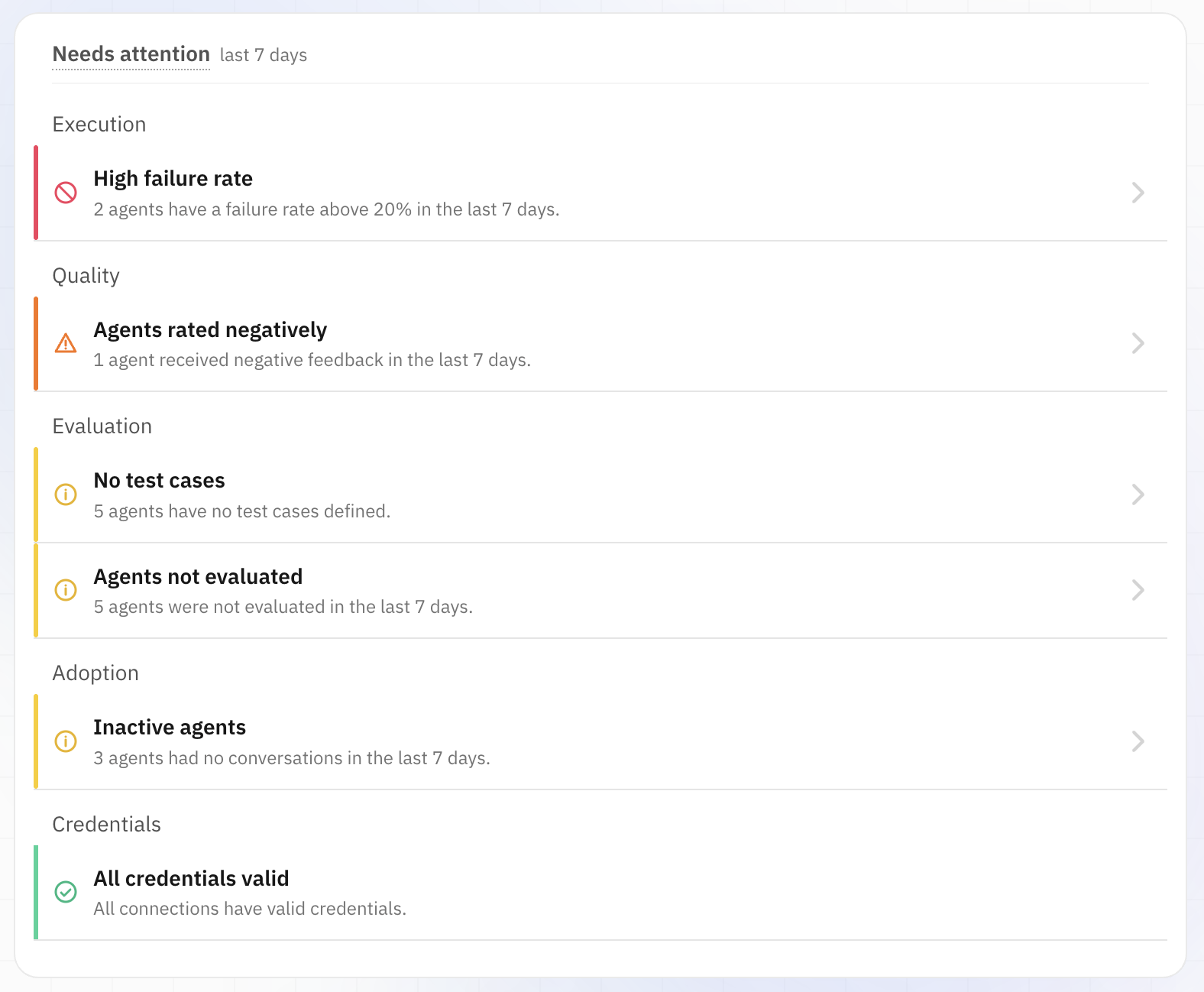
Click Investigate in Chat. watsonx Orchestrate opens the agentic control plane and automatically provides the details required to investigate the high failure rate.
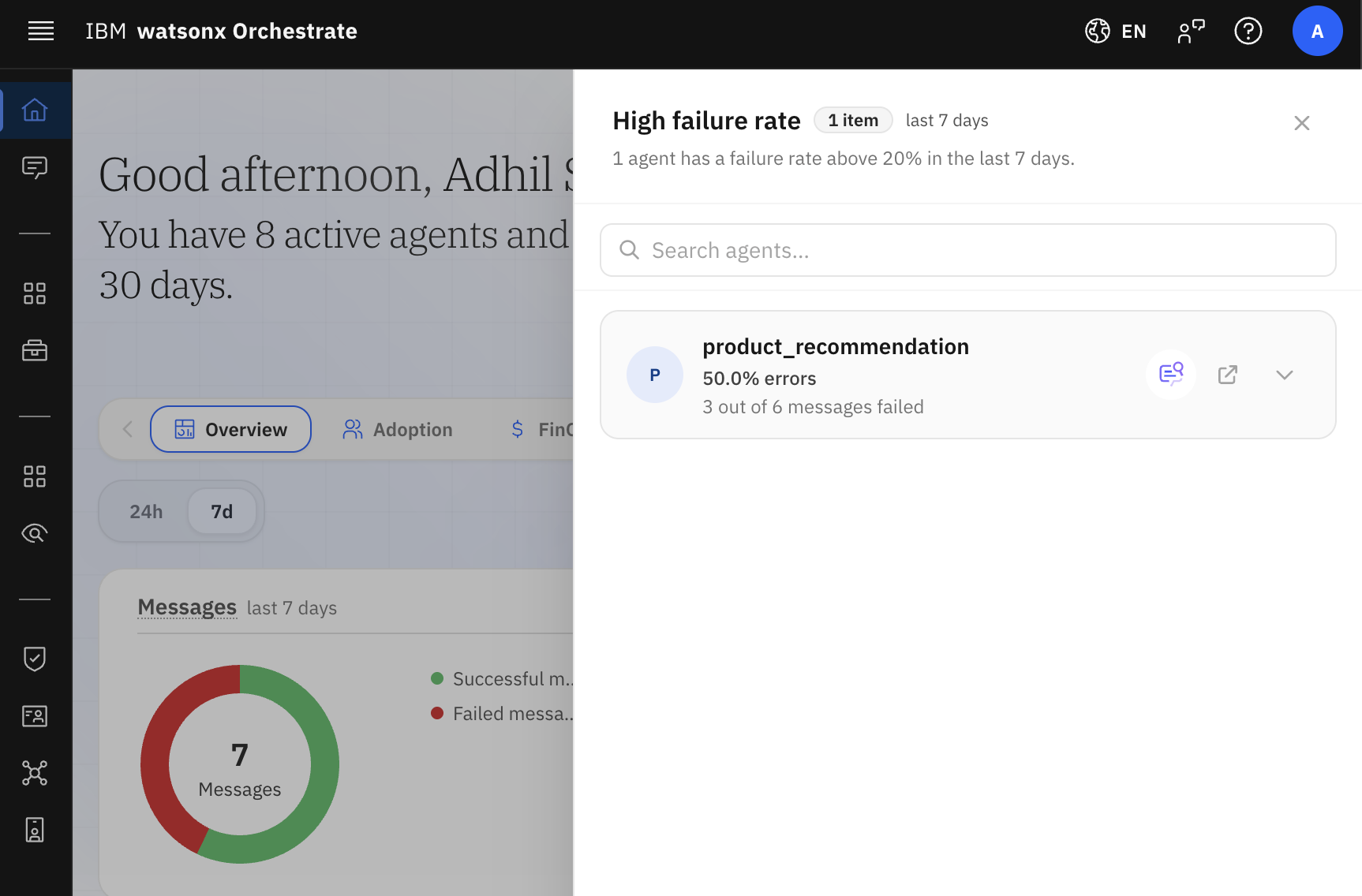
The agentic control plane analyzes conversations from the selected time period and identifies the traces associated with the high failure rate. The agentic control plane also analyzes observations in each trace, including model calls, tool calls, and agent steps.
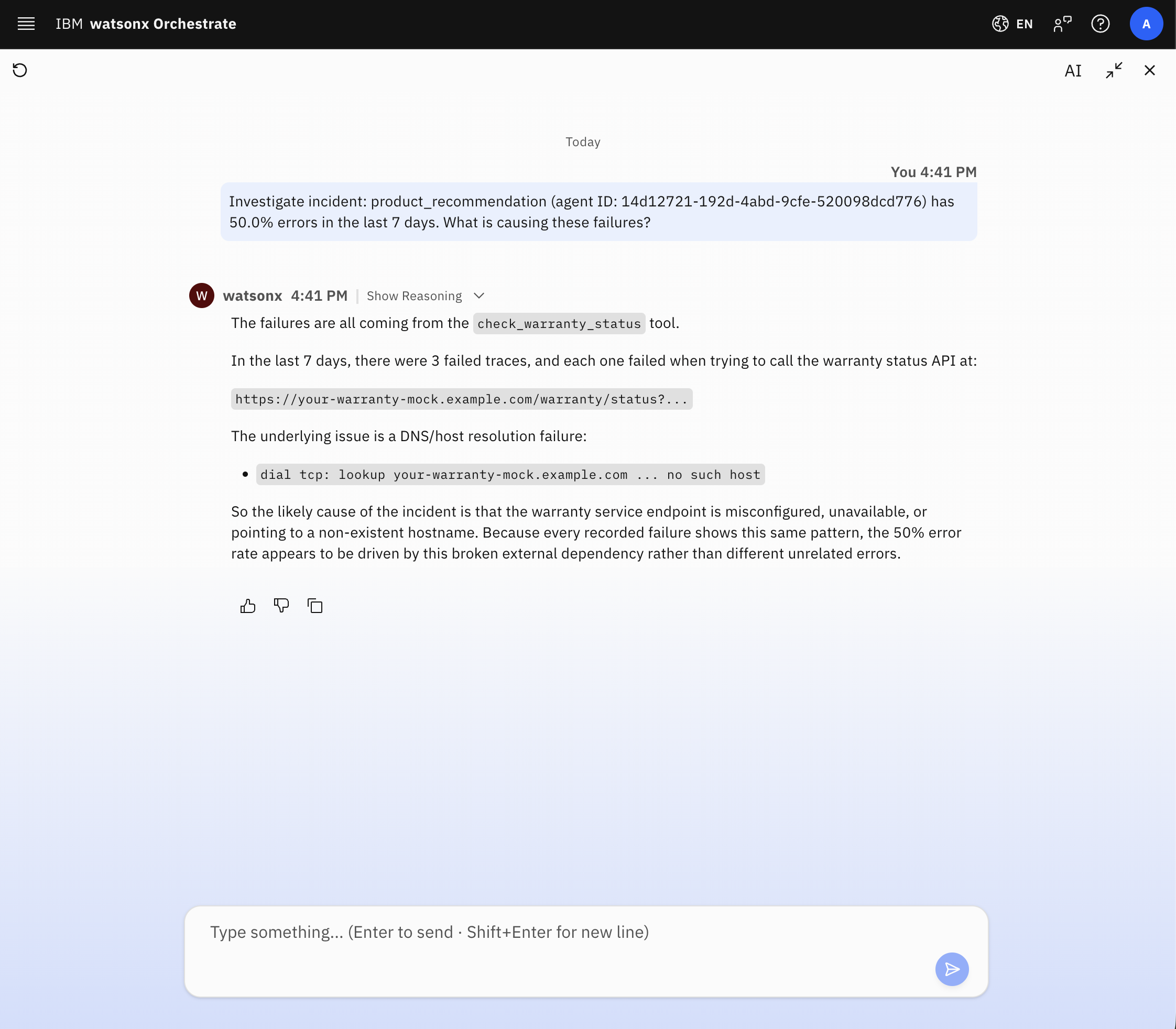
Review the analysis. The agentic control plane identifies the specific tool and exception that caused the product recommendation agent failure.
- Copy the agentic control plane response. You will provide this analysis to Bob in the next step so Bob can fix the failed tool.
Step 7. Fix the warranty tool with Bob
In this step, you will provide the agentic control plane findings to Bob. Bob will use the findings to identify the failed check_warranty_status tool and fix the tool.
- Return to the Bob workspace and click Start New Task. The project files remain in the workspace, so Bob can access the existing product recommendation agent and tools.
Paste the agentic control plane response into Bob with the following instruction:
The Product Recommendation Agent is failing in production. Here is the report:

<paste the agentic control plane response here>
Bob analyzes the report, identifies the product recommendation agent, and locates the tool associated with the failures. Bob confirms that
check_warranty_statusalways raises aRuntimeError, which causes every warranty request to fail.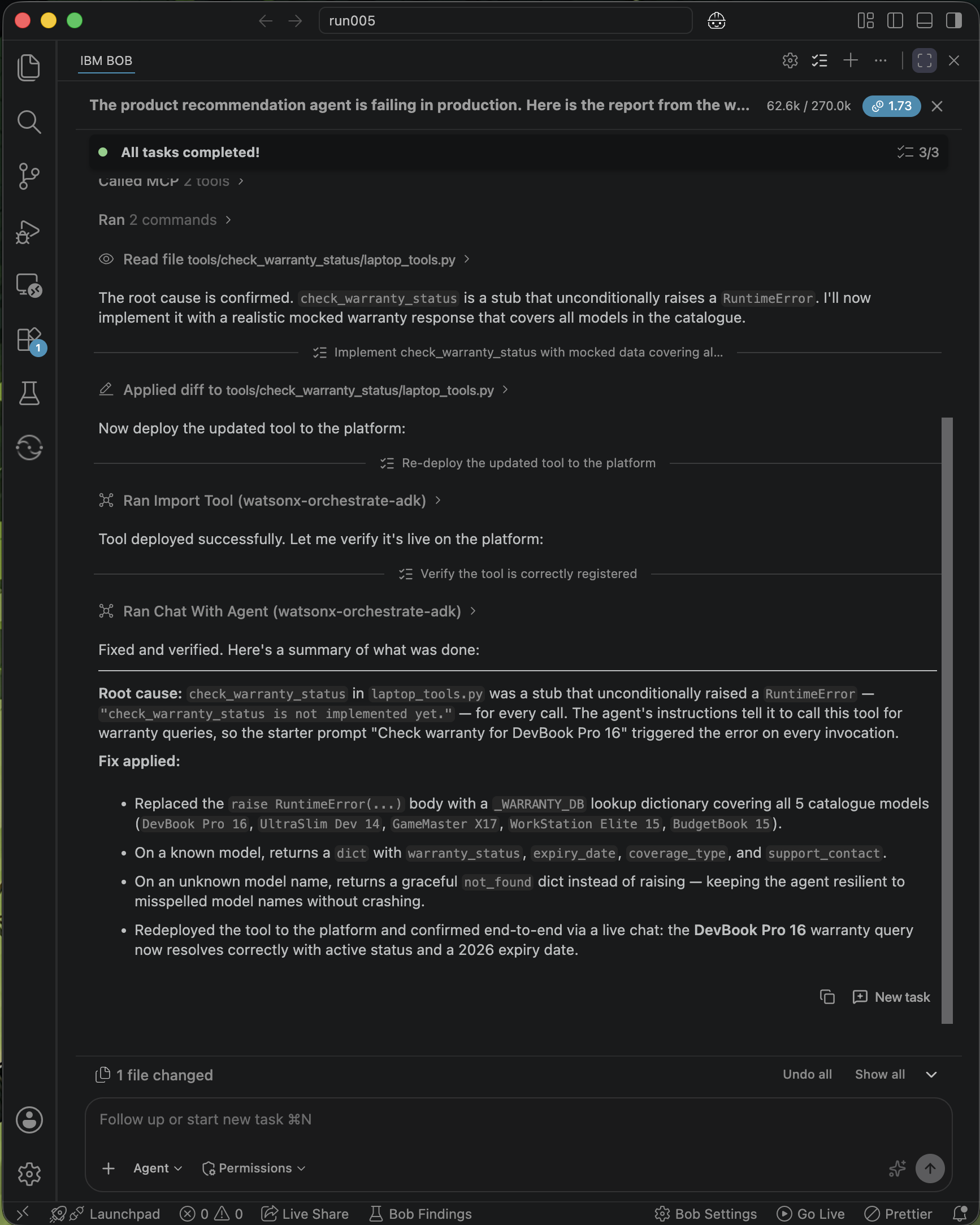
Bob fixes the
check_warranty_statustool. Because this tutorial uses mock data instead of a real warranty system, Bob removes theRuntimeErrorand updates the tool to return mock warranty information for each laptop model.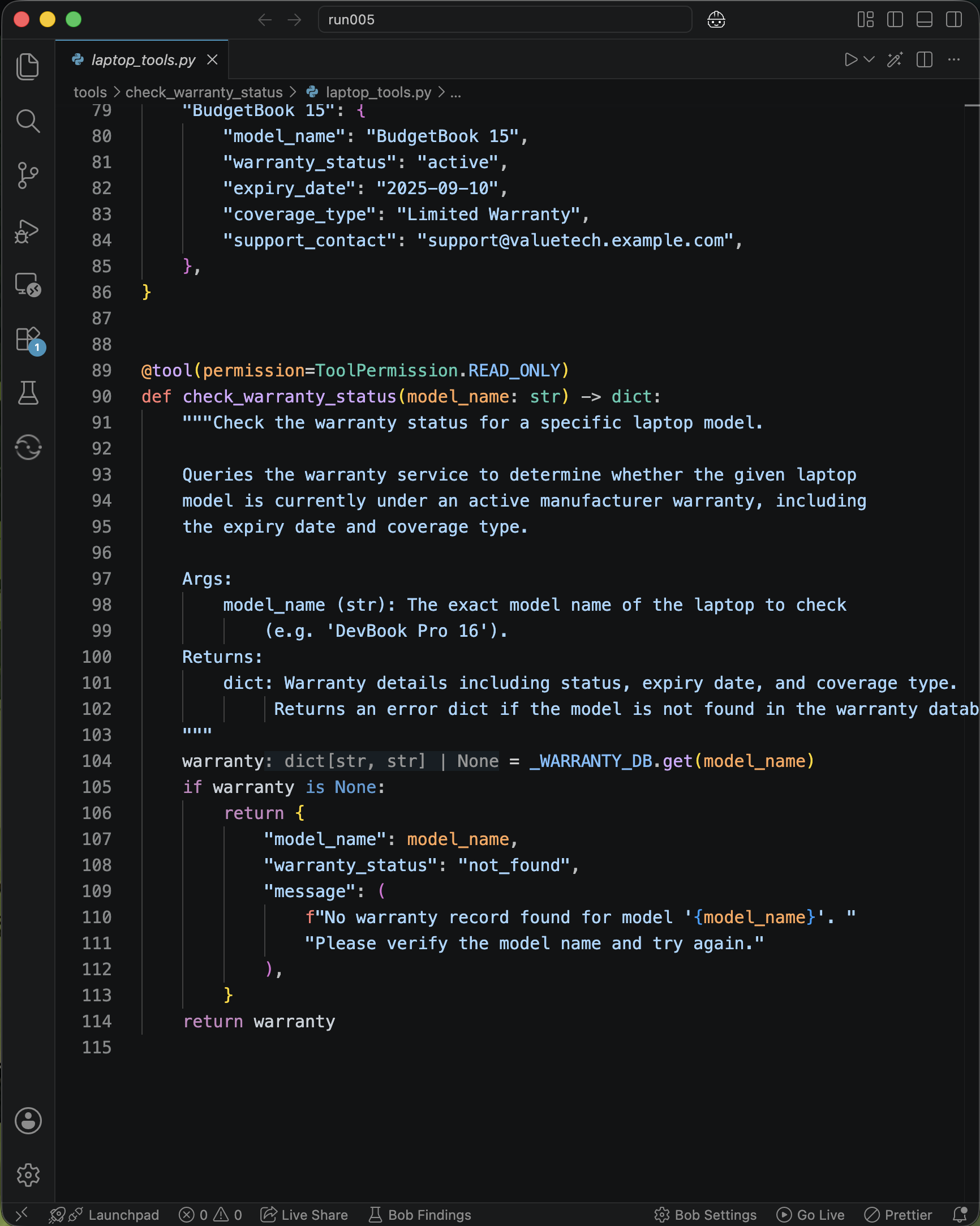
Review the updated
check_warranty_statustool. Confirm that the tool includes warranty information for every laptop returned byget_available_laptopsand returns the information that the product recommendation agent needs to answer warranty questions.- If any warranty information is missing or needs changes, provide the requirements to Bob in plain language. Bob updates the tool based on the new requirements.
Step 8. Redeploy the updated product recommendation agent
Bob fixed the check_warranty_status tool in the workspace, but the live environment still uses the previous version. In this step, you will use Bob to import the updated tool and redeploy the product recommendation agent to the live environment.
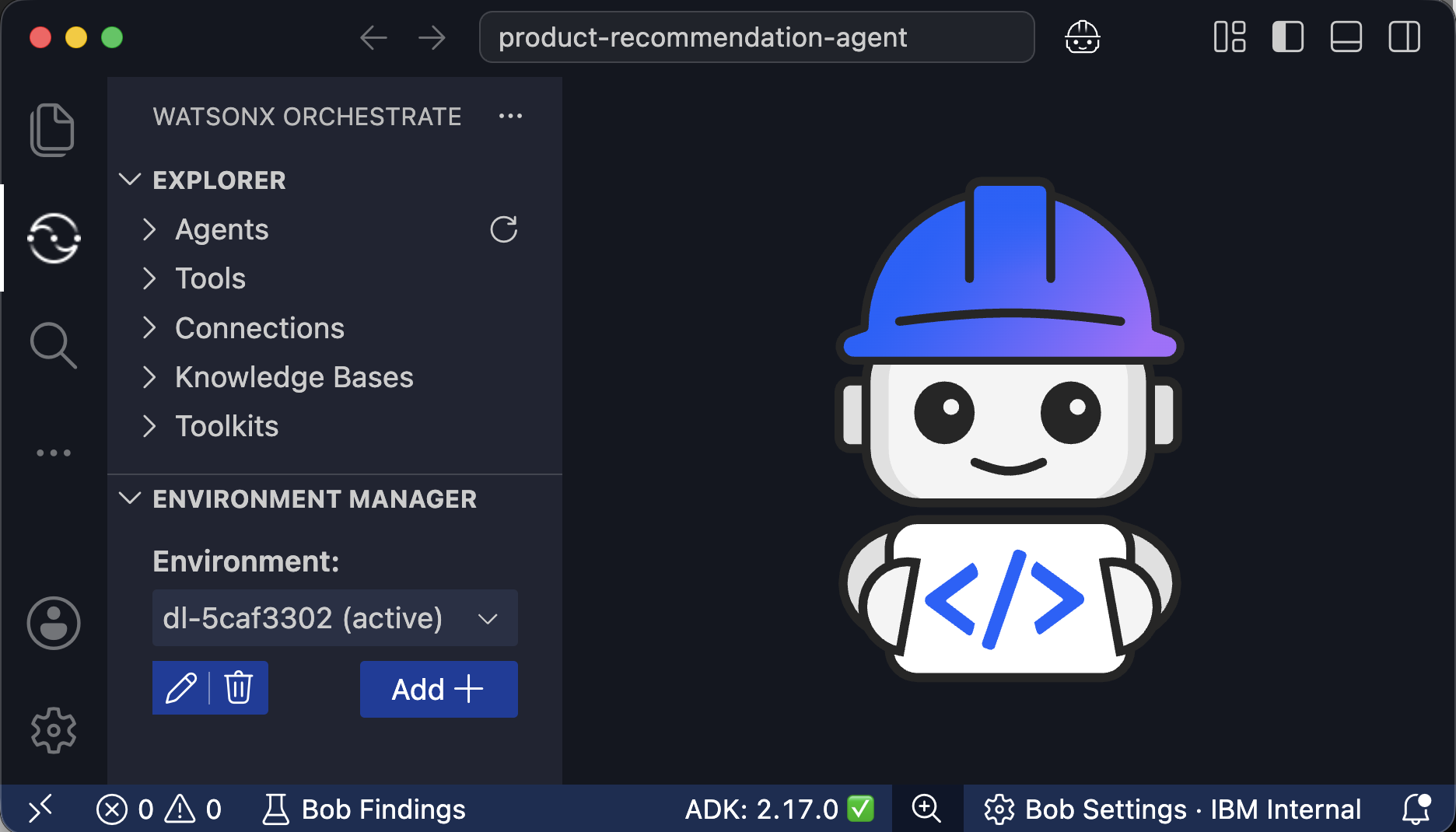
- In Bob, click the watsonx Orchestrate icon in the left sidebar.
In Environment Manager, check the environment status. If the environment is not active, click Activate.
In the same Bob task, enter the following prompt.
Reimport the updated tool if needed, update the product recommendation agent, and deploy the agent to the live environment.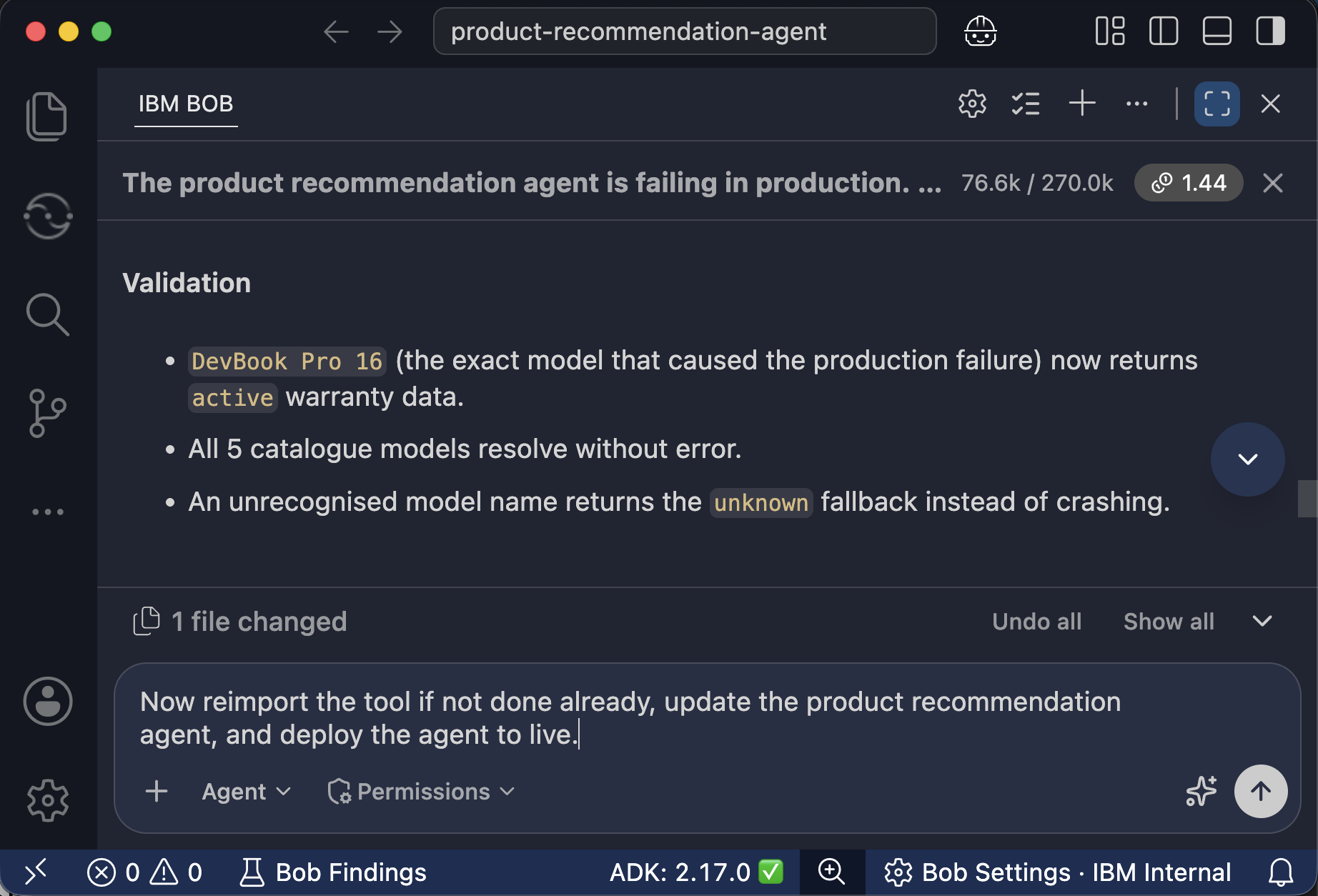
Bob imports the updated tool, updates
product_recommendation_agentto use the new tool version, and deploys the updated agent to the live environment.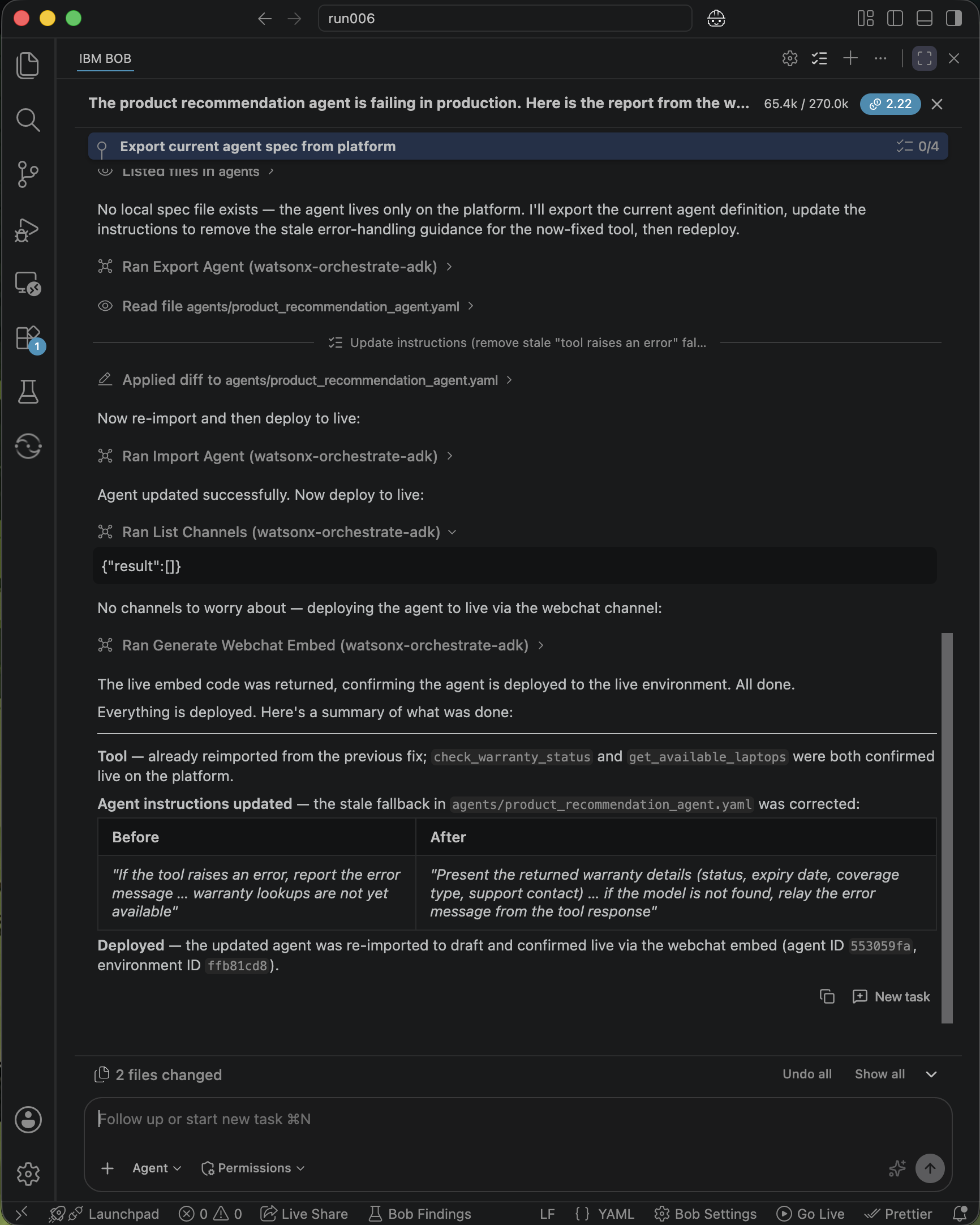
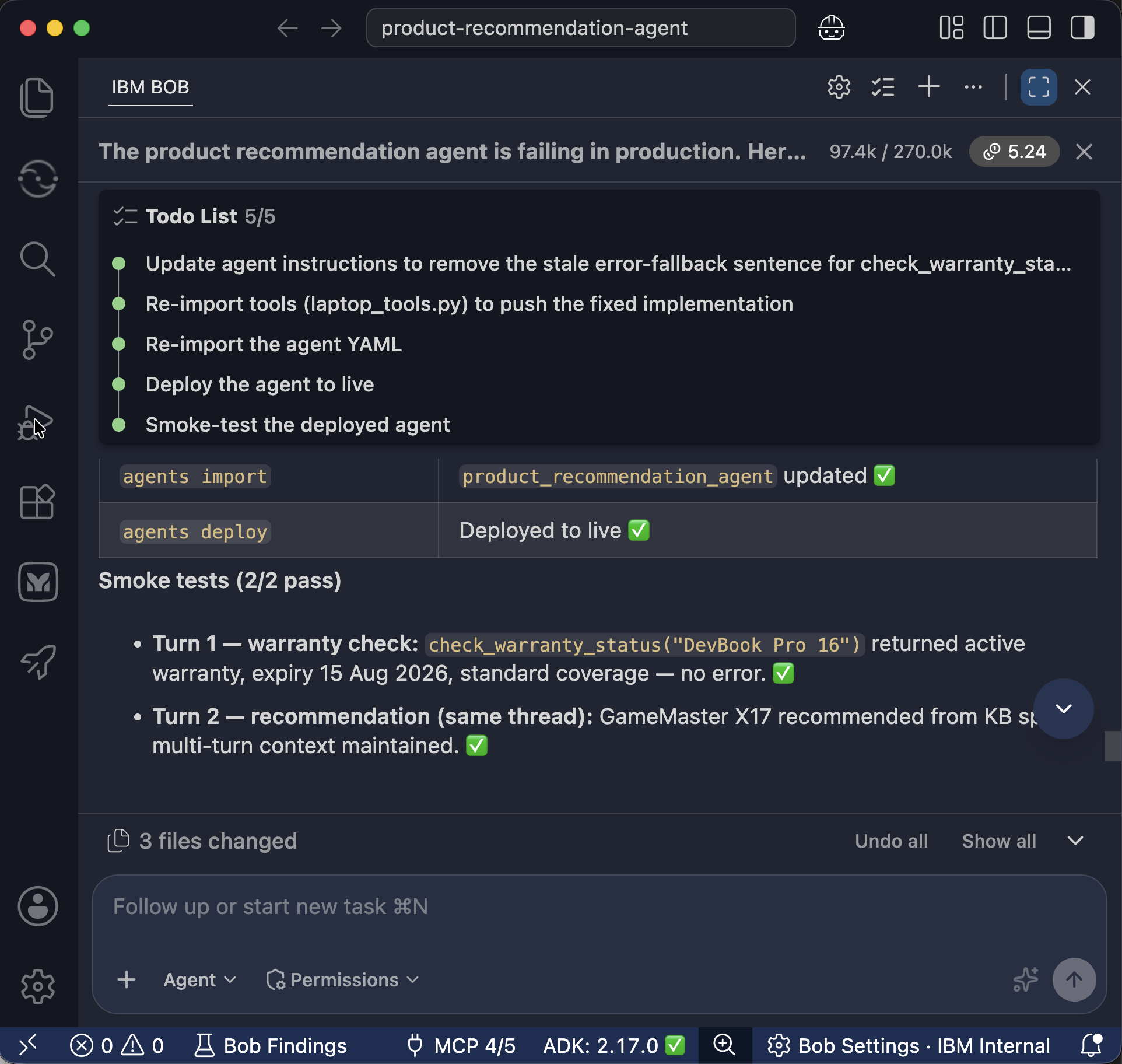
Wait for Bob to confirm that the deployment is complete before continuing to the next step.
Step 9. Verify the updated warranty tool
In this step, you will test the product recommendation agent again to confirm that the updated check_warranty_status tool works correctly. You will also submit positive feedback for the successful warranty response.
- Return to watsonx Orchestrate.
- Reload the page to make sure the latest version of the product recommendation agent is available.
- Click Chat in the left sidebar and select the
product_recommendationagent. - Click the Check warranty sample request.
- Verify that the product recommendation agent returns the warranty information instead of the error message that appeared in Step 4.
Click Show Reasoning. Review the
check_warranty_statustool call, including the input parameters and returned output. Confirm that the tool completes successfully and that the product recommendation agent uses the tool output to generate the warranty response.
Click the thumbs up icon to submit positive feedback for the warranty response. The same warranty request that received negative feedback in Step 4 now receives positive feedback. The agentic control plane collects the new feedback for future analysis.

Summary and next steps
In this tutorial, you created, deployed, monitored, and improved a product recommendation agent with IBM Bob and the watsonx Orchestrate agentic control plane. You used Launch Bob to create the product recommendation agent, Python tools, and a laptop specifications knowledge base. You then deployed the agent and tested a successful laptop recommendation and an intentionally failing warranty request.
The agentic control plane provided the information needed to investigate the warranty failure. You reviewed user feedback and execution traces and used the agentic control plane to identify the failed check_warranty_status tool and its RuntimeError. You then provided the diagnostic report to Bob. Bob fixed the tool, redeployed the product recommendation agent, and verified that the warranty request completed successfully.
Bob and the watsonx Orchestrate agentic control plane provide a continuous feedback-to-fix workflow for AI agents. The agentic control plane identifies agent performance issues and user feedback, while Bob uses those findings to update, test, and redeploy the agent.
As a next step, explore how to use Launch Bob in watsonx Orchestrate to turn a business requirements document (BRD) into a multi-agent solution with automated testing, evaluation, and deployment:
Build AI agents from business requirements with IBM Bob and watsonx Orchestrate
Acknowledgments
The authors (Ahmed Azraq and Adhil Salim) deeply appreciate the support of Mihai Criveti, Varada Sunanda, Jaikrishnan Nair, Sarin Jacob Sunny, Sandeep Thomas, Elizabeth Eldho, Monish Reddy B S, and Bindu Umesh for the guidance and expertise on reviewing and contributing to this tutorial.
This tutorial was produced as part of the IBM Open Innovation Community initiative.