Tutorial
Leverage a cloud IDE for IBM Sterling Order Management development
Learn to create a custom stackBackground
What is a cloud IDE?
A cloud integrated development environment (IDE) is a web-based integrated development environment that provides all the tools required for you to develop an application -- including code editor, language tools, debugging tools, source code management tools, etc. -- in a single interface. A cloud IDE can speed the development process by creating a dev environment in minutes without the need to download or install any specific tools on the local machines.
Red Hat CodeReady Workspaces and Eclipse Che have been the prominent players in the cloud IDE arena for quite some time. In fact, the Red Hat CodeReady Workspaces solution is based on the Eclipse Che project, which uses Kubernetes and containers to provide a consistent, secure, and zero-configuration dev environment for a development organization.
Cloud IDE for IBM Sterling Order Management
The IBM Sterling Order Management solution allows clients to orchestrate end-to-end omnichannel fulfillment functions using core capabilities, multichannel order aggregation, inventory and delivery visibility, and service availability -- all within a single platform. IBM Sterling Order Management provide a plethora of customization capabilities to extend the solution to suit your requirements.
With the release of IBM Sterling Order Management v10.0, IBM provides certified containers that can be used to deploy IBM Sterling Order Management on any Kubernetes or OpenShift clusters. Developers can use the Toolkits for Order Management Containers to customize the Order Management application.
Setup of a development environment for IBM Sterling Order Management containers requires some familiarity with Docker and Docker Compose. Developers also need to manage OS-specific dependencies and limitations with respect to Docker. While setting up a development environment using developer toolkit to create a local development environment for containers using a standardized process, you have to rely on multiple tools to run the containers, set up a native IDE for development, use a separate tool for source-code management, etc. -- which all can make the task tedious and time-consuming while developing extensions for IBM Sterling Order Management solution.
By leveraging the power of a cloud IDE like Red Hat CodeReady Workspaces or Eclipse Che, an IBM Sterling Order Management development organization can increase your productivity by creating a platform where you are seldom worried about setting up a development environment on the laptop and are able to focus more on the core business logic or the requirement needed for their IBM Sterling Order Management implementation. This will essentially eliminate the time required for setting up a development environment, build tools, source-code management tools, etc., as well as ensure that you work with a standardized development environment and are able to collaborate easily while working on the development projects. You will also be able to deploy and test the extensions from the same workspace without the need to configure any seperate application server. Effectively, you can work with a fully functional IDE within 10-15 minutes after being onboarded to an IBM Sterling Order Management implementation project.
Eclipse Che
Eclipse Che is a Kubernetes native cloud IDE for rapid application development on cloud. You can access and use the cloud development environment using a browser and get an experience as good as locally developing the application on a laptop using native tools.
A main component of Eclipse Che is the workspace. Workspace is a set of container-based components that provide all the tools and dependencies needed to code, build, test, run, and debug applications using Eclipse Che. Che workspaces run as pods inside a Kubernetes or OpenShift cluster.
The browser-based IDE contains language tools, debuggers, terminal, source code management tools, etc., as well as an extensible platform to configure your own IDEs beyond what’s provided as default by Eclipse Che.
Eclipse Che also provides multi-user capabilities where multiple developers can work on multiple workspaces at the same time, as well as share workspaces for collaborative development.
Eclipse Che includes Keycloak to handle authentication and security. It allows integration with any single sign-on (SSO) and with Active Directory or LDAP.
Refer to the Eclipse Che Documentation for more information on architecture and installation.
Customizing IBM Sterling Order Management containers
Currently, the development toolkit provides a local development environment on your laptop using tools like Docker and Docker Compose. The developer toolkit creates an IBM Sterling Order Management runtime and starts an application server based on IBM WebSphere Liberty, where the IBM Sterling Order Management application will be run. The other dependent middleware softwares like database server and messaging server need to be set up separately, or you can use the IBM Db2 and IBM MQ server containers that come with the developer toolkit.
You need to install the prerequisite tools like Docker and Docker Compose in each local machine before setting up the development toolkit. You also need to install and configure your preferred IDEs to connect to the developer toolkit environment for customizations.
Eclipse Che for creating IBM Sterling Order Management extensions
Leveraging a cloud IDE like Eclipse Che for IBM Sterling Order Management development could dramatically improve developer efficiency by launching a fully functional dev environment within minutes just by using a browser (here, we make an assumption that the development team has set up a central/common database and messaging server for their developers to be used with these cloud development environments). Eclipse Che also provides ability to manage source code using a Git repository, Java language support using language tools, navigating to various containers, running IBM Sterling Order Management-specific commands, debugging, and testing the application all from the single cloud IDE interface. So in a nutshell, Eclipse Che can help you with the entire lifecycle process for creating an extension from developing to testing and committing the extensions to a repository just using the web browser, thus eliminating the need to worry about other dependencies and OS-specific packages required for local development setup. This also allows the development teams to use a dev environment that is consistent across the team.
Eclipse Che provides an extensible framework to define your own stack or tools to suit your application development requirements. We will leverage this capability to create a custom stack for developing IBM Sterling Order Management extensions. Eclispe Che allows you to create custom stacks by leveraging Devfile, which is an open standard for defining containerized development environments. Devfile is written using YAML, and it contains instructions for configuring and running the development environment for your application. Refer to the Devfile Documentation for more information.
You can configure the source code repository, build, test, and deploy tools and other plug-ins required using the devfile. A sample devfile for creating IBM Sterling Order Management extensions is provided.
Sample devfile for IBM Sterling Order Management
The sample devfile has three major sections:
projects-- Uses IBM Sterling Order Management extension projects, which will be used by the Eclipse Che workspace. The sample file uses an empty extension project. The repo link mentioned in the projects section can be changed to refer to your extension project repo so you can work with your project from the Eclipse Che workspace.components-- Refers to the different tools and containers that will be used as part of the Eclipse Che workspace. The sample devfile refers the Red Hat Java plug-in for Java language support, as well as the IBM Sterling Order Management containers that will be run as part of the Eclipse Che workspace. The devfile creates three IBM Sterling Order Management-based containers, which share a common volume named/projects, containing the extensions source code and the IBM Sterling Order Management runtime:oms-runtimecontains the IBM Sterling Order Management runtime installed at/projects/runtimedirectory and is used to create extensions, apply extensions, build enterprise archive (EAR) files, and start agent integration servers.oms-appserverruns the IBM Sterling Order Management applications created by theoms-runtimecontainer. The container contains commands to start or stop the application server.oms-extensioncontains a Gradle runtime and can be used to build and package Java-based extensions for IBM Sterling Order Management using Gradle.
commandsprovides utility methods for performing tasks related to development and testing your extensions. The sample file provides a set of commands for frequently used IBM Sterling Order Management tasks. This can be extended to create your own commands. (Refer again to the Devfile Documentation on writing custom commands.)
Creating a custom stack for IBM Sterling Order Management
An administrator would typically perform these actions for their development team as a one-time setup.
Eclipse Che requires workspace containers to be run in non-privileged mode. This also means that the container user Eclipse Che uses to run containers will not have write permissions on other folders, except the /projects folder that gets mounted by Eclipse Che at runtime.
The base images shipped as part of the developer toolkit cannot be used as-is to create Eclipse Che workspaces for IBM Sterling Order Management. You can use the included Docker files to create Eclipse Che-compatible images for running workspaces for IBM Sterling Order Management. Once the new Docker images are built, you need to update the sample devfile to refer to the newly created images.
Prerequisites
- Kubernetes or OpenShift cluster
- Eclipse Che installed on the cluster. Eclipse Che provides different flavors for installation depending on the target platform. Refer to the Eclipse Che Documentation for instructions specific to your platform.
Steps
The steps to create custom stack for IBM Sterling Order Management using the sample devfile is provided below. Note that these steps need to be performed whenever a new version of OMS containers are released so as to take advantage of the latest features.
- Install the latest developer toolkit.
- Get the image tag for om-base image. The image tag will be specified in the file
<devtoolkit_install_dir>/compose/docker/docker-compose.propertiesunder the propertyOM_TAG. - Get the image tag for the Liberty appserver image. The image tag will be specified in the file
<devtoolkit_install_dir>/compose/docker/docker-compose.propertiesunder the propertyAP_TAG. - Open Dockerfile for editing.
- Update the first
FROMcommand to replace the IBM Sterling Order Management base image tag with the image tag found in Step 2. - Run the Docker build command and push the image to a Docker registry your cluster can pull from.
- Open Dockerfile for editing.
- Update the
FROMcommand to replace the Liberty image tag with the image tag found in Step 3. - Run the Docker build command and push the image to a Docker registry your can pull from.
- Open the YAML file for editing.
- Update the
imageproperty under the componentoms-runtime. To do this, replace<<oms-base-image>>to point the newly created image in Step 6. - Update the
imageproperty under the componentoms-appserver. To do this, replace<<oms-liberty-image>>to point the newly created image in Step 9.
The updated devfile can be shared with developers who can use this to launch an IBM Sterling Order Management workspace from Eclipse Che.
Optionally, you can also customize the registry that comes with Eclipse Che so your developers can see the IBM Sterling Order Management stack listed in the list of available stacks. Refer to the Eclipse Che Documentation to customize the devfile registry and make the stack as part of the default set of stacks in your Eclipse Che setup.
Running IBM Sterling Order Management application from Eclipse Che workspace
Once your development cluster is set up to run the IBM Sterling Order Management development environment in the Eclipse Che instance, and the devfile is updated with the new images, you can create a development workspace and run IBM Sterling Order Management applications.
Create the workspace
Run the following steps to create an IBM Sterling Order Management development workspace:
- Log in to the Eclipse Che dashboard and click Create Workspace > Custom Workspace.
- Choose the updated devfile. It can be loaded in any of the following ways:
- Provide the URL to the file or the GitHub repo where the file is checked in and click Load devfile.
- Copy the contents of the file and paste it in the devfile text area and click on Create and Open.
The Create Workspace page may also ask you to select a storage type. This is to store your projects folder, workspace logs, and any other volume you may create. For testing purposes, you can choose the storage type as Ephemeral, meaning that the project folders or logs will not be persisted if the workspace times out or the underlying pods have restarted. Refer to the Eclipse Che Documentation to configure storage for your development purposes.
Creating the workspace may take up to 5 minutes depending on the proximity of your image repo with the cluster. Eventually, you will be able to see the workspace created in the Workspaces section.
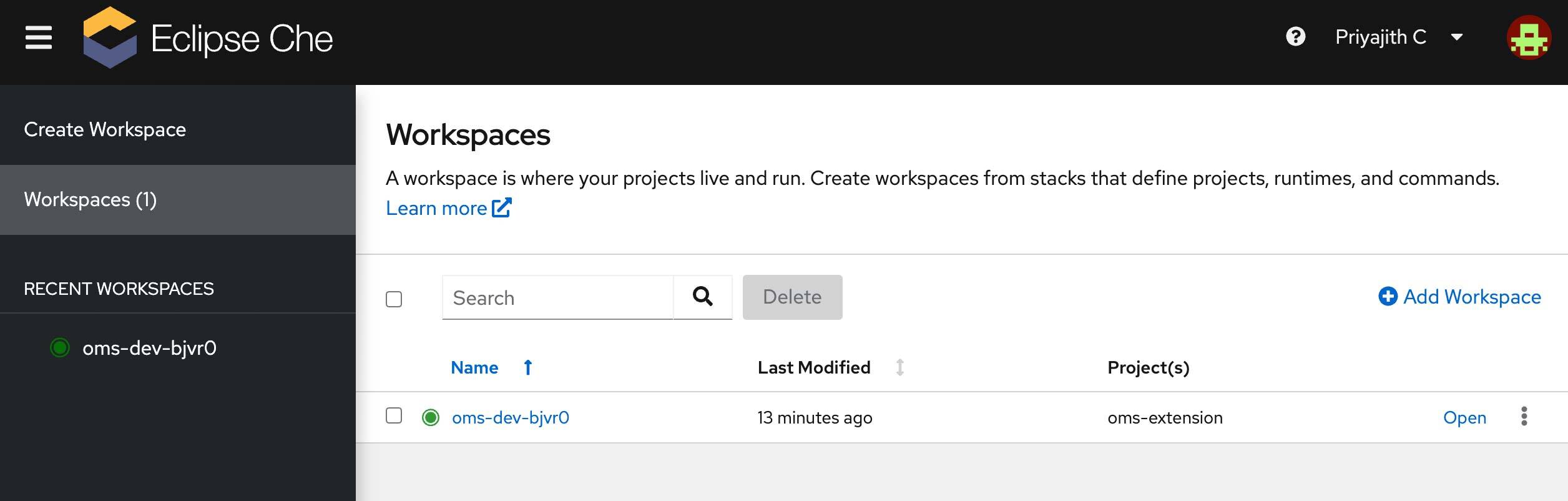
Once the Eclipse Che workspace for IBM Sterling Order Management is created, you will be able to work on it to create extensions, load data, apply third-party JARs, build EAR files, etc. As part of the devfile provided, a sample extension project is also included, which gets configured as your project in the IBM Sterling Order Management workspace.

IBM Sterling Order Management extensions project
Once the workspace is started, you will be able to see the IDE loaded in your browser with a sample extension repo cloned. The sample oms-extension project loaded as part of this devfile is a Gradle-based Java project you can use to create IBM Sterling Order Management back-end extensions. The project is set up to resolve the IBM Sterling Order Management-specific libraries while creating an extension Java class.
You can also change the repository to point to your extension source code by updating the projects section of the devfile:
projects:
-
  name: oms-extension
  source:
    type: git
    location: "<<your git hub repo>>"
Once you have created the Java-based extension, you can build the extension JAR by accessing the container terminal and running Gradle build commands.
Access terminals for the containers
You can access terminals by selecting Terminal > Open Terminal in Specific Container. You will see three options.

You can select one of the containers depending on the task you want to perform.
Build the IBM Sterling Order Management EAR file
The IBM Sterling Order Management EAR file can be built by running commands from the oms-runtime container terminal. Navigate to the /projects/runtime/bin folder from the terminal and run the required commands. For convenience, you can also model your frequently run commands inside the commands section of the devfile. The commands added get listed as Tasks in Eclipse Che. To find the available tasks, navigate to Terminal > Run Task. (Refer back to the Devfile Documentation on how to add new commands.)
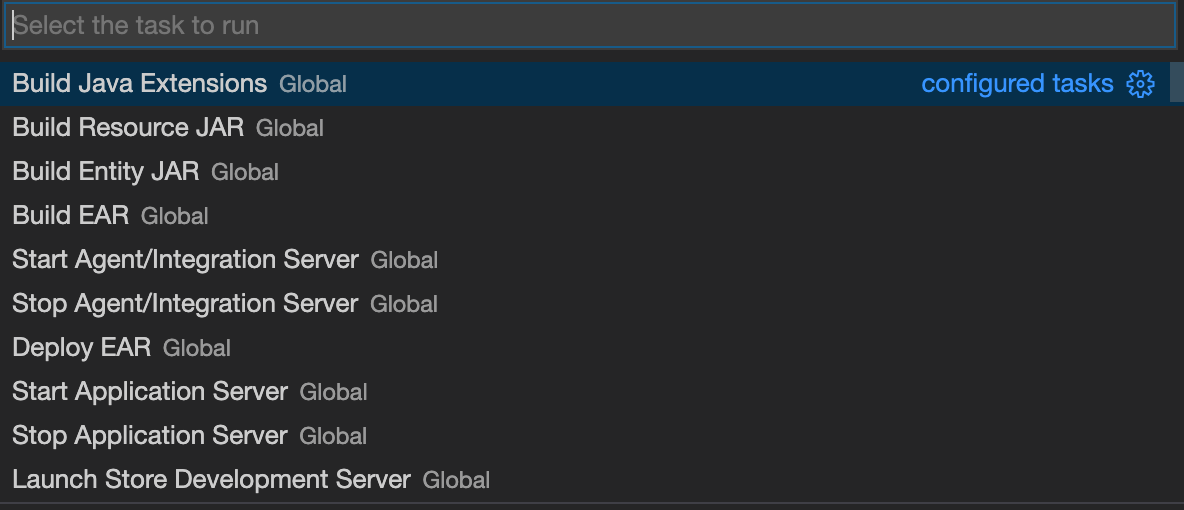
You can build the EAR file using Build EAR. Once it is built, you can deploy the application by copying the EAR file from the projects/runtime/external_deployments folder to /config/dropins or run the Deploy EAR task.
Start application server
From the Eclipse Che interface, navigate to Terminal > Run Task > Start Application Server. This will start the application server. You can watch the logs of the application server start process in the terminal, which this task starts.
Launching IBM Sterling Order Management applications
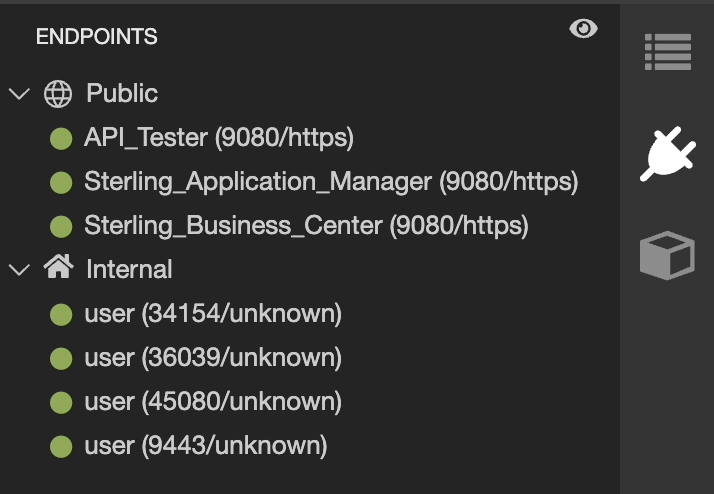
You can launch the application by clicking on the Endpoints menu item on the right-side toolbar and clicking the application you want to launch.
Summary and next steps
Setting up a local development environment for an intricate solution like IBM Sterling Order Management could be quite challenging for developers. Adopting to a cloud IDE like Red Hat CodeReady Workspaces or Eclipse Che can help solve a lot of the challenges a development organization faces, including getting the development environment ready within minutes, creating a consistent development experience across the dev team, facilitating collaboration, and leveraging the power of cloud to reduce personal hardware requirements.
Check out Deploy IBM Sterling Order Management containers in OpenShift for optimized, scalable environment to learn more about IBM Sterling certified containers and the Red Hat OpenShift Container Platform.