Tutorial
Secure Node.js applications with IBM Verify and HashiCorp Vault
Implement secure authentication, dynamic secrets management, Azure Storage credentials, and PII encryption in a Node.js application to protect identities and sensitive dataSecuring a consumer-facing application requires more than a login page. You must protect patient identities from credential theft, avoid hardcoded secrets in source code, and protect sensitive personal information such as Social Security numbers (SSNs) and dates of birth. This tutorial focuses on two security integration patterns that address these requirements: IBM Verify for identity management and HashiCorp Vault for secrets management.
Instead of building a complete application, this tutorial focuses on the security patterns you can reuse in your own projects. You will learn how to initialize Vault with AppRole authentication, generate dynamic Azure Storage credentials, encrypt personally identifiable information (PII) with Vault Transit, and handle IBM Verify authentication for both cloud directory users and federated users. You can apply these patterns to any existing Node.js application.
In this tutorial, learn how to integrate IBM Verify and HashiCorp Vault into a Node.js application using dynamic credentials, encrypted PII storage, and audit logging that supports healthcare security requirements.
Architecture of the secure Node.js application with IBM Verify and HashiCorp Vault
This tutorial demonstrates a layered security architecture that separates identity management, secrets management, encryption, and application logic. The Node.js application does not store credentials or manage user identities directly. Instead, it relies on IBM Verify and HashiCorp Vault services to protect user accounts, application secrets, and sensitive personal data.
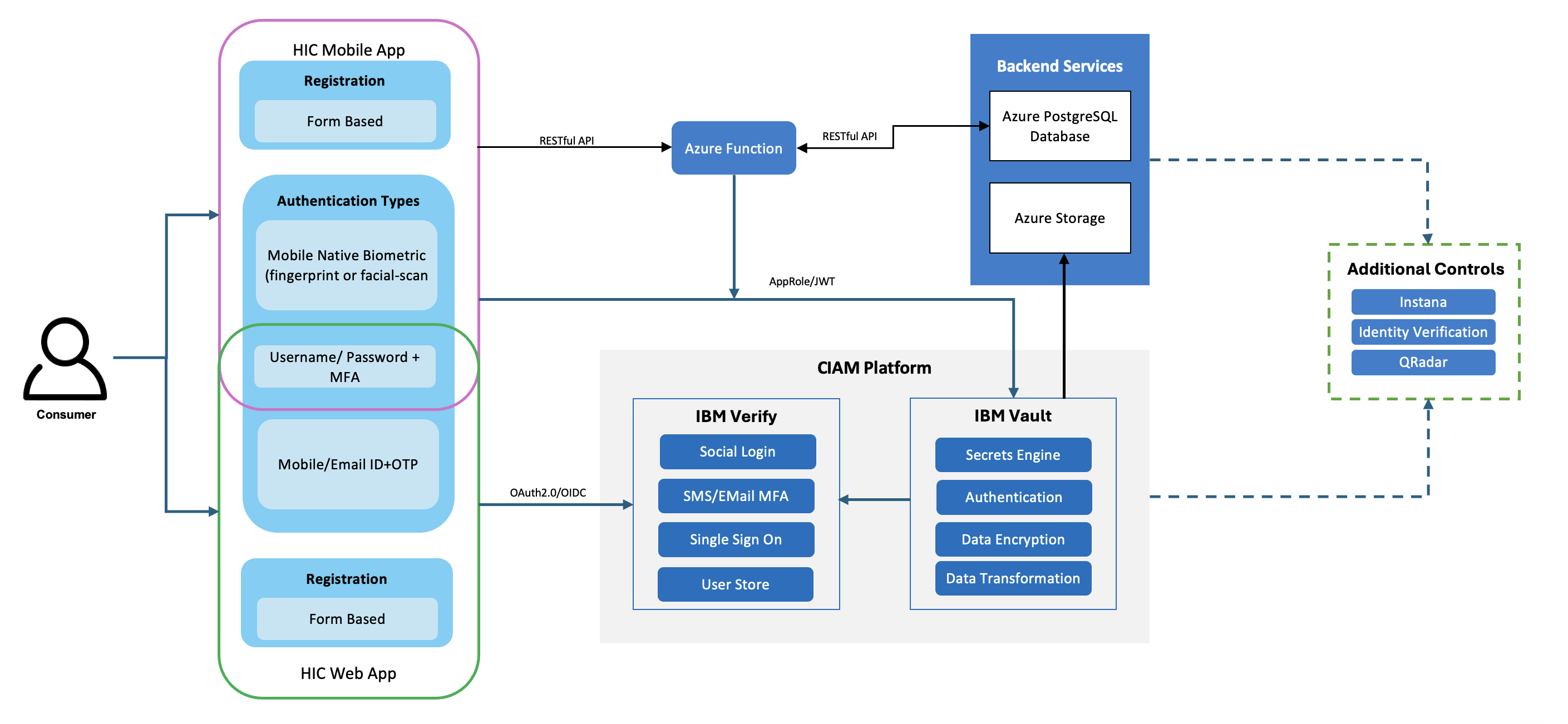
When a user signs in, IBM Verify authenticates the user and issues an OAuth access token. The Node.js application validates the token and retrieves the user identity information that it needs. Application secrets and service credentials are retrieved from HashiCorp Vault at runtime instead of being stored in source code or configuration files.
HashiCorp Vault Transit Secrets Engine encrypts sensitive personal information such as Social Security numbers (SSNs), dates of birth, and addresses before the data is stored in PostgreSQL. The database stores only encrypted values. HashiCorp Vault Azure Secrets Engine generates short-lived Azure Storage credentials that are rotated automatically. Every access to Vault is recorded in audit logs for security monitoring and compliance requirements.
Together, these components provide a security architecture that uses centralized identity management, runtime secrets retrieval, encrypted personal data storage, dynamic cloud credentials, and comprehensive audit logging.
Prerequisites
Before you begin, make sure that you have the following tools and services:
- Node.js version 18 or later.
- npm version 9 or later.
- A HashiCorp Vault instance (version 1.14 or later), either self-hosted or running in HashiCorp Cloud Platform Vault. The following Vault features configured:
- AppRole authentication enabled.
- KV v2 Secrets Engine enabled.
- Transit Secrets Engine enabled.
- Azure Secrets Engine enabled.
- An Azure service principal with
Storage Blob Data Contributorpermissions on the storage account.
- An Azure subscription with:
- An Azure Storage Account.
- A Blob Storage container.
- An IBM Verify tenant. You can sign up for a free IBM Verify trial account.
- An OIDC application configured in IBM Verify with:
- Authorization Code Flow enabled
- Redirect URI set to
https://your-host/auth/callback - Custom user attributes:
insertedintoDB(string)dob(string)
- Basic knowledge of Node.js, Express, and REST APIs.
Step 1. Install the required packages and create the environment configuration
Install the packages required for IBM Verify, HashiCorp Vault, and Azure Storage integration.
 npm install passport passport-openidconnect \
 node-vault @azure/storage-blob @azure/identity \
 axios dotenv
Create a
.envfile in the root directory of your Node.js application.Add the Vault connection settings.
# Vault connection settings
VAULT_ADDR=https://your-vault-server:8200
VAULT_ROLE_ID=your-approle-role-id
VAULT_SECRET_ID=your-approle-secret-id
VAULT_APPROLE_PATH=approle
Add the Vault secrets engine settings.
# Vault mount paths
VAULT_MOUNT=verifywebapp
VAULT_SECRET_PATH=web
VAULT_TRANSIT_PATH=transit
VAULT_TRANSIT_KEY=pii-key
VAULT_AZURE_MOUNT=azure
VAULT_AZURE_ROLE=storage-role
VAULT_AZUREF_MOUNT=azurefunc
VAULT_AZURE_PATH=appconfig
Add the Azure configuration settings.
# Azure account settings
AZURE_FUNCTION_URL=https://your-functions-app.azurewebsites.net
AZURE_STORAGE_ACCOUNT_NAME=your-storage-account
AZURE_TENANT_ID=your-azure-ad-tenant-id
AZURE_STORAGE_CONTAINER_NAME=medical-documents
The
.envfile contains only connection and configuration values. It does not contain sensitive credentials. The application retrieves the IBM Verify client secret, Azure Storage credentials, Azure Function keys, and other secrets from Vault at runtime.
Step 2. Store IBM Verify credentials and configure encryption in HashiCorp Vault
In this step, you store IBM Verify credentials in HashiCorp Vault and create an encryption key for sensitive personal information.
Store IBM Verify credentials in Vault Key-Value (KV).
Enable the KV v2 Secrets Engine.
vault secrets enable -path=verifywebapp kv-v2Store the IBM Verify configuration values.
vault kv put verifywebapp/web \
  tenantid="https://your-tenant.verify.ibm.com" \
  clientid="your-oidc-client-id" \
  clientsecret="your-oidc-client-secret" \
  redirect_uri="https://your-host/auth/callback" \
  apiclientid="your-api-client-id" \
  apiclientsecret="your-api-client-secret"
The
apiclientidandapiclientsecretvalues belong to a separate IBM Verify API client that the application uses to update federated user accounts. You will create this API client later in the tutorial.
Create a Vault Transit encryption key.
Enable the Transit Secrets Engine.
vault secrets enable transitCreate an encryption key for personally identifiable information (PII).
vault write -f transit/keys/pii-keyThis command creates an AES-256-GCM encryption key in Vault. The Node.js application sends plain text data to Vault and receives encrypted ciphertext in return. The encryption key remains in Vault and is never exposed to the application or database.
Configure the Azure Secrets Engine for dynamic Azure Storage credentials.
Enable the Azure Secrets Engine.
vault secrets enable azureConfigure the Azure connection.
vault write azure/config \
  subscription_id="your-subscription-id" \
  tenant_id="your-tenant-id" \
  client_id="your-vault-sp-client-id" \
  client_secret="your-vault-sp-secret"
Create a role that generates dynamic Azure Storage credentials.
vault write azure/roles/storage-role \ application_object_id="your-existing-app-object-id" \ persist_app=true \ ttl=1h \ max_ttl=24h \ azure_roles='[{ "role_name": "Storage Blob Data Contributor", "role_id": "/subscriptions/<sub-id>/providers/Microsoft.Authorization/roleDefinitions/ba92f5b4-2d11-453d-a403-e96b0029c9fe", "scope": "/subscriptions/<sub-id>/resourceGroups/<rg>/providers/Microsoft.Storage/storageAccounts/<account>" }]'Note: Use an existing Azure application by setting
persist_app=trueand specifyingapplication_object_id. This configuration allows Vault to reuse the same Azure application when it generates credentials. Reusing the application helps avoid Azure Active Directory replication delays andinvalid_clienterrors.
Create a Vault policy and AppRole.
Enable AppRole authentication.
vault auth enable approleCreate a policy for the Node.js application:
 vault policy write veriinsure-policy - <<EOF
 path "verifywebapp/data/web"     { capabilities = ["read"] }
 path "transit/encrypt/pii-key"   { capabilities = ["update"] }
 path "transit/decrypt/pii-key"   { capabilities = ["update"] }
 path "azure/creds/storage-role"  { capabilities = ["read"] }
 path "azurefunc/data/appconfig"  { capabilities = ["read"] }
 EOF
Create an AppRole and assign the policy.
vault write auth/approle/role/veriinsure-role \
 token_ttl=24h \
 token_max_ttl=720h \
 secret_id_ttl=8760h \
 policies="veriinsure-policy"
Retrieve the AppRole credentials.
vault read auth/approle/role/veriinsure-role/role-idvault write -f auth/approle/role/veriinsure-role/secret-id
Add the returned
role_idandsecret_idvalues to your.envfile. The Node.js application uses these values to authenticate with Vault and retrieve secrets, encryption services, and dynamic Azure credentials at runtime.
Step 3. Configure IBM Verify for user authentication
Configure IBM Verify to authenticate users, store the required user attributes, and provide API access for updating federated user accounts.
Create an OIDC application. In your IBM Verify tenant, go to Applications > Add Application > Custom Application.
Configure the OIDC application with the following settings:
- Grant type: Authorization Code
- Redirect URI:
https://your-host/auth/callback Scopes:
openid profile emailCopy the Client ID and Client Secret. Store these credentials in Vault KV as described in Step 2. Do not store the credentials in the
.envfile.
Add custom user attributes. In IBM Verify, go to Directory > Attribute Sources > User Schema. Add the following custom attributes:
insertedintoDB- Type:
String - Description: Indicates whether the user record exists in the application database.
- Type:
dob- Type:
String - Description: Stores the user's date of birth for IBM Verify cloud directory users.
- Type:
Create an API client for federated users. Federated users authenticate through an external identity provider. The application cannot update IBM Verify attributes for these users by using the user's access token because IBM Verify does not allow self-service attribute updates for federated accounts.
In IBM Verify, go to Security > API Access > Add API client.
Grant the API client these scopes:
manageUserStandardGroupsreadUserGroups
Copy the API client ID and client secret. Store the values as
apiclientidandapiclientsecretin the Vault KV secret that contains the OIDC credentials.
Step 4. Initialize the HashiCorp Vault client with AppRole
Create a config/vault.config.js file. The Node.js application uses this file to authenticate with HashiCorp Vault, retrieve IBM Verify credentials, encrypt and decrypt sensitive data, and retrieve the Azure Function key.
Add the following code:
// config/vault.config.js
const vault = require('node-vault');

class VaultClient {
  constructor() {
    this.client = null;
    this.ibmVerifyConfig = null;
    this.isReady = false;
  }

  async initialize() {
    process.env.NODE_TLS_REJECT_UNAUTHORIZED = '0';

    // Create a Vault client for AppRole authentication
    this.client = vault({
      apiVersion: 'v1',
      endpoint: process.env.VAULT_ADDR
    });

    // Authenticate with Vault by using AppRole
    const loginResponse = await this.client.approleLogin({
      role_id: process.env.VAULT_ROLE_ID,
      secret_id: process.env.VAULT_SECRET_ID,
      mount_point: process.env.VAULT_APPROLE_PATH || 'approle',
    });

    // Create an authenticated Vault client
    this.client = vault({
      apiVersion: 'v1',
      endpoint: process.env.VAULT_ADDR,
      token: loginResponse.auth.client_token,
    });

    // Retrieve IBM Verify credentials from Vault KV
    const secret = await this.client.read(
      `${process.env.VAULT_MOUNT}/data/${process.env.VAULT_SECRET_PATH}`
    );

    const d = secret.data.data;

    this.ibmVerifyConfig = {
      tenantUrl: d.tenantid,
      clientId: d.clientid,
      clientSecret: d.clientsecret,
      redirectUri: d.redirect_uri,
      apiClientId: d.apiclientid,
      apiClientSecret: d.apiclientsecret,
    };

    this.isReady = true;
    console.log('✅ Vault client initialized');
  }

  // Encrypt a plaintext value with Vault Transit
  async encrypt(plaintext) {
    const res = await this.client.write(
      `${process.env.VAULT_TRANSIT_PATH}/encrypt/${process.env.VAULT_TRANSIT_KEY}`,
      { plaintext: Buffer.from(plaintext).toString('base64') }
    );

    return res.data.ciphertext;
  }

  // Decrypt ciphertext with Vault Transit
  async decrypt(ciphertext) {
    const res = await this.client.write(
      `${process.env.VAULT_TRANSIT_PATH}/decrypt/${process.env.VAULT_TRANSIT_KEY}`,
      { ciphertext }
    );

    return Buffer.from(res.data.plaintext, 'base64').toString('utf8');
  }

  getIBMVerifyConfig() {
    return this.ibmVerifyConfig;
  }

  getIBMVerifyApiCredentials() {
    return {
      clientId: this.ibmVerifyConfig.apiClientId,
      clientSecret: this.ibmVerifyConfig.apiClientSecret,
    };
  }

  getToken() {
    return this.client.token;
  }

  // Retrieve the Azure Function key from Vault when required
  async getAzureFunctionKey() {
    const res = await this.client.read(
      `${process.env.VAULT_AZUREF_MOUNT}/data/${process.env.VAULT_AZURE_PATH}`
    );

    return res.data.data.azure_function_key;
  }
}

module.exports = new VaultClient();
Next, initialize the Vault client before you start the Express application. This sequence ensures that Vault authentication and required secrets are available before the application processes requests.
Add the following code to app.js:
// app.js
const vaultClient = require('./config/vault.config');

async function start() {
  await vaultClient.initialize();

  // Add the rest of the Express application setup here
}

start();
Start the application. A successful Vault connection displays the following message:
✅ Vault client initialized
If Vault initialization fails, verify that:
VAULT_ADDRpoints to the correct Vault server.VAULT_ROLE_IDcontains a valid AppRole role ID.VAULT_SECRET_IDcontains a valid and unexpired AppRole secret ID.
Note: The example disables TLS certificate verification with NODE_TLS_REJECT_UNAUTHORIZED = '0'. Use this setting only in a development or test environment. Configure trusted TLS certificates for production environments.
Step 5. Configure IBM Verify authentication with Passport.js
Create config/ibm-verify.config.js. The Node.js application uses this file to configure IBM Verify authentication with passport-openidconnect. The application retrieves the IBM Verify credentials from HashiCorp Vault instead of storing the credentials in environment variables.
Add the following code:
// config/ibm-verify.config.js
const passport = require('passport');
const OpenIDConnectStrategy = require('passport-openidconnect').Strategy;
const vaultClient = require('./vault.config');
const axios = require('axios');

function configureIBMVerify() {
  // Retrieve IBM Verify credentials from Vault
  const {
    tenantUrl,
    clientId,
    clientSecret,
    redirectUri
  } = vaultClient.getIBMVerifyConfig();

  const baseUrl = tenantUrl.replace(/\/$/, '');

  passport.use(new OpenIDConnectStrategy(
    {
      issuer: `${baseUrl}/oauth2`,
      authorizationURL: `${baseUrl}/oauth2/authorize`,
      tokenURL: `${baseUrl}/oauth2/token`,
      userInfoURL: `${baseUrl}/v2.0/Me`,
      clientID: clientId,
      clientSecret,
      callbackURL: redirectUri,
      scope: ['openid', 'profile', 'email'],
    },
    async (
      issuer,
      profile,
      context,
      idToken,
      accessToken,
      refreshToken,
      params,
      done
    ) => {
      try {
        // Retrieve the IBM Verify user profile
        const meRes = await axios.get(`${baseUrl}/v2.0/Me`, {
          headers: {
            'Authorization': `Bearer ${accessToken}`,
            'Accept': 'application/scim+json'
          }
        });

        // Determine whether the user is a cloud directory or federated user
        const ibmExt =
          meRes.data['urn:ietf:params:scim:schemas:extension:ibm:2.0:User'] || {};

        const realm = ibmExt.realm || 'unknown';
        const isCloudDirectory = realm === 'cloudIdentityRealm';

        if (isCloudDirectory) {
          // Update a cloud directory user with the user's access token
          await axios.put(`${baseUrl}/v2.0/Me`, updatedProfile, {
            headers: {
              'Authorization': `Bearer ${accessToken}`,
              'Content-Type': 'application/scim+json'
            }
          });
        } else {
          // Retrieve API client credentials for a federated user
          const apiCreds = vaultClient.getIBMVerifyApiCredentials();

          // Request an access token for the API client
          const tokenRes = await axios.post(
            `${baseUrl}/oauth2/token`,
            new URLSearchParams({
              grant_type: 'client_credentials',
              client_id: apiCreds.clientId,
              client_secret: apiCreds.clientSecret,
            }).toString(),
            {
              headers: {
                'Content-Type': 'application/x-www-form-urlencoded'
              }
            }
          );

          // Update the federated user with the API client access token
          await axios.patch(
            `${baseUrl}/v2.0/Users/${profile.id}`,
            patchPayload,
            {
              headers: {
                'Authorization': `Bearer ${tokenRes.data.access_token}`,
                'Content-Type': 'application/scim+json'
              }
            }
          );
        }

        return done(null, {
          ...profile,
          realm,
          isCloudDirectory,
          accessToken
        });
      } catch (err) {
        return done(err);
      }
    }
  ));

  passport.serializeUser((user, done) => done(null, user));
  passport.deserializeUser((user, done) => done(null, user));

  return passport;
}

module.exports = configureIBMVerify;
The application checks the IBM Verify realm value to determine how to update the user profile.
For an IBM Verify cloud directory user, the application uses the user's access token to update the user profile through /v2.0/Me.
For a federated user, the application uses the dedicated IBM Verify API client that you created in Step 3. The application retrieves the API client credentials from Vault, requests an access token, and uses the token to update application-managed attributes such as insertedintoDB and dob.
Step 6. Configure dynamic Azure Storage credentials with HashiCorp Vault
When the Node.js application uploads a file to Azure Storage, retrieve short-lived Azure credentials from HashiCorp Vault instead of using a static connection string or storage key.
Add the following code to the file that handles Azure Storage uploads:
const { ClientSecretCredential } = require('@azure/identity');
const { BlobServiceClient } = require('@azure/storage-blob');
const axios = require('axios');
const vaultClient = require('./config/vault.config');

async function uploadToAzureStorage(fileBuffer, filename, mimeType) {

  // Retrieve dynamic Azure credentials from Vault
  const credsRes = await axios.get(
    `${process.env.VAULT_ADDR}/v1/${process.env.VAULT_AZURE_MOUNT}/creds/${process.env.VAULT_AZURE_ROLE}`,
    {
      headers: {
        'X-Vault-Token': vaultClient.getToken()
      }
    }
  );

  const { client_id, client_secret } = credsRes.data.data;

  // Allow time for the Azure credentials to become available
  await new Promise(resolve => setTimeout(resolve, 15000));

  // Create an Azure credential with the credentials from Vault
  const credential = new ClientSecretCredential(
    process.env.AZURE_TENANT_ID,
    client_id,
    client_secret
  );

  // Request an Azure Storage access token
  let token;

  for (let attempt = 1; attempt <= 3; attempt++) {
    try {
      token = await credential.getToken(
        'https://storage.azure.com/.default'
      );

      if (token) {
        break;
      }
    } catch (err) {
      if (attempt < 3) {
        await new Promise(resolve => setTimeout(resolve, 10000));
      } else {
        throw new Error(
          `Failed to acquire storage token: ${err.message}`
        );
      }
    }
  }

  // Create an Azure Blob Storage client with the access token
  const blobClient = new BlobServiceClient(
    `https://${process.env.AZURE_STORAGE_ACCOUNT_NAME}.blob.core.windows.net`,
    {
      getToken: async () => ({
        token: token.token,
        expiresOnTimestamp: token.expiresOnTimestamp
      })
    }
  );

  // Get the configured Blob Storage container
  const containerClient = blobClient.getContainerClient(
    process.env.AZURE_STORAGE_CONTAINER_NAME
  );

  await containerClient.createIfNotExists();

  // Upload the file to Azure Blob Storage
  const blockBlob = containerClient.getBlockBlobClient(filename);

  await blockBlob.uploadData(fileBuffer, {
    blobHTTPHeaders: {
      blobContentType: mimeType
    }
  });

  return blockBlob.url;
}
The uploadToAzureStorage() function retrieves dynamic Azure credentials from Vault for each upload operation. The function then uses the credentials to obtain an Azure Storage access token and upload the file to the configured Blob Storage container.
The retry logic allows additional time for newly issued Azure credentials to become available. The application uses the access token for the upload instead of storing an Azure Storage key or connection string in the source code.
Step 7. Encrypt sensitive patient data with Vault Transit
Before the Node.js application stores personally identifiable information (PII) in the database, encrypt each sensitive field with HashiCorp Vault Transit.
Add the following code where the application processes patient data:
const vaultClient = require('./config/vault.config');

async function buildEncryptedPatientPayload({
  ssn,
  dob,
  addressLine1,
  addressLine2
}) {
  const payload = {};

  // Encrypt each sensitive field with Vault Transit
  if (ssn) {
    payload.encrypted_ssn = await vaultClient.encrypt(ssn);
  }

  if (dob) {
    payload.encrypted_date_of_birth = await vaultClient.encrypt(dob);
  }

  if (addressLine1) {
    payload.encrypted_address_line1 =
      await vaultClient.encrypt(addressLine1);
  }

  if (addressLine2) {
    payload.encrypted_address_line2 =
      await vaultClient.encrypt(addressLine2);
  }

  return payload;
}
The application stores the encrypted values returned by Vault in the database instead of storing the plain text values.
When the application needs to read the patient data, decrypt each encrypted field with Vault Transit:
async function decryptPatientRecord(patient) {
  return {
    ssn: patient.encrypted_ssn
      ? await vaultClient.decrypt(patient.encrypted_ssn)
      : null,

    dob: patient.encrypted_date_of_birth
      ? await vaultClient.decrypt(patient.encrypted_date_of_birth)
      : null,

    addressLine1: patient.encrypted_address_line1
      ? await vaultClient.decrypt(patient.encrypted_address_line1)
      : null,

    addressLine2: patient.encrypted_address_line2
      ? await vaultClient.decrypt(patient.encrypted_address_line2)
      : null,
  };
}
The encryption key remains in Vault. The Node.js application sends plain text values to Vault Transit and receives ciphertext values such as vault:v1:.... The application stores only the ciphertext in the database. A user with access to the database cannot read the protected values without the required Vault permissions.
Step 8. Verify the security integrations
Test each security integration to confirm that HashiCorp Vault, IBM Verify, Azure Storage, and Vault Transit work as expected.
Verify the Vault connection. Start the Node.js application.
node app.jsConfirm that the application connects to Vault and retrieves the IBM Verify configuration.
✅ Vault client initializedVerify IBM Verify authentication. Sign in to the application through the IBM Verify login route. After a successful login, check the authentication session.
curl http://localhost:3000/auth/statusConfirm that the response contains
realmandisCloudDirectory. The Node.js application uses these values to determine whether the authenticated user is a cloud directory user or a federated user.Verify dynamic Azure Storage credentials. Upload a file to Azure Storage and check the application logs. A successful upload should produce messages similar to the following output.
 🔑 Fetching fresh Azure credentials from Vault...
 ⏳ Waiting for Azure credential propagation (15s)...
 ✅ Azure storage token acquired
 ✅ File uploaded successfully
Verify that Vault created a lease for the Azure credentials.
vault list sys/leases/lookup/azure/creds/storage-roleVerify PII encryption. After the application stores a patient record, query the PostgreSQL database.
 SELECT encrypted_ssn, encrypted_date_of_birth
 FROM patients
 LIMIT 1;
Confirm that PostgreSQL stores ciphertext instead of plain text.
 encrypted_ssn         | encrypted_date_of_birth
 ----------------------+-------------------------
 vault:v1:ABx9mKTq2... | vault:v1:ZPq4nLRs3...
Sensitive patient data such as the SSN and date of birth should appear only as Vault ciphertext.
Verify federated user updates. Sign in with a federated user account and update the user profile.
Check the application logs to confirm that the application uses the IBM Verify API client credentials for the federated user.
 🔵 Federated user: using client credentials flow
 ✅ IBM Verify updated through the API
Confirm that the application updates only the required IBM Verify attributes, such as
dobandinsertedintoDB.
Summary
This tutorial covered four security integration patterns that you can add to an existing Node.js application:
- Vault AppRole authentication: The Node.js application authenticates with HashiCorp Vault at startup and retrieves credentials at runtime. Sensitive credentials are not stored in application source code.
- IBM Verify authentication with Passport.js: The Node.js application identifies cloud directory and federated users and uses the appropriate profile update method for each user type. Federated user updates use a dedicated IBM Verify API client.
- Dynamic Azure Storage credentials: The HashiCorp Vault Azure Secrets Engine generates short-lived credentials for Azure Storage. The application obtains an Azure Storage access token before uploading files.
- PII encryption with Vault Transit: The Node.js application encrypts sensitive patient data before storing the data in the database. The encryption key remains in Vault, and the database stores only ciphertext.
Next steps
- Explore IBM Verify risk-based access policies to add stronger authentication for sensitive application operations.
- Learn about Vault certificate authentication and SPIFFE/SPIRE integration to use workload identities instead of AppRole authentication.
- Review the Vault Azure Secrets Engine documentation to configure credential rotation and manage credential leases.