Tutorial
Secure routes with passthrough TLS for web applications using Open Liberty on Red Hat OpenShift
Use external domain names and signed certificates for end-to-end encryption and automate passthrough route creation with the Open Liberty OperatorIn this tutorial, you learn how to expose a Red Hat OpenShift application by using a passthrough route with a signed TLS certificate for a custom domain. Specifically, you deploy a web application from a custom container image by using the Open Liberty runtime, and access it externally with a passthrough route. The steps are demonstrated with IBM Cloud, but can also be applied to OpenShift running on any cloud provider.
Introduction
In OpenShift, an HAProxy-based router is deployed to your cluster that functions as the ingress endpoint for external network traffic. There are four types of routes into OpenShift: simple, edge, passthrough, and re-encrypt. The simple route is unencrypted and doesn't require TLS termination. With an edge route, the TLS connection is terminated at the router, which means that the connection between the router service and the application pod is unencrypted. Both re-encrypt and passthrough routes offer end-to-end encryption options, which bring security value based on the principles of a zero trust network. With a re-encrypt route, the TLS connection is terminated at the router, and a new TLS connection is created between the router and service for the application pod. With a passthrough route, the TLS connection isn't interrupted between the client and the application pod because the connection is terminated at the application pod level.
Prerequisites
To complete this tutorial, you need:
- An IBM Cloud account.
- A deployed Red Hat OpenShift cluster in an IBM Cloud Virtual Private Cloud (VPC) with a public gateway by using the Red Hat OpenShift on IBM Cloud service.
- A custom domain from a domain registrar.
- IBM Cloud Command Line Interface (CLI) and OpenShift oc CLI , or IBM Cloud Shell.
Docker Desktop or Podman to build container images and push them to a container registry.
Note: In August 2021, Docker announced changes to its product subscriptions. While Docker Desktop for MacOS and Windows remains free for certain users under the terms of a Docker Personal subscription, if you work in a larger organization, you may be required to purchase one of the paid Docker subscriptions. These changes took effect on 31 January 2022.
Estimated time
Completing this tutorial should take you about 45 minutes (excluding updates to DNS, which can take several hours to propagate).
Step 1. Log in from the CLI and create a project
From the OpenShift web console, click your username and then click Copy Login Command.
Click Display Token.
Copy and paste the oc login command into the CLI on your workstation or IBM Cloud Shell.
Then enter the following command to create a new project called ibm-developer:
oc new-project ibm-developer
Step 2. Create an Open Liberty container image
Note: Unfortunately, you cannot complete this step if your workstation uses ARM64 architecture, such as Apple silicon, because there is not an Open Liberty container for the ARM64 architecture. If this applies to you, go to Step 4.
Create a simple Dockerfile by using a base image that includes the latest Open Liberty runtime and a default web application for testing. Alternatively, you can add your own web application to the Dockerfile.
# Start with OL runtime.
FROM openliberty/open-liberty:full-java11-openj9-ubi
Use the following command to build the container image:
podman build -t ibmdeveloper/wlp .
Run the image with the following command:
podman run -p 9080:9080 -p 9443:9443 ibmdeveloper/wlp
Open your browser to http://localhost:9080. You should see an Open Liberty default web application. Also, go to https://localhost:9443 and notice that your browser warns that the web application is using a self-signed certificate. You replace this certificate with a signed certificate later in the tutorial.
Step 3. Push the container image to a registry and prepare the OpenShift cluster with a pull secret
Before you can deploy the container image, you must store it in a container registry that OpenShift can access. You have several choices:
- A public registry, such as DockerHub or Quay.io
- The private registry included with OpenShift
- A private registry service from your cloud provider
In this tutorial, you push the container image to the private IBM Cloud Container Registry.
In IBM Cloud, got to the Navigation Menu and open OpenShift > Registry to view some quick start commands. For example, to log in to your IBM Cloud account, the command is:
ibmcloud login -a https://cloud.ibm.com
To target your preferred IBM Cloud Container Registry region, enter the following command. If you want to use another region, you can select it from the Quick start panel to customize the displayed commands. The steps in this tutorial assume the registry is located in EU Central, such as de.icr.io.
ibmcloud cr region-set eu-central
Create a namespace of your choice. For example:
ibmcloud cr namespace-add ibmdeveloper
Log your local Docker daemon into the IBM Cloud Container Registry:
ibmcloud cr login -client podman
Tag the container image, making a reference to the local image:
podman tag ibmdeveloper/wlp de.icr.io/ibmdeveloper/wlp:1
Push the container image to the IBM Cloud Container Registry:
podman push de.icr.io/ibmdeveloper/wlp:1
The OpenShift cluster automatically has pull secrets for the IBM Cloud Container Registry, but only in the default namespace. Since you will deploy to a different namespace in an upcoming step, you must copy the pull secret from the default namespace to the ibm-developer namespace that you created previously.
List the existing pull secrets:
oc get secrets -n default | grep icr-io
Copy the secret to the ibm-developer namespace:
oc get secret all-icr-io -n default -o yaml | sed 's/default/ibm-developer/g' | oc create -n ibm-developer -f -
Step 4. Deploy the container image to an OpenShift cluster
Although it's possible to deploy the container image by using a simple Kubernetes deployment, you use the Open Liberty Operator in this tutorial. The Open Liberty Operator not only deploys the application but also helps with Day 2 operations, such as gathering traces and server memory dumps.
To install the Open Liberty Operator from the OpenShift web console menu, navigate to Operators > OperatorHub.
Type Open Liberty into the Filter by keyword field and click the Open Liberty card that appears to open the operator summary panel. Click Install.
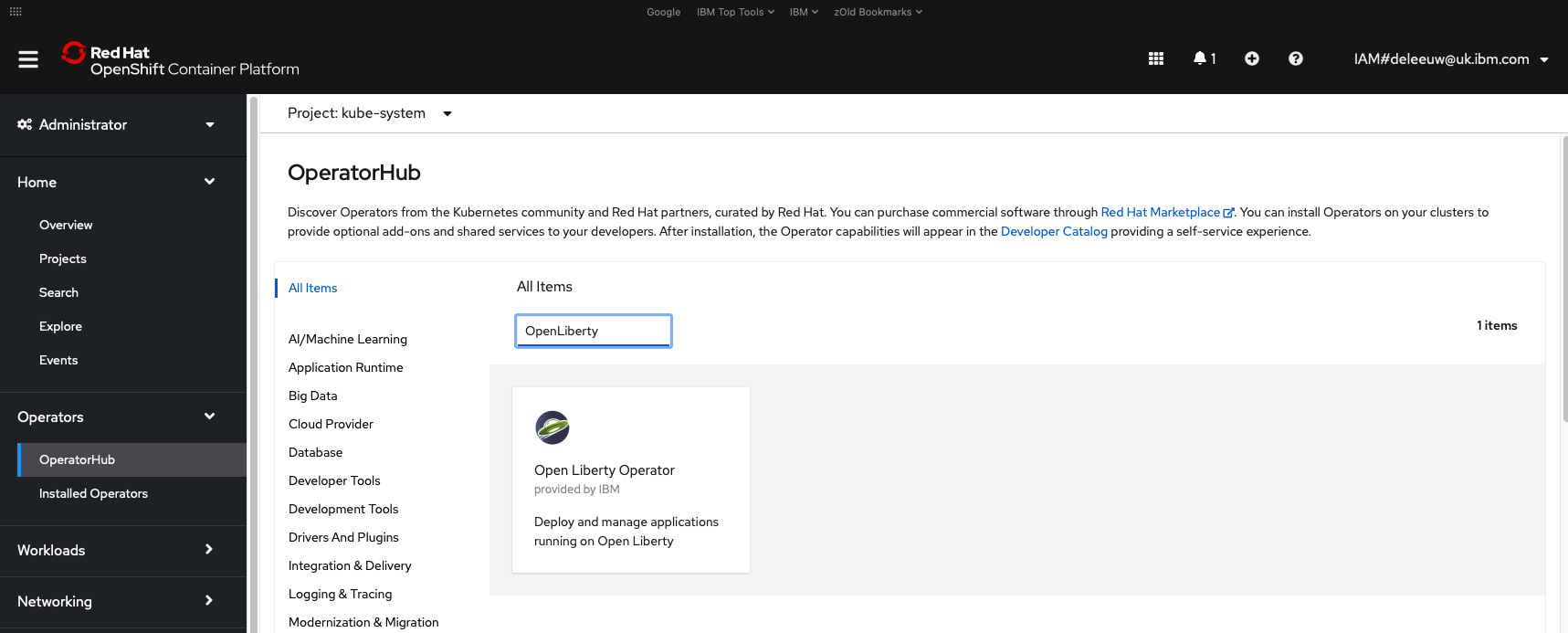
On the Install Operator page, you can accept the default installation options and click Install.

Now create an Open Liberty custom resource (CR) that deploys the application:
Note: If you didn't create your own custom image in Step 2, you can simply deploy the Open Liberty base image by changing the value of applicationImage in the following CR to be openliberty/open-liberty:full-java11-openj9-ubi.
cat <<EOF | oc apply -f -
apiVersion: apps.openliberty.io/v1beta2
kind: OpenLibertyApplication
metadata:
  name: ibmdeveloper-liberty-app
spec:
  applicationImage: de.icr.io/ibmdeveloper/wlp:1
  pullSecret: all-icr-io
  service:
    type: ClusterIP
    port: 9080
  expose: true
EOF
The Open Liberty CR supports many parameters. For now, you asked the operator to not only deploy the container image, but also to create a Kubernetes ClusterIP service and expose that service as a simple unencrypted route.
To get information about the deployed app, use any of the following commands to retrieve the CR:
oc get olapp ibmdeveloper-liberty-app
oc get olapps ibmdeveloper-liberty-app
oc get openlibertyapplication ibmdeveloper-liberty-app
Return to the OpenShift web console and navigate to Operators > Installed Operators. Select ibm-developer from the Project list, and verify that the operator created the resource.
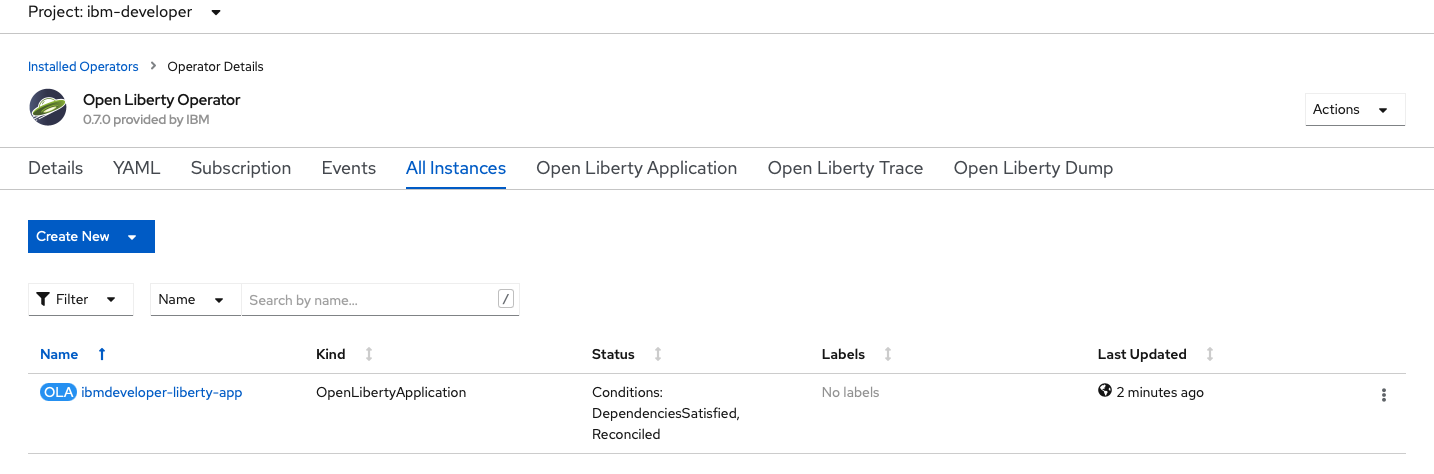
The operator created a deployment, service, and route for the application.

Select the ibmdeveloper-liberty-app route from the Resources list to open the Route Details page.
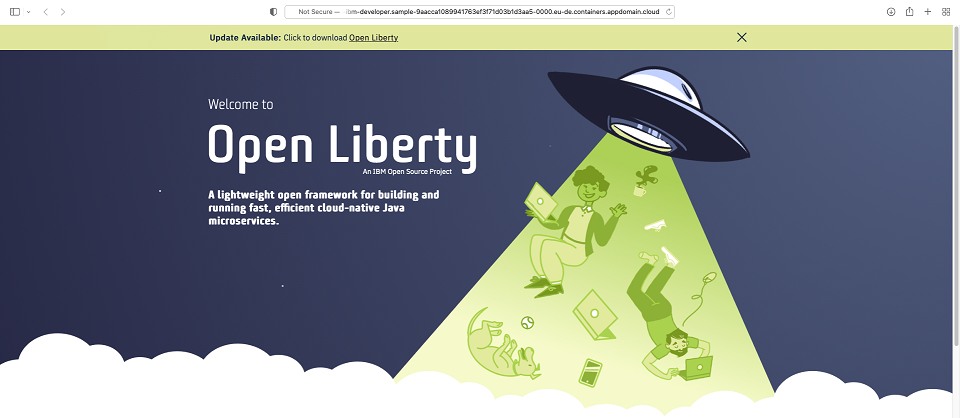
Click the Location link to verify the application through an unencrypted HTTP request.

You should see the Open Liberty welcome page open in your browser.
Step 5. Create a signed certificate with IBM Secrets Manager and IBM Cloud Internet Services
One of the goals of this tutorial is to secure your application with a signed TLS certificate for a custom domain, which should be applied all the way from client browser to the pod. A signed certificate requires a certificate authority (CA), such as the popular and free Let's Encrypt service.
When you order a certificate, Let's Encrypt must validate that you control the domain. The validation usually requires some manual back and forth to add DNS TXT records to your DNS service that is provided by your domain registrar. Then, Let's Encrypt queries your DNS for that record. If there is a match, Let's Encrypt issues a certificate to you.
IBM Cloud Secrets Manager is a service that automates the process of ordering from Let's Encrypt, provided that you use a supported DNS provider. In this tutorial, you use IBM Cloud Internet Services (CIS) to manage the DNS.
Using Secrets Manager is also more secure since keys are stored encrypted within the service, access to them can be controlled with IBM Cloud Identity and Access Management, and all actions that are associated with the certificate are logged for audit purposes. In addition, Secrets Manager provides lifecycle management to notify you when a certificate expires soon, and can renew it automatically if you want.
Open the IBM Cloud Catalog, and create instances of both Secrets Manager and CIS (search the catalog for Internet Services), both of which are available as a free trial.
After you create those resources, go to the Resource list, expand the Services and software category, and click the name of your new CIS resource.

Click Add domain to connect to the custom domain that you registered with a domain registrar in the Prerequisites section. During the following tutorial steps, replace any reference to the deleeuw.me.uk domain with your domain name.
In the Setup your domain panel, under the Connect domain section, enter your custom domain name into the Domain name field and click Next.

Skip the optional DNS records section by clicking Next.
In the Domain management section, there are instructions for you to delegate domain name server (DNS) responsibility from the domain registrar to CIS by adding IBM's name servers to your domain name.

The exact method to do this varies by domain registrar. For example, the options for the domain registrar for the deleeuw.me.uk example are illustrated in the following image:

While you configure your name servers with your registrar, the domain's status within CIS moves to a pending state. The DNS updates can take 12–24 hours to propagate across the internet. However, you can continue with the following tutorial steps and return to this step later.

When the DNS update is complete, the status on your CIS resource Overview page changes from Pending to Active. You can verify that the IBM Cloud name servers took effect with a command similar to the following:
dig deleeuw.me.uk ns

Although you don't use any additional CIS features in this tutorial, it is easy to add more security with DDoS protection, a web application firewall, or rate limiting. Or, you can use a global load balancer to distribute traffic to multiple OpenShift clusters in different regions.
Now that you are using CIS to manage the name servers for your domain, you can use Secrets Manager to automate the ordering of a TLS certificate. Before you can use this service, you must complete the following steps:
Create a Let's Encrypt ACME Account using the ACME account creation tool
Download an appropriate release of the ACME account creation tool. For example, for Mac with Intel x86, download the darwin-amd64 binary, or for Mac with Apple silicon, download the darwin-arm64 binary.
Execute the following command (changing the binary name as appropriate) to create a Let's Encrypt ACME account:
./acme-account-creation-tool-darwin-arm64 -e <your email> -o my-letsencrypt -d letsencrypt-prod
The expected response is as follows:
INFO[2022-10-20T11:29:31+01:00] Registering a new account with the CA
INFO[2022-10-20T11:29:32+01:00] Account information written to file : my-letsencrypt-account-info.json
INFO[2022-10-20T11:29:32+01:00] Private key written to file : my-letsencrypt-private-key.pem

Account Info
{
        "email": "deleeuw@uk.ibm.com",
        "registration_uri": "https://acme-v02.api.letsencrypt.org/acme/acct/786080606",
        "registration_body": {
                "status": "valid",
                "contact": [
                        "mailto:deleeuw@uk.ibm.com"
                ]
        }
}
Note that a private key is created, which is required in the next step.
Connect IBM Secrets Manager to the Let's Encrypt certificate authority
Return to the Resource list in IBM Cloud, expand the Services and software category, and open your Secrets Manager service.
From the Secrets engines page, click the Public certificates tab and click the Add button to configure a new certificate authority.

Choose Let's Encrypt for production, and upload the my-letsencrypt-private-key.pem file generated in the previous step.

Once complete, the Secrets Manager overview shows the Let's Encrypt certificate authority.
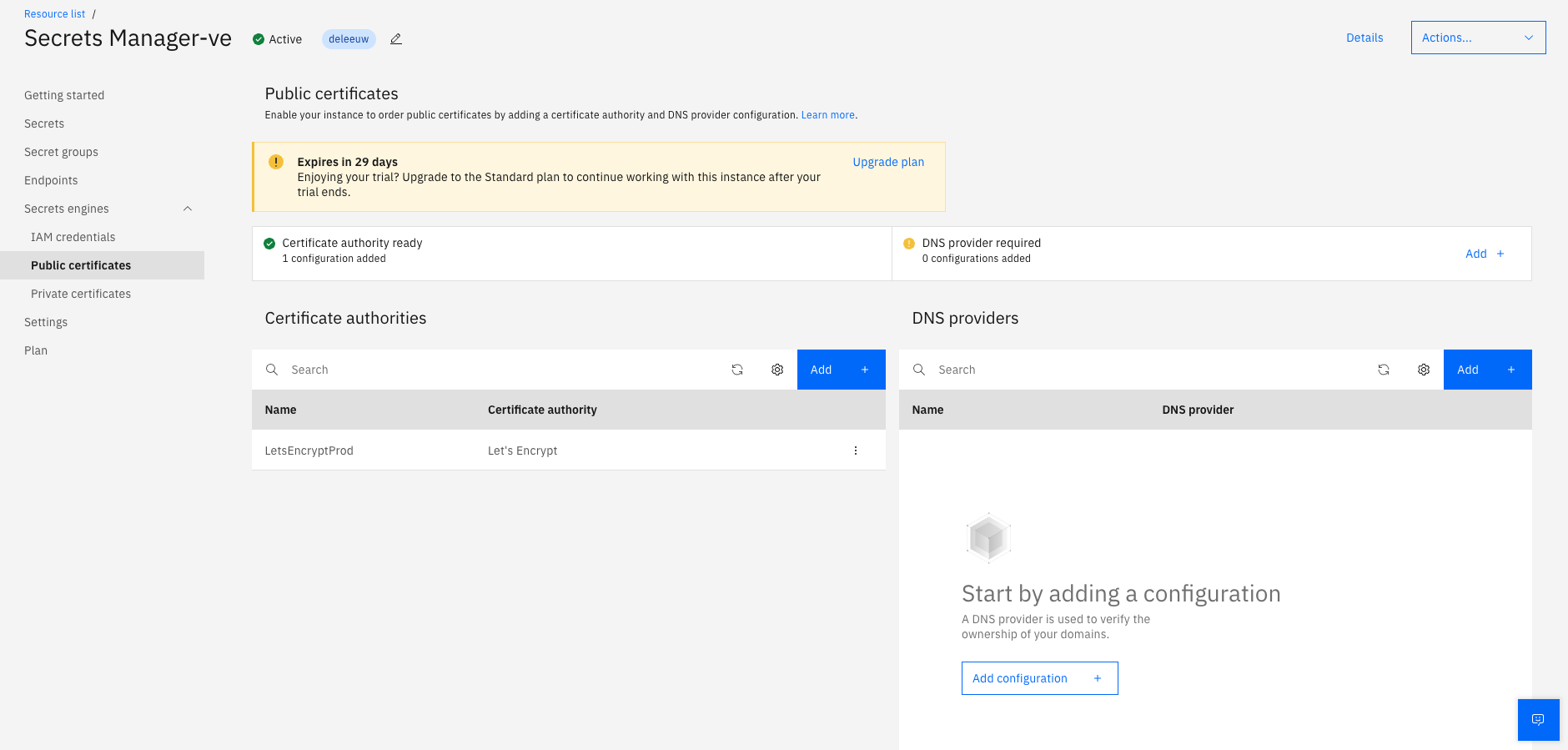
Add a DNS provider configuration to Secrets Manager
Before Secrets Manager can request certificates, it must have access to the DNS service that manages the domain for the purpose of updating DNS to resolve Let's Encrypt challenges. To authorize Secrets Manager to manage a CIS instance and its domains, you must create an authorization between the services.
- Within the IBM Cloud console, navigate to Manage > Access (IAM) > Authorizations.
- Click Create.
- From the Source service list, select
Secrets Manager. - From the Target service list, select
Internet Services. - Within the Service access section, select the Manager checkbox.
- Click Authorize.
Return to the Secrets engines page and click the Public certificates tab. In the DNS providers table, click the Add button to add Cloud Internet Services.
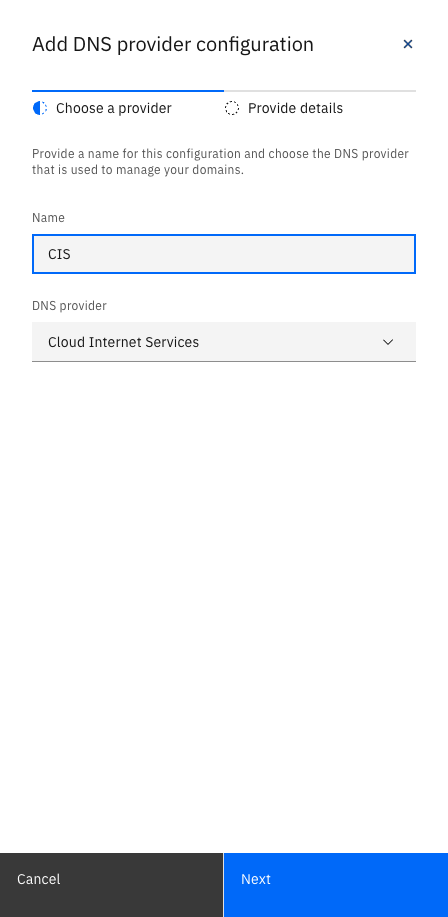
Click Next and grant access to the authorized CIS instance.

Once complete, the Secrets Manager overview shows the CIS DNS provider.

Order a certificate
You can now use Secrets Manager to request public SSL/TLS certificates from Let's Encrypt.
From the Secrets tab, click the Add button in the Secrets table.
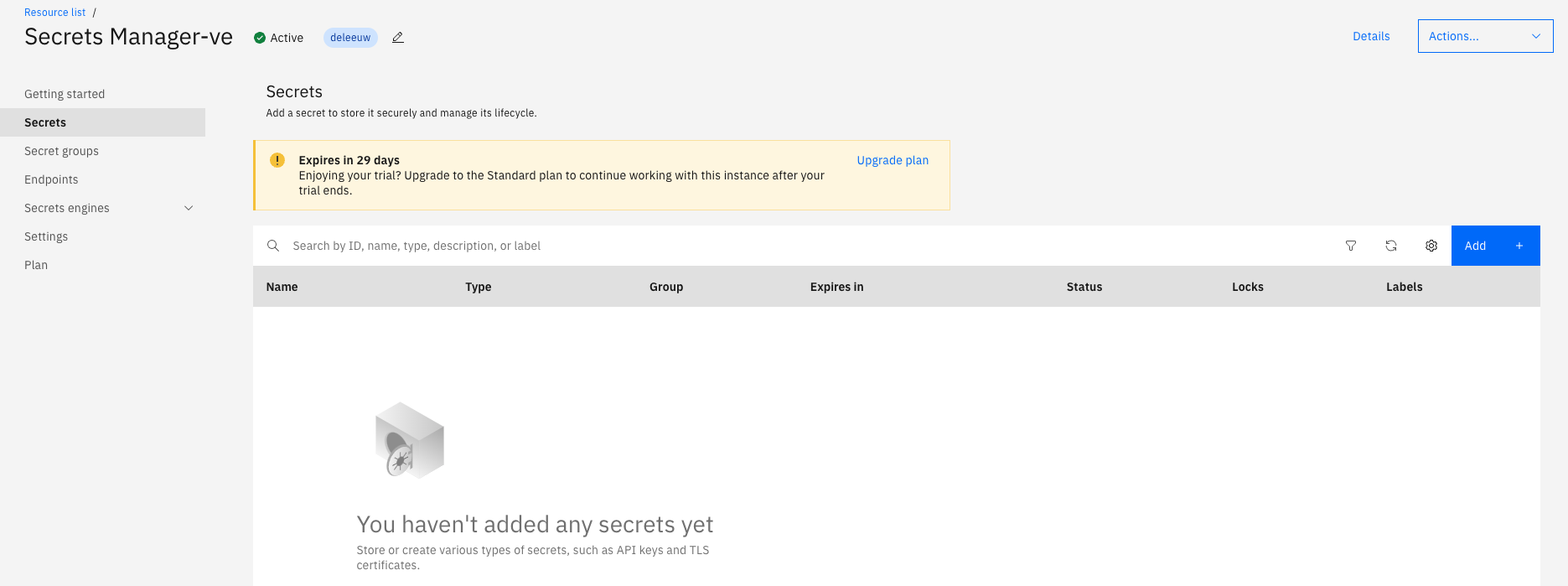
From the list of secret types, click the TLS certificates tile.

Click the Order a public certificate tile (not the configure link).

Click Select domains.
Select your domain name and the Select with wildcard checkbox for your domain.
OpenShift routes always include a top-level domain that is either
wwwor another subdomain (if you use the same domain to expose multiple applications). If you do not include a wildcard or specific subdomain when you order the certificate, it is issued for the naked domain (for example,deleeuw.me.uk). You then receive a browser warning message that it does not match the URL of the application.Click Done.

In the Name field, enter text such as
IBM-Developer-Tutorial.In the Secret group field, either use the default value or create a new group to organize your secrets/
In the Key algorithm field, select the algorithm you want to use. This determines the encryption algorithm (
RSAorECDSA) and key size that's used to generate keys and sign certificates. For longer living certificates, use longer key lengths to provide more encryption protection. Options includeRSA2048,RSA4096,ECDSA256, andECDSA384.
You can leave all of the other fields at their default values.
Click Order.
An order summary and code snippet to retrieve the certificate appear.

Click the Secrets tab to review the Secrets table. After a few moments, the public certificate appears as active.

Step 6. Create a secret for the key and configure Open Liberty
When you use a passthrough route, the application server in the pod terminates the HTTPS connection from the client, which requires that Open Liberty has access to the TLS key. When you run Open Liberty locally, this is achieved by referencing a keystore on the local file system that is configured in the server.xml file. When you deploy with OpenShift, it is much easier to externalize the key in a secret and allow the Open Liberty Operator to configure the pod to access the secret.
First, download the certificate from Secrets Manager by clicking the vertical ellipsis button in the Secrets table to reveal the Download option. Extract the resulting .zip file.
Create a Kubernetes secret to store the key:
oc create secret tls ibmdevelopercert --cert IBM-Developer-tutorial.pem --key IBM-Developer-tutorial.key
Redeploy the Open Liberty application by using a new CR:
cat <<EOF | oc apply -f -
apiVersion: apps.openliberty.io/v1beta2
kind: OpenLibertyApplication
metadata:
  name: ibmdeveloper-liberty-app
spec:
  applicationImage: de.icr.io/ibmdeveloper/wlp:1
  pullSecret: all-icr-io
  service:
    type: ClusterIP
    certificateSecretRef: ibmdevelopercert
    port: 9443
  expose: true
  route:
    termination: passthrough
    insecureEdgeTerminationPolicy: Redirect
    host: www.deleeuw.me.uk
EOF
Notice that you are now requesting a passthrough route for a custom hostname, and providing the name of the secret that contains the key. The Open Liberty Operator does the rest.
Step 7. Update DNS for the custom domain name
From the OpenShift web console, make a note of the Router Canonical Hostname field from the route, which looks similar to router-default.deleeuw-cluster-ibmdev-162e406f043e20da9b0ef0731954a894-0000.eu-de.containers.appdomain.cloud. This domain resolves to the hostname of the public load balancer for your OpenShift cluster, which distributes an incoming request to a healthy ingress controller in the cluster.
Return to the Resource list in IBM Cloud, expand the Services and software category, and open your CIS service.
Next, add the router canonical hostname that you copied from the OpenShift web console as a canonical name (CNAME) record to the DNS for your domain. To do so, click Reliability and select the DNS tab.

Click Add to open a dialog where you can enter a CNAME record for the top level www subdomain, with the OpenShift canonical hostname as the value.
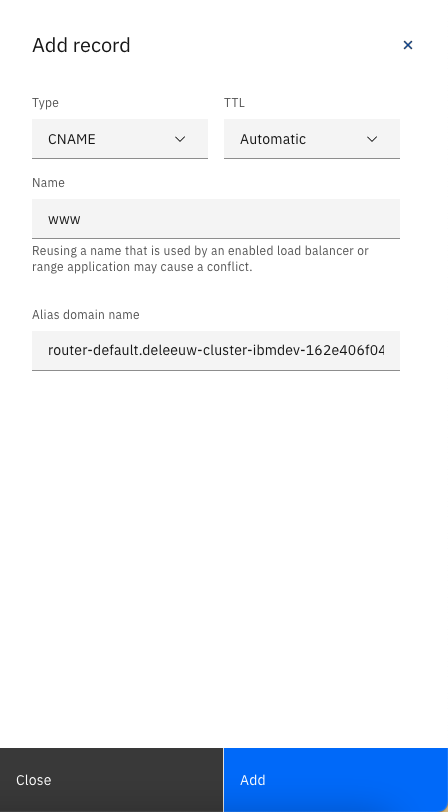
The resulting CNAME record for the www subdomain will be summarized within the DNS tab, as illustrated by the following example.

Finally, you can test the application by making an HTTPS request in your browser to the custom domain. For example, https://deleeuw.me.uk.
The browser does not generate any security warnings because the client authenticated with a CA-signed certificate provided by the server, our Open Liberty application.

Other runtimes
If you use other runtimes, such as Node.js or Tomcat, there might not be an operator to help you create resources such as deployments, services, and routes. However, you can make these resources individually by using the OpenShift CLI (oc). In addition, you must mount the secret, which contains the certificate and key, as a volume for your deployment so that it can be accessed by the runtime.
Summary
This tutorial covered the details of how to expose an OpenShift application by using a passthrough route with a signed TLS certificate and a custom domain. You learned how to manage your certificates with IBM Cloud Secrets Manager, use IBM Cloud Internet Services to manage the DNS for your domain, and apply other security features such as DDoS protection. You learned how to configure OpenShift to access a private registry and how to automate the deployment steps of an Open Liberty application by using an operator.
For more information about using secure routes with Red Hat OpenShift on IBM Cloud, check out the Exposing apps with routes section of the product documentation.
You can find a more detailed summary of the different types of OpenShift routes in the Self-serviced end-to-end encryption approaches for applications deployed in OpenShift post on the Red Hat Blog.
For more details about automating Open Liberty deployments, check out the Open Liberty Operator documentation.