Tutorial
Secure AI agents with IBM watsonx Orchestrate, IBM Verify, and HashiCorp Vault
Deploy a permission-aware AI agent using IBM Verify token exchange, MCP, and HashiCorp Vault dynamic credentials to enforce least-privilege accessTo ensure that your AI agents avoid confused deputy issues and operate as reliable, trusted actors, you need to secure your AI agents by separating user identity, agent identity, and resource authority. The agent must never act with broad or reusable privileges. The confused deputy problem and an approach to mitigate it are described in the article Securing autonomous AI agents: Applying Zero Trust to transform confused deputies into trusted actors.
In this tutorial, you deploy a permission-aware web application where an AI agent executes actions on behalf of authenticated users leveraging a Model Context Protocol (MCP) server to interact with a database. You configure the web application to authenticate against IBM Verify. You configure the AI agent to perform a token exchange, so that permissions of the AI agent can be restricted and its actions can be traced. You make use of short-lived dynamic credentials through HashiCorp Vault integration to limit the blast radius and ensure security for sensitive data.
Secure AI agent architecture
The following architecture diagram demonstrates how IBM Verify, watsonx Orchestrate, MCP, and HashiCorp Vault work together to ensure that every operation is performed on behalf of the authenticated user, with access controlled through token exchange, role-based authorization, and short-lived dynamic credentials.

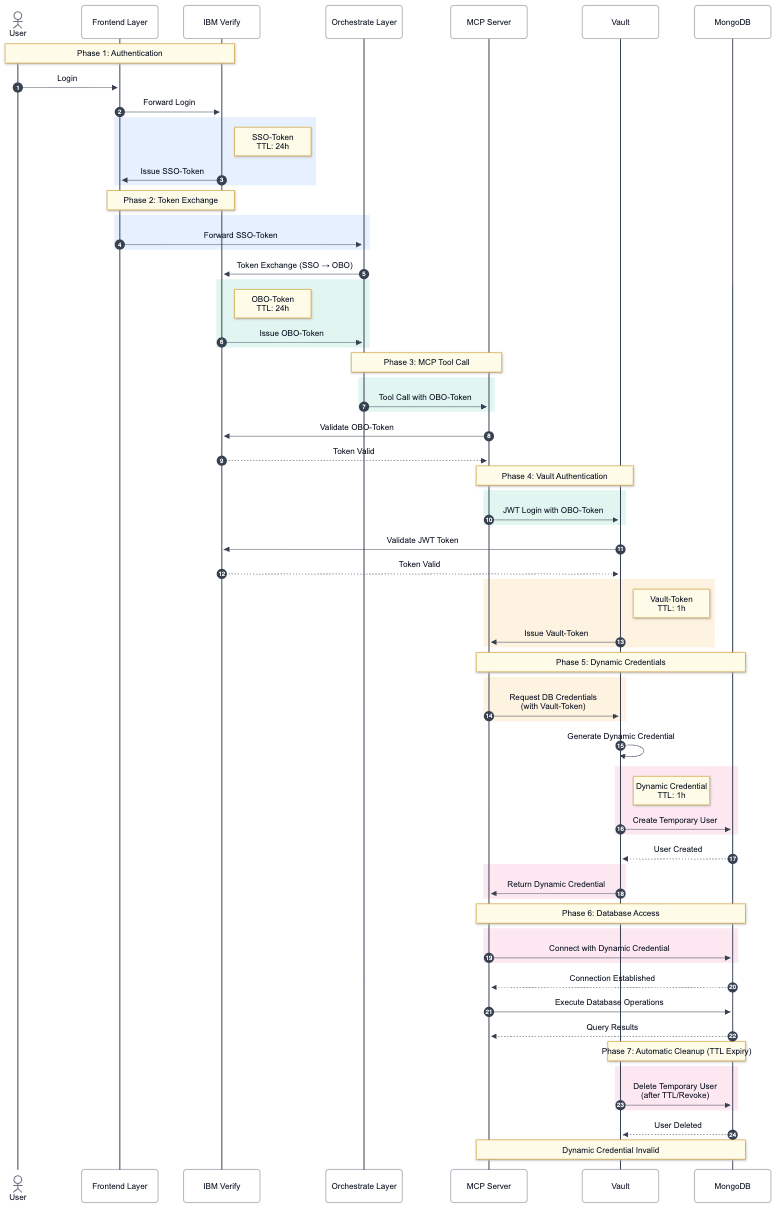
- The user logs in to the web application and authenticates through IBM Verify SSO. The application receives an access token issued by IBM Verify.
- When the application invokes the watsonx Orchestrate agent, it forwards the user's access token. watsonx Orchestrate uses IBM Verify's Token Exchange capability to obtain an on-behalf-of (OBO) token, enabling the agent to access MCP tools and backend resources on behalf of the authenticated user.
- The MCP tool is invoked using the OBO token. Before processing the request, the MCP server validates the token with IBM Verify.
- The MCP server authenticates to HashiCorp Vault using the OBO token.
- Vault validates the user's identity and permissions through IBM Verify. Based on the user's group memberships and associated policies, Vault issues short-lived dynamic credentials with the appropriate level of access (read-only or read-write) to the backend resources.
- The MCP server receives the dynamic credentials issued by HashiCorp Vault and uses them to access the backend resource. The operation is performed with the permissions associated with the user's role, such as read-only or read-write access.
- After the request is completed, the dynamic credentials remain valid only for their configured time-to-live (TTL). Once the TTL expires, HashiCorp Vault automatically revokes the credentials, ensuring that access remains temporary and aligned with the principle of least privilege.
As a result, the AI agent never accesses backend resources using broad or permanent privileges. Instead, every operation is performed on behalf of the authenticated user and is constrained by the user's role, Vault policies, and short-lived dynamic credentials.
For a detailed view of the token flow, see the sequence diagram.
Prerequisites
A trial instance of watsonx Orchestrate SaaS:
- On IBM Cloud
On AWS
Note: You need administrative rights to the IBM watsonx Orchestrate instance, so that you can enable Embed Security. This step is described in the section "Configure IBM watsonx Orchestrate" of the watsonx Orchestrate documentation. You also need to enable single sign-on (SSO) in your instance.
A running local environment of the watsonx Agent Development Kit (ADK). If you do not have an active ADK instance, review the getting started with ADK tutorial. This tutorial has been tested and validated with ADK version 2.5.0.
An active IBM Verify Instance with administrative rights. Sign up for a free IBM Verify trial.
Access to an OpenShift Cluster, such as one from IBM Cloud. A HashiCorp Vault and a MongoDB instance are installed in the cluster during the deployment process.
Latest version of the Vault command-line interface (CLI)
Step 1. Fork the secure agents code base
You need to get a local copy of the sample application on your local system.
- Fork the code base from the secure-agents sample application on GitHub.
- Open the code in VSCode or an editor of your choice.
- Navigate to the
secure-agentsdirectory and set it as your current working directory. - Review the folder structure that contains all the components that you use in this tutorial.
Step 2. Create the production environment
Before you can deploy the sample application, create the production environment.
Navigate to your project root directory and copy the example environment file:
cp .env.production.example .env.production.env.productioncontains all configuration variables required for the application stack.Create a new personal access token on GitHub and give access for it to your repositories through the GitHub personal access token generator and click Generate token. Copy the token immediately because it is not shown again.
Open the
.env.productionfile and update these lines:- _GITHUB_TOKEN=ghp_your_generated_token_here
- _GIT_SSH_URL: Replace with your forked repository's SSH URL
Step 3. Deploy the sample application
Now, deploy the sample application to your OpenShift cluster. (You need to redeploy it after you update the environment variables in the .env.production file with the component configuration values.)
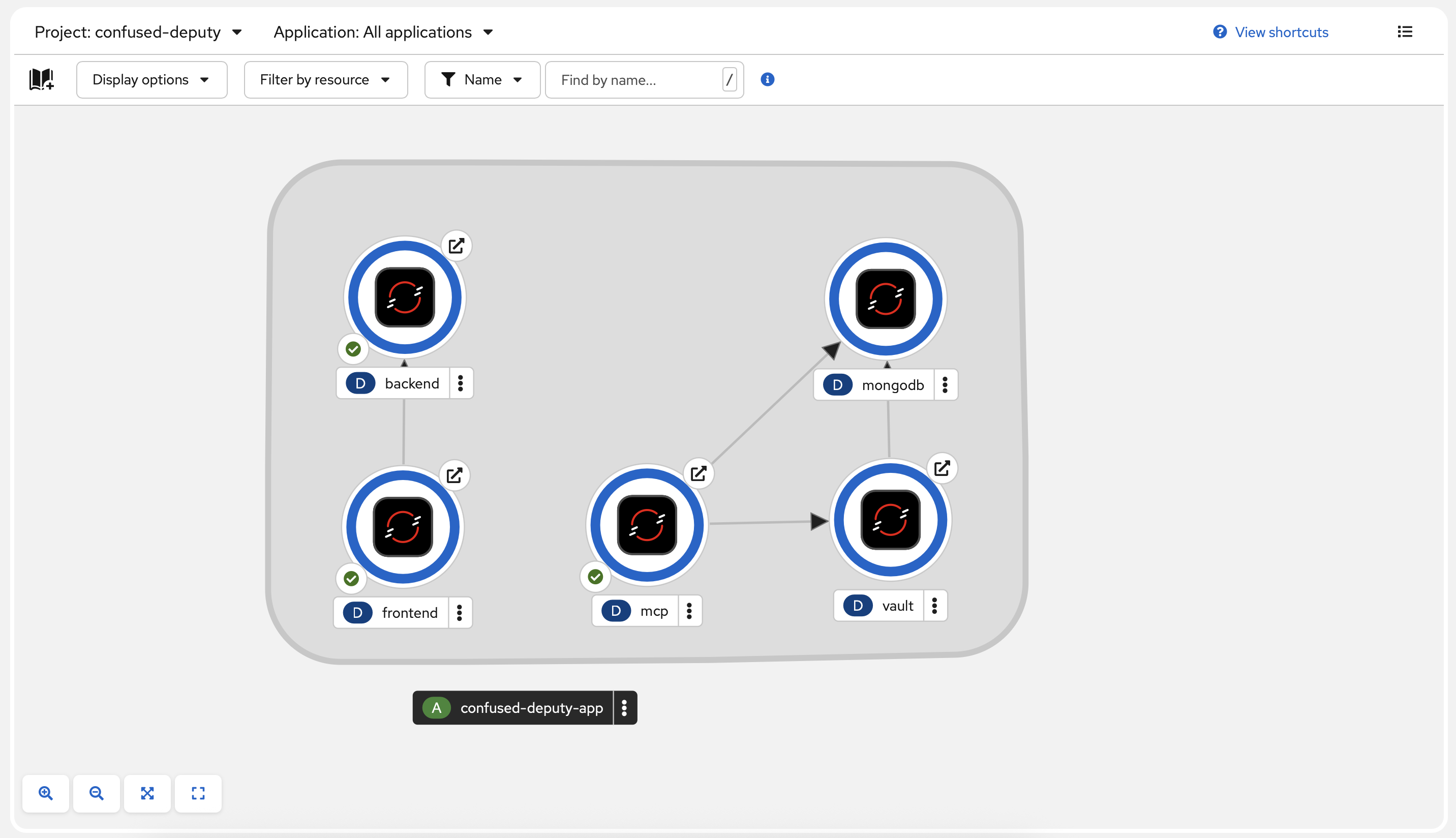
The following components of the sample application are deployed:
- Frontend - A React web application where the IBM watsonx Orchestrate chat is embedded and linked to the WXO Agent.
- Backend - A FastAPI backend that provides authentication and API endpoints that are needed for configuring watsonx Orchestrate.
- MCP Server - A Model Context Protocol (MCP) server that provides tools for the agent to be able to access the MongoDB database.
- Vault - HashiCorp Vault for secrets management and dynamic database credentials.
- MongoDB - A NoSQL database that stores a product catalog and that Vault secures.
Because the manual deployment of the components in this sample application is tedious and error-prone, use the following deployment script to deploy these components to your OpenShift cluster.
Log in to OpenShift (provide your server and password).
oc login --server=https://your-openshift-cluster:... --token=<PASSWORD>In your
secure-agentsdirectory, run this script to deploy the sample application:./scripts/oc-deploy.sh
Your deployment should look like this:
Step 4. Configure IBM Verify, HashiCorp Vault, and watsonx Orchestrate
Configure the components in this order:
- IBM Verify
- HashiCorp Vault
- IBM watsonx Orchestrate
After configuring the components, you need to redeploy the sample application.
Configure IBM Verify
IBM Verify is the identity provider and access manager that authenticates users via OIDC and issues OAuth 2.0 tokens to authorize the agent to interact on behalf of the user based on their access rights.
In addition to adding 2 sample users and corresponding groups, you need to register two OpenID connect applications in IBM Verify:
- The web application authenticates users accessing the frontend.
The agent application authenticates the agent via token exchange, allowing it to act on behalf of the authenticated user with its access rights.
Add two users: Alice and Bob. Choose Cloud Directory as the identity provider and specify your email address, which is where IBM Verify sends the password.
Add two groups: Read-Only and Read-Write. If either group already exists, add the users to the existing group. Add Alice to the Read-Only group and add Bob to the Read-Write group.
Add the web application:
web-app.- On the General tab, specify
web-appas the name andIBMas the company name. - On the Sign-on tab, specify these values:
- Application URL:
<frontend-url-from-deployment> - Grant types:
Authorization Code,Client credentials(store the generated Client ID and Client Secret for later) - Redirect URIs:
<frontend-url-from-deployment>/oauth2callback - Disable PKCE Verification (Require proof key for code exchange)
- In Token settings specify
JWTas the access token format andhttps://<TENANT>.verify.ibm.com/oauth2/tokenfor audiences. - In Endpoint configuration, choose Introspect > Edit > Add Attribute and specify
groupIdsfor the Verify attribute andgroupsfor the Target attribute. Make sure that Update on Refresh is checked. - Choose ID token and user info > Edit > Add Attribute and specify
groupIdsfor the Verify attribute andgroupsfor the Target attribute. Make sure that Update on Refresh is checked. - In Single Logout Settings, specify
<frontend-url-from-deployment>for Post logout redirect URIs.
- Application URL:
- On the Entitlements tab, Check Automatic access for all users and groups.
- On the General tab, specify
Add the agent application:
agent-app.- On the General tab, specify
agent-appas the name andIBMas the company name. - On the Sign-on tab, specify these values:
- Application URL:
http://localhost:8000(This is only a placeholder, because the agent does not have an dedicated URL). - Grant types:
Authorization Code,Token Exchange,JWT bearer - Redirect URIs:
http://not-in-use/oauth2callback(This is a placeholder as well) - Disable PKCE Verification (Require proof key for code exchange)
- In Token settings specify
JWTas the access token format andhttps://<TENANT>.verify.ibm.com/oauth2/tokenfor audiences. - In Endpoint configuration, choose Introspect > Edit > Add Attribute and specify
groupIdsfor the Verify attribute andgroupsfor the Target attribute. Make sure that Update on Refresh is checked. - Choose ID token and user info > Edit > Add Attribute and specify
groupIdsfor the Verify attribute andgroupsfor the Target attribute. Make sure that Update on Refresh is checked.
- Application URL:
- On the Entitlements tab, Check Automatic access for all users and groups.
- On the General tab, specify
Update the following environment variables in the
.env.productionfile:# IBM Verify Configuration IBM_VERIFY_CLIENT_ID="your-web-app-client-id" IBM_VERIFY_CLIENT_SECRET="your-web-app-client-secret" IBM_VERIFY_TENANT_ID="your-tenant.verify.ibm.com" IBM_VERIFY_REDIRECT_URI="<Route-To-Your-Frontend>/oauth2callback" # MCP Server Configuration JWKS_URI="https://<your-tenant>.verify.ibm.com/oauth2/jwks" JWT_ISSUER="https://<your-tenant>.verify.ibm.com/oauth2" JWT_AUDIENCE="<AGENT-APP-CLIENT-ID>"The
IBM_VERIFYenvironment variables configure the web application's SSO authentication with the IBM Verify OIDC application. The authentication flow follows the OAuth 2.0 Authorization Code grant:- The user initiates login with IBM Verify
- After successful authentication, IBM Verify redirects the user back to the web application with an authorization code, which is sent to the oauth2callback endpoint of the backend
The backend exchanges this authorization code for an access token using the IBM_VERIFY_CLIENT_SECRET
This ensures secure token acquisition, as the client secret never leaves the backend and the authorization code can only be used once.
The environment variables
JWKS_URI,JWT_ISSUER, andJWT_AUDIENCEare used to configure the MCP server to validate the access tokens that come from the agent app. The token is valid only if it includes the correct audience and issuer.
Restart your MCP server. Then, adapt your
.env.productionfile and redeploy your application stack using the deployment script../scripts/oc-deploy.shYou need to redeploy the application stack so that the MCP Server is properly configured. Otherwise, IBM watsonx Orchestrate cannot add the tools that are provided by the MCP Server.
Now you should be able to login into your web application via IBM Verify.
Configure HashiCorp Vault
HashiCorp Vault provides secrets management and dynamic credential generation, enabling short-time to live, scoped access tokens on demand for each service.
Its configuration consists of the following steps:
- Configure Vault JWT authentication and integration with IBM Verify OIDC
- Configure external identity groups with role-based access control (readonly, readwrite) and ACL policies with fine-grained permissions
- Configure the database secrets engine for MongoDB
Set up audit logging for security compliance and monitoring
Create the
.envfile (in thescripts/vaultdirectory).cd scripts/vault cp .env.vault.example .envUpdate the following environment variables in the
.envfile:############################################# # Vault Server Configuration ############################################# VAULT_ADDR="https://<your-vault-url>" VAULT_TOKEN="<your-vault-root-token>" ############################################# # MongoDB Configuration ############################################# MONGO_USERNAME="appuser" MONGO_PASSWORD="changeme123" ############################################# # IBM Verify OIDC Configuration ############################################# OIDC_DISCOVERY_URL="https://<your-tenant>.verify.ibm.com/oauth2" BOUND_AUDIENCES="<AGENT-APP-CLIENT-ID>"Run the HashiCorp Vault setup script:
./scripts/vault-setup.shManually test the set up:
 # Test JWT authentication (requires a valid JWT token)
 vault write auth/jwt/login role=default jwt=$JWT_TOKEN

 # Test credential generation
 vault read database/creds/readonly
 vault read database/creds/readwrite

 # View audit logs
 # For pod/container deployments, inspect container stdout instead of a file.
 kubectl logs <vault-pod-name>
Configure IBM watsonx Orchestrate
IBM watsonx Orchestrate provides the capability to embed agentic chat interfaces directly into web applications, enabling seamless integration of AI-powered conversational agents. However, embedding chat functionality introduces security considerations, as unrestricted access could allow unauthorized users to interact with the agents. To address this, watsonx Orchestrate offers built-in security features that enforce authentication and authorization through JSON Web Token (JWT)-based token exchange and OpenID Connect (OIDC), ensuring only verified users can access the embedded chat. This tutorial guides you through configuring these security measures, establishing an MCP connection, and importing and deploying a preconfigured agent.
You need to configure authentication and authorization through JWT-based token exchange in watsonx Orchestrate to ensure that only verified users can access the embedded chat. You also need to establish a Model Context Protocol (MCP) connection within watsonx Orchestrate.
To sign JWTs that are sent to watsonx Orchestrate, you need your own RSA key pair and you need the watsonx Orchestrate RSA public key to encrypt the user payload inside the JWT.
Configure security for the embedded chat. In your watsonx Orchestrate instance, in Settings, on the Embed security tab, generate the RSA public key. (For the Generate key button to be enabled, you need to type something into the public key field.)
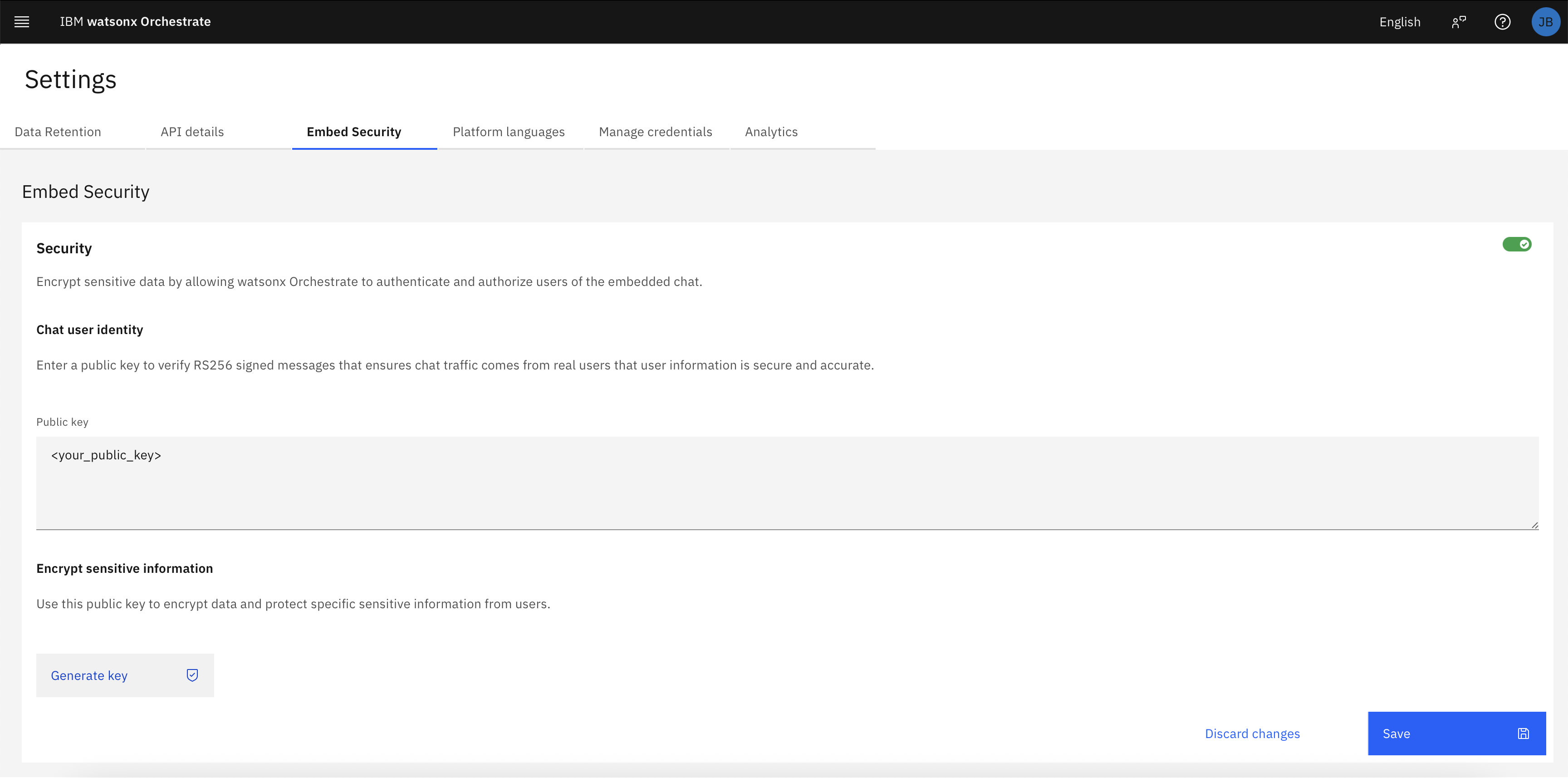
Copy the watsonx Orchestrate RSA public key and save it in your forked repository under
local/keys/wxo_public.pem.Run the following script to generate a personal public and private RSA key that is base64 encoded for your
.env.productionfile. By using the base64-encoded versions of the RSA key, you can keep your keys secure and share them only through a secrets manager../scripts/orchestrate/create_wxo_keys.shCopy the output into your
.env.productionfile:JWT_PRIVATE_KEY_BASE64=<output from script> WXO_PUBLIC_KEY_BASE64=<output from script>Important: Copy your actual public key from
local/keys/public.pemand paste it into the "Public Key" field in theEmbed Securitytab of your orchestrate instance. Please make sure to click save!-
First, set up the environment.
 cd scripts/orchestrate

 # Create and activate virtual environment
 python3.11 -m venv .venv
 source .venv/bin/activate  # On Windows: .venv\Scripts\activate

 # Install dependencies
 pip install -r requirements.txt
Then, configure the credentials.
 # Copy the example environment file
 cp .env.example .env
Edit the
.envfile and specify your credentials:- watsonx Orchestrate API key and service instance (SERVICE_INSTANCE, API_KEY)
- IBM Verify OAuth2 credentials for agent-app (agent_app_client_id, agent_app_secret)
- IBM Verify OAuth2 credentials for web-app (app_client_id, app_secret)
- OAuth2 server URLs (server_url, token_url)
MCP connection name (APP_ID)
Create a watsonx Orchestrate ADK environment that is connected to your IBM watsonx Orchestrate instance.
orchestrate env add --name "your-env-name" --url "your-wxo-url"Lastly, create the MCP connection.
./create_connection.sh your-env-nameThis script activates your watsonx Orchestrate environment, performs a token exchange to get a valid access token, creates the
ConfusedDeputyconnection with OAuth2 Token Exchange settings, and configures the connection for bothdraftandliveenvironments.
Add the MCP server to your watsonx Orchestrate instance. Navigate to Build > All Tools > Create tool > MCP Server > Add MCP Server > Remote MCP Server. Specify the following information:
- Name the MCP Server
AgenticMCP. - Provide the deployed MCP Server URL (for example,
<YOUR-MCP-Server-URL>/sse). Don't forget to add/sseat the end of your MCP URL. - Select Server-Sent Events as the transport type.
- Select the newly created
ConfusedDeputyconnection.
- Name the MCP Server
-
The
products-agent.ymlfile already includes the tool references likeAgenticMCP:delete_productorAgenticMCP:list_products. Make sure the MCP Server name in your watsonx Orchestrate instance matchesAgenticMCPor update the tool references in the YAML file accordingly in case you want to use another MCP Server name.Import the agent from the YAML file from the project root directory.
orchestrate agents import -f products-agent.ymlDeploy the agent. Navigate to Build > All agents > Products Agent > Deploy. Scroll down to Channels, and open the Embedded agent, and select Live.
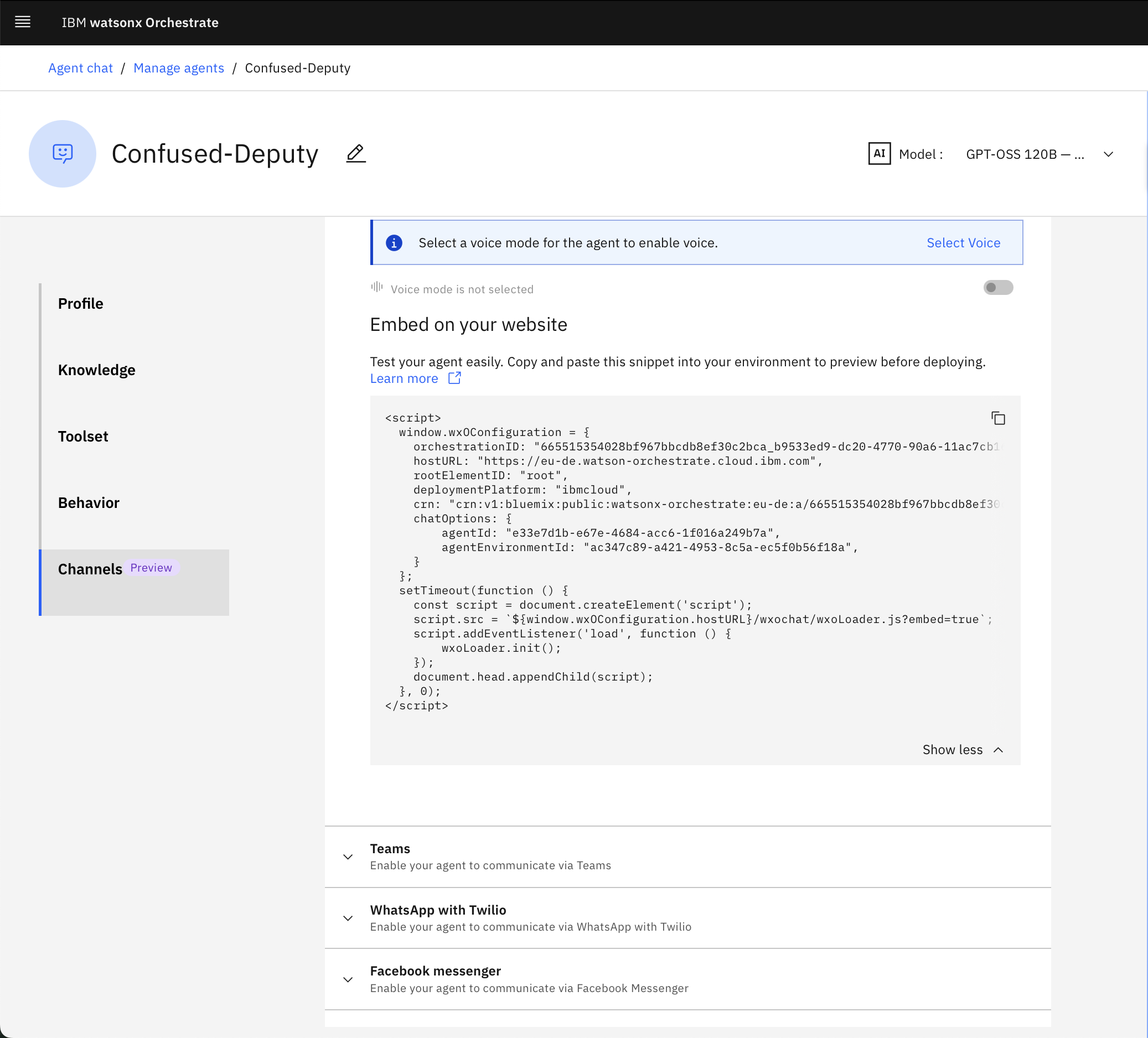
Extract the following data, which is necessary to embed watsonx Orchestrate into your web application.
- Orchestration-ID
- agentId
- agentEnvironmentId
- crn
- Tenant-ID, which is the last part of your CRN:
crn:v1:bluemix:public:watsonx-orchestrate:eu-de:a/665515354028bf967bbcdb8ef30c2bca:b9533ed9-dc20-4770-90a6-11ac7cb16599::
Redeploy the sample application
Unseal the HashiCorp Vault using the keys you obtained earlier.
Update the following environment variables in the
.env.productionfile for the sample application.# watsonx Orchestrate specific variables VITE_WXO_HOST_URL="https://us-south.watson-orchestrate.cloud.ibm.com" VITE_WXO_ORCHESTRATION_ID="your-orchestration-id" VITE_WXO_AGENT_ID="your-agent-id" VITE_WXO_AGENT_ENVIRONMENT_ID="your-agent-environment-id" VITE_WXO_DEPLOYMENT_PLATFORM="ibmcloud" VITE_WXO_CRN="your-crn" VITE_WXO_TENANT_ID="your-tenant-id" # The keys you have created JWT_PRIVATE_KEY_BASE64="...." WXO_PUBLIC_KEY_BASE64="..."Redeploy the sample application
./scripts/oc-deploy.sh
Step 5. Test the role-based access control
Verify the agent app by testing role-based access control with the two pre-configured users:
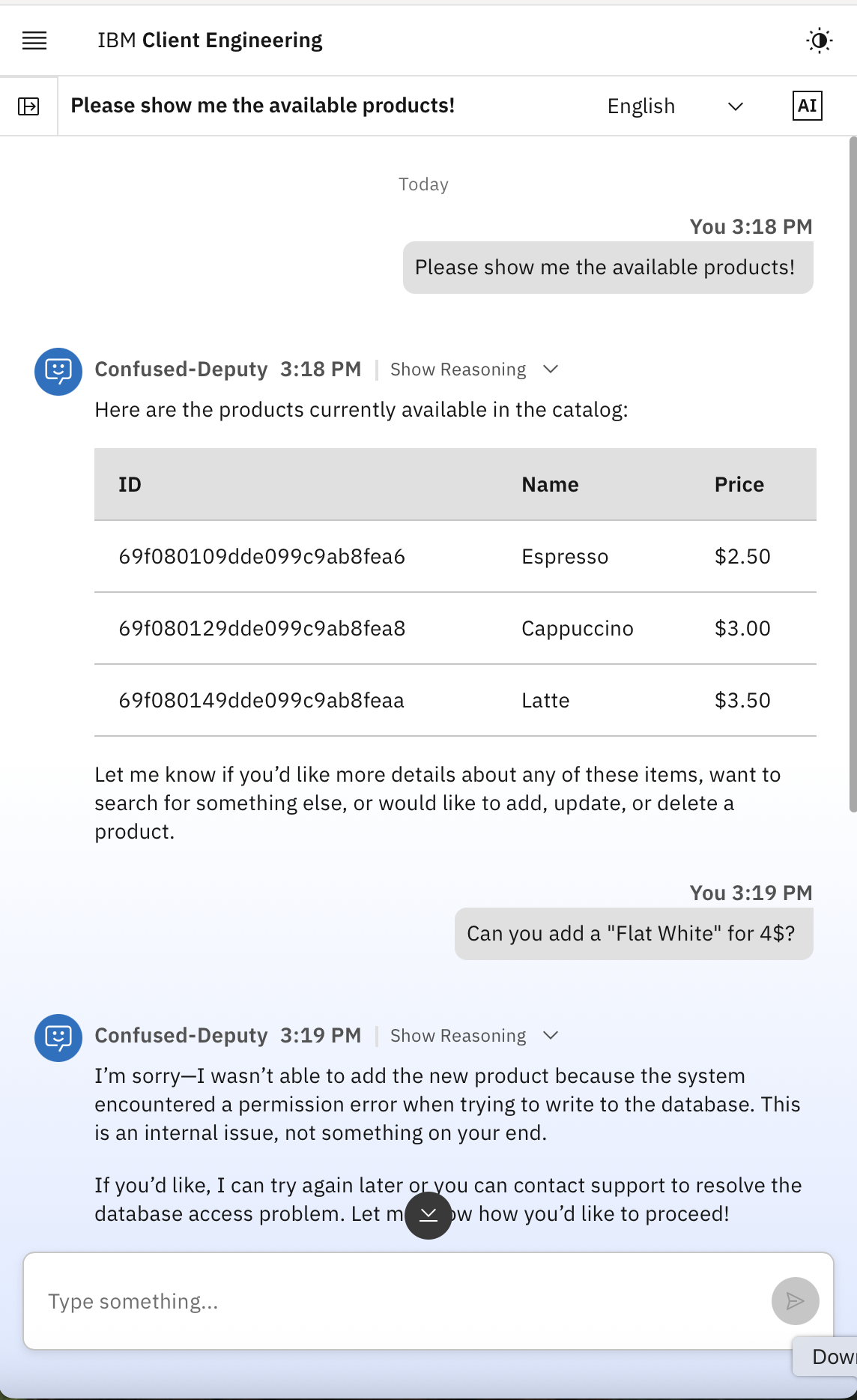
- Alice should have read-only access to the products catalog.
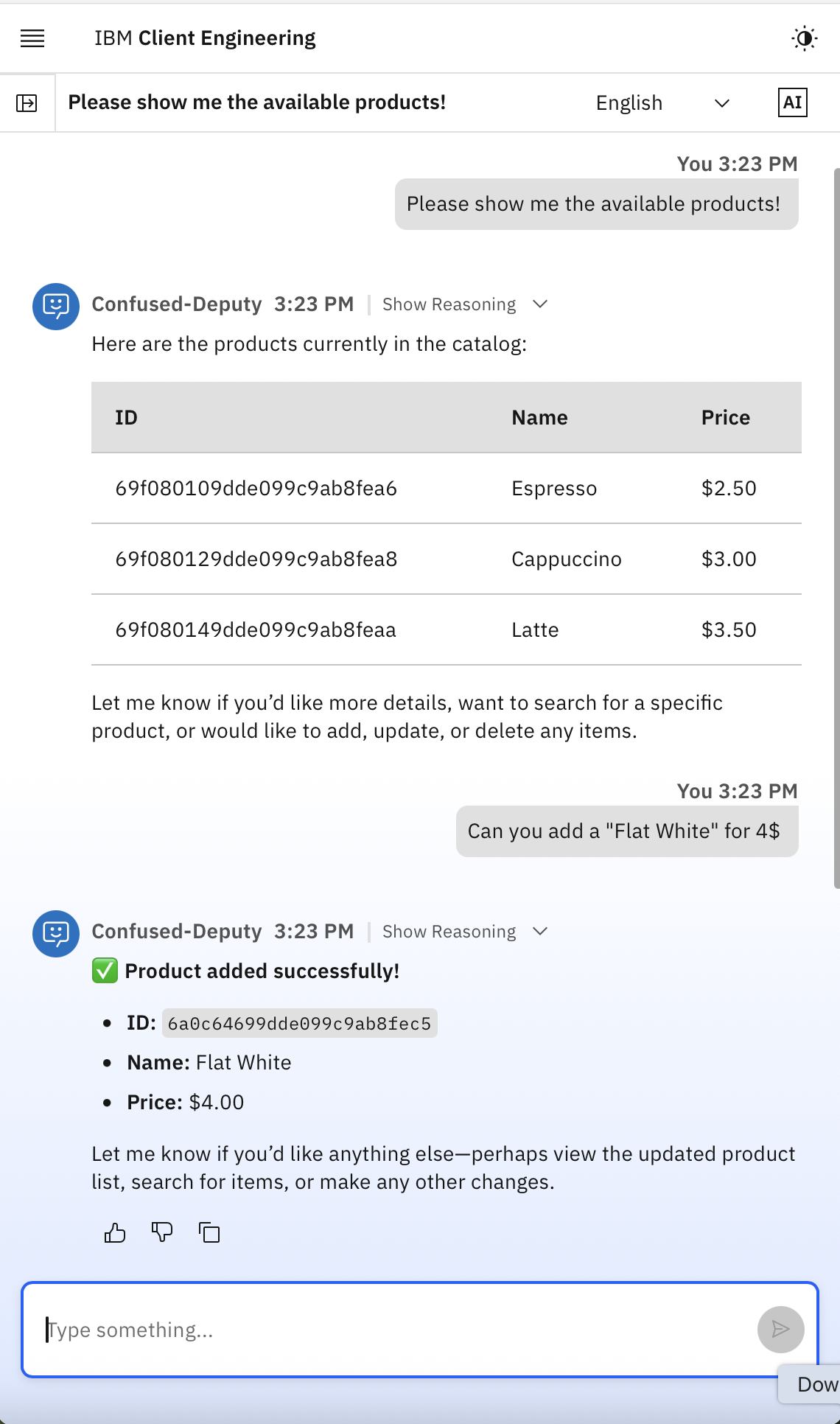
Bob should have full access (read, create, and delete) to the products catalog.
Log in as Alice and interact with the agent. You can query the products catalog, but any attempts to add or delete products are denied due to her read-only permissions.
Log in as Bob and interact with the agent. You have full access to query, add, and delete products from the catalog.
Summary and next steps
In this tutorial, you learned how to run secure AI agents with IBM watsonx Orchestrate, ensuring that agents operate with the principle of least privilege and perform only the actions that authenticated users are authorized to execute. You also configured enhanced security with HashiCorp Vault dynamic credentials to access the back-end data.
Throughout this tutorial, you learned how to:
- Embed a secure watsonx Orchestrate agent into a web application
- Use IBM Verify as the Identity provider for user authentication, agent registration, and authentication
- Connect an AI agent to enterprise data through MCP server
- Use MCP to access a database securely with HashiCorp Vault dynamic credentials
- Apply Vault roles and policies to enforce fine-grained access control
- Implement a permission-aware architecture that helps prevent confused deputy issues by separating user identity, agent identity, and resource authorization
By combining IBM watsonx Orchestrate, IBM Verify, an MCP server, and HashiCorp Vault, you can build trusted, enterprise-ready AI agents that securely access business data while maintaining strong authentication, authorization, and governance controls.
Acknowledgments
The authors want to thank Raphael Tholl, Simon Lynch, and Ravi Panchal for the insightful discussions and valuable input.