Tutorial
Sentiment analysis using IBM Watson NLP
Understand the fundamentals of IBM Watson NLP and walk through the process of running and evaluating pretrained models to perform sentiment analysisSentiment analysis is used ubiquitously to gain insights from text data. For example, by using sentiment analysis, companies can understand the voice of the customer or the market sentiment of the company. However, due to the lack of a standard infrastructure and standard libraries, many sentiment analysis projects remain at the proof-of-concept (POC) level and are never put into production.
With IBM Watson NLP, IBM introduced a common library for natural language processing, document understanding, translation, and trust. IBM Watson NLP brings everything under one umbrella for consistency and ease of development and deployment. This tutorial walks you through the process of using a pretrained model for sentiment analysis as well as fine-tuning a sentiment analysis model using the watson_nlp library.
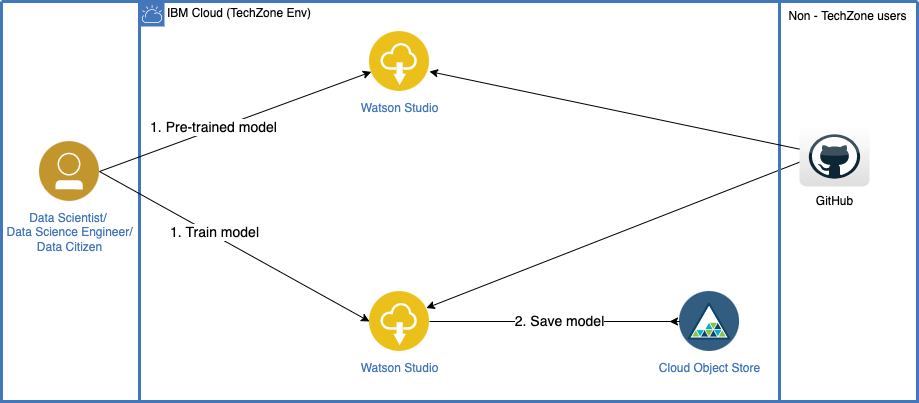
The watson_nlp library is available on IBM Watson Studio as a runtime library so that you can directly use it for model training, evaluation, and prediction. The following figure shows the IBM Watson NLP architecture.
Prerequisites
To follow the steps in this tutorial, you need:
- An IBMid
- A Watson Studio project
- Your environment set up
Before working through the tutorial, you should have an understanding of Watson Studio and Jupyter Notebooks.
Estimated time
It should take you approximately 1 hour to complete this tutorial.
Steps
The steps in this tutorial use an example of IMDB movie reviews from Kaggle to walk you through the process.
Step 1. Collecting the data set
Note: If you are reserving the environment through the IBM Tech Zone, you don't need to collect the data manually. The environment comes with the Watson Studio project pre-created for you. You can skip Steps 1 and 2 here and continue from Step 3 to complete the Sentiment Analysis tutorial.
Download the IMDB movie reviews data set . This data set from Kaggle has been down-sampled and saved for you to reduce the model training time.
Upload the data set to your Watson Studio project by going to the Assets tab and then dropping the data files, as shown in the following figure.

After you add the data set to the project, you might have to reload the notebook. You have two options of accessing the data set from the Jupyter Notebook depending on the level of access that you have.
A. If you are a project administrator, then:
i) You can just insert the project token as shown in the following image.

ii) After inserting the project token, you can continue executing all of the cells in the notebook. This cell in particular loads your data set in the notebook.

B. If you are not a Watson Studio project administrator, then you cannot create a project token.
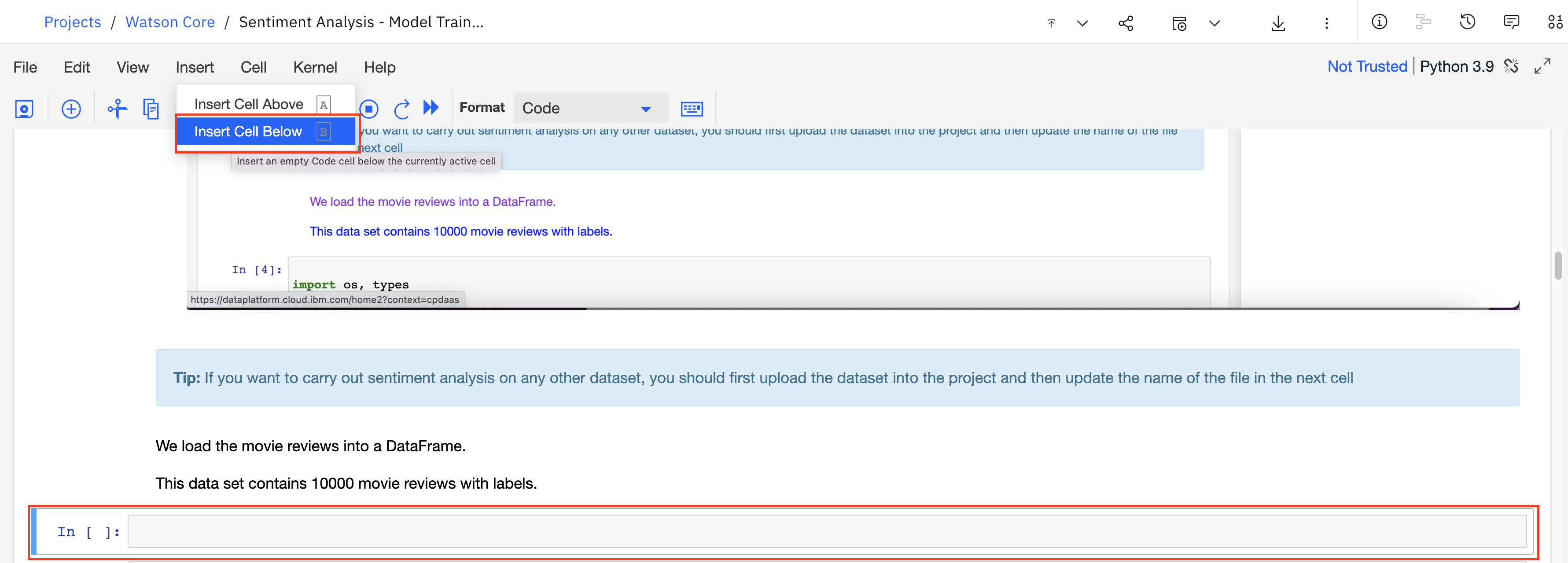
i) Create a new cell under Step 2 - Data Loading by clicking the Insert menu, and then selecting Insert Cell Below or the Esc+B keyboard shortcut. Highlight the code cell that is shown in the following image by clicking it.
ii) Ensure you place the cursor below the commented line. Click the Find and add data icon (01/00) at the upper-right. Choose the Files tab, and pick the movies_small.csv file. Click Insert to code and choose pandas DataFrame. Rename the DataFrame from
df_data_1toreview_df.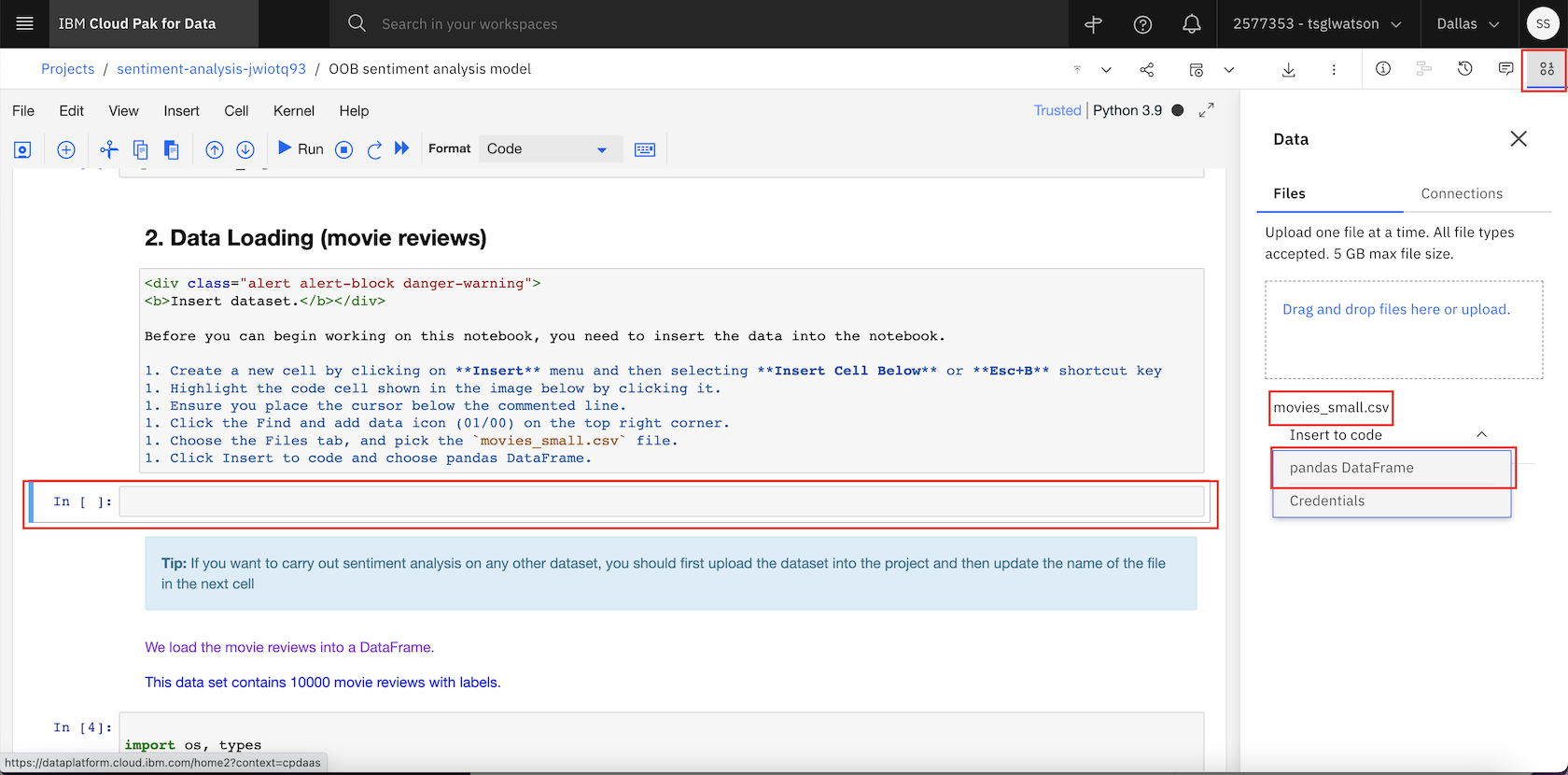
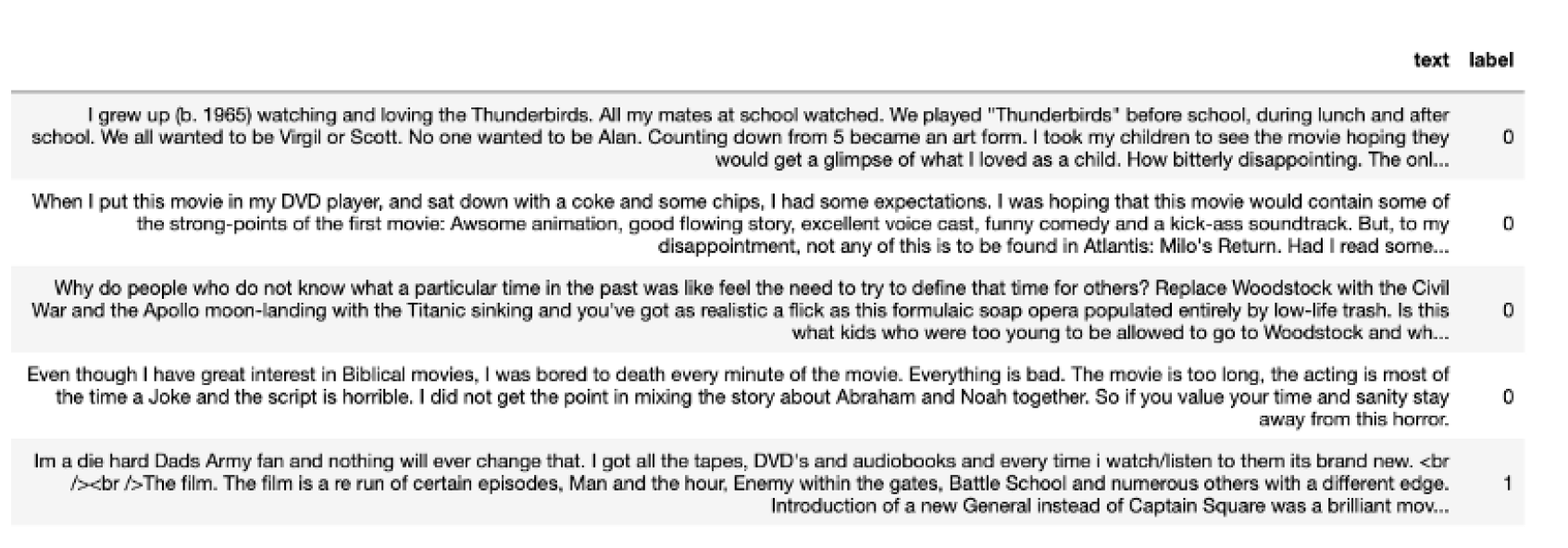
After you've added the data set to the project, you can access it from the Jupyter Notebook and read the .csv file into a pandas DataFrame.
Step 2. Data processing and exploratory data analysis
Step 2.1. Extract frequently mentioned movie aspects
In this step, you use the IBM Watson NLP pretrained syntax model to extract the most frequently mentioned aspects (nouns) in the movie reviews for each movie to understand what the audiences are talking about in their reviews.
Load the IBM Watson NLP syntax model.
syntax_model = watson_nlp.load(watson_nlp.download('syntax_izumo_en_stock'))The syntax model performs parts-of-speech tagging (for nouns, pronouns, verbs, and so on) so that you can filter out all of the nouns from the reviews. Instead of retrieving the nouns as they occur in the review, the lemmatized version of the nouns (for example, companies -> company) is stored. This lets you create more accurate statistics over all noun occurrences.
Use the helper functions to identify the lemmatized form of nouns in the review text.
def extract_nouns(review_text):
    # converting text into lower case before processing
    review_text =review_text.lower()
    syntax_result = syntax_model.run(review_text, parsers=('lemma', 'part_of_speech'))
    # filter nouns
    nouns = [token['lemma'] for token in syntax_result.to_dict()['tokens'] if ((token['part_of_speech'] == 'POS_PROPN' or token['part_of_speech'] == 'POS_NOUN') and len(token['lemma']) > 2)]
    # remove stopwords
    nouns = [noun for noun in nouns if noun.upper() not in stopwords]
    return list(nouns)
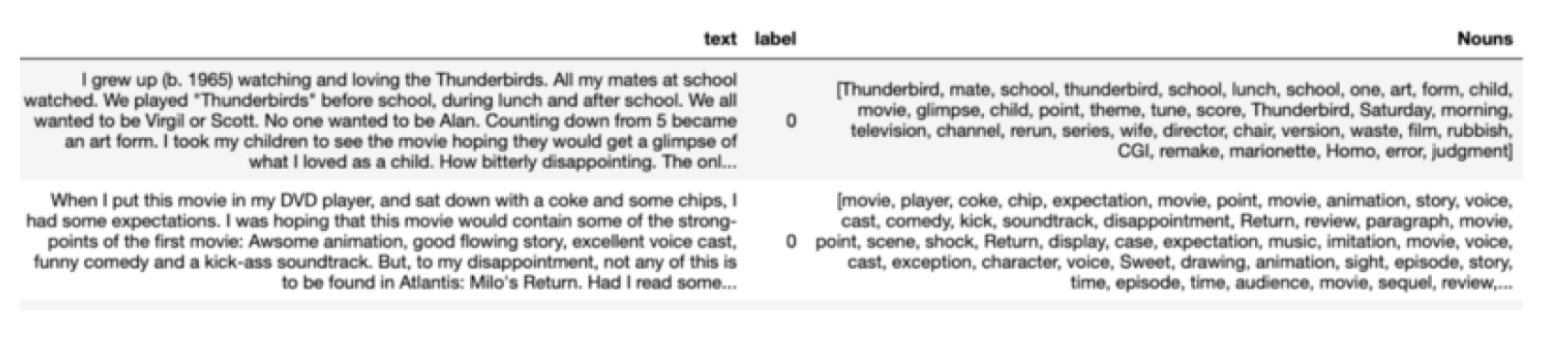
Extract the lemmatized nouns and show them with the review text in which they occurred.
noun_df = create_noun_dataframe(review_df)
sentiment_noun_df = review_df[['text', 'label']].merge(noun_df, how='left', left_index=True, right_index=True)
sentiment_noun_df.head()
Use the
explodefunction to transform the noun list to separate rows for each noun. That way, you can count the occurrences for each noun in a subsequent step.exp_nouns = sentiment_noun_df.explode('Nouns')Plot the most frequent nouns as a bar chart.

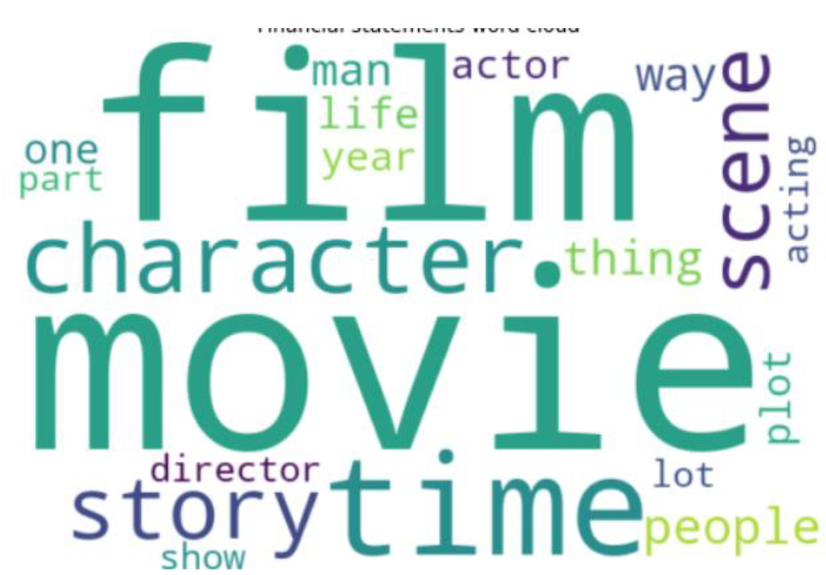
Create a word cloud for the most frequent nouns and show them.

This block extracts nouns from the movie reviews. The most frequently used nouns are typical aspects of a movie that review authors talk about.
You can also plot a bar chart or a word cloud for the most frequently occurring nouns.
Step 3. Model building
Step 3.1. Extract document and sentence sentiment
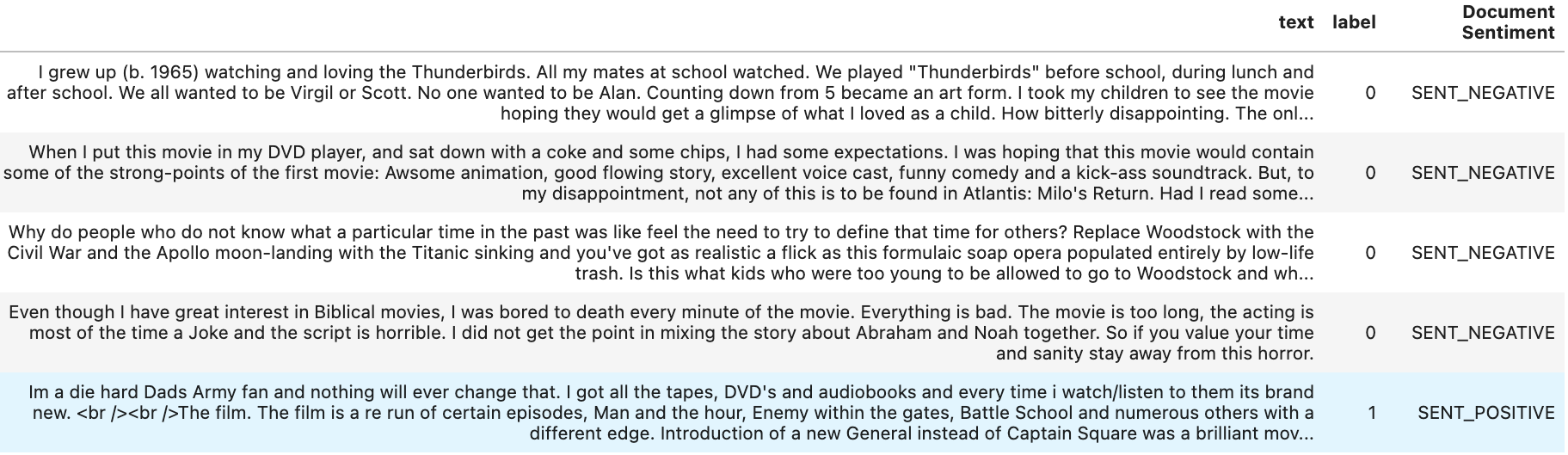
Are reviewers talking positively or negatively about the movies? Sentiment can be extracted for the complete review and for individual sentences. The sentiment extraction helpers can extract both sentiment levels.
Load the sentiment-aggregated_cnn-workflow_en_stock sentiment model for English.
sentiment_model = watson_nlp.load(watson_nlp.download('sentiment-aggregated_cnn-workflow_en_stock'))Extract the overall sentiment of the review and the sentiment for each sentence.
def extract_sentiment(review_text):
    # run the syntax model
    # converting review text into lower case
    review_text = review_text.lower()
    syntax_result = syntax_model.run(review_text, parsers=('token', 'lemma', 'part_of_speech'))
    # run the sentiment model on the result of the syntax analysis
    sentiment_result = sentiment_model.run(syntax_result, sentence_sentiment=True)

    document_sentiment = sentiment_result.to_dict()['label']
    sentence_sentiment = [(sm['span']['text'], sm['label']) for sm in sentiment_result.to_dict()['sentiment_mentions']]
    return (document_sentiment, sentence_sentiment)
Extract the sentiment and display it with the review text.
Step 3.2. Identify nouns that drive sentiment
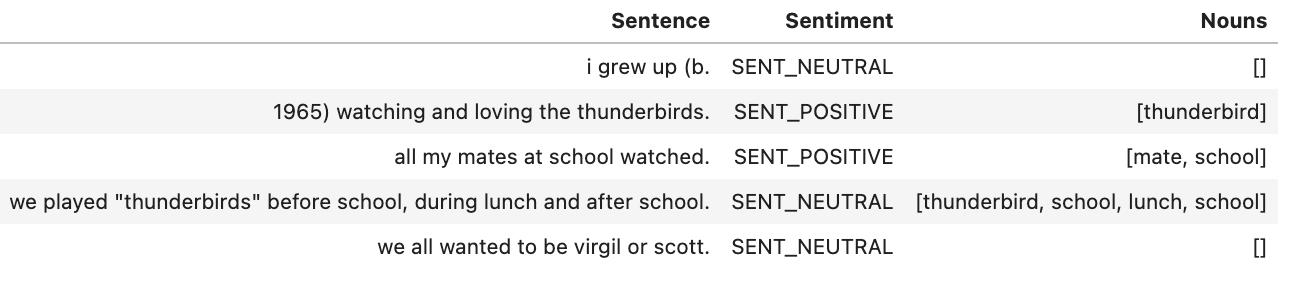
You now identify the most frequently used nouns in sentences with positive or negative sentiment.
Extract nouns from the sentences/sentiment DataFrame.
Show the most frequent nouns in positive sentences.

In this case, the word cloud shows that the most positive sentiments come from the reviews with words like film, movie, time, story, and character. So, the audience must love the film or movie when the story and character were good, and these were mentioned in the reviews.
Show the most frequent nouns in negative sentences.

In this case, the word cloud shows that the most negative sentiments come from reviews with words like time, character, scene, and director. So, the audience might not have liked movies with poor direction, character, and scenes in the movie.
Show the nouns that "drive" sentiment for each review. Create a cross tab between nouns and the resulting sentence sentiment and correlate them. The darker the cell, the more often a noun occurs in a sentence of a certain polarity.
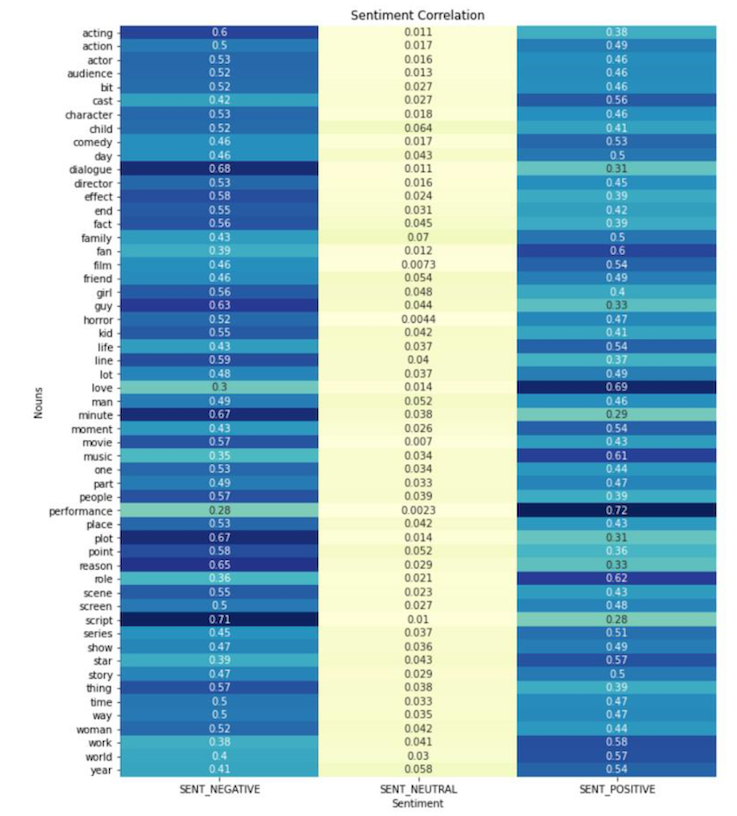
You can see from the previous image that script is the most contributing factor to negative sentiments while performance and love are the most contributing factors to positive sentiments.
Step 3.3. Aspect-oriented sentiment analysis
Let's see what the sentiment for these aspects (script, performance, and love) looks like. For this, use the Watson NLP targeted sentiment model to extract the sentiment that is specific to the most frequently used nouns in the movie reviews.
Load the syntax model for English and the targeted BERT sentiment model.
targeted_sentiment_model = watson_nlp.load(watson_nlp.download('sentiment-targeted_bert_multi_stock'))Use a helper method to extract the sentiment for each target and the sentences containing the target as evidence.
def extract_targeted_sentiment(review_text, target_words):
    # run the syntax model
    syntax_result = syntax_model.run(review_text, parsers=('token', 'lemma', 'part_of_speech'))
    # extract the spans for the target words
    targets = watson_nlp.toolkit.get_target_spans(review_text, target_words)
    # run the sentiment model on the result of syntax and the target words
    sentiment_result = targeted_sentiment_model.run(syntax_result, targets)

    # iterate over all target aspects
    target_sentiments = []
    for idx, val in enumerate(target_words):
        sentiment_prediction = sentiment_result.to_dict()['sentiment_predictions'][idx]
        sentiment_mentions = None
        if sentiment_prediction['sentiment_mentions'] is not None:
            sentiment_mentions = [(sm['span']['text'], sm['label']) for sm in sentiment_prediction['sentiment_mentions']]
        target_sentiments.append(sentiment_prediction['label'])
        target_sentiments.append(sentiment_mentions)
    return target_sentiments
Extract the sentiment specifically for script, performance, and love. Note that this cell runs for several minutes.
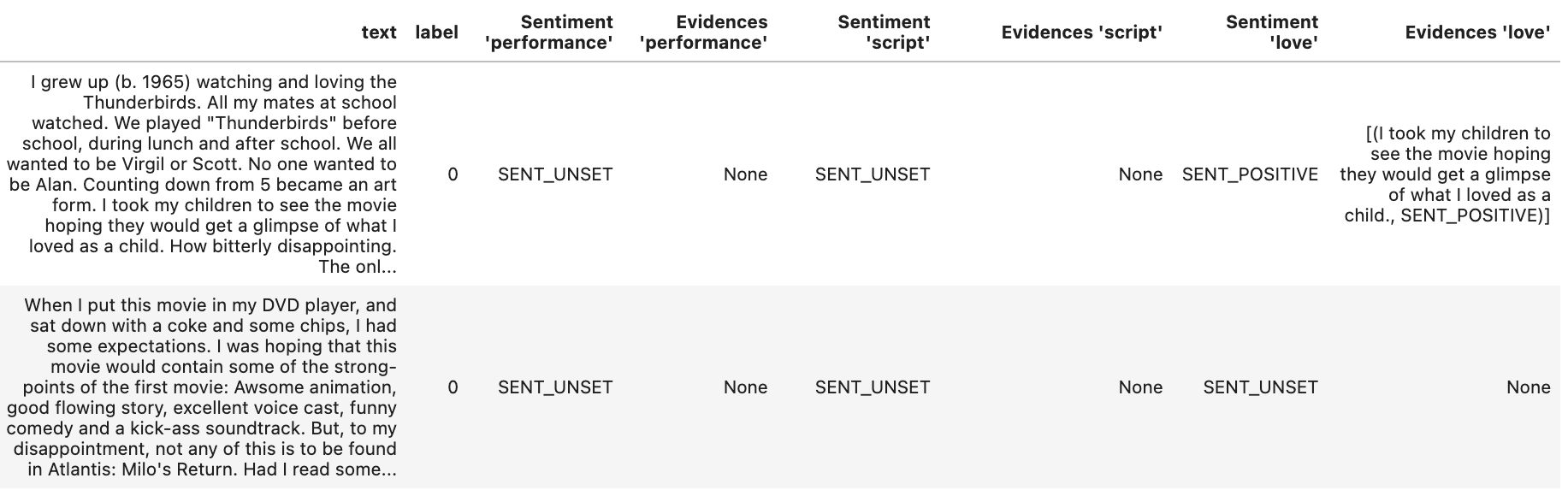
Display the sentiment for selected aspects.

Step 4. Model evaluation
Apply data processing on the test data to make it compatible with the evaluate method in the Watson NLP library.
def input_data_prep(df):
    df['weight'] = 1
    df.rename(columns={'label': 'labels'}, inplace=True)
    df = df[['text', 'weight', 'labels']]
    df['labels'] = df['labels'].replace({0: 'negative', 1: 'positive'})
    df['labels'] = df['labels'].apply(convertToList)
    display(df.head(5))
    return df
Evaluate the model by passing the test data and using the
evaluate_qualitymethod from the Watson NLP library.pre_eval_func = lambda x: syntax_model.run_batch(x) sentiment_model.find_label_func results = sentiment_model.evaluate_quality(test_file, pre_eval_func)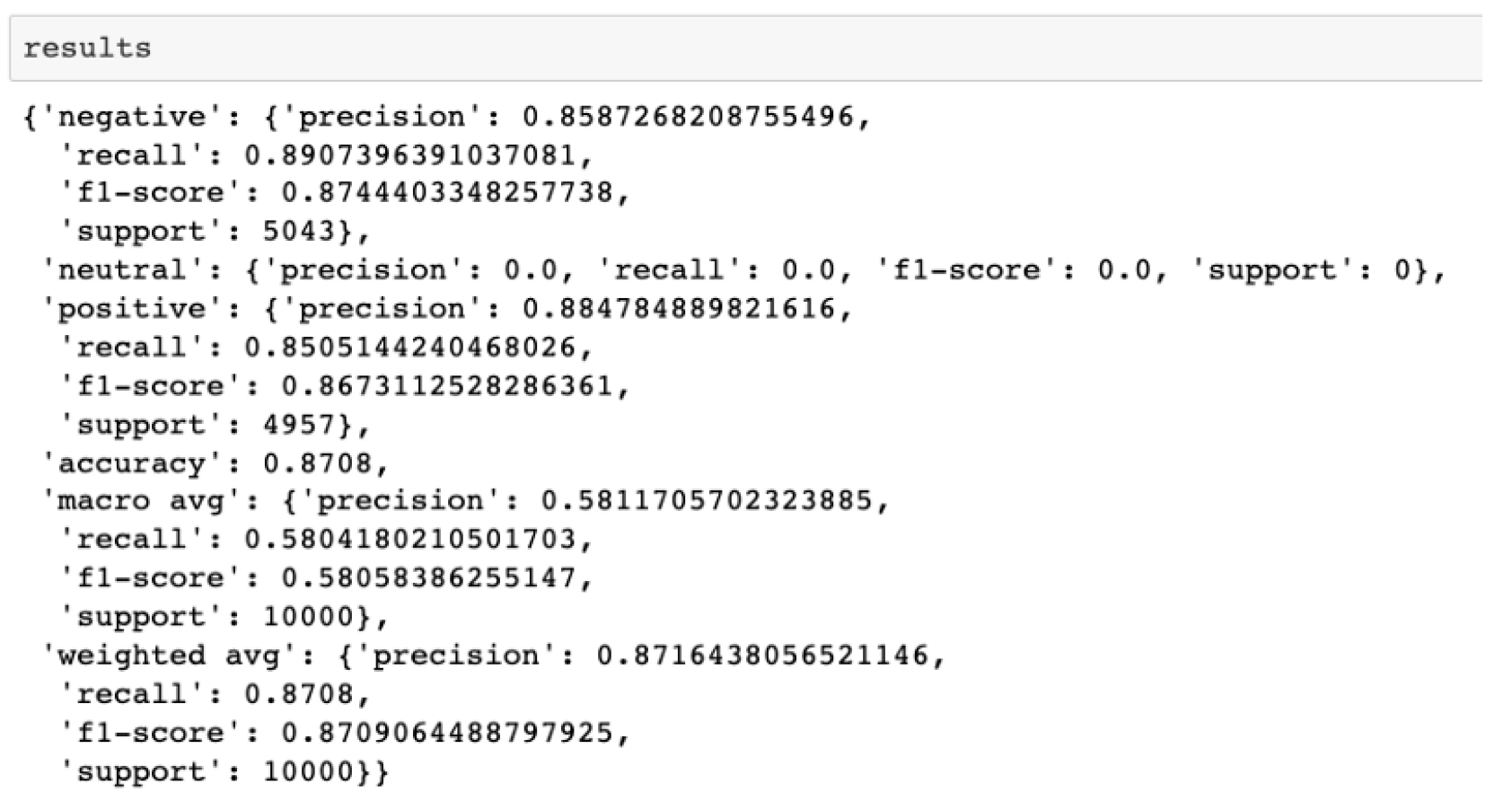
As you can see, the overall accuracy, precision and recall values are 0.87 each. This has been achieved by evaluating a pretrained model without training it on the IMDB Movie reviews data set.
Video
Watch the following video for a demonstration of using Watson Libraries for tasks like sentiment analysis and emotion classification.
Conclusion
This tutorial shows how easily you can use the watson_nlp library for simplifying natural language processing tasks like sentiment analysis. The tutorial showed how to use a pretrained model to walk you through the process of running and evaluating pretrained models to perform sentiment analysis.
Next steps
You can run this Jupyter Notebook to see how training a sentiment analysis model that uses Watson NLP works. The notebook demonstrates how to train a sentiment analysis model on movie reviews by using Watson NLP.
In this notebook, you see how Watson NLP offers blocks for various natural language processing tasks and shows sentiment analysis with the Sentiment block (BERT Document Sentiment block). Sentiment analysis classifies the sentiment of the reviews into positive or negative sentiment. You use the Sentiment workflow to train a BERT-based sentiment analysis model. Then, you save the trained sentiment analysis model and evaluate the trained model on the test data set for IMDB movie reviews.