Tutorial
Use the Watson NLP library to perform emotion classification
Understand the fundamentals of IBM Watson NLP and walk through the process of running and evaluating pretrained models to perform emotion classificationWith IBM Watson NLP, IBM introduced a common library for artificial intelligence (AI) runtimes (for serving the model) and AI libraries (like Natural Language Processing, Document Understanding, Translation, and Trust). IBM Watson NLP brings everything under one umbrella for consistency and ease of development and deployment. This tutorial walks you through the steps of using a pretrained model to classify emotions in tweets by using the watson_nlp library from IBM Watson NLP.
The watson_nlp library is available on IBM Watson Studio as a runtime library so that you can directly use it for model training, evaluation, and prediction. The following figure shows the IBM Watson NLP architecture.
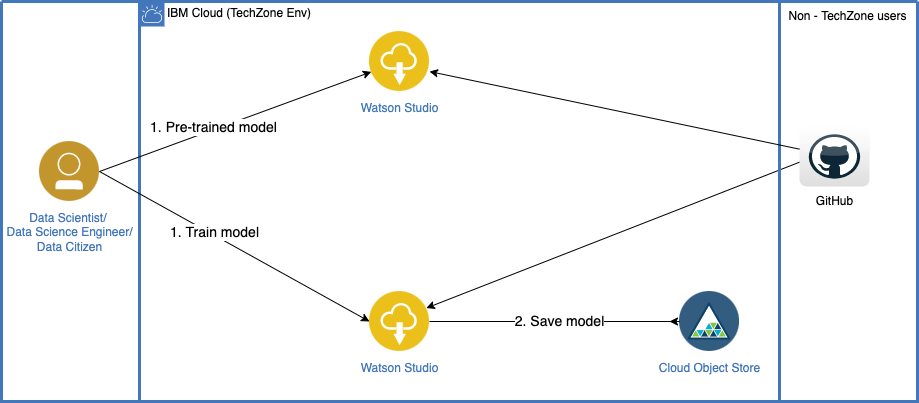
IBM Watson NLP is a standard embeddable AI library that is designed to tie together the pieces of IBM Natural Language Processing. It provides a standard base natural language processing (NLP) layer along with a single integrated roadmap, a common architecture, and a common code stack designed for widespread adoption across IBM products.
Typically, emotion classification is manually processed by humans to gather groups of qualitative data. Having the ability to automatically gather and process larger data sets of text through customer feedback, comments, or an entire article that is written on your product is a strong tool to gain insight into the most common emotional responses in a group of people or a block of text.
IBM Watson NLP provides the ability to automatically classify text into the strongest emotions that are typically tracked: sadness, joy, anger, fear, and disgust. It can infer upon a certain emotion through syntax analysis and the emotion workflows that are provided by IBM AI libraries by using pretrained and custom models. The following figure shows emotion classification predictions.
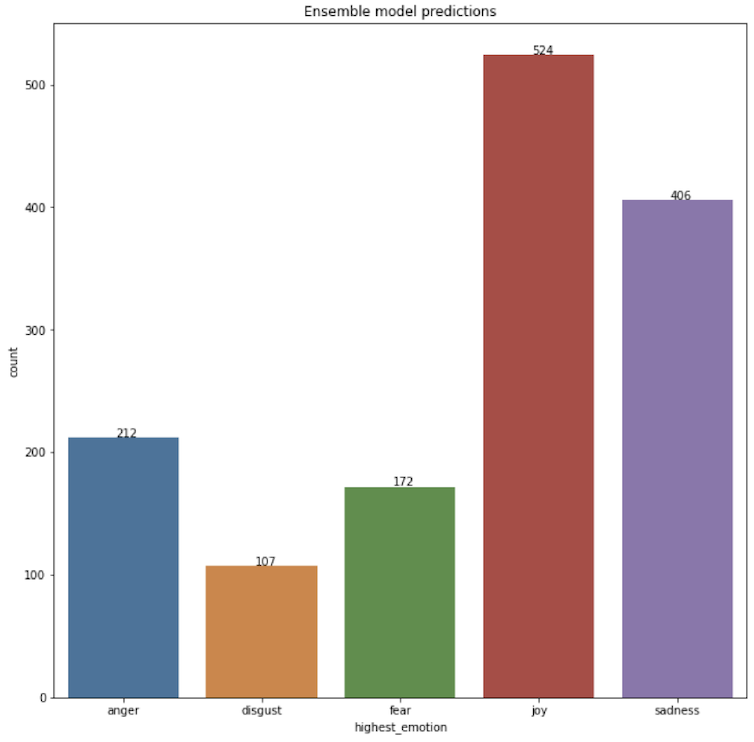
This tutorial explains the fundamentals of IBM Watson NLP and walks you through the process of running and evaluating pretrained models to perform emotion classification.
Prerequisites
To follow the steps in this tutorial, you need:
- An IBMid
- A Watson Studio project
- A Python notebook
- Your environment set up
Before working through the tutorial, you should have an understanding of IBM Watson Studio and Jupyter Notebooks.
Estimated time
It should take you approximately 1 hour to complete this tutorial.
Steps
The steps in this tutorial use an example of IMDB movie reviews from Kaggle to walk you through the process.
Step 1. Collecting the data set
Note: If you are reserving the environment through the IBM Tech Zone, you don't need to collect the data manually. The environment comes with the Watson Studio project pre-created for you. You can skip Steps 1 and 2 here and continue from Step 3 to complete the Emotion Classification tutorial.
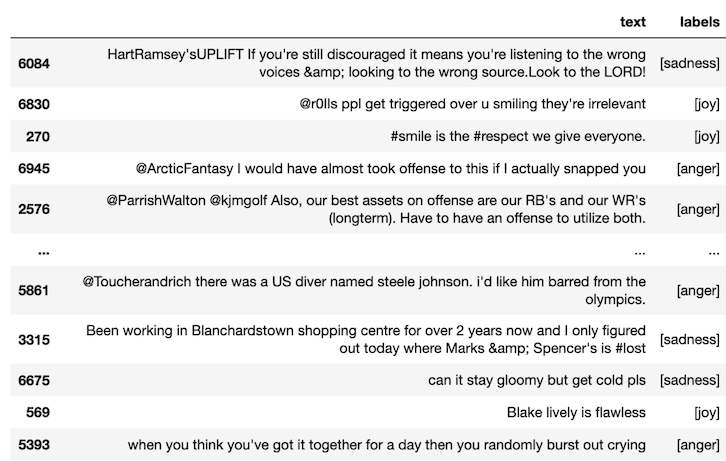
Data sets for emotion classification require an input text feature column and an emotion label column with labels such as ‘joy’, ‘anger’, fear’, and ‘sadness’.
Download the tweets data set from Kaggle. You can download all of the .csv files and combine them or download the single test .csv file.
After downloading the data set, you must upload the file to the Watson Studio project as a data asset. From there, the data is ready to be inserted into the notebook. The notebook is set up with instructions for reading the .csv as a pandas DataFrame.
Upload the data set to your Watson Studio project by going to the Assets tab, and then drag the data files, as shown in the following figure.
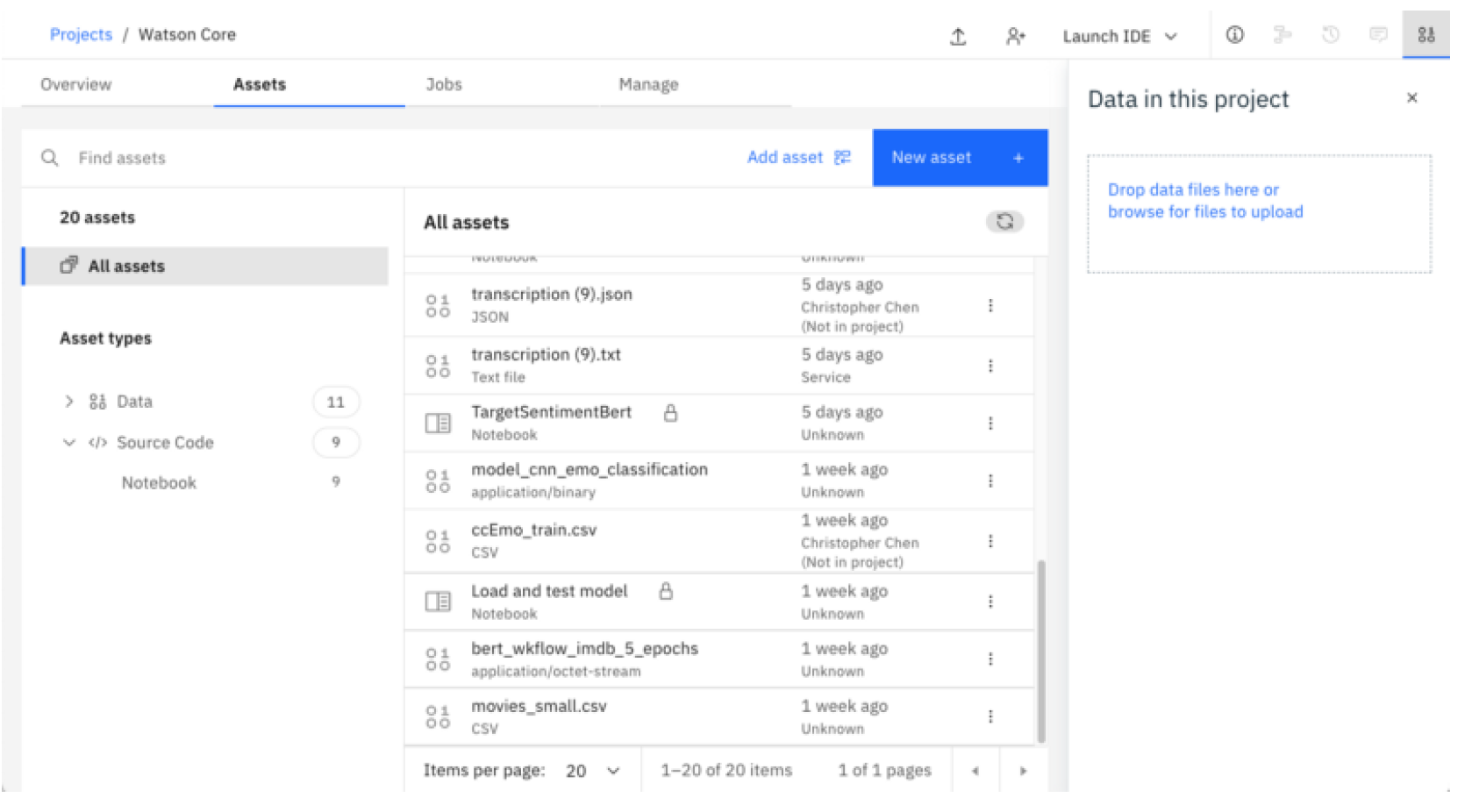
After you add the data set to the project, you might have to reload the notebook. You have two options of accessing the data set from the Jupyter Notebook depending on the level of access that you have.
A. If you are a project administrator, then:
i) You can just insert the project token as shown in the following image.

ii) After inserting the project token, you can continue executing all of the cells in the notebook. The following cell loads your data set in the notebook.

B. If you are not a Watson Studio project administrator, then you cannot create a project token.
i) Create a new cell under Step 2 - Data Loading by clicking the Insert menu, and then selecting Insert Cell Below or the Esc+B keyboard shortcut. Highlight the code cell that is shown in the following image by clicking it.

ii) Ensure that you place the cursor below the commented line. Click the Find and add data icon (01/00) in the upper-right corner. Choose the Files tab, and pick the emotion-tweets.csv file or the name of your .csv file (if it is different). Click Insert to code, and choose pandas DataFrame. Rename the DataFrame from
df_data_1todf.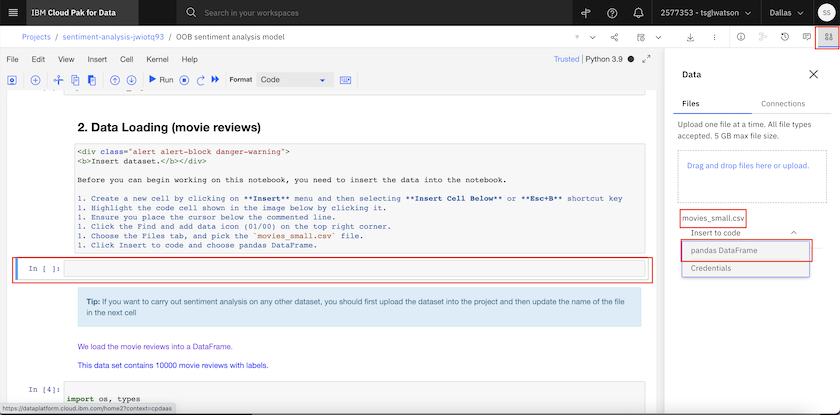
After you've added the data set to the project, you can access it from the Jupyter Notebook and read the .csv file into a pandas DataFrame.
Step 2. Data processing
Data prepared for Watson NLP models needs to be formatted in such a way that there is a text feature column and a
labelslabel column. The labels column must have typelist. Format the data using the custom function shown in the following image.
Split the data into an 80/20 train-test split using sklearn, and then export it into a JSON format for the Watson NLP models to consume. Additionally, rename the column headers to the expected text and labels names, with the labels having type list.
df_train, df_test = train_test_split(df, test_size=0.2)
df_train.to_json('df_train.json', orient='records')
df_test.to_json('df_test.json', orient='records')
Step 3. Running pretrained emotion classification models
Watson NLP has two pretrained/prebuilt emotion classification models using the workflow system. The following examples use "Such a sweet boy. But after much thought and careful consideration, I've decided that the ruler for the next ten thousand years is going to have to be... me." as a single input test with the expected label to be "joy."
3.1. Ensemble emotion model
The Ensemble emotion model performs document emotion classification.
All models must be downloaded from the Watson NLP library on their initial run. They are saved to the runtime local, or local working path if the notebook is being run offline. Load the Emotion workflow model for English.

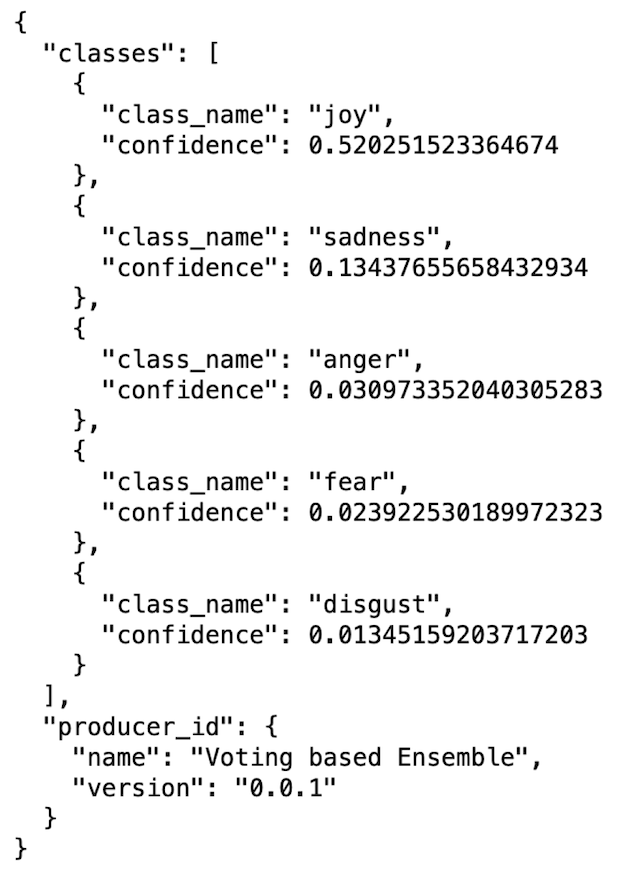
Run the Emotion model on a single document.
Use the
model.evaluate_quality()method to run the emotion classification model on the test data set.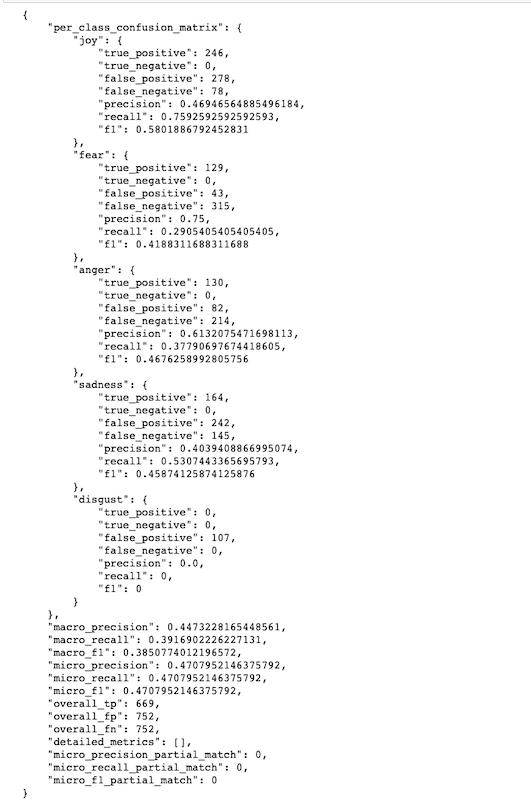
Based on the micro precision, recall, and f1 score, this Ensemble model did not perform well on the test data. However, hyperparameter tuning of the pretrained model might improve its performance.
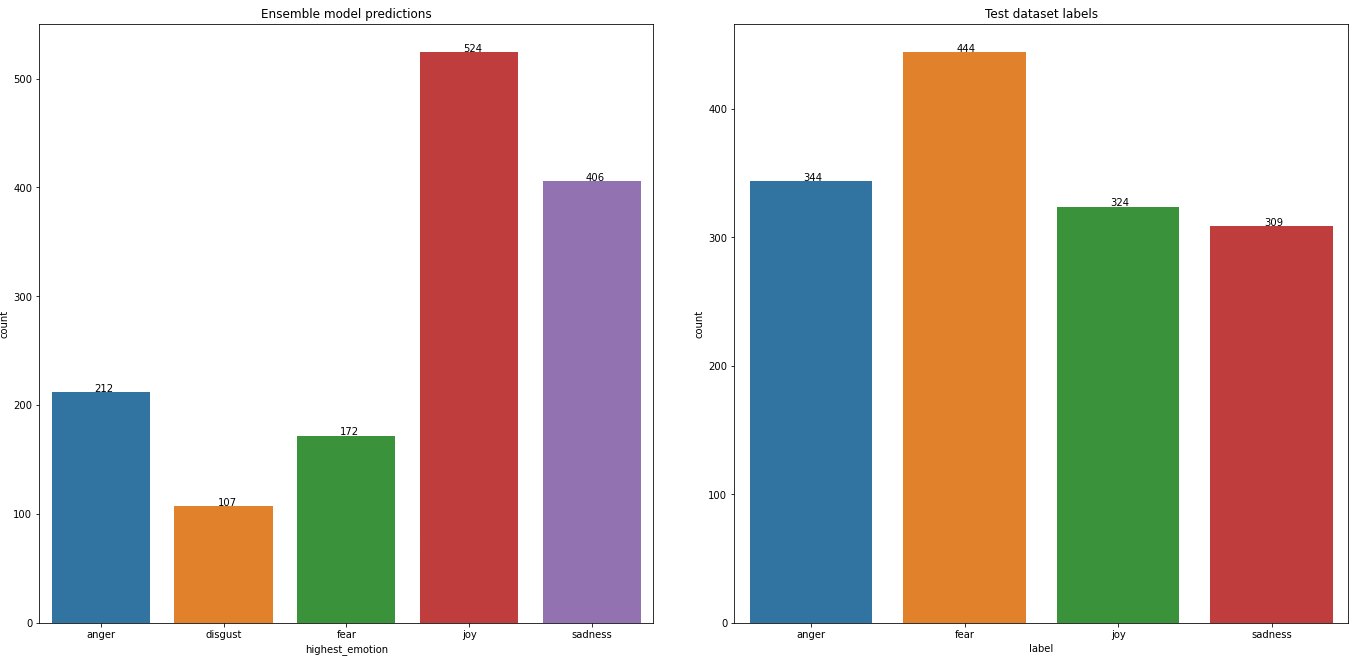
Visualize model prediction by parsing out the results of the model runs. You can compare the differences between predicted labels and actual labels in a histogram plot.
3.2. Aggregated emotion model
The Aggregated emotion model has the capability of specifying target words in addition to document emotion classification.
Load the Emotion workflow model for English
aggregated_emotion_model = watson_nlp.load(watson_nlp.download('aggregated_classification-wf_en_emotion-stock'))By defining a target span of indices with the
target_mentions parameter, the Aggregated model can predict emotion on exact segments of the input. Provide a span to target a section of the document using indices.target_mentions = dm.TargetMentionsPrediction([dm.TargetMentions([(7, 16)]), dm.TargetMentions([(28, 66)])]) aggregated_emotion_result_span = aggregated_emotion_model.run("Such a sweet boy. But after much thought and careful consideration, I've decided that the ruler for the next ten thousand years is going to have to be... me. ", target_mentions=target_mentions)By defining a target text phrase with the
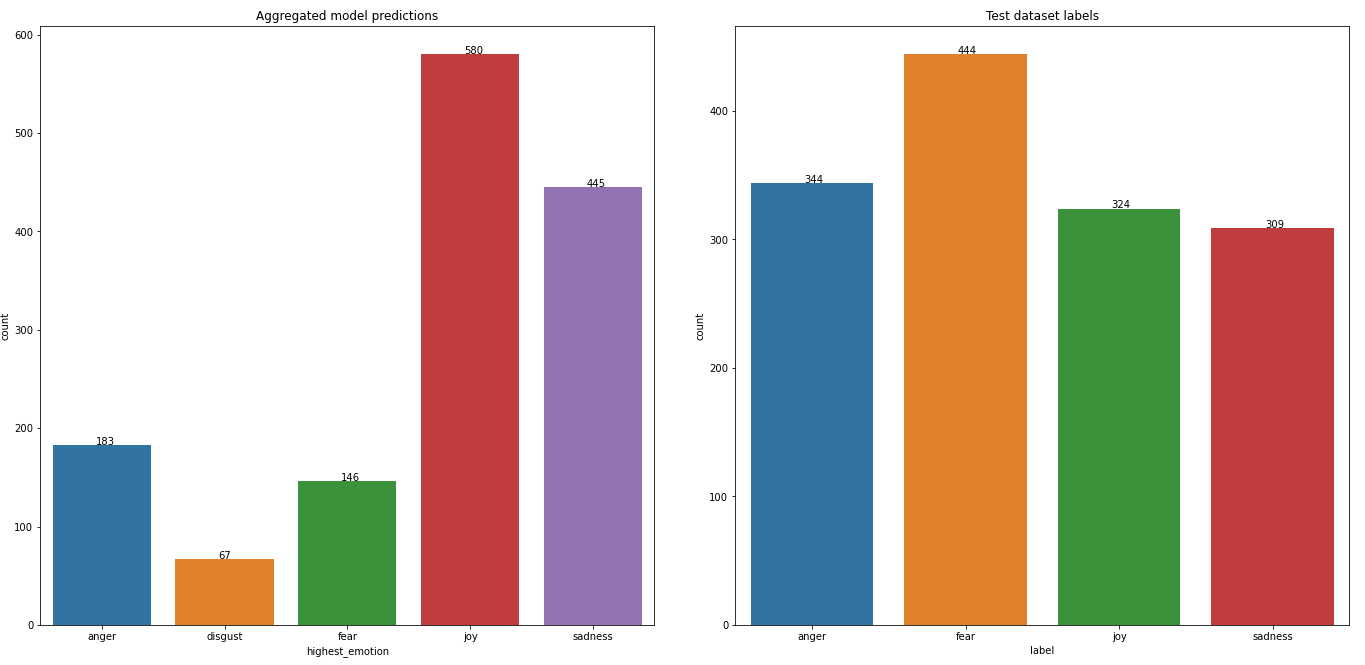
target_phrasesparameter, the Aggregated model can predict emotion on exact words and phrases in the input. The result is just like the previous return, but this time with the "target" key having the targeted phrase. Provide target phrases to the aggregated emotion model.# text targets a section of the document given phrases target_phrases = ['sweet boy', 'careful consideration'] aggregated_emotion_result_text = aggregated_emotion_model.run("Such a sweet boy. But after much thought and careful consideration, I've decided that the ruler for the next ten thousand years is going to have to be... me. ", target_phrases=target_phrases)Visualize the results of the aggregated emotions model.
Step 4. Exploring document-level tokenized predictions
Because the aggregated emotion classification model is capable of classifying specific mentions, you can run the model on the entire data set with tokenized text.
Run the emotion classification model on each text row of the DataFrame, and store the results in the form of a dictionary into a new DataFrame column. The keys of the dictionary include
Document emotionandMention emotion.def extract_emotion(text): # run the emotion model on the result of the syntax analysis emotion_result = emotion_model.run(text, document_emotion=True) document_emotion = emotion_result.to_dict()['emotion_predictions'][0]['emotion'] mention_emotion = [(sm['span']['text'], sm['emotion']) for sm in emotion_result.to_dict()['emotion_predictions'][0]['emotion_mentions']] return (document_emotion, mention_emotion) # Helper method to create a new dataframe with the corresponding emotion def create_emotion_dataframe(df): emotion = df['text'].apply(lambda text: extract_emotion(text)) emotion_df = pd.DataFrame.from_records(emotion, columns=('Document emotion', 'Mention emotion')) return emotion_dfEach document (dialog) is broken down into tokenized "sentences" called
Mention. Display the DataFrame output from the function.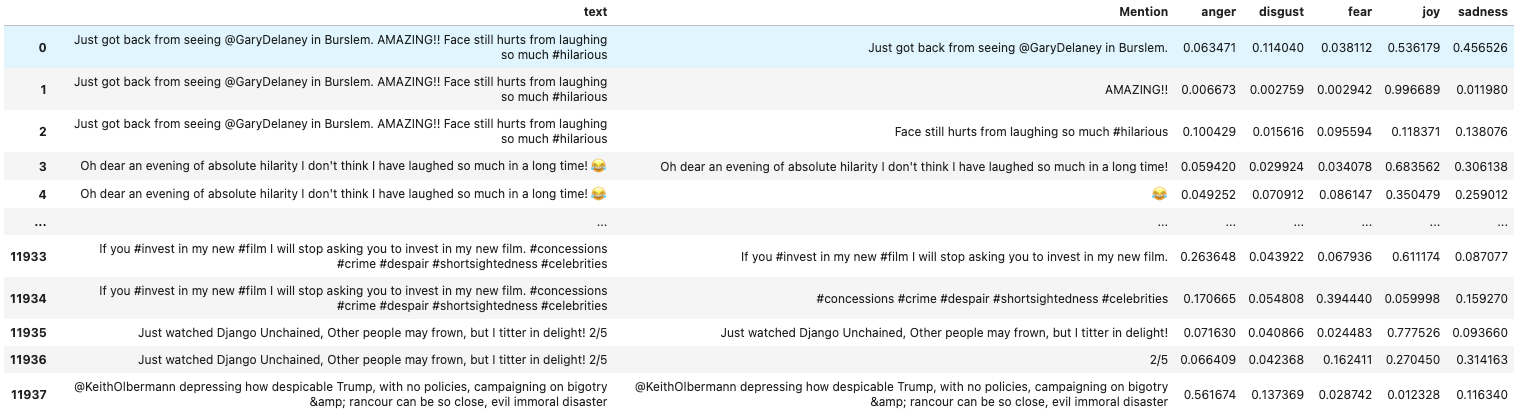
You can see that each document/text tweet is broken down into tokenized "sentences" called Mention. The DataFrame displays confidence scores for each Mention in the dialog.
Video
Watch the following video for a demonstration of using Watson Libraries for tasks like sentiment analysis and emotion classification.
Conclusion
This introduction to IBM Watson NLP is only a brief look at how easily NLP emotion classification can be performed on ready data sets by using the IBM Watson NLP Python library. As you explore the accessibility of the IBM Natural Language Processing stack through IBM Watson NLP, you interact with many more models that come pretrained with the library, such as topic modeling and sentiment analysis. This tutorial shows how easily you can use the watson_nlp library for simplifying natural language processing tasks like emotion classification and showed how you can perform classification on ready data sets by using the Watson NLP Python library.
Next steps
You can run this Jupyter Notebook to see how to classify emotions in tweets using Watson NLP pretrained models.
To learn how to classify emotions in tweets using custom models, run this Jupyter Notebook.