Tutorial
Retrieve CCO utility (ccoctl) image and generate manifests for deploying Red Hat OpenShift Container Platform on IBM Power Virtual Server
Extract the ccoctl binary, generate credential requests, and service IDsThis tutorial describes the steps for obtaining the ccoctl binary, generating manifests and service IDs for deploying Red Hat OpenShift Container Platform on IBM Power Virtual Server using the OpenShift installer.
Prerequisites
- Access to an IBM Power system with public internet access and openshift-client (oc) installed.
- podman installed.
- Export your API key to the IBMCLOUD_API_KEY environment variable.
Steps
Follow these steps to obtain the ccoctl binary and generate credential requests and service IDs.
Obtain the openshift-install binary file
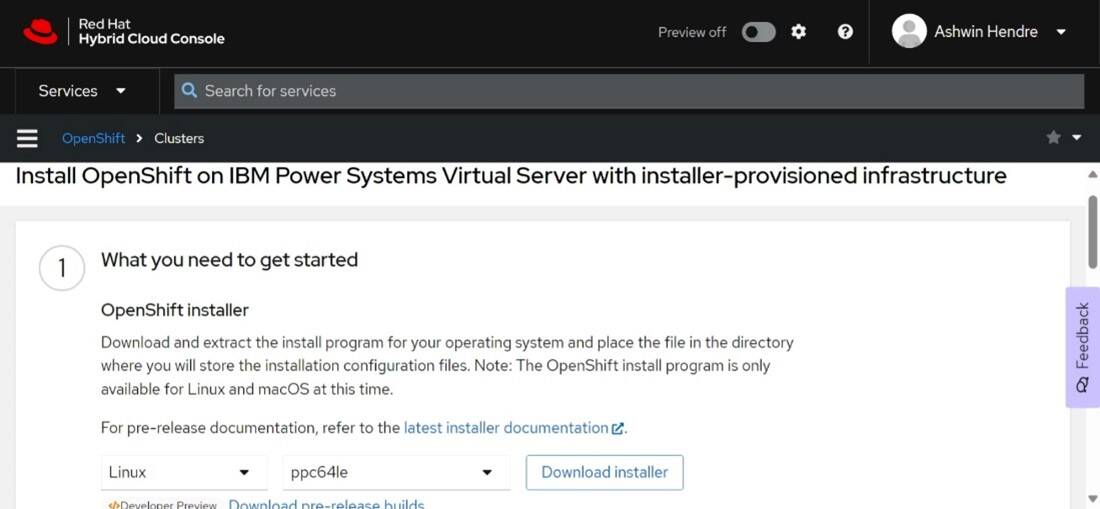
- Access the Power Virtual Server IPI installer page on the Red Hat OpenShift Cluster Manager site. If you have a Red Hat account, log in with your credentials. If you do not, create an account.
Download the installation program that corresponds to your host operating system. For example, if you want to generate the manifests using a Linux system, select Linux as the operating system and ppc64le as the architecture.
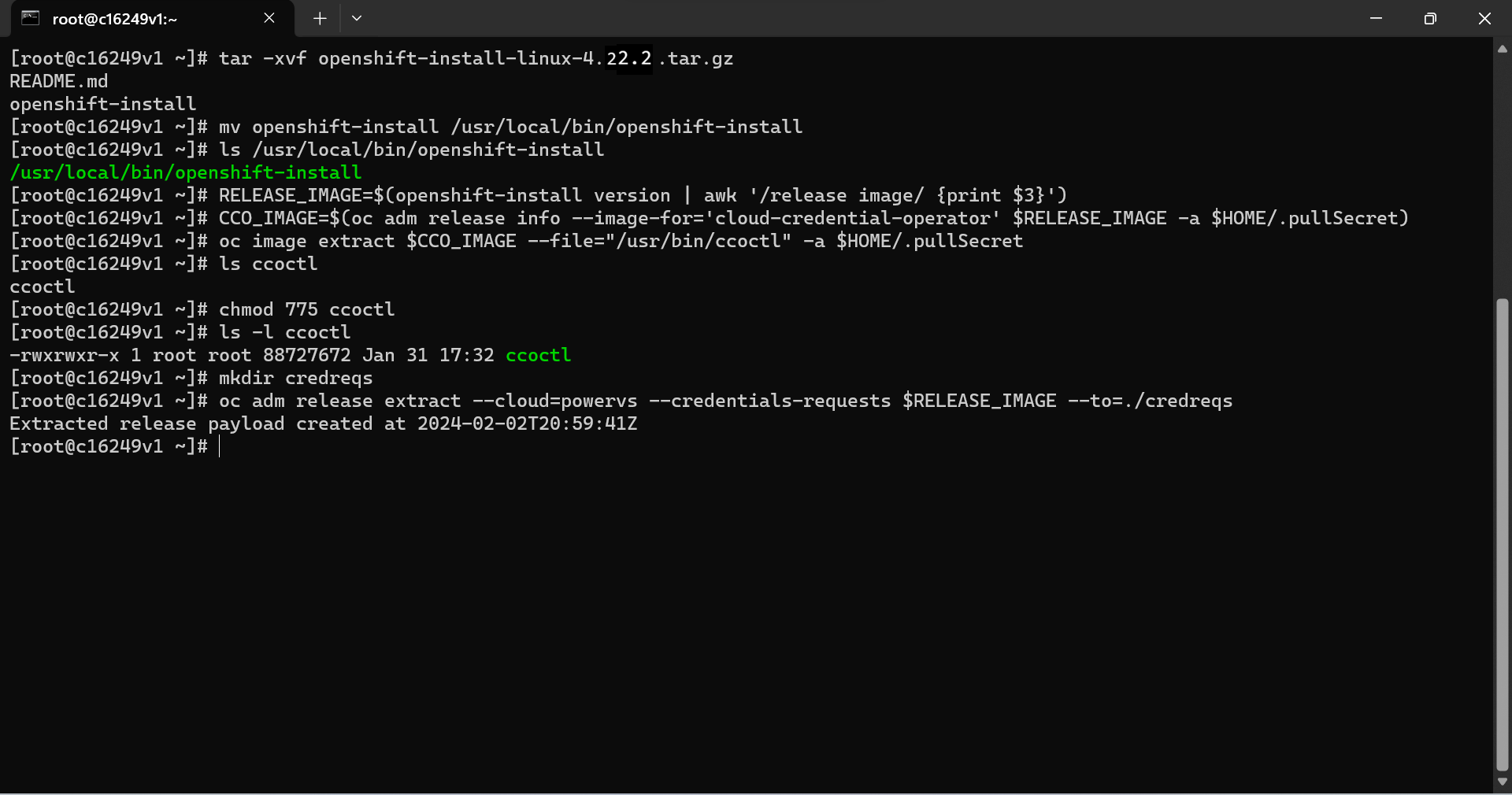
Extract the installation program. For example, on a computer that uses a Linux operating system, run the following command:
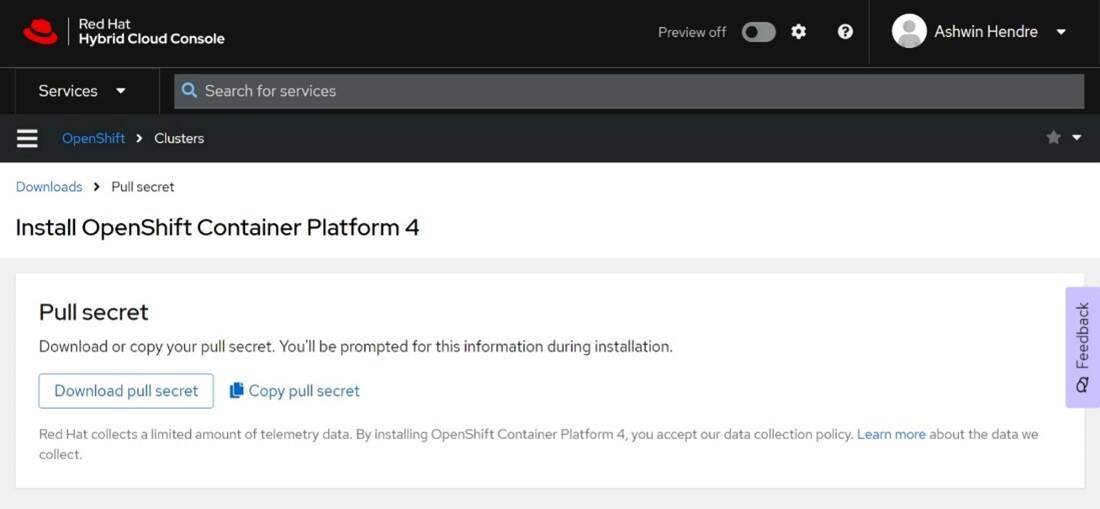
tar -xvf openshift-install-linux-4.22.2.tar.gz- Download your installation pull secret from the Red Hat OpenShift Cluster Manager website. This pull secret allows you to authenticate with the services that are provided by the registries, including Quay.io, which serves the container images for OpenShift Container Platform components.
Obtain the ccoctl binary file
Move the openshift-install binary file to a folder in your
$PATH, such as/usr/local/bin/.Note: You can either perform the following steps and the Extract the credential requests section, or run the ccoctl.sh script by following the instructions in the ccoctl.md file. The script automates these steps.
Set the OCP_VERSION by running the following command:
OCP_VERSION=$(openshift-install version | head -n 1 | awk '{print $2}')Obtain the system architecture by running the following command:
uname -mBased on the output of the architecture command, set the
CCO_RELEASE_IMAGE:For
ppc64le:CCO_RELEASE_IMAGE=quay.io/openshift-release-dev/ocp-release@$(podman manifest inspect quay.io/openshift-release-dev/ocp-release:${OCP_VERSION}-multi | jq '.manifests[] | select(.platform.architecture=="ppc64le")' | jq '.digest' | tr -d '"')For
x86oramd64:CCO_RELEASE_IMAGE=quay.io/openshift-release-dev/ocp-release@$(podman manifest inspect quay.io/openshift-release-dev/ocp-release:${OCP_VERSION}-multi | jq '.manifests[] | select(.platform.architecture=="amd64")' | jq '.digest' | tr -d '"')For
aarch64orarm64:CCO_RELEASE_IMAGE=quay.io/openshift-release-dev/ocp-release@$(podman manifest inspect quay.io/openshift-release-dev/ocp-release:${OCP_VERSION}-multi | jq '.manifests[] | select(.platform.architecture=="arm64")' | jq '.digest' | tr -d '"')Obtain the
CCO_IMAGEfrom the OpenShift Container Platform release image by running the following command:CCO_IMAGE=$(oc adm release info --image-for='cloud-credential-operator' $RELEASE_IMAGE -a <path to pull secret file>)Extract the ccoctl binary file from the CCO container image within the OpenShift Container Platform release image by running the following command:
oc image extract $CCO_IMAGE --file="/usr/bin/ccoctl" -a <path to pull secret file>Change the permissions to make ccoctl executable by running the following command:
chmod 775 ccoctl
Extract the credential requests
Extract the credential requests to the credreqs folder by running the following commands:
mkdir credreqs
RELEASE_IMAGE=$(openshift-install version | awk '/release image/ {print
$3}')
oc adm release extract --cloud=powervs --credentials-requests` $RELEASE_IMAGE --to=./credreqs
Create IBM Cloud service IDs using ccoctl
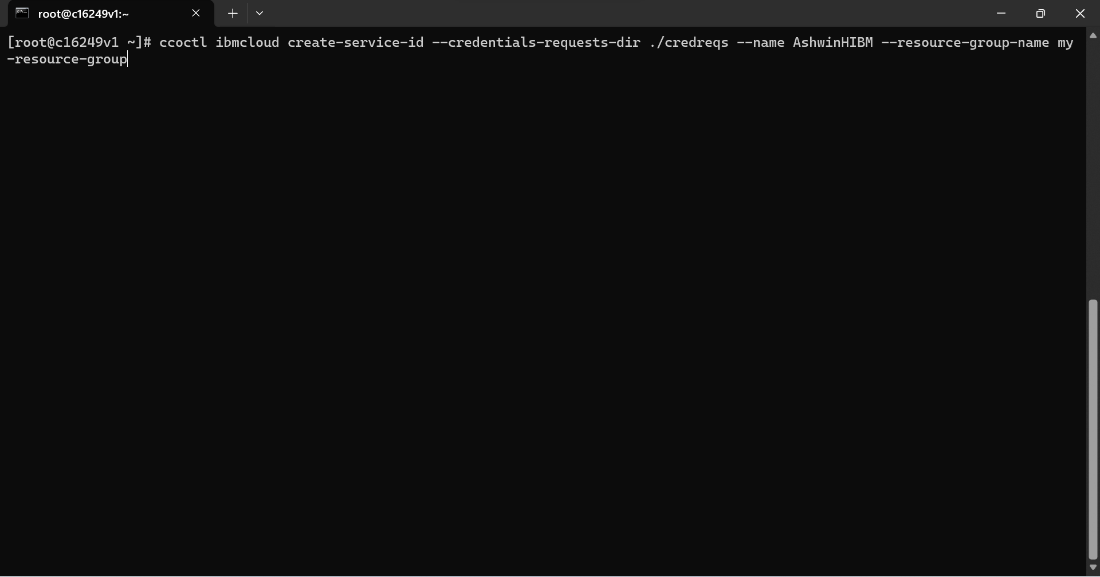
Create Cloud service IDs using the following command:
ccoctl ibmcloud create-service-id --credentials-requests-dir path-to-directory-with-list-of-credentials-requests --name name of service id --resource-group-name resource-group-name
Here resource-group-name is optional but recommended.
Review the generated service IDs
View the generated service IDs by clicking Manage --> Access IAM and then clicking Service IDs in the left navigation panel.

Save the manifests
The manifests required for the installation process will be available in a manifests folder created in the current working directory. Make a note of the location where these manifests are stored as you will need them later.
Summary
Now that you have generated manifests and service IDs for deploying the OpenShift on Power Virtual Server, next, you will learn about using the openshift-install commands to deploy your cluster.