Tutorial
Create access group and assign permissions for creating a Red Hat OpenShift cluster on IBM Power Virtual Server
Configure access control for OpenShift cluster deployment on Power Virtual ServerIntroduction
Before you deploy Red Hat OpenShift Container Platform on IBM Power Virtual Server using the installer-provisioned installation method, you need to setup an access group with the required permissions and assign a service ID (recommended) or user to the group.
Prerequisites
You need to perform the following steps from a computer that has access to https://cloud.ibm.com
Steps
Create an access group.
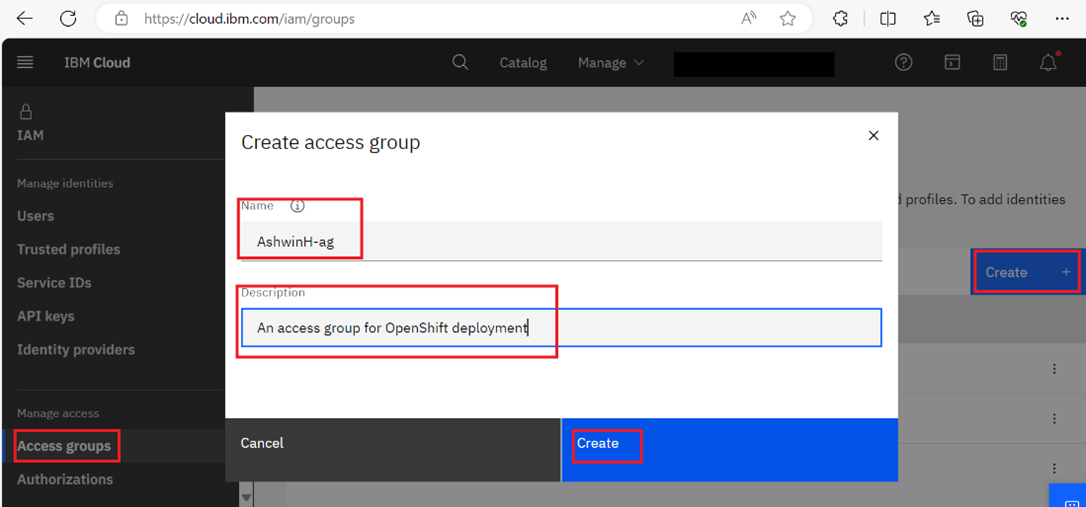
- On the IBM Cloud IAM page, in the Manage access section, click Access groups.
- Click Create.
- In the Create access group dialog, enter a name and description for the access group and click Create.
Add a user to the access group.
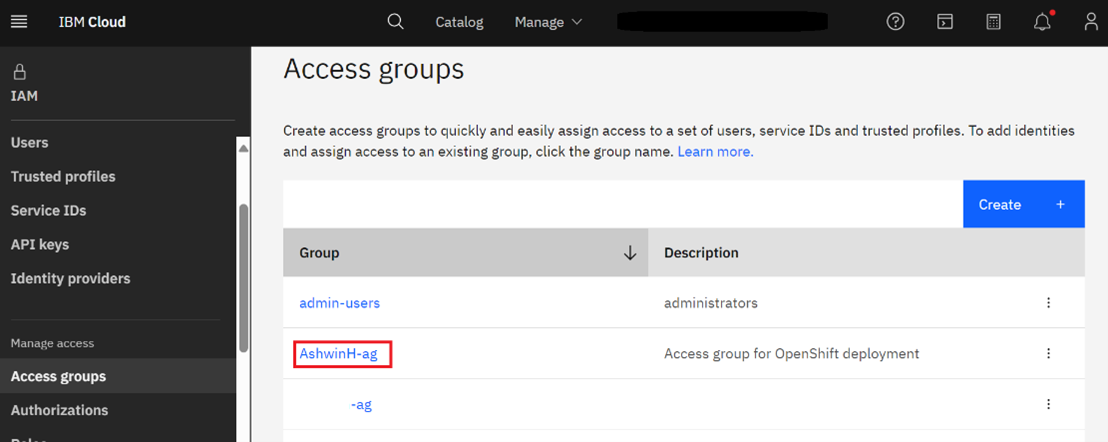
- Click the newly created access group from the list.
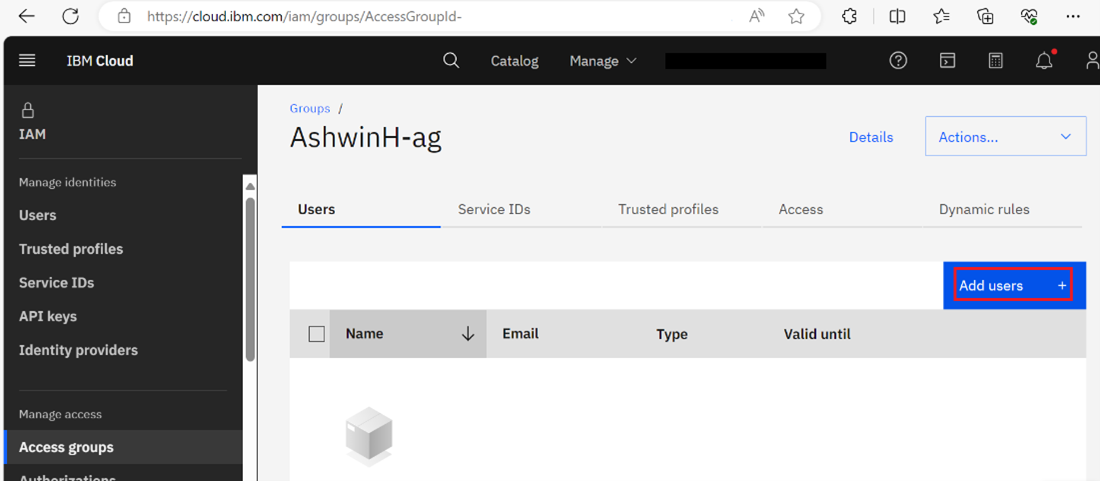
- Click Add users.
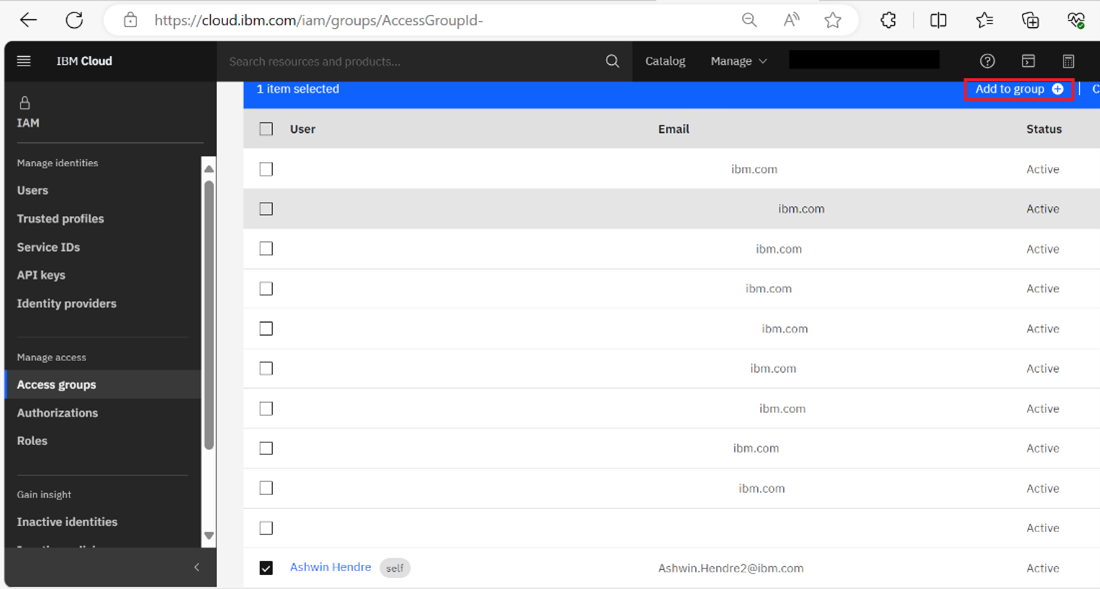
- Select the users to be added to the access group and click Add to group.
Assign the appropriate permissions to the access group.
- In the left navigation panel, click Access groups and open the access group you just created.
- Click the Access tab and then click Assign access.
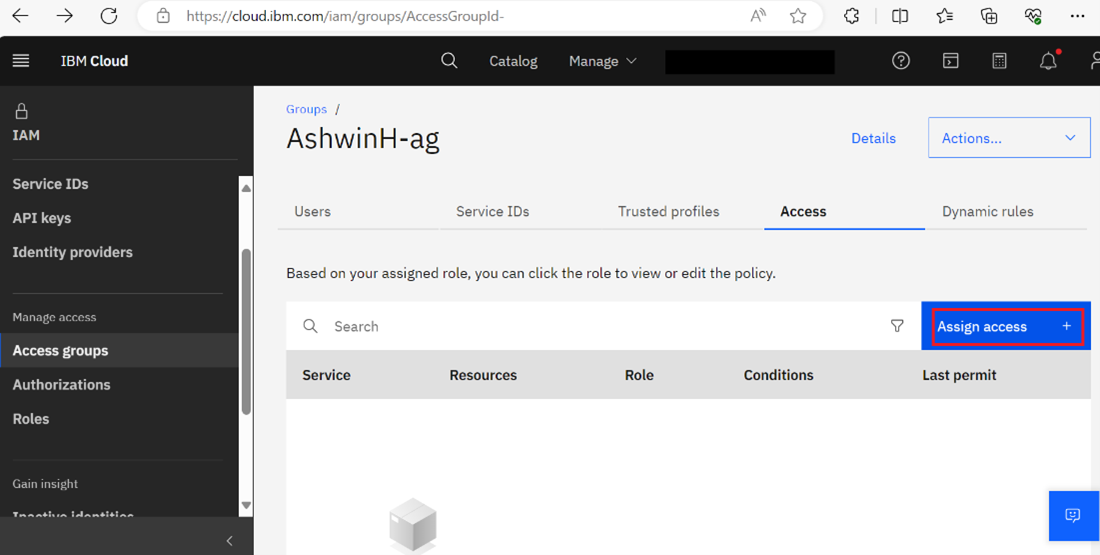
- Assign access as required for cluster creation as per the guidance provided in the cluster-creation permissions table in the RedHat OpenShift documentation.
Here is an example to assign Viewer access to the access group you created for the resource group. You can add access for the other services and roles in a similar manner by referring the table.
In the Service section, select the service to which you need to assign access and click Next.
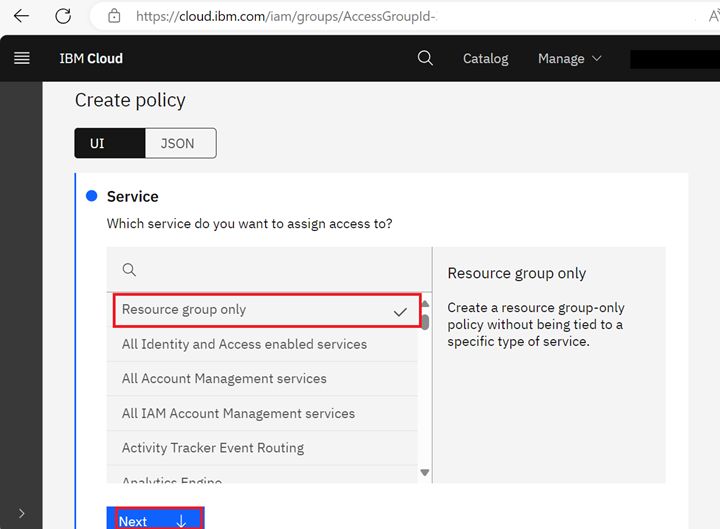 In the Resources section, specify the scope of access and click Add a condition.
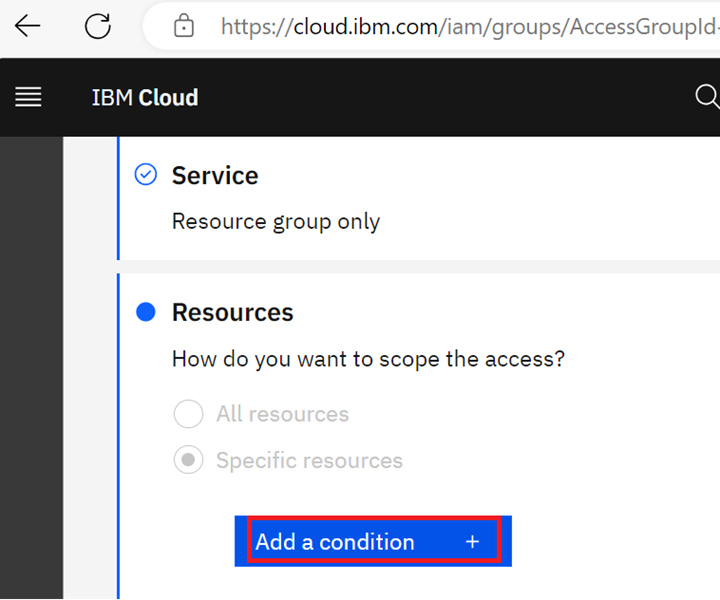 Specify the attribute type and value, and click Next.
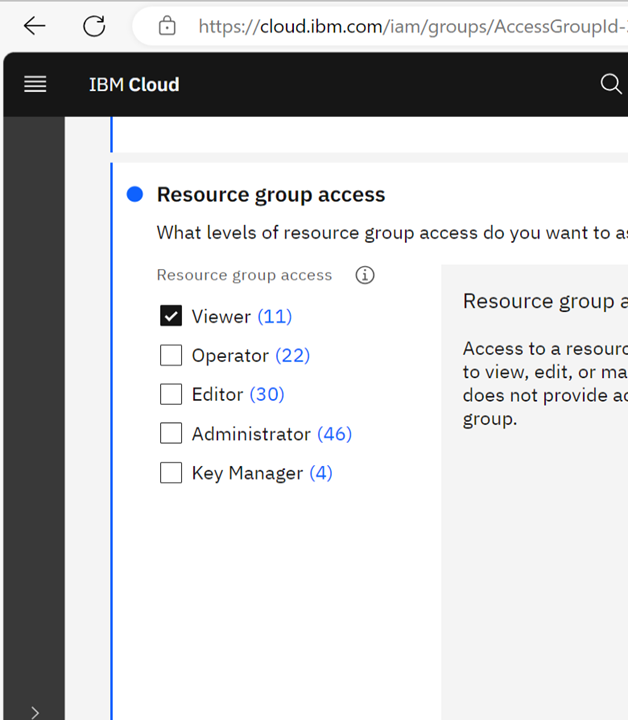
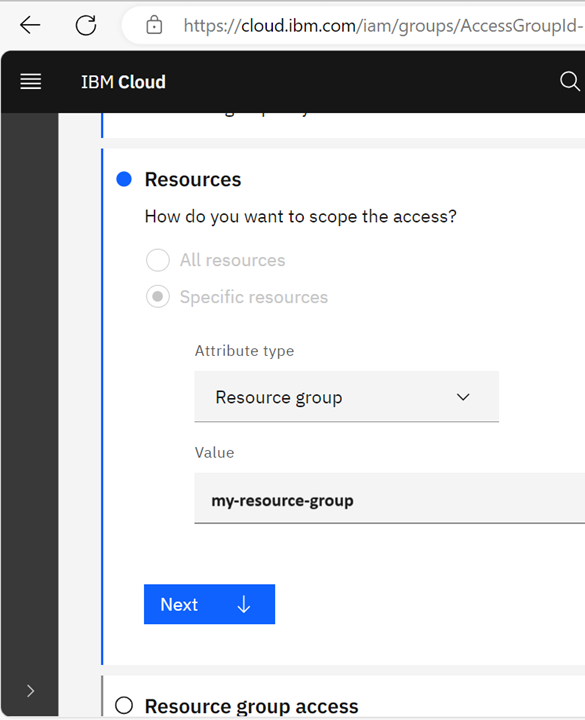 In the Resource group access section, select the Viewer checkbox to provide Viewer access to the resource group and click Next.
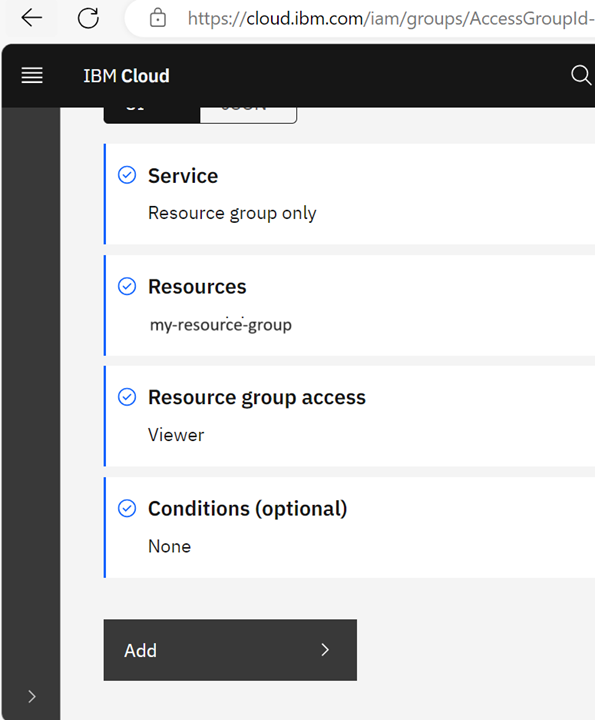
 Notice that there is a tick mark next to the Service, Resource group, Resource group access, and Conditions(optional) sections indicating that you have provided the necessaryinformation for these sections. Click Add to continue.
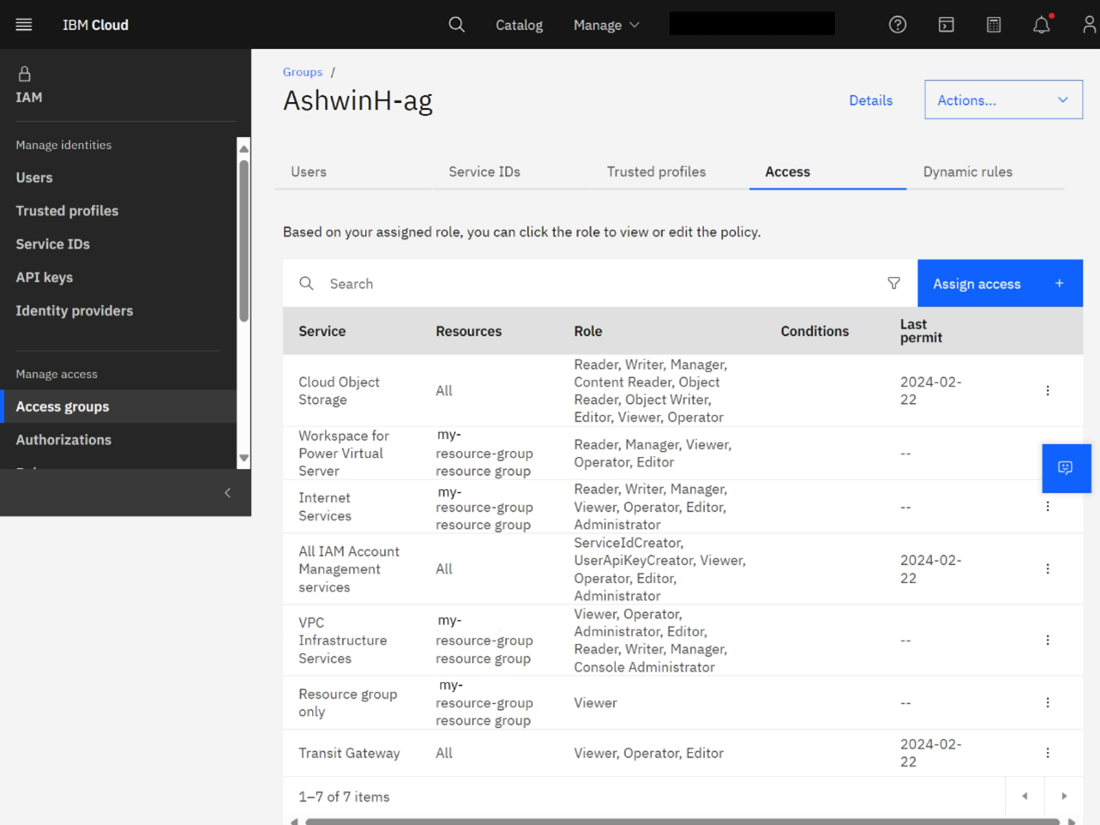
- After configuring the access, go to the Access tab to view the list of services along with the respective Resources, Roles, Conditions (if any) and the Last Permit details.
Summary
You have now set up the required permissions for deploying OpenShift on Power Virtual Server. The next step is to obtain the ccoctl image and generate manifests.