Tutorial
Streaming messages to topics using alias queues
Distribute streamed messages to multiple subscribersUsing streaming queues can help you make the most of your messaging interactions. If you combine streaming queues with topics, you can leverage the publish/subscribe messaging framework. This allows you to distribute interactions carried out over a particular queue to many different systems. Streaming queues allow you to perform a variety of onward processing tasks, such as analytics or fraud detection.
In this tutorial, we will use the IBM MQ Console to stream messages to topics, using an alias queue as our streaming queue.
Prerequisites
- Git
- Java
- Maven
- JSON parser
- The latest version of the IBM MQ allclient
- You will need to set up a queue manager, which you can do by following the instructions for your preferred platform in the Ready, Set, Connect series.
- You will then need to set up the IBM MQ Console by following this tutorial so you can view and modify the queues easily.
Steps
Step 1. Creating a topic to stream messages to
Open the MQ console, and navigate to the Events tab.
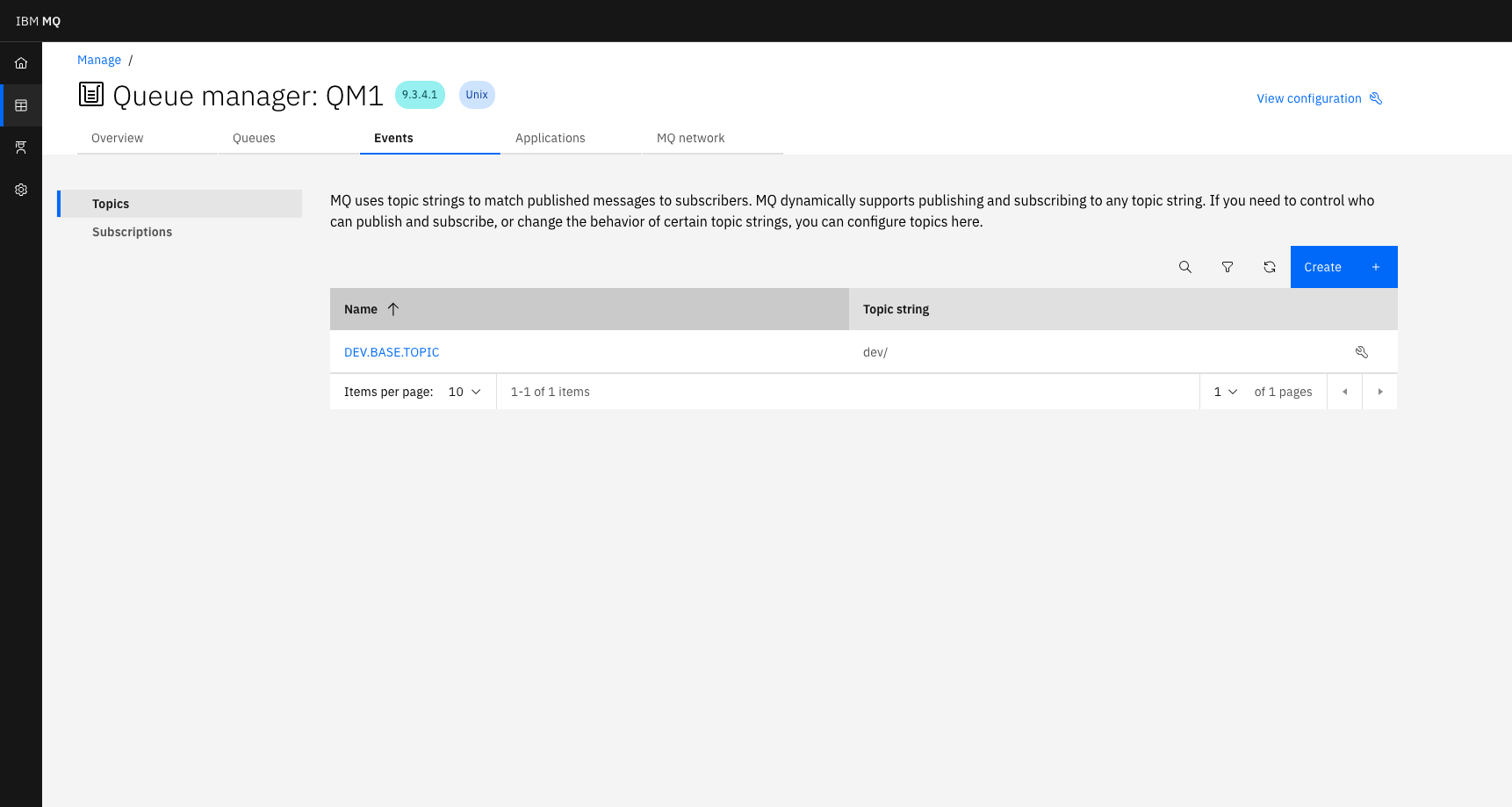
Click the Create button.
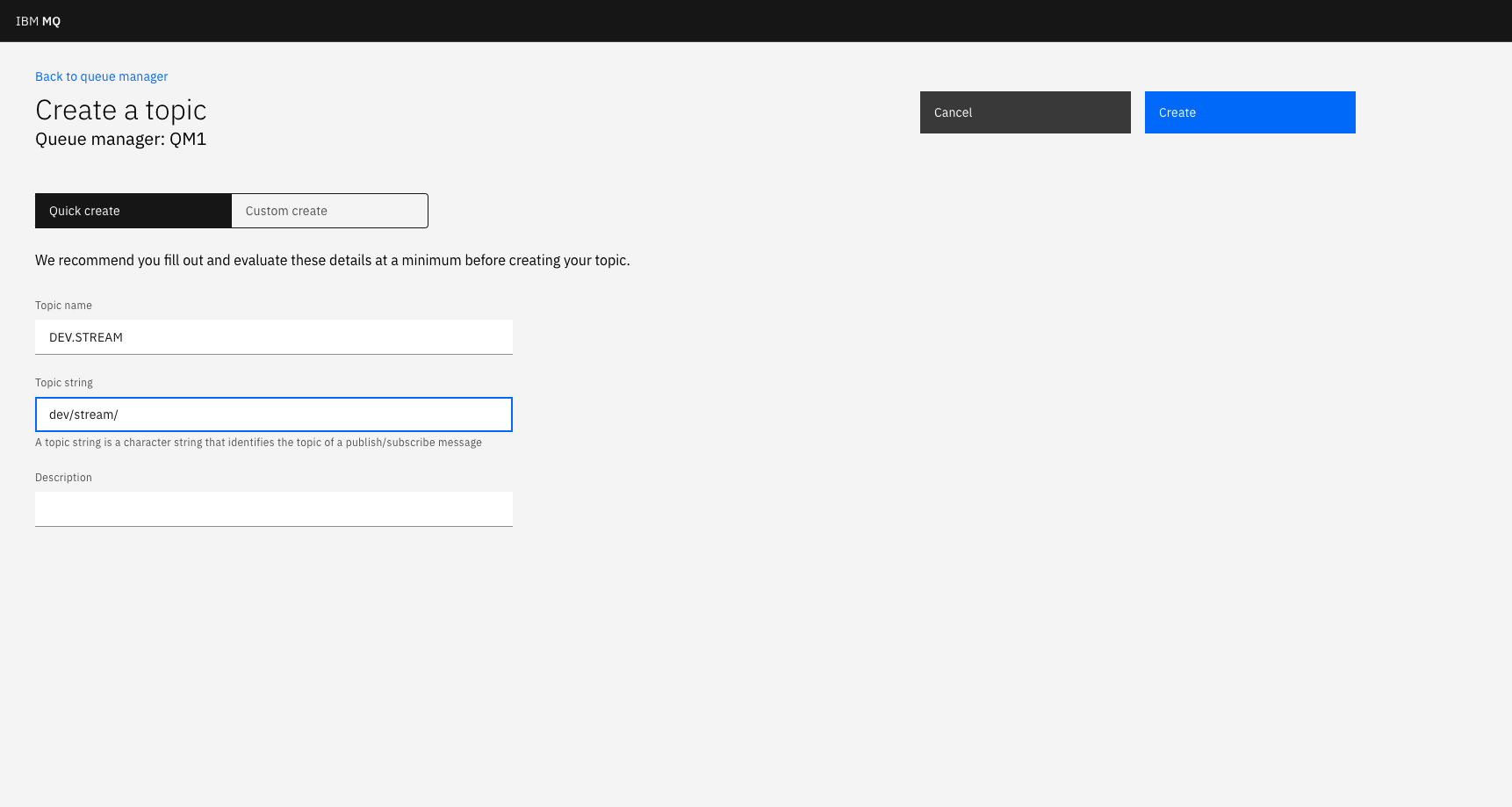
Provide a topic name (for example, DEV.STREAM) and topic string (for example, dev/stream/). For more information on topic string naming, take a look at the IBM MQ topic string documentation.
Step 2. Creating an alias queue to redirect messages to our topic
To create an alias queue, go to the Queues tab in the MQ Console.
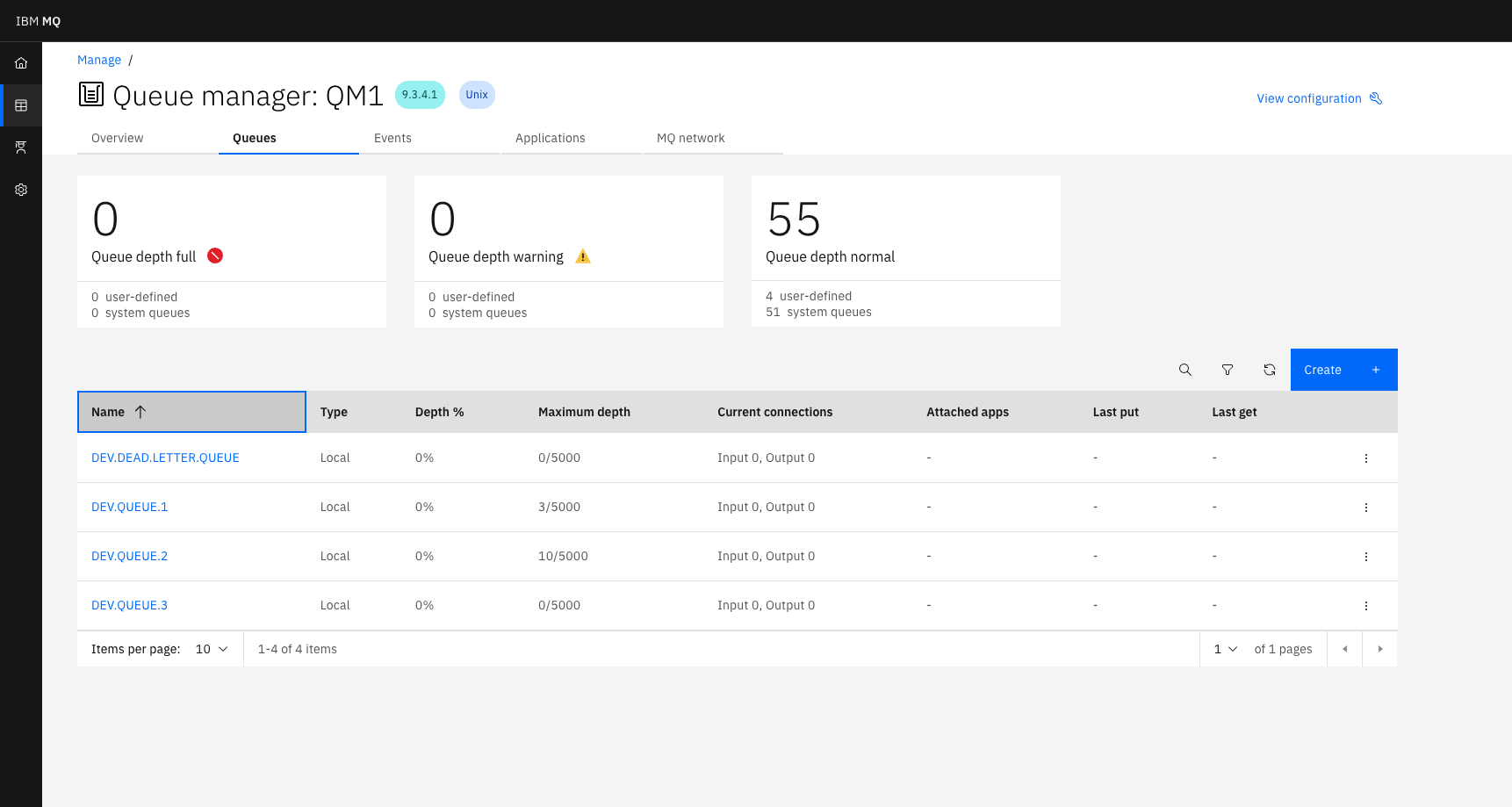
Click the Create button. In the next window, choose Alias as your queue type.
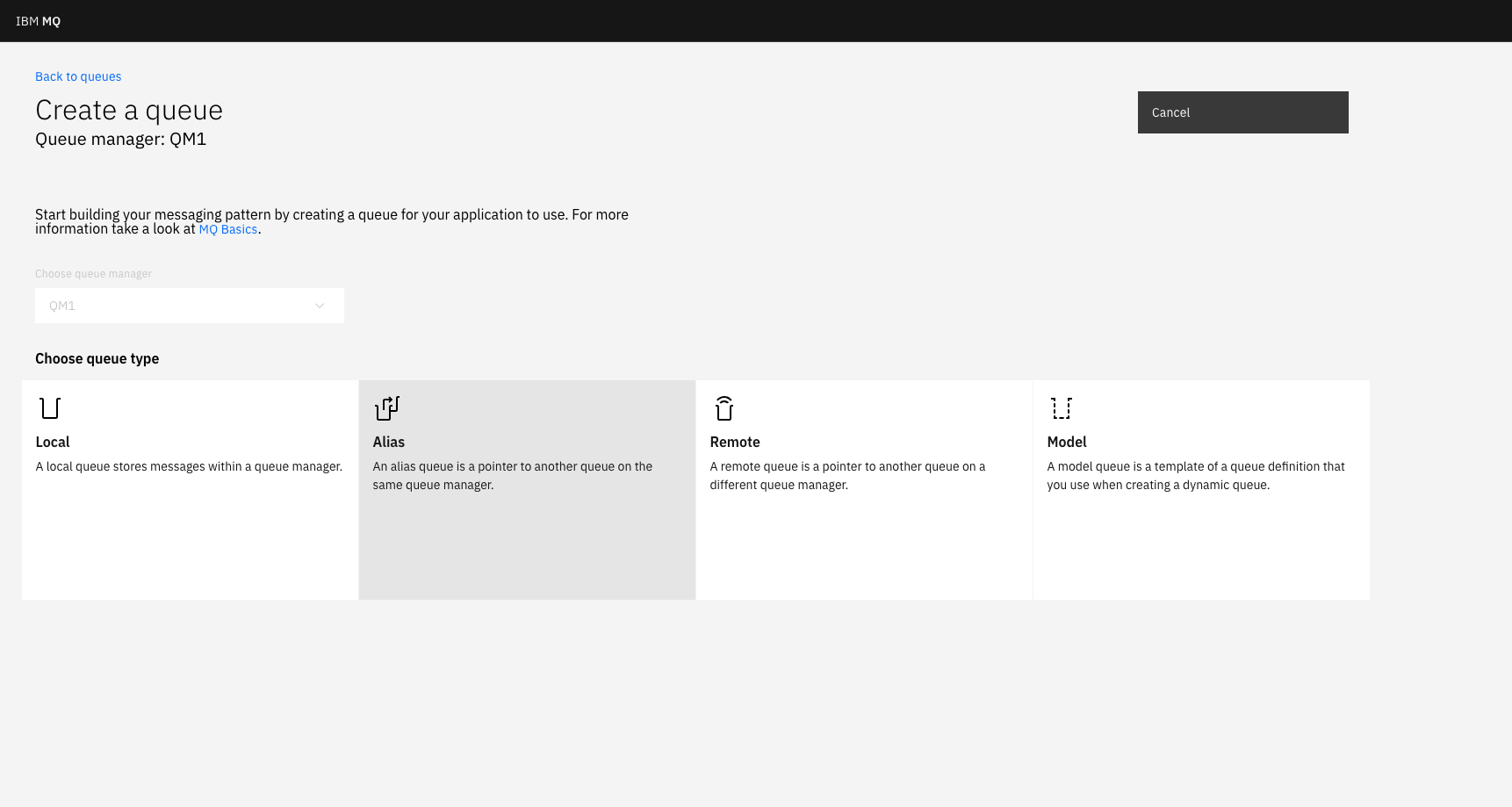
You can name this queue whatever you'd like. We've used the DEV. prefix in this example to comply with the security assumed for the default developer configuration, for example: DEV.QUEUE.A_STREAM.
Then, set the Base object field to the name of the topic created (in this example, DEV.STREAM). Doing this means that the alias queue will resolve to this topic. Below this, in the Base type field, chose “Topic”.
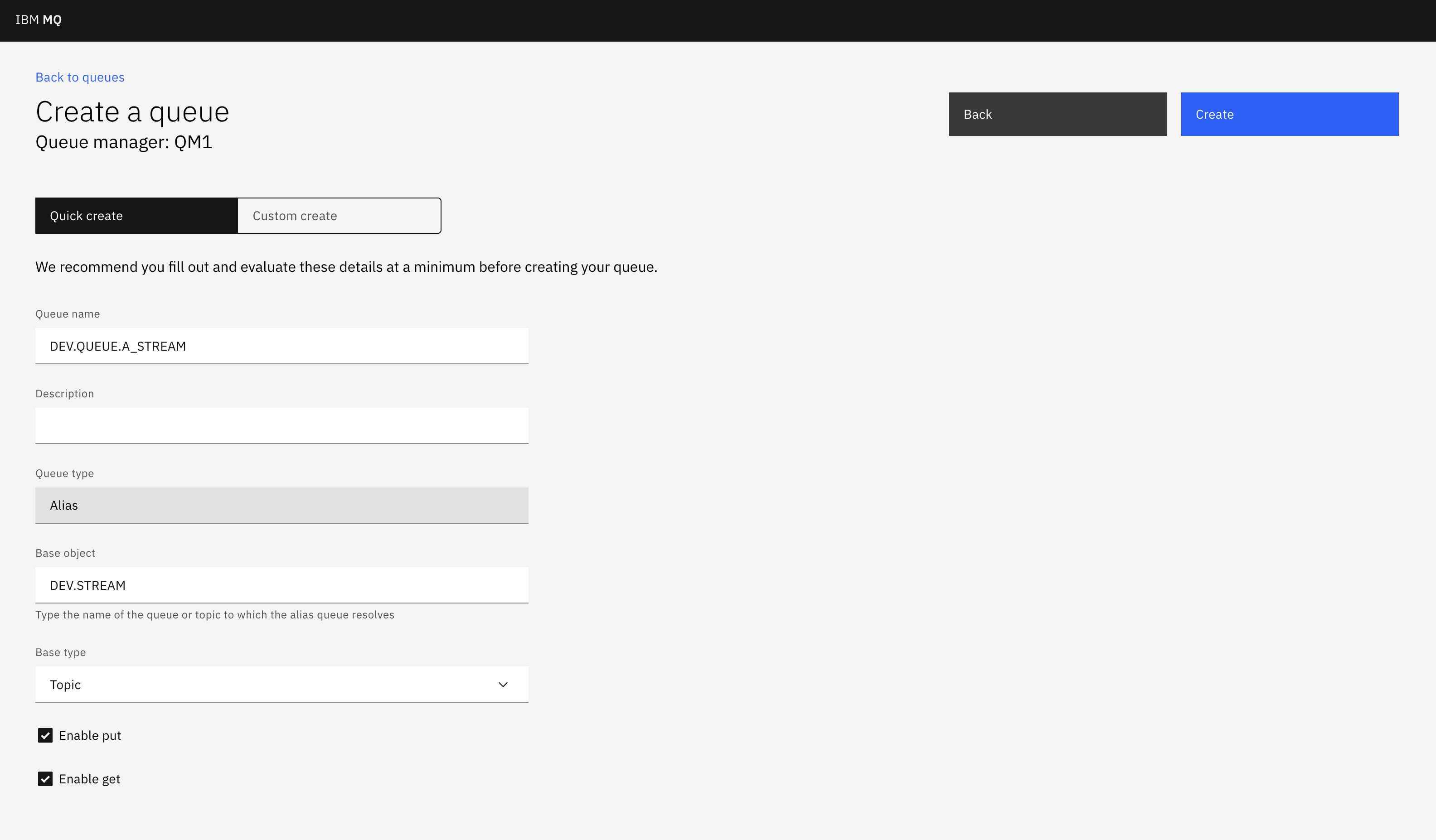
Now, messages for the alias queue DEV.QUEUE.A_STREAM will be published to the DEV.STREAM topic. We now need to configure a queue to stream messages from.
Step 3. Configuring a queue to stream messages from
In the previous tutorial, Setting up a streaming queue in the IBM MQ Console, you configured a queue, DEV.QUEUE.1, to stream messages from. Follow the steps in Step 2 of this tutorial to stream messages from this queue to our alias queue, DEV.QUEUE.A_STREAM.
Ensure that you set the Streaming queue name to your alias queue name (for example,DEV.QUEUE.A_STREAM).
So far, we have:
- Created a topic
- Created an alias queue which resolves to the topic
- Set a queue to stream its messages to the alias queue (and therefore the topic)
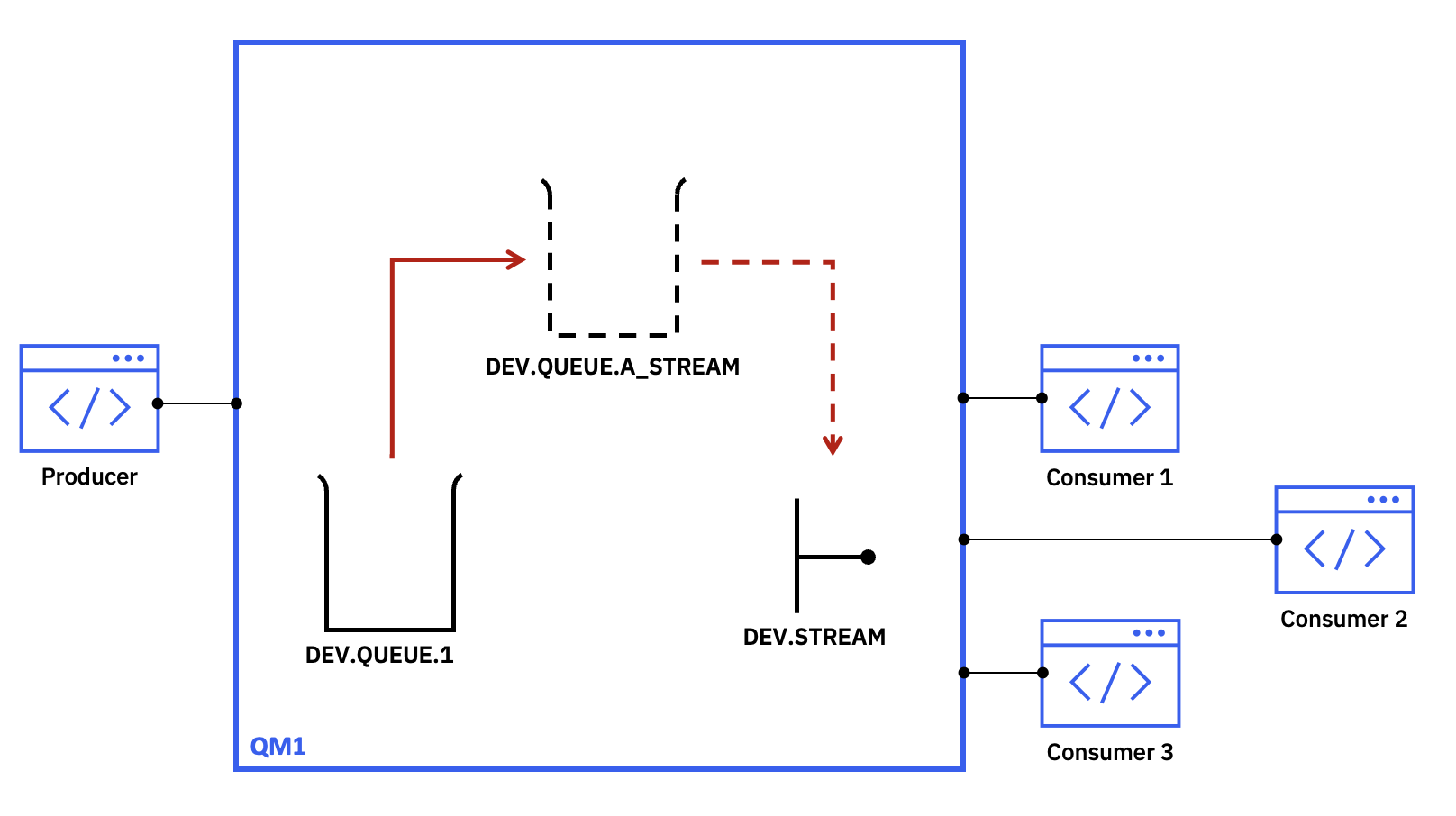
Let's now connect applications and carry out some work, to see the streaming queue in action.
Step 4. Subscribing to the topic
In order to receive the messages that are published to our new topic, we need an application to subscribe to this topic.
In this step, we'll use JmsSub.java as our example application to subscribe to the topic, which is found in the mq-dev-patterns repository.
First, clone the repo using this command:
git clone <https://github.com/ibm-messaging/mq-dev-patterns>
Then, navigate to the JMS directory in this repo, and follow the steps in the README to build the sample applications. If you already have this repo cloned, ensure that your version is up to date.
Navigate to the env.json file in the mq-dev-patterns directory, and modify it to contain the connection information for your queue, for example:
{
  "MQ_ENDPOINTS": [{
    "HOST": "localhost",
    "PORT": "1414",
    "CHANNEL": "DEV.APP.SVRCONN",
    "QMGR": "QM1",
    "APP_USER": "app",
    "APP_PASSWORD": "passw0rd",
    "QUEUE_NAME": "DEV.QUEUE.1",
    "BACKOUT_QUEUE": "DEV.QUEUE.2",
    "MODEL_QUEUE_NAME": "DEV.APP.MODEL.QUEUE",
    "TOPIC_NAME": "dev/stream/"
  }]
}
Ensure the TOPIC_NAME variable is set to the topic string specified when creating the topic (for example, dev/stream/).
Now, run the program. If you used maven to build the JMS samples, run this command:
java -cp target/mq-dev-patterns-0.1.0.jar com.ibm.mq.samples.jms.JmsSub
Otherwise, compile:
javac -cp ./com.ibm.mq.allclient-9.2.5.0.jar:./javax.jms-api-2.0.1.jar:./json-20230227.jar:. com/ibm/mq/samples/jms/JmsSub.java
And then run:
java -cp ./com.ibm.mq.allclient-9.2.5.0.jar:./javax.jms-api-2.0.1.jar:./json-20230227.jar:. com.ibm.mq.samples.jms.JmsSub
You should see this output in your terminal:
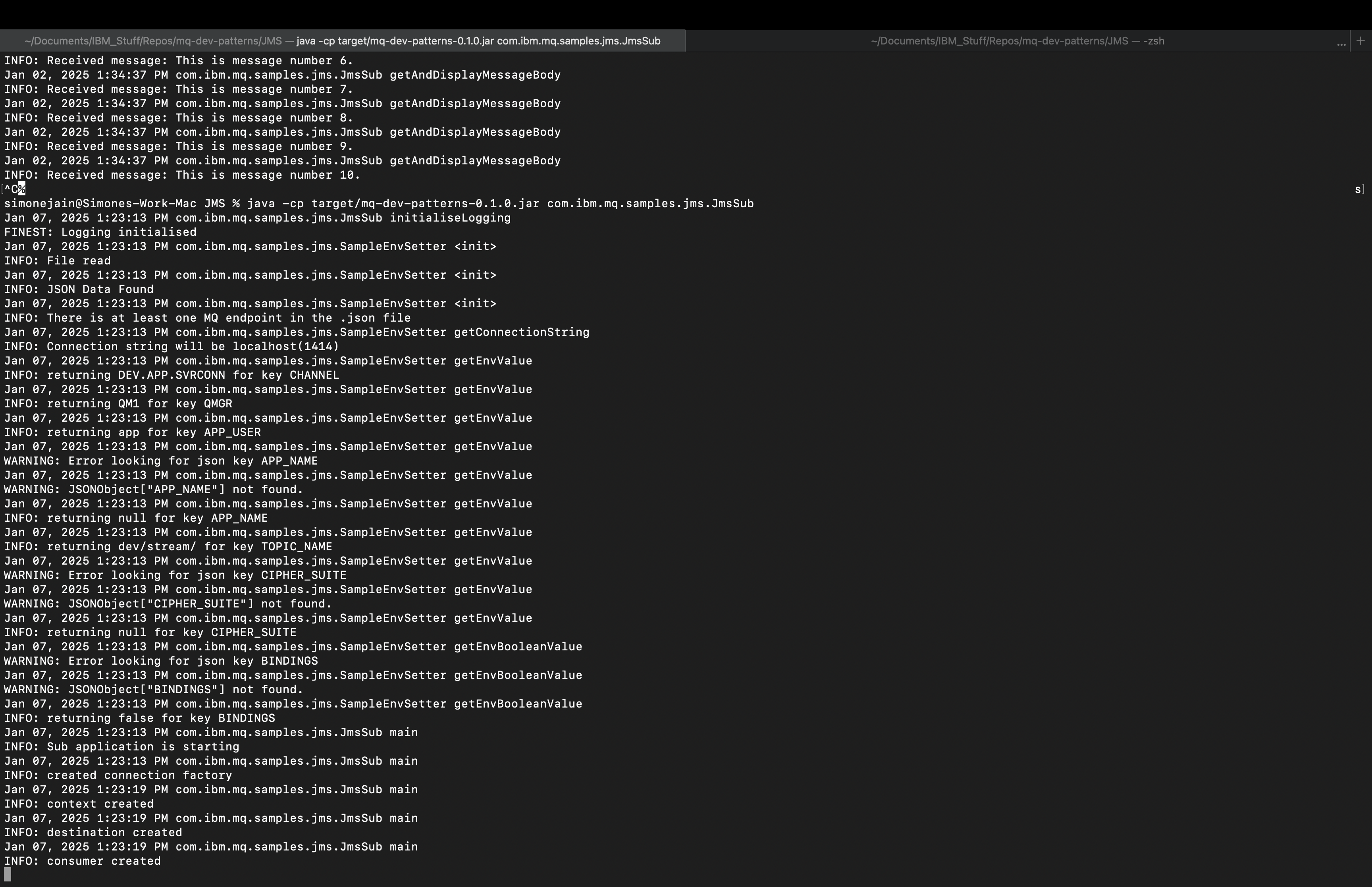
This shows that the subscriber is subscribed to the dev/stream/ topic successfully.
Step 5. Putting messages to the queue
In this step, we'll use JmsPut.java as our example application to put messages onto our queue.
In a separate terminal window to your subscriber, run the program. If you used maven to build the JMS samples, run this command:
java -cp target/mq-dev-patterns-0.1.0.jar: com.ibm.mq.samples.jms.JmsPut
Otherwise, compile:
javac -cp ./com.ibm.mq.allclient-9.2.5.0.jar:./javax.jms-api-2.0.1.jar:./json-20230227.jar:. com/ibm/mq/samples/jms/JmsPut.java
And then run:
java -cp ./com.ibm.mq.allclient-9.2.5.0.jar:./javax.jms-api-2.0.1.jar:./json-20230227.jar:. com.ibm.mq.samples.jms.JmsPut
Using the console we can see that 10 messages have been made available on the queue:
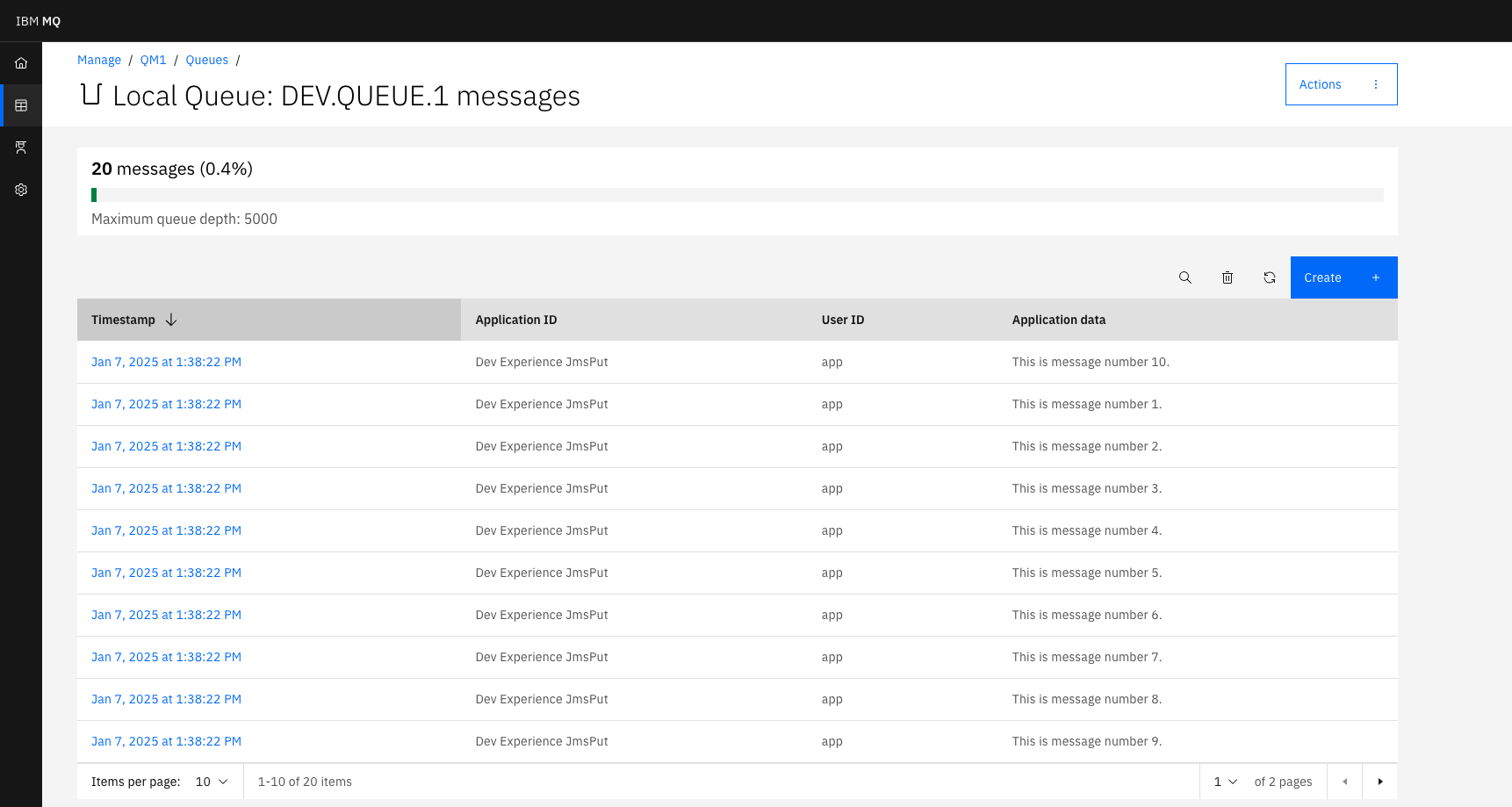
Now, go to the terminal running the subscriber. It should look like this:
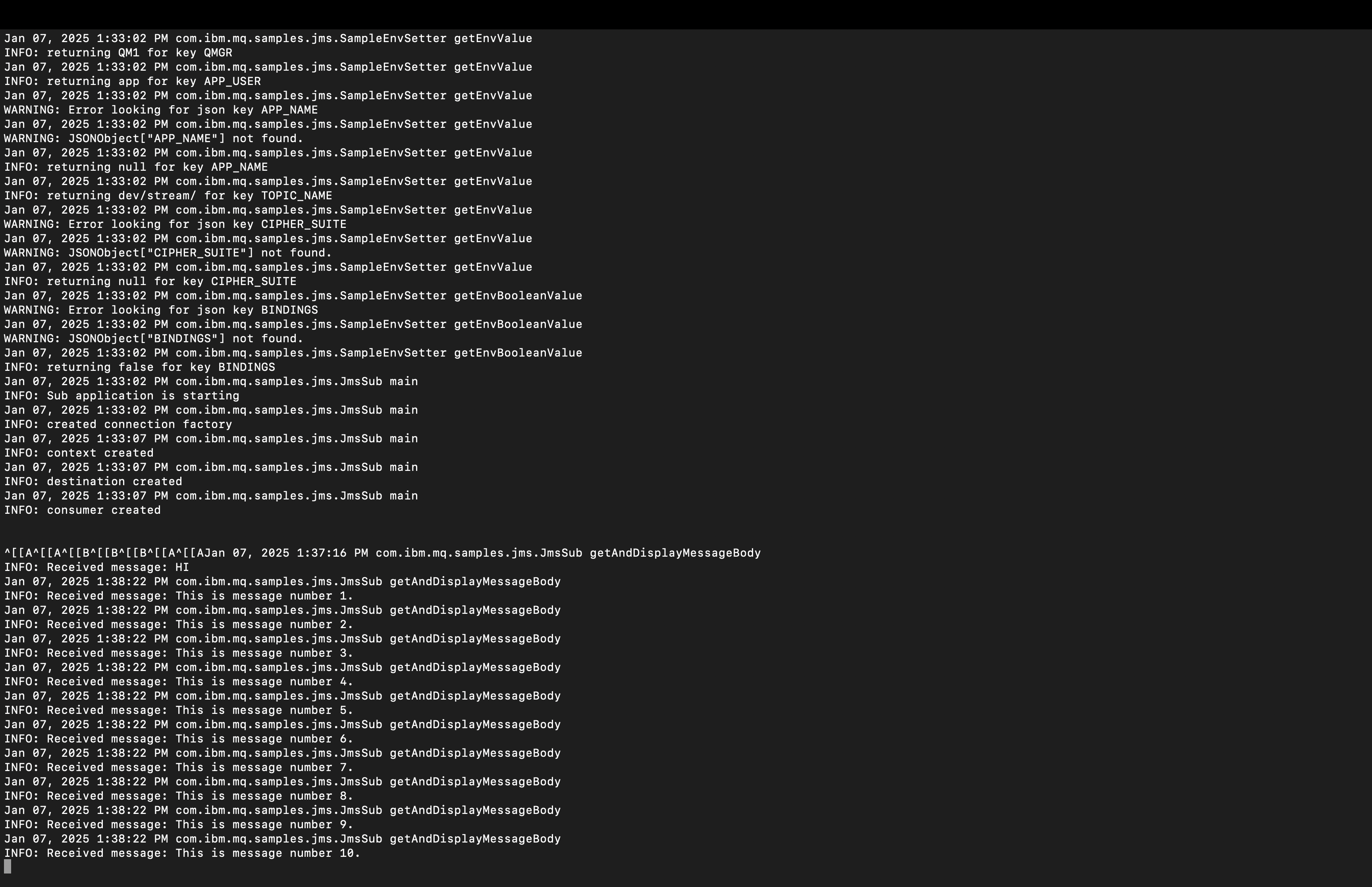
So here, we can see that the messages were put onto DEV.QUEUE.1 as expected, but also streamed to our DEV.STREAM topic, where they were received by our subscribing application.
With the publish/subscribe framework, a history of the messages is not kept within the topic, and the default behaviour is for applications to receive messages from the point they subscribe to the topic. To continue to receive messages even when the subscription isn't actively connected, review the MQ documentation on durable subscriptions.
Summary and next steps
In this tutorial, we looked at how you can use alias queues to stream messages from a queue to a topic, all without making changes to your applications! The application used here is a simplistic example which only outputs received messages to the terminal, but you might choose to connect several applications: one which performs analytics, one which filters and stores the messages to use as test data, or anything else! Crucially, you can do all of this, without interfering with your normal message flows.
Want to know more about IBM MQ advanced development capabilities? Check out the series, “Uniform clustering in IBM MQ.”