Tutorial
Build a context-aware custom knowledge base with watsonx Orchestrate
A hands-on guide to using session context variables, dynamic query filters, and custom search services to deliver secure, scoped RAG retrieval for enterprise AI agentsEnterprise AI agents often need to retrieve data from custom enterprise search services while keeping tenant, project, and customer data separate. Without proper context filters, a shared knowledge base can expose confidential data across projects or customer accounts. Retrieval-augmented generation (RAG) agents can use query-time filters, such as project_id and customer_id, to apply the correct access boundaries for each session without hardcoded values or manual user input.
IBM watsonx Orchestrate supports declarative knowledge base specifications based on the conversational_search_tool standard and the watsonx Agent Development Kit (ADK). Developers can define a custom input_schema, use session context_variables, and configure custom_search to add dynamic filters to search queries. A structured field_mapping maps search results to citation fields.
In this tutorial, you will build a context-aware custom knowledge base in watsonx Orchestrate. You will define an input_schema with runtime parameters, configure dynamic filters in custom_search, set up field mappings, connect a custom search service, and integrate the knowledge base with an agent. The agent will use context variables to apply session-specific retrieval filters.
Architecture of context-aware custom knowledge base retrieval
The following diagram shows how a user query moves through watsonx Orchestrate. Session context variables are passed to the custom knowledge base, applied as filters by the search backend, and used to return relevant results with mapped citations.
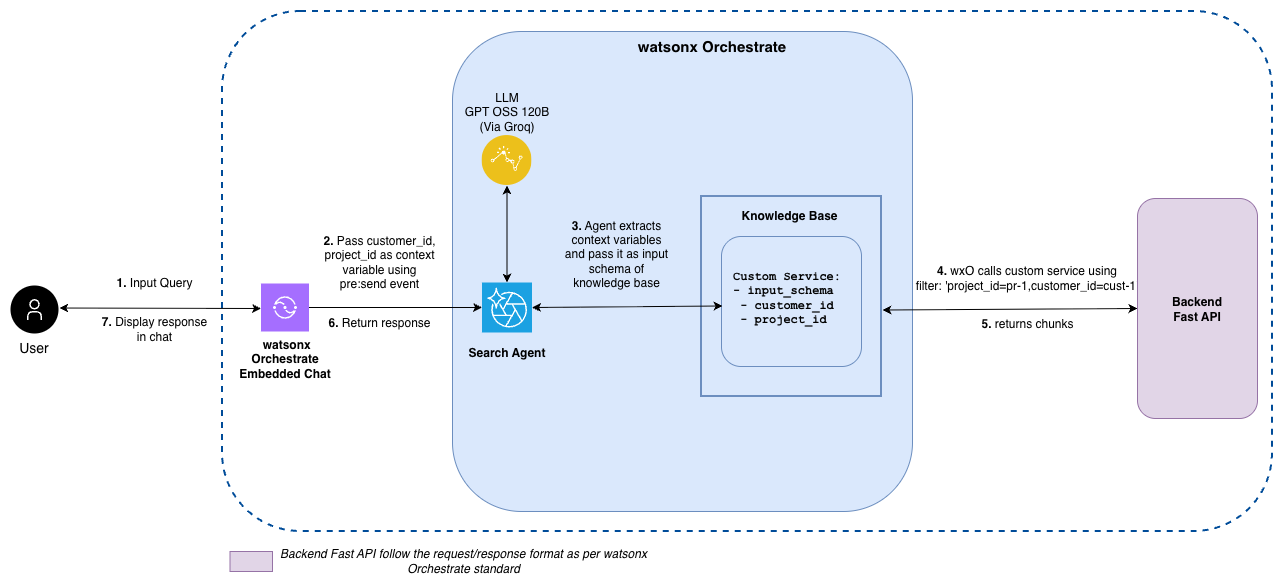
The architecture includes the following components:
- Webchat client or user session: Sends the user query and session context variables, such as
project_idandcustomer_id. These variables define the scope of the search request. - watsonx Orchestrate agent: Uses
context_access_enabled: trueto pass session context variables to the knowledge base tool inputs. - Custom knowledge base (
conversational_search_tool): Defines theinput_schema, creates search queries with dynamic filters incustom_search.filter, and maps search results to citations withfield_mapping. - Knowledge connection: Stores the endpoint credentials and authentication information for the custom search service.
- Custom search service backend: Applies the query filters and returns matching document passages.
When a user asks a question in webchat, the user session provides the active context variables. The agent passes the context variables to the knowledge base tool through the input schema. The knowledge base adds the dynamic filter project_id={project_id},customer_id={customer_id} to the authenticated search request and sends the request to the search backend. The search backend returns filtered passages. The knowledge base maps the passages to citations, and the agent uses the results to generate a grounded response for the user session.
Prerequisites
Before you begin, make sure that you have:
- An active watsonx Orchestrate instance.
- A local watsonx Agent Development Kit (ADK) environment for configuring tools and agents with the command-line interface (CLI). If you do not have an active ADK instance, review the getting started with ADK tutorial. This tutorial was tested and validated with ADK version 2.14.0.
- An application programming interface (API) key for authenticating with the watsonx Orchestrate instance.
- A custom search service endpoint that supports the watsonx Orchestrate request and response format. The custom search service must accept query-time parameters such as
project_idandcustomer_idand return structured search results. For instructions, see Connecting to a custom content service.
Step 1. Clone the tutorial repository
In this step, you will clone the tutorial repository and go to the project directory.
Clone the repository.
git clone https://github.com/IBM/oic-i-agentic-ai-tutorialsGo to the tutorial directory.
cd wxo-context-variables-in-knowledge-baseReview the
wxo-artifacts/directory. The directory contains the connection, knowledge base, and agent configuration files.wxo-artifacts/ ├── connections/ │ └── knowledge_connection.yaml # Connection to the search backend ├── knowledge-base/ │ └── custom-kb.yaml # Knowledge base specification └── agent/ └── knowledge_agent.yaml # Agent with context variables enabled
Step 2. Review the knowledge base configuration
Before you import the knowledge base, review the configuration that enables context-aware retrieval. The knowledge base uses runtime parameters to filter search results and maps the search response fields to citation metadata.
Open wxo-artifacts/knowledge-base/custom-kb.yaml and review the following sections.
The
input_schemasection defines the parameters that watsonx Orchestrate passes to the knowledge base when the agent calls the knowledge base as a tool. The parameters are defined underconversational_search_tool.input_schema.conversational_search_tool: query_source: Agent input_schema: type: object properties: project_id: type: string description: 'Project identifier of the authenticated caller.' default: "" customer_id: type: string description: 'Customer identifier of the authenticated caller.' default: ""The
input_schemadefines two parameters:project_id: Limits knowledge base retrieval to the active project.customer_id: Limits knowledge base retrieval to the active customer account.
Each parameter has a
defaultvalue. The default value allows the knowledge base to work when the corresponding context variable is not available in the session.The
index_configsection defines how watsonx Orchestrate sends requests to the search backend. Thecustom_search.filterfield uses the values that are defined ininput_schemato filter search results.index_config: - custom_search: filter: 'project_id={project_id},customer_id={customer_id}' metadata: top_n: "10"At runtime, watsonx Orchestrate replaces
{project_id}and{customer_id}with the values from the user session. For example, if the context variables containproject_id=proj-42andcustomer_id=cust-99, the filter becomes:project_id=proj-42,customer_id=cust-99The search backend can use these values to return content for the specified project and customer account. This configuration allows the user context to control knowledge base retrieval without adding filtering logic to the agent.
The
field_mappingsection defines how watsonx Orchestrate maps fields from the search backend response to knowledge base content and citation metadata.field_mapping: title: title body: body url: url custom_fields: source: metadata.source score: metadata.scoreThe configuration maps the following fields:
title: Provides the document title for citations.body: Provides the text that the agent uses to generate a response.url: Provides the link for the citation.source: Provides the source system frommetadata.source.score: Provides the relevance score frommetadata.score.
The
custom_fieldssection maps additional fields from the search backend response that do not have built-in citation fields.
Step 3. Configure the connection to the custom search service
watsonx Orchestrate requires a connection to authenticate requests from the custom knowledge base to the search service. For custom knowledge base services, watsonx Orchestrate supports username and password authentication (HTTP Basic) and API key authentication. For more information, see Connection support for knowledge.
Open wxo-artifacts/connections/knowledge_connection.yaml and review the connection configuration.
 app_id: custom_kb_connection
 spec_version: v1
 kind: connection
 environments:
   draft:
     server_url: https://host/api/knowledge-base
     kind: basic
     type: team
     app_config:
       header:
         content-type: application/x-www-form-urlencoded
 resource:
   component: knowledge
   category: custom_service
Review the following fields:
server_url: Specifies the URL of the custom search service.resource.component: knowledgeandresource.category: custom_service: Identify the connection as a custom knowledge base service. Both values must be set correctly for the connection to appear in the Knowledge base connections.
Update the following values in knowledge_connection.yaml for your environment.
app_id: Specify a unique name for the connection.environments.draft.server_url: Replace the placeholder value with the URL of your custom search service.
Import the connection. From the root directory of the cloned repository, run the following command:
orchestrate connections import --file wxo-artifacts/connections/knowledge_connection.yamlSet the username and password for the connection.
 orchestrate connections set-credentials \
   --app-id custom_kb_connection \
   --environment draft \
   --kind basic \
   --username <your-username> \
   --password <your-password>
If you changed
app_idinknowledge_connection.yaml, replacecustom_kb_connectionwith the newapp_idvalue.
Step 4. Import and verify the knowledge base
In this step, you import the custom knowledge base into watsonx Orchestrate and connect the knowledge base to the search service connection. You then verify that the knowledge base has a ready status before you add the knowledge base to an agent.
Import the knowledge base. Run the following ADK CLI command.
 orchestrate knowledge-bases import --file wxo-artifacts/knowledge-base/custom-kb.yaml \
   --app-id custom_kb_connection
The
--app-idoption links the knowledge base to the connection that you created in Step 3. watsonx Orchestrate uses the connection to authenticate search requests from the knowledge base.Run the following command to check the knowledge base status.
orchestrate knowledge-bases status --name project_knowledge_baseMake sure that the knowledge base has a
readystatus before you continue to the next step.
Step 5. Configure session context variables
In this step, you configure the webchat client to pass project_id and customer_id to the agent with each user message. The agent uses these context variables to apply the correct filters to knowledge base queries for each user session.
Context variables can be sent to a watsonx Orchestrate agent session through the REST API, the webchat pre:send event, or JSON Web Token (JWT). Choose the method that fits your deployment. For more information, see the Sending context to conversations documentation.
The pre:send event adds project_id and customer_id to the message context before the webchat sends the message to the agent. You can use another supported method to pass the context variables without changing the knowledge base configuration.
- Open sample-fast-api/embeded_agent.html.
- Find the
pre:sendhandler inchatOptions.onLoad. The handler addsproject_idandcustomer_idto the context of each outgoing message. - Update the
project_idandcustomer_idvalues with the values that you want to use for testing.
Step 6. Configure and import the agent
In this step, you review the agent configuration and import the agent into watsonx Orchestrate. The agent configuration enables access to session context variables and connects the agent to the custom knowledge base.
Open wxo-artifacts/agent/knowledge_agent.yaml and review the configuration:
 kind: native
 name: knowledge_agent
 display_name: knowledge_agent
 description: This agent retrieves project and customer-scoped information from the knowledge base.
 context_access_enabled: true
 context_variables:
   - project_id
   - customer_id
 restrictions: editable
 supported_apps: []
 llm: groq/openai/gpt-oss-120b
 style: default
 hide_reasoning: false
 instructions: |-
   You are responsible for answering questions about projects and customers.

   The active project ID is {project_id} and the active customer ID is {customer_id}.

   When asked a question, use the knowledge base to retrieve relevant information scoped to the current project and customer.
 guidelines: []
 collaborators: []
 knowledge_bases:
   - project_knowledge_base
 welcome_content:
   welcome_message: Hello, welcome to watsonx Orchestrate
   description: Accuracy of generated answers may vary. Please double-check responses.
   is_default_message: false
 spec_version: v1
Review the following fields:
context_access_enabled: true: Allows the agent to access context variables from the current session. This setting must betrueto populate knowledge base parameters from context variables.context_variables: Defines the context variables that the agent can access. Theproject_idandcustomer_idnames must match the property names in the knowledge baseinput_schema.knowledge_bases: Specifies the knowledge base that the agent uses. Theproject_knowledge_basevalue must match thenamevalue in custom-kb.yaml.instructions: Uses the{project_id}and{customer_id}context variables in the agent instructions.
Run the following command to import the agent:
orchestrate agents import --file wxo-artifacts/agent/knowledge_agent.yaml
Step 7. Test context-aware knowledge base access
In this step, you test the agent in watsonx Orchestrate to verify that the context variables control access to the correct knowledge base content.
Open the agent in watsonx Orchestrate.
- Log in to your watsonx Orchestrate instance.
- From the navigation menu, select Agents.
- Select knowledge_agent from the list of agents.
- Open the chat interface.
Test unauthorized project access.
- Run
sample-fast-api/embeded_agent.htmlwith aproject_idthat does not belong to the specifiedcustomer_id. Ask a question about project-specific information. For example:
What are the project deliverables for Acme Corp?Review the agent response. The search backend should return no matching records when the
project_idandcustomer_idcombination does not have access to the requested information. The agent should indicate that no relevant information is available.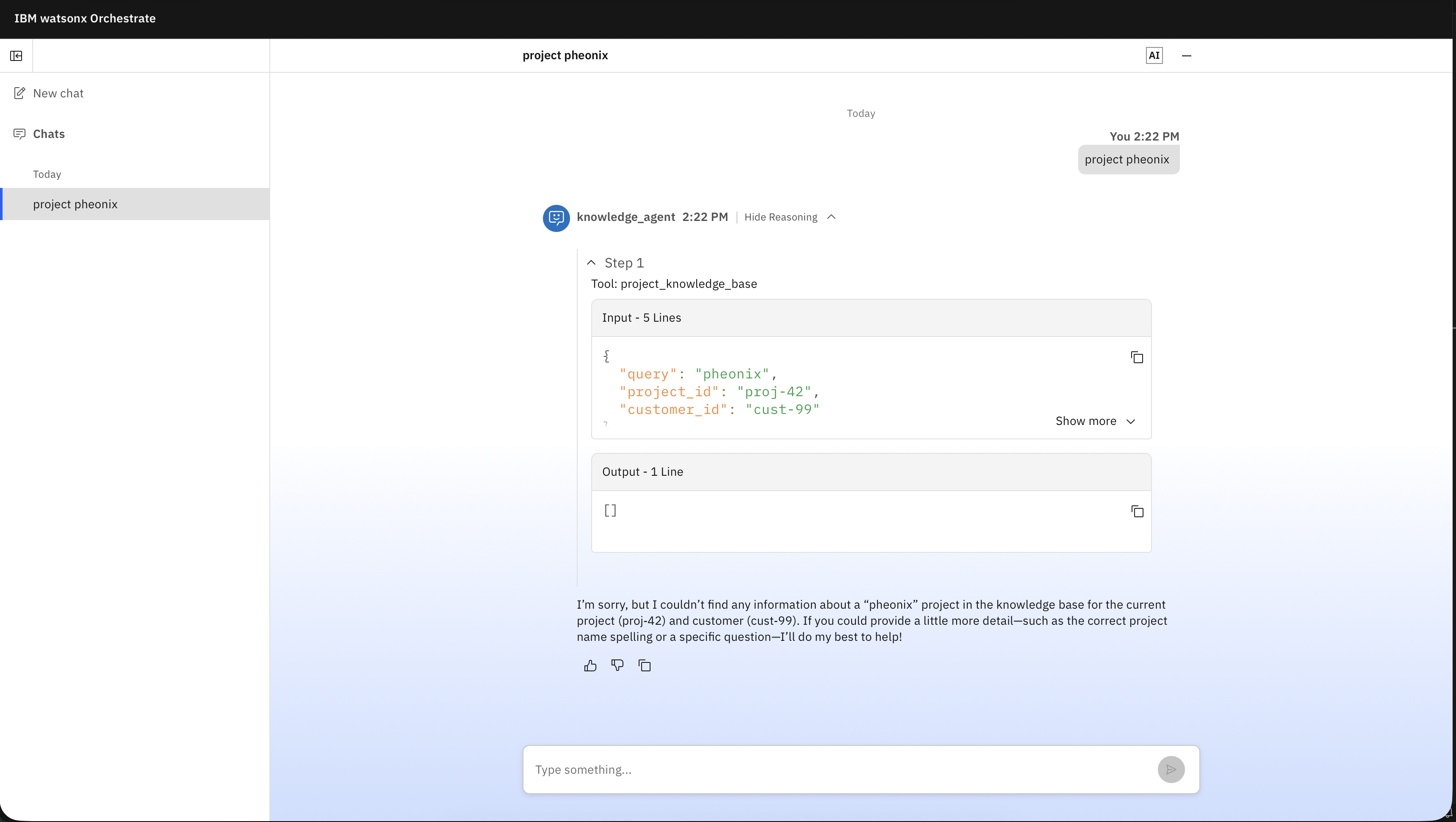
- Run
Test authorized project access.
Update the context variables in the webchat client with an authorized
project_idandcustomer_id. For example:project_id=proj-42 customer_id=cust-99Ask the same question in the chat interface.
Review the response. The knowledge base sends the context variables as filters to the search backend. The search backend returns the matching content, and the agent generates a response with citations.
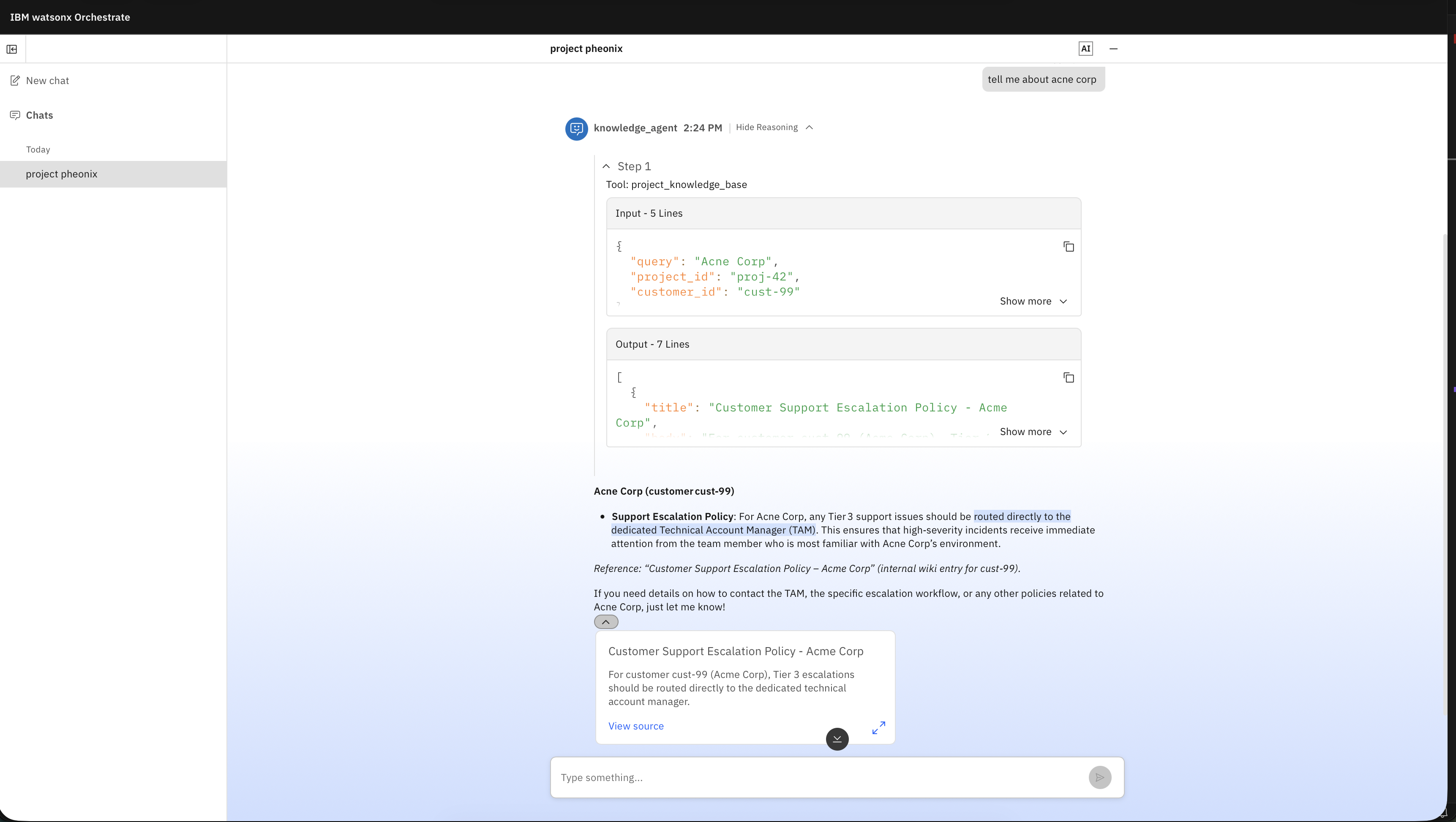
Verify the search request.
When the agent calls the knowledge base, watsonx Orchestrate uses the context variables to construct the request to the custom search service. For example:
   {
     "query": "acme corp",
     "filter": "project_id=proj-42,customer_id=cust-99"
   }
The
filterfield contains theproject_idandcustomer_idvalues from the user session. The custom search service uses these values to filter the search results.
Summary
In this tutorial, you configured and tested a context-aware custom knowledge base for an AI agent in watsonx Orchestrate. You defined a custom input schema, passed session context variables to the agent, added dynamic filters to search requests, and mapped search results to citations. These configurations help restrict knowledge base retrieval based on the context of each user session.
To learn more about using context variables with watsonx Orchestrate agents, see the tutorial Accessing context variables in watsonx Orchestrate tools to fetch user-specific details.
Acknowledgments
The authors (Jatindra Suthar and Nidhi Jain) deeply appreciate the support of Ela Dixit and Bindu Umesh for the guidance and expertise on reviewing and contributing to this tutorial.
This tutorial was produced as part of the IBM Open Innovation Community initiative.