Tutorial
Integrate Adyen with IBM Sterling Order Management, Part 2
Practical implementation aspectsArchive date: 2024-09-21
This content is no longer being updated or maintained. The content is provided “as is.” Given the rapid evolution of technology, some content, steps, or illustrations may have changed.Introduction
This tutorial is the second of a three-part series on integrating Adyen with IBM Sterling Order Management. The series provides information about:
- The IBM Sterling Order Management payment adapter and its layers, as well as mapping Sterling Order Management with an adapter such as Adyen
- Packaging and invoking the Sterling Order Management payment adapter from user exits, including one complete flow from checkout to charge
- General errors while integrating with payment service providers (PSPs) and some standard practices
In Part 1, we went through the high-level view of the payment adapter, different integration components, mappers, etc. Here in Part 2, we will see the practical aspects of how to implement each component.
IBM Sterling Order Management to Adyen integration
We will be using the payment adapter. For more information on how to set up the payment adapter, refer to the README.
NOTE: Before you start, you need to package the payment adapter as a JAR file and have it ready.
IBM Sterling Order Management will be executing payment transaction calls via YFSCollectionCreditCardUE. In this section, we will implement this UE.
Step 1. Create a Java project in an IDE. I used IntelliJ IDEA.
Step 2. To use the adapter, the input and output of this UE have to be mapped to the adapter's input and output model, so you need to write mappers. I used the MapStruct library, which simplifies the mappings between JavaBeans:
import com.ibm.adapter.payment.model.PaymentCollectionInput;
import com.ibm.adapter.payment.model.PaymentCollectionOutput;
import com.yantra.yfs.japi.YFSExtnPaymentCollectionInputStruct;
import com.yantra.yfs.japi.YFSExtnPaymentCollectionOutputStruct;
import org.mapstruct.Mapper;
import org.mapstruct.Mapping;
import org.mapstruct.factory.Mappers;

@Mapper
public interface PaymentMapper {
    PaymentMapper MAPPER = Mappers.getMapper(PaymentMapper.class);

    @Mapping(source = "authorizationId", target = "authorizationId")
    @Mapping(constant = "IBMAccount480ECOM", target = "merchantId")
    @Mapping(source = "authorizationId", target = "paymentReference")
    @Mapping(source = "paymentReference6", target = "paymentReference2")
    @Mapping(source = "paymentReference7", target = "paymentReference3")
    @Mapping(source = "orderNo", target = "orderNo")
    @Mapping(ignore = true, target = "paymentKey")
    @Mapping(source = "chargeType", target = "transactionType")
    @Mapping(source = "requestAmount", target = "requestAmount")
    @Mapping(source = "currentAuthorizationAmount", target = "authorizedAmount")
    PaymentCollectionInput omsToPayment(YFSExtnPaymentCollectionInputStruct yfsExtnPaymentCollectionInputStruct);


    @Mapping(source = "paymentReference", target = "PaymentReference5")
    @Mapping(constant = "true", target = "asynchRequestProcess")
    @Mapping(source = "asyncReqId", target = "asyncRequestIdentifier")
    YFSExtnPaymentCollectionOutputStruct PaymentToOms(PaymentCollectionOutput paymentCollectionOutput);
Step 3. Invoke the adapter implementation class from the YFSCollectionCreditCardUE custom class:
public class CollectionCreditCardImpl implements YFSCollectionCreditCardUE {

    public YFSExtnPaymentCollectionOutputStruct collectionCreditCard(YFSEnvironment yfsEnvironment,
                                                                     YFSExtnPaymentCollectionInputStruct yfsExtnPaymentCollectionInputStruct)
            throws YFSUserExitException {

        //Initiate the adapter
        IPaymentProcessingAdapter adyenAdapter = EnterprisePaymentAdapter.getAdapter(PaymentServiceProvider.ADYEN.name());
        YFSExtnPaymentCollectionOutputStruct yfsExtnPaymentCollectionOutputStruct = null;
        PaymentCollectionOutput paymentCollectionOutput = null;
        //Pass context details if required.e.g:If any data from YFSEnvironment needs to be passed on to adapter, this object can be leveraged.
        RequestContext requestContext = new RequestContext();
        requestContext.setProperties(new HashMap<>());

        //Get current open authorization amount on the order
        yfsExtnPaymentCollectionInputStruct.currentAuthorizationAmount = PaymentUtils
                .getOpenAuthorizedAmount(yfsEnvironment,
                        yfsExtnPaymentCollectionInputStruct.authorizationId,
                        yfsExtnPaymentCollectionInputStruct.orderHeaderKey);

        //Call execute method on the adapter
        yfsExtnPaymentCollectionOutputStruct = (YFSExtnPaymentCollectionOutputStruct) adyenAdapter.execute(requestContext, yfsExtnPaymentCollectionInputStruct);
        return yfsExtnPaymentCollectionOutputStruct;
    }
Step 4. Package this project as a JAR file:
Cd <classes folder>
jar cf payment-custom.jar *
Step 5. Install this JAR as a third-party installation on IBM Sterling Order Management.
Step 6. In the applications manager, configure com.yantra.yfs.japi.ue.YFSCollectionCreditCardUE to invoke this implementation class.
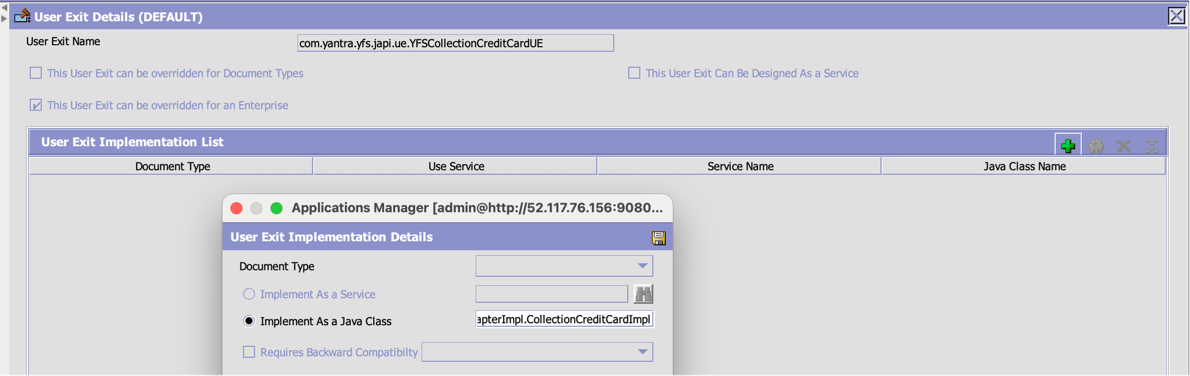
Adyen to IBM Sterling Order Management integration
The notification webhooks from Adyen inform the payment status updates to the merchant. These notifications are crucial for successful integration with Adyen. Payment status change events such as authorization adjustments, charges, refunds, and other critical events are notified via webhooks. Webhook setup is outside the scope of this tutorial, but it's simple and documented by Adyen in Notification webhooks. What we are more concerned about is how to process these updates once within IBM Sterling Order Management.
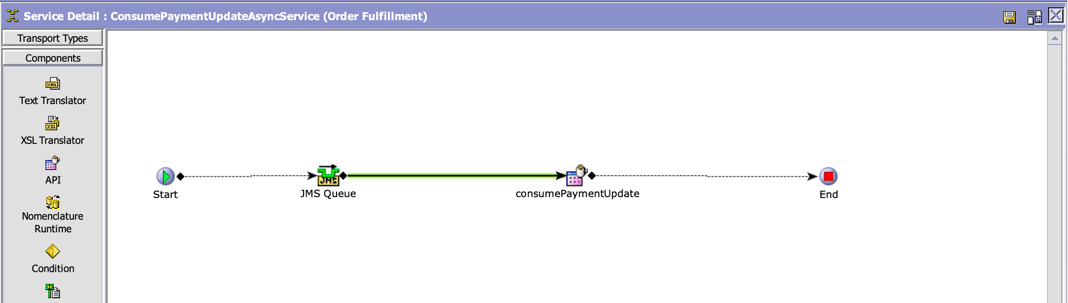
The standard way to process these updates is via an MQ-based integration. Configure an API component that has custom code to update charge transactions. The logic is pretty straightforward, and sample code to consume these updates is shown below:
If success=true -->convert input to recordExternalCharges input-->call recordExternalCharges api
If success=false-->raise exception
public void process(YFSEnvironment env, Document inDoc){
        logger.info("Enter ProcessPaymentNotifications.process >> "+objectMapper.writeValueAsString(inDoc));
        Element ConsumePaymentUpdate=inDoc.getDocumentElement();
        String status=ConsumePaymentUpdate.getAttribute("success");
        String orderHeaderKey=PaymentUtils.getOrderHeaderKey(env,inDoc);
        if(status.contentEquals("true")){
            //Process success notification
           String eventCode= ConsumePaymentUpdate.getAttribute("eventCode");
           switch (eventCode){
               case "CANCELLATION":{
                   logger.debug("Process CANCELLATION event");
                   PaymentUtils.processCancellation(env,inDoc,orderHeaderKey);
                   break;
               }
               case "AUTHORISATION_ADJUSTMENT":{
                   logger.debug("Process AUTHORISATION_ADJUSTMENT event");
                   PaymentUtils.processAmendAuth(env,inDoc,orderHeaderKey);
                   break;
               }
               case "CAPTURE":{
                   logger.debug("Process CAPTURE event");
                   PaymentUtils.processCapture(env,inDoc,orderHeaderKey);
                   break;
               }
               case "REFUND":{
                   logger.debug("Process REFUND event");
                   PaymentUtils.processRefund(env,inDoc,orderHeaderKey);
                   break;
               }
               case "AUTHORISATION":{
                   logger.debug("Process AUTHORISATION event");
                   PaymentUtils.processAmendAuth(env,inDoc,orderHeaderKey);
                   break;
               }
           }
        }
        else{
            PaymentUtils.createException(env,inDoc);
        }
    }
Putting it all together
Now that we have the necessary integrations in place, let's execute a simple example flow:
Step 1. Create an order with two lines for $400, fulfill the entire order, and collect payment. For the sake of simplicity lets create a payment link for $400. The request:
curl --location --request POST 'https://checkout-test.adyen.com/v68/paymentLinks' \
--header 'X-API-KEY: <REPLAC_WITH_YOUR_API_KEY>' \
--header 'Content-Type: application/json' \
--data-raw '{
  "reference": "For test payment",
  "amount": {
    "value": 40000,
    "currency": "USD"
  },
  "description": "Item1",
  "countryCode": "US",
  "merchantAccount": "IBMAccount480ECOM",
  "shopperReference": "customer12345",
  "storePaymentMethodMode": "enabled",
  "recurringProcessingModel": "CardOnFile"
}
‘
The response:
{
  "amount": {
    "currency": "USD",
    "value": 40000
  },
  "countryCode": "US",
  "description": "Item1",
  "expiresAt": "2022-06-22T10:01:16Z",
  "merchantAccount": "IBMAccount480ECOM",
  "recurringProcessingModel": "CardOnFile",
  "reference": "For test payment",
  "reusable": false,
  "shopperReference": "customer12345",
  "storePaymentMethodMode": "enabled",
  "id": "PL1CD869247B1A7DED",
  "status": "active",
  "url": "https://test.adyen.link/PL1CD869247B1A7DED"
}
Step 2. Open the link from the url attribute from the Safari browser and pay via Apple Pay.

Confirm the payment using Face ID or Touch ID.
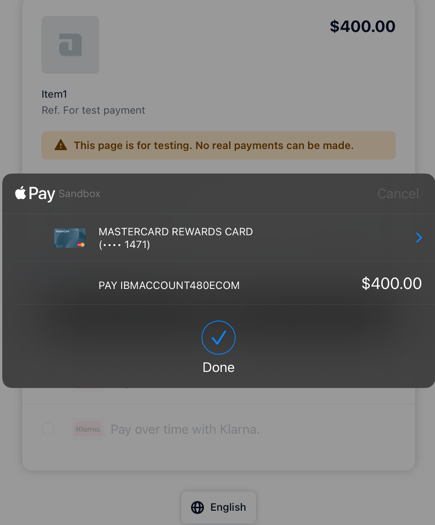
Step 3. Adyen will invoke an authorization notification event via a webhook. You can see the pspReference, which can be used for the capture, cancel, or refund:
{
  "amount" : {
    "value" : 40000,
    "currency" : "USD"
  },
  "eventCode" : "AUTHORISATION",
  "eventDate" : 1655975157000,
  "merchantAccountCode" : "IBMAccount480ECOM",
  "merchantReference" : "for test payment",
  "originalReference" : null,
  "pspReference" : "W2RB8SS4XCQ2WN82",
  "reason" : "088608:0008:03/2030",
  "success" : true,
  "paymentMethod" : "mc",
  "operations" : [ "CANCEL", "CAPTURE", "REFUND" ]
}
Step 4. Create an order manually. In the real world, you would need to enhance your create-order integration to pass the pspreference and related values as mentioned in Part 1. My create-order XML looks like this:
<Order AuthorizationExpirationDate="" CarrierAccountNo="" CarrierServiceCode="" ChainType="" ChargeActualFreightFlag="N" CustCustPONo="" CustomerEMailID="" CustomerPONo="" DeliveryCode="" Division="" DocumentType="0001" DraftOrderFlag="N" EnterpriseCode="DEFAULT" EntryType="" FreightTerms="" HasDeliveryLines="N" HasProductLines="Y" HasServiceLines="N" HoldFlag="N" >
    <OrderLines>
        <OrderLine DeliveryMethod="PICK" DepartmentCode="" FreightTerms="" FulfillmentType="" ItemGroupCode="PROD" OrderedQty="1" ShipNode="">
            <Item CostCurrency="" ItemID="Iphone13" UPCCode="" UnitCost="5" UnitOfMeasure="EACH"/>
            <LinePriceInfo ActualPricingQty="1.00" IsPriceLocked="Y" OrderedPricingQty="1" PricingUOM="EACH" RetailPrice="200" TaxableFlag="N" UnitPrice="200"/>
        </OrderLine>
        <OrderLine DeliveryMethod="PICK" DepartmentCode="" FreightTerms="" FulfillmentType="" ItemGroupCode="PROD" OrderedQty="1" ShipNode="">
            <Item CostCurrency="" ItemID="Iphone13" UPCCode="" UnitCost="200" UnitOfMeasure="EACH"/>
            <LinePriceInfo ActualPricingQty="1.00" IsPriceLocked="Y" OrderedPricingQty="1" PricingUOM="EACH" RetailPrice="200" TaxableFlag="N" UnitPrice="200"/>
        </OrderLine>
    </OrderLines>
    <PersonInfoShipTo AddressLine1="200 SW 8th St" City="Miami" Country="US" FirstName="John" LastName="Doe" State="FL" ZipCode="33130"/>
    <PersonInfoBillTo AddressLine1="200 SW 8th St" City="Miami" Country="US" FirstName="John" LastName="Doe" State="FL" ZipCode="33130"/>
    <AdditionalAddresses NumberOfAdditionalAddresses="0"/>
    <References/>
    <PaymentMethods>
        <PaymentMethod PaymentType="CREDIT_CARD" AuthTime="2022-09-29T16:16:28.000Z" CreditCardType="MC" CreditCardNo="5454" DisplayCreditCardNo="5454" CreditCardExpDate="3/2030" FirstName="John" LastName="Doe" UnlimitedCharges="Y" MaxChargeLimit="400" PaymentReference5="W2RB8SS4XCQ2WN82" PaymentReference6="customer12345" PaymentReference7="TFZH94H2Q6TG5S82">
            <PaymentDetails RequestAmount="400" ChargeType="AUTHORIZATION" ProcessedAmount="400" AuthorizationID="W2RB8SS4XCQ2WN82" AuthorizationExpirationDate="2022-07-29T16:16:28.000Z" HoldAgainstBook="Y" />
            <PersonInfoBillTo AddressLine1="200 SW 8th St" City="Miami" Country="US" FirstName="John" LastName="Doe" State="FL" ZipCode="33130"/>
        </PaymentMethod>
    </PaymentMethods>
</Order>
Step 5. Now fulfill the order from IBM Sterling Order Management and create the shipment invoice. This should invoke a charge call from Sterling Order Management.
The charge call from IBM Sterling Order Management is successful, and Adyen has notified about it via webhook:
 {
        "amount" : {
          "value" : 40000,
          "currency" : "USD"
        },
        "eventCode" : "CAPTURE",
        "eventDate" : 1655979791000,
        "merchantAccountCode" : "IBMAccount480ECOM",
        "merchantReference" : "2022062310970539276921",
        "originalReference" : "W2RB8SS4XCQ2WN82",
        "pspReference" : "W37W8B4PR6TG5S82",
        "reason" : "",
        "success" : true,
        "paymentMethod" : "mc",
        "operations" : null,

      }
This can be verified on the Adyen console.
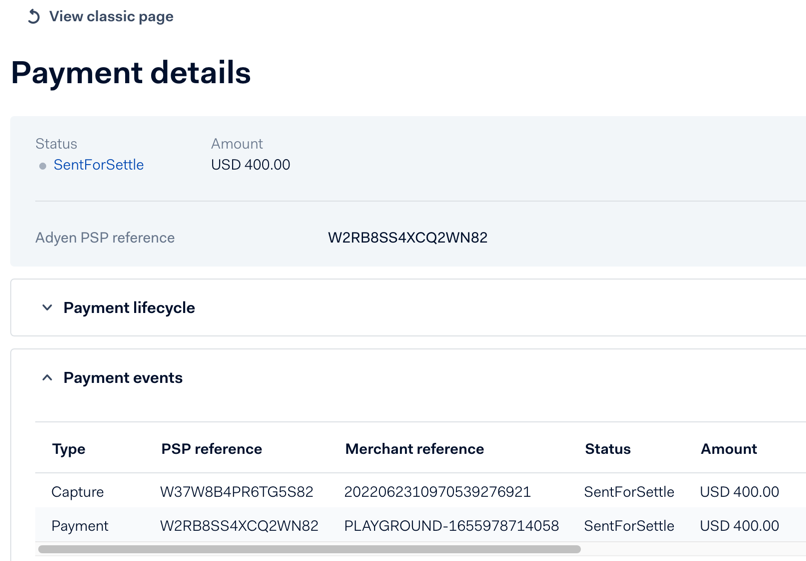
Step 6. The CAPTURE notification has to be updated on the payment transaction. It should be processed asynchronously via ConsumePaymentUpdateAsyncService. The recordExternalCharges API input prepared by the service:
   <RecordExternalCharges OrderHeaderKey="20220623100539276918" ReducePendingAsyncronousAmounts="Y">
        <PaymentMethod PaymentKey="2022062310970539276921" >
        <PaymentDetailsList>
        <PaymentDetails AsyncRequestIdentifier="W37W8B4PR6TG5S82" ChargeType="CHARGE" AuthorizationID="W2RB8SS4XCQ2WN82" ProcessedAmount="400" RequestAmount="400"></PaymentDetails>
        </PaymentDetailsList>
        </PaymentMethod>
        </RecordExternalCharges>
Once the recordExternalCharges is complete, we see that the payment status is PAID, and the chargeTransaction is in CHECKED status:
<Order OrderHeaderKey="20220623100539276918" PaymentStatus="PAID"/>
| CHARGE_TRANSACTION_KEY | CHARGE_TYPE | STATUS | CREDIT_AMOUNT | DEBIT_AMOUNT |
|---|---|---|---|---|
| 20220623100539276922 | AUTHORIZATION | CHECKED | 0.00 | 0.00 |
| 20220623100539276927 | CREATE_ORDER | CHECKED | 0.00 | 0.00 |
| 20220623102250277108 | SHIPMENT | CHECKED | 0.00 | 400.00 |
| 20220623102307277123 | CHARGE | CHECKED | 0.00 | 0.00 |
| 20220623103359277213 | CHARGE | CHECKED | 400.00 | 0.00 |
Summary
In this tutorial, we configured CollectionCreditCardUE and its sample implementation. We also looked at the standard way to consume notifications from
Adyen. We were able to place an order via Adyen's payment link feature, created the order in IBM Sterling Order Management, and charged it.