Tutorial
Protect LUKS encryption keys with IBM Cloud Hyper Protect Crypto Services and IBM Key Protect
Get enterprise-wide control of data at rest from a single pane of glassArchive date: 2024-06-13
This content is no longer being updated or maintained. The content is provided “as is.” Given the rapid evolution of technology, some content, steps, or illustrations may have changed.This tutorial provides step-by-step instructions on how to protect Linux Unified Key Setup (LUKS) encryption keys from being compromised by using either IBM Cloud Hyper Protect Crypto Services (HPCS) or IBM Key Protect as the single point of control to enable or disable access to data across the enterprise. It does this by successively wrapping encryption keys, with the ultimate control being a master key that resides in a hardware security module (HSM).
Background
Both HPCS and Key Protect provide access to a cloud-based HSM which conform to high level US Federal Information Processing Standard (FIPS) standards, a major requirement for IBM Cloud for financial services and other regulated workloads, and are resilient over data center, site, and regional failure. Where HPCS has achieved FIPS 140-2 Level 4 certification (the highest level of certification achievable for commercial cryptographic devices) through a fully managed, single-tenant service, Key Protect has FIPS 140-2 Level 3 certification in both a fully managed multi-tenant public cloud option and an option to deploy Key Protect into a user-managed IBM Satellite location with a user owned and managed HSM.
Because access to Hyper Protect Crypto Services is available through public or private endpoints through the IBM Key Protect API, this tutorial works with either HPCS or Key Protect, with only minor differences, which are elaborated below.
As organizations look to address stringent compliance requirements, leveraging an HSM to protect data at rest is becoming increasingly important. LUKS is used as a de facto standard in Linux installations to encrypt data at rest, but the sphere of control is restricted to individual Linux servers. With millions of Linux servers (physical and/or virtual) that comprise the IT infrastructure of enterprises around the world, it is becoming increasingly difficult for data architects to exert control over how data is managed from a data governance perspective. This tutorial is designed to help you reestablish control by using a key management system (KMS) such as HPCS or Key Protect to protect your LUKS encryption keys across the enterprise.
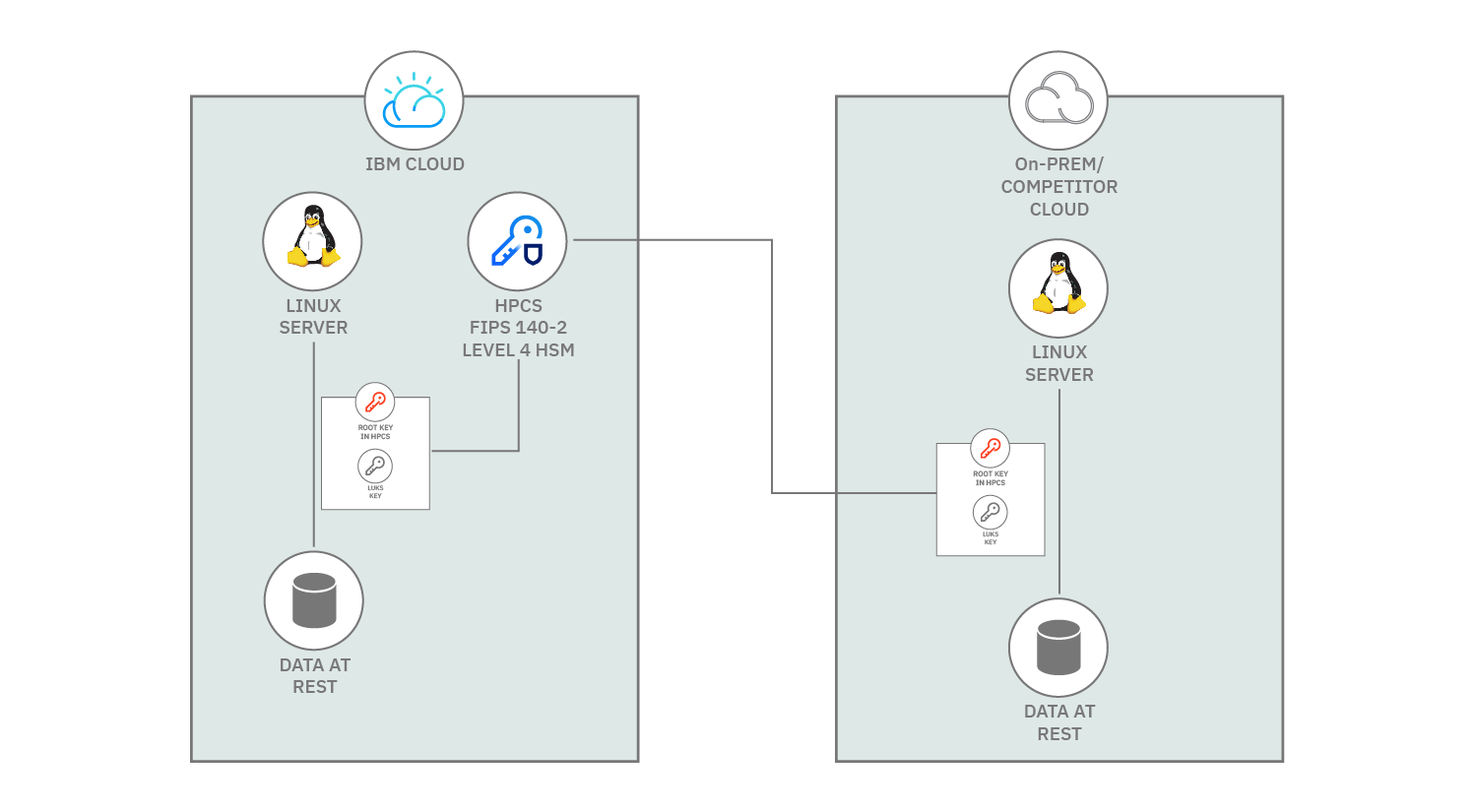
The following diagram illustrates a scenario where Linux servers using LUKS encryption keys in diverse environments, such as on-premises, IBM Cloud, or competitor cloud. These Linux servers can reach out to Hyper Protect Crypto Services using an API call / PKCS#11 to wrap the LUKS keys with a root key from Hyper Protect Crypto Services. (Note: All keys generated by Hyper Protect Crypto Services are wrapped by the master key.)
Learning objectives
This tutorial shows you how to:
- Install the hpcs-for-luks package and its prerequisites
- Configure the keyprotect-luks utility
- Generate and store a wrapped key
- Configure a LUKS-encrypted volume with a kernel keyring token
- Associate the wrapped key with the LUKS-encrypted volume kernel keyring token
- Automatically unwrap the wrapped key and populate the kernel keyring with it at boot time
- Automate mounting of the encrypted volume at boot time
The intended audience for this tutorial is infrastructure and data security architects as well as security and compliance focals.
Prerequisites
To complete this tutorial, you need:
- Access to an instance of Hyper Protect Crypto Services that is fully initialized with a master key or an instance of Key Protect.
- A root key created in Hyper Protect Crypto Services or Key Protect
- Access to this GitHub repository: https://github.com/IBM/hyperprotect/tree/main/hpcs-for-luks
Estimated time
Completing this tutorial should take about 45 minutes.
The hpcs-for-luks package
The hpcs-for-luks package provides a bridge between your KMS and LUKS for encrypted volumes. This package can help you do the following:
- Create, list, and destroy customer root keys (CRKs)
- Create wrapped keys
- Populate the Linux kernel keyring with unwrapped keys
- Automatically set up LUKS for encrypted volumes at boot time
Steps
The following steps need to be performed as the root user -- either su root before attempting them, or prefix privileged commands with sudo. Also, the example commands are performed on Red Hat Enterprise Linux (RHEL) 8.5 and Ubuntu 20.04. You may need to modify them for your Linux distribution. This package has been tested successfully on RHEL 8.6, Fedora 25, Ubuntu 22.04, and Ubuntu 20.04. It is known not to work on Ubuntu 18.04.
1. Install python3, python3-cryptography, and any other dependencies
The keyprotect-luks utility is written in the Python programming language and relies on Python modules. The prerequisites for it need to be installed on the target system.
First, install the Python and Python Cryptography packages for your Linux distribution.
RHEL:
dnf install python3 python3-cryptography
Ubuntu:
apt-get install python3 python3-cryptography
Note: You may hit a Rust language dependency issue if you try to use the pip Python package installer to install Python Cryptography. Instead, you should use your Linux distribution package manager to install the Linux distribution Python Cryptography package.
On Ubuntu, the pip and keyctl utilities are not installed by default and you must install them, if necessary, before proceeding.
apt-get install python3-pip keyutils
2. Install IBM Key Protect Python support
The hpcs-for-luks utility also relies on the the Keyprotect Python Client, which is typically available from The Python Package Index. You can use pip to install it.
pip3 install keyprotect
3. Obtain the hpcs-for-luks package and install it
Now it's time to locate, download, check, and install the keyprotect-luks package. This package is provided by IBM and hosted at ibm/hyperprotect/hpcs-for-luks, where an RPM for RHEL 8 and a Deb for Ubuntu are currently available. If you're using another Linux distribution, refer to this README.md file to perform a manual installation. Please note, however, that hpcs-for-luks has only been tested on RHEL and Ubuntu.
Download the
hpcs-for-lukspackage and SHA256SUMS files from https://github.com/IBM/hyperprotect/tree/main/hpcs-for-luks.You can calculate the SHA-256 hash of the RPM to ensure that it matches the GitHub repo at any time.
RHEL:
sha256sum hpcs-for-luks-1.1-1.el8.noarch.rpm
Ubuntu:
sha256sum hpcs-for-luks_1.1-1_all.deb
Next, compare the SHA-256 hash from
sha256sumwith the one in theSHA256SUMSfile. If the hashes do not match, the package is incomplete, tampered, or inauthentic. Stop and diagnose why.Install the package.
RHEL:
rpm -ivh hpcs-for-luks-1.1-1.el8.noarch.rpm
Ubuntu:
apt install ./hpcs-for-luks_1.1-1_all.deb
4. Configure hpcs-for-luks
The hpcs-for-luks utility must be configured in order to communicate with your KMS. Collect the following configuration information from the Overview tab for your instance on the IBM Cloud portal:
- Instance-ID
- Key Management endpoint URL
- Region-ID
You can gather your Hyper Protect Crypto Service endpoint and instance ID by following the steps in the image:

In Key Protect, endpoints are by either public or private and defined by region. If you know what region your instance resides in, you can refer to Service endpoints to find your endpoint. Note that when using an endpoint, make sure to use the prefix https://. For example, the endpoint for us-south would be exported by issuing endpoint_url = https://:us-south.kms.cloud.ibm.com. You can find your instance ID inside your instance by opening the Details side panel. Your instance ID is located here.
Create an IBM Cloud IAM API key to access your resource.
A skeleton /etc/hpcs-for-luks.ini file is included in the hpcs-for-luks package. Edit it with the information obtained above.
Put "placeholder" for
default_crk_uuidfor now (it will be set later):[KP] region = us-east endpoint_url = https://api.us-east.hs-crypto.cloud.ibm.com:9730 service_instance_id = 01234567-89ab-cdef-0123-456789abcdef api_key = AB0CdEfGHijKlMN--12OPqRStuv3wx456yZAb7CDEF8g default_crk_uuid = placeholder
In Key Protect, you can find your endpoint URL by finding entering the location where your Key Protect instance resides. Check out Service endpoints to find the endpoints per location.
Test the configuration by attempting to list Key Protect keys:
hpcs-for-luks listIf the test fails, check for typos, check on the status of your instance via the portal, diagnose the problem, and retry.
5. Generate a customer root key (CRK)
Now that the hpcs-for-luks utility is configured, you can use it to generate a CRK:
Generate a CRK in Key Protect:
hpcs-for-luks create --crk --gen --name MyCRKNameList the Key Protect keys to get the ID associated with MyCRKName:
hpcs-for-luks list | grep MyCRKNameBecause the CRK is frequently used and seldom changed, it is convenient to configure the
hpcs-for-luksutility to use it. Edit/etc/hpcs-for-luks.iniand change the "placeholder" value fordefault_crk_uuidto the ID you just obtained above:[KP] api_key = AB0CdEfGHijKlMN--12OPqRStuv3wx456yZAb7CDEF8g region = us-east service_instance_id = 01234567-89ab-cdef-0123-456789abcdef endpoint_url = https://api.us-east.hs-crypto.cloud.ibm.com:9730 default_crk_uuid = fedcba98-7654-3210-fedc-ba9876543210
6. Wrap/unwrap your LUKS passphrase
If you have a passphrase that you'd like to use to encrypt a volume, you can wrap it with the CRK that you previously established in hpcs-for-luks. In this example, the passphrase is trivial for the sake of simplicity. For real-world use, you'll want to choose or generate a complex passphrase.
Create a wrapped passphrase. This example reads the passphrase from
stdinso there is no file that can be left lying around. It's important to supply the-nargument to theechocommand in order to suppress the newline that it would otherwise append to the output. The output is stored in/var/lib/hpcs-for-luksbecause thehpcs-for-luksutility knows to look for it there.echo -n 'password' | hpcs-for-luks wrap > /var/lib/hpcs-for-luks/user/luks:key1Test that the passphrase can be unwrapped. The passphrase will be written to
stdout. Because you used the-noption above, there will be no newline when the key is output.hpcs-for-luks unwrap < /var/lib/hpcs-for-luks/user/luks:key1
7. Enable the hpcs-for-luks systemd service and test populating the kernel keyring
Enabling the hpcs-for-luks systemd service causes the hpcs-for-luks utility to run at boot time to unwrap keys from /var/lib/hpcs-for-luks and populate the kernel keyring with unwrapped keys with the same name as the wrapped key name. You will use this later to facilitate automatic decryption of LUKS volumes.
Test the keyring population:
hpcs-for-luks processUse the
keyctlutility to view the root user kernel keyring:keyctl show @uYou should see a user key type called
luks:key1in the root's user keyring.Enable the
hpcs-for-luks systemdservice:systemctl enable hpcs-for-luksThe
hpcs-for-luks systemdservice depends on theremote-cryptsetup systemdtarget, which isn't enabled by default. Enable it:systemctl enable remote-cryptsetup.targetReboot the system:
shutdown -r nowLogin to the system and use the
keyctlutility once again to inspect the root user kernel keyring as above. You should get the same result in the keyring:keyctl show @uYou should again see a user key type called
luks:key1in the root's user keyring.
8. Create an encrypted volume
Now that you have hpcs-for-luks configured and working, it's time to create an encrypted volume. For the purposes of this tutorial, a loopback volume will be used. Other types of storage volumes can be similarly configured.
Create an empty file for the loopback device. The target of
"of="should be in a filesystem that contains sufficient space.dd if=/dev/zero of=/root/encrypted-loopback-file bs=1M count=100 skip=100Map the file to a loopback device:
losetup --show -f /root/encrypted-loopback-fileLUKS format the loopback device. (Note: Replace
/dev/loop0with the actual loopback devicelosetupdisplayed in the previous step throughout.)cryptsetup luksFormat --type luks2 --force-password /dev/loop0Provide "password" as the passphrase when prompted. It must be identical to the plaintext of the passphrase you wrapped earlier.
Open the LUKS volume and map it to the "encrypted-volume" device name:
cryptsetup luksOpen /dev/loop0 encrypted-volumeA link to the the mapped volume will have been created in the previous step under the
/dev/mapperdirectory. Format the mapped volume with a filesystem. This example uses theext4filesystem type.mkfs -t ext4 /dev/mapper/encrypted-volumeNow add a key token to the LUKS header to associate the encrypted volume with the passphrase on the kernel keyring. Note that the key description needs to be exactly the same name as the wrapped passphrase file you created earlier.
cryptsetup token add /dev/loop0 --key-description luks:key1Make a new mount point for the volume and mount it:
 mkdir /encrypted-filesystem
 mount /dev/mapper/encrypted-volume /encrypted-filesystem
You now have a filesystem that's hosted in an encrypted volume. Write some test data to it. For example:
echo "secret" > /encrypted-filesystem/secret.txtEdit
/etc/fstaband add an entry for the encrypted filesystem so that it is easy to mount in the future. Note: The_netdevoption is important because you want the mount to be delayed until the network is available; this is necessary when the system is configured to unwrap the LUKS passphrase during boot by reaching out to Hyper Protect Crypto Services over the network./dev/mapper/encrypted-volume /encrypted-filesystem ext4 defaults,_netdev 0 0Unmount the volume and mount it again to ensure that the new
/etc/fstabentry is correct:umount /encrypted-filesystem mount /encrypted-filesystem
9. Test opening the encrypted volume with the kernel keyring passphrase
The passphrase is configured in the kernel keyring, and the encrypted volume is configured and associated with it via the wrapped passphrase filename. Now it's time to verify that they work together.
Unmount and tear down the encrypted volume:
 umount /encrypted-filesystem
 cryptsetup luksClose encrypted-volume
 losetup -d /dev/loop0
On Ubuntu, the user session keyring is not linked into the session keyring by default. Link it in so the
cryptsetupcommand in the next step can locate the key in the keyring. Otherwise,cryptsetupwill not find it and the command below will prompt for a password even if the passphrase is properly populated in the kernel keyring:keyctl link @us @sLUKS open the volume. If the encrypted volume and the kernel keyring are both configured properly, you should not be prompted for a passphrase; rather,
cryptsetupshould see the token in the header and search the kernel keyring for the passphrase associated with the key description:cryptsetup luksOpen /root/encrypted-loopback-file encrypted-volume
10. Configure encrypted volume boot time setup
Lastly, you need to configure the /etc/crypttab file to set up the encrypted volume at boot time.
Edit
/etc/crypttaband add a new entry for the encrypted volume. Note: The_netdevoption is important because you want the encrypted volume mount to be delayed until the network is available. This is necessary because the LUKS passphrase is unwrapped by reaching out to Hyper Protect Crypto Services over the network. Settingtimeout=1minimizes the delay if the passphrase cannot be found.encrypted-volume /root/encrypted-loopback-file none _netdev,timeout=1
11. Reboot the system
Configuration is now complete. Test the result by rebooting the system. If all goes well, the encrypted volume should be opened and mounted automatically during boot. You should be able to read back the file you created earlier.
cat /encrypted-filesystem/secret.txt
If something does go wrong, assess which aspect is failing by examining the logs. One of the most useful logs is the systemd journal:
journalctl -a
Search for keywords such as "hpcs-for-luks," "cryptography," and "loop." Determine the likely cause of failure, remedy it, and retry booting until it succeeds.
Summary
That's it! You've successfully protected a LUKS encrypted volume with Hyper Protect Crypto Services. If you revoke the CRK, all keys wrapped with it become undecryptable, and therefore volumes encrypted with them will fail to mount on the next boot. In this tutorial, you set up the basics for enterprise-wide control of data at rest from a single pane of glass (i.e. IBM Cloud Hyper Protect Crypto Services). The Unified Key Orchestrator (UKO) feature of Hyper Protect Crypto Services allows for key management in a multi-cloud environment where there can be multiple instances of Hyper Protect Crypto Services or KMS instances in other cloud providers like AWS or Azure. A wider data security and integrity discussion is called for, to put Hyper Protect Crypto Services at the center of a secure ecosystem for enterprises.
As a next step, you may want to try applying this technique to real storage device volumes rather than loopback and use Key Protect as well, if working with a FIPS 140-2 Level 3 HSM will fit the bill.
See the related links below for more information on the technologies and concepts covered in this tutorial.