Tutorial
Recover from IBM Power firmware update failure using Hardware Management Console (HMC)
Using HMC's Resume option to ensure continuity in Power firmware updatesIntroduction
IBM Power firmware updates play a crucial role in ensuring system stability, security, and performance in environments managed by the Hardware Management Console (HMC). These updates help maintain compatibility, address vulnerabilities, and enhance overall system functionality.
However, during the firmware update process through HMC, unexpected events such as system resets, kernel panics, or incomplete updates can occur. These disruptions may result in firmware inconsistencies or failed activations.
To address these challenges and enhance the robustness of the firmware update process, a set of recovery enhancements has been introduced. These improvements are designed to enable the system to gracefully recover from firmware update failures, maintain system integrity, and minimize downtime. By preserving critical state information and supporting user-assisted recovery mechanisms, these features ensure a smoother update experience and reduce the impact on business operations.
This tutorial demonstrates how to recover from a firmware update failure on a Power server that uses an enterprise baseboard management controller (eBMC), with the recovery process managed through the HMC.
Prerequisites
- Firmware version requirements:
- eBMC firmware version: Firmware 1060 or later
- HMC version: 1060 or later
- eBMC must be properly connected to the HMC
Ensure that both the eBMC and HMC are updated to the specified versions to support the firmware update recovery features.
How does it work?
The HMC keeps track of the firmware update as it happens. If something goes wrong during the update, it shows a message telling the user to try again by selecting the Resume option. When the user does this, the update picks up from where it stopped, instead of starting over from the beginning.
Recover eBMC firmware update failure using the Resume method on HMC
This section explains how the HMC helps recover from the Power firmware update failures using the Resume method.
Suppose the user experiences a firmware update failure, and the eBMC firmware remains in a failed state, perform the following steps to recover from Power firmware on HMC:
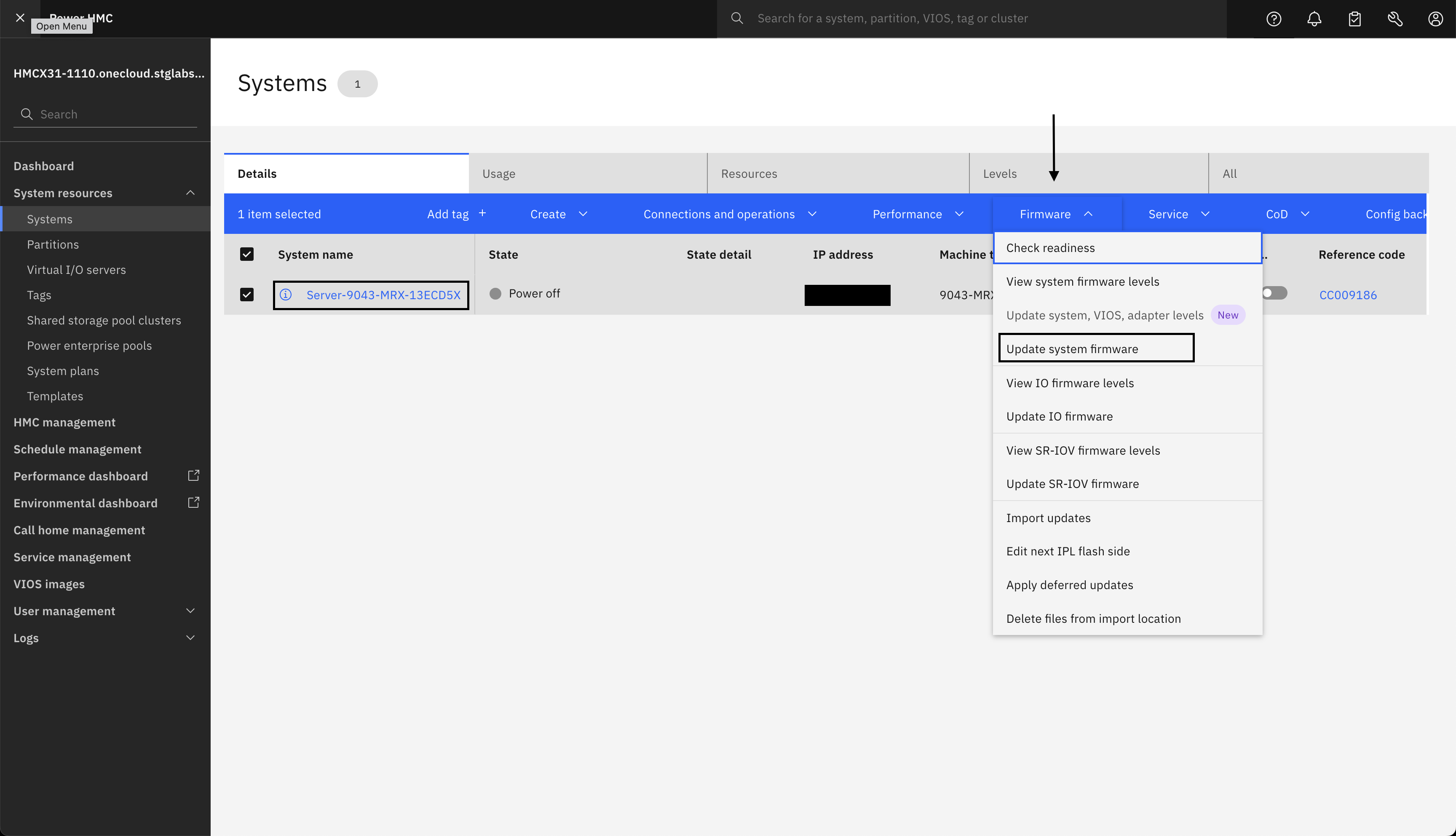
Select the eBMC and then from the Firmware drop-down menu, select Update system firmware.
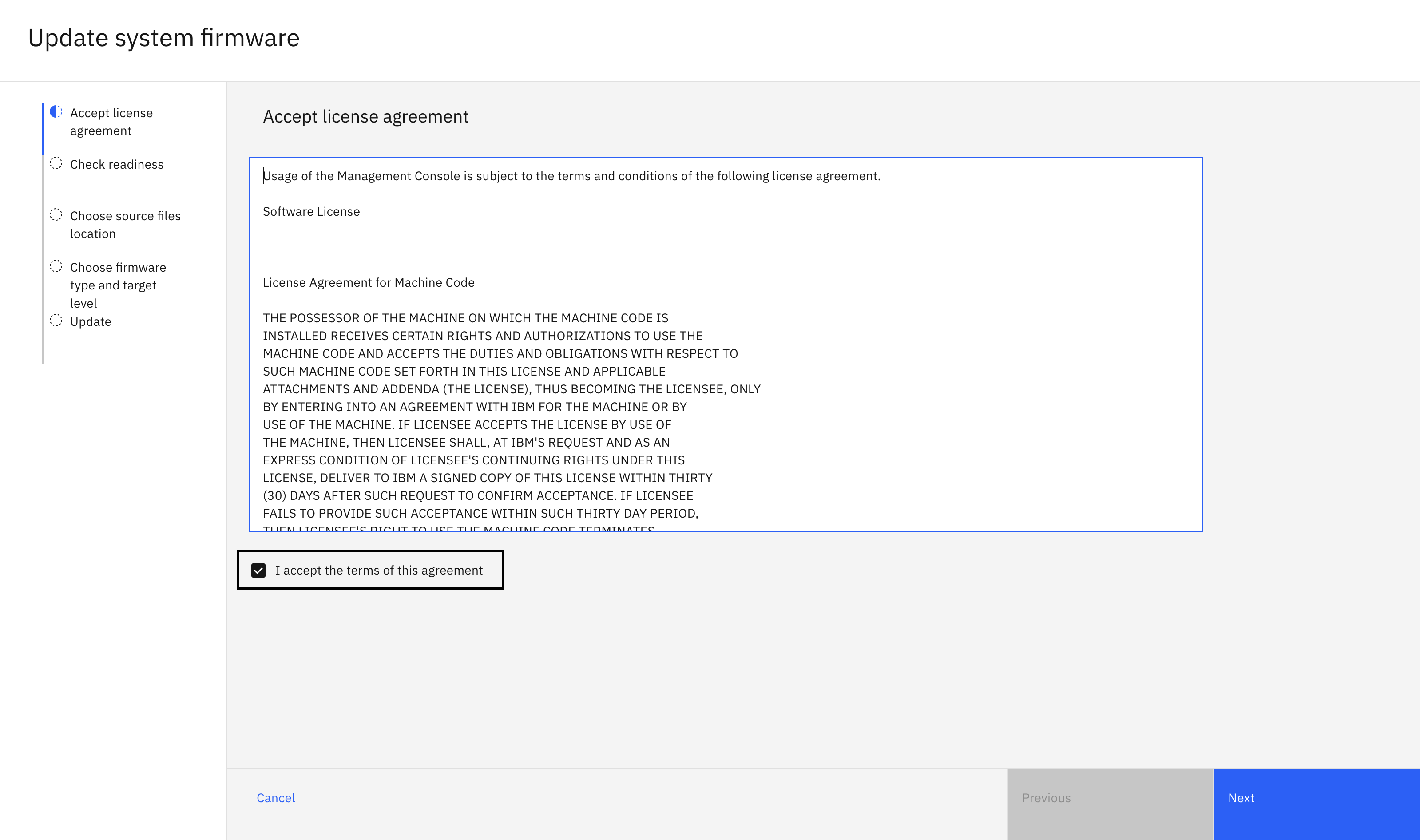
In the Update system firmware wizard, on the first page, select the I accept the terms of this agreement checkbox and click Next.
On the Check readiness page, verify the readiness state of the eBMC system and click Next.

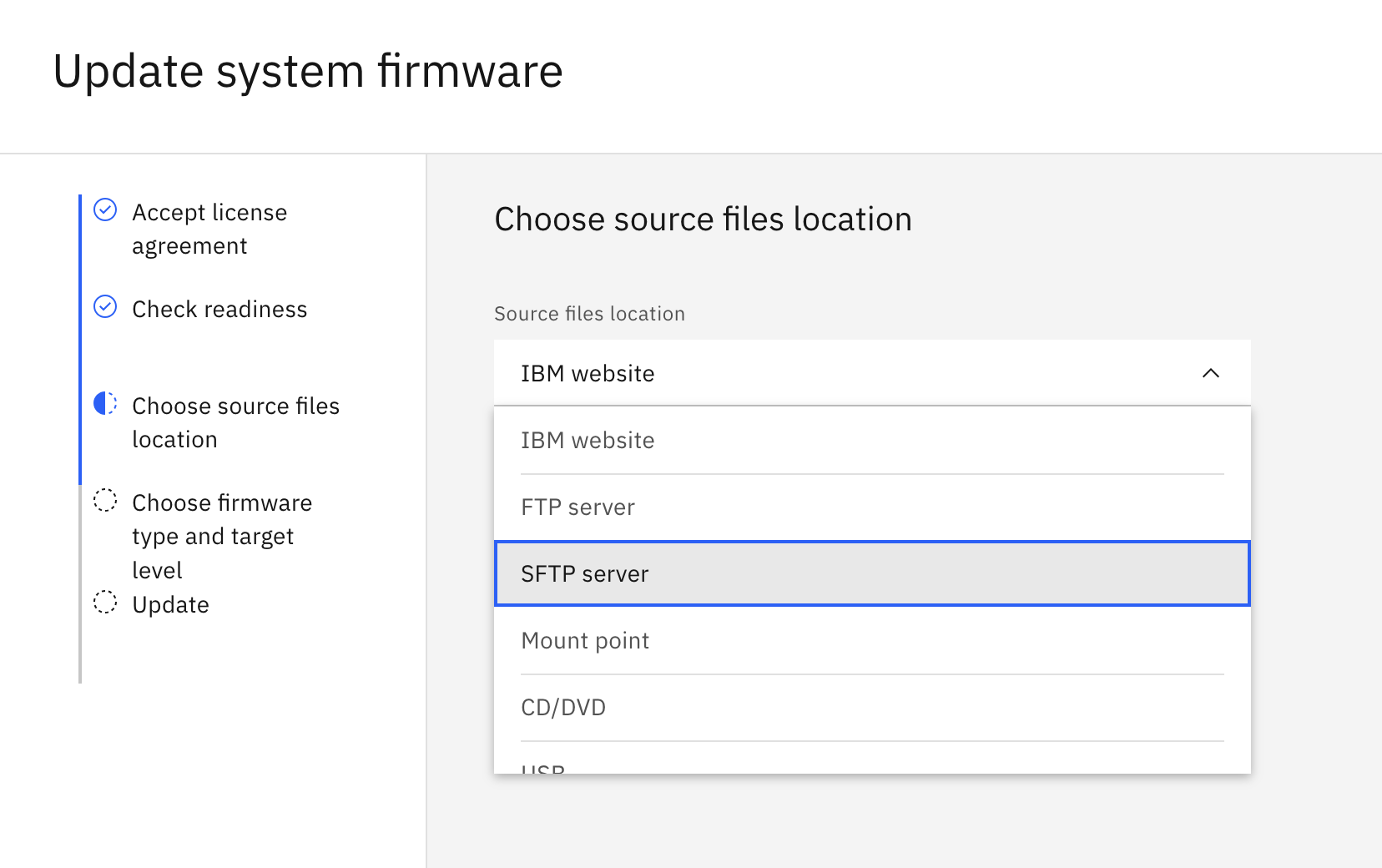
On the Choose source files location page, select the SFTP (SSH File Transfer Protocol) server from the Source file location list.
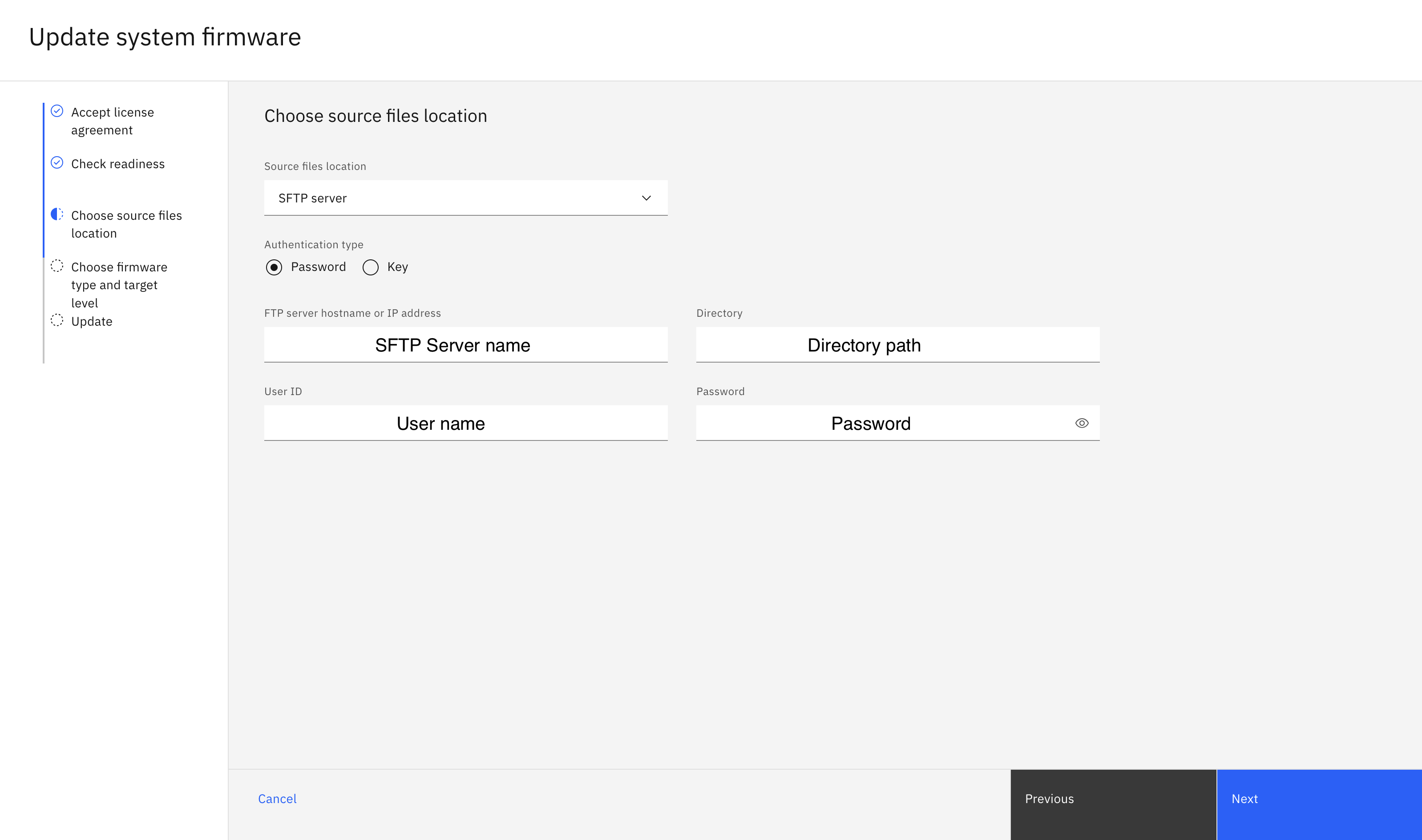
Fill in the following details for the SFTP server and click Next.
- FTP server hostname or IP address: Hostname or IP address of SFTP server.
- Directory: Directory path of firmware
- User ID: User ID
- Password: Password of user
On the Choose firmware type and target level page, notice that the following message is displayed.
“One or more systems had errors during the previous update attempt. Choose 'Resume' to continue from the point of failure; choose 'Update' or 'Upgrade' to restart from the beginning.”This message confirms that the last eBMC firmware update was unsuccessful.

On the Choose firmware type and target level page, users can make the decision to start the eBMC firmware update from the last resume point or start a new eBMC firmware.
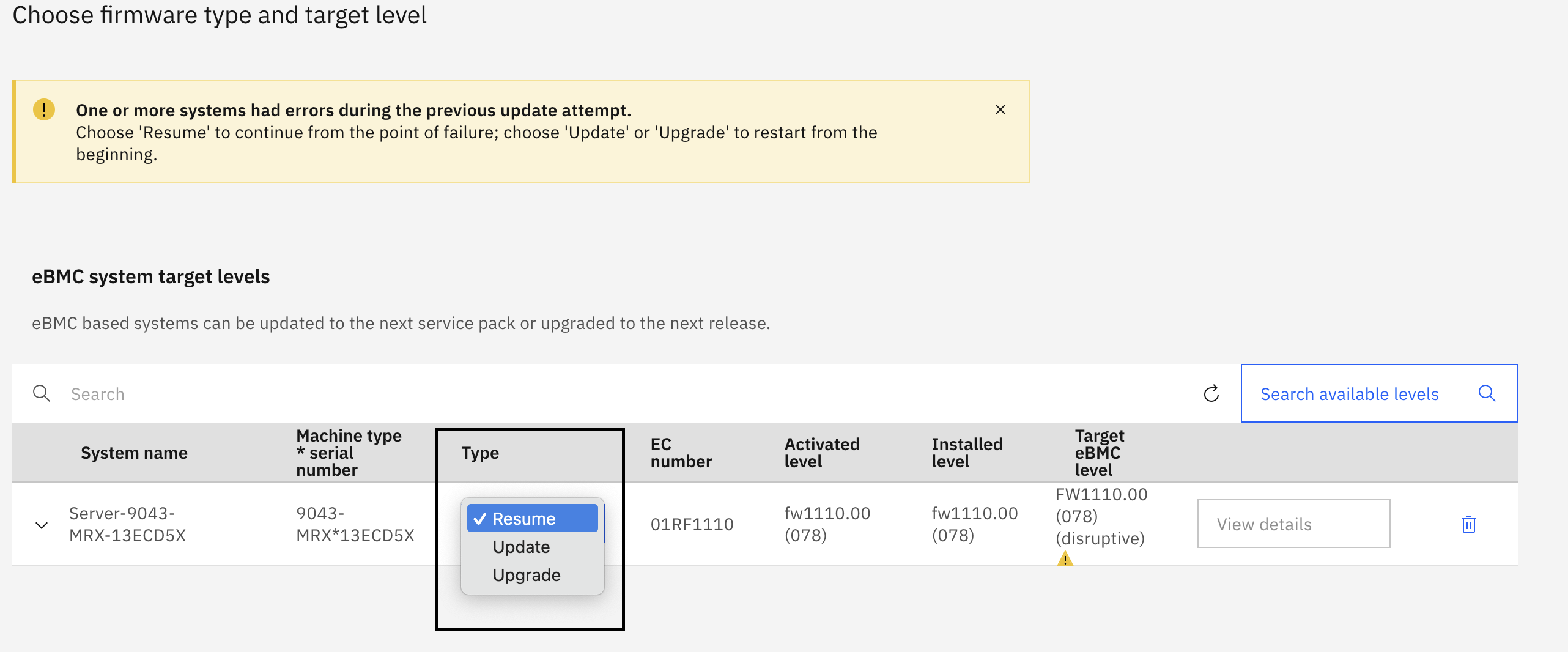
Select the type as Resume to recover the eBMC firmware update from last failure and click Next.
Note: To initiate a new firmware update, the user should select Update or Upgrade as the type.
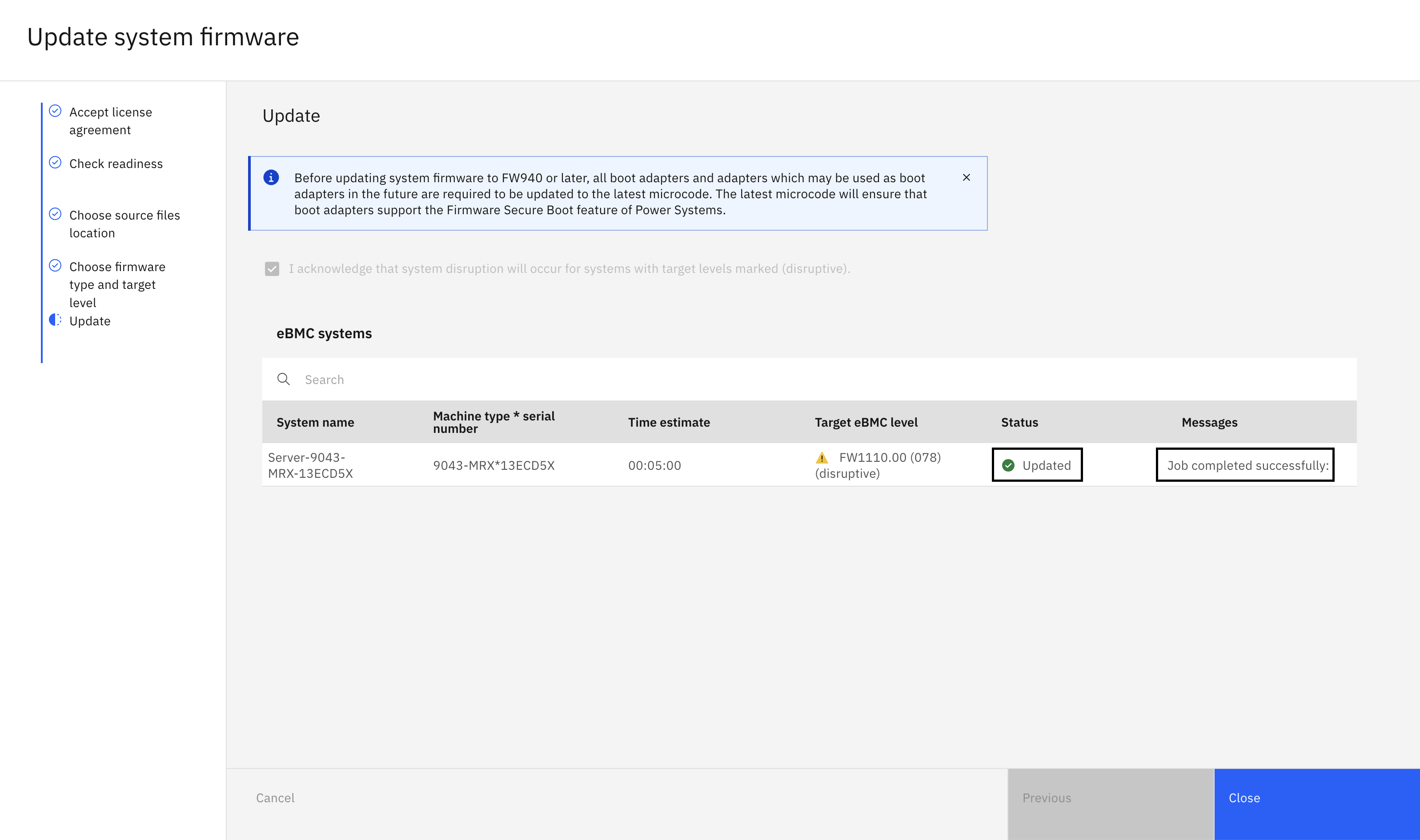
On Update page, accept the acknowledgement for system disruption during firmware update process and click Update to start the eBMC firmware update from the last resume point.

Wait for the eBMC firmware update process to complete and verify if the status Updated and the message Job completed successfully are displayed.
Conclusion
Power firmware update failures can happen due to many reasons, but with the recovery features supported by HMC, you do not need to start over from scratch. The Resume option makes it easy to continue the update from where it was paused, saving time and reducing the risk of further issues. The steps in this tutorial explained how to recover from a failed firmware update smoothly and keep your Power servers running reliably.