Tutorial
Set up Kubernetes on a Red Hat Enterprise Linux system running on IBM Power servers
A step-by-step guideIntroduction
Enterprises are increasingly using containerized applications to run their businesses, in many cases running hundreds of containers spread across multiple hosts, being able to manage tasks such as scheduling, load balancing, distribution, and downtime becomes ever more crucial. This is where a container orchestration tool like Kubernetes is helpful.
Kubernetes is an open source orchestration platform that can be used to automate the deployment, and scale and manage containerized applications. Kubernetes overcomes many of the manual processes involved in maintaining and deploying containerized workloads.
This tutorial provides step-by-step instructions to set up Kubernetes manually on IBM Power server partitions, which is running the Red Hat Enterprise Linux (RHEL) operating system. This tutorial provides an example of configuring Kubernetes with a single-node cluster and this can enable users to set up and deploy a Kubernetes cluster on an IBM Power server partition running the RHEL OS.
Prerequisites
Refer to the following prerequisites before setting up Kubernetes on a RHEL system running on a Power server.
- The platform should be IBM PowerVM based partition with RHEL 8.4 or later version on the IBM Power9 or later processor-based server.
- You should have logged in to the system with the root user account. If not a root user you need to add
sudowith all the commands used in this tutorial. - Container runtime engine needs to be set up before installing Kubernetes. In this tutorial, we are using containerd as a container runtime engine that is responsible for managing the container lifecycle. Refer Set up container runtime engine for details.
- Need minimum 2 GB or more RAM for better application performance.
- Need minimum two or more CPUs.
- Certain ports must be kept open so that Kubernetes components can communicate with each other. Check Kubernetes Documentation for more information.
Estimated time
The estimated time to install Kubernetes with containerd engine by following the steps in this tutorial is less than 20 minutes.
Set up container runtime engine
Container runtime engine is a software component that is required to run containers on the operating system. This component is responsible for managing the container lifecycle and the tasks include loading container images and managing system resources for the container. So, the container runtime engine needs to be set up before installing Kubernetes in the system.
In this tutorial, we are using containerd as a container runtime engine. Perform the following steps to set up containerd as a container runtime engine in the IBM PowerVM partition:
Get the latest source code for containerd from the GitHub repository.
yum install git wget gcc
# git clone https://github.com/containerd/containerd
Based on the cloned source, check and install the go package dependency. Get the latest .tar source file from https://go.dev/dl/
# wget https://go.dev/dl/go1.17.6.linux-ppc64le.tar.gz
# tar -zxvf go1.17.6.linux-ppc64le.tar.gz -C /usr/local/
# export PATH=$PATH:/usr/local/go/bin
Set up and install containerd.
# cd containerd
# make BUILDTAGS=no_btrfs
# make install
Disable the firewall service.
#systemctl stop firewalldStart containerd.
#containerd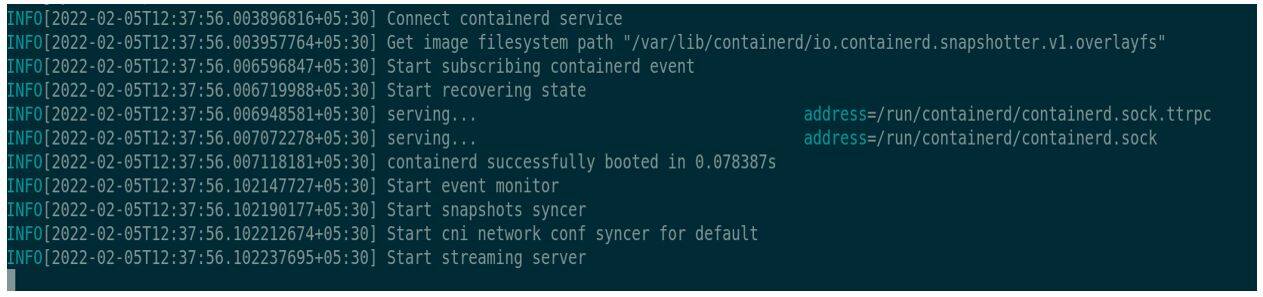
This completes the installation of all dependency packages and starting containerd.
Set up Kubernetes
A Kubernetes cluster consists of multiple worker nodes that run the containerized applications and requires the following components:
- Kubeadm, who performs the actions necessary to get a minimum viable cluster up and running.
- Control plane, which manages the worker nodes and the pods in the cluster.
- Kubelet, which is an agent that runs on each node in the cluster to make sure that containers are running inside the pod.
- Kubectl, which is a command line tool used to run commands against the Kubernetes cluster. We can use this tool to deploy container applications, and to inspect and manage cluster resources.
Perform the following steps to add Kubernetes repositories manually as they do not come preinstalled on RHEL:
Open a new session, and add the yum repo configuration for Kubernetes in the /etc/yum.repos.d/kubernetes.repo file.
cat <<EOF > /etc/yum.repos.d/kubernetes.repo
[kubernetes]
name=Kubernetes
baseurl=https://packages.cloud.google.com/yum/repos/kubernetes-el7-ppc64le
enabled=1
gpgcheck=1
repo_gpgcheck=1
gpgkey=https://packages.cloud.google.com/yum/doc/yum-key.gpg https://packages.cloud.google.com/yum/doc/rpm-package-key.gpg
EOF
Install the kubelet, kubeadm, and kubectl packages along with podman-docker.
#yum install kubectl kubeadm kubelet podman-dockerDisable the swap operation for the kubelet to work properly. The
swapoffcommand disables swapping on the specified devices and files. When the-aflag is given, swapping is disabled on all known swap devices and files.#swapoff -aPerform the following steps to start the kubelet service.
Specify the container runtime engine as containerd.
# echo 'KUBELET_EXTRA_ARGS="--container-runtime=remote --container-runtime-endpoint=/run/containerd/containerd.sock"' > /etc/sysconfig/kubeletInitialize the kubelet configuration.
# kubeadm init phase kubelet-start
Verify if the necessary files exist after initialization.

This concludes the package installation.
Configure Kubernetes with a single node
After successfully starting the containerd and kubelet services, perform the following steps to configure the Kubernetes cluster with a single node.
Pull images using the
kubeadmcommand.# kubeadm config images pull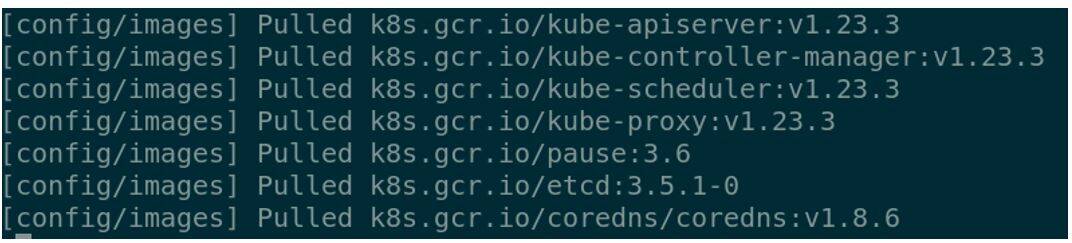
Enter the
kubeadm initcommand to initialize and start the Kubernetes cluster control plane.# kubeadm init --ignore-preflight-errors=all
For further details about the
kubeadm initcommand, refer to the Kubernetes Documentation.Run the following commands to initialize the environment variables and start the cluster.
# export HOME="/root"
# mkdir -p $HOME/.kube
# cp -i /etc/kubernetes/admin.conf $HOME/.kube/config
# chown $(id -u):$(id -g) $HOME/.kube/config
Check the status of the Kubernetes pods added to start the single-node cluster.
# kubectl get pods --all-namespaces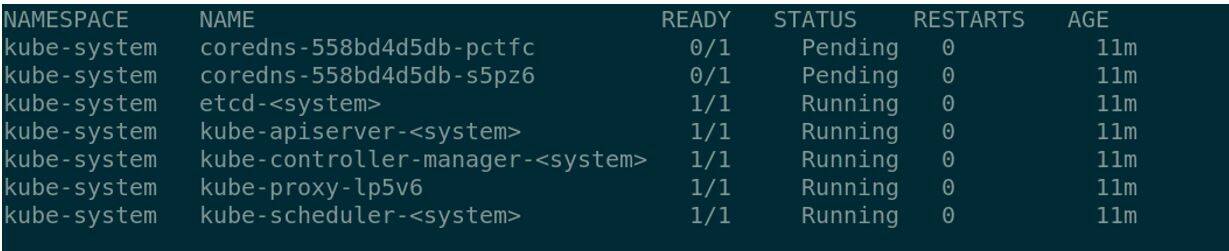
Check if the cluster has started successfully.

In this example, the status of the single-node cluster we created is in NotReady state as the overlay network is not yet deployed.
Set up the overlay network needed for pod-to-pod communications. Calico is an open source networking and network security solution for containers to provide network support. For more details about Calico, refer to Calico main page.
# curl https://docs.projectcalico.org/manifests/calico.yaml -O
# kubectl apply -f calico.yaml
After setting up the overlay network, again check the status of kubernetes pods.
# kubectl get pods --all-namespaces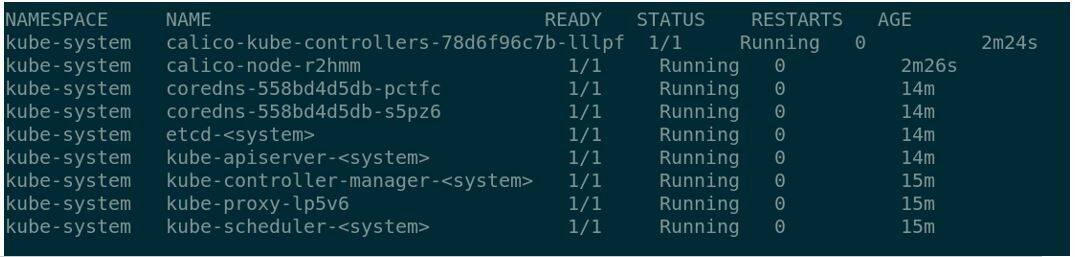
Check the status of the single-node cluster again and verify if the status has changed to Ready.

Create a pod with a single CentOS container
Create a pod file with the specifications to include a container image source, container name, pod name, and the required arguments.
cat <<EOF > example.pod
apiVersion: apps/v1
kind: Deployment
metadata:
  name: containerapp
spec:
  replicas: 1
  selector:
    matchLabels:
      app: containerapp
  template:
    metadata:
      labels:
        app: containerapp
    spec:
      hostNetwork: true
      containers:
      - name: centos1
        image: centos
        command: ["/bin/sh"]
        args: ["-c", "while true; do echo hello; sleep 10;done"]
        securityContext:
            capabilities:
                add: ["SYS_ADMIN"]
EOF
Use the
kubectl createcommand to create the pod.# kubectl create -f example.pod
Check the status of the pod that is created.
# kubectl get pods
Note that the status of the pod is Pending. Enter the following command to understand the reason.
# kubectl describe pods containerapp-57c6fdfc6b-g6r59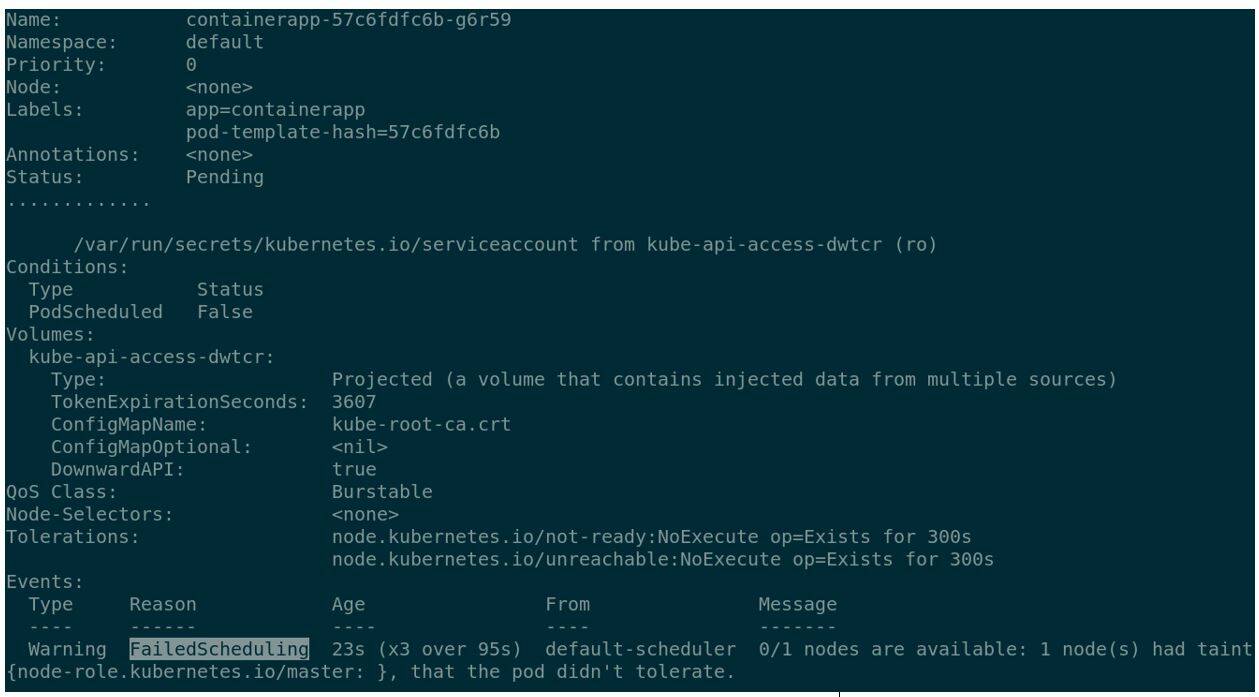
The output shows that due to scheduling failure, the pod is in Pending state.
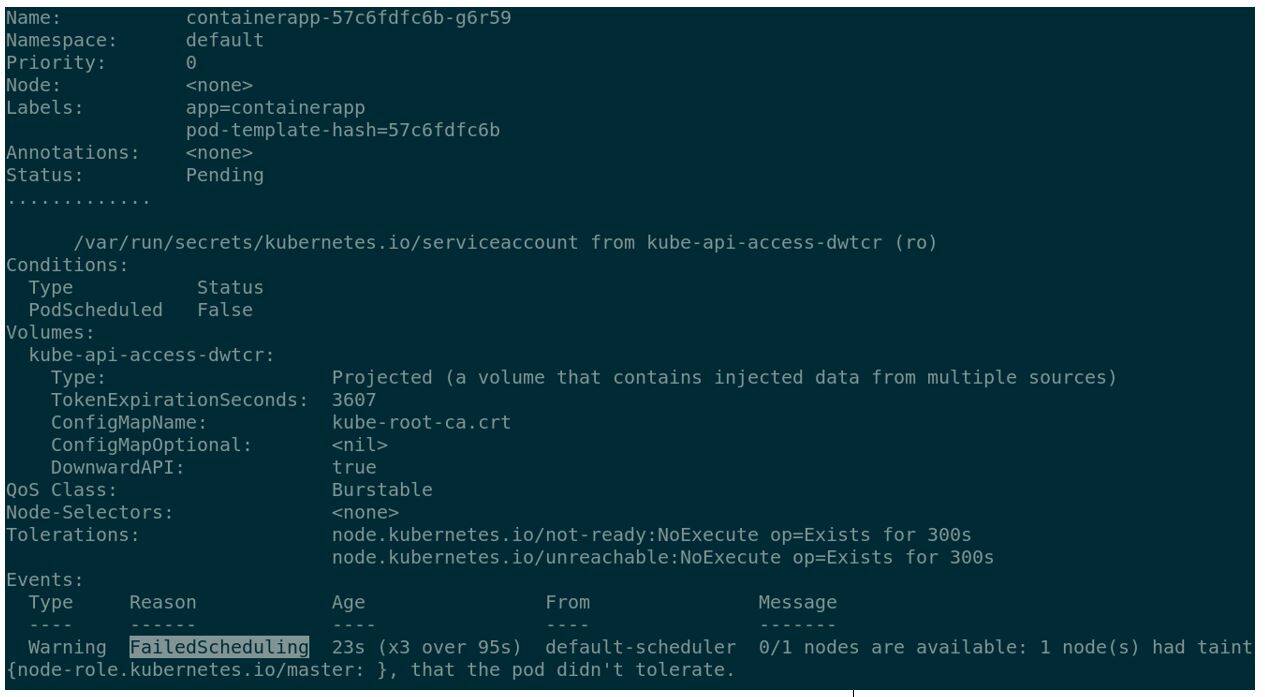
Due to security reasons, kubectl haven't scheduled the pod. Resolve this by using a
taint nodesoption in thekubectlcommand.# kubectl taint nodes --all node-role.kubernetes.io/master-Check the pod status again and verify if the status is now Running.
# kubectl get pods
Get in the bash shell of the added CentOS container using the
kubectl execcommand:# kubectl exec -it containerapp- 57c6fdfc6b-g6r59 -c centos1 -- bash
Summary
In this tutorial, we have provided step-by-step instructions to set up a Kubernetes single-node cluster in RHEL running on an IBM PowerVM partition.
Refer to the Kubernetes page to find more information about it.
Contacts
Have questions for the Enterprise Linux on IBM Power team or want to learn more? Follow our discussion group on IBM Community Discussion.
Take the next step
Join the Power Developer eXchange Community (PDeX). PDeX is a place for anyone interested in developing open source apps on IBM Power. Whether you're new to Power or a seasoned expert, we invite you to join and begin exchanging ideas, sharing experiences, and collaborating with other members today!