Tutorial
Use IBM Developer for z/OS with IBM Data Studio to test SQL statements inside COBOL source code, Part 2
Add Data Access Development Support to unlock the ability to test SQL statements directly from COBOL source codePart 1 of this series walked you through the steps necessary to create an IBM z/OS project and subsequent Multiple Virtual Storage (MVS) subproject to house your source containing EXEC SQL statements that you can test. With those steps complete, Part 2 shows you how to add Data Access Development Support to unlock the ability to test SQL statements directly from COBOL source code.
Prerequisites
To take advantage of this feature, you need:
- IBM Developer for zSystems (IDz) software, installed and configured with connections to an MVS LPAR and a Db2 database
- IBM Data Studio, installed and "shell-sharing" with IDz
- Basic understanding of IDz navigation concepts, including the context menu (check out our no-charge IDz Remote Training options)
Estimated time
Creating the necessary file organizational structure to enable Data Access Development Support should take about 10 minutes.
Steps
1. Navigate to context menu and choose Add Data Access Development Support
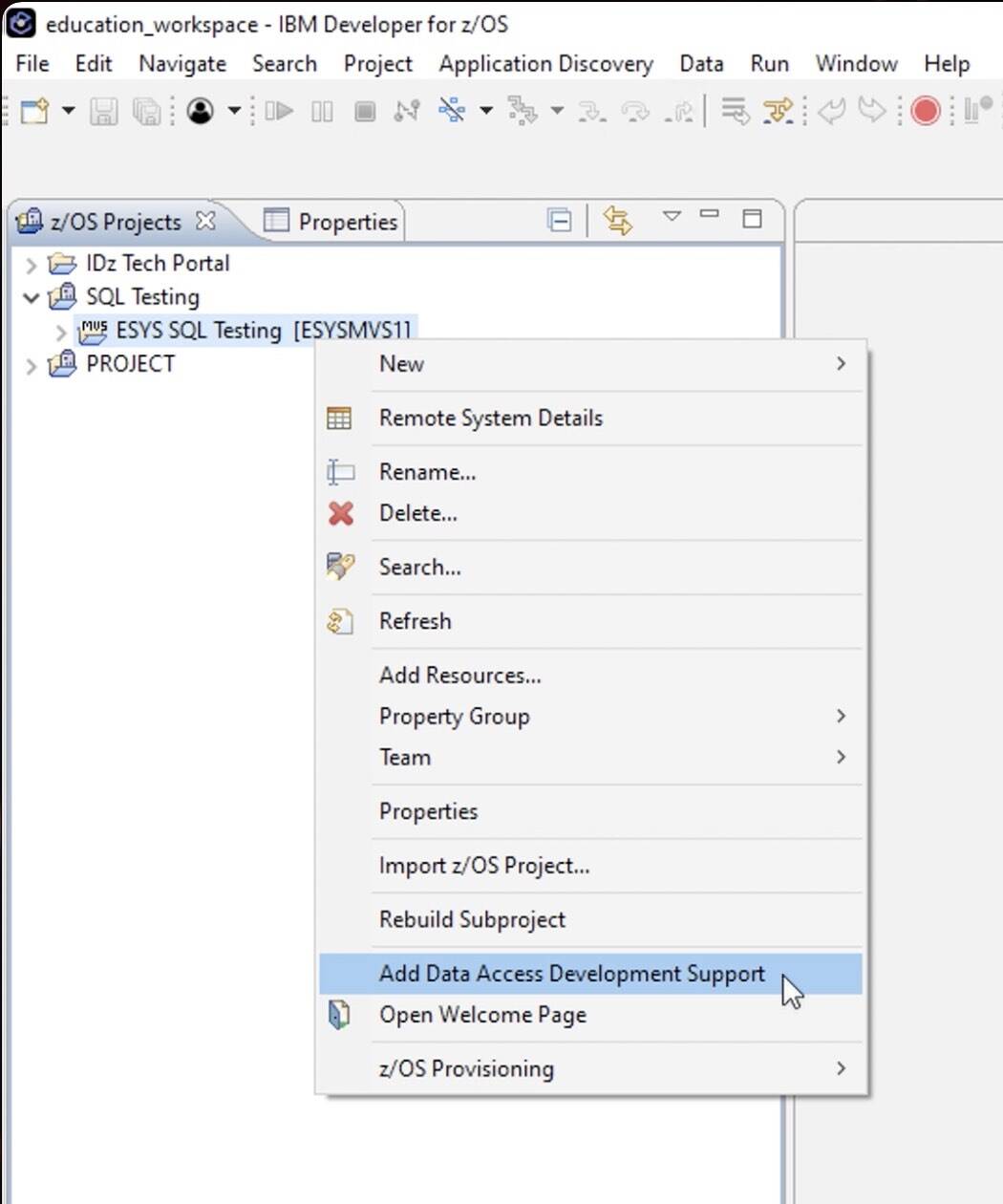
Starting from the z/OS Projects view in the z/OS Projects perspective within the IDz workbench, navigate to the z/OS project and MVS subproject that contains the COBOL source with embedded SQL statements. Right-click on the MVS subproject to bring up the context menu, and choose Add Data Access Development Support.
2. Complete adding Data Access Development Support to the MVS subproject
The Data Access Development Support wizard should appear. From this wizard, select a connection to the target database using the drop-down box at the top, enter a default schema if one is not already entered, and click Finish.

Data Access Development Support has now been added to the MVS subproject. This links functionality between IDz and the data tools for this MVS subproject, and allows use of the functionality explained in the following walkthrough to be executed on any source contained within the MVS subproject.
3. Navigate to Embedded SQL/CICS/DLI
With Data Access Development Support enabled, navigate inside of the MVS subproject and double-click on the source member to open it in the editor view. Navigate to the editor view, then right-click in the source to bring up the context menu. This menu is home to a variety of powerful functionality within the IDz workbench, including the filter feature. From the context menu, navigate to Filter view -> Embedded SQL/CICS/DLI.

This will collapse (exclude) all lines of code except those that contain EXEC statements for SQL, CICS, or DLI.
4. Execute Run SQL
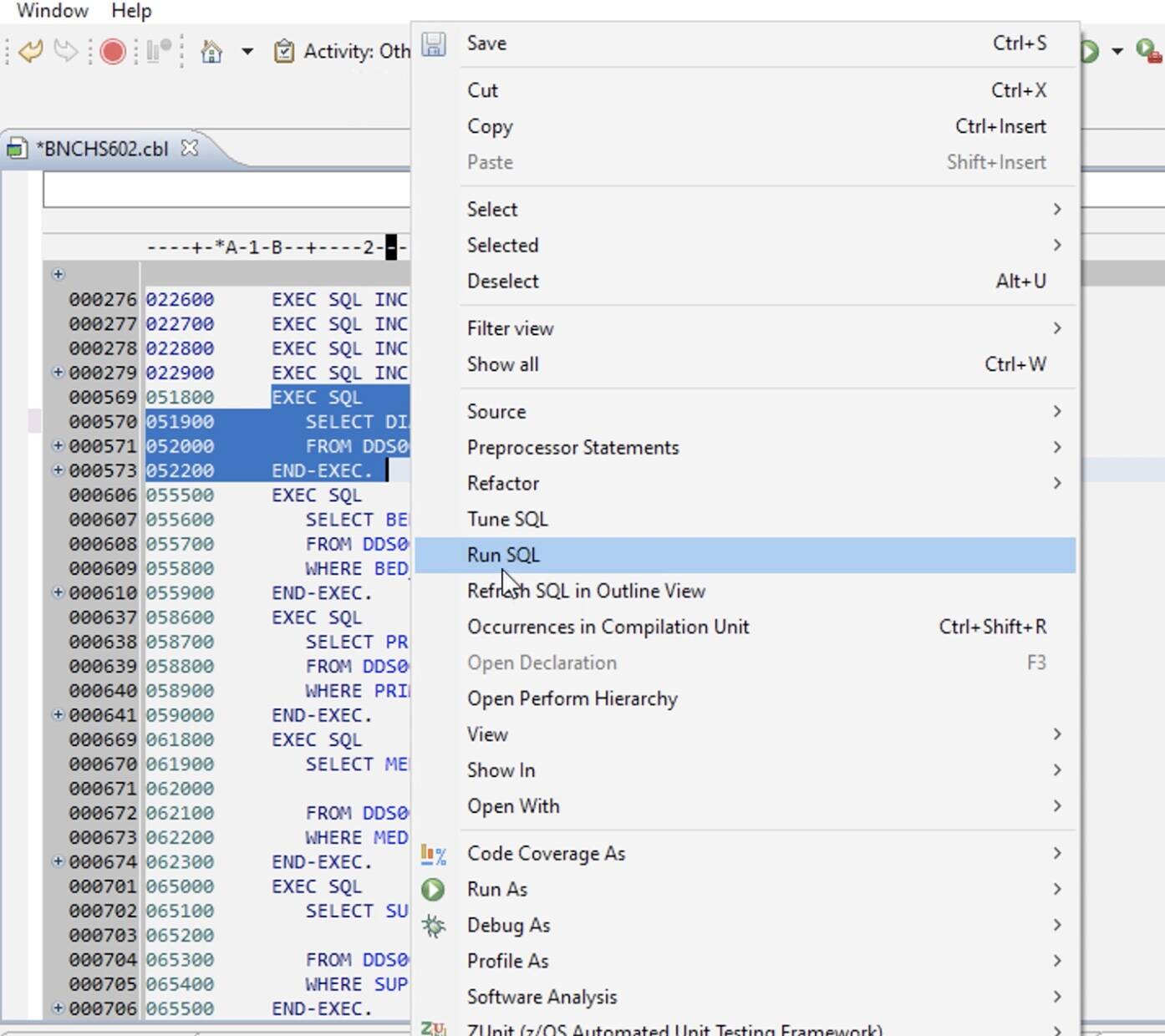
From the filtered code, find an EXEC SQL statement. Select the statement completely, from EXEC to END EXEC, by left-clicking and dragging the cursor to highlight the entire statement. With the statement highlighted, right-click to bring up the context menu and choose Run SQL.
Note: If you are not already logged in to your Db2 connection, a database authorization window will appear and prompt you to enter your Time Sharing Option (TSO) ID and password.
5. Verify your SQL Results and Export
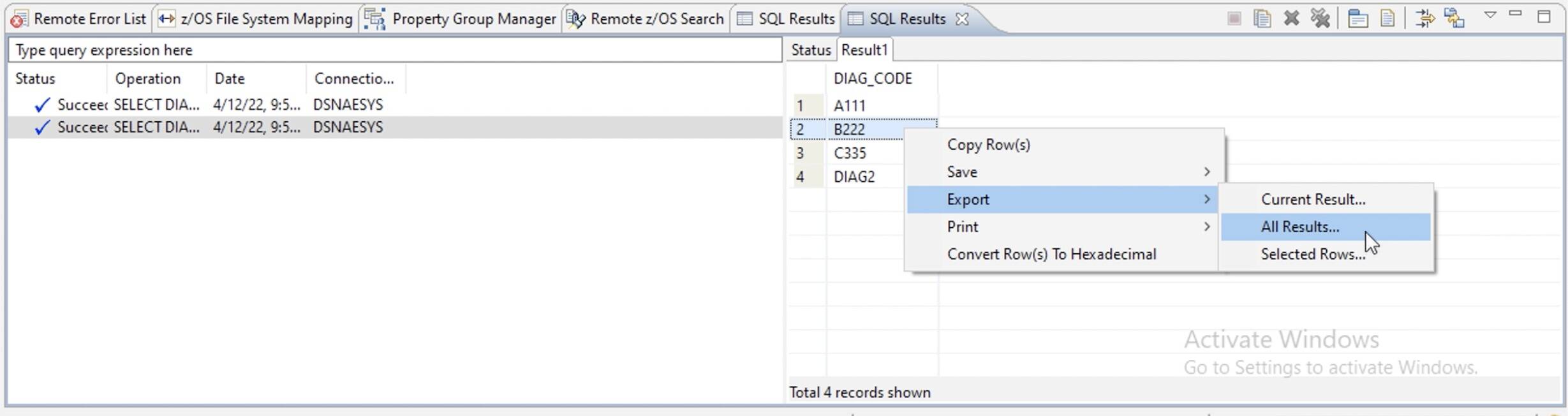
After Run SQL has been executed from the context menu, the SQL Results view will appear in the workbench and display the results of the SQL statement that was run. From the SQL Results view, you have the ability to utilize data tools functionality like sorting and exporting results to different media.
6. Execute SQL with Host variables
Data Access Development Support and the Run SQL feature also support statements that contain host variables. If your statement contains host variables, execute the same procedure (highlight statement from EXEC to END EXEC, then right-click and choose Run SQL) and then a Specify Host Variable Values window will appear. Specify the desired values and click Finish.

Then the SQL Results view will appear with the results of running the specified SQL statement.

Summary
In this tutorial, you added Data Access Development Support to your previously created MVS subproject. With this in place, you are now able to run EXEC SQL statements directly from COBOL code.
For more information, IDz Data Tool usage is covered in our no-charge, instructor-led Remote Training course, which is held quarterly. In addition, you can complete the IDz basics online badge course, which contains a section on Db2/SQL support; upon completion of the course and the labs (which are powered by the IBM Z trial experience), you will receive an official Acclaim badge.