Tutorial
Use IBM Developer for z/OS with IBM Data Studio to test SQL statements inside COBOL source code, Part 1
Create an MVS subproject and populate it with COBOL source that contains embedded SQL codeWith the reinstatement of IBM Data Studio integration in IBM Developer for z/OS (IDz) version 15.0.4, there is an opportunity to expose some fantastic functionality that saves time and effort in testing SQL statements in COBOL code. One of the best ways to do this is by leveraging the Data Access Development Support feature inside of Multiple Virtual Storage (MVS) subprojects. In Part 1, I show you how to create an MVS subproject, setting the stage for enabling Data Access Development support for testing SQL statements as a context menu option, right out of COBOL source code. This alleviates the need for separate SQL Processor Using File Input (SPUFI) scripts.
Prerequisites
To take advantage of this feature, you need:
- IBM Developer for zSystems (IDz) software, installed and configured with connections to an MVS LPAR and a Db2 database
- IBM Data Studio, installed and "shell-sharing" with IDz
- Basic understanding of IDz navigation concepts, including the context menu (check out our no-charge IDz Remote Training options)
Estimated time
Creating the necessary file organizational structure to enable Data Access Development Support should take about 10 minutes.
Steps
1. Open z/OS Projects perspective
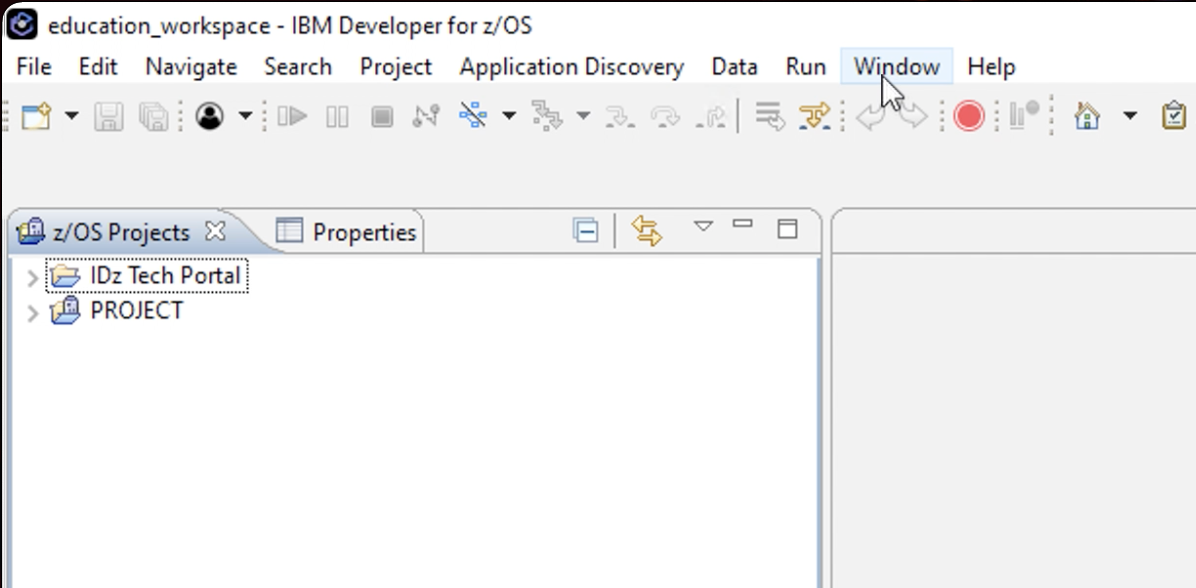
MVS subprojects live in the z/OS Projects view in IDz. This view is a default view within the z/OS Projects perspective. To find this view, start by navigating to the Window menu on the menu bar at the top of the IDz workbench:
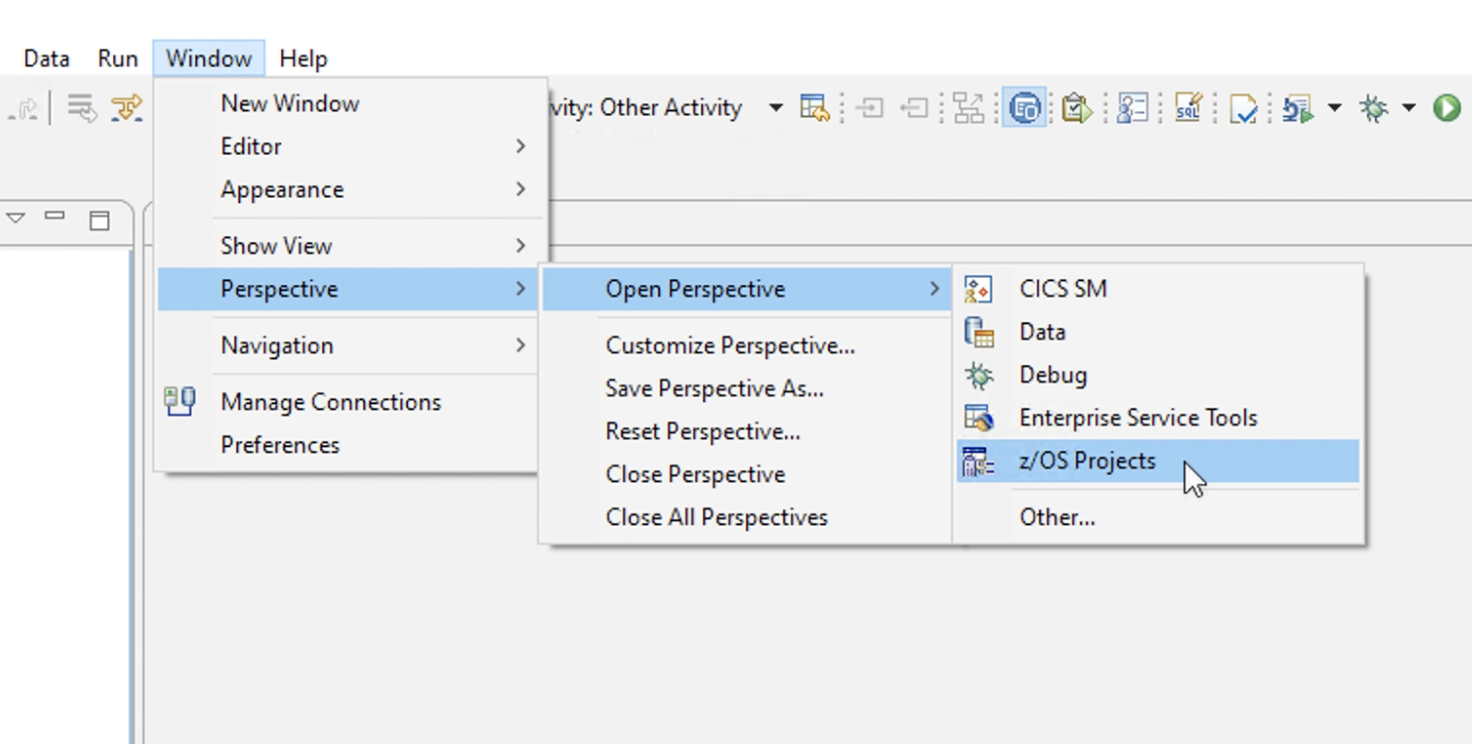
From the Window menu, navigate to Perspective > Open Perspective, then choose z/OS Projects.
Note: It is possible that you may already have the z/OS Projects perspective open in your installation of IDz. This process ensures that you are in the correct starting place.
2. Create a new z/OS project
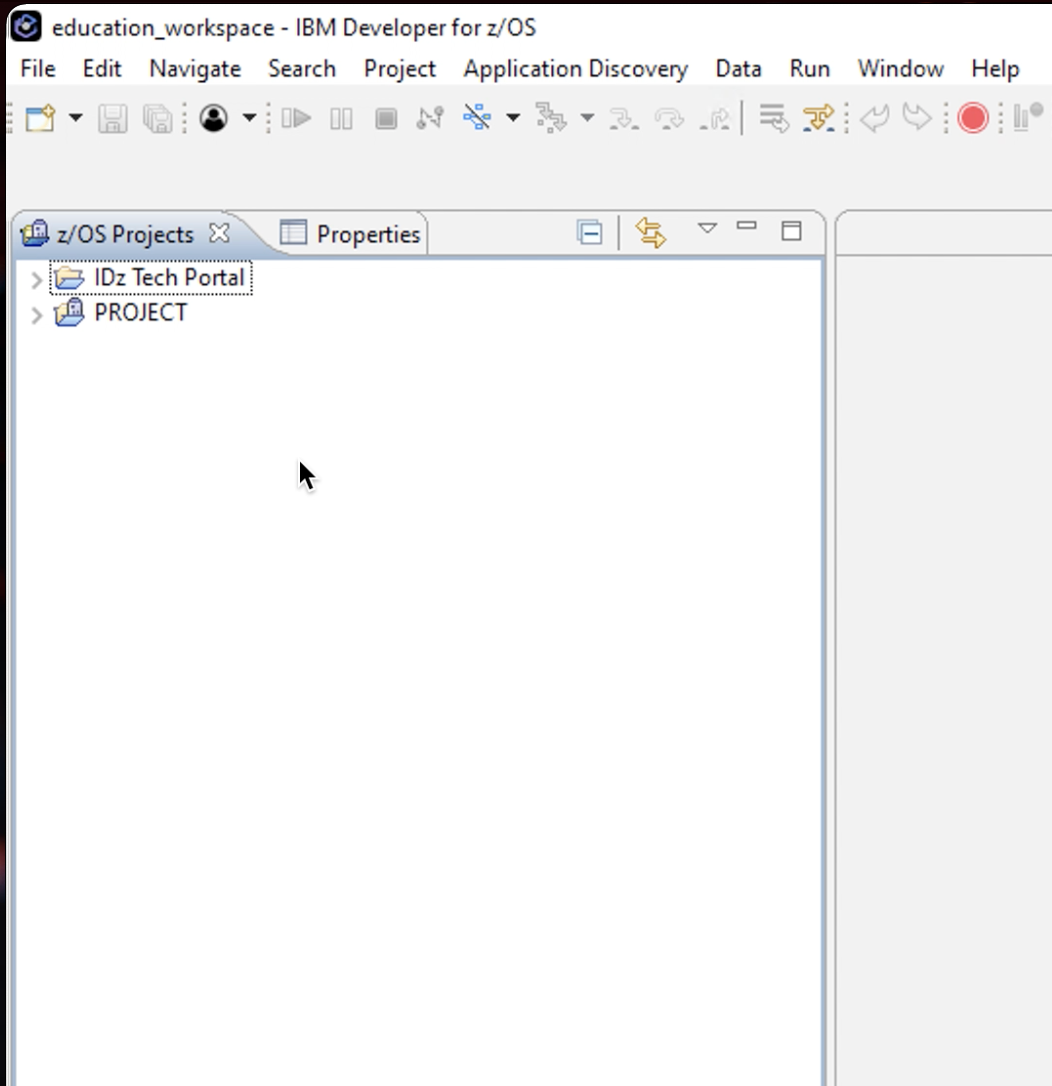
Now that the z/OS Projects perspective is open, navigate to the z/OS Projects view. This view, by default, is in the upper left-hand corner of the workbench.
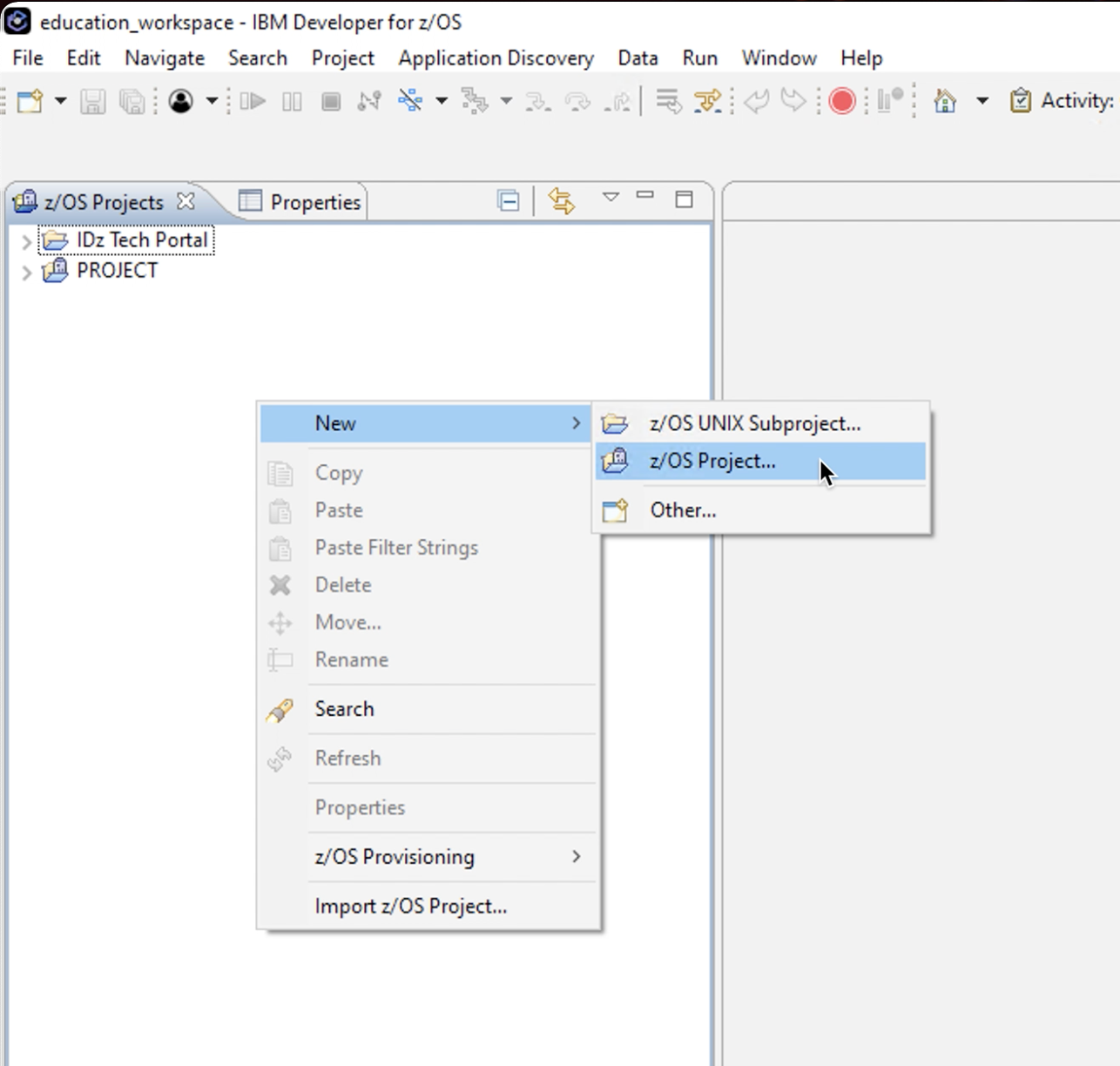
From the z/OS Projects view, right-click to bring up the context menu and choose New > z/OS Project:
This brings up the New z/OS Project wizard. This wizard will prompt you to enter a name for the project. Enter a name, click the radio button next to Create an MVS subproject, and click Finish. This creates the z/OS project where the MVS subproject will exist.
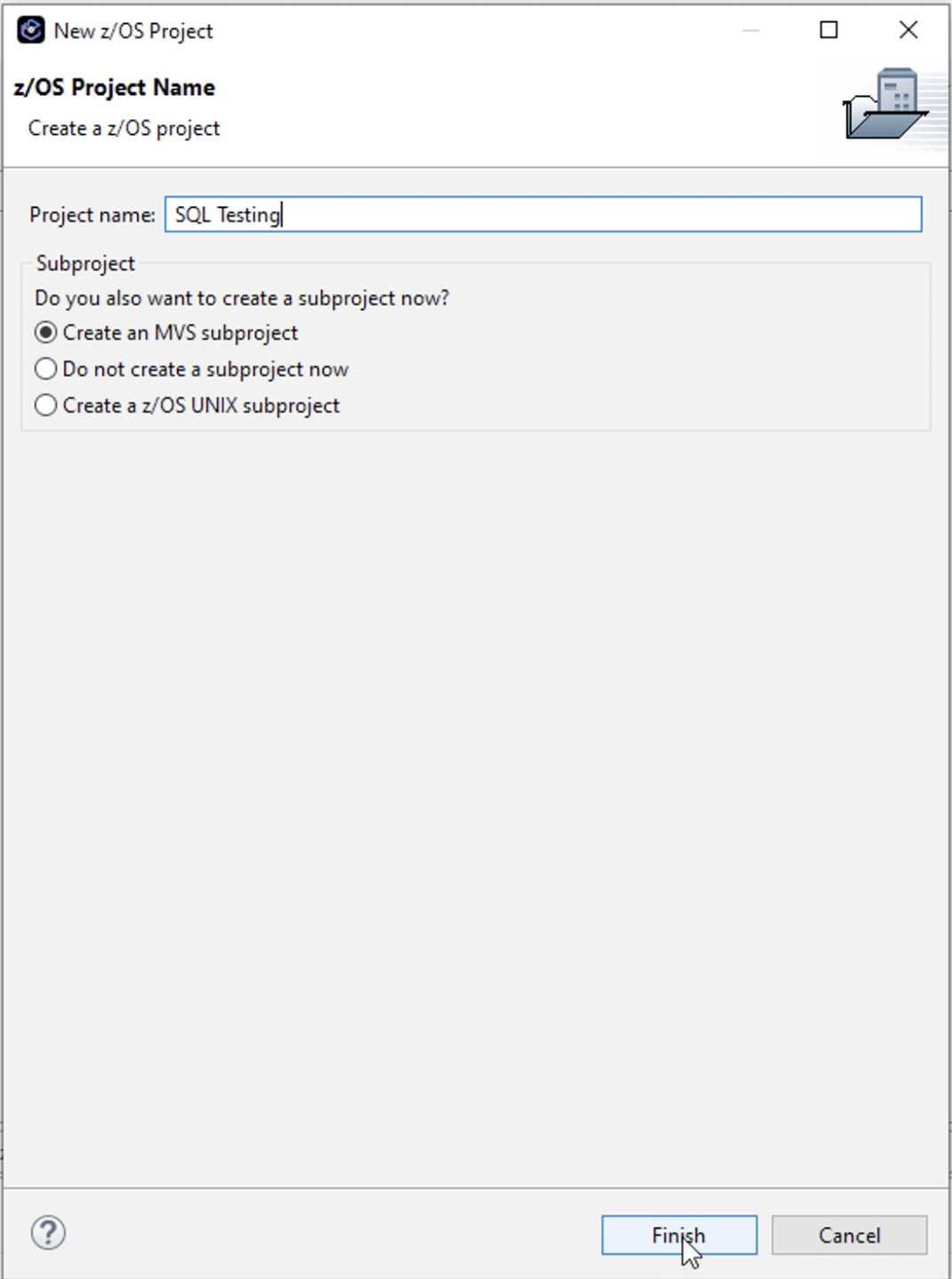
3. Choose a name and location for your subproject
After you've creating your z/OS Project, the New MVS Subproject wizard will appear. This wizard will ask you to associate the MVS subproject with a remote z/OS connection, give the subproject a name, associate a high-level qualifier, specify a runtime environment if desired, and make a selection for a property group. Enter information for these inputs/options, ensure the Select and add resources checkbox is checked, and then click Finish.
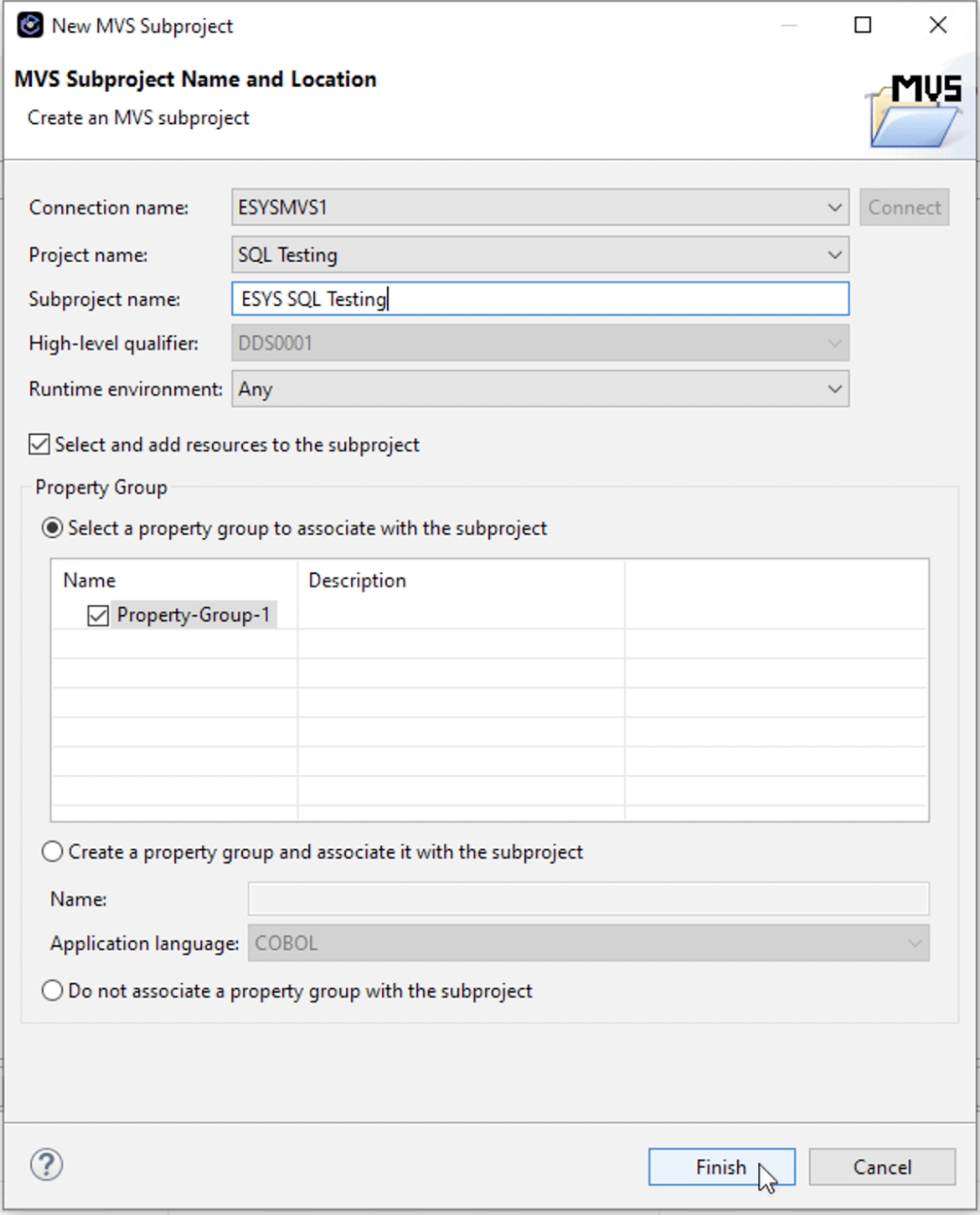
4. Add resources to your subproject
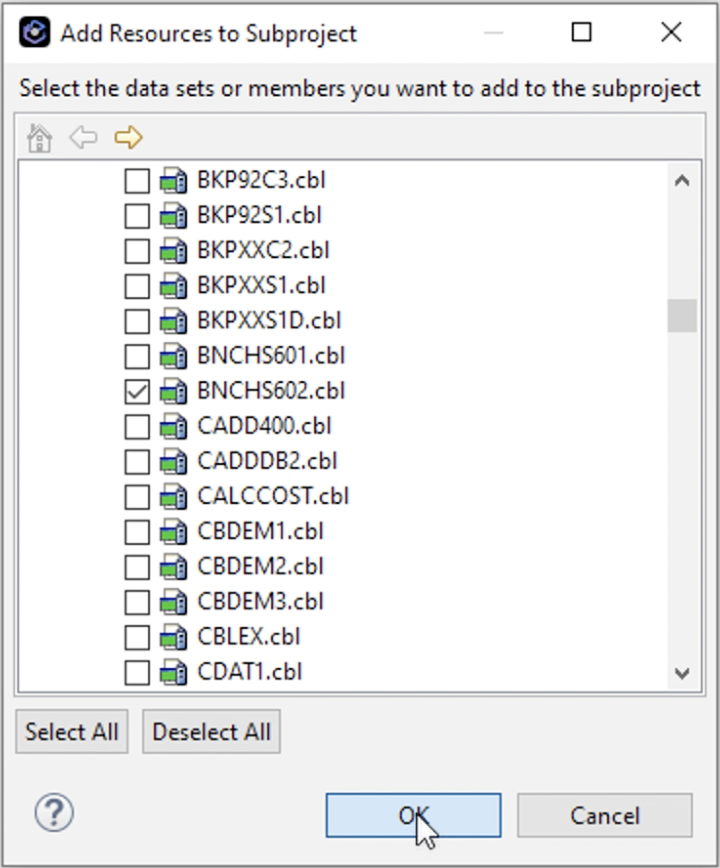
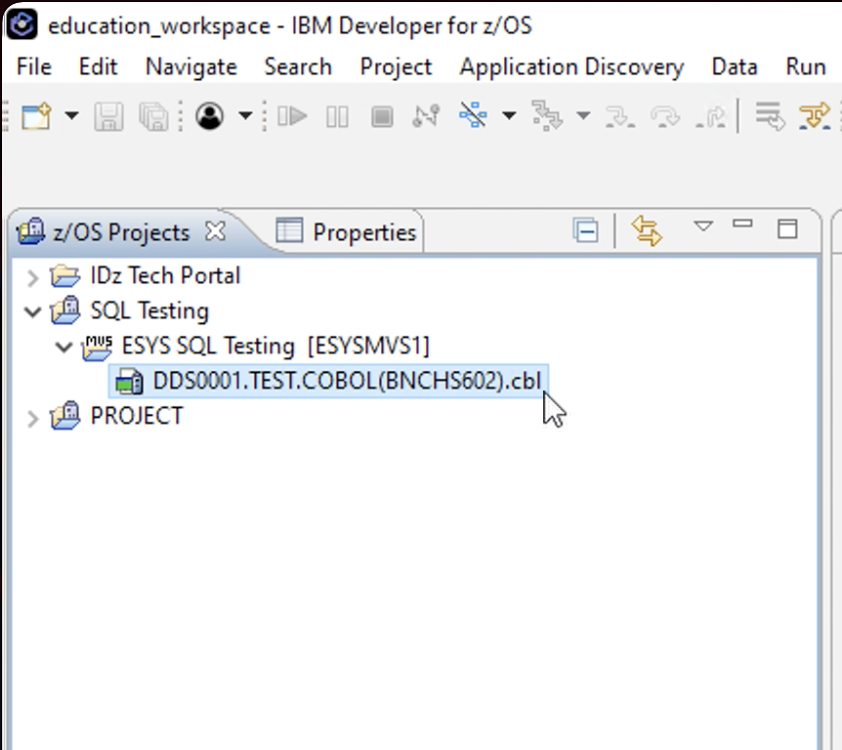
After you have executed these steps, you should see a new z/OS project and MVS subproject in the z/OS Projects view. Lastly, an Add Resources to Subproject wizard will appear and allow you to add your code to the subproject. Navigate through the filters that are presented and choose a COBOL source member that contains embedded SQL code, then click OK.
After clicking OK, you should see a pointer to the COBOL source member in the MVS subproject:
Summary
In this tutorial, you created an MVS subproject and populated it with COBOL source that contains embedded SQL code. Now that the MVS subproject is in place, you can move on to Part 2 where I show you how to add Data Access Development Support and run EXEC SQL statements directly from COBOL code.