In this tutorial, you deploy the IBM MQ messaging playground app to AWS with one CDK command, and then explore point-to-point, publish/subscribe, and request-response messaging.
The IBM MQ messaging playground application allows developers to experience and explore common messaging patterns. The application design and deployment steps are optimized for AWS to simplify the tasks that you need to complete to start using the application.
The application is structured around three components:
- A front-end web application that enables users to interact with messaging objects
- A back-end application that processes instructions from the front-end web app and performs messaging tasks
- A queue manager that hosts the messaging objects and stores the messages that are exchanged
This messaging playground application allows you to create your own instances of messaging producers and messaging consumers. You can interact with them and explore how IBM MQ on AWS underpins the exchange of messages between different endpoints.
The playground provides a visual, hands-on experience of three messaging patterns:
- Point-to-point
- Publish/subscribe
- Request-response
The messaging playground application is based on the ticket reseller sample application that was introduced in the IBM MQ Developer Essentials learning path.
In this tutorial, you learn how to build more sophisticated solutions with these patterns for a ticket reseller and management system for a theater event. The application components are available in the MQ Samples and Patterns GitHub repository under an Apache 2.0 license.
Prerequisites
- To familiarize yourself with the sample application, review the IBM MQ messaging app coding challenge in the IBM MQ Developer Essentials learning path.
- Podman Desktop — used by the AWS Cloud Development Kit (CDK) command-line interface (CLI) to build and push container images to Amazon Elastic Container Registry (ECR).
- Python 3.11 or higher.
- Node.js 18 or higher (used to invoke the CDK CLI via
npx). - An AWS account. If you don't have one, create a free AWS account.
An AWS Identity and Access Management (IAM) user with
AdministratorAccess. From the AWS Console, go to IAM > Users and create a user that belongs to a group with theAdministratorAccesspolicy attached. You also need an active access key for that user (IAM > Users > your user > Security credentials).If you prefer a more restricted set of permissions, attach the following AWS managed policies, which cover the services that the CDK stack and
cdk bootstrapuse:Policy Why it's needed AmazonECS_FullAccessCreate the Amazon Elastic Container Service (ECS) cluster, task definition, and Fargate service AmazonEC2FullAccessLook up the default virtual private cloud (VPC) and create security groups AmazonElasticFileSystemFullAccessCreate the Amazon Elastic File System (EFS) file system and access point ElasticLoadBalancingFullAccessCreate the Network Load Balancer (NLB), target groups, and listeners SecretsManagerReadWriteCreate and manage the MQ password secrets IAMFullAccessCreate the ECS task role and execution role, and the CDK bootstrap roles CloudWatchLogsFullAccessCreate the log group for container logs AmazonEC2ContainerRegistryFullAccessPush the front-end and back-end images to Amazon ECR AmazonS3FullAccessUse the CDK bootstrap staging bucket AmazonSSMFullAccessRead and write the CDK bootstrap version parameter AWSCloudFormationFullAccessCDK deploys the infrastructure through CloudFormation AWS CLI installed and configured. Run
aws configureto set it up with your access key, and then verify your setup with this command:aws sts get-caller-identityTo deploy the application in this tutorial to the AWS Cloud, you must complete the steps in the tutorial, "Get an IBM MQ queue for development in AWS Cloud."
Messaging patterns
In the IBM MQ Developer Essentials learning path, you learned about the fundamental messaging components (messages, queues, channels, and so on) and the basics of messaging patterns. The messaging playground application is packaged as a containerized application that is deployed on AWS. Before you deploy it, familiarize yourself with the messaging components that make up the application. Also learn how they interact with the different messaging patterns, which are also known as message exchange patterns.
Point-to-point messaging
Point-to-point messaging is the simplest form of messaging in IBM MQ. Using this messaging pattern, loosely coupled applications can communicate without the need to know anything about each other. The only component that they have in common is the queue that they use to exchange messages.
Using point-to-point communication, one or more producers can send new messages to a specific queue without knowing which application consumes them. In the same way, consumers can receive messages by connecting to the queue where the messages are stored, without the need to have any information about the sender.
The following sections show how to use the messaging playground application to explore point-to-point messaging for the ticket reseller and management system sample application.
In this section, you learn how to:
- Create connections
- Put messages into a queue
- Consume messages
- Add new producers, consumers, or queues into the workspace
Create connections
You can create connections by connecting a message producer (in the messaging playground app, the Tickets Generator) and a queue (for example, DEV.QUEUE.1). An individual queue can support connections from multiple concurrent producers and consumers. You can close a connection by clicking the x icon in the middle of the connecting line that joins them.
Figure 1: An example of a connection between a producer and a queue.

Put messages into a queue
After your producer is connected to a queue, you are ready to send messages. You can set the number of messages you want to send by modifying the value of the Tickets created input field. Click the Create Bookings button to start the producer and send the batch of messages (in this case, “bookings”) to the queue that it is connected to. The queue object shows the number of requests and the percentage full (based on the queue’s maximum depth). This value increases when the producer puts new messages and decreases when consumers get them.
Figure 2: An example of a producer putting messages into a connected queue.

Consume messages
You create connections between consumers and queues in the same way as for producers. By default, the consumer application components are in an inactive state, which means they are not actively getting messages. You can change this state by clicking the switch icon to the On position. After the switch is on, messages flow from the queue to the consuming application. The Type field displays the payload of each message that is consumed. The date and time that the message was created are displayed along with a cumulative total of messages that the receiving application has consumed.
Figure 3: An example of a consumer consuming messages from a queue.

Add new producers, consumers, or queues
You might want to explore more sophisticated producer-consumer patterns. You can add producer, consumer, and queue components from the sidebar by dragging them to the workspace.
The messaging playground app is deployed by using containers with limited resources. To avoid overwhelming the available resources, the application limits the maximum number of concurrent queue objects to 3. To limit the load on the containers, avoid sending messages at high frequency (1 message per second).
Figure 4: An example of adding new UI components and creating new applications.

Publish/subscribe messaging
Publish/subscribe messaging is a widely adopted messaging pattern, and it is also implemented in IBM MQ. Unlike point-to-point messaging, where messages are exchanged between a producer-consumer pair, publish/subscribe delivers a message to all subscribers of a topic. A producer publishes the message to that topic.
A typical publish/subscribe messaging system will typically have multiple publishers and subscribers interconnected over a network of different topics, often referred to as a topic tree. A topic tree can span the domain of more than one queue manager. In this messaging pattern, an application can be both a publisher and a subscriber to a range of topics.
The basic concepts of the publish/subscribe messaging pattern are:
- Topics are objects and they have properties.
- Messages are published to a topic by a publisher.
- Each publication is to a single topic. Subscribers register an interest in, or subscribe to, a topic.
- When a publisher publishes a message to a topic, all subscribers for that topic receive a copy of the message.
- For a message to be delivered to a subscriber, both the publisher and the subscriber must match the same topic. Subscribers receive only messages that are produced from the time they subscribe to the topic.
In this section, you learn how to use the messaging playground application to explore publish/subscribe messaging:
- Create a topic
- Publish messages to a topic
- Create subscriptions
- Exchange messages
- Add new publishers, topics, or subscribers to the workspace
Create topics
To add topic objects to the playground and to create IBM MQ topics, you can drag a new topic component onto the workspace. A topic value must be assigned using the input text field before it can be made available for publishers and subscribers to connect to.
In this application, topic trees cannot include special characters, except for the # wildcard character, which can be placed only at the end of the topic. Direct publications to wildcard topics are not allowed. Wildcard topics receive all the messages that are published to topics with the same tree. For example, a subscriber to topics/# receives messages that are published to topics/classics and topics/VIP. However, the same subscriber does not receive publications to bookings/VIP because the parent tree topics does not match.
Figure 5: An example of creating a topic.

Subscribers are connected to topics by using the orange interface on the right side, while publishers are connected to topics by using the blue interface on the left side. You can delete topic components by clicking the x icon.
Publish a message to a topic
Publishers in the messaging playground app are represented by notification components. In this booking sample scenario, event organizers (publishers) need a notification system to send messages to all customers (subscribers). Each message can include a title and content, both of which form the payload of the message that is sent to all subscribers to that topic. After your message is ready, connect the publisher to the corresponding topic by drawing a line between them. To publish the message, click the Send Notification button. Optionally, to publish the message automatically every 5 seconds, click the Notify every 5 seconds switch.
Figure 6: An example of a publisher application that is connected to a topic.

Create subscriptions
After you configure the topics in the messaging playground app, you can start adding subscribers by dragging subscriber components from the sidebar. Subscribers are connected to topics by drawing a line between the subscriber component and the topic component. The playground indicates the success or failure of the subscribe action by displaying a notification on the lower right of the browser window. You can rename the subscriber by overwriting the text on the upper left of the subscriber component. After subscribing to a topic, your subscriber applications can now receive messages that are published to that topic. The payload of incoming messages is displayed on the subscriber component under Last Notification received.
Figure 7: An example of a subscriber subscribing to a topic.

Exchange messages between publishers and subscribers
After both your publishers and subscribers are connected to a topic, you can start publishing. The banner that appears on the lower right of the browser window indicates whether the message was published successfully. If the subscribers consume the message correctly, the subscriber component displays the title and content of the message that you sent. If multiple subscriptions are made to the same topic, either explicitly or indirectly by using a wildcard, a copy of the message is delivered to each subscriber.
Figure 8: An example of a publisher publishing message to a topic, and a subscriber receiving messages from a topic.

Add new publishers, subscribers, or topics
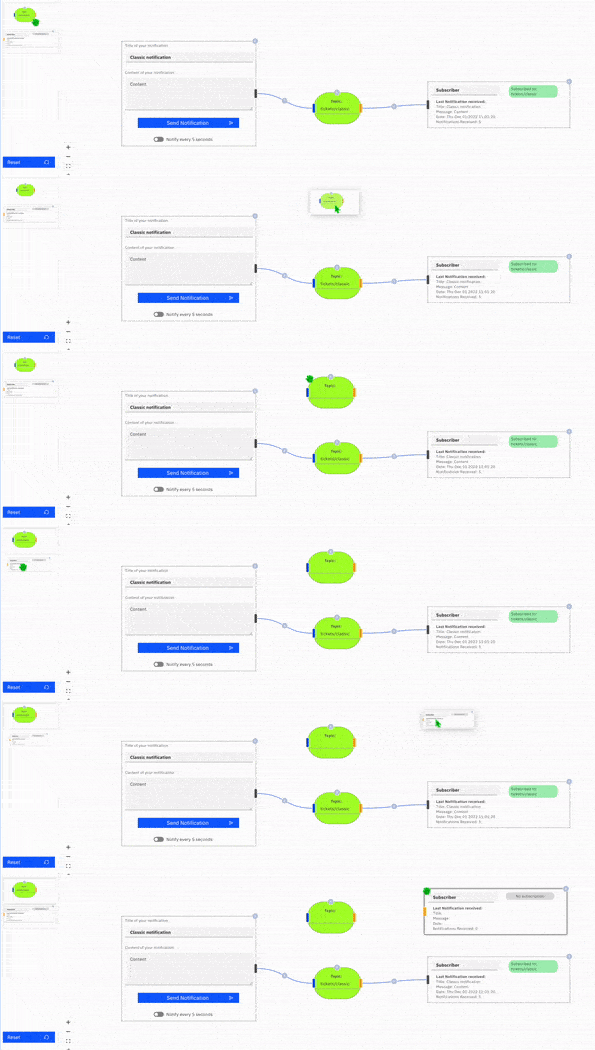
You can add more publisher, subscriber, and topic components by dragging the required component from the sidebar. You can reset the workspace to the default example at any time by clicking the Reset button.
Because this playground is a set of applications that run on containers with limited resources, avoid adding more than 10 subscribers to reduce the load on the containers.
Figure 9: Adding new UI components (topics, subscribers, publishers).
Request-response messaging
Request-response (sometimes referred to as request-reply) is a conversational messaging pattern where the application that sends a message requires a response from the receiving application. The request-response messaging pattern is often built on top of the point-to-point messaging pattern and can be a synchronous operation.
Typically, the sending application waits for a set amount of time for the response message before entering a timeout routine. The request and response applications typically employ strategies to handle error conditions such as timeouts or temporary queue resources not being available. A requesting application might set a time-to-live value on the request message. The queue manager then deletes the message if the response application does not process it within a specified timeframe.
The sending application sets a reply-to-destination and a correlation-id so that the response message can be routed and matched to the originating request message by the requesting application.
In this section, you explore request-response messaging in the playground application and learn how to:
- Send messages and create a temporary queue
- Receive and reply to request messages
Send messages and create a temporary queue
To send messages and create a temporary queue, connect the request component (in the messaging playground app, the Participants checker) to a predefined destination queue (for example, DEV.QUEUE.3). Then, to submit a new request, click the Submit Request button. You can optionally decide the number of requests to send to your response application by adjusting the value of the Quantity Request input field. If the request successfully sends the message to the request queue, a success notification appears at the bottom of the browser window.
Figure 10: An example of a requester creating a temporary queue and sending a message to a responder.

When the request message is sent, a temporary queue is created. This queue is where the requesting application expects the response application to reply and is often referred to as the “reply-to” queue. The requesting application is responsible for sharing the reply-to queue information with the response application.
Receive and reply to request messages
The response component consumes a new message from the requester when you click the switch on the right side of the Responder component. If the component receives the message correctly, a notification appears at the bottom of the browser window, and the response component displays the payload of the message.
The message sent from the requester contains two values: the payload itself and a property that contains the reply-to queue name. The reply-to queue is a temporary queue (in this example, APP.REPLIES.638...2001). After the responder receives a new request message, you can insert your response into the text box and reply to it by clicking the Reply button. After the requester receives the reply message, the reply-to queue (which is a temporary queue) is deleted because the conversation is complete.
Figure 11: Responder receiving a message from a requester and replying to a temporary queue.

Now that you understand the basics, set up the messaging playground application and explore the app.
Run the messaging playground application on AWS
In this tutorial, you learn how to deploy the messaging playground application on AWS ECS Fargate by using CDK. A single npx cdk deploy command provisions all the required AWS infrastructure. This infrastructure includes a VPC, ECS cluster, ECR repositories, EFS storage for the queue manager, Secrets Manager for passwords, and a Network Load Balancer. This sample application helps expand your knowledge of messaging patterns. You use these messaging patterns to extend the ticket reseller and management system in the next coding challenge of this learning path.
Clone the messaging playground application code
The playground app is available as an open source project in the MQ Samples and Patterns GitHub repository.
To clone the messaging playground sample app code, open your terminal and run:
git clone https://github.com/ibm-messaging/mq-dev-patterns.git
cd mq-dev-patterns/ibm-messaging-mq-cloud-showcase-app
Set up the CDK environment
The CDK stack is located in the cdk/ directory. Set up a Python virtual environment and install the required packages:
cd cdk
python3 -m venv .venv
source .venv/bin/activate
pip install -r requirements.txt
If this is your first time using CDK in your AWS account and region, bootstrap it:
npx cdk bootstrap
Configure MQ passwords
In the project root folder, copy the .env.example file to the .env file. Edit that .env file and set your passwords:
APP_PASSWORD=<your-app-password>
ADMIN_PASSWORD=<your-admin-password>
The CDK stack reads these values at deploy time and stores them in AWS Secrets Manager automatically — no manual AWS console or CLI steps needed.
Important: Choose strong, unique passwords for both values.
Deploy the messaging playground application
From the cdk/ directory with the virtual environment active, run:
npx cdk deploy
This task can take up to 5 minutes to complete. CDK completes the following steps:
- Build and push the front-end and back-end container images to Amazon ECR
- Create the VPC, ECS Fargate cluster, EFS volume, and Network Load Balancer
- Start all three containers (front end, back end, MQ queue manager)
At the end of the deployment, CDK prints the stack outputs including the stable NLB DNS name:
Figure 12: The CDK deploy terminal output showing the stack outputs at the end of a successful deployment.

If you need to retrieve the NLB DNS name after the initial deployment, run:
aws cloudformation describe-stacks --stack-name MqShowcaseStack \
  --query "Stacks[0].Outputs[?OutputKey=='NlbDnsName'].OutputValue" \
  --output text
After the three containers are running, you can access:
- The playground app at:
http://<NlbDnsName> - The IBM MQ web console at:
https://<NlbDnsName>:9443/ibmmq/console
You can verify that the task is running and healthy from the AWS ECS console. Go to your cluster and confirm that the task shows a Running status.
Figure 13: The AWS ECS console showing the Fargate task in a Running state.

Log in to the MQ console with username admin and the ADMIN_PASSWORD you set in the previous step.
Figure 14: The IBM MQ web console login page.

After a successful login, you see the MQ console main page, which confirms that the queue manager is running.
After you open the playground app in your browser, you see the messaging playground landing page with the default workspace ready to use.
Figure 15: The messaging playground application landing page.

Troubleshoot messaging playground errors
AWS ECS fully manages the environment and the communication between the three containers. You do not need to manage the versions of the operating systems, packages, frameworks, and application programming interfaces (APIs) that the messaging playground application uses. ECS sets up and links the container environments.
Sometimes, after you run the messaging playground application, errors can occur because of incorrect configuration of the three components (front-end web app, back-end web server, and queue manager). This section describes some common configuration problems and how to diagnose and resolve them.
The messaging playground application displays notifications on the bottom right of the browser window to notify you about the status of these three containers.
Optional: Tear down the AWS services
When you are done working with the messaging playground application, you should shut down the AWS services to avoid unnecessary costs.
From the cdk/ directory with the virtual environment active, run:
npx cdk destroy
This removes all AWS infrastructure created by the CDK stack, including the ECS cluster, load balancer, ECR repositories, and the EFS volume. Confirm the destruction when prompted.
If you restart the deployment later by running npx cdk deploy again, CDK creates a fresh EFS volume and the queue manager starts with a clean state.
Summary
You have successfully deployed an MQ application to AWS and explored common messaging patterns using IBM MQ and the messaging playground application.