Tutorial
Get an IBM MQ queue for development running on AWS Cloud
Configure your queue for app connectionsTo see how IBM MQ works, this tutorial guides you through creating and configuring a queue manager (server) and connecting an application (client) to it.
After completing this tutorial, you will be able to send messages to and retrieve messages from a queue.
You can download, install, and run IBM MQ queue manager (server) in a variety of ways:
- In a container or Red Hat OpenShift Container Platform.
- In the IBM Cloud, Microsoft Azure, Google Cloud, or AWS (this tutorial) (or AWS using Ansible or AWS using Terraform).
- On various operating systems: Linux/Ubuntu, Windows, or z/OS. For macOS, use IBM MQ on Containers.
Learning objectives
After completing this tutorial, you understand these concepts:
- IBM MQ queue managers
- IBM MQ queues
- Point-to-point messaging
Architecture
In this tutorial, you deploy an IBM MQ Advanced for Developers container onto Amazon Elastic Container Service (Amazon ECS) with AWS Fargate.
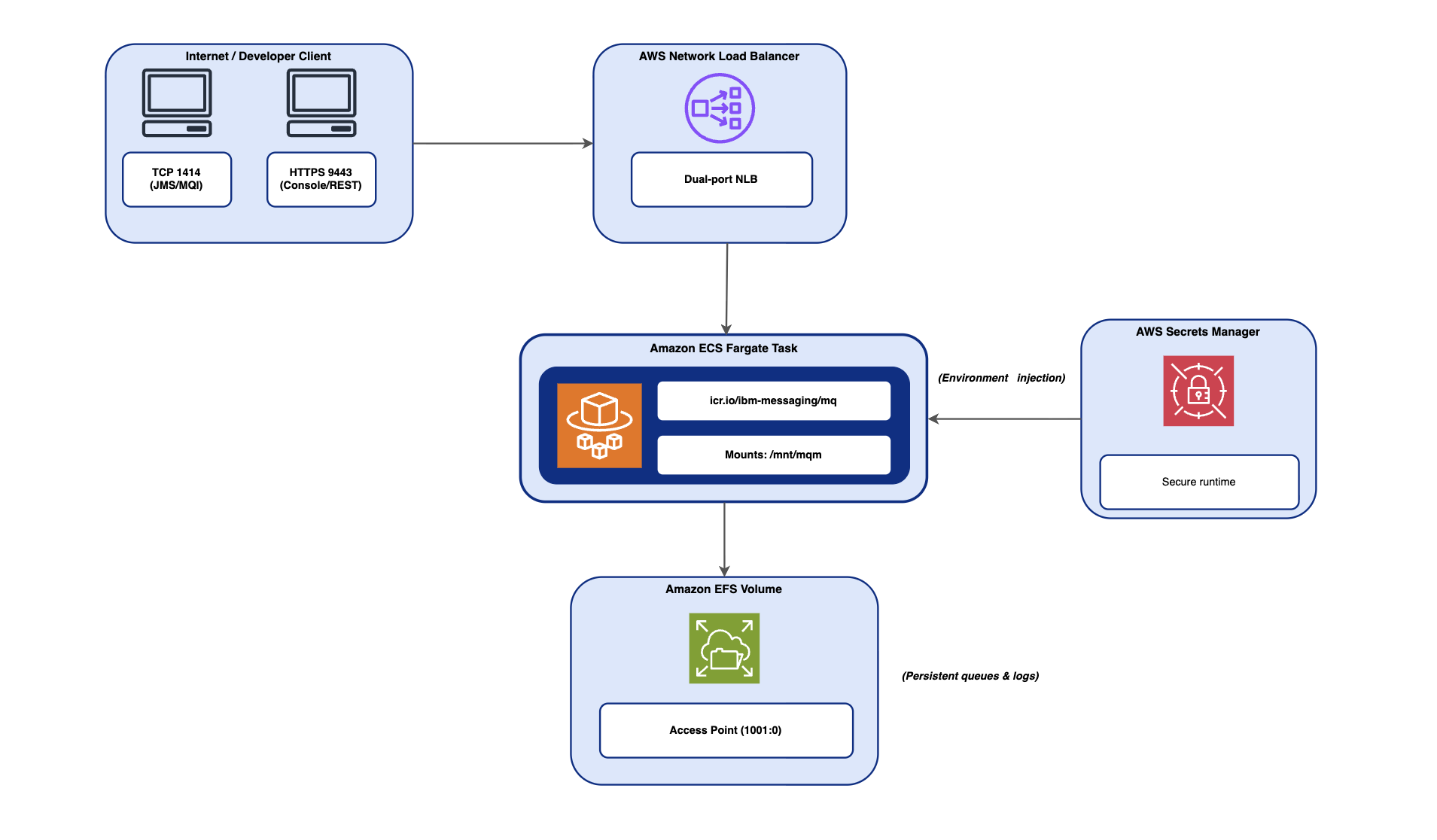
This architecture diagram contains these components:
- Compute: Amazon ECS on AWS Fargate (serverless container, 1 vCPU, 4 GB RAM)
- Security: Passwords stored in AWS Secrets Manager and injected into the container at startup
- Storage: Amazon EFS provides persistent storage so queue data survives container restarts
Networking: AWS Network Load Balancer with two ports:
- Port 1414 (TCP): MQ client applications (JMS, Node.js, Python, or C)
- Port 9443 (HTTPS): IBM MQ Web Console and REST API
Container Image:
icr.io/ibm-messaging/mq:latest(IBM Cloud Container Registry)
Prerequisites
To complete this tutorial, you need:
An AWS account. If you don't have one, create a free AWS account.
An AWS IAM user with
AdministratorAccess. From the AWS Console, go to IAM > Users and create an admin user associated with a group that has theAdministratorAccesspolicy attached. You also need an active access key for that user (IAM > Users > your user > Security credentials).This tutorial was tested with
AdministratorAccess. If you prefer to use a more restricted set of permissions, the following AWS managed policies are the minimum required:
| Policy | Why it's needed |
|---|---|
AmazonECS_FullAccess |
Create ECS cluster, task definition, and Fargate service |
AmazonEC2FullAccess |
Look up the default VPC and create security groups |
AmazonElasticFileSystemFullAccess |
Create EFS file system and access point |
ElasticLoadBalancingFullAccess |
Create Network Load Balancer, target groups, and listeners |
SecretsManagerReadWrite |
Create and manage the MQ credentials secret |
IAMFullAccess |
Create ECS task role and execution role |
CloudWatchLogsFullAccess |
Create log group for container logs |
AWSCloudFormationFullAccess |
CDK deploys infrastructure via CloudFormation |
The AWS CLI, configured with your access key. Run
aws configurefrom the command line to set up the AWS CLI, and then verify your setup with this command:aws sts get-caller-identityNode.js v18+ and npm, which is required for the AWS Cloud Development Kit (CDK) CLI. Verify that you have these with this command:
node -v && npm -vThe AWS Cloud Development Kit (CDK), installed globally. Use the following commands:
  npm install -g aws-cdk
  cdk --version
Python 3.9+ and pip:
python3 --versionGit CLI, to clone the sample repository.
IBM MQ C client libraries, required by the
ibmmqPython package:macOS (Apple Silicon):
    brew tap ibm-messaging/ibmmq
    brew install ibm-messaging/ibmmq/mqdevtoolkit
    export DYLD_LIBRARY_PATH=$DYLD_LIBRARY_PATH:/opt/mqm/lib64
Note: The
exportcommand is session-only. To make it permanent, add it to your~/.zshrcor~/.bash_profile.macOS (Intel x86_64): Go to the IBM MQ Downloads page and download MacOS Toolkit from the MQI Client installable row.
Linux and Windows: Go to the IBM MQ Downloads page and download the appropriate file from the MQI Redist Client archive (via MQ Downloads) row:
- Linux:
IBM-MQC-Redist-LinuxX64.tar.gz - Windows:
IBM-MQC-Redist-Win64.zip
- Linux:
If you extract it to a custom location, point the library path at your chosen directory:
- Linux:
export LD_LIBRARY_PATH=$LD_LIBRARY_PATH:/path/to/your/mqm/lib64 - macOS Intel:
export DYLD_LIBRARY_PATH=$DYLD_LIBRARY_PATH:/path/to/your/mqm/lib64 - Windows: add
\path\to\your\mqm\bin64to yourPATH
Steps
In these steps, you bootstrap your AWS environment, deploy an IBM MQ queue manager as a containerized service on AWS Fargate, and test that you can send and receive messages — first using the MQ REST API, then using a Python client application over TCP port 1414.
Step 1. Bootstrap your AWS environment (one-time setup)
Before any AWS CDK deployment can run, your AWS environment must be bootstrapped. This is a one-time step per AWS account and region that provisions the S3 bucket, IAM roles, and SSM parameter that the AWS CDK needs to operate. If you have already bootstrapped this account and region, you can skip this step.
cdk bootstrap aws://<ACCOUNT_ID>/<REGION>
# Example: cdk bootstrap aws://123456789012/us-west-1
Step 2. Clone the repository and install dependencies
Clone the mq-dev-patterns sample repository and navigate into the cdk-aws directory:
git clone https://github.com/ibm-messaging/mq-dev-patterns.git
cd mq-dev-patterns/container/queuemanager/cdk-aws
Set up a Python virtual environment and install the required dependencies:
python3 -m venv .venv
source .venv/bin/activate
pip install -r requirements.txt
The repository contains the following project files:
cdk-aws/
├── mq-config.yaml             # <-- Edit this file to configure your deployment
├── app.py                     # CDK app entry point (reads mq-config.yaml)
├── mq_ecs_cdk/
│   ├── __init__.py
│   └── mq_ecs_cdk_stack.py    # Infrastructure construct definitions
├── requirements.txt           # Python dependencies (aws-cdk-lib, constructs, pyyaml)
└── cdk.json                   # CDK execution metadata
Step 3. Review the configuration
The mq-config.yaml file is the only file you need to edit before deploying. It describes what resources you need, including the queue manager name, container image, compute size, and ports. The AWS CDK engine reads this file and automatically provisions all the required AWS infrastructure.
Open the file in your editor.
cat mq-config.yaml
Review and update the configuration parameters.
queueManager:
  name: "QM1"
  image: "icr.io/ibm-messaging/mq:latest"
  cpu: 1024
  memoryLimit: 4096

security:
  appPassword: ""    # Leave blank — pass securely at deploy time via -c flag
  adminPassword: ""

ports:
  messaging: 1414
  console: 9443
Leave the passwords blank for now. The recommended approach is to pass them at deploy time so that they are never stored in any file.
Step 4. Deploy the stack
When you run cdk deploy, the AWS CDK stack automatically creates the following AWS resources:
- AWS Secrets Manager. Your
appandadminpasswords are stored securely and injected into the container at startup. They are never stored as plain text in the task configuration. - Amazon EFS (Elastic File System). IBM MQ stores all its queue data on disk. The stack creates an EFS volume and attaches it to the container. This means that your messages survive container restarts. If the container stops or is redeployed, the queue data is still there when it comes back up.
- Network Load Balancer. A stable DNS endpoint sits in front of the container and gives you a consistent DNS name that never changes, even when the container is restarted or updated.
Deploy your IBM MQ queue manager by passing your custom passwords dynamically via context parameters:
cdk deploy \
  -c app_password="YourSecureAppPassword123" \
  -c admin_password="YourSecureAdminPassword123"
When prompted Do you wish to deploy these changes (y/n)?, review the list of IAM and security group changes, and then enter y.
AWS does the following when deploying the stack:
- Local Synthesis (
cdk synth). AWS CDK parsesmq-config.yamland compiles the Python code into a native AWS CloudFormation template that is stored incdk.out/. - Encrypted Transport. The template and parameters are securely transmitted over TLS 1.2 or 1.3 (HTTPS) directly to the AWS CloudFormation endpoint using AWS SigV4 signed requests. Passwords are never sent in the clear.
- Secrets Manager Provisioning: AWS Secrets Manager creates the secret and stores the credentials.
- CloudFormation Execution: AWS CloudFormation provisions the ECS cluster, EFS volume, Fargate service with runtime secret injection, and Network Load Balancer.
Deployment completes in approximately 4–5 minutes. Upon completion, the terminal displays the stack outputs:
 ✅  MqEcsCdkStack

Outputs:
MqEcsCdkStack.MqHost = MqEcsC-MqNLB-XXXXXXXX.elb.us-west-1.amazonaws.com
MqEcsCdkStack.MqConsoleUrl = https://MqEcsC-MqNLB-XXXXXXXX.elb.us-west-1.amazonaws.com:9443/ibmmq/console/
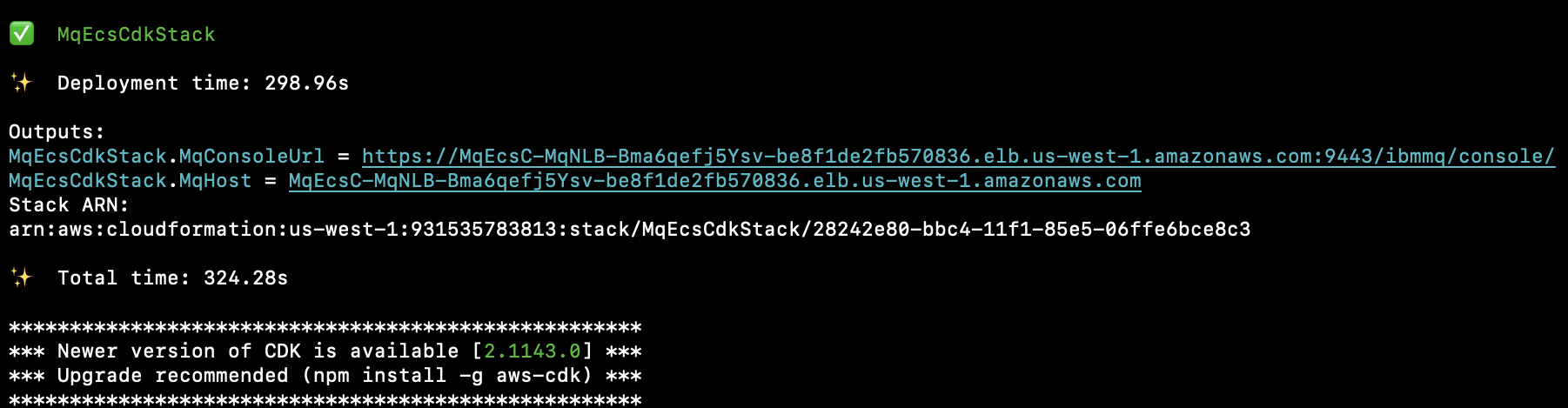
Save the MqHost DNS name as an environment variable in your terminal:
export MQ_HOST="<YOUR_MQ_HOST_FROM_OUTPUT>"
export MQ_APP_PASSWORD="YourSecureAppPassword123"
export MQ_ADMIN_PASSWORD="YourSecureAdminPassword123"
Step 5. Test messaging using the IBM MQ REST API (on port 9443)
First, send (PUT) a message to DEV.QUEUE.1:
curl -k -i -u "app:${MQ_APP_PASSWORD}" \
  -H "ibm-mq-rest-csrf-token: value" \
  -H "Content-Type: text/plain;charset=utf-8" \
  -X POST "https://${MQ_HOST}:9443/ibmmq/rest/v1/messaging/qmgr/QM1/queue/DEV.QUEUE.1/message" \
  -d 'Hello IBM MQ from AWS CDK Python with YAML!'
HTTP 201 Created in the response headers indicates that the message is successfully queued.
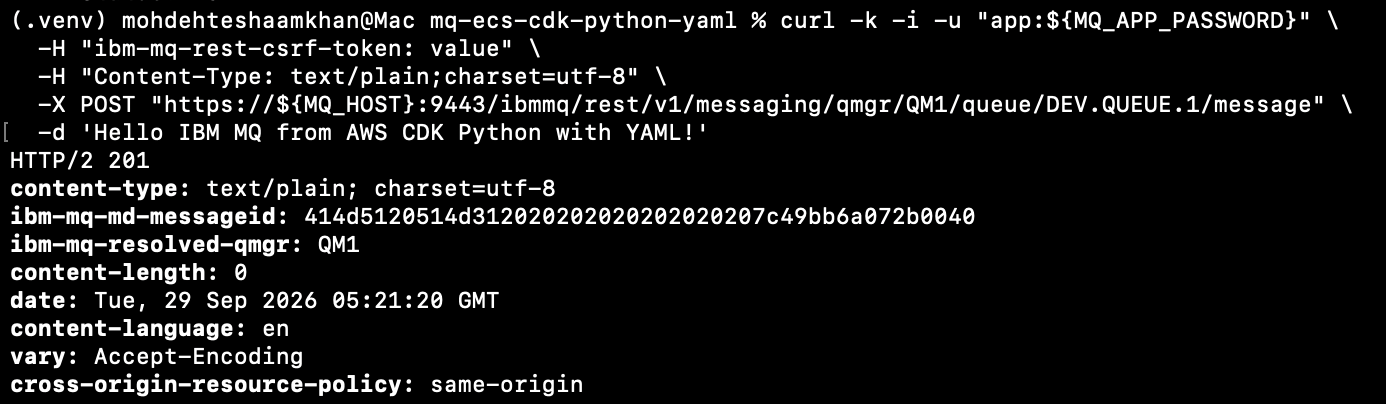
Then, read (GET) the message back from the queue:
curl -k -u "app:${MQ_APP_PASSWORD}" \
  -H "ibm-mq-rest-csrf-token: value" \
  -X DELETE "https://${MQ_HOST}:9443/ibmmq/rest/v1/messaging/qmgr/QM1/queue/DEV.QUEUE.1/message"
The expected output is: Hello IBM MQ from AWS CDK Python with YAML!.
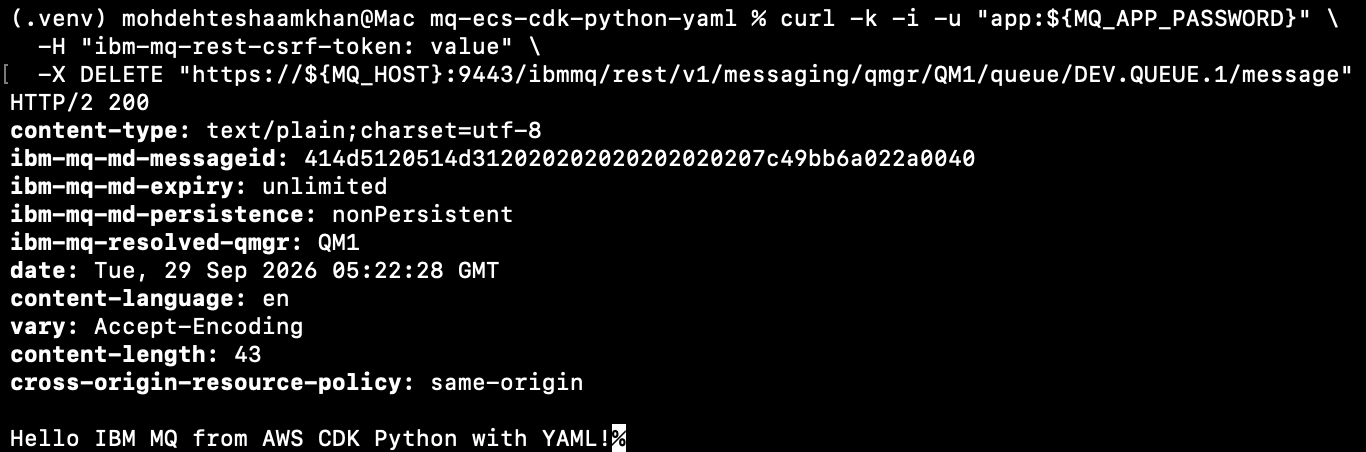
Step 6. Test native messaging using Python samples (on TCP port 1414)
To verify client messaging over native TCP port 1414, use the Python samples from the already-cloned mq-dev-patterns repository.
Set up and configure the Python samples
With the IBM MQ C client libraries already installed (see Prerequisites), and the AWS CDK virtual environment still active, install ibmmq into it:
pip install ibmmq
Next, navigate to the Python samples directory:
cd ../../../Python
Now, configure the connection. Create a local env.json file with your deployed queue manager's connection details. Replace <YOUR_MQ_HOST> with the NLB DNS name from the cdk deploy output, and <YOUR_APP_PASSWORD> with the application password you passed at deploy time:
{
  "MQ_ENDPOINTS": [{
    "HOST": "<YOUR_MQ_HOST>",
    "PORT": "1414",
    "CHANNEL": "DEV.APP.SVRCONN",
    "QMGR": "QM1",
    "APP_USER": "app",
    "APP_PASSWORD": "<YOUR_APP_PASSWORD>",
    "QUEUE_NAME": "DEV.QUEUE.1",
    "CIPHER": "",
    "KEY_REPOSITORY": ""
  }]
}
The mq-dev-patterns Python samples look for a config file using the path in the JSON_CONFIG environment variable. Setting it to ./env.json tells the samples to use the file you just created in the current directory.
Point the samples at your local config file:
export JSON_CONFIG=./env.json
Put a message to DEV.QUEUE.1
Run this command to put a message on DEV.QUEUE.1:
python basicput.py
The expected output is:
INFO:Put:Application "BasicPut" is starting
INFO:utils.env:Looking for config file: ./env.json
INFO:utils.env:Have file, so ready to set environment variables for configuration
INFO:utils.env:Building a connection string
INFO:utils.env:endpoint is <YOUR_MQ_HOST>(1414)
INFO:utils.env:Connection string is <YOUR_MQ_HOST>(1414)
INFO:Put:Connection is <YOUR_MQ_HOST>(1414)
INFO:Put:Establishing connection with MQ Server
INFO:Put:CCDT URL export is not set, will be using json environment client connections settings
INFO:Put:Checking cipher details
INFO:Put:Opening queue
INFO:Put:Attempting put to queue
INFO:Put:Put message successful: {"Greeting": "Hello from Python! 2026-09-29 10:54:54.344246"}
INFO:Put:Application is ending
Get the message back from DEV.QUEUE.1
Run this command to get the message from DEV.QUEUE.1:
python basicget.py
The expected output is:
INFO:Get:Application "BasicGet" is starting
INFO:utils.env:Looking for config file: ./env.json
INFO:utils.env:Have file, so ready to set environment variables for configuration
INFO:utils.env:Building a connection string
INFO:utils.env:endpoint is <YOUR_MQ_HOST>(1414)
INFO:utils.env:Connection string is <YOUR_MQ_HOST>(1414)
INFO:Get:There are 1 connections
INFO:Get:Trying connection: <YOUR_MQ_HOST>(1414)
INFO:Get:Establishing connection with MQ Server
INFO:Get:CCDT URL export is not set, will be using json environment client connections settings
INFO:Get:Checking cipher details
INFO:Get:Opening a Queue
INFO:Get:Attempting gets from Queue
INFO:Get:Have message from input queue: {"Greeting": "Hello from Python! 2026-09-29 10:54:54.344246"}
INFO:Get:No more messages found on this connection
INFO:Get:Application is ending
The retrieved Greeting message confirms successful native MQ messaging over TCP port 1414.
Step 7. Access the IBM MQ web console
Use the IBM MQ web console to verify that the queue manager is running and inspect the queues and channels that were created during deployment.
Open
https://<YOUR_MQ_HOST>:9443/ibmmq/console/in your browser.Note: Your browser will display an SSL certificate warning because the MQ web console uses a self-signed certificate by default. Click Advanced and then Proceed (or the equivalent in your browser) to continue.
Log in with:
- User:
admin Password: Specify the
admin_passwordyou passed tocdk deploy.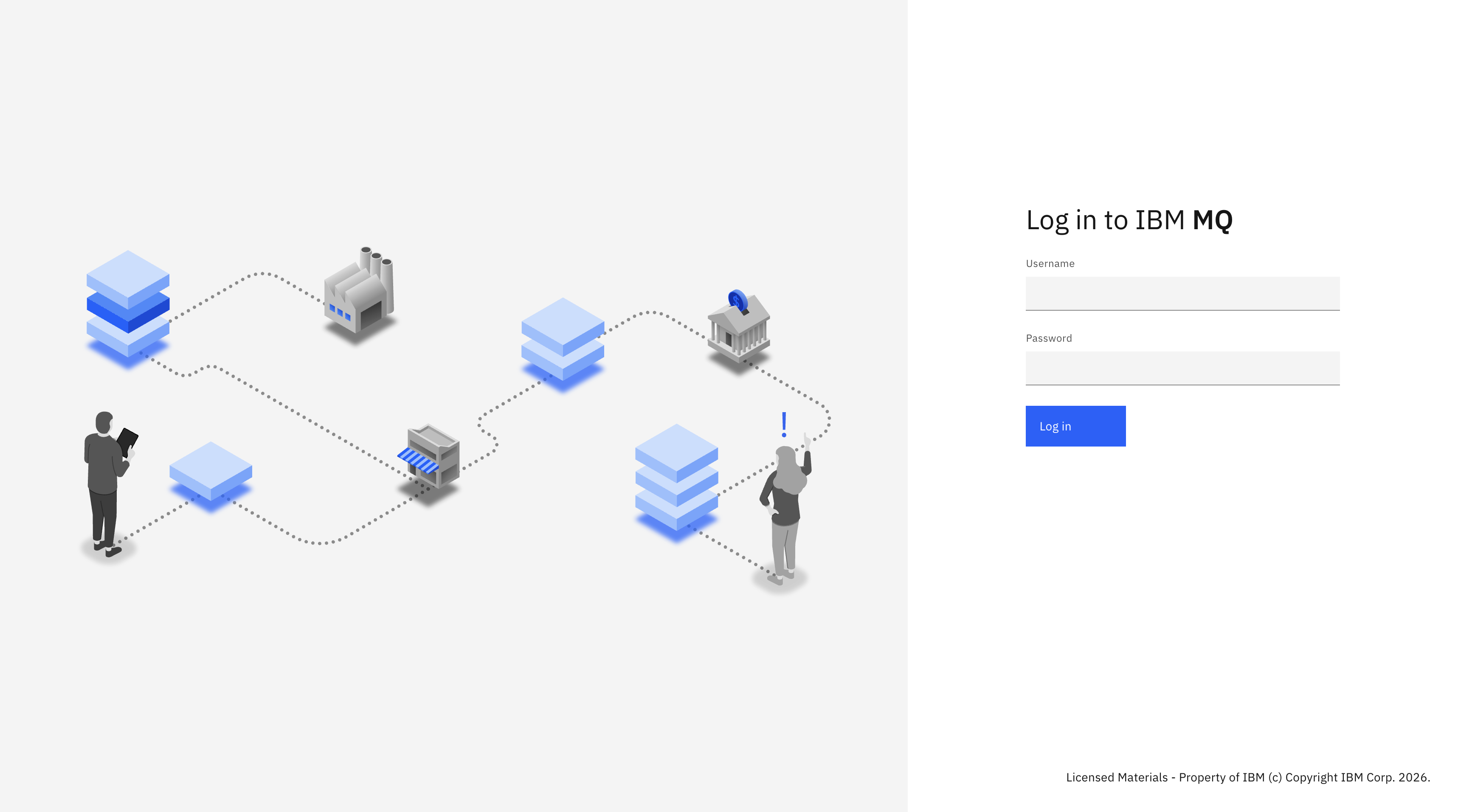
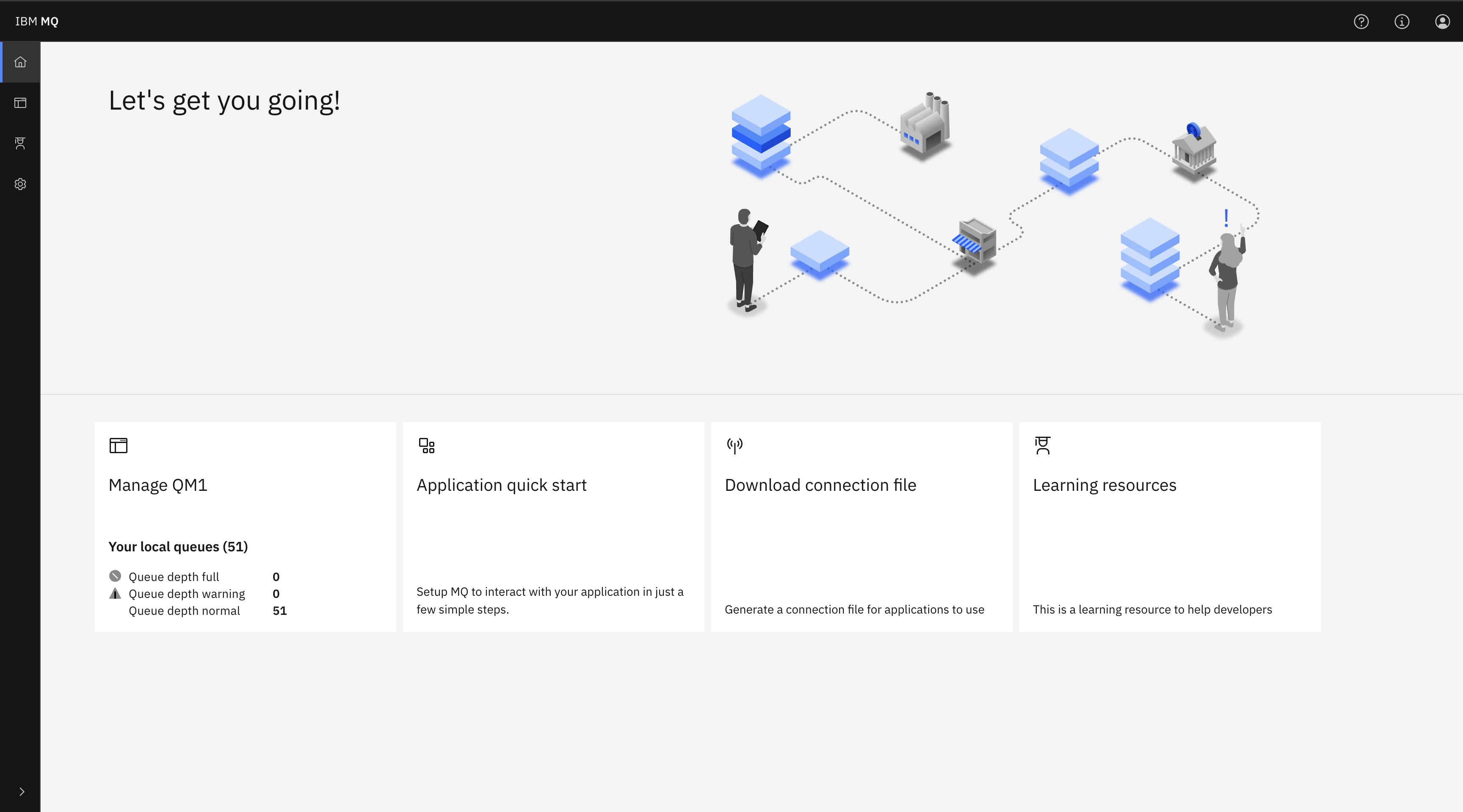
The IBM MQ web console is displayed.
- User:
Click Manage to view queue manager
QM1and verify thatDEV.QUEUE.1andDEV.APP.SVRCONNare active.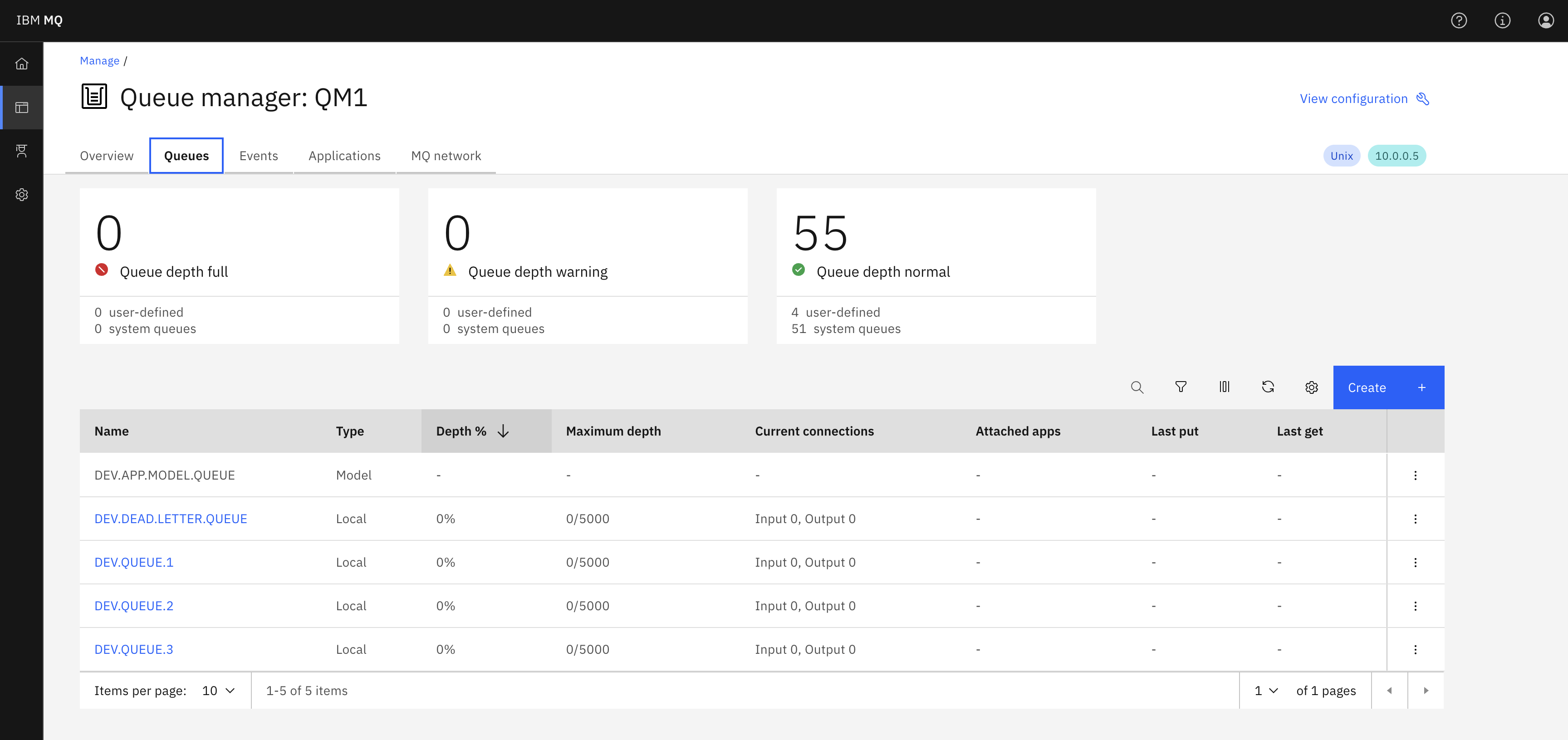
Step 8. Tear down the AWS services (optional)
To avoid recurring AWS charges after completing your testing, destroy all provisioned resources with a single command:
cdk destroy
When prompted Are you sure you want to delete: MqEcsCdkStack (y/n)?, enter y.
This automatically deletes the ECS cluster, Fargate service, Network Load Balancer, Target Groups, Security Groups, Secrets Manager secret, and EFS File System.
Warning: Destroying the stack permanently deletes all queue data stored on EFS. Make sure that you have processed or saved any messages you need before running cdk destroy.
Summary
You deployed an IBM MQ Advanced for Developers queue manager onto AWS Fargate using the AWS CDK, with persistent storage on Amazon EFS and passwords secured in AWS Secrets Manager. You verified end-to-end messaging over both the REST API and a native TCP Python client, and explored the queue manager through the IBM MQ Web Console.