Tutorial
Get an IBM MQ queue for development running on Red Hat OpenShift
Configure your queue for app connectionsTo see how IBM MQ works, you will be guided through creating and configuring a queue manager (server). Then, you will connect an application (client) to it.
After completing the tutorial, you will be able to send messages to and retrieve messages from an IBM MQ queue.
You can download, install, and run IBM MQ queue manager (server) in a variety of ways:
- In a container or Red Hat OpenShift Container Platform (this tutorial).
- In the IBM Cloud, AWS (or AWS using Ansible or AWS using Terraform), Microsoft Azure, or Google Cloud.
- On various operating systems: Linux/Ubuntu, Windows, or z/OS. For macOS, use MQ on Containers (this tutorial).
What you will learn
After completing this tutorial, you will understand these concepts:
- IBM MQ queue managers
- IBM MQ queues
- Point-to-point messaging
Prerequisites
- A Red Hat OpenShift Container Platform (OCP) cluster, including preparing it for the IBM MQ Operator by completing the first four steps of this task in the IBM MQ docs.
- OpenShift CLI
- OpenSSL
- Maven
Estimated time
This tutorial should take about 30 minutes.
Steps
Step 1. Get the IBM MQ operator
Log in to the Red Hat OpenShift console. In the sidebar, select Ecosystem > Software Catalog. Search for IBM MQ. Select the IBM MQ operator, click Install, and choose the latest update channel version.
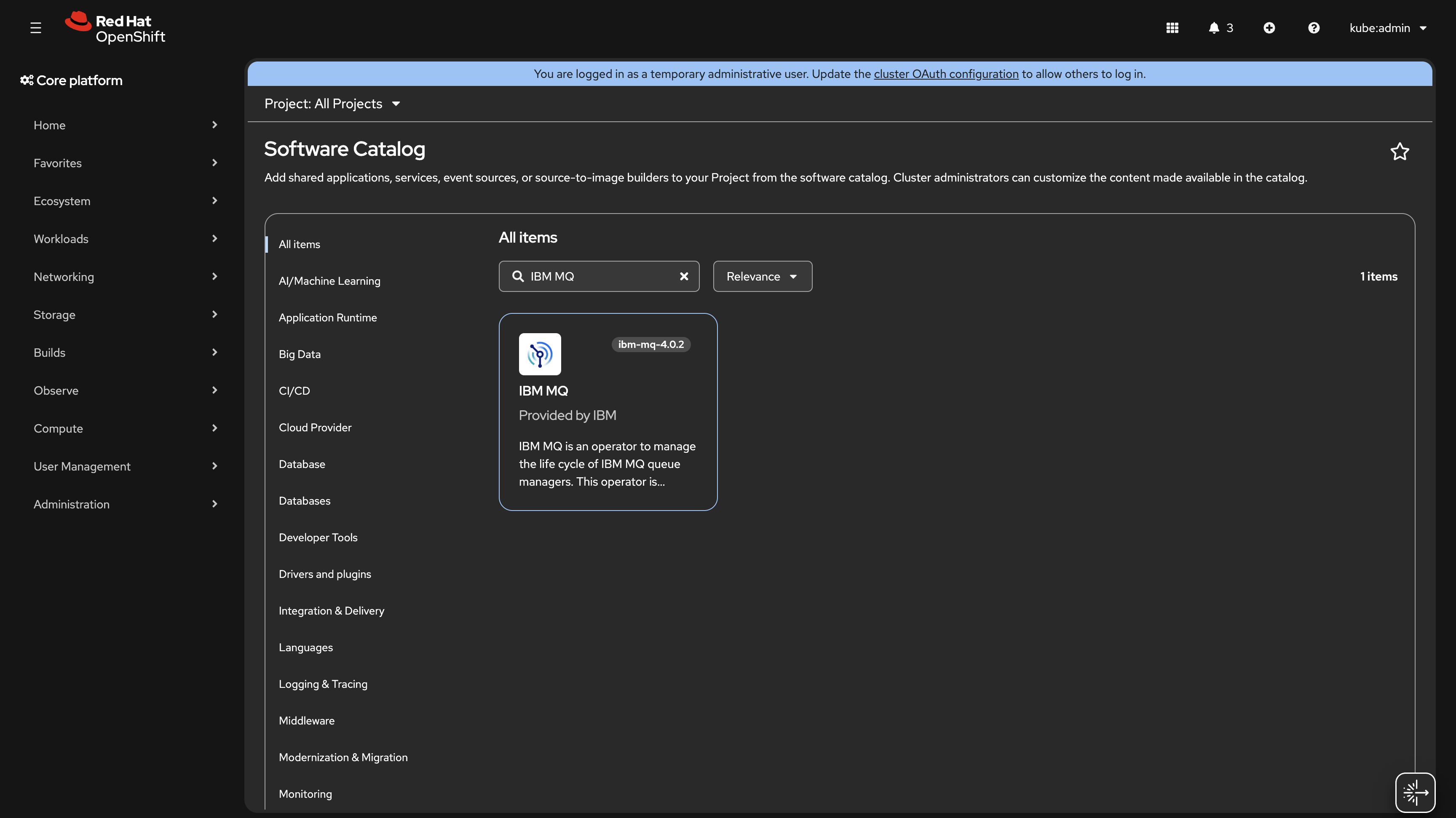
If you want to have the IBM MQ operator available only in a single OpenShift namespace, you can choose Installation mode as - A specific namespace on the cluster. Click Install, and accept the default configurations. This installation typically takes a few seconds.
Step 2. Configure OpenShift to enable TLS
Because you need to connect client applications from outside the cluster, you must enable TLS on your queue manager and client application. Server Name Indication (SNI) is available only in TLS 1.2 or later. To enable TLS on your queue manager, create an OpenShift secret with the TLS objects and provide them in your queue manager YAML file during deployment.
Use the OpenShift CLI to log in to your OCP cluster. You can find the login command from your profile drop-down menu in the upper-right corner of the OpenShift console.
oc login --token=<YOUR_TOKEN> --server=<YOUR_SERVER_URL>
Now, set up TLS by using OpenSSL to create the required TLS objects. OpenSSL is installed by default on most machines. Check whether OpenSSL is installed by entering this command in your terminal:
openssl version
If you need OpenSSL, you can download OpenSSL from the official source.
Create a new directory on your machine and navigate to it in your terminal.
Now we can create the server key and certificate with this command:
openssl req -newkey rsa:2048 -nodes -keyout tls.key -x509 -days 365 -out tls.crt
You are prompted to enter some information. You can enter any values because this self-signed certificate is for development use.
You have now created a server key and certificate, which you will need to provide to the queue manager as an OpenShift secret. Type the following command to create an OpenShift secret:
oc create secret tls mq-tls-secret --key="tls.key" --cert="tls.crt"
This command creates a secret named mq-tls-secret with the key and certificate that you created.
For your messaging client to connect to IBM MQ by using TLS, create a client keystore and add the server certificate to the keystore. In this example, you secure Java code that is written for JMS. Use keytool, a Java security tool that is included with Java JREs and SDKs. To create a .jks client keystore and import your server certificate into it, enter this command:
keytool -keystore clientkey.jks -storetype jks -importcert -file tls.crt -alias server-certificate
You are prompted to create a password. Make a note of the path to your keystore and the password that you set because you need this information when you run the sample application later.
If you're using MQI, such as C, Python, Node.js, or Golang, you can use the IBM MQ TLS tutorial for securing messages to create an appropriate client keystore and learn more about TLS.
Step 3. Deploy a queue manager instance
You can create a queue manager instance by using either the OpenShift console or CLI commands. Follow these steps to deploy a queue manager by using the console.
In the OpenShift console, select Ecosystem > Installed Operators in the sidebar. Then, select IBM MQ.
In the provided APIs for the IBM MQ operator, you should see Queue Manager. Click Create instance, and then select Configure via YAML view.
Copy and paste the following YAML into the editor, and then click Create. It takes a few minutes for the queue manager instance to start.
apiVersion: mq.ibm.com/v1beta1
kind: QueueManager
metadata:
  name: qm-dev
spec:
  license:
    accept: true
    license: L-GWLM-M6WVZU
    use: Development
  web:
    enabled: true
  template:
    pod:
      containers:
        - env:
            - name: MQ_DEV
              value: "true"
            - name: MQ_CONNAUTH_USE_HTP
              value: "true"
            - name: MQ_ADMIN_PASSWORD
              value: "passw0rd"
            - name: MQ_APP_PASSWORD
              value: "passw0rd"
          name: qmgr
  queueManager:
    storage:
      queueManager:
        type: persistent-claim
    name: QM1
  version: 10.0.0.0-r1
  pki:
    keys:
      - name: mqtls
        secret:
          secretName: mq-tls-secret
          items:
          - tls.key
          - tls.crt
This queue manager configuration accepts the license for the IBM MQ Advanced for Developers container image. The queue manager QM1 is created with default configurations and objects and runs in a Kubernetes pod.
Note that you provide the TLS objects that you created in Step 2 by using mq-tls-secret.
To create the queue manager by using CLI commands, save the preceding YAML to a file in your current directory and run the following command:
oc apply -f <filename>.yaml -n <namespace>
Confirm that the queue manager is running. You might need to wait a few minutes for the queue manager to enter the running state.
oc get qmgr qm-dev
You should see output similar to the following example:

You now have a queue manager that is running on Red Hat OpenShift. Next, create an application to exchange messages on queues and topics that are hosted by the deployed queue manager. First, you need to understand networking in an OCP cluster so that you can connect to it.
Networking in an OCP cluster
The following image illustrates the networking in an OpenShift cluster.

By default, OpenShift allocates an internal IP address to each pod, which allows applications to exchange data on a network between pods. However, clients outside the Kubernetes cluster do not have access to this networking layer. OpenShift needs a route to connect an application outside OpenShift to an IBM MQ queue manager that is running inside an OpenShift cluster.
The OpenShift Container Platform router uses server name indication (SNI) to route network requests to cluster members such as an IBM MQ queue manager. Therefore, the route configuration depends on the SNI value in your client application.
IBM MQ supports 2 different SNI header settings, depending on the configuration and client type. The IBM MQ SNI header is typically set to the IBM MQ channel name or, alternatively, to the host name of the IBM MQ queue manager. Control this configuration by setting the OutboundSNI attribute in the IBM MQ client application.
If OutboundSNI is set to HOSTNAME, 1 route is used per queue manager. If OutboundSNI is set to CHANNEL, 1 route is required per channel name, and IBM MQ channel names must be unique across the entire OCP cluster. They must also be encoded to follow DNS rules.
In this tutorial, set OutboundSNI to HOSTNAME and use the default route that the MQ operator creates when a queue manager is deployed. If you want to use OutboundSNI as CHANNEL, which is the default value, create a new route by following the IBM MQ documentation.
To configure your messaging client, first get the host name for your queue manager that is running in OpenShift by using the following command:
oc get route qm-dev-ibm-mq-qm -n <namespace of your MQ deployment> -o jsonpath="{.spec.host}" && echo
You should see the host name, which you can use to connect your applications.

Step 4. Put and get messages to and from a queue
Now connect a JMS application to the deployed queue manager. You can use your own client application or get samples from the mq-dev-patterns repository.
Clone the repository:
git clone https://github.com/ibm-messaging/mq-dev-patterns.git
You can test with a sample in an API or language of your choice. In this tutorial, we show this using a JMS sample.
Go to the cloned directory, and edit the env.json file with the following MQ endpoint configuration:
{
  "MQ_ENDPOINTS": [{
    "HOST": <HOSTNAME_OF_YOUR_QM>,
    "PORT": "443",
    "CHANNEL": "DEV.APP.SVRCONN",
    "QMGR": "QM1",
    "APP_USER": "app",
    "APP_PASSWORD": "passw0rd",
    "QUEUE_NAME": "DEV.QUEUE.1",
    "BACKOUT_QUEUE": "DEV.QUEUE.2",
    "MODEL_QUEUE_NAME": "DEV.APP.MODEL.QUEUE",
    "DYNAMIC_QUEUE_PREFIX": "APP.REPLIES.*",
    "TOPIC_NAME": "dev/",
    "CIPHER": "TLS_AES_256_GCM_SHA384",
    "CIPHER_SUITE": "TLS_AES_256_GCM_SHA384"
  }]
}
Use the host name that you got from the preceding command.
Go to the JMS directory, and build the samples with Maven by using the following command:
mvn clean package
Now use JmsPut to put a message to DEV.QUEUE.1, which comes with the default developer configuration. Make sure that the client keystore that was mentioned earlier is in the current JMS directory.
Copy the following command to run JmsPut:
java -Djavax.net.ssl.trustStoreType=jks -Dcom.ibm.mq.cfg.SSL.outboundSNI=HOSTNAME -Djavax.net.ssl.trustStore=./clientkey.jks -Djavax.net.ssl.keyStore=./clientkey.jks -Djavax.net.ssl.trustStorePassword=<YOUR_KEYSTORE_PASSWORD> -Djavax.net.ssl.keyStorePassword=<YOUR_KEYSTORE_PASSWORD> -Djavax.net.ssl.keyStoreType=jks -Dcom.ibm.mq.cfg.useIBMCipherMappings=false -cp target/mq-dev-patterns-0.1.0.jar com.ibm.mq.samples.jms.JmsPut
Notice that you set OutboundSNI to HOSTNAME by using
-Dcom.ibm.mq.cfg.SSL.outboundSNI=HOSTNAME, which allows you to use the default route. If you set it to CHANNEL, or if you do not specify this property, you must create an OpenShift route for your channel by following the IBM MQ documentation.
You can also set this property in your JMS application by using the following command:
System.setProperty("[com.ibm.mq](http://com.ibm.mq/).cfg.SSL.OutboundSNI","HOSTNAME");
You can similarly get the message from DEV.QUEUE.1 by using JmsGet.
Copy the following command to run JmsGet:
java -Djavax.net.ssl.trustStoreType=jks -Dcom.ibm.mq.cfg.SSL.outboundSNI=HOSTNAME -Djavax.net.ssl.trustStore=./clientkey.jks -Djavax.net.ssl.keyStore=./clientkey.jks -Djavax.net.ssl.trustStorePassword=<YOUR_KEYSTORE_PASSWORD> -Djavax.net.ssl.keyStorePassword=<YOUR_KEYSTORE_PASSWORD> -Djavax.net.ssl.keyStoreType=jks -Dcom.ibm.mq.cfg.useIBMCipherMappings=false -cp target/mq-dev-patterns-0.1.0.jar com.ibm.mq.samples.jms.JmsGet
If you’re using MQI, such as C, Python, Node.js, or Golang, you can specify OutboundSNI in the MQ client configuration file (mqclient.ini). This file allows you to configure your clients by using attributes in a text file. Here is a sample mqclient.ini file that sets OutboundSNI to HOSTNAME.
#*******************************************************************#
#* Module Name: mqclient.ini                                       *#
#* Type      : IBM MQ MQI client configuration file                *#
#* Function  : Define the configuration of a client                *#
#*                                                                 *#
#*******************************************************************#
#* Notes      :                                                    *#
#* 1) This file defines the configuration of a client              *#
#*                                                                 *#
#*******************************************************************#

SSL:
    OutboundSNI = HOSTNAME
Copy this file to the directory that has your application source code. You should now be able to connect to the queue manager using MQI.
Step 5. Access the IBM MQ console
Now, access the IBM MQ console to interact with your queue manager that is deployed on OpenShift.
In the side menu of the OpenShift web console, choose Networking > Routes. You should see 2 routes that were created when a queue manager instance was deployed. These routes are used to connect applications to the queue manager and the MQ console. To access the console, click the location URL for the qm-dev-ibm-mq-web queue manager.
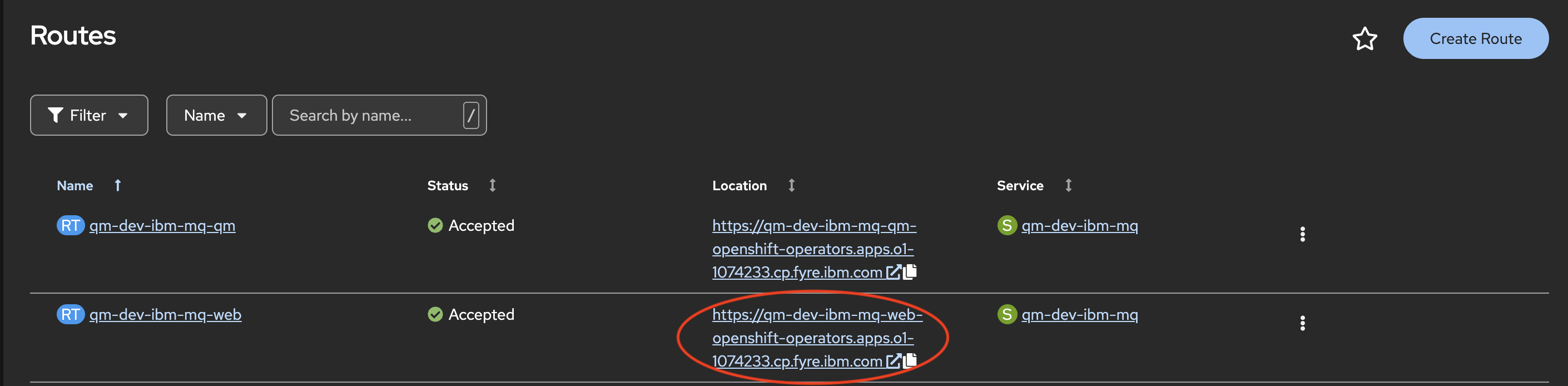
You can log in to the console by using admin as the user name and passw0rd as the password, which you provided in the queue manager YAML file by using the MQ_ADMIN_PASSWORD environment variable.
To learn more about how to set up the IBM MQ console and view and edit MQ objects by using it, see the IBM MQ console setup and usage tutorial.
Use the URL that is highlighted in the preceding image to access the console.
Summary
In this tutorial, you deployed a queue manager on a Red Hat OpenShift Container Platform cluster and configured it to accept incoming client connections by using TLS. You also learned how to connect your applications from outside the cluster to the queue manager. You can similarly connect any application that is written in any language if you use the correct route and enable TLS.
In IBM MQ, the queue manager is effectively the server part of the system, and applications that connect to it are clients.
Usually, it is the administrators that look after the MQ server where all the MQ objects are defined and the routing of messages happens. Client applications are created by developers and IBM MQ provides client libraries that developers must include in their applications. These libraries, also called MQ clients, address and use the MQ objects that admins have set up on the MQ server side.
When you first start developing MQ client applications, it helps to have access to your own queue manager and a queue, for testing your client application against. Deploying IBM MQ on your OpenShift gives you access to a queue manager and many options for configuring MQ objects as you begin developing your client application.