Tutorial
Get an IBM MQ queue for development running on AWS Cloud using Ansible
Configure your queue for app connectionsThis tutorial guides you through creating and configuring an IBM MQ queue manager (server) and connecting an application (client) to it. You will deploy IBM MQ on an Amazon EC2 instance using Ansible, then send and retrieve messages from a queue.
AWS provides several cloud technologies for deploying an IBM MQ queue manager: AWS Elastic Compute Cloud (EC2), AWS Elastic Kubernetes Service (EKS), and AWS Elastic Container Service (ECS). Amazon Elastic Compute Cloud (Amazon EC2) is a web service that provides scalable computing capacity in the cloud. EC2 lets you launch virtual machine instances with a variety of operating systems, including Ubuntu.
This tutorial walks you through the steps to set up an EC2 instance running Ubuntu on Amazon Web Services (AWS), then rapidly install IBM MQ on the instance using Ansible.
(You can instead manually install IBM MQ on AWS without Ansible.)
Prerequisites
This tutorial assumes you are using the AWS free tier for hosting. A minimal configuration costs approximately $2 per day if you exceed the free tier. The exact cost depends on several factors, including size of container requested, volume of messages stored, and network traffic. To avoid unnecessary cost, monitor your utilization carefully and remove resources when they are no longer required. This tutorial provides steps on how to remove the resources that are created.
To protect your AWS account credentials, do not run this tutorial as an account root user, and ensure that you enable multi-factor authentication for all AWS accounts. Your root user has complete unrestricted access, so it should not be used for everyday access. Only grant the permissions needed to each user account for the services that the user needs.
Also, do not grant policy permissions directly to users, but instead grant permissions to groups and associate users with groups. This tutorial uses the Identity and Access Management (IAM) service to create two users: an admin user and a compose user.
To complete this tutorial, you will need:
- If you don't already have it, you will need cURL installed on your computer.
- Ansible and
ansible-lintare required on your local machine to run playbooks implementing this collection. For guidance on how to install these libraries, follow the Ansible documentation. On macOS, the easiest way isbrew install ansible ansible-lint. - An AWS Account.
Steps
You can download the files from our mq-ansible repo.
Step 1. Create and launch an Amazon EC2 instance
Go to the EC2 dashboard.
Click the Launch Instance button.
Add a name (and tags) for your new instance. Tags are optional metadata to your instance in the form of key-value pairs. Example: "mq-tutorial-vm".
Select
Ubuntufrom the list of available OS images. From the Amazon Machine Image drop-down list, choose Ubuntu Server 26.04 LTS (HVM), SSD Volume Type.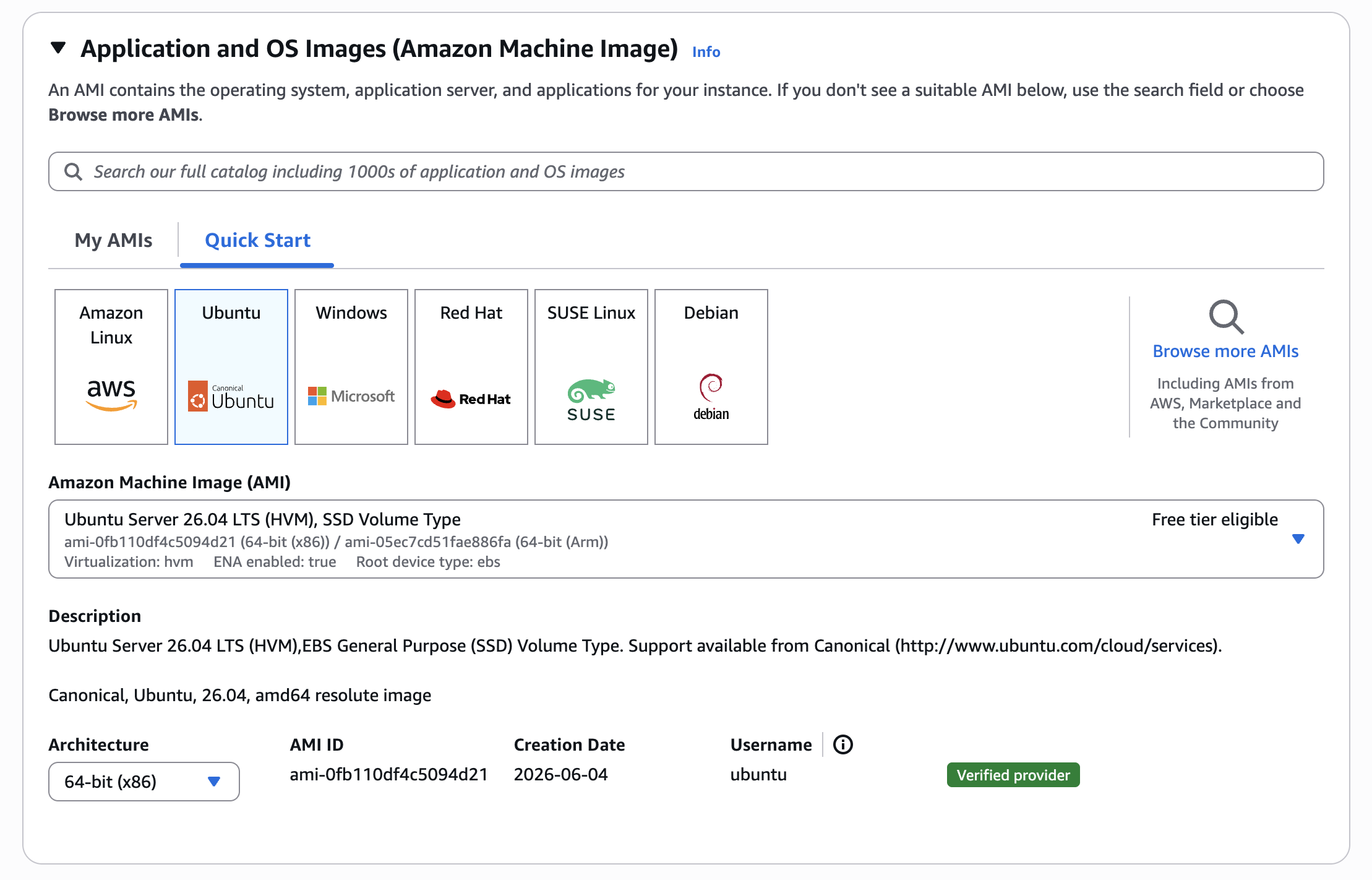
From the Instance type drop-down, select the free-tier eligible instance type shown for your region. This is typically
t3.microin most regions.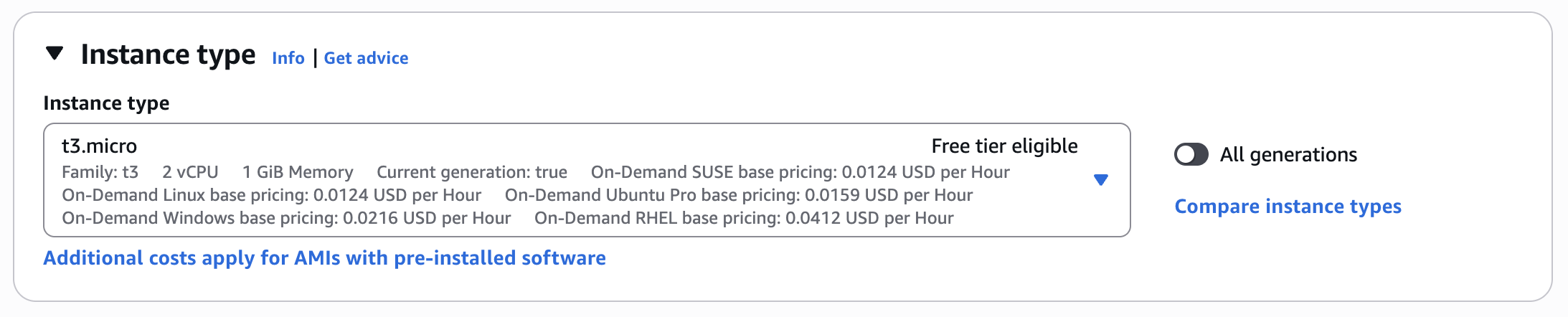
In the Key pair section, you can either create a new key pair or use an existing one. A key pair is used to securely log in to your instance using SSH.
If you don't already have a key pair, you can create one by clicking the Create new key pair link.

In the Create key pair window, specify a name for the key pair (e.g.
mq-tutorial-key), select type RSA and format .pem, then click Create key pair. Save the.pemfile in a secure location, as you will not be able to download it again.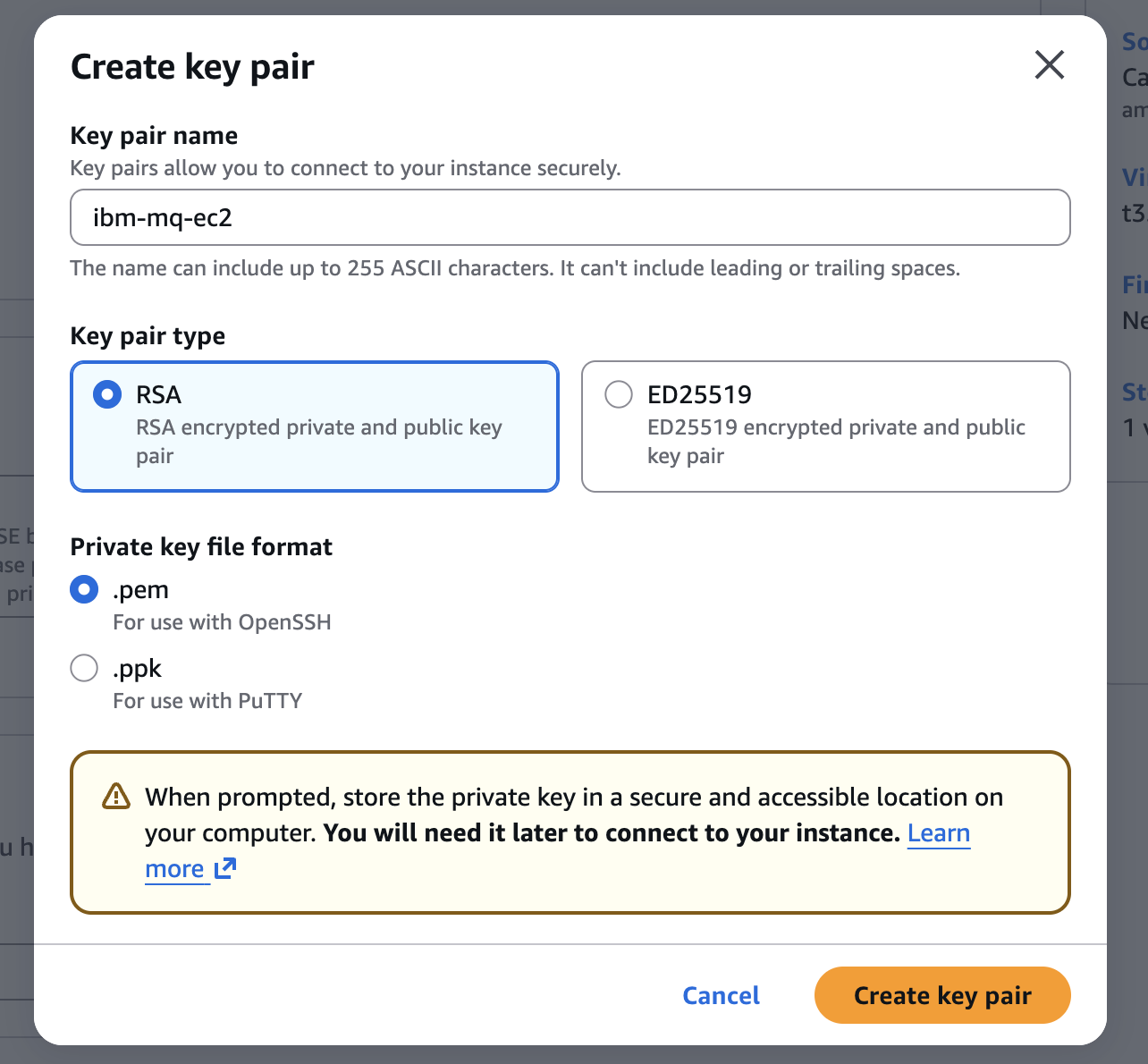
In the Network settings section, you can create a new security group or use an existing one. A security group acts as a firewall for your instance, controlling inbound and outbound traffic.
Check the Allow SSH traffic from option. You can leave the source as
Anywherefor testing purposes. Also check Allow HTTPS traffic and Allow HTTP traffic.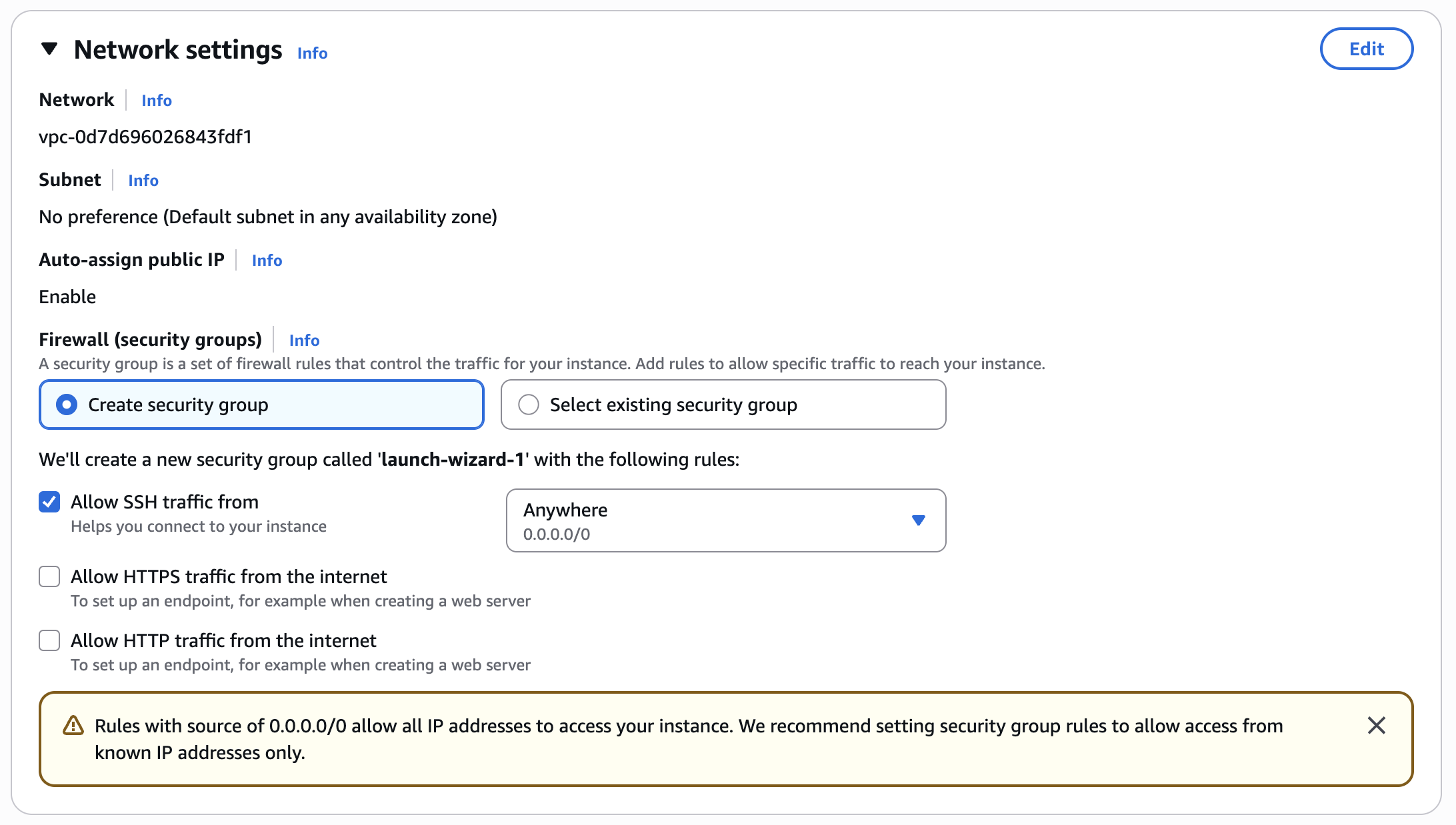
In the Configure storage section, leave the defaults as they are. The default 8 GiB root volume is sufficient for a development queue manager.
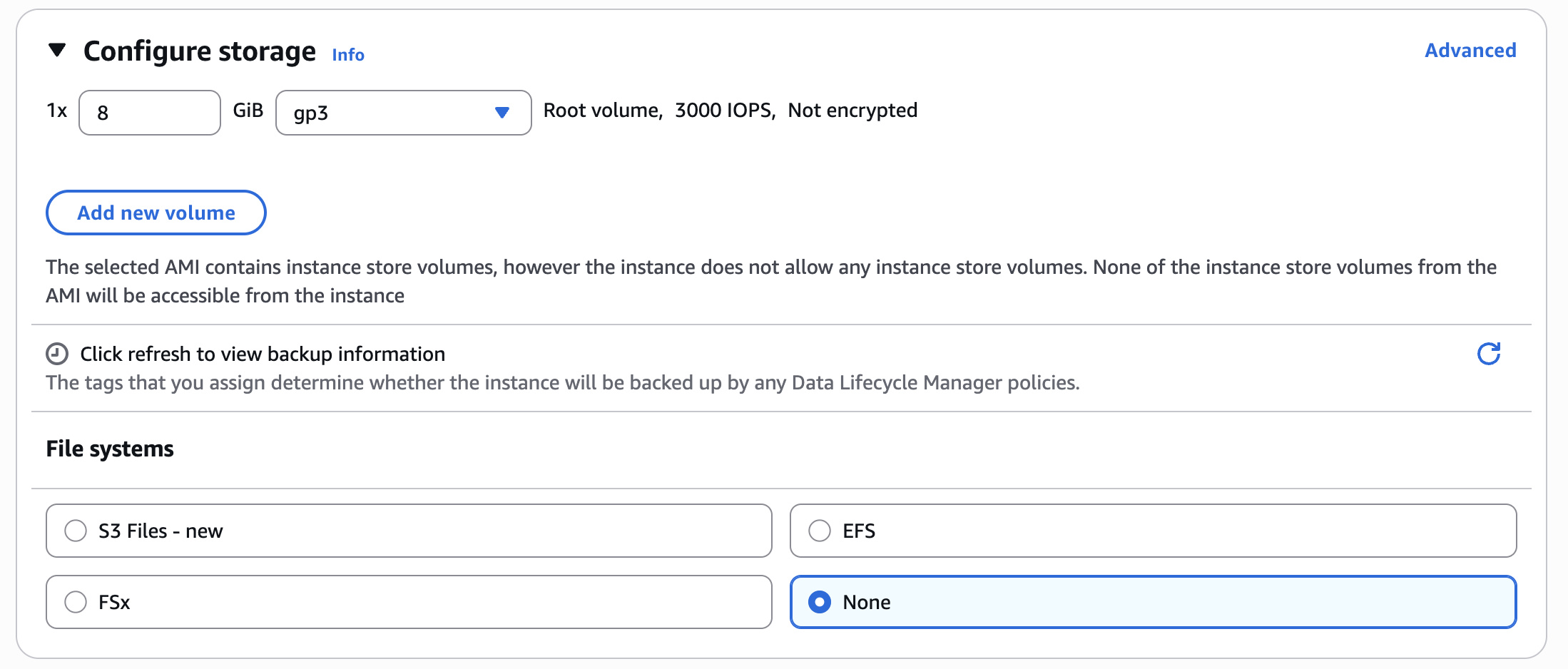
In the Advanced details section, leave the default settings as they are.
On the right side of the page, in the Summary section, review the details of your instance, then click the Launch instance button.
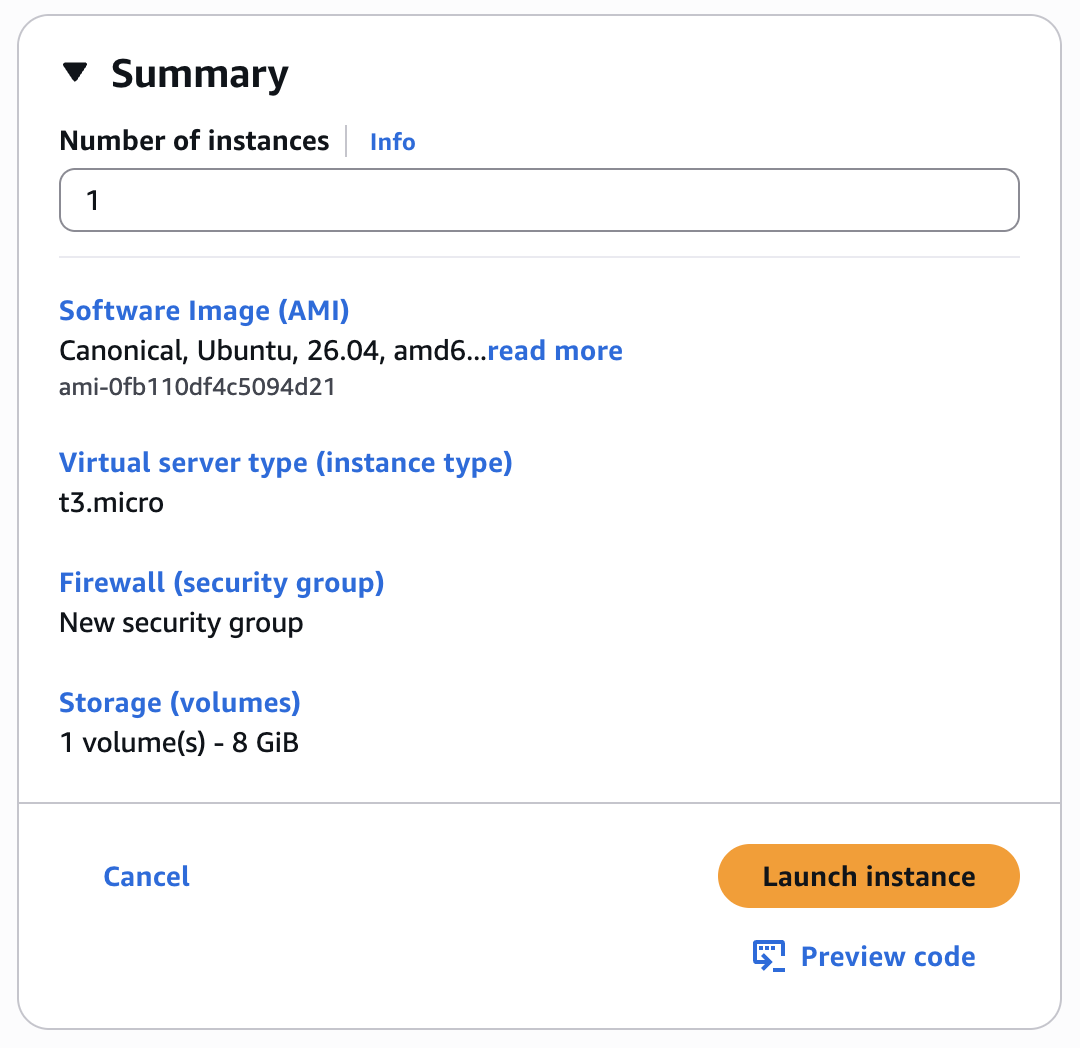
Creating your instance will take a few seconds and initializing it will take up to a few minutes.
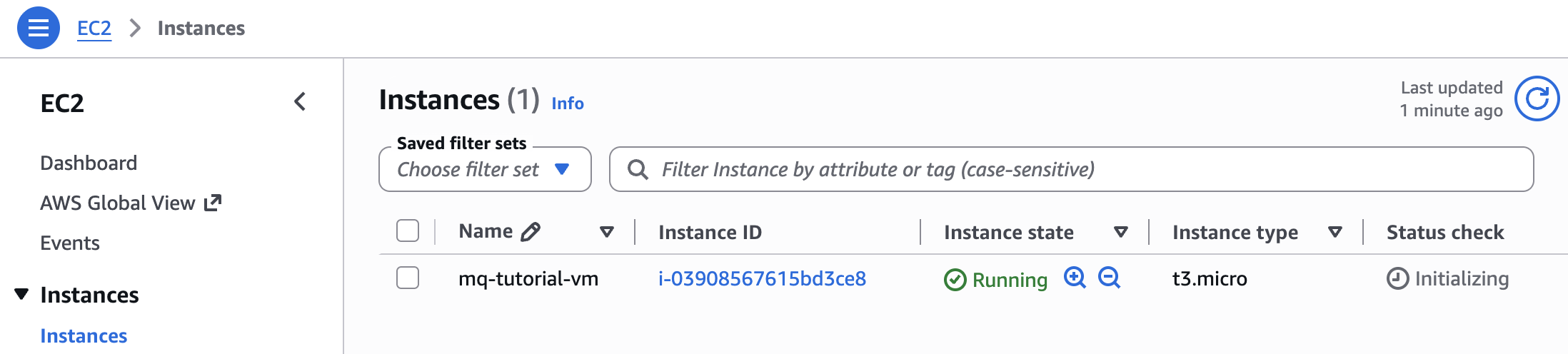
Once your instance has been launched, you need to add a security group rule to allow access to the IBM MQ web console and REST API on port 9443:
- In the EC2 dashboard, click Instances in the left-hand navigation menu and select your instance.
- Click the Security tab, then click the security group link.
- Click Edit inbound rules, then click Add rule.
- Set Type to
Custom TCP, Port range to9443, Source to0.0.0.0/0, then click Save rules.
Next, get the SSH access details:
- Select your instance and click the Connect button from the top navigation menu.
- Under the SSH Client tab, copy your username (usually
ubuntu) and the hostname (*.amazonaws.com).
Step 2. Install IBM MQ using Ansible
Once you have created and launched your instance, you are ready to proceed with installing IBM MQ on your VM by following these steps:
Clone the
mq-ansiblerepository by running the following command on your local machine.git clone https://github.com/ibm-messaging/mq-ansibleOpen the cloned repository and navigate to the
playbooks/directory.cd mq-ansible/playbooks/Move the
.pemfile that you downloaded from Amazon EC2 to this directory and set the correct permissions on it.mv ~/Downloads/mq-tutorial-key.pem . chmod 400 mq-tutorial-key.pemCreate a file called
inventory.iniinside the directory with the following content:[servers:vars] ansible_ssh_private_key_file=./mq-tutorial-key.pem [servers] HOST_NAME ansible_ssh_user=SSH_USERChange
mq-tutorial-key.pemto the name of the.pemfile that you copied to the directory. ChangeHOST_NAMEto the EC2 instance host name, such asec2-9-99-999-999.us-west-1.compute.amazonaws.com. ChangeSSH_USERto the EC2 instance's SSH user, for exampleubuntu.Before running the playbook, SSH into your instance once to accept the host key. This is required so that Ansible can connect without being blocked by SSH host key verification:
ssh -i mq-tutorial-key.pem SSH_USER@HOST_NAMEWhen prompted with
Are you sure you want to continue connecting (yes/no)?, typeyesand press Enter, then typeexitto disconnect.The sample playbook
ibmmq.ymlinstalls IBM MQ Advanced for Developers and configures a queue manager. Theansible.cfgfile in theplaybooks/directory is pre-configured with the correct settings. Before running the playbook, add the following directory path to theANSIBLE_LIBRARYenvironment variable. Replace<PATH-TO>with your local directory path in the following commands.On Mac/Linux:
export ANSIBLE_LIBRARY=${ANSIBLE_LIBRARY}:<PATH-TO>/mq-ansible/plugins/modulesOn Windows:
set ANSIBLE_LIBRARY=%ANSIBLE_LIBRARY%;<PATH-TO>/mq-ansible/plugins/modulesRun the following command to execute the tasks within the playbook:
ansible-playbook ./ibmmq.yml -i inventory.ini -e 'ibmMqLicence=accept'The
appuser password defaults toPassw0rd. To use a different password, add-e 'appPassword=YourPassword'to the command and replacePassw0rdwith your chosen password in the cURL commands in Step 4.
The playbook should return with
failed=0, and the queue managers should be created.
Step 3. Verify that IBM MQ is installed on your VM
Log in to your EC2 instance via SSH by running the following command in your Terminal or SSH Client.
ssh -i mq-tutorial-key.pem YOUR_USER@HOST_NAMEChange
mq-tutorial-key.pemto the name of the.pemfile. ChangeYOUR_USERto the EC2 instance's SSH user, such asubuntu. ChangeHOST_NAMEto the EC2 instance hostname, such asec2-9-99-999-999.us-west-1.compute.amazonaws.com.Once logged in, set the MQ environment and verify that IBM MQ is installed by running the following commands.
 source /opt/mqm/bin/setmqenv -s
 dspmqver
The output should be similar to the following:
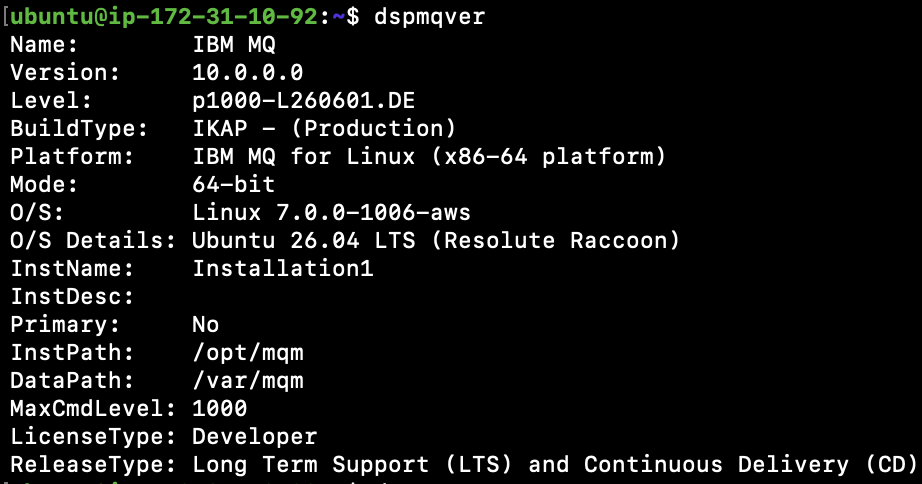
Verify the queue managers are running:
dspmqYou should see QM1 and QM2 listed with
STATUS(Running).
You have successfully installed IBM MQ on your VM. If you encounter any issues during the installation process, see the Troubleshooting section on the MQ-Ansible GitHub repository.
Step 4. Use cURL to put and get messages
After you successfully install IBM MQ on your EC2 instance using Ansible, you have active queue managers (QM1 and QM2) that were created automatically when the Ansible playbook ran.
To post messages to a queue, you can use the curl command to post a persistent message over HTTPS. Open a terminal or command window and run the following command. Replace the placeholders with your own values: your app password (Passw0rd) and host name.
curl -i -k -X POST \
 -u app:Passw0rd \
--header 'Content-Type: text/plain; charset=utf-8' \
--header 'Accept: application/json' \
--header 'ibm-mq-rest-csrf-token: blank' \
--header 'ibm-mq-md-expiry: unlimited' \
--header 'ibm-mq-md-persistence: persistent' \
-d 'This is a persistent message' \
'https://<your_host>.amazonaws.com:9443/ibmmq/rest/v3/messaging/qmgr/QM1/queue/DEV.QUEUE.1/message'
You should see a HTTP/2 201 return code, indicating that the message was successfully posted.
Also place a non-persistent message onto the queue by running the command:
curl -i -k -X POST \
 -u app:Passw0rd \
--header 'Content-Type: text/plain; charset=utf-8' \
--header 'Accept: application/json' \
--header 'ibm-mq-rest-csrf-token: blank' \
--header 'ibm-mq-md-expiry: unlimited' \
-d 'This is a non-persistent message' \
'https://<your_host>.amazonaws.com:9443/ibmmq/rest/v3/messaging/qmgr/QM1/queue/DEV.QUEUE.1/message'
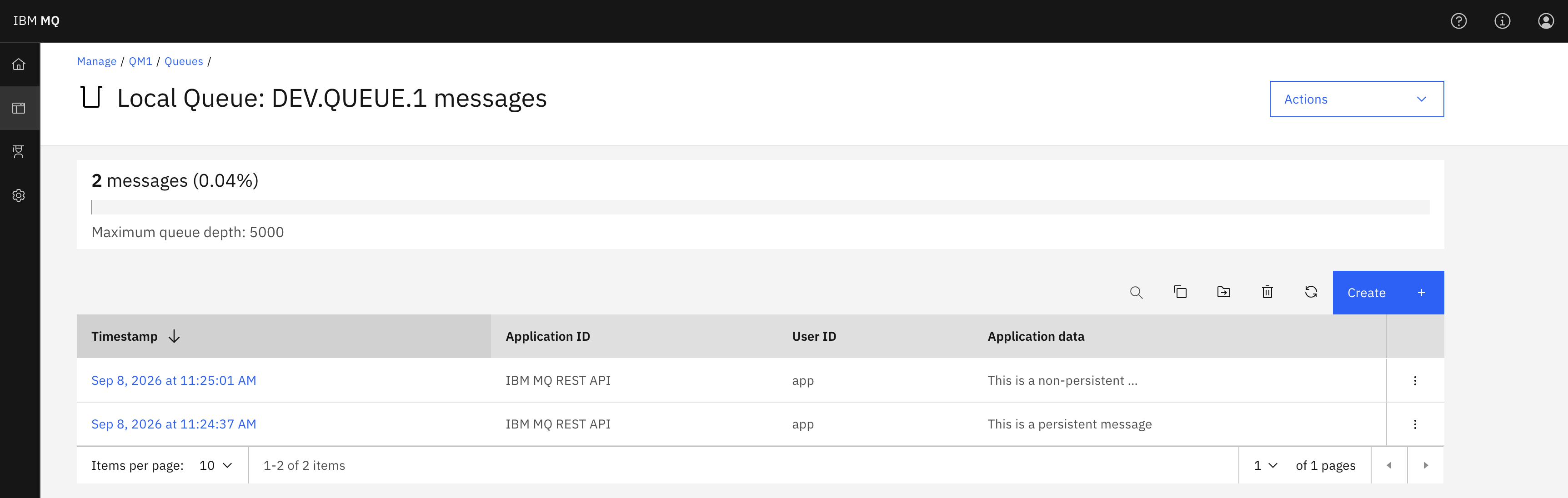
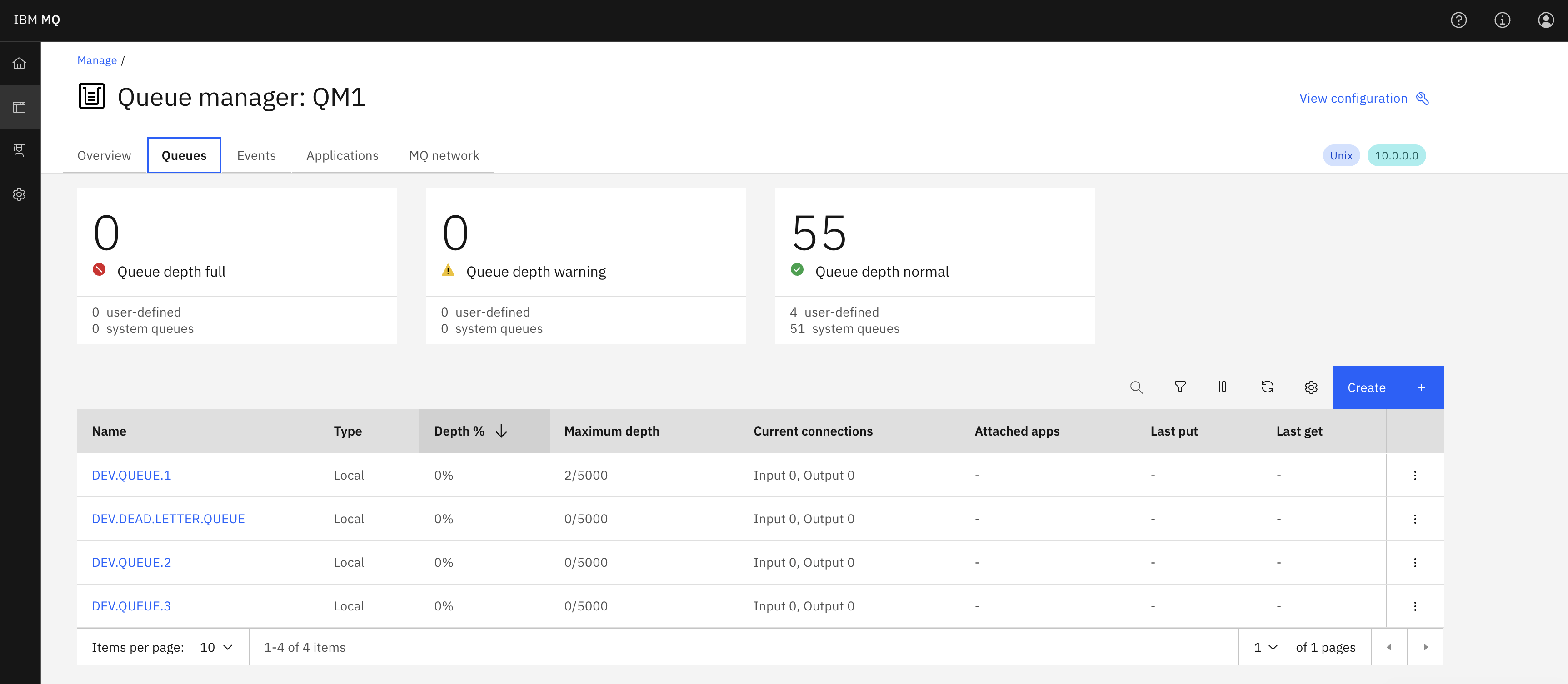
You can verify both messages landed on the queue by opening the MQ web console and navigating to Manage, then QM1, then Queues, then DEV.QUEUE.1 (see Step 5 for how to access the web console):
Step 5. Access the IBM MQ web console
The Ansible playbook starts the web console automatically after setting up IBM MQ. To access the console, open your web browser on your local machine and navigate to the URL for the IBM MQ web console:
https://<public-ip-address>:9443/ibmmq/console
Replace <public-ip-address> with the public IP address or DNS hostname of your AWS EC2 instance.
Note: Your browser will display an SSL certificate warning because the MQ web console uses a self-signed certificate by default. Click Advanced and then Proceed (or equivalent in your browser) to continue.
If you are successfully redirected to the login screen of MQ console, congratulations! You should see an output similar to the one below.
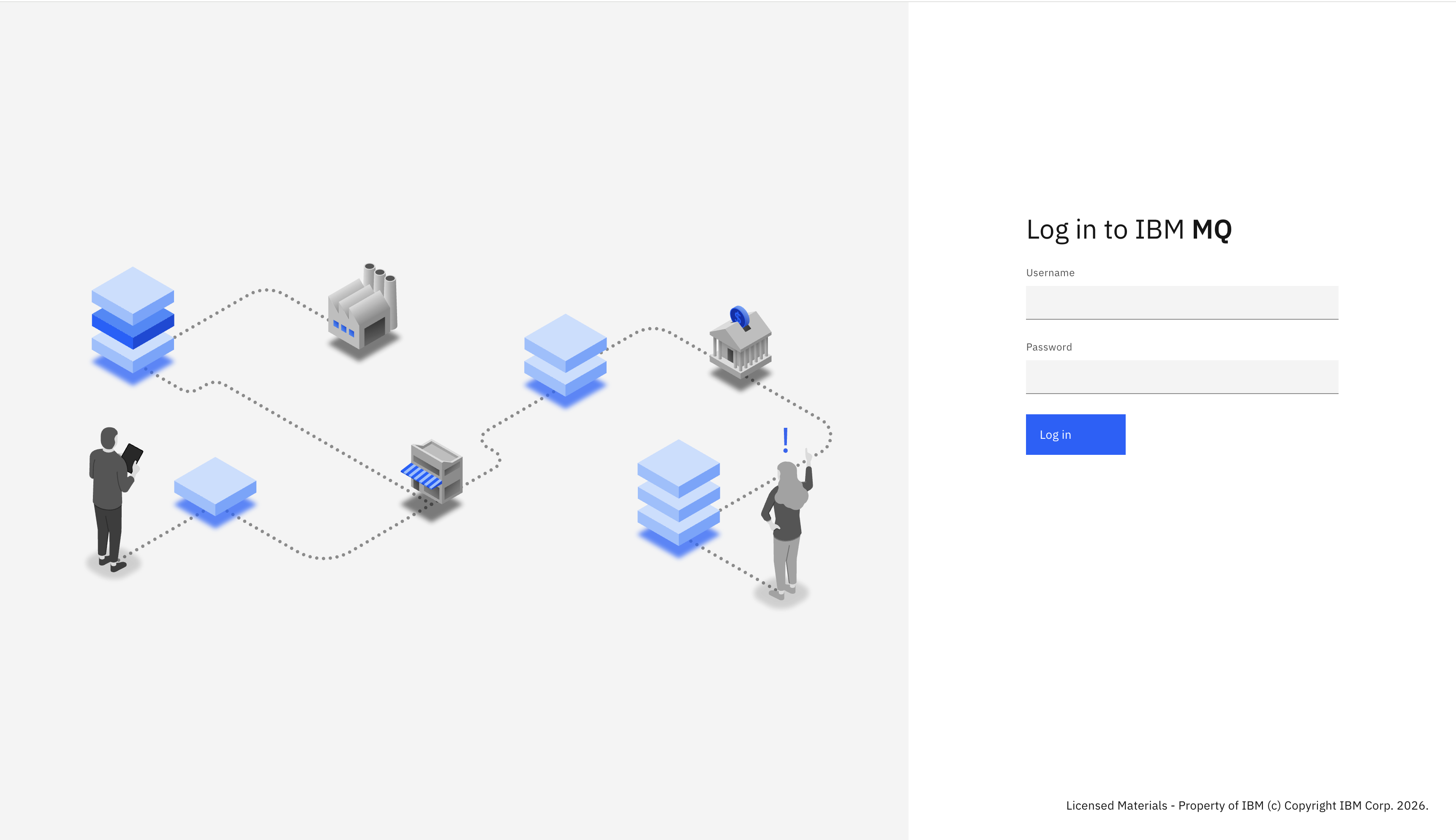
Enter your IBM MQ Console login credentials to access the web console. The default username is mqadmin, and the default password is mqadmin. It is recommended that you change the password after logging in for the first time.
Once you have successfully logged in, you can use the web console to manage your IBM MQ queue managers, channels, and other objects. You can create new queues, view message flows, and monitor the health of your IBM MQ environment using the web console.
Accessing the IBM MQ web console on an AWS EC2 instance requires that the appropriate security groups and firewall rules are in place to allow incoming traffic on port 9443. See the EC2 security group rules guide for more details.
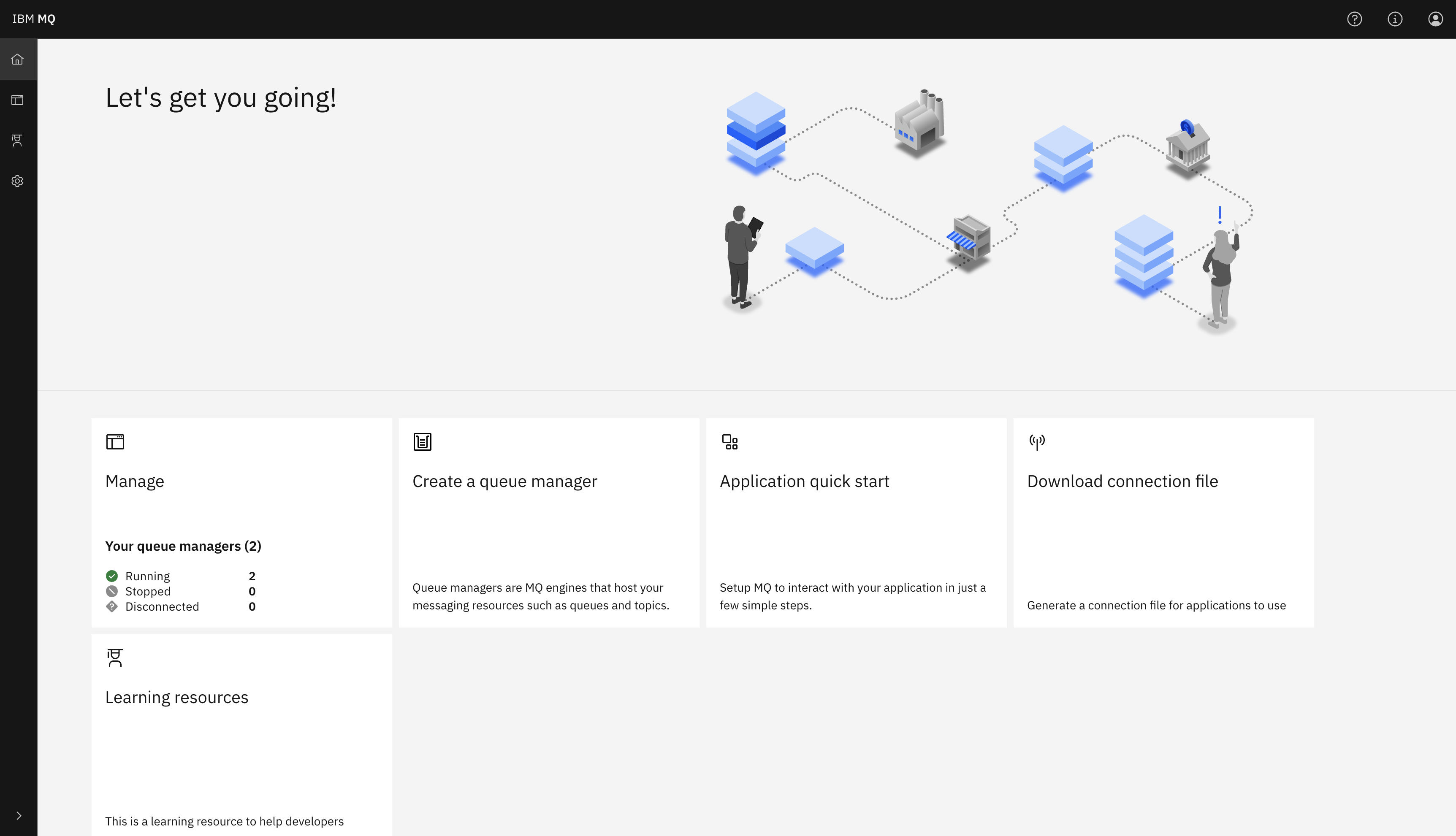
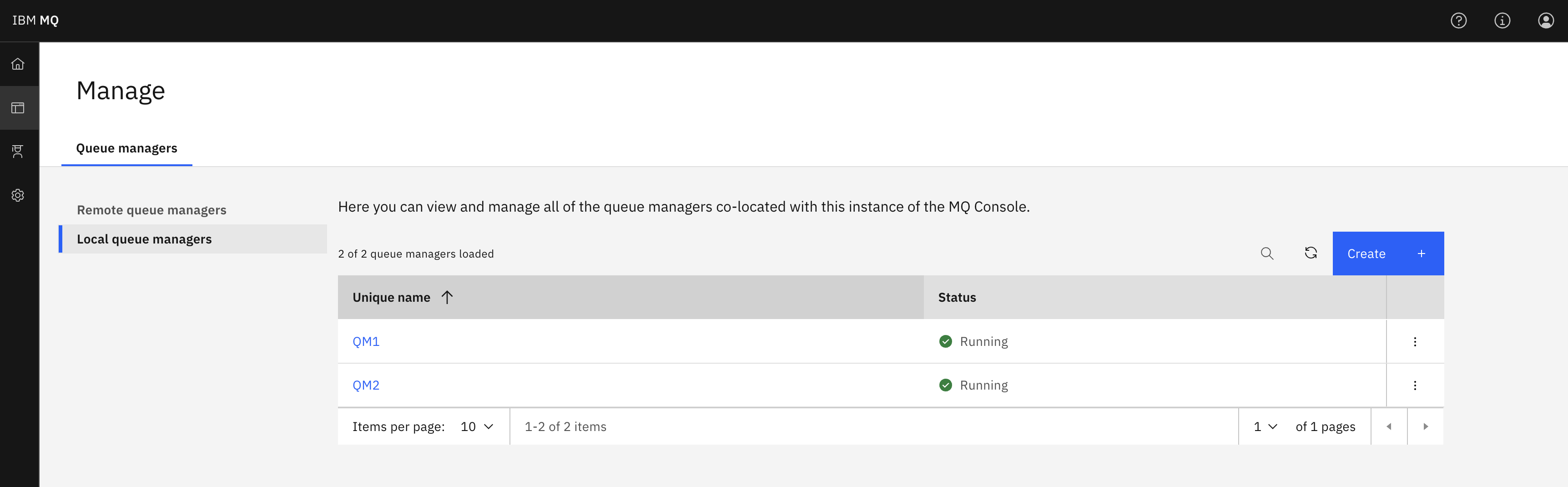
From the Homepage, select Manage to open a list of queue managers. Selecting a queue manager from the Local queue managers tab, such as QM1, will display the queues and other objects associated with this queue manager.
From here, click Create to create your own queues. You can also see the messages on existing queues by selecting an individual queue, as shown below:
You can put a message onto this queue by clicking Create on this page, which here means "create a new message". The Application data field contains the message contents. Clicking Create puts your message onto the queue.
Clicking on the message will show the Message details, which provide more insights about the message properties.
Clean up AWS resources
To avoid ongoing AWS charges, terminate your EC2 instance when you are finished with this tutorial:
- In the EC2 dashboard, click Instances in the left-hand navigation menu.
- Select your instance, click Instance state, then click Terminate instance.
- Confirm the termination. The instance will be terminated and you will stop incurring charges.
Summary
In this tutorial, you used Ansible to deploy IBM MQ 10 on Amazon EC2, enabling persistent and effective management across various operations. You accessed the IBM MQ console and interacted with the MQ REST API, confirming the functionality of your queue manager.
In IBM MQ, the queue manager acts as the server, and the applications that connect to it are the clients. Administrators manage the MQ server and routing, while developers create client applications using IBM MQ libraries.
With IBM MQ now available on AWS, you can develop MQ applications using the queue manager. Now you're ready to build and deploy an IBM MQ app to AWS cloud.