Tutorial
Build memory-enabled AI agents in watsonx Orchestrate
Use watsonx Orchestrate and the Agentic ADK to build agents that store user preferences and deliver personalized recommendations across conversationsAI agents should provide personalized, context-aware experiences instead of treating every interaction as a new conversation. To do this, agents need to remember user information such as preferences, location, previous interactions, and commonly selected options.
watsonx Orchestrate includes memory capabilities that allow agents to store, retrieve, and use user information across conversations. With memory, developers can build agents that maintain conversation history, personalize responses, and improve the user experience.
In this tutorial, you will learn how to build a memory-enabled agent with the watsonx Orchestrate Agent Development Kit (ADK). The agent stores user preferences and retrieves relevant information during execution. You will also learn how memory scope works, how to search and retrieve stored information, and how to add memory operations to a custom runs-on agent workflow.
By the end of this tutorial, you will be able to:
- Store user preferences in agent memory.
- Retrieve stored information during agent execution.
- Build personalized, context-aware conversations.
- Add memory operations to watsonx Orchestrate agents.
- Use memory search to include relevant user history in agent responses.
Architecture of the memory-enabled coffee shop recommendation agent
This architecture uses a watsonx Orchestrate main agent as the central component for managing user conversations and coffee shop recommendations.
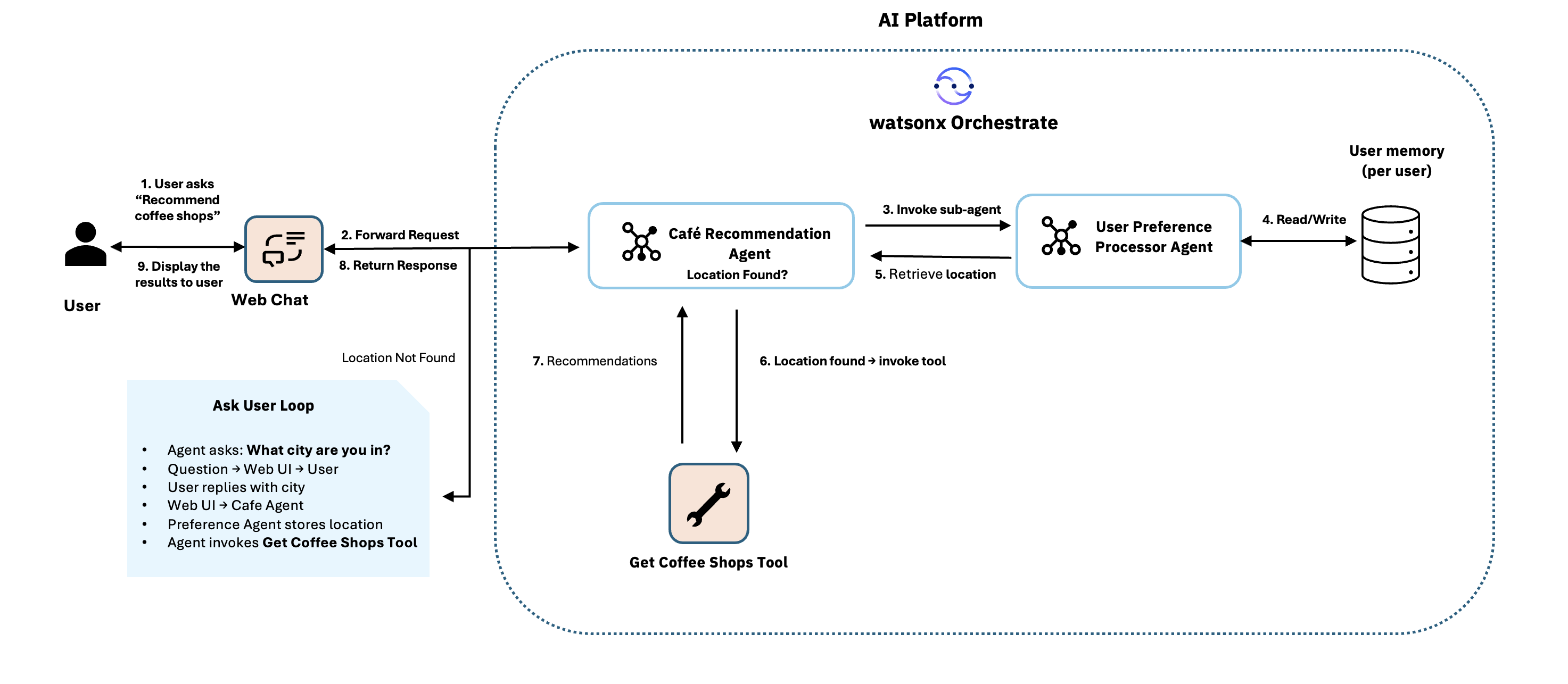
The main agent delegates memory tasks to a custom LangGraph-based user preference processor agent. The user preference processor stores and retrieves user location information by using watsonx Orchestrate memory.
Workflow
- The user requests nearby coffee shop recommendations through a web application.
- The main agent checks memory for the user's saved location.
- If a saved location exists:
- The main agent retrieves the location from memory.
- The main agent calls the coffee shop recommendation tool.
- The user receives coffee shop recommendations based on the saved location.
- If a saved location does not exist:
- The main agent asks the user for a location.
- The user provides a location.
- The user preference processor stores the location in memory.
- The main agent calls the coffee shop recommendation tool with the new location.
- The user receives coffee shop recommendations based on the provided location.
Memory scope
Memory is stored separately for each user and tenant. A single agent can support multiple users while maintaining a separate memory record for each user. The preferences and stored information of one user are not accessible to other users. This separation helps the agent provide personalized responses based on each user's own data.
Prerequisites
Before you begin, make sure that you have:
- An active watsonx Orchestrate instance. You can sign up for a free trial on:
- A local watsonx Orchestrate Agent Development Kit (ADK) environment. If you have not set up the watsonx Orchestrate ADK, see the getting started with watsonx Orchestrate ADK tutorial. This tutorial uses ADK version 2.10.0.
- Python 3.11 installed.
- Basic knowledge of agents, workflows, and tools.
Step 1. Clone the repository and set up the Python environment
In this step, you clone the tutorial repository, open the tutorial project in Visual Studio Code, and create a Python virtual environment.
- Open Visual Studio Code.
Open a terminal and clone the tutorial repository.
git clone https://github.com/IBM/oic-i-agentic-ai-tutorials.git- In Visual Studio Code, click Open Folder.
- Navigate to the cloned repository and open the i-oic-agent-memory tutorial folder.
Create a Python virtual environment.
python3.11 -m venv .venvActivate the virtual environment.
For macOS or Linux:
source .venv/bin/activateFor Windows:
.venv\Scripts\activate
Step 2. Configure watsonx Orchestrate access and activate the ADK environment
In this step, you retrieve your watsonx Orchestrate instance URL and API key, and then create and activate a local ADK environment.
- Sign in to your watsonx Orchestrate instance.
- In the upper-right corner, click Settings > API details.
- Copy the watsonx Orchestrate instance URL. You will use this value as
WO_INSTANCE_URL. Click Generate API key and copy the generated API key. You will use this value as
WO_API_KEY.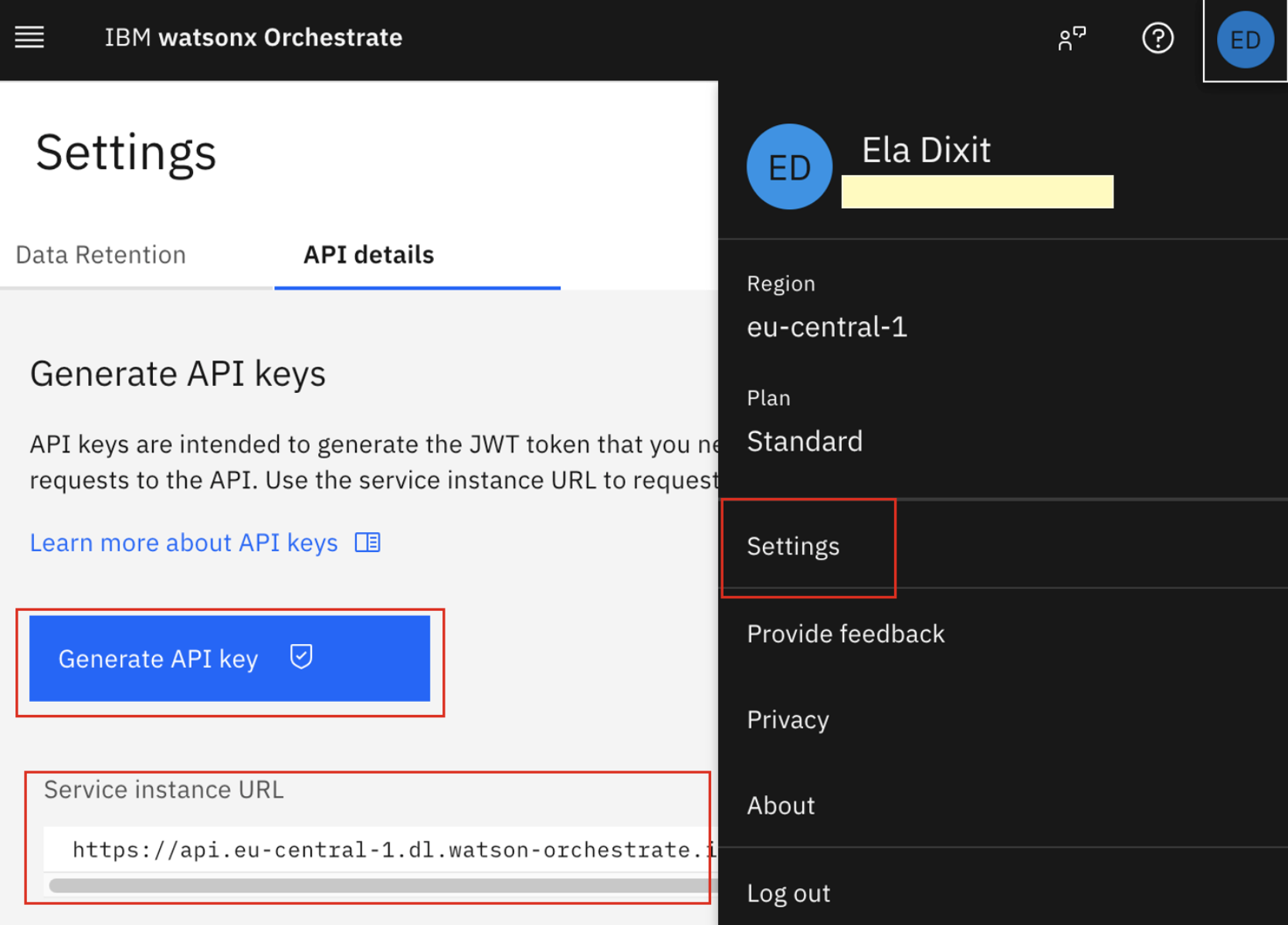
In Visual Studio Code, open a terminal and make sure that your current directory is the i-oic-agent-memory tutorial folder.
Create and activate a watsonx Orchestrate environment by running the following commands.
orchestrate env add -n <env-name> -u <WO_INSTANCE_URL>
orchestrate env activate <env-name> -a <WO_API_KEY>
Replace the following values:
<env-name>: Name of the environment.<WO_INSTANCE_URL>: Your watsonx Orchestrate instance URL.<WO_API_KEY>: Your watsonx Orchestrate API key.
Step 3. Import the user preference processor agent into watsonx Orchestrate
In this step, you import a custom LangGraph-based User Preference Processor agent. This agent stores and retrieves user preferences by using watsonx Orchestrate memory.
The agent configuration is defined in the agent.yaml file, which references the user_preference_processor.py implementation file.
Memory is enabled in the agent configuration through the following setting:
checkpointer:
  type: memory
The agent uses the ibm_watsonx_orchestrate_sdk.Client APIs to store and retrieve user information. The implementation uses a unique user identifier (sub) to save and retrieve user-specific preferences across conversations.
- Open a terminal.
Change to the project directory.
cd cafe_recommenderImport the User Preference Processor agent.
 orchestrate agents import \
 --experimental-package-root agents/user_preference_processor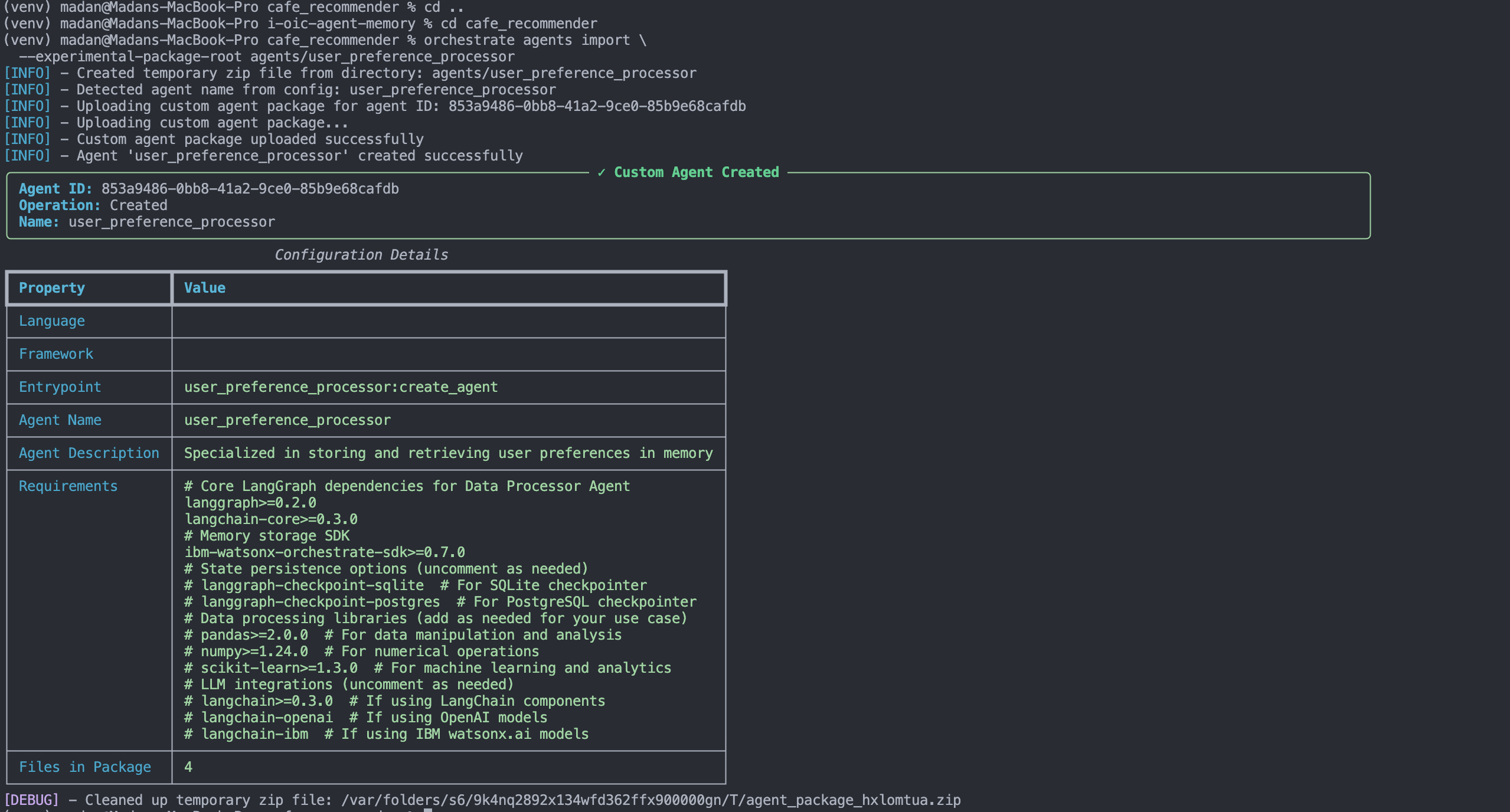
What the user preference processor agent does
The user preference processor agent performs the following tasks:
- Stores user location preferences in memory.
- Searches memory for existing user preferences.
- Retrieves matching information from memory.
- Updates stored preferences when a user provides new information.
- Provides user preference information to the Cafe Recommendation Agent.
Note: The agent stores user preferences by using the user identity (sub) and tenant ID. This approach ensures that each user has a separate memory record.
Step 4. Import the coffee shop recommendation tool into watsonx Orchestrate
In this step, you import a Python tool that returns coffee shop recommendations based on a user's location.
The tool contains sample coffee shop data for multiple cities. The main agent uses this tool to generate location-based coffee shop recommendations.
You can customize the tool by adding your own locations and coffee shop data.
- Open a terminal in the project directory.
Import the tool into watsonx Orchestrate.
orchestrate tools import -f tools/get_coffee_shops.py -k python
Step 5. Import and deploy the cafe recommendation agent
In this step, you import the main Cafe Recommendation Agent. This agent manages user conversations, retrieves and stores user location information through the User Preference Processor agent, and uses the Coffee Shop Recommendation tool to provide personalized coffee shop recommendations.
- Open a terminal in the project directory.
Import the agent into watsonx Orchestrate.
orchestrate agents import -f agents/cafe_recommendation_agent/agent.yaml
Sign in to watsonx Orchestrate and navigate to Manage Agents.
Open Cafe Recommendation Agent and click Deploy.
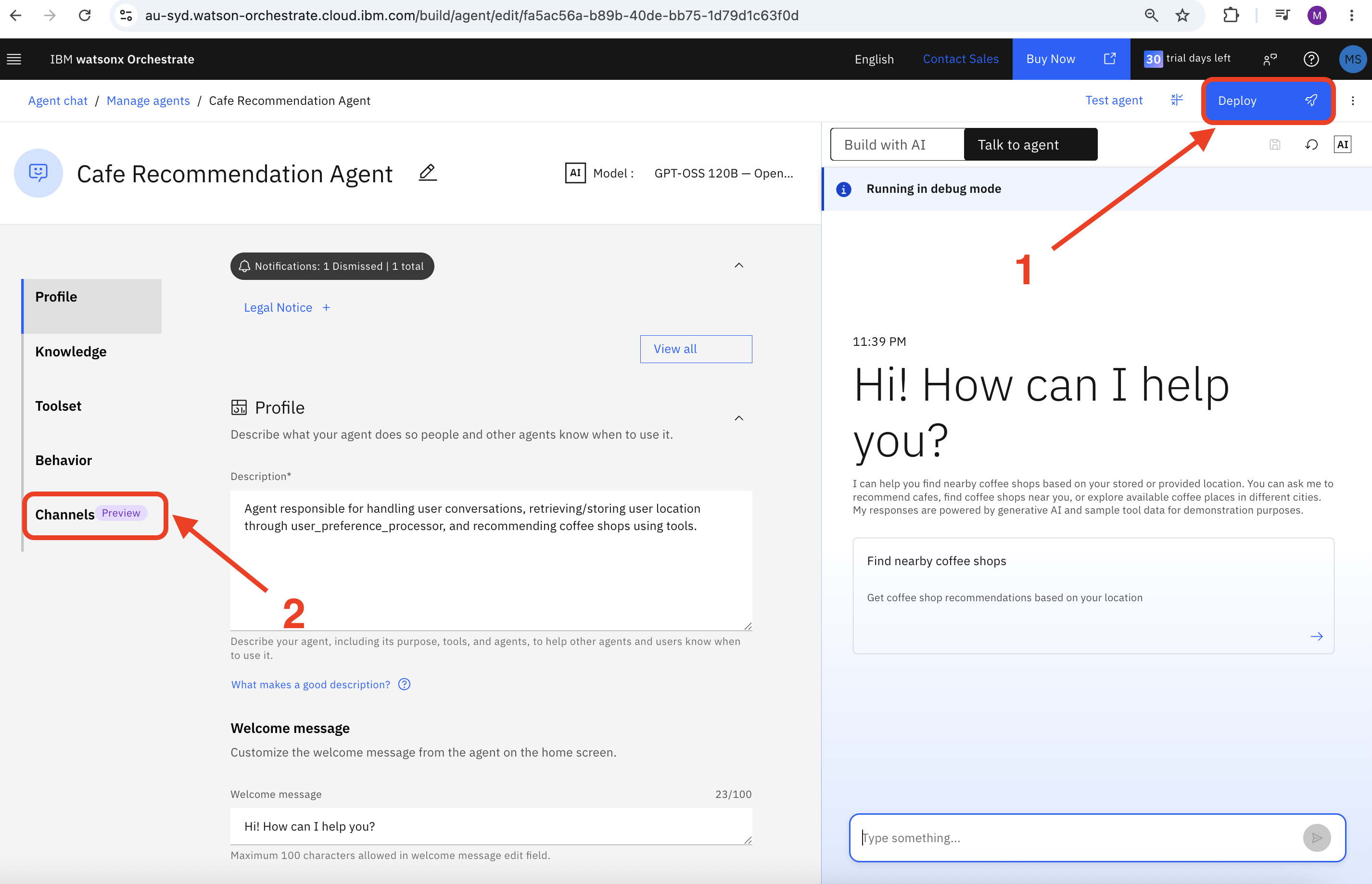
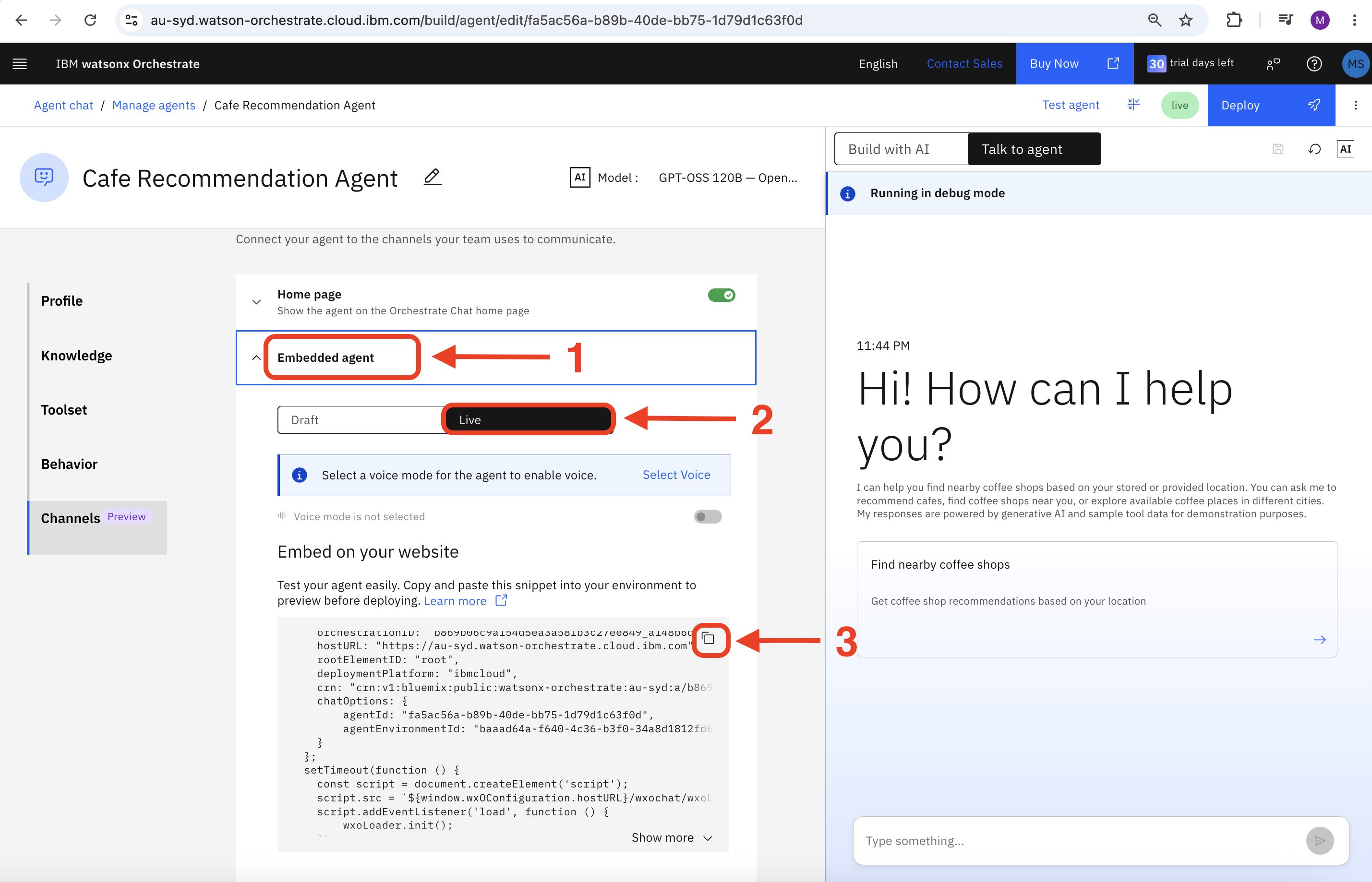
After the deployment completes, open the Channels tab and select Embedded web chat.
Click Live and copy the embedded web chat script.
Step 6. Run the web application and load the embedded agent
In this step, you run the sample web application and load the embedded watsonx Orchestrate agent into the user interface.
Open a terminal and navigate to the chat-ui web application directory.
cd ..
cd chat-ui
Install the required dependencies.
npm installStart the chat-ui web application.
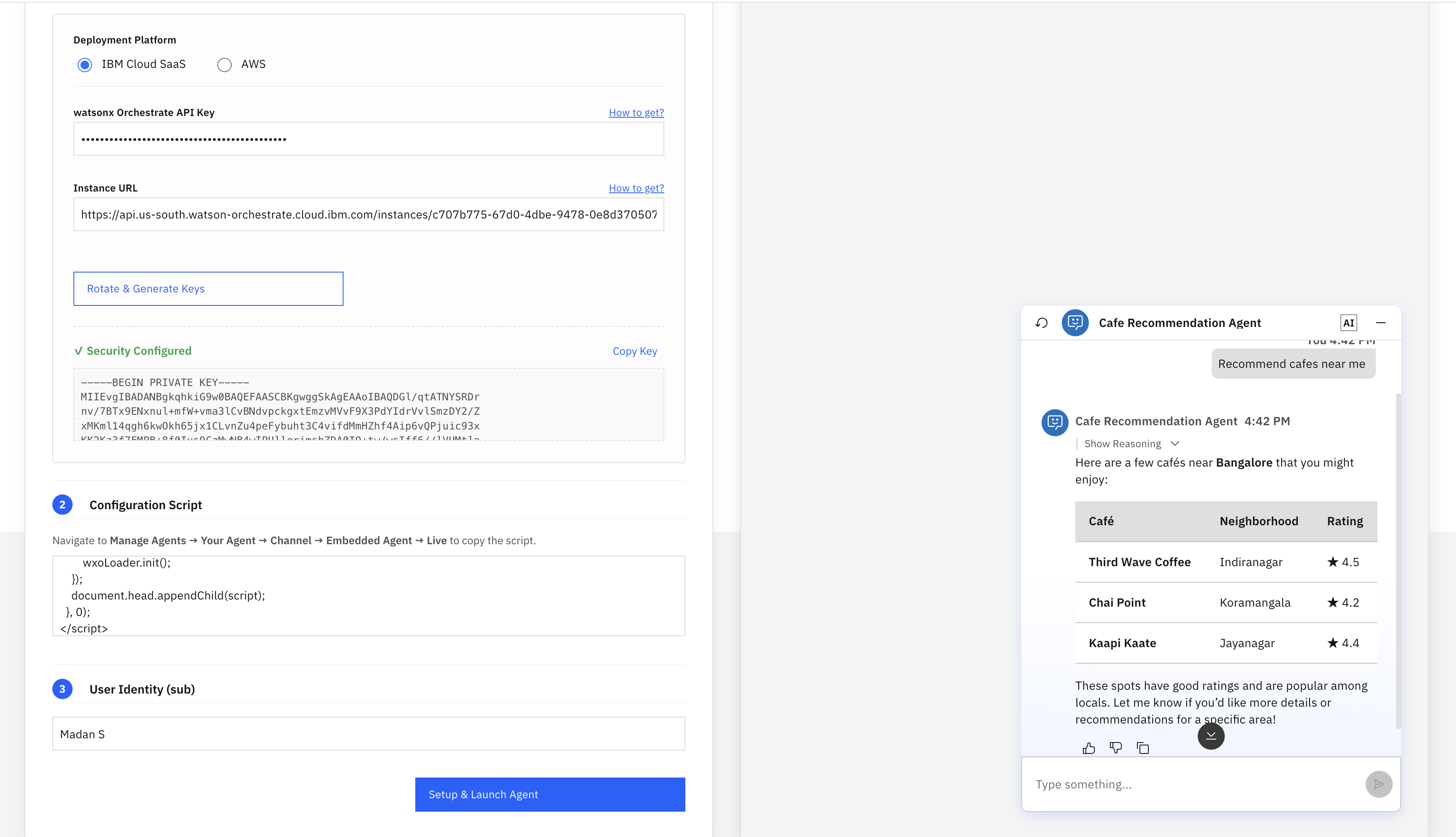
Note: To store and retrieve user preferences, the agent must identify the user who is interacting with the application. User identification requires security to be enabled in the watsonx Orchestrate instance.
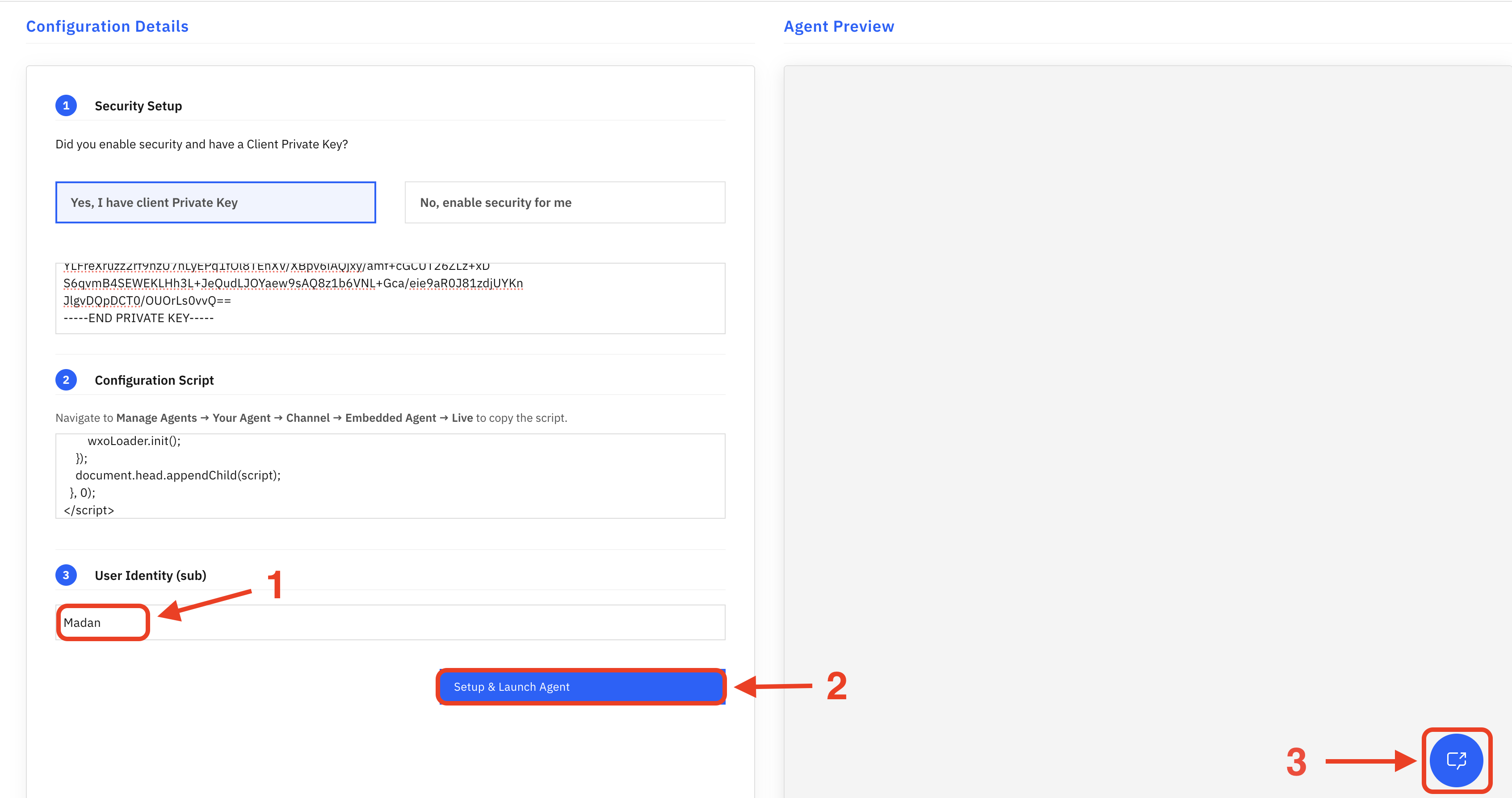
The sample web application included in this tutorial provides a simple interface for configuring and enabling security for the embedded agent. After security is enabled, the agent can store and retrieve user-specific memory data across conversations.
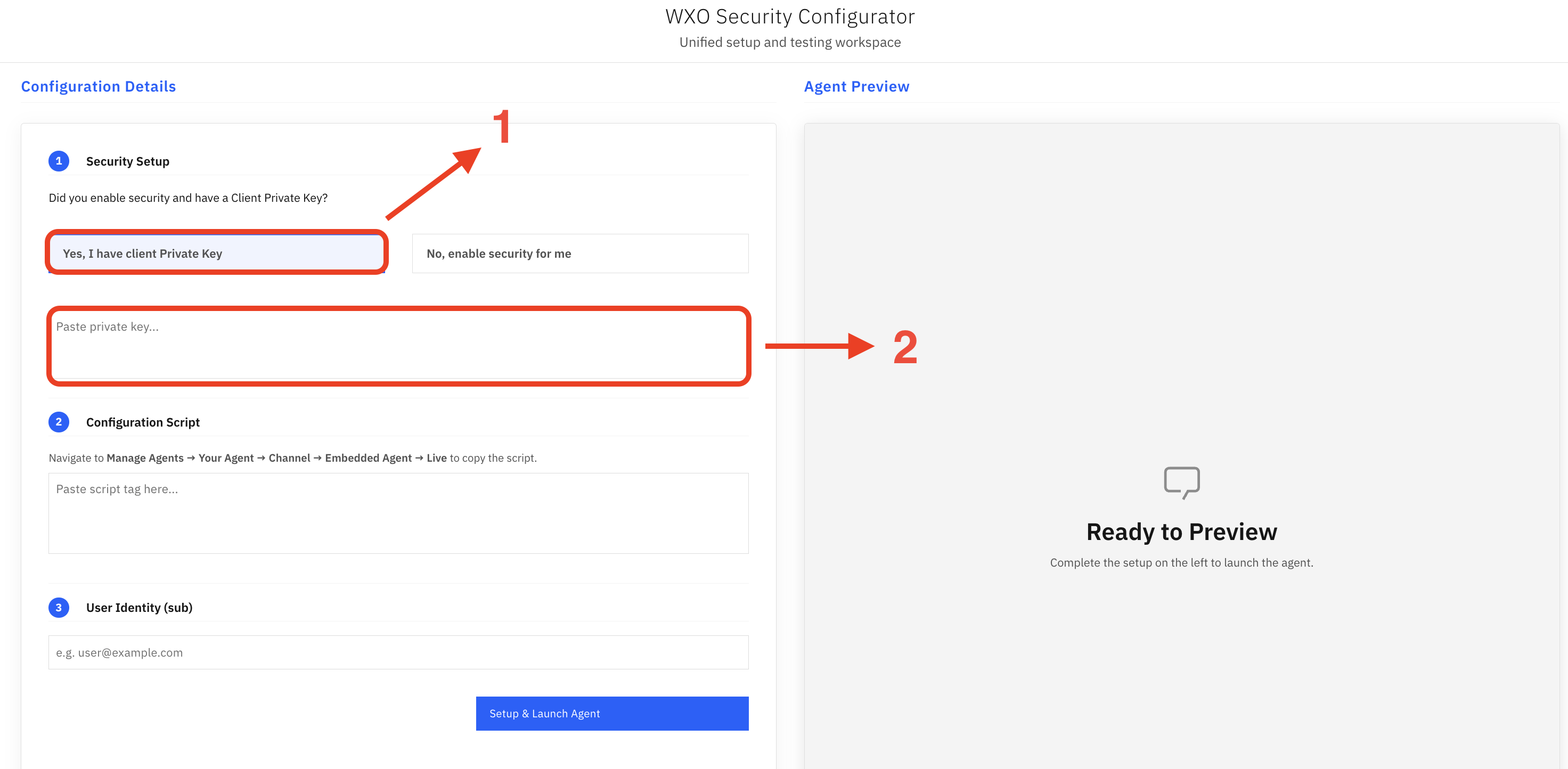
If security is already enabled for your watsonx Orchestrate instance and you have an IBM private key, select Yes, I have client Private Key in the Security Setup section. Paste the IBM private key into the provided field.
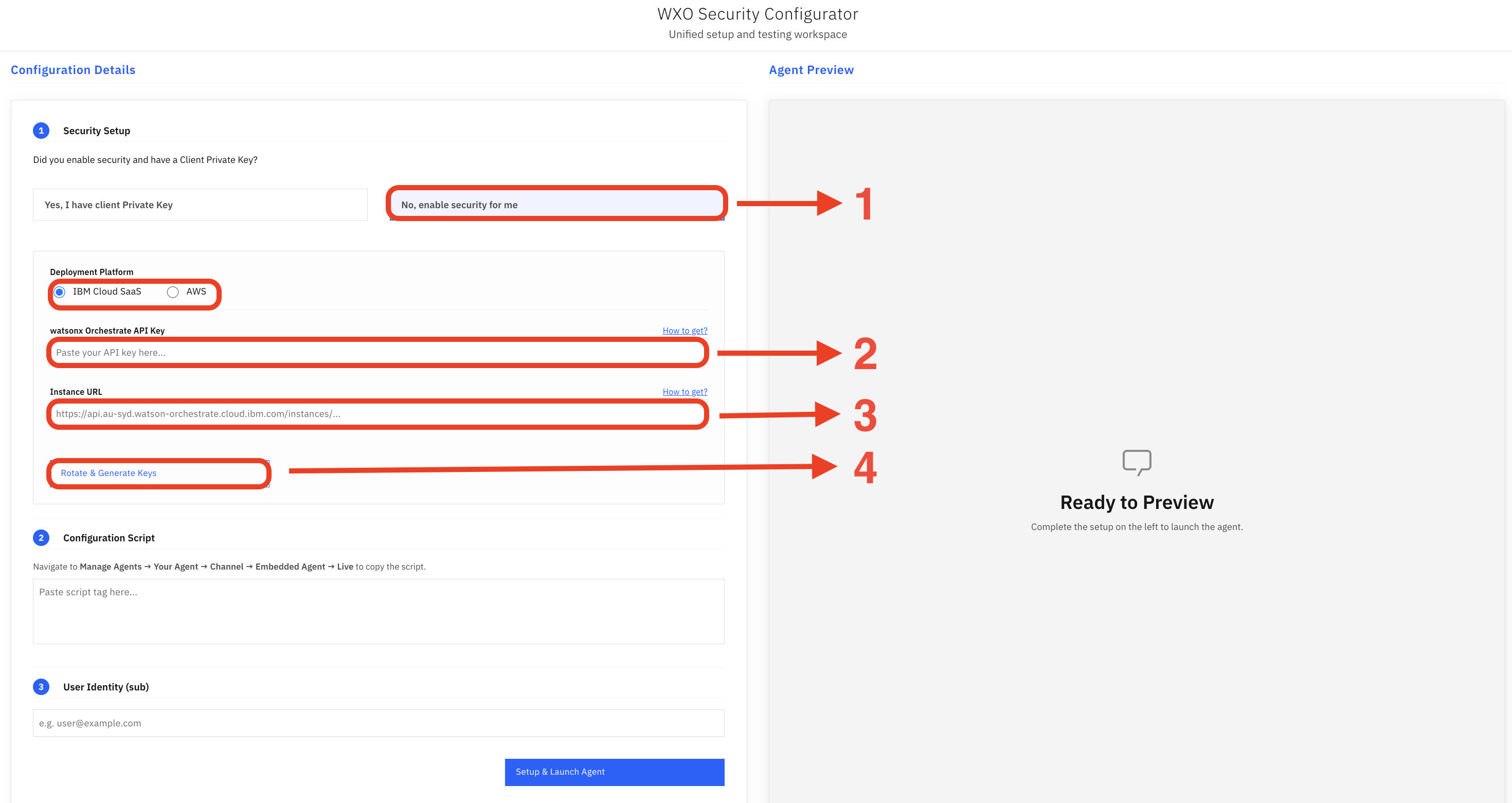
If security is not enabled for your watsonx Orchestrate instance:
- Select No, enable security for me.
- Select the deployment type (IBM Cloud SaaS or AWS).
- Enter your watsonx Orchestrate API key.
- Enter your watsonx Orchestrate instance URL.
Click Rotate & Generate Keys.
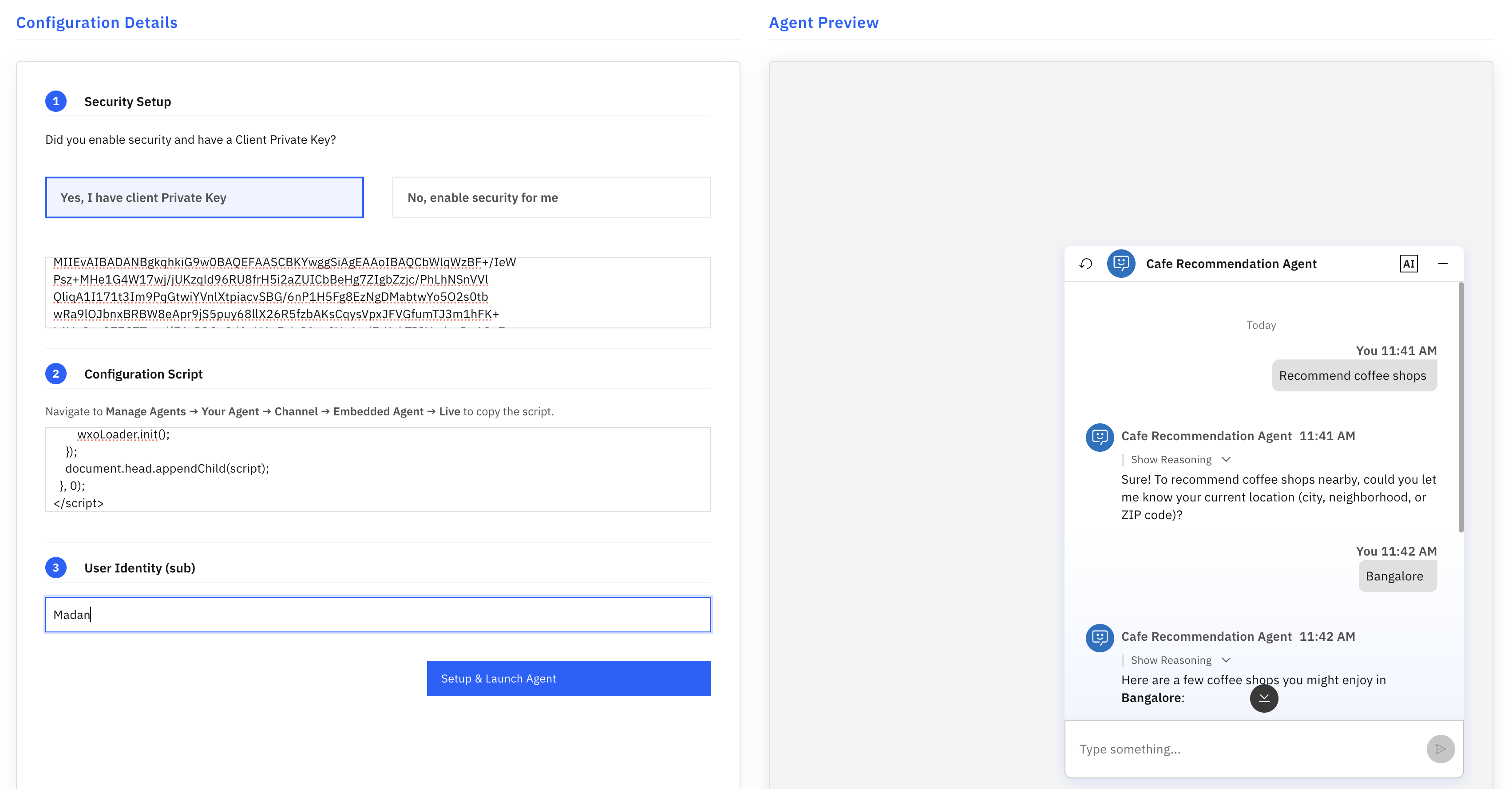
In the web application, paste the Embedded Web Chat Configuration Script that you copied from the Embedded Web Chat channel in the previous step.
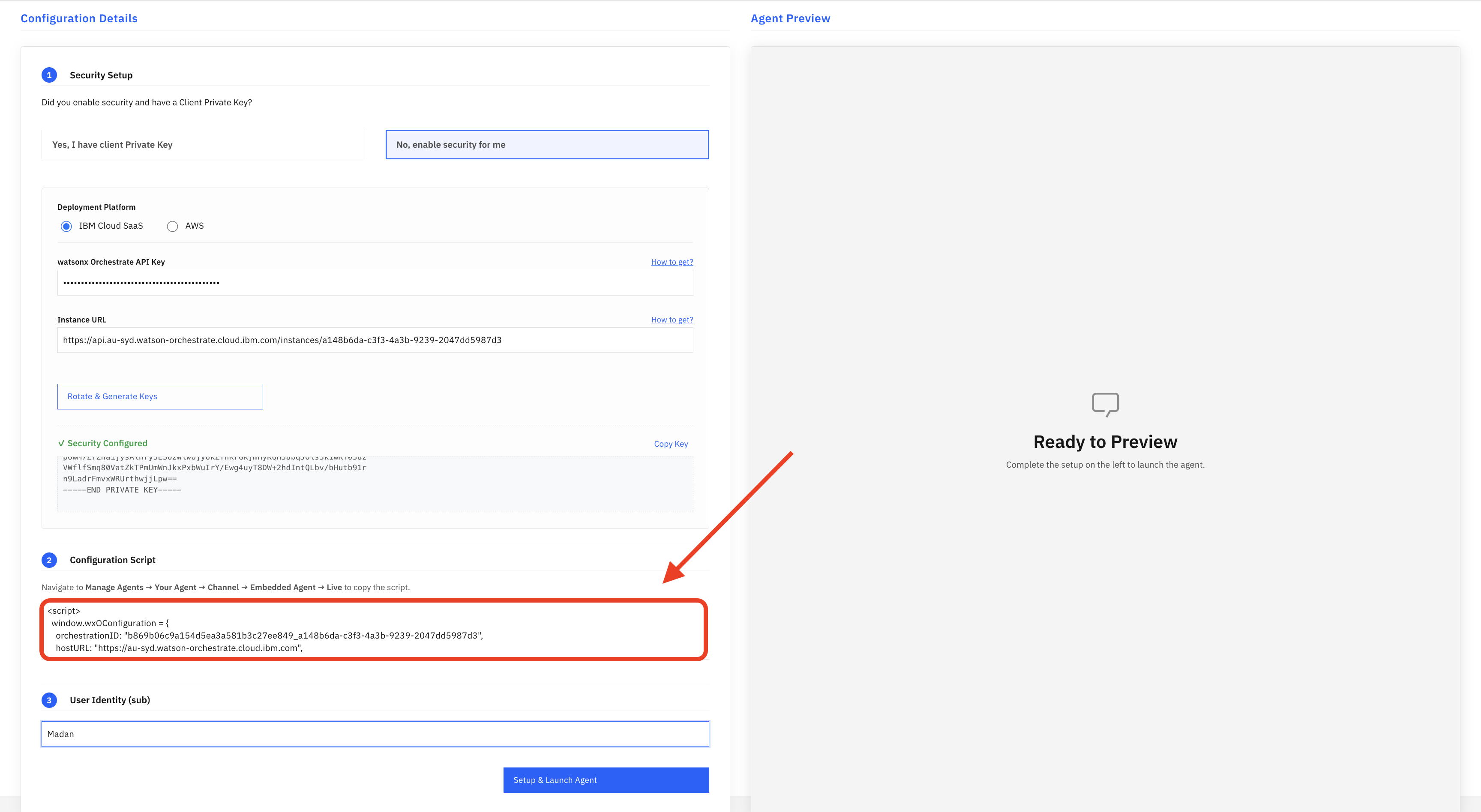
Enter a User Identity (
sub) value. Thesubvalue uniquely identifies a user and allows the agent to maintain a separate memory record for each user.Load the agent in the web application and start a conversation by using the configured user identity.
Step 7. Test user-specific memory across conversations
You can now test how the agent stores and retrieves location preferences for different users.
For example:
- The agent can store User1's preferred location as Bangalore and later use that location to provide coffee shop recommendations.
- The agent can store User2's preferred location as Mysore and provide recommendations specific to Mysore.
Example stored user preferences
| User | Stored Location |
|---|---|
| User1 | Bangalore |
| User2 | Mysore |
Example conversation: First interaction
In this conversation, the agent does not yet have a saved location for the user.
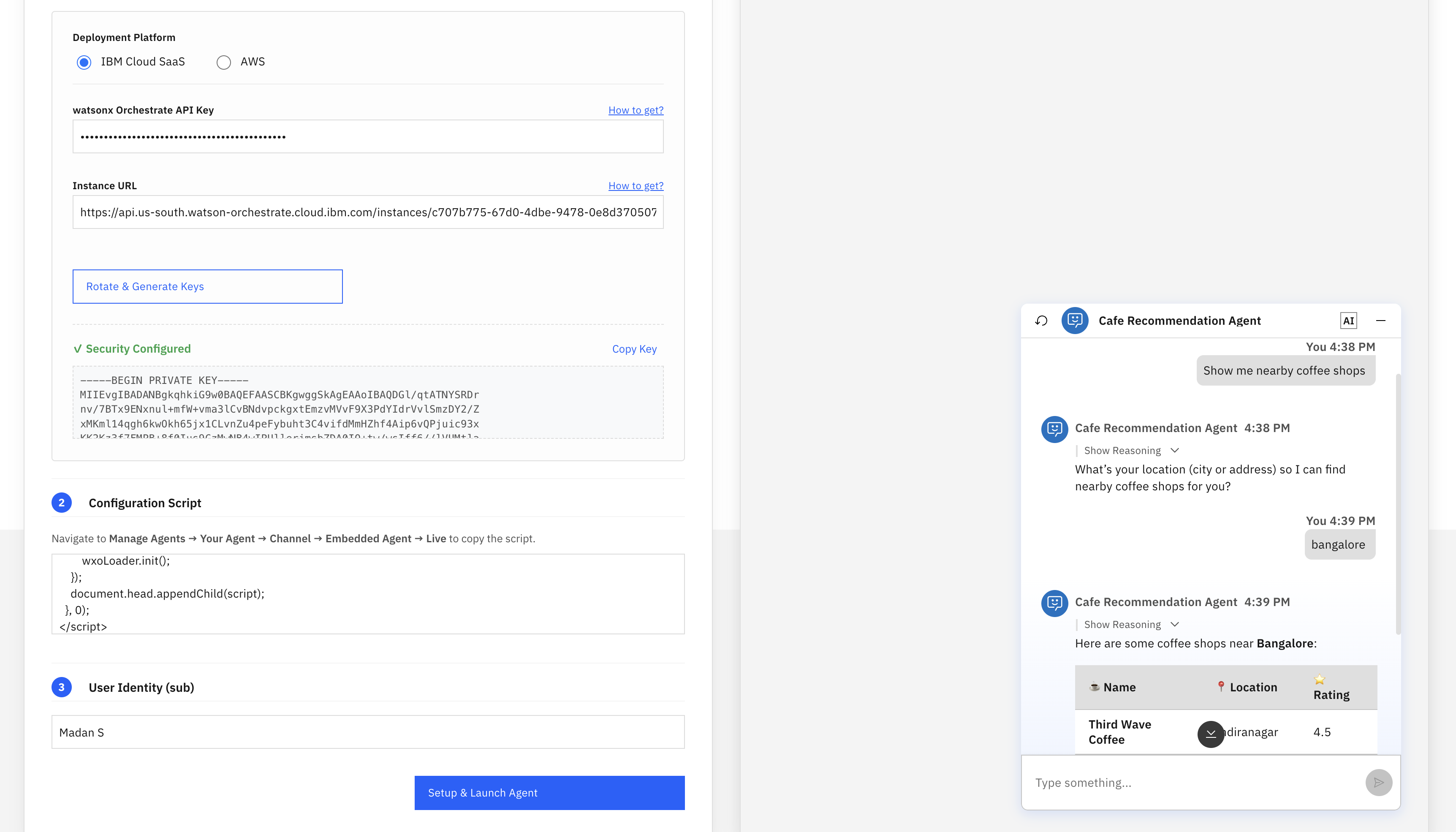
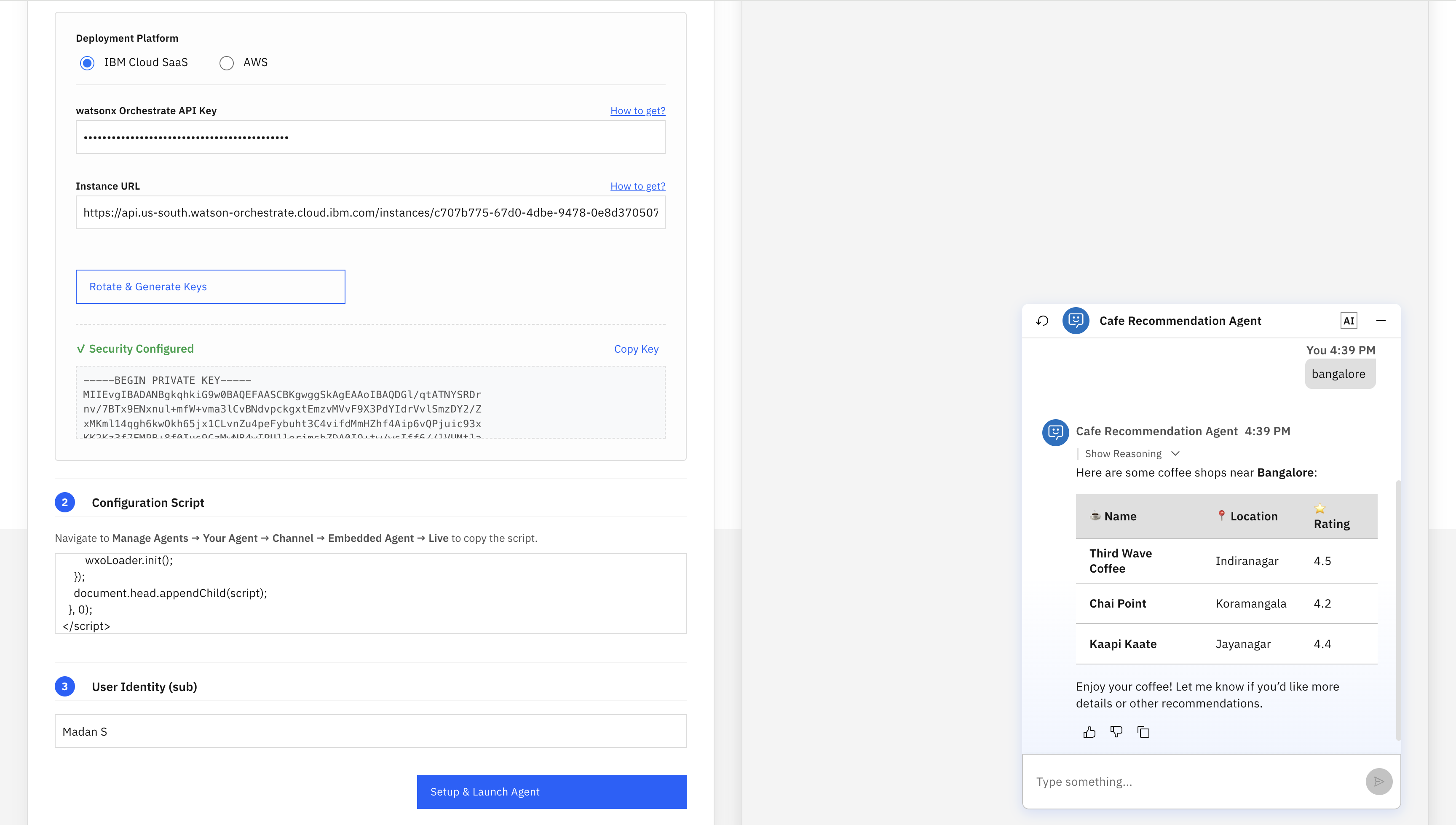
User: Show me nearby coffee shops. Agent: What city are you in? User: Bangalore. Agent: I'll remember that your location is Bangalore. I'll use this location to recommend nearby coffee shops and save it for future conversations.
The agent now stores Bangalore in User1's memory. Future recommendation requests from User1 can use the saved location without asking for it again.
Example conversation: Returning user
In this conversation, the agent already has a saved location for the user.
User: Recommend coffee shops. Agent: Here are some coffee shop recommendations in Bangalore.
The agent retrieves the saved location from memory and uses it to provide recommendations without asking for the location again.
Summary
In this tutorial, you learned how to use watsonx Orchestrate memory to store and retrieve user preferences across conversations. You built a cafe recommendation agent that saves user location information, retrieves stored information when needed, and provides personalized coffee shop recommendations.
You also learned how to:
- Store user preferences in memory.
- Retrieve user preferences during agent execution.
- Use user-specific memory records based on user identity and tenant ID.
- Integrate memory operations into a custom agent workflow.
- Build personalized conversations that use information from previous interactions.
By using watsonx Orchestrate memory, you can build agents that remember user information, maintain conversation context, and provide more relevant responses over time.
Acknowledgments
This tutorial was produced as part of the IBM Open Innovation Community initiative: Agentic AI (AI for Developers and Ecosystem).
The authors thank Suyash Dubey, Rohit Mulay, and Bindu Umesh for reviewing and contributing to this tutorial.