Tutorial
Configure LLDP on IBM Power SR-IOV adapters using HMC
Enable or disable Link Layer Discovery Protocol per physical port to enhance network security, improve topology visibility, and control device information sharing in virtualized Power environmentsIn modern data center environments, visibility and control over network behavior are critical for performance, security, and compliance. One key protocol that enables network devices to share identity and capability information is the Link Layer Discovery Protocol (LLDP). LLDP plays an important role in network topology discovery and troubleshooting, but in highly virtualized environments such as single root I/O virtualization (SR-IOV) on IBM Hardware Management Console (HMC)-managed systems, users need fine-grained control over LLDP behavior. Recent enhancements in IBM HMC allow disabling LLDP at the adapter level for SR-IOV physical ports, giving organizations better flexibility and security.
This tutorial explores the enhanced LLDP management capabilities for SR-IOV environments on IBM Power servers, guiding users on when and how to control LLDP behavior to improve network visibility, strengthen security, and streamline overall system operations.
What is LLDP?
LLDP is an IEEE standard (802.1AB) used by network devices to advertise their identity, capabilities, and connectivity information to directly connected neighbors. Operating at Layer 2 of the OSI model, LLDP helps build a dynamic map of the network by exchanging details such as:
- Device name and type
- Port ID and VLAN information
- Supported capabilities (such as speed, duplex)
- System description
This information is essential for network management tools to maintain accurate topology and configuration data.
Why LLDP matters?
LLDP is widely used in enterprise networks because it:
- Simplifies network discovery: Automatically identifies connected devices and their capabilities.
- Improves troubleshooting: Helps quickly locate misconfigured or disconnected links.
- Supports inventory accuracy: Keeps device and port information up to date.
- Enables automation: Many orchestration tools rely on LLDP for dynamic configuration.
However, LLDP also broadcasts details about your infrastructure. In security-sensitive environments, this can expose unnecessary information to neighboring devices, making LLDP control an important consideration.
When to enable or disable LLDP?
Enable LLDP when:
- You need full visibility for network mapping and troubleshooting.
- Automated tools depend on LLDP for configuration and monitoring.
- The environment is trusted and security risks are minimal.
Disable LLDP when:
- Operating in highly secure or compliance-driven environments where limiting protocol chatter reduces exposure.
- You want to prevent unnecessary disclosure of device details to neighboring systems.
- Logical ports should handle LLDP advertisements instead of physical ports for better isolation in SR-IOV setups.
Previous behavior versus new enhancements in IBM Power servers
Previously:
- LLDP was always controlled at the adapter level globally, meaning all physical ports on an SR-IOV adapter either had LLDP enabled or disabled as a whole.
- There was no option to disable LLDP per physical port; users had limited flexibility.
- Logical ports could not independently advertise LLDP if the adapter-level LLDP was enabled.
- Configuration was primarily through CLI and GUI, with limited granularity.
Now (with enhancements introduced):
Fine-grained control: Users can disable LLDP per physical port on SR-IOV adapters.
Note: When LLDP is disabled at the adapter level for a physical port, logical ports on that port will advertise LLDP instead, ensuring visibility where needed.
- Consistent management across interfaces: Full support for LLDP control using CLI, GUI and BMC GUI.
- Compliance and security alignment: Ability to restrict LLDP broadcasts on sensitive physical ports without impacting logical port functionality.
- Platform requirements:
- HMC version 1111 or later
- PHYP firmware FW1110.10 or later
- SR-IOV adapter with FW1110.10 installed
Configure LLDP
There are different ways in which you can configure LLDP. This section explains how you can configure it using the HMC CLI, HMC GUI, or BMC GUI.
Configure LLDP using HMC CLI
Perform the following steps to configure LLDP using HMC CLI:
In the CLI, run the following command to display the current LLDP status of each physical port in the HMC.
lshwres -m <sys> -r sriov --rsubtype physport --level <eth | ethc | roce>Where:
- -m sys → Managed system name
- -r sriov → SR-IOV resources
- --rsubtype physport → Physical ports
- --level → Type of physical port to display
In the command output, the following attribute is displayed:
adapter_lldp=<0|1>In this, 0 means LLDP is disabled and 1 means LLDP is enabled.
Note: By default, the LLDP status will be set to enabled.
If required, run the following command to change the LLDP settings of the physical port in HMC.
chhwres -m <system_name> -r sriov --rsubtype physport -o s -a "adapter_id=<adapter_id>,phys_port_id=<port_id>,adapter_lldp=<0|1>"Where:
- system_name → Managed system name
- adapter_id → SR-IOV adapter number
- port_id → Physical port number on the adapter
- 0|1 → LLDP setting, 0 means disabled and 1 means enabled.
Configure LLDP using HMC GUI
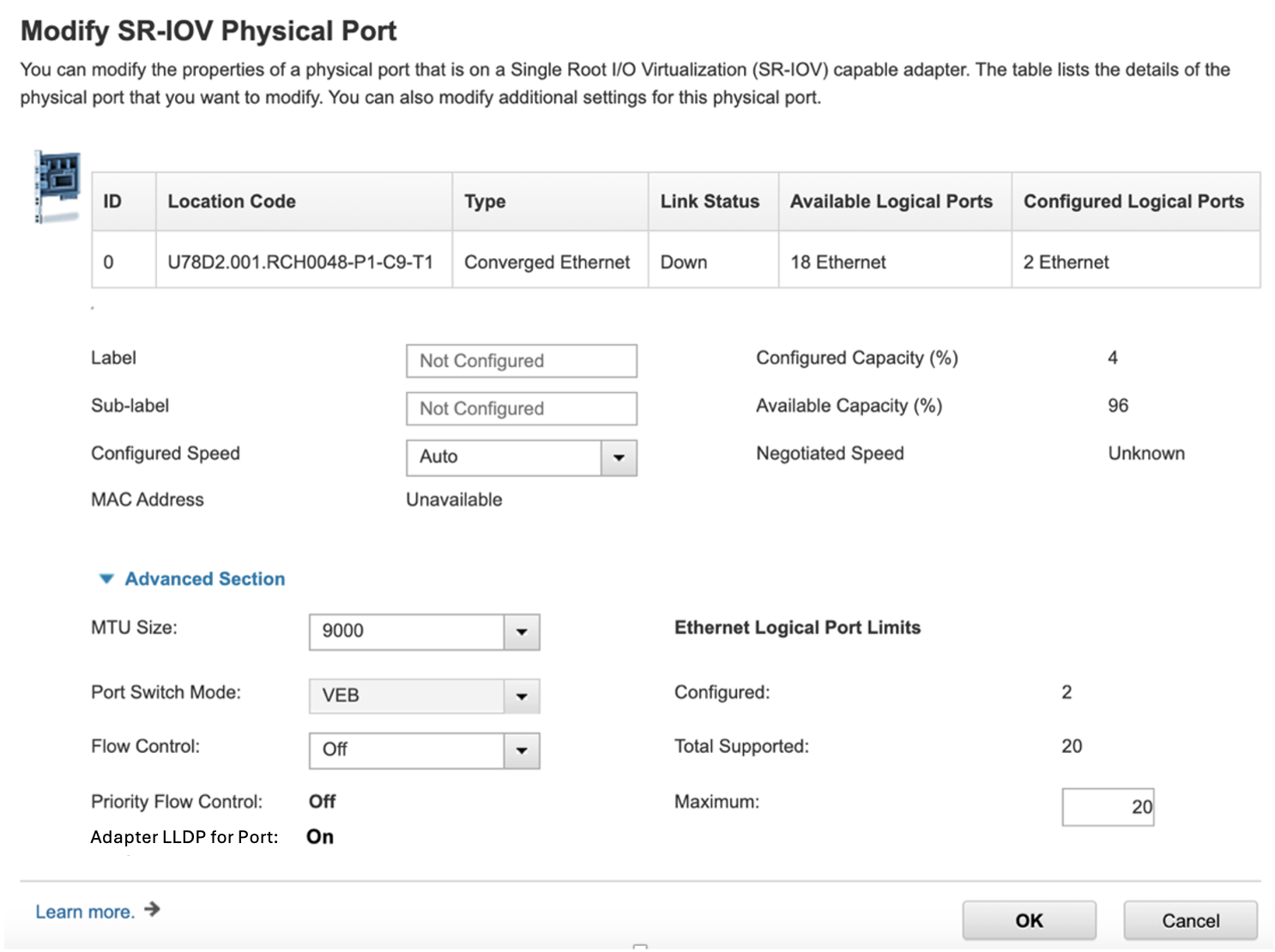
For physical ports that do not support disabling LLDP, open the HMC GUI and on the Modify SR-IOV Physical Port page, notice that the Adapter LLDP for Port option is set to On and is available in a read-only manner (as shown in the following screenshot).
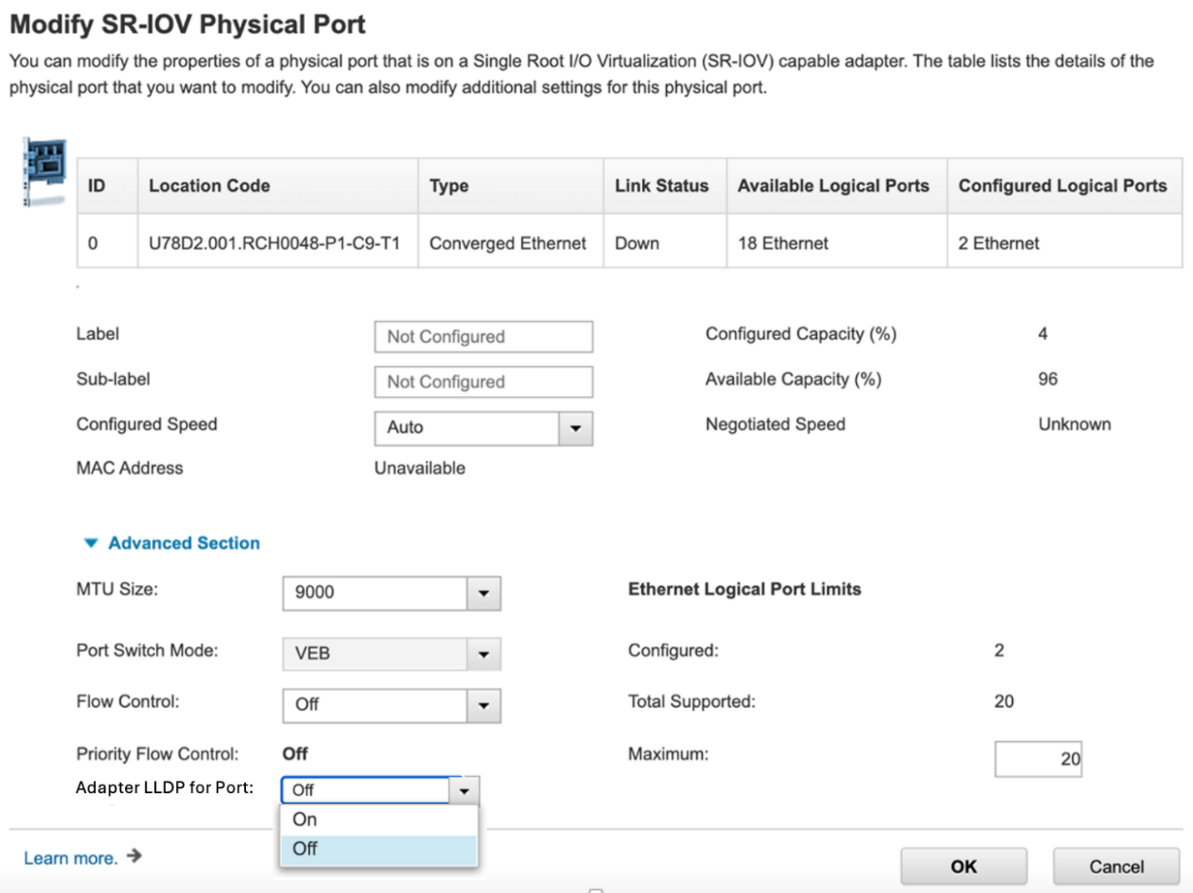
For physical ports that support disabling LLDP, on the Modify SR-IOV Physical Port page, you can set the Adapter LLDP for Port option to On or Off as per your requirement.
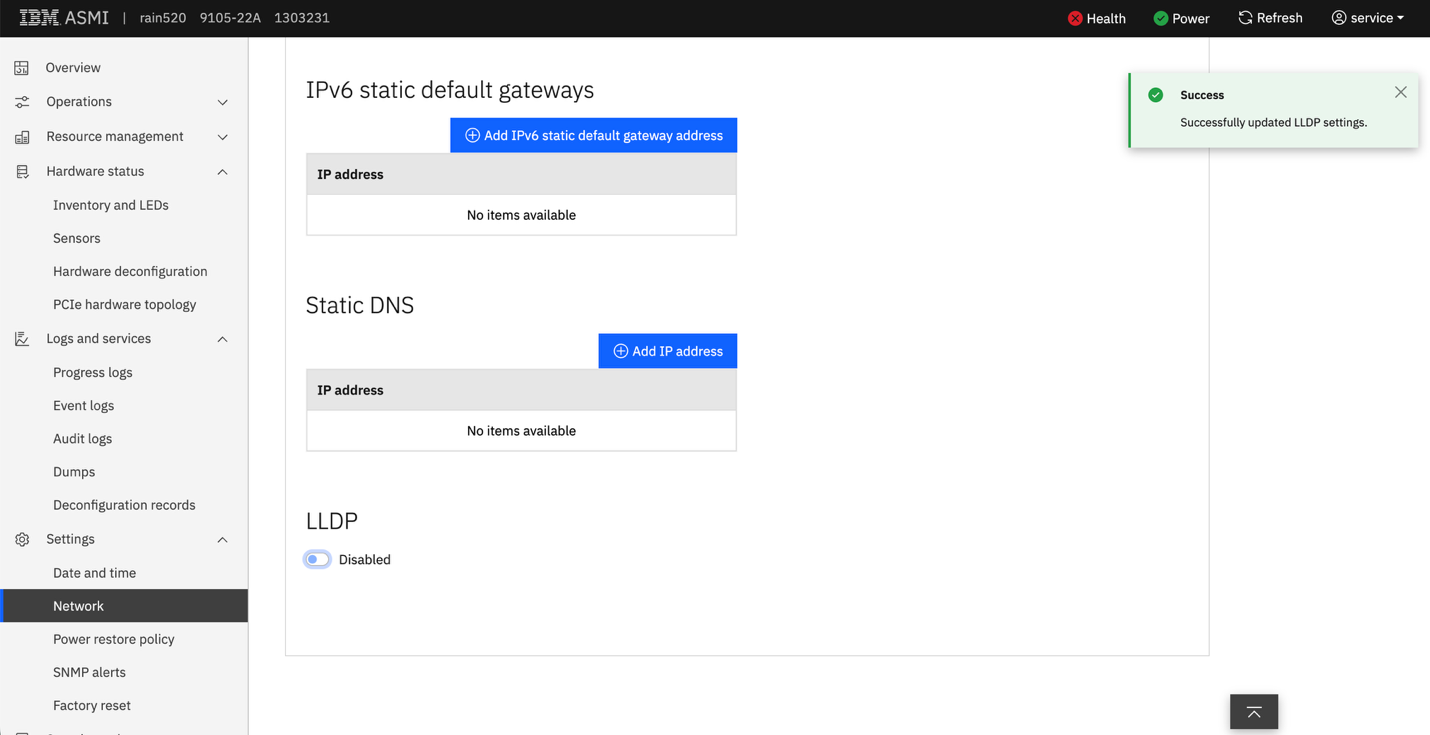
Configure LLDP using the BMC GUI
Perform the following steps to enable or disable LLDP from the BMC GUI:
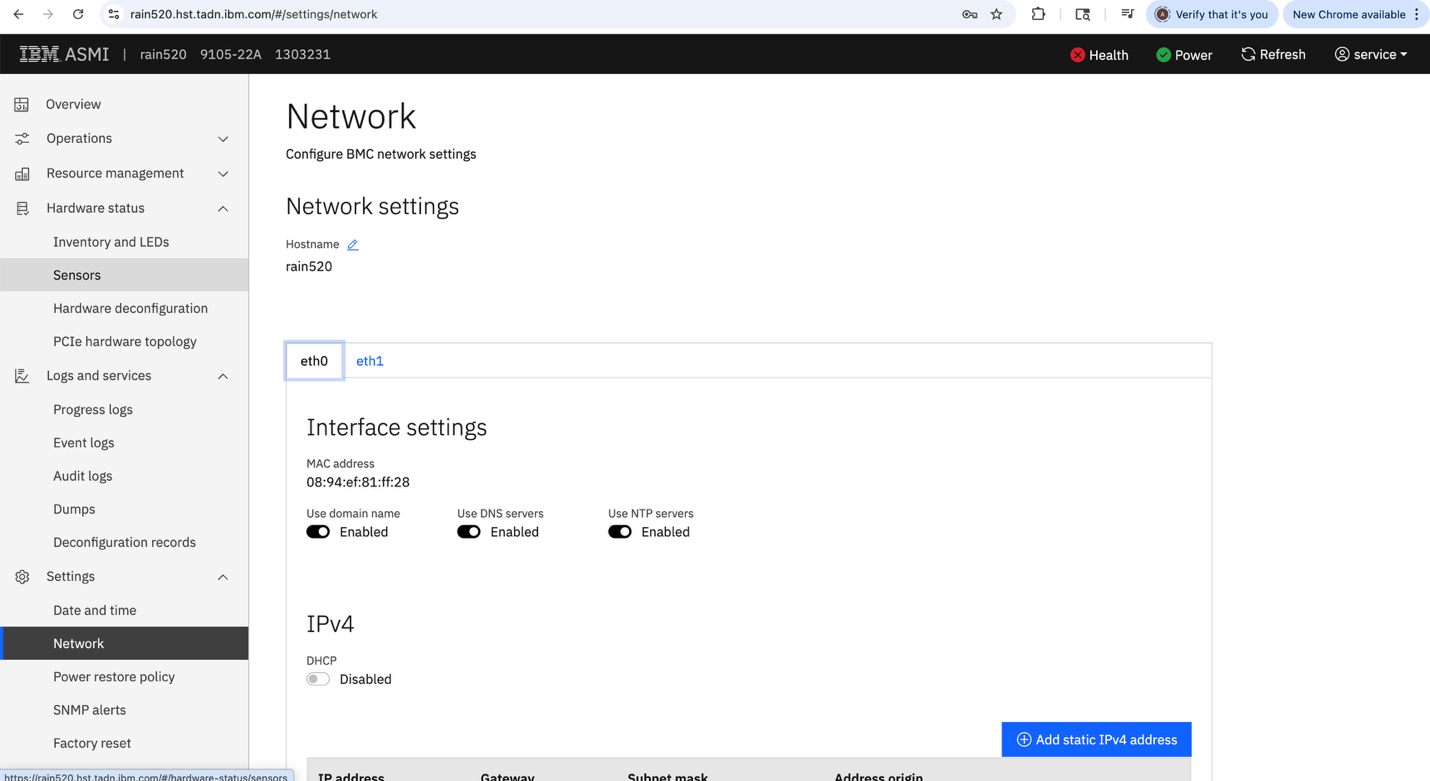
Log in to the BMC GUI and on the left navigation panel, click Settings -> Network. On the Network page, click the eth0 interface.
On the Network page, notice that the LLDP option is enabled by default.
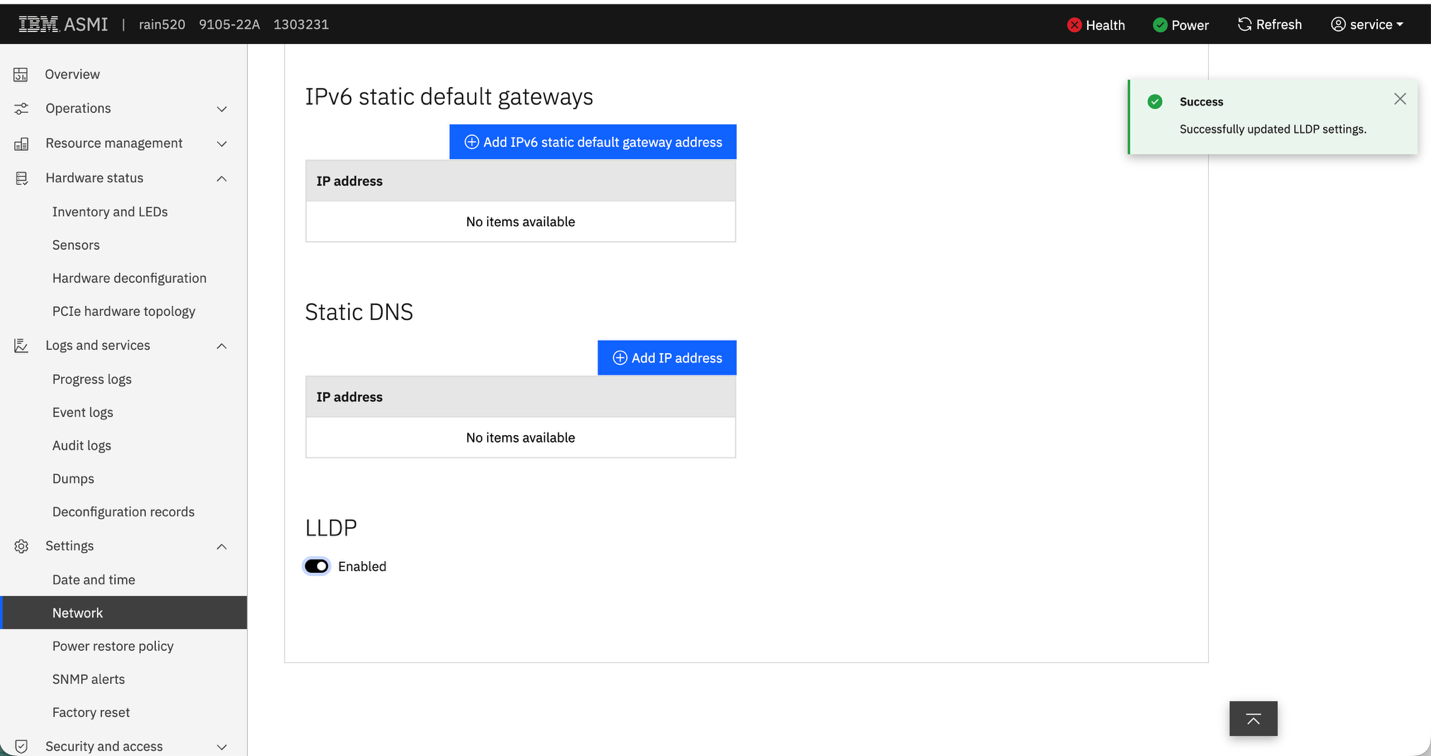
If required, disable the LLDP option.
Benefits of LLDP
LLDP provides the following benefits:
- Better network clarity You can choose exactly which ports should share LLDP information, making it easier to understand the network and find issues faster.
- Increased safety LLDP can be turned off on ports where you don’t want to share extra device details, helping protect sensitive parts of the network.
- More control and flexibility LLDP settings can be changed easily through CLI, REST API, or GUI, giving you more control over how the network behaves in SR‑IOV environments.
Conclusion
The enhanced LLDP features offer precise control over how discovery information is shared in SR‑IOV environments. By upgrading to the required HMC and PHYP levels, you can take full advantage of these improvements to achieve clearer network visibility and stronger security.