Tutorial
Build an event-driven agentic AI system with Confluent Cloud for Apache Flink and watsonx Orchestrate using IBM Bob
A hands-on guide to creating Always ON agents through a real-time multi-agent retail assistant that monitors inventory events, checks product availability, and recommends alternatives with agentic RAG.Agentic AI systems need access to current information to respond to changing business conditions. In retail environments, inventory levels can change quickly as stores receive new stock and customers purchase products. Relying on periodic data updates can prevent AI agents from providing accurate product availability information.
This tutorial shows how to build an event-driven agentic AI system with Confluent Cloud, Apache Flink, and IBM watsonx Orchestrate. Confluent Cloud provides real-time inventory events through Apache Kafka, while Apache Flink processes the events and maintains the current inventory availability. watsonx Orchestrate agents use this real-time inventory data to answer product availability questions.
The tutorial also uses enterprise product documents to provide additional product context. When a requested product is unavailable, a watsonx Orchestrate agent uses agentic retrieval-augmented generation (RAG) to search the product catalog and recommend similar products.
Throughout the tutorial, you will use IBM Bob to create the Kafka and Flink components, configure the Model Context Protocol (MCP) integration, and build, test, and deploy the watsonx Orchestrate agents. This spec-driven development approach reduces manual setup and lets you focus on the application architecture and agent behavior.
By the end of this tutorial, you will have a multi-agent retail assistant that combines real-time inventory data with enterprise product information to check product availability and recommend alternatives when a product is out-of-stock.
Retail inventory use case
During high-demand periods, product availability can change quickly across store branches. A store associate might ask, "Is the Dell XPS laptop available at the Mall of Egypt? If not, what similar laptop is available?"
The multi-agent retail assistant handles this request by:
- Checking the current product availability at the requested store branch.
- Recommending similar products from the enterprise product catalog if the requested product is unavailable.
The tutorial uses this retail use case to demonstrate the complete workflow.
Architecture of the real-time inventory availability solution
The architecture includes the following components:
Confluent Cloud (Apache Kafka)
- Hosts the source topic
inventory.transactions, which contains JSON events for inventory additions and product sales. Sales use negative quantity values. - Hosts the derived topic
inventory.availability, which contains the current available quantity for each SKU and store branch.
- Hosts the source topic
Confluent Cloud for Apache Flink
- Continuously reads events from the
inventory.transactionstopic. - Calculates the available quantity for each SKU and store branch.
- Writes the latest inventory availability to the
inventory.availabilitytopic.
- Continuously reads events from the
Real-Time Context Engine (RTCE)
- Exposes inventory availability data from Kafka through an MCP tool.
- Allows watsonx Orchestrate agents to query the current inventory availability.
watsonx Orchestrate agents
- SKU_Availability_Agent uses the MCP tool to check whether a stock-keeping unit (SKU) is available at a specific store branch.
- Substitute_Finder_Agent searches enterprise product documents to recommend similar SKUs when the requested SKU is unavailable.
- Store_Associate_Agent acts as the supervisor agent. The agent delegates tasks to the two specialist agents and returns one customer-friendly response.
Enterprise documents
- The
product-catalog.docxfile is uploaded to theenterprise_documentsknowledge source. - The Substitute_Finder_Agent uses the product catalog for semantic similarity search and recommends similar products when the requested product is unavailable.
- The
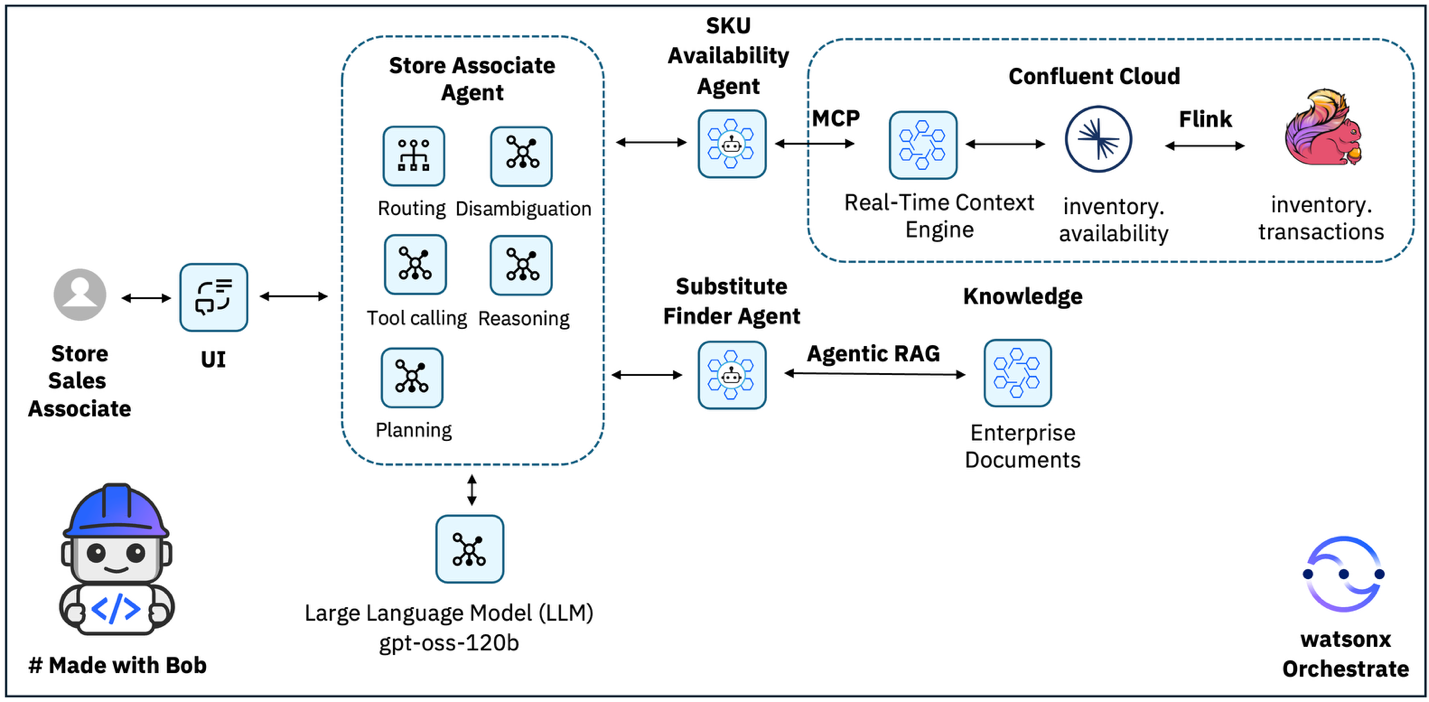
- A store sales associate asks a product availability question in the user interface. For example: “Do you have LAPTOP-DELL-XPS-15 at Mall of Egypt?”
- The Store Associate Agent receives the request. The Store Associate Agent acts as the supervisor agent, extracts the SKU and store branch, and selects the appropriate specialist agent.
- The Store Associate Agent sends the inventory request to the SKU Availability Agent.
- The SKU Availability Agent calls the RTCE MCP tool. The RTCE MCP tool queries the
inventory.availabilityKafka topic, which contains the latest inventory availability calculated by Apache Flink from real-time inventory transactions in Confluent Cloud. The SKU Availability Agent returns one of the following results to the Store Associate Agent:
- The SKU is available, with the current quantity at the requested store branch.
- The SKU is tracked but is currently out of stock.
- The SKU is not tracked in the inventory data.
- If the SKU is available, the Store Associate Agent returns the current quantity to the store sales associate.
- If the SKU is out of stock or not tracked, the Store Associate Agent sends the request to the Substitute Finder Agent.
- The Substitute Finder Agent searches enterprise product documents for similar SKUs based on product attributes such as category, form factor, processor class, and usage tier.
- The Substitute Finder Agent returns two or three alternative products with short explanations.
- The Store Associate Agent combines the inventory information and alternative product recommendations into a single response and returns the response to the store sales associate.
Prerequisites
Before you begin, make sure you have the following:
- Install the Confluent CLI by following the official Confluent documentation.
- Access to IBM Bob. Sign up for a free access to IBM Bob.
- A Confluent Cloud account with access to Apache Kafka. You can create an account on the Confluent Cloud sign-up page.
- Access to a watsonx Orchestrate instance. This tutorial was tested with watsonx Orchestrate ADK version 2.17.
- Basic knowledge of Apache Kafka concepts, including topics and consumers.
Step 1. Set up the tutorial workspace
In this step, you will clone the tutorial repository, configure Confluent Cloud, and open the tutorial project in IBM Bob.
Clone the tutorial repository by running the following command in a terminal:
git clone https://github.com/IBM/oic-i-agentic-ai-tutorials.gitOpen Confluent Cloud in a browser. If you do not have a Confluent Cloud account, sign up for a free trial.
Important: Select a supported AWS region in the United States because this tutorial uses the Real-Time Context Engine (RTCE). Check the Confluent Cloud region support before selecting a region.
Log in to Confluent Cloud from the terminal:
confluent loginComplete the authentication process when prompted.
Open IBM Bob.
In Bob, select File > Open Folder and open the following folder.
oic-i-agentic-ai-tutorials/confluent-agentsBecause you are already logged in with the Confluent CLI, you can use IBM Bob to create the required API keys and add the Confluent configuration values to the
.envfile.Make sure Bob is in Agent mode, and enter the following prompt:
 Perform the following steps to connect to my Confluent environment:
 1. Copy `.env.example` to `.env` in the current directory. Keep the original `.env.example` file unchanged.
 2. Use the Confluent CLI (`confluent`) to retrieve the required values and add each value to the corresponding key in the `.env` file.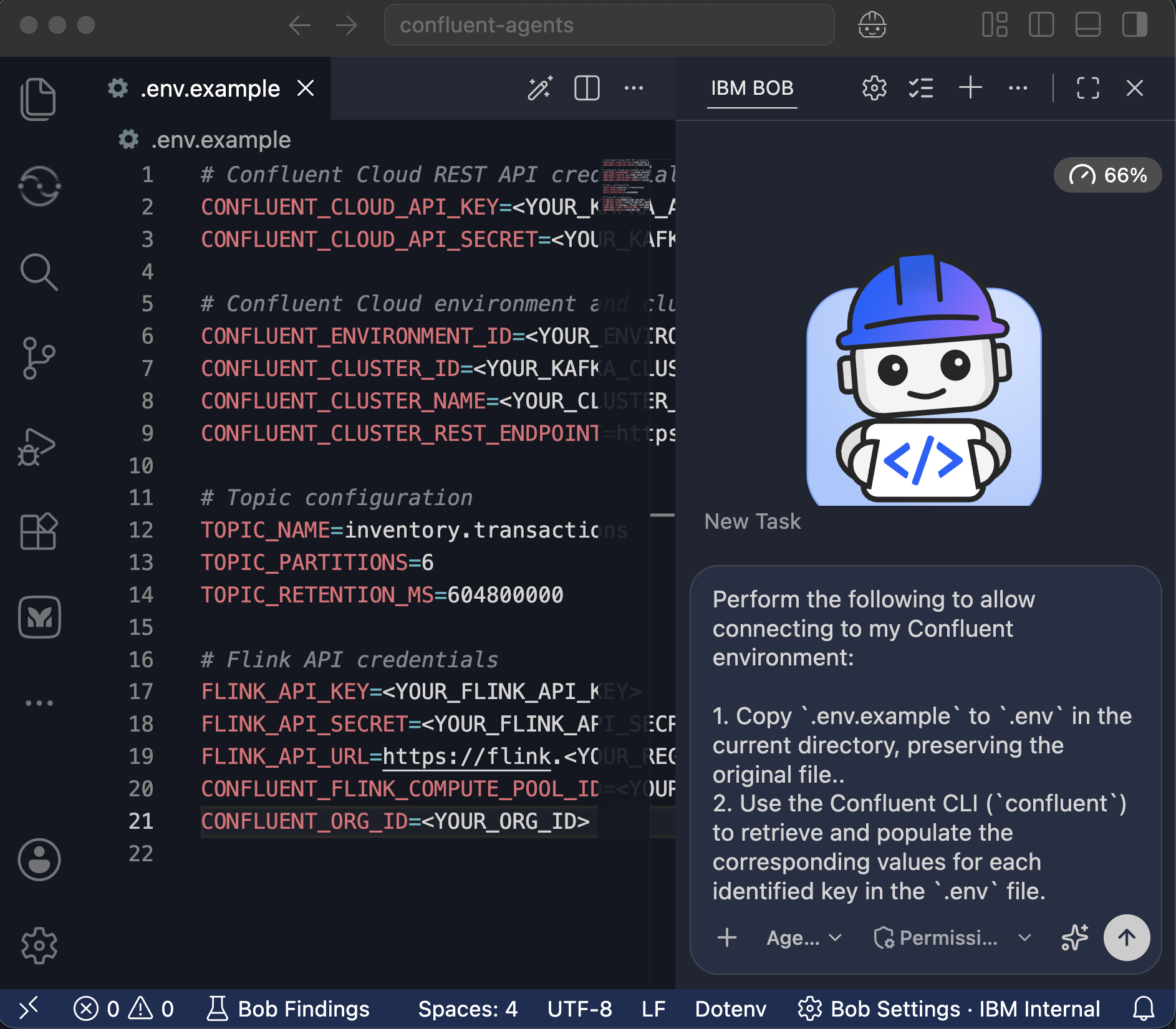
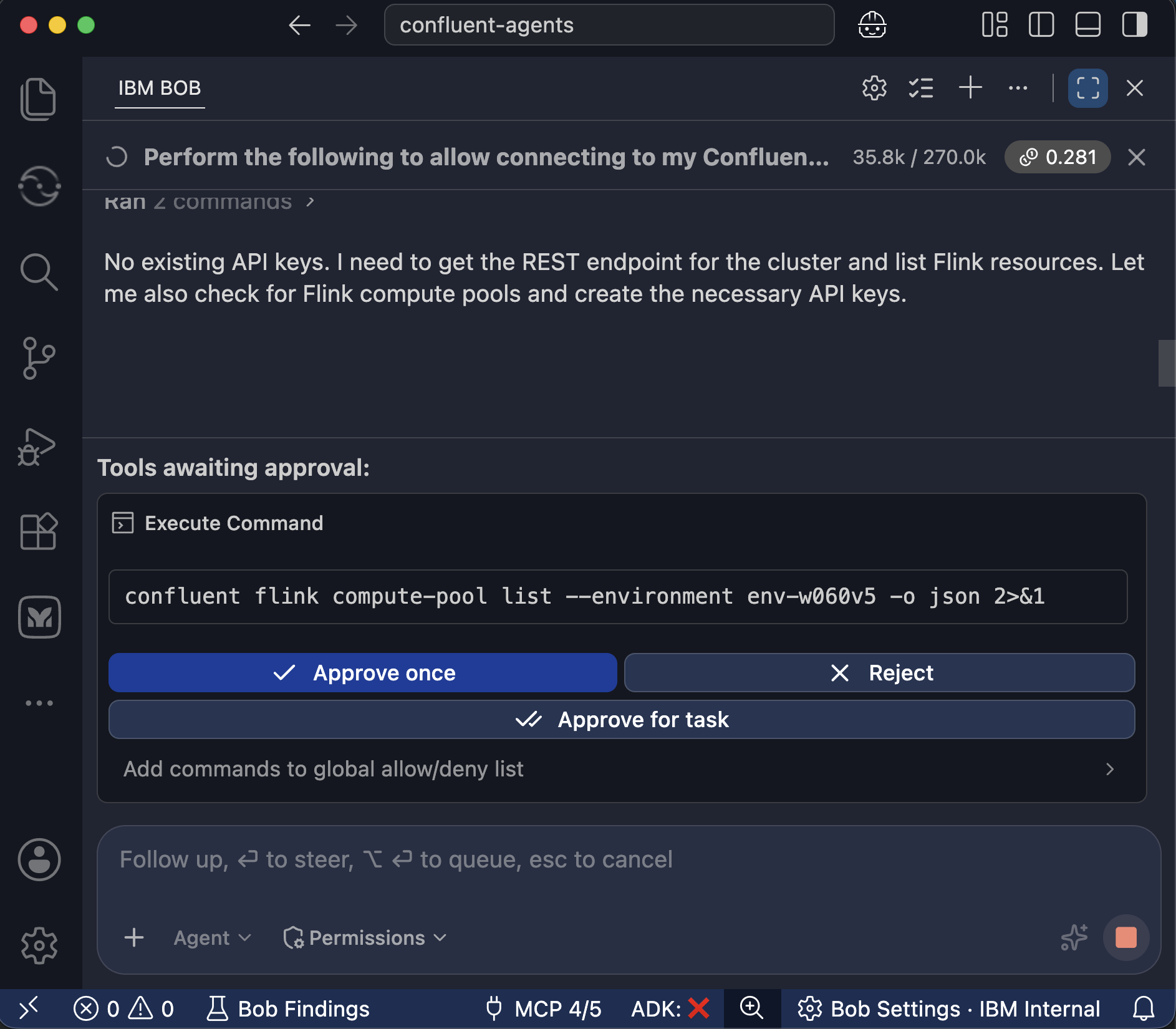
When Bob prompts for permission to create or retrieve the required Confluent API keys, click Approve for task.
Open the
.envfile and verify that Bob added values for all required environment variables.For a production environment, protect the
.envfile because the file can contain sensitive credentials. Add the.envfile to.bobignoreto prevent Bob from accessing the file.
Step 2. Create the Kafka topics and Flink streaming pipeline
In this step, you will use spec-driven development with IBM Bob to create an inventory streaming pipeline with Confluent Cloud for Apache Flink. The specs/setup-flink-pipeline.md file provides the specifications that Bob uses to build and deploy the pipeline.
The streaming pipeline includes the following components:
- Source table (
inventory.transactions): Stores inventory events, such as stock additions and product sales. - Apache Flink job: Continuously reads inventory events and calculates the available quantity for each product at each store branch. The Flink job adds stock additions and subtracts product sales.
- Sink table (
inventory.availability): Stores the latest available quantity for each product at each store branch.
Bob uses the specification to create and run the run_flink_sql.py script. The script uses the Confluent Cloud Flink REST API to create the source and sink tables and start the continuous Flink job with an INSERT INTO statement.
After the streaming pipeline is running, the watsonx Orchestrate agent can query the inventory.availability table to check current product availability. If a product is out of stock, the agent can request alternative product recommendations.
- In Bob, click New task and make sure Agent mode is selected.
- Review the
specs/setup-flink-pipeline.mdspecification. Ask Bob to implement the specification.
Implement the spec @specs/setup-flink-pipeline.md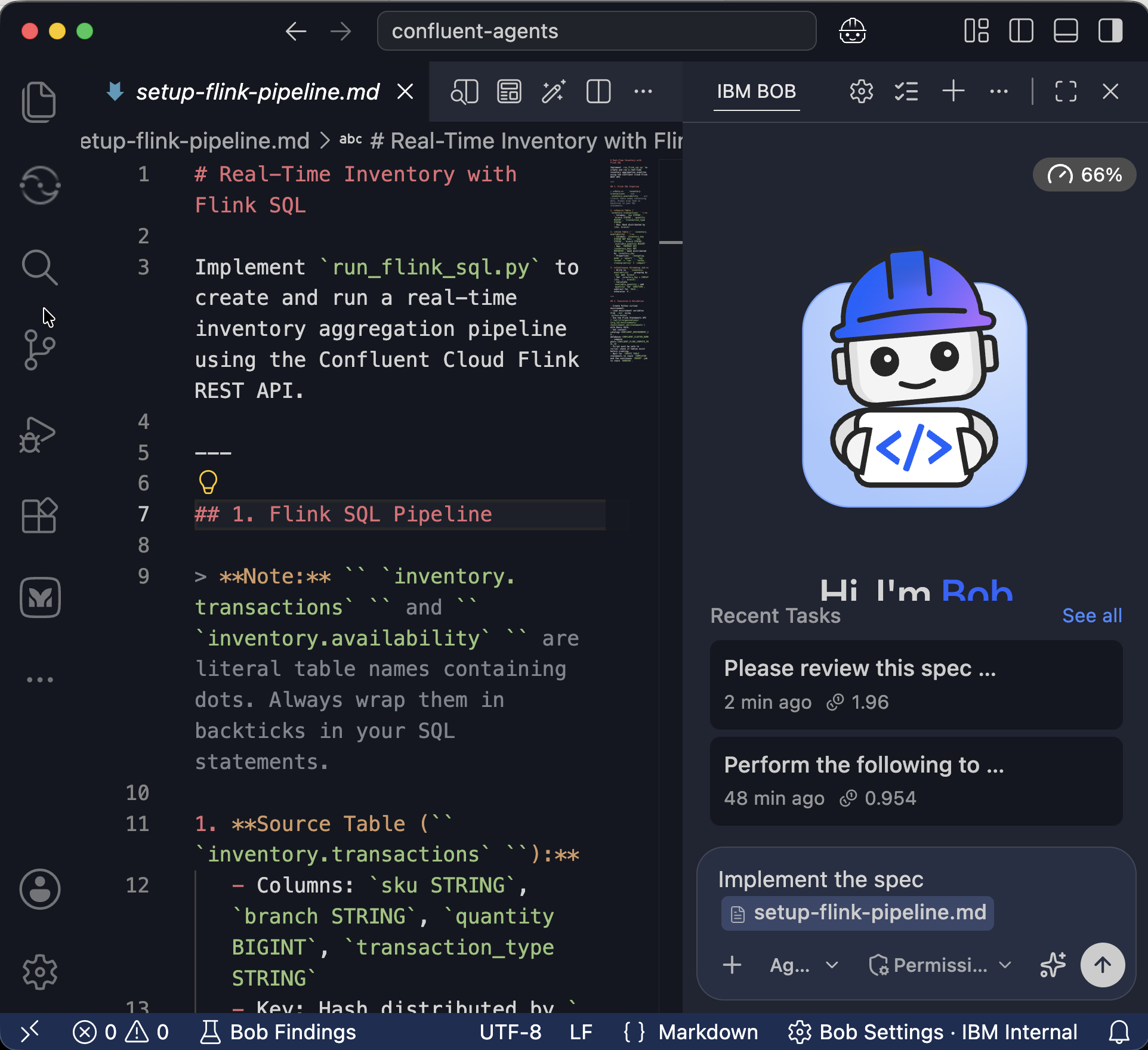
After Bob creates the Python script, ask Bob to create a Python virtual environment and run the script.
Create a Python virtual environment in this workspace and run the script.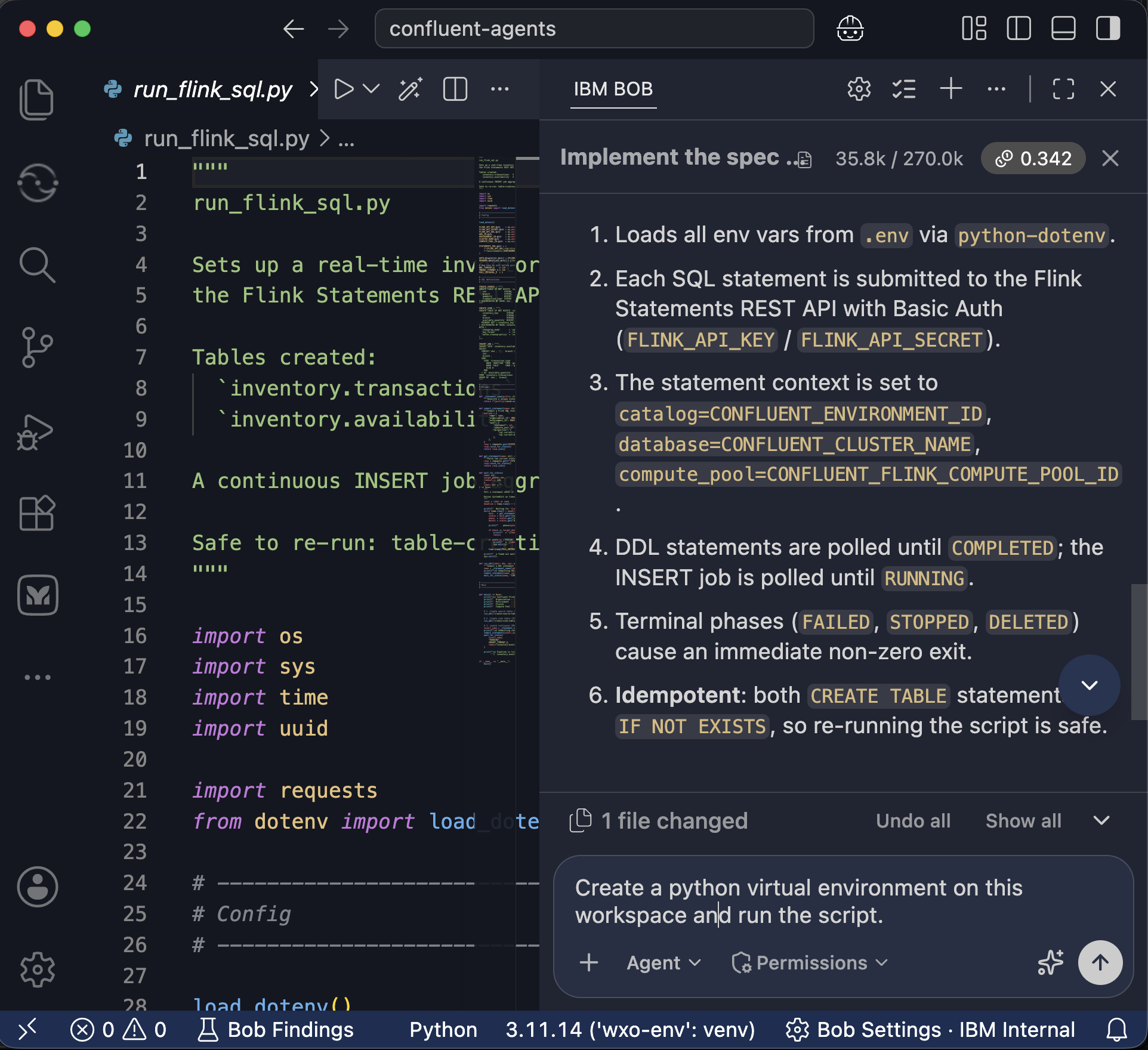
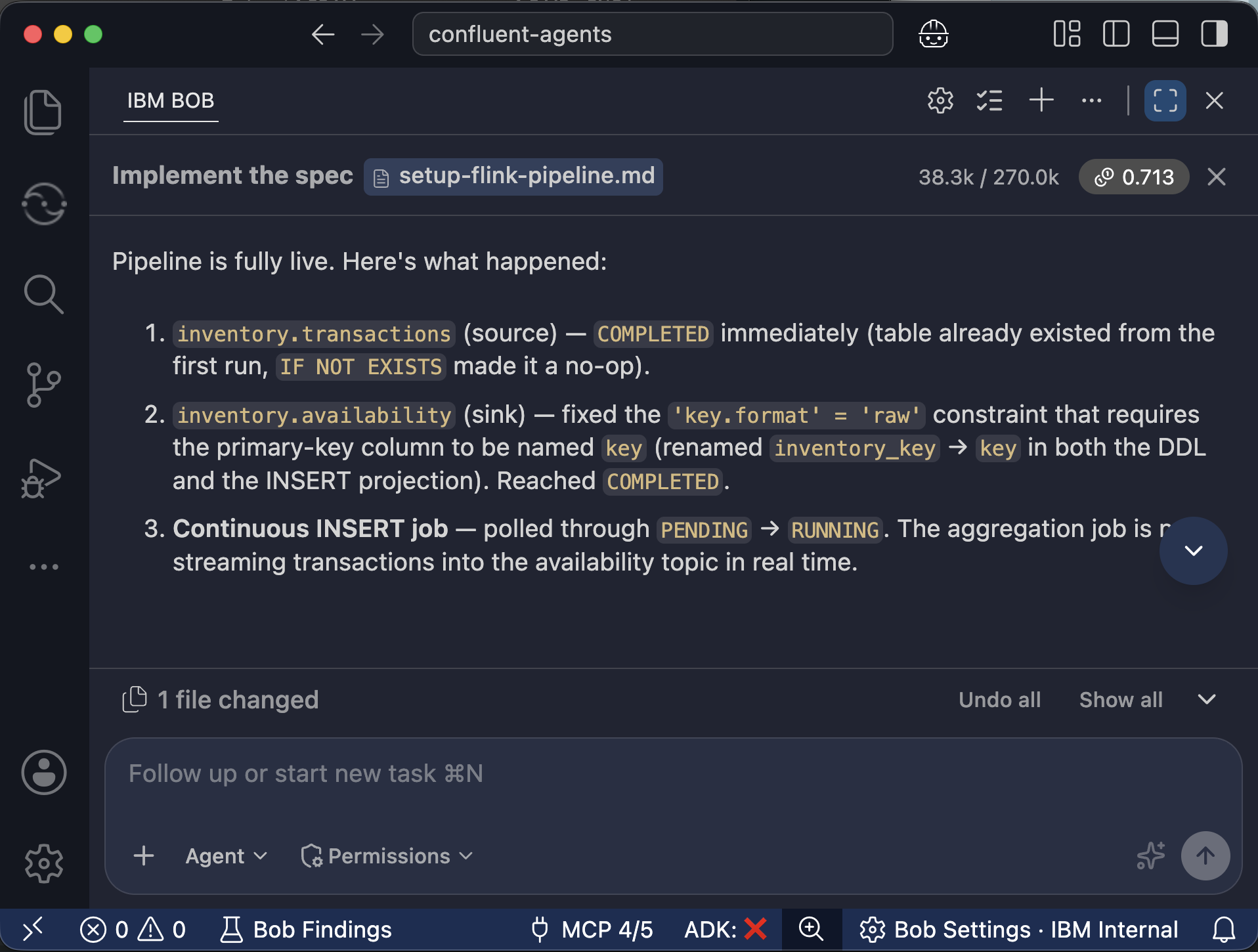
Verify that Bob successfully created the Kafka topics and started the Apache Flink job.
Step 3. Publish sample inventory events to the Kafka topic
The streaming pipeline includes two Kafka topics:
inventory.transactions: Stores inventory transactions. Positive quantities represent stock additions, and negative quantities represent product sales.inventory.availability: Stores the latest available quantity for each product at each store branch. Apache Flink calculates the availability from events in theinventory.transactionstopic.
The inventory.transactions topic does not contain any events yet. In this step, you will use Bob to create a Python script that publishes sample inventory events to the inventory.transactions topic.
Review the
specs/publish-sample-transactions.mdspecification. The specification defines the Kafka producer that publishes sample inventory events to theinventory.transactionstopic.Ask Bob to implement the specification:
Implement the spec @specs/publish-sample-transactions.md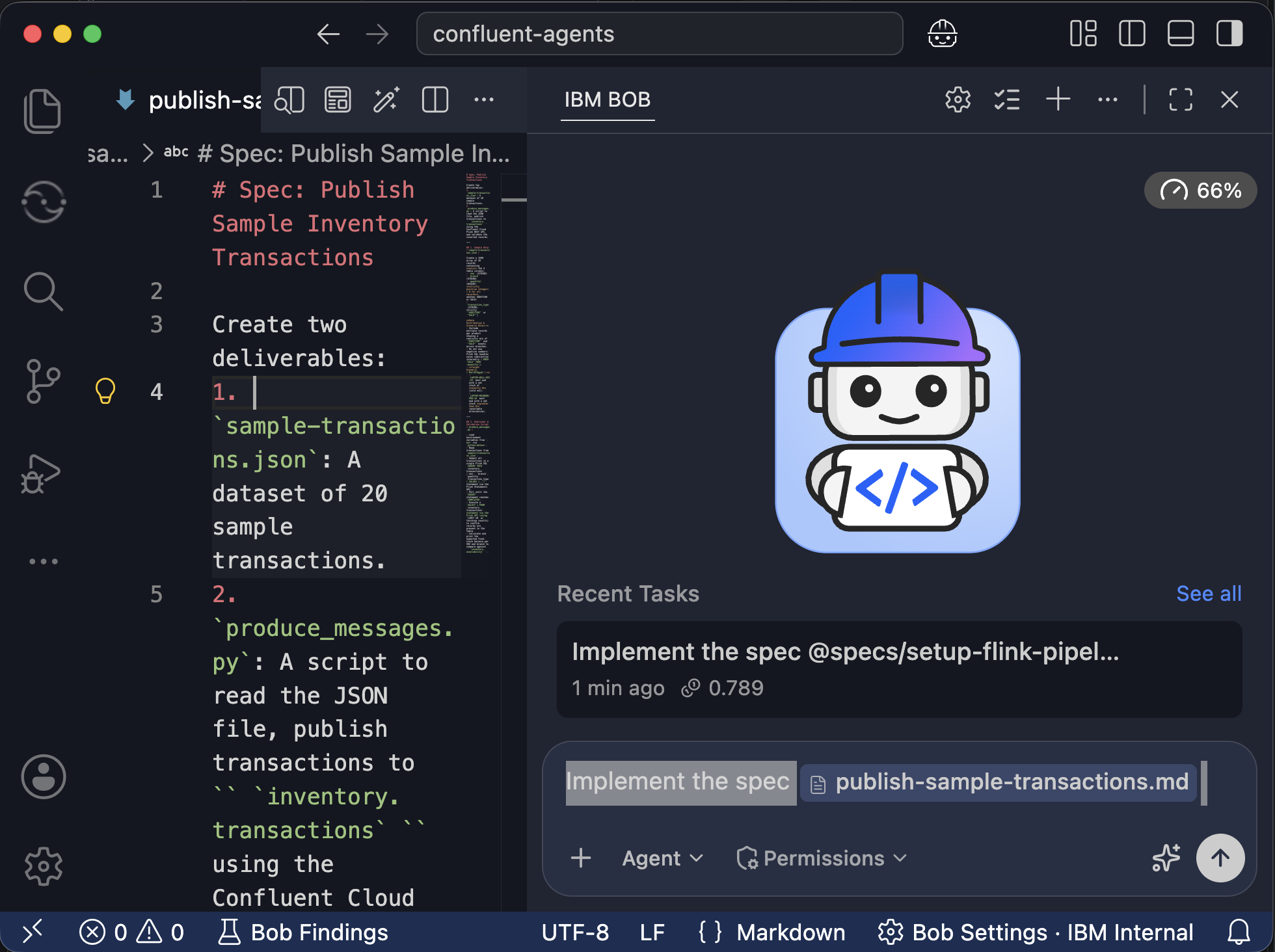
After Bob creates the Python script, ask Bob to run the script using the existing Python virtual environment.
Use the Python virtual environment in this workspace and run the script.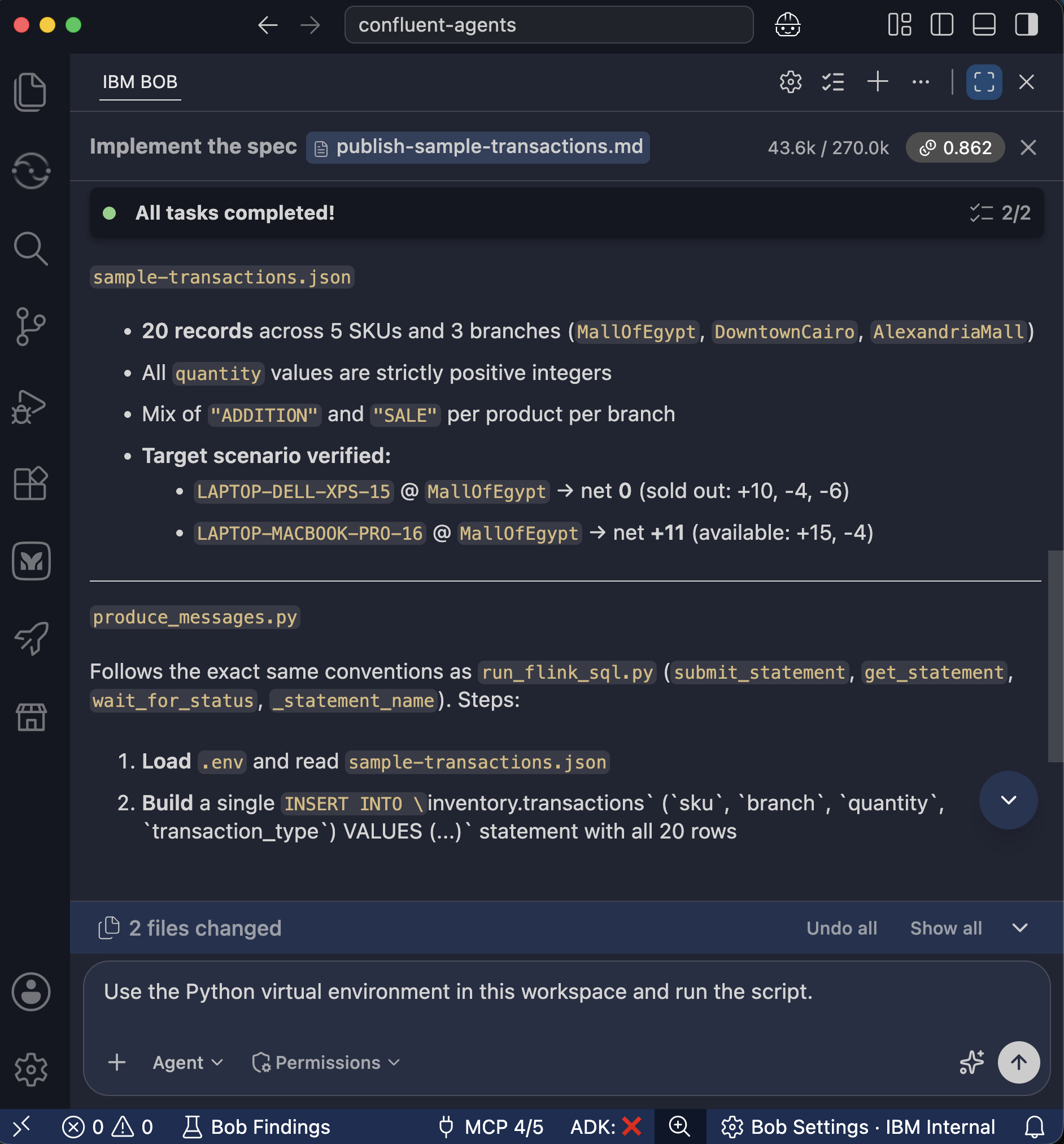
Step 4. Verify the Kafka topics and inventory data
In this step, you will use the Confluent Cloud SQL workspace to verify the data in the inventory.transactions and inventory.availability topics.
- Sign in to Confluent Cloud.
Verify that the following two Kafka topics exist:
inventory.transactionsinventory.availability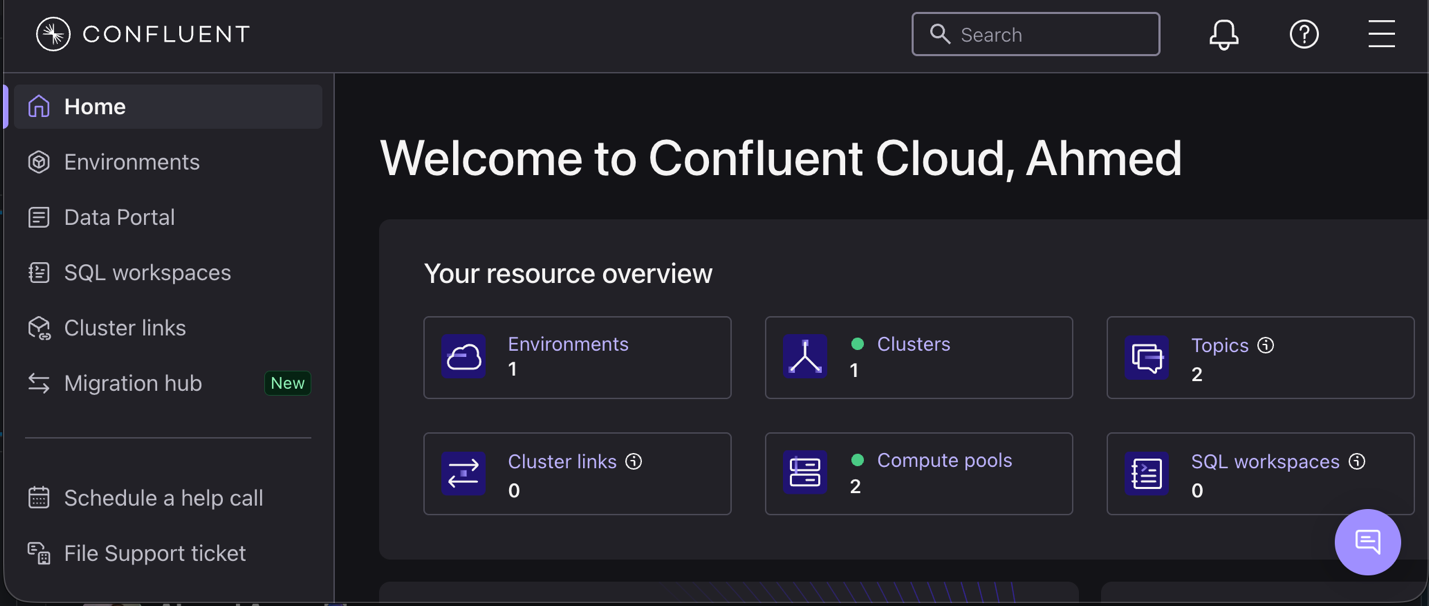
In the left navigation menu, click SQL workspaces.
Click Create new workspace.
Run the following query to verify that the
inventory.transactionstopic contains the 20 sample inventory events:SELECT * FROM `inventory.transactions`;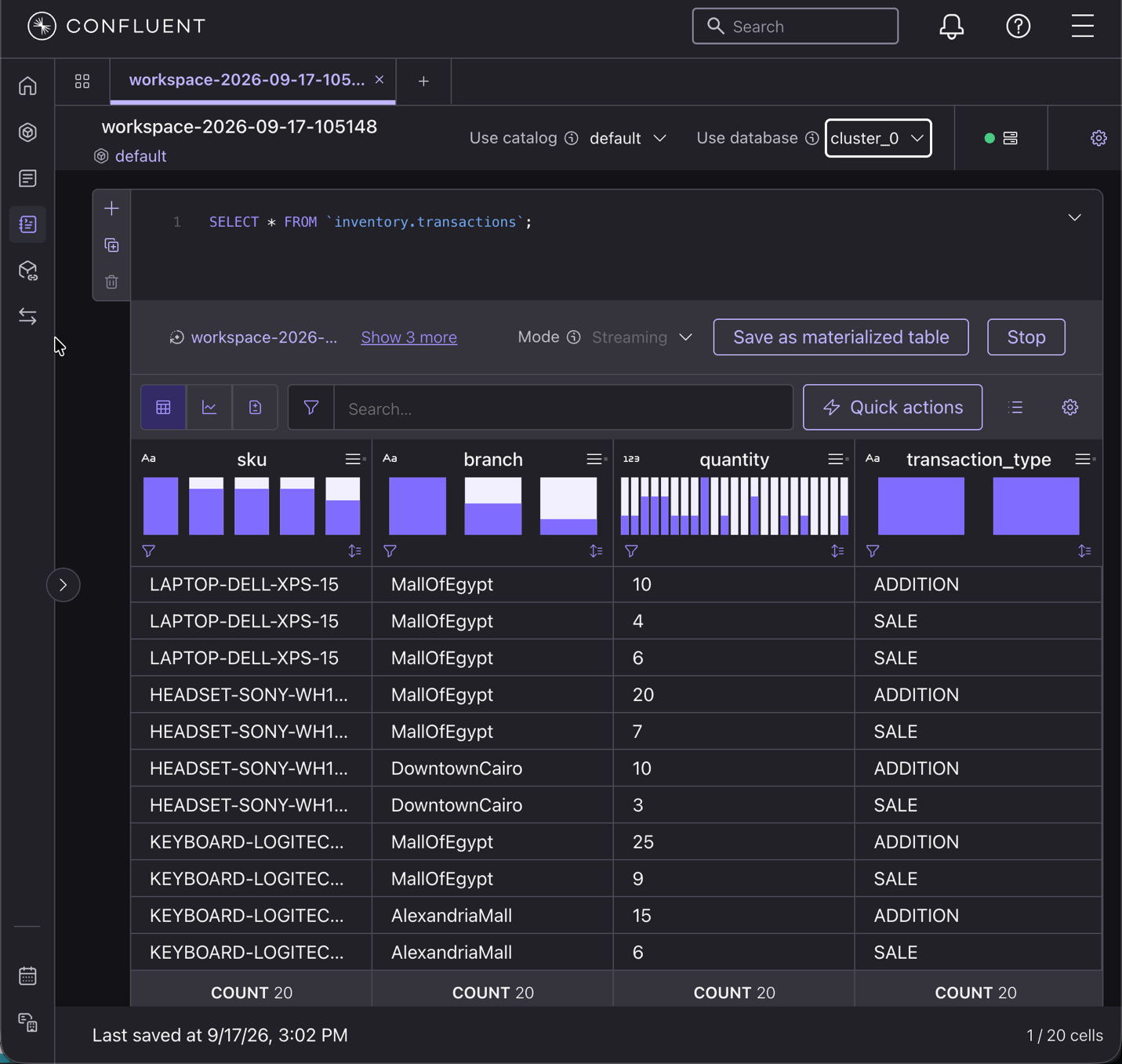
Click + to add a new SQL statement.
Run the following query to verify that the
inventory.availabilitytopic contains the aggregated inventory quantity for each SKU and store branch.SELECT * FROM `inventory.availability`;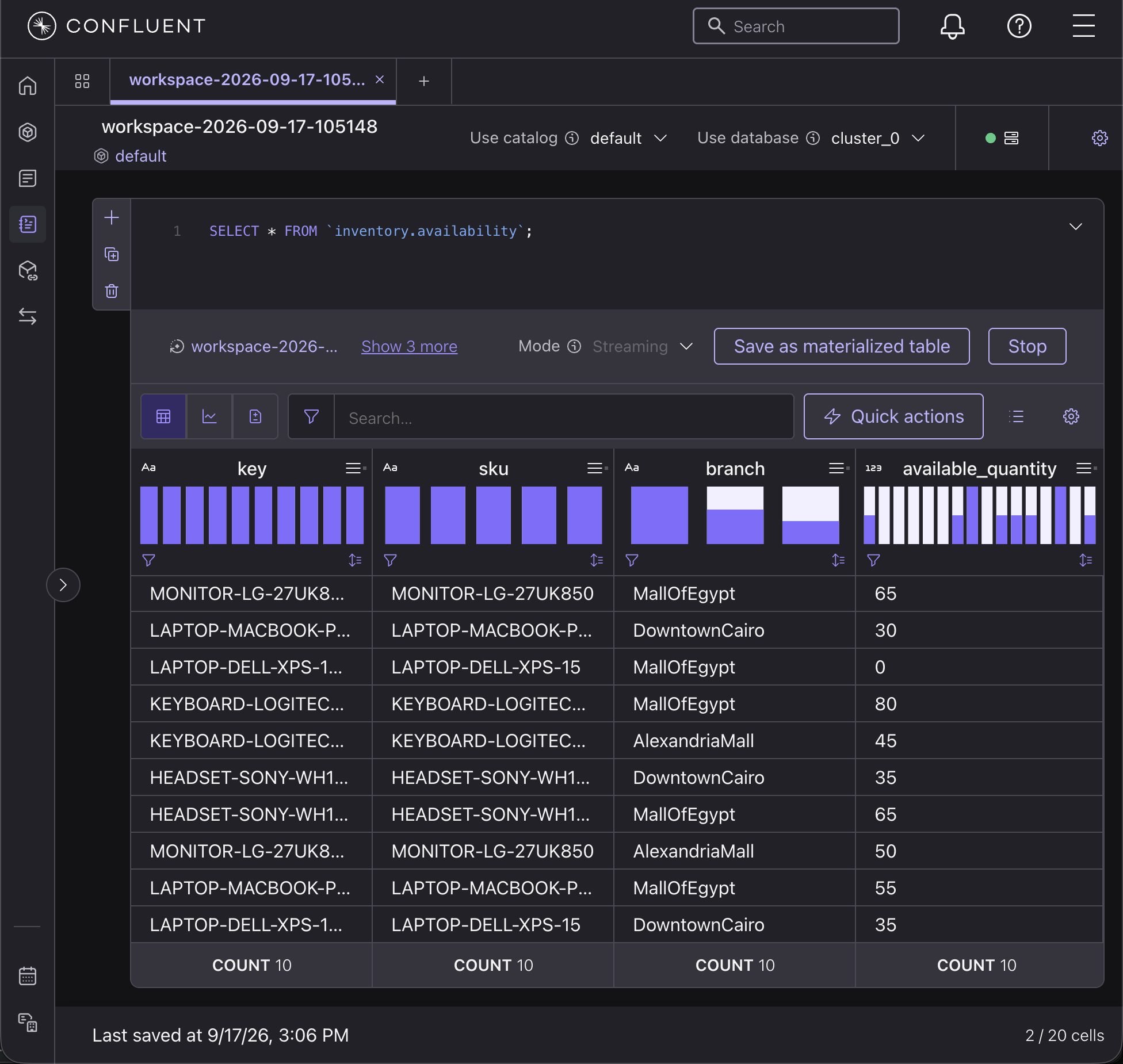
Step 5. Enable the Real-Time Context Engine and create an MCP tool
Apache Flink continuously calculates the current inventory for each SKU and store branch and writes the results to the inventory.availability topic.
In this step, you will enable the Confluent Real-Time Context Engine (RTCE) for the inventory.availability topic. RTCE makes the current inventory data available to AI agents through a managed Model Context Protocol (MCP) endpoint.
Kafka stores inventory data as a continuous event stream. The SKU_Availability_Agent needs to look up the current inventory for a specific SKU and store branch. RTCE provides access to the latest inventory state so the agent can perform these lookups.
In the next steps, you will connect the RTCE MCP endpoint to watsonx Orchestrate. The SKU_Availability_Agent will use the MCP tool to query current inventory data.
Runtime flow:
inventory.transactions → Apache Flink → inventory.availability → Real-Time Context Engine → MCP endpoint → SKU_Availability_Agent
Go to the Confluent Cloud home page, click Clusters, and open your Kafka cluster.
In the left navigation menu, click Topics.
Find the
inventory.availabilitytopic. Scroll to the right to find the Real-Time Context Engine column.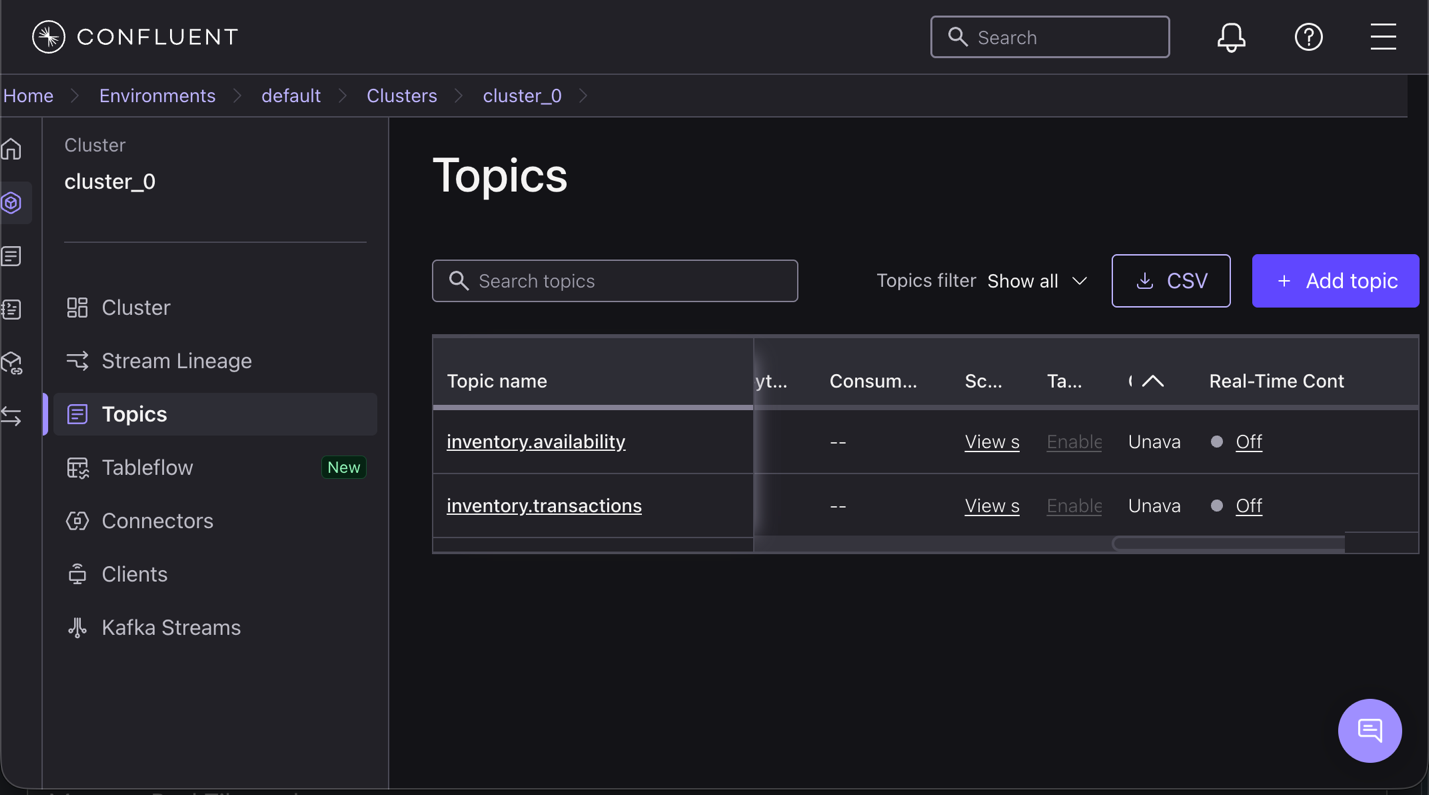
In the Real-Time Context Engine column for the
inventory.availabilitytopic, click Off.Turn on Real-Time Context Engine, and click Turn on to confirm.
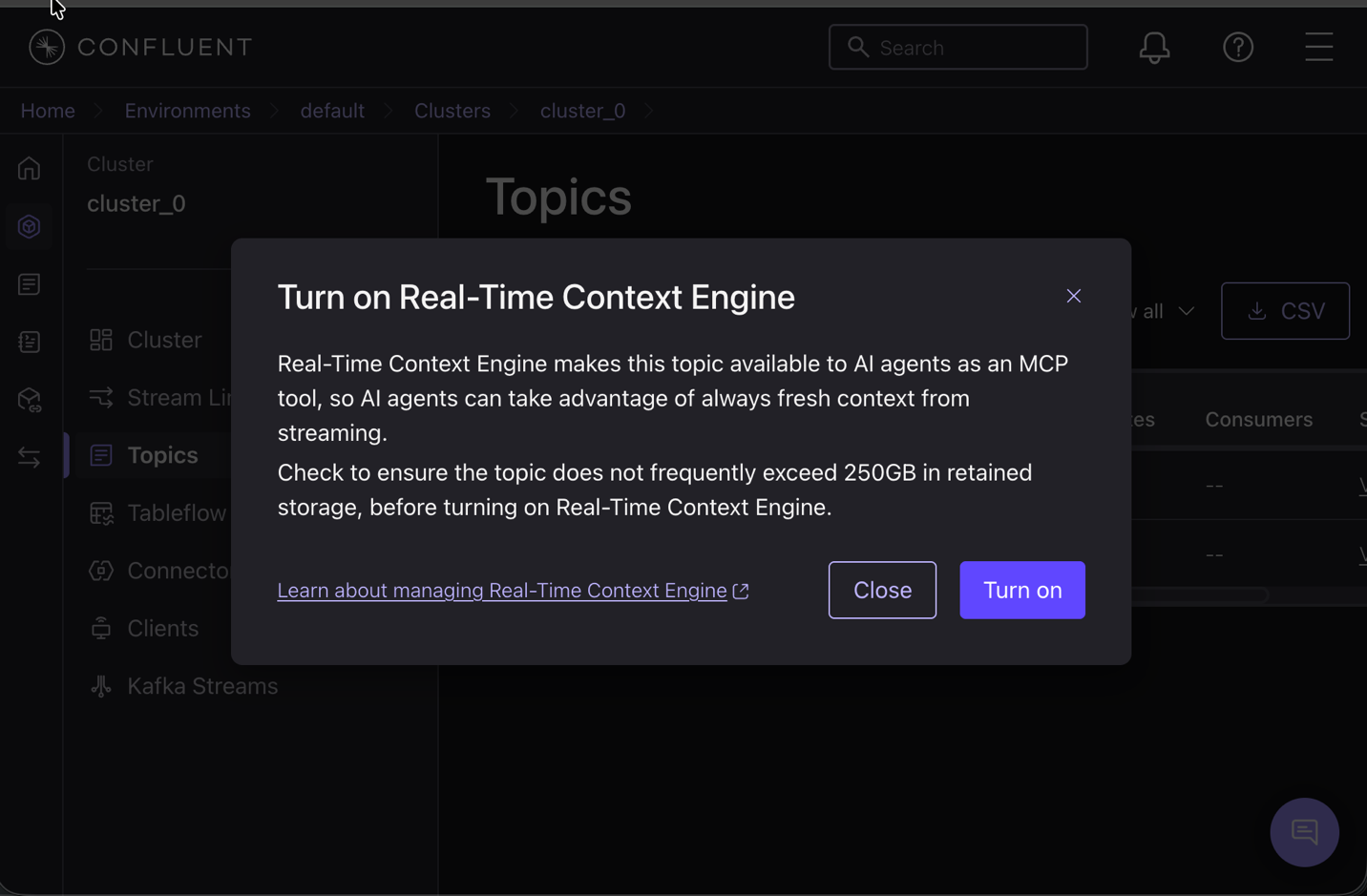
Wait until the Real-Time Context Engine status changes from Turning on to On. Confluent Cloud materializes the
inventory.availabilitytopic data during this process.In the Real-Time Context Engine column, click Details.
Click Copy topic details to clipboard. Save the topic details because you will use the MCP endpoint in the following step. In the following step, the SKU_Availability_Agent in watsonx Orchestrate will use the MCP endpoint to query current inventory data from the
inventory.availabilitytopic through the Real-Time Context Engine.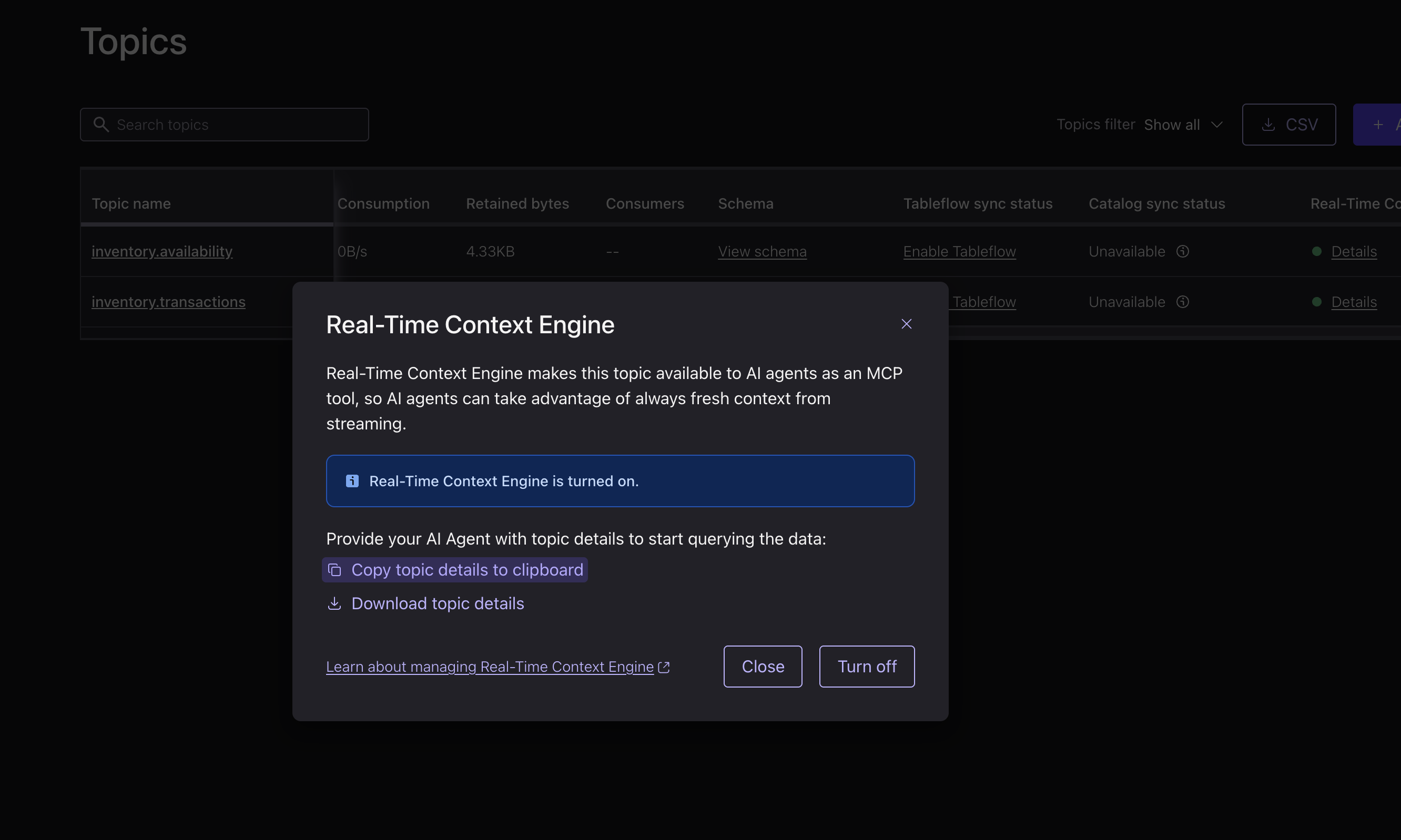
Step 6. Build and deploy the watsonx Orchestrate agents
In this step, you will use Bob to build and deploy three AI agents in watsonx Orchestrate. The three agents work together as a multi-agent retail assistant:
- SKU_Availability_Agent: Uses the Confluent Real-Time Context Engine (RTCE) MCP endpoint that you configured in the previous step to check the current inventory for a specific SKU and store branch.
- Substitute_Finder_Agent: Uses agentic RAG with the enterprise product catalog to recommend similar products when the requested product is unavailable.
- Store_Associate_Agent: Acts as the supervisor agent. The Store_Associate_Agent uses the two specialist agents to check product availability and recommend alternative products when the requested product is unavailable.
Complete the following steps to build and deploy watsonx Orchestrate agents:
- Sign in to watsonx Orchestrate.
- Click Create agent.
Click Launch Bob.
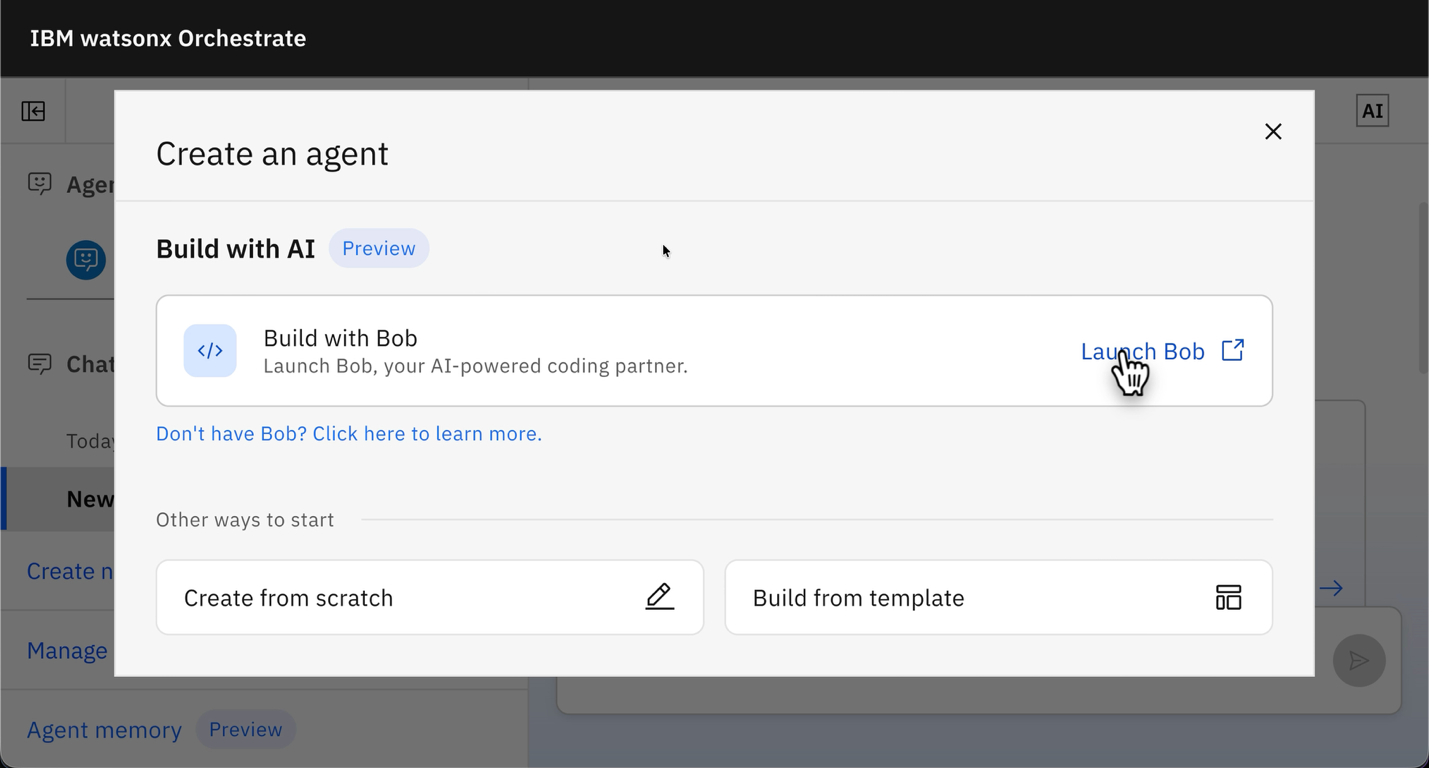
Click Open IBM Bob.
Click Continue with Current Folder.
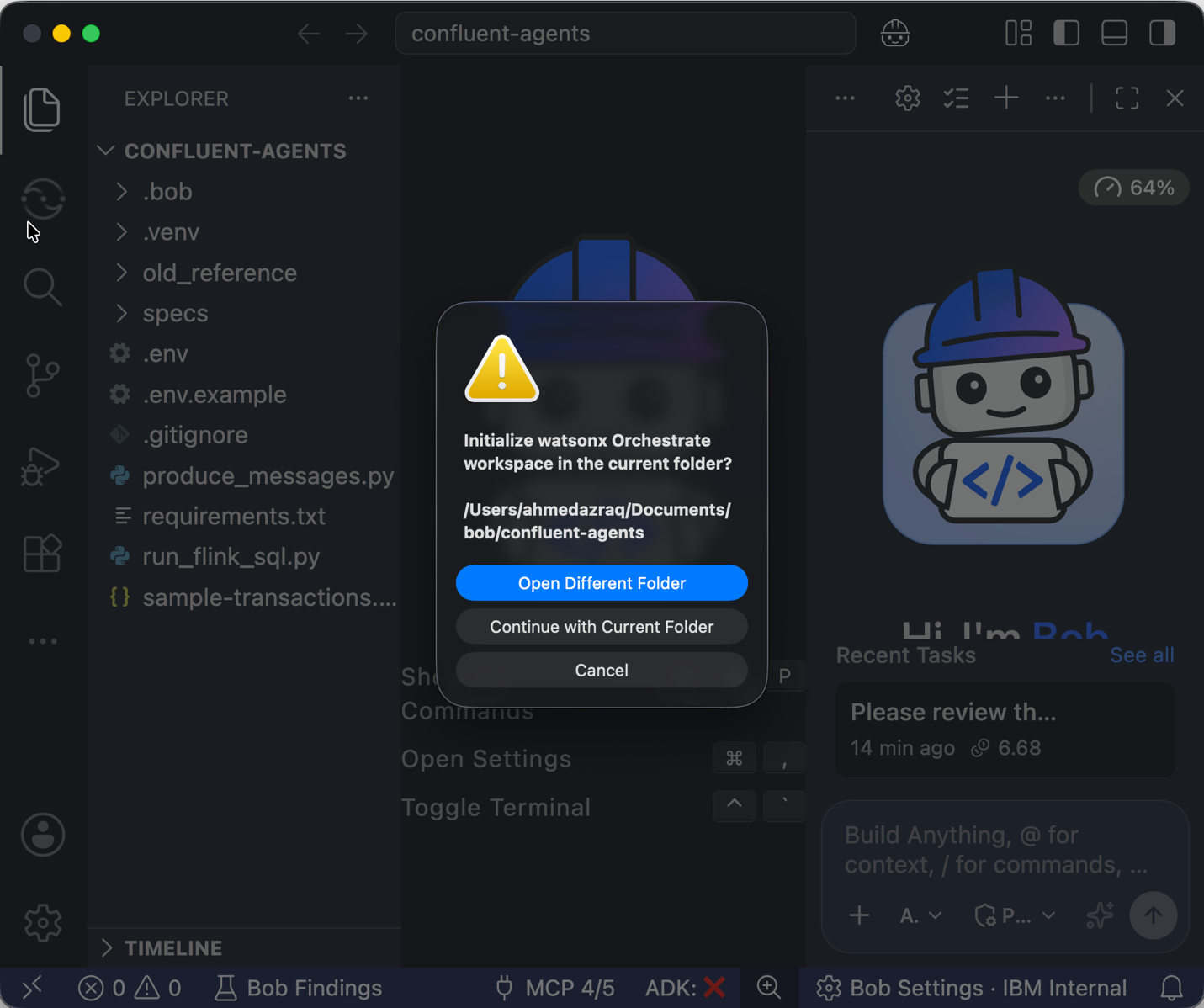
Complete the workspace initialization steps. Bob configures the watsonx Orchestrate ADK MCP connection and retrieves the latest watsonx Orchestrate skills.
Review the
specs/build-ai-agents.mdspecification.Ask Bob to implement the specification:
Implement the spec @specs/build-ai-agents.mdWhen Bob prompts for the Real-Time Context Engine (RTCE) topic details, paste the topic details that you copied in the previous step.
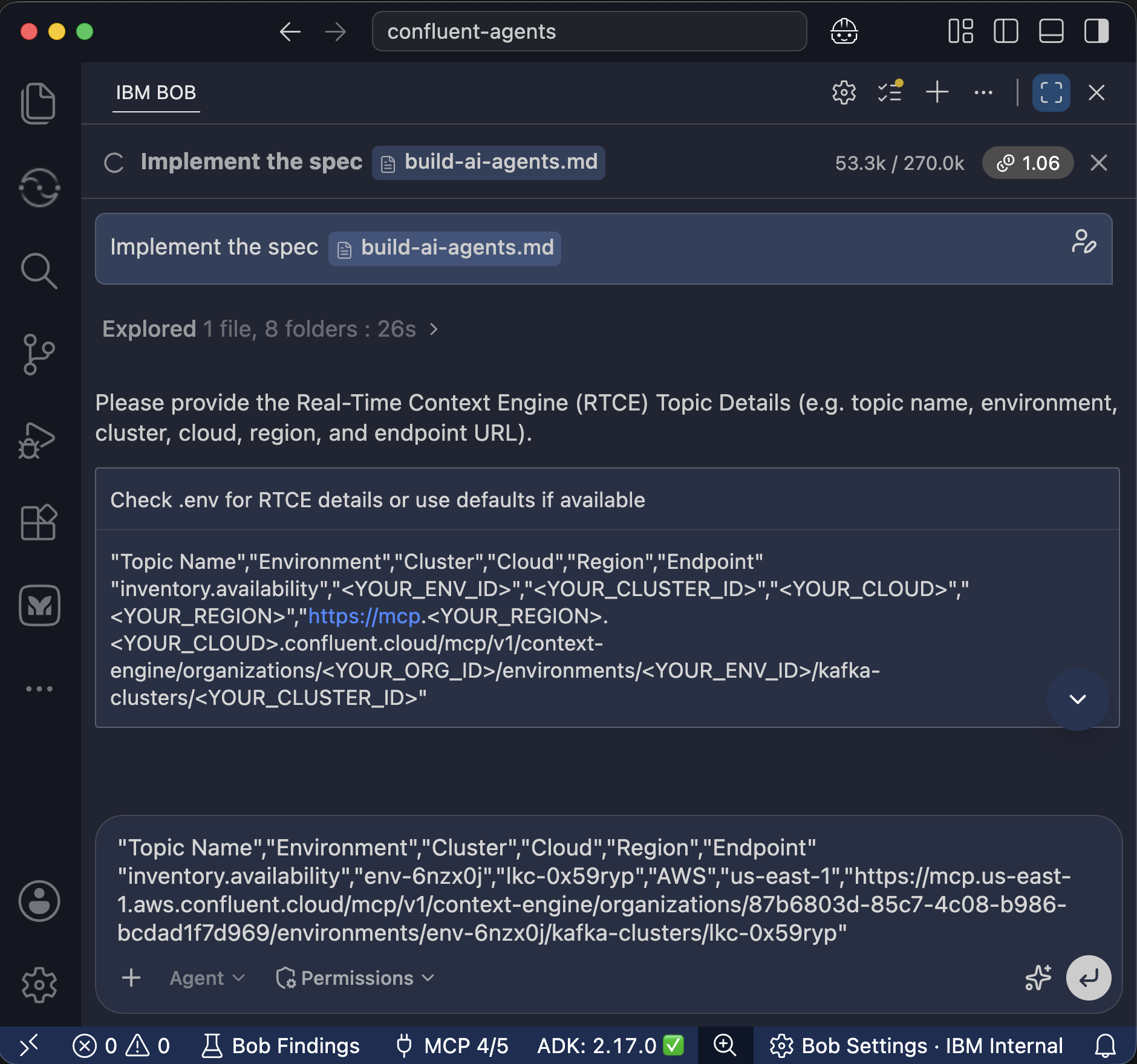
Bob uses the wxo-builder skill to configure the watsonx Orchestrate solution. Bob:
- Creates a team-level basic authentication connection to the Confluent Real-Time Context Engine (RTCE) endpoint.
- Registers the remote MCP toolkit with the
listTopics,getMetadata, andqueryDatatools. - Creates the
enterprise_documentsknowledge base and adds the product catalog. - Creates the following three agents:
- SKU_Availability_Agent: Queries current inventory data from Kafka through the RTCE MCP tool.
- Substitute_Finder_Agent: Uses agentic RAG to search the product catalog and recommend similar products.
- Store_Associate_Agent: Acts as the supervisor agent and coordinates the two specialist agents.
Bob creates a script to test the agents and verify the complete workflow.
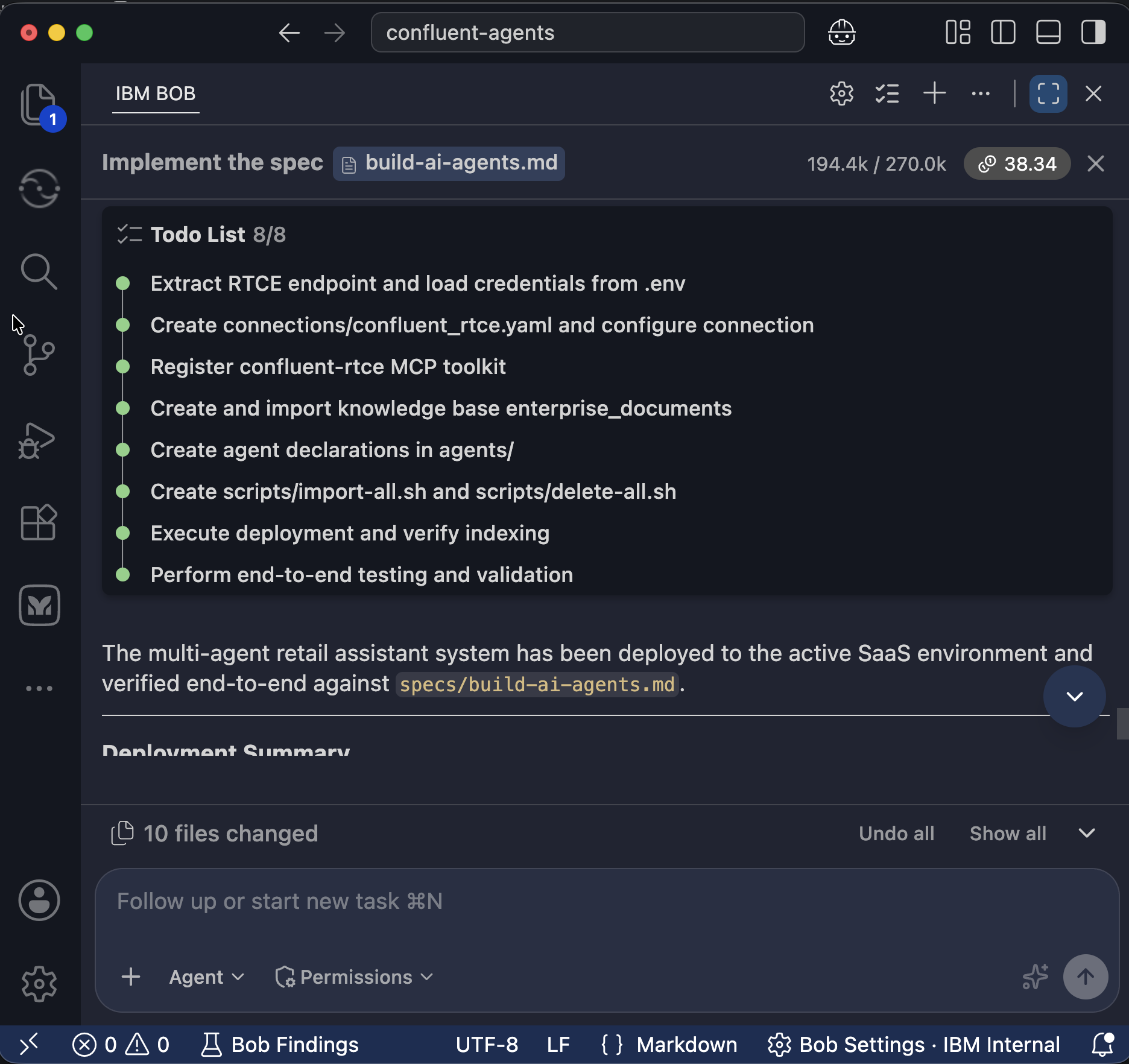
After all tests pass, ask Bob to deploy the agents.
Deploy the agents.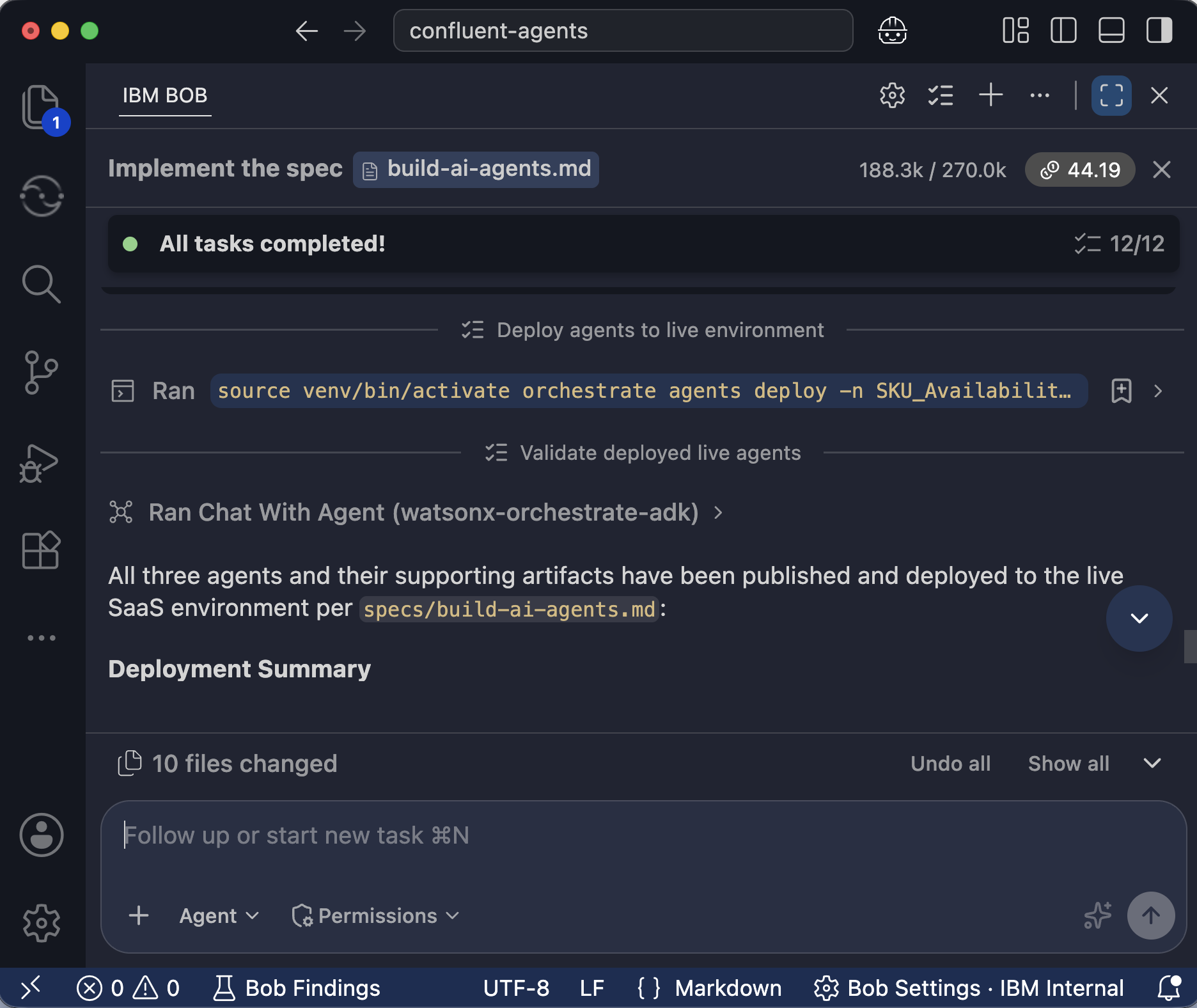
Step 7. Test the SKU availability agent
In this step, you will test the SKU_Availability_Agent in watsonx Orchestrate and verify that the agent can retrieve current inventory data from Confluent Cloud.
- Return to watsonx Orchestrate.
- In the left navigation menu, click Chat, and select SKU_Availability_Agent. The SKU_Availability_Agent connects to the Confluent Real-Time Context Engine (RTCE) through the MCP tools.
Enter the following question:
What is the availability for LAPTOP-DELL-XPS-15 in MallOfEgypt?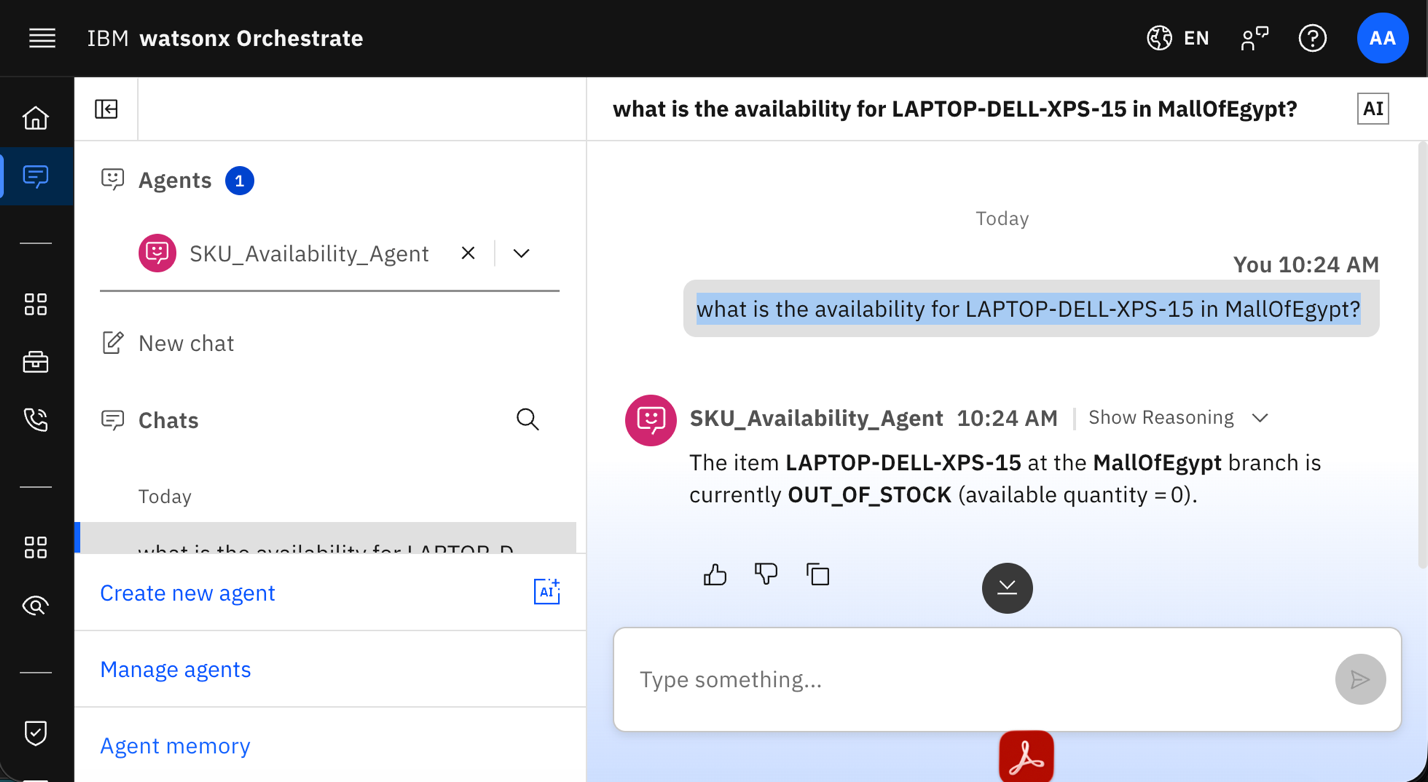
Click Show Reasoning to review how the SKU_Availability_Agent retrieves the inventory data. Verify that the agent:
- Uses
listTopicsto find the available topics. - Uses
getMetadatato retrieve the schema forinventory.availability. Uses
queryDatato query the current inventory quantity calculated by Apache Flink.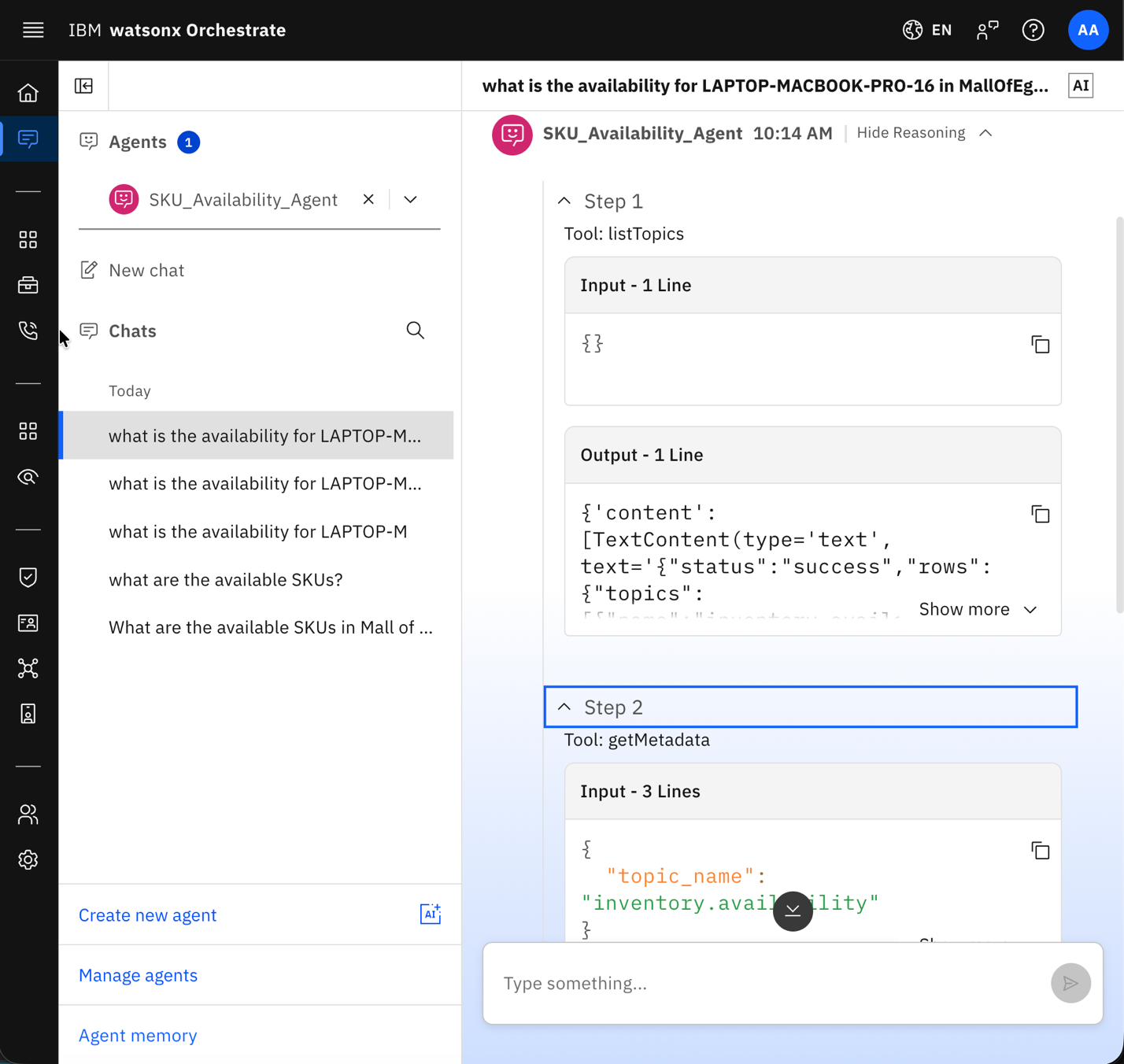
- Uses
Switch to Substitute_Finder_Agent and enter the following question:
What are suitable substitute alternatives for LAPTOP-DELL-XPS-15?Verify that Substitute_Finder_Agent searches the enterprise product catalog and recommends similar products.
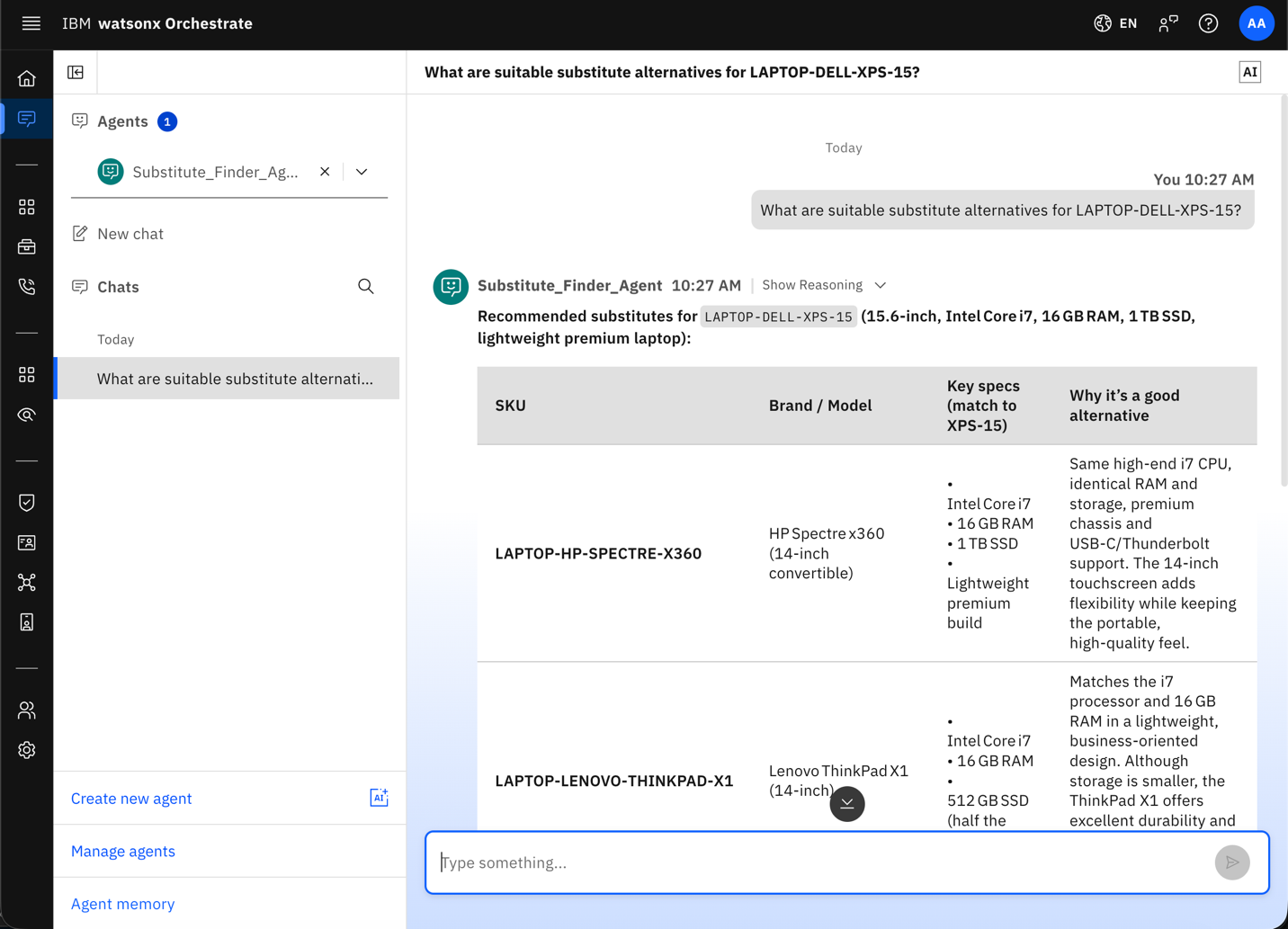
Note: The SKU_Availability_Agent and Substitute_Finder_Agent can work independently. The Store_Associate_Agent acts as the supervisor agent and coordinates both specialist agents.
Switch to Store_Associate_Agent and enter the following question.
Do you have LAPTOP-DELL-XPS-15 in MallOfEgypt?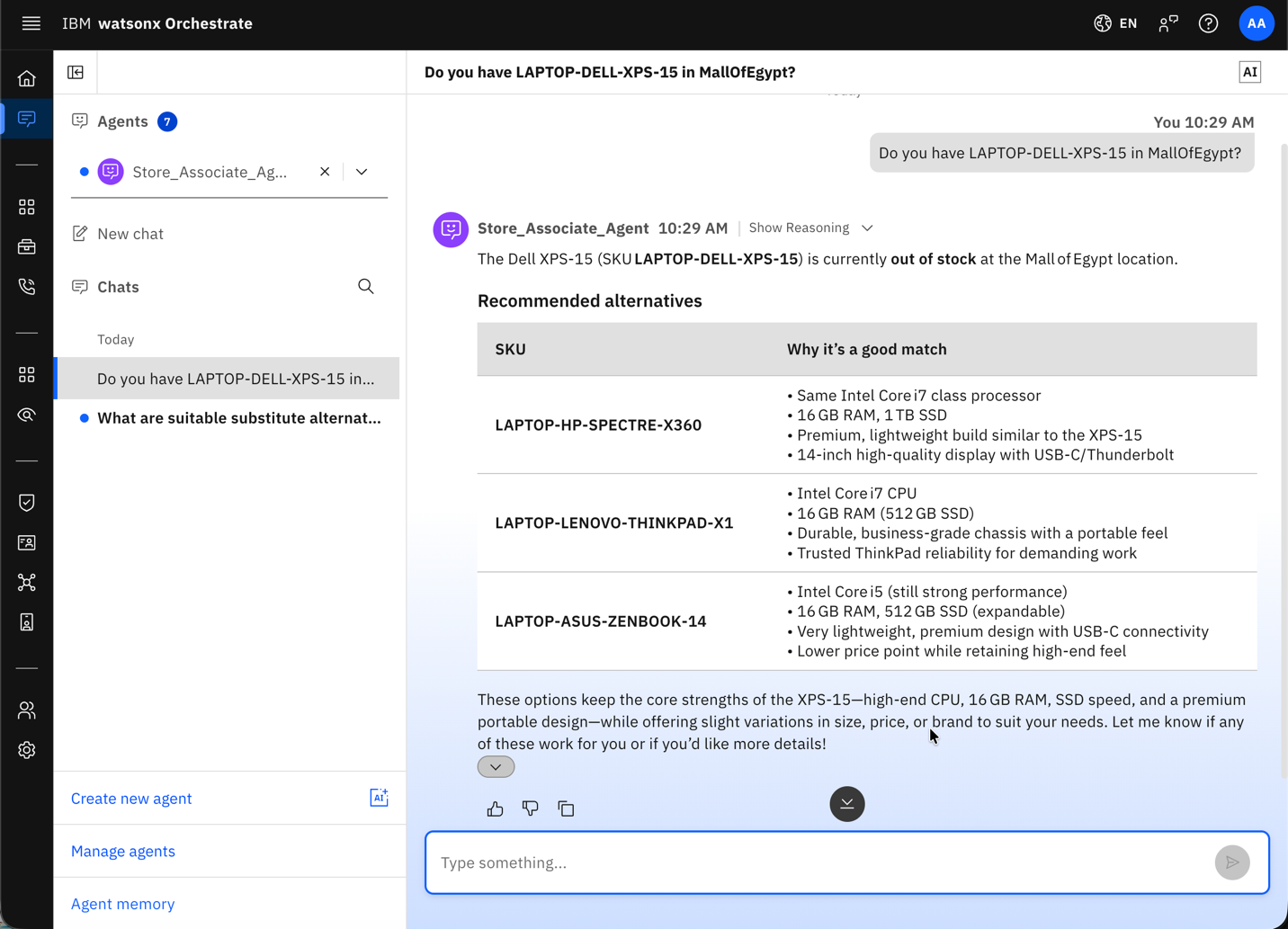
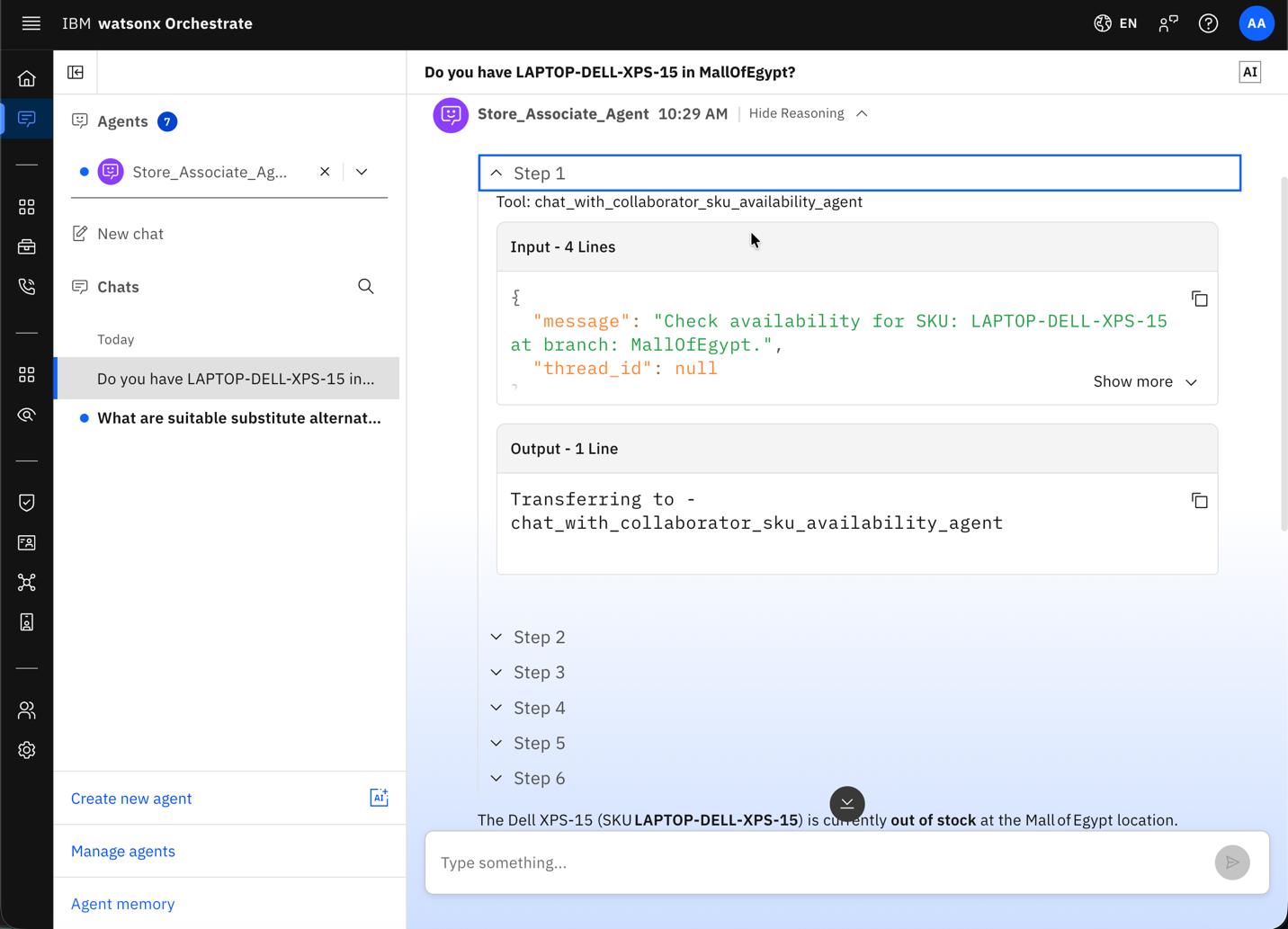
Verify that the Store_Associate_Agent:
- Uses SKU_Availability_Agent to check the current inventory.
- Uses Substitute_Finder_Agent to recommend alternative products if the requested product is unavailable.
Returns the inventory status and alternative product recommendations in a single response.
Summary and next steps
In this tutorial, you built an event-driven agentic AI system with Confluent Cloud and watsonx Orchestrate. Apache Kafka provides real-time inventory events, Apache Flink calculates current inventory availability, and the watsonx Orchestrate agents use the inventory data and enterprise product documents to answer product availability questions and recommend alternative products.
IBM Bob simplified the development process by generating code and configuration files from natural language instructions. Bob helped create Kafka topics, configure the Apache Flink pipeline, connect the MCP tools, create the watsonx Orchestrate agents, test the agents, and deploy the agents. This approach reduces manual setup and allows developers to focus on the application architecture and agent behavior.
You can extend the architecture in the following ways:
- Advanced stream processing: Add time-windowed analytics, anomaly detection, additional Kafka topics, or external data sources to the Apache Flink pipeline.
- Additional event sources: Add real-time data such as promotions, supplier delays, or demand forecasts. The watsonx Orchestrate agents can combine these events with inventory data to provide more context.
You can also learn how to use Launch Bob in watsonx Orchestrate to build a multi-agent solution from business requirements in the tutorial Build AI agents from business requirements with IBM Bob and watsonx Orchestrate.
Acknowledgments
The authors (Ahmed Azraq, Moises Dominguez Garcia, and Saurabh Kushwaha) deeply appreciate the support of Brice Leporini, Ela Dixit, Monishankar Das, Sreelakshmi Aechiraju, and Bindu Umesh for the guidance and expertise on reviewing and contributing to this tutorial.
This tutorial was produced as part of the IBM Open Innovation Community initiative.