Learning Path
Take control of your data with Watson Studio
In the modeling phase, various modeling techniques are selected and applied, and their parameters are calibrated to achieve an optimal prediction. Typically, there are several techniques that can be applied, and some techniques have specific requirements regarding the form of data. Therefore, going back to the data preparation phase is often necessary. However, in the model evaluation phase, the goal is to build a model that has high quality from a data analysis perspective. Before proceeding to the final deployment of the model, it's important to thoroughly evaluate it and review the steps that are executed to create it to be certain the model properly achieves the business objectives.
There are several ways that you can build and deploy models in IBM Watson Studio. These include using Juypter Notebooks, using the AutoAI graphical tool, and using IBM SPSS Modeler. The AutoAI graphical tool and SPSS Modeling methods provide no-code options for building the models.
With any of these methods, there are three main steps for the model workflow: build a model asset, deploy the model, and build trust in the model.
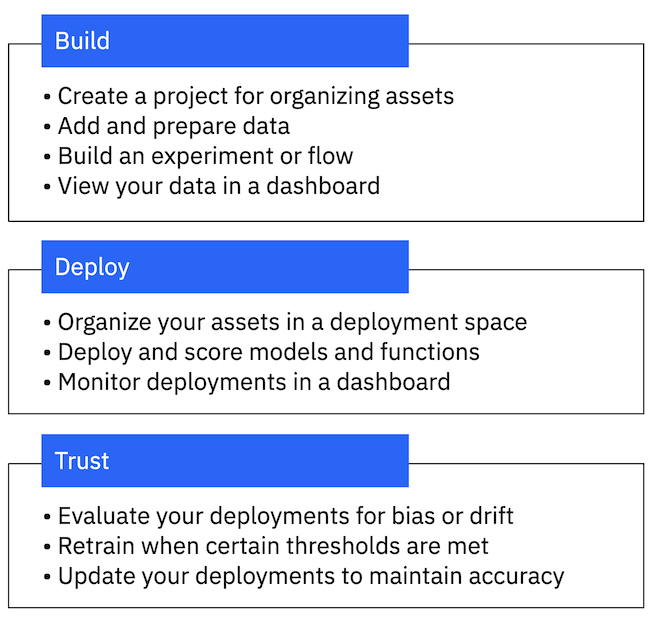
For more information on the model building process in Watson Studio, see Getting started with building, deploying, and trusting models.
Build and deploy using AutoAI
The AutoAI graphical tool in Watson Studio lets you quickly build a model and evaluate its accuracy, all without writing a single line of code. AutoAI guides you, step by step, through building a machine learning model by uploading training data, choosing a machine learning technique and algorithms, and training and evaluating the model.
The AutoAI graphical tool automatically analyzes your data and generates candidate model pipelines customized for your predictive modeling problem. The model pipelines are created iteratively as AutoAI analyzes your data set and discovers data transformations, algorithms, and parameter settings that work best for your problem setting. Results are displayed on a leaderboard, showing the automatically generated model pipelines ranked according to your problem optimization objective.
To get step-by-step instructions for building and deploying a model using the AutoAI graphical tool, see Quick start: Build and deploy a machine learning model with AutoAI.
Build and deploy using Jupyter Notebooks
In addition to using the AutoAI graphical tool to build models, you can also create, train, and deploy machine learning models with Watson Machine Learning in a Jupyter Notebook. Using a notebook, you can run small pieces of code that process your data, and then immediately view the results. You can assemble, test, and run all of the building blocks that you need to work with data, save the data to Watson Machine Learning, and deploy the model.
Typical steps for using Jupyter Notebooks in Watson Studio to build models are:
- Import the data set.
- Analyze the data by creating visualizations and inspecting basic statistic parameters (for example, mean or standard variation).
- Prepare the data for machine model building (for example, by transforming categorical features into numeric features and by normalizing the data).
- Split the data into training and test data to be used for model training and model validation.
- Train the model by using various machine learning algorithms for binary classification.
- Evaluate the various models for accuracy and precision using a confusion matrix.
- Select the model that's the best fit for the given data set, and analyze which features have low and significant impact on the outcome of the prediction.
- Use Watson Machine Learning to save and deploy the model so that it can be accessed outside of the notebook.
To get step-by-step instructions for using Jupyter Notebooks to build and deploy models, see Quick start: Build and deploy a machine learning model in a Jupyter notebook.
Build and deploy using SPSS Modeler
With SPSS Modeler flows, you can quickly develop predictive models using business expertise and deploy them into business operations to improve decision-making. Designed around the long-established SPSS Modeler client software and the industry-standard CRISP-DM model it uses, the flows interface supports the entire data mining process.
SPSS Modeler offers a variety of modeling methods taken from machine learning, artificial intelligence, and statistics. The methods available on the node palette allow you to derive new information from your data and to develop predictive models.
Using the Flow Editor, you prepare or shape data, train or deploy a model, or transform data and export it back to a database table or a file in IBM Cloud Object Storage. To create a model, add the Modeler flow asset type to your project, then select SPSS as the flow type.
To get step-by-step instructions for using Jupyter Nodebooks to build and deploy models, see Quick start: Build a model using SPSS Modeler.
Try it out
To learn more about building models in Watson Studio and to try it out, take a look at the AI Governance example project.
The tutorials in this project let you build, deploy, and track a model with a AI governance use case of a data fabric trial. The goal of the example is to train a model to predict which applicants qualify for mortgages and then deploy the model for evaluation. You must also set up tracking for the model to document the model history and generate an explanation for its performance.
Summary
This section provided an overview of the various ways to build and deploy models in Watson Studio. You can follow the steps at Getting started with building, deploying, and trusting models to learn more about building and deploying models.