Learning Path
Get started using Kubernetes Operators
- Overview
- Intro to Kubernetes Operators
- Deep dive into Kubernetes operators
- Develop and deploy a Level I JanusGraph Operator using BerkeleyDB
- Develop and deploy a Level I JanusGraph operator using Apache Cassandra
- The Operator Cookbook: How to make an operator
- Seamlessly upgrade a JanusGraph operator
- Certify a JanusGraph image and operator for publishing to the Red Hat Marketplace
- Summary
As cloud-native architecture for the enterprise has become the new norm for many software providers and vendors, it is important to ensure compatibility with the container platform that delivers Kubernetes and core application services. Red Hat offers a certification service so that their partners can verify that their products meet Red Hat standards of interoperability, security, and lifecycle management when deployed on Red Hat OpenShift.
Developers who partner with Red Hat to certify their operators on OpenShift can gain broader visibility for their solutions and make them more easily consumable by OpenShift users. By codifying and packaging best practices and business workflows, these partners are able to provide a consistent experience for their users across hybrid cloud platforms. Additionally, they gain access to technical and marketing benefits through the Red Hat Connect Partner Program.
This tutorial shows you how to prepare and certify a JanusGraph operator so that it meets Red Hat standards, and is publishable to the Red Hat Marketplace or OperatorHub.io.
To learn more about operator certification, read "Certify your operator with Red Hat OpenShift Operator Certification."
Prerequisites
This tutorial builds on several earlier tutorials:
- Be sure to set up your environment to create operators.
- Build a new JanusGraph Docker image that works with OpenShift as well as Kubernetes explains how to build the image so that it will run properly in OpenShift.
- Develop and deploy a Level I JanusGraph operator using Apache Cassandra explains how to implement a Level I operator for JanusGraph using the Cassandra database.
- Certify your operator with Red Hat OpenShift Operator Certification explains how to submit an operator and its operand to Red Hat for certification.
In order to complete the steps in this tutorial, you need to first follow the prerequisite steps described in the Program Prerequisites for the Red Hat Partner Connect Certification Workflow.
Estimated time
This tutorial should take roughly 1-2 hours to complete.
Steps
Here are the steps you need to follow to certify your JanusGraph operator:
- Prerequisites
- Estimated time
- Steps
- Conclusion
1. Certify the JanusGraph container image
The following steps show you how to certify your container image. At the end of the steps, you'll find a complete Dockerfile with all of the changes required for certification.
Dockerfile changes for container image certification
You will fork the JanusGraph docker repo and modify its Dockerfile to work with OpenShift. Build a new JanusGraph Docker image that works with OpenShift as well as Kubernetes explains how to build the JanusGraph container image so that it will run properly in OpenShift.
The following 4 steps are the Dockerfile changes that are required for certification of JanusGraph container image:
The base image that is used to build a JanusGraph image should be supported by Red Hat. In the JanusGraph Docker repository that you have forked, find the
Dockerfileand use the following Red Hat-supportedOpenJDKimage:FROM registry.access.redhat.com/ubi8/openjdk-8:1.3-12Note: Use the latest version of the
openjdk-8UBI that's available. Make sure it contains no security advisories, as explained in "Build your image with the latest security updates."The JanusGraph image should run as a
non-rootuser, but should be part of therootgroup. To do this, we have added the following changes to the existing JanusGraphDockerfile:- Comment this section out as user 999 is already part of the base image, and since the command
apt-getis not part of the base image you need to replace it withdnf:
# RUN groupadd -r janusgraph --gid=999 && \ # useradd -r -g janusgraph --uid=999 -d ${JANUS_DATA_DIR} janusgraph && \ # apt-get update -y && \ # DEBIAN_FRONTEND=noninteractive apt-get install -y --no-install-recommends krb5-user && \ # rm -rf /var/lib/apt/lists/* RUN dnf -y upgrade-minimal --security --sec-severity=Important --sec-severity=Critical && \ rm -rf /var/lib/apt/lists/*- Change the group for the folders to the
rootgroup:
chown -R 999:0 ${JANUS_HOME} ${JANUS_INITDB_DIR} ${JANUS_CONFIG_DIR} ${JANUS_DATA_DIR} && \ chmod -R g+w ${JANUS_HOME} ${JANUS_INITDB_DIR} ${JANUS_CONFIG_DIR} ${JANUS_DATA_DIR}- Comment this section out as user 999 is already part of the base image, and since the command
Add following labels to the JanusGraph operator Dockerfile. These are required labels that are checked as part of the certification process:
  LABEL name="JanusGraph Operator Using Cassandra" \
  maintainer="sanjeev.ghimire@ibm.com" \
  vendor="JanusGraph" \
  version=${JANUS_VERSION} \
  release="1" \
  summary="This is a JanusGraph operator that ensures stateful deployment in an OpenShift cluster." \
  description="This operator will deploy JanusGraph in OpenShift cluster."
Copy the licenses folder for the JanusGraph operator to your container:
  # Required Licenses for Red Hat build service and scanner
COPY licenses /licenses
Here is the complete Dockerfile for JanusGraph (the container image) with all of the changes mentioned above for it to be certified:
#
# NOTE: THIS FILE IS GENERATED VIA "update.sh"
# DO NOT EDIT IT DIRECTLY; CHANGES WILL BE OVERWRITTEN.
#
# Copyright 2019 JanusGraph Authors
#
# Licensed under the Apache License, Version 2.0 (the "License");
# you may not use this file except in compliance with the License.
# You may obtain a copy of the License at
#
#      http://www.apache.org/licenses/LICENSE-2.0
#
# Unless required by applicable law or agreed to in writing, software
# distributed under the License is distributed on an "AS IS" BASIS,
# WITHOUT WARRANTIES OR CONDITIONS OF ANY KIND, either express or implied.
# See the License for the specific language governing permissions and
# limitations under the License.

FROM debian:buster-slim as builder

ARG JANUS_VERSION=0.5.3
ARG YQ_VERSION=3.4.1

ENV JANUS_VERSION=${JANUS_VERSION} \
    JANUS_HOME=/opt/janusgraph

WORKDIR /opt

RUN apt update -y && apt install -y gpg unzip curl && \
    curl -fSL https://github.com/JanusGraph/janusgraph/releases/download/v${JANUS_VERSION}/janusgraph-${JANUS_VERSION}.zip -o janusgraph.zip && \
    curl -fSL https://github.com/JanusGraph/janusgraph/releases/download/v${JANUS_VERSION}/janusgraph-${JANUS_VERSION}.zip.asc -o janusgraph.zip.asc && \
    curl -fSL https://github.com/JanusGraph/janusgraph/releases/download/v${JANUS_VERSION}/KEYS -o KEYS && \
    curl -fSL https://github.com/mikefarah/yq/releases/download/${YQ_VERSION}/yq_linux_amd64 -o yq && \
    gpg --import KEYS && \
    gpg --batch --verify janusgraph.zip.asc janusgraph.zip && \
    unzip janusgraph.zip && \
    mv janusgraph-${JANUS_VERSION} /opt/janusgraph && \
    rm -rf ${JANUS_HOME}/elasticsearch && \
    rm -rf ${JANUS_HOME}/javadocs && \
    rm -rf ${JANUS_HOME}/log && \
    rm -rf ${JANUS_HOME}/examples

COPY conf/janusgraph-berkeleyje-lucene-server.properties conf/log4j-server.properties ${JANUS_HOME}/conf/gremlin-server/
COPY conf/janusgraph-cql-server.properties conf/log4j-server.properties ${JANUS_HOME}/conf/gremlin-server/
COPY scripts/remote-connect.groovy ${JANUS_HOME}/scripts/
# COPY conf/gremlin-server.yaml ${JANUS_HOME}/conf/gremlin-server/

## 1. Use the UBI for open jdk
FROM registry.access.redhat.com/ubi8/openjdk-8:1.3-12

ARG CREATED=test
ARG REVISION=test
ARG JANUS_VERSION=0.5.3

## 3. Add following labels to the JanusGraph Operator Dockerfile.
LABEL name="JanusGraph" \
      maintainer="sanjeev.ghimire@ibm.com" \
      vendor="JanusGraph" \
      version=${JANUS_VERSION} \
      release="1" \
      summary="A distributed graph database" \
      description="A distributred graph database"

ENV JANUS_VERSION=${JANUS_VERSION} \
    JANUS_HOME=/opt/janusgraph \
    JANUS_CONFIG_DIR=/etc/opt/janusgraph \
    JANUS_DATA_DIR=/var/lib/janusgraph \
    JANUS_SERVER_TIMEOUT=30 \
    JANUS_STORAGE_TIMEOUT=60 \
    # JANUS_PROPS_TEMPLATE=berkeleyje-lucene \
    JANUS_PROPS_TEMPLATE=cql \
    JANUS_INITDB_DIR=/docker-entrypoint-initdb.d \
    janusgraph.index.search.directory=/var/lib/janusgraph/index \
    janusgraph.storage.directory=/var/lib/janusgraph/data \
    gremlinserver.graphs.graph=/etc/opt/janusgraph/janusgraph.properties \
    gremlinserver.threadPoolWorker=1 \
    gremlinserver.gremlinPool=8 \
    gremlinserver.host=0.0.0.0 \
    gremlinserver.channelizer=org.apache.tinkerpop.gremlin.server.channel.WsAndHttpChannelizer

USER root

## Note that this section is commented out because the base image used already has user 999
# and also the  apt-get command is not available in the base image.
# RUN groupadd -r janusgraph --gid=999 && \
#     useradd -r -g janusgraph --uid=999 -d ${JANUS_DATA_DIR} janusgraph && \
#     apt-get update -y && \
#     DEBIAN_FRONTEND=noninteractive apt-get install -y --no-install-recommends krb5-user && \
#     rm -rf /var/lib/apt/lists/*


RUN dnf -y upgrade-minimal --security --sec-severity=Important --sec-severity=Critical && \
    rm -rf /var/lib/apt/lists/*


COPY --from=builder /opt/janusgraph/ /opt/janusgraph/
COPY --from=builder /opt/yq /usr/bin/yq
COPY docker-entrypoint.sh /usr/local/bin/
COPY load-initdb.sh /usr/local/bin/

## 4. Copy the licenses folder for JanusGraph Operator to your container:
COPY licenses /licenses

## 2. Change the group of the folders to root group.
RUN chmod 755 /usr/local/bin/docker-entrypoint.sh && \
    chmod 755 /usr/local/bin/load-initdb.sh && \
    chmod 755 /usr/bin/yq && \
    mkdir -p ${JANUS_INITDB_DIR} ${JANUS_CONFIG_DIR} ${JANUS_DATA_DIR} && \
    chown -R 999:0 ${JANUS_HOME} ${JANUS_INITDB_DIR} ${JANUS_CONFIG_DIR} ${JANUS_DATA_DIR} && \
    chmod -R g+w ${JANUS_HOME} ${JANUS_INITDB_DIR} ${JANUS_CONFIG_DIR} ${JANUS_DATA_DIR} && \
    chmod u+x /opt/janusgraph/bin/gremlin.sh && \
    chmod u+x /opt/janusgraph/conf/remote.yaml

EXPOSE 8182

WORKDIR ${JANUS_HOME}
USER janusgraph

ENTRYPOINT [ "docker-entrypoint.sh" ]
CMD [ "janusgraph" ]

LABEL org.opencontainers.image.title="JanusGraph Docker Image" \
      org.opencontainers.image.description="Official JanusGraph Docker image" \
      org.opencontainers.image.url="https://janusgraph.org/" \
      org.opencontainers.image.documentation="https://docs.janusgraph.org/v0.5/" \
      org.opencontainers.image.revision="${REVISION}" \
      org.opencontainers.image.source="https://github.com/JanusGraph/janusgraph-docker/" \
      org.opencontainers.image.vendor="JanusGraph" \
      org.opencontainers.image.version="${JANUS_VERSION}" \
      org.opencontainers.image.created="${CREATED}" \
      org.opencontainers.image.license="Apache-2.0"
Build and deploy the container image
Before you push your images for scanning, you should test the container image. To build and deploy the container image, run one of the following scripts.
$ ./build-images.sh
Or
Make a copy of the build-images.sh file and replace it with the modified script. Before you run it, make sure to modify the tag and the IMAGE_NAME accordingly and run the modified script.
Create a container application project in the Red Hat Partner Connect portal
From the Red Hat Partner Connect portal, create the container application project before uploading your image.
Make sure the certification checklists are all completed and you see a green check mark:
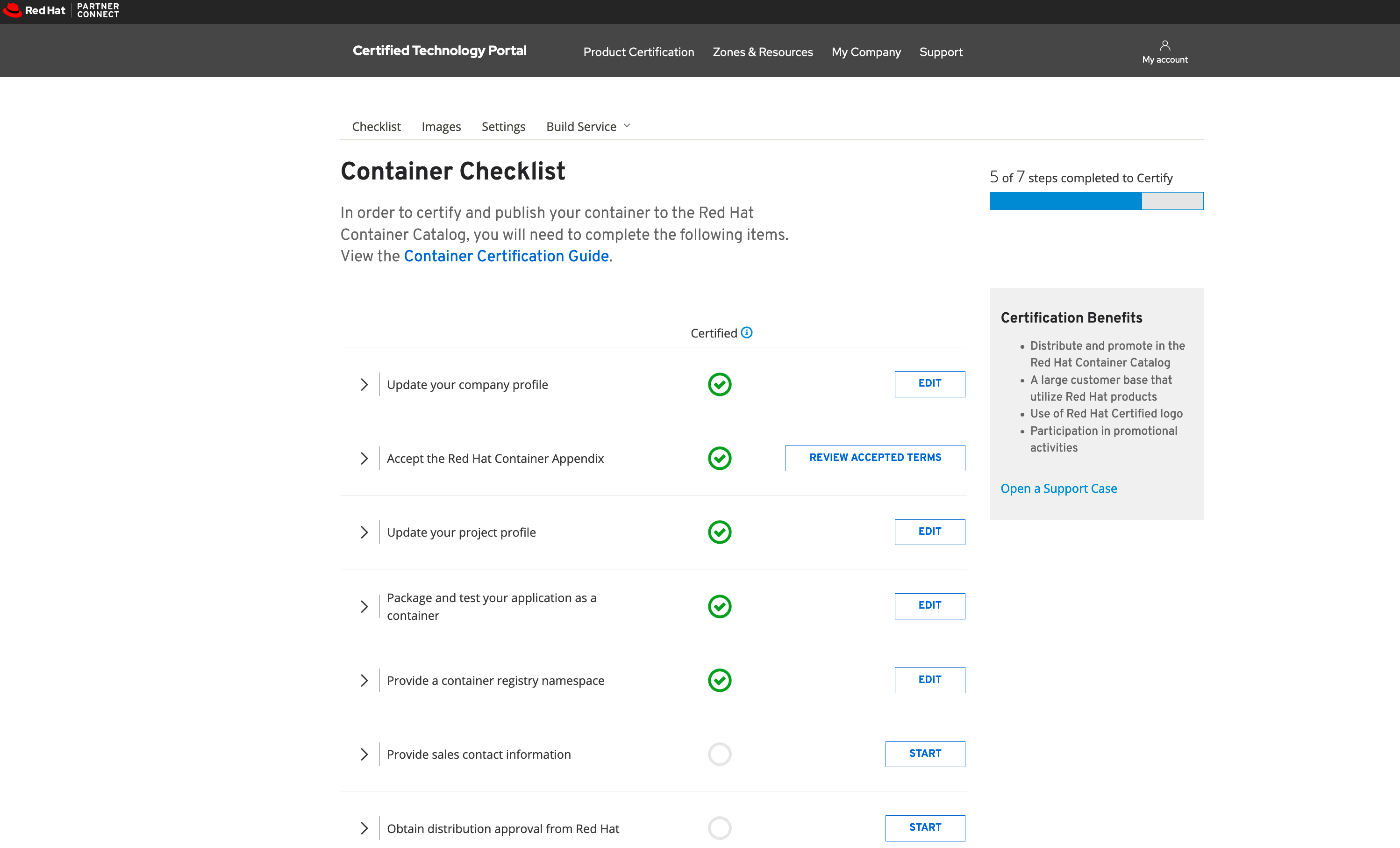
Note: The checklist items for sales contact information and distribution approval from Red Hat are optional for container image certification and can be added later.
Now you can push your container image for certification. You can do this manually from your local build, or configure the build service in the Red Hat Partner Connect portal. Rather than having Red Hat build a new image for us using their service, let's certify the image we've already built, which means we need to push it to Red Hat as described below.
Push the container image manually
You can follow the instructions from the Red Hat Partner Connect portal by clicking the Push Image Manually link on your project page:
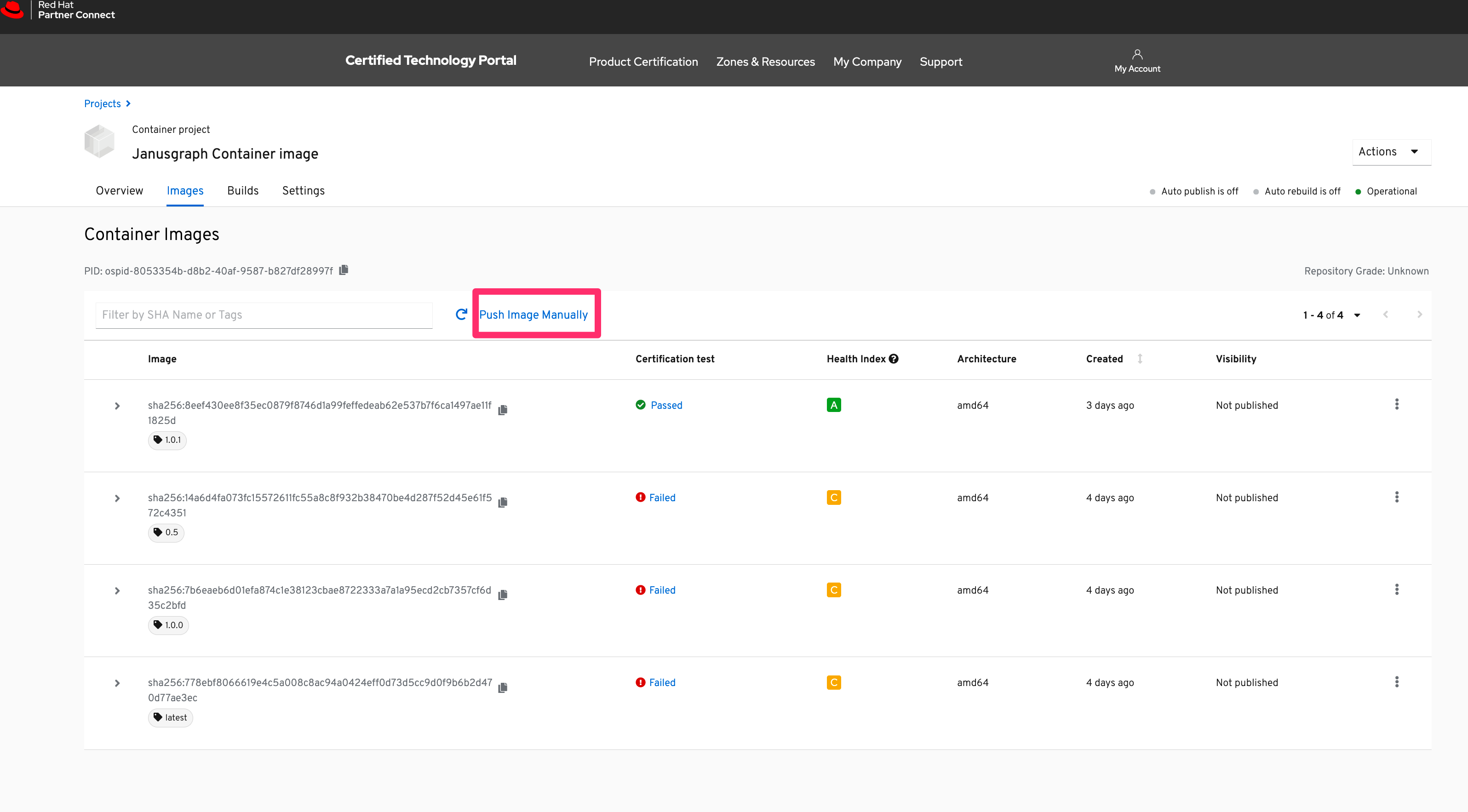
You should then see this page:
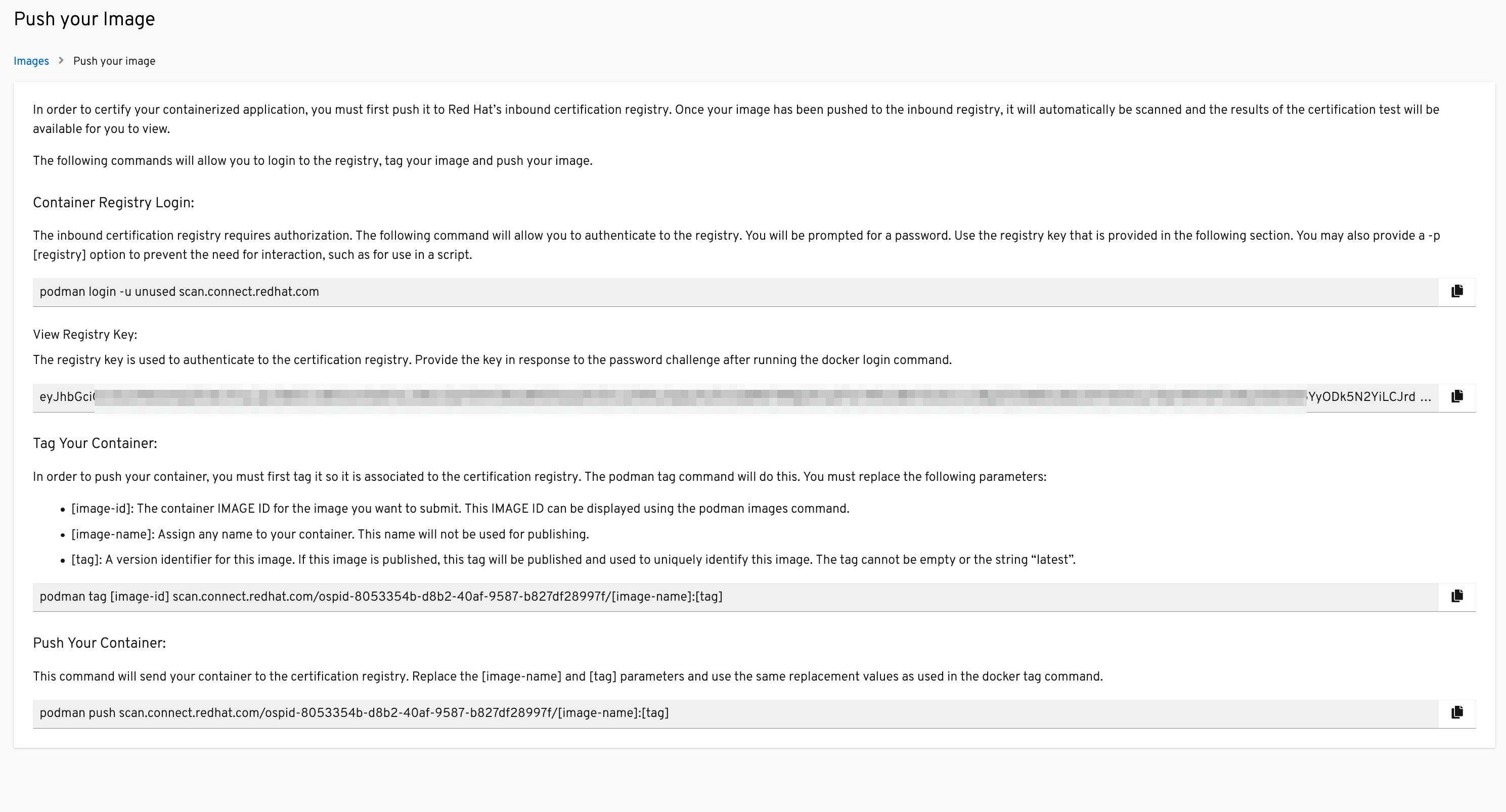
Note: The page you see uses the podman CLI command, but you can use Docker instead of Podman.
Follow these steps to push the container image manually:
Login to the Red Hat Partner Connect registry:
docker login -u unused scan.connect.redhat.com -p <registry key>`Find the image ID of your container image:
docker images |grep janusgraph-dockerTag your container image as follows:
docker tag <image id> scan.connect.redhat.com/<OSPID>/janusgraph-docker:<version>Make sure to use the correct URL that's provided in the "Push your image" page on the Red Hat Partner Connect portal.
Replace
image idandversionwith the appropriate values.Push your container image for scanning as follows:
docker push scan.connect.redhat.com/<OSPID>/janusgraph-docker:<version>Replace
versionwith the values used when tagging.
Note: You can find your project registry key and OSPID by going to your project in the Red Hat Partner Connect portal and clicking Push Images Manually, or you can copy the full URL instead of copying just the OSPID.
You can then see your container image in Red Hat Partner Connect portal scanning for any issues in your image. If no issues are found, the image Certification test status should be Passed.
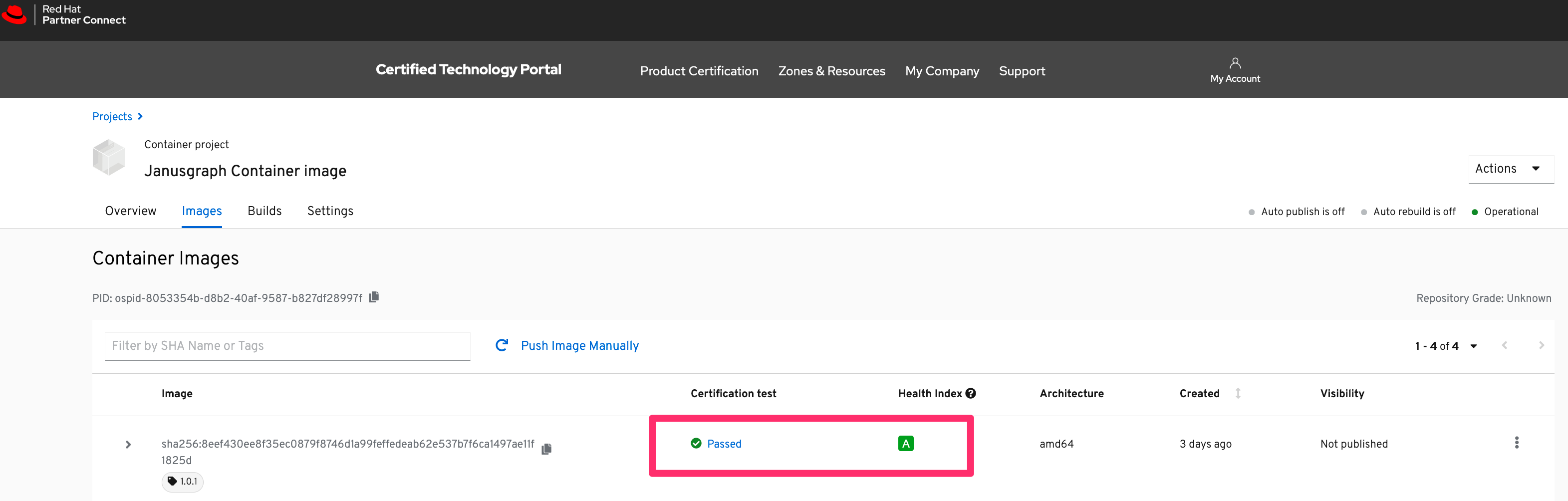
2. Certify the JanusGraph operator image
In the previous step, you created a container project and certified the container image. You can use that same project to certify the JanusGraph operator image. Before you create the JanusGraph operator image, you need to change a few things:
Update the Dockerfile to use the Red Hat supported base image in
Dockerfile.Replace:
# Use distroless as minimal base image to package the manager binary
# Refer to https://github.com/GoogleContainerTools/distroless for more details
FROM gcr.io/distroless/static:nonroot
With:
FROM registry.access.redhat.com/ubi8/ubi-minimal:latestAdd the following labels to the
Dockerfileright after the base image:FROM registry.access.redhat.com/ubi8/ubi-minimal:latest LABEL name="JanusGraph Operator Using Cassandra" \ maintainer="Sanjeev Ghimire:sanjeev.ghimire@ibm.com" \ vendor="IBM" \ version="v0.0.1" \ release="1" \ summary="This is a JanusGraph operator that ensures stateful deployment in an OpenShift cluster." \ description="This operator will deploy JanusGraph in OpenShift cluster."Add the appropriate licenses to the
licensesfolder; create the licenses folder if you don't have one and update theDockerfileto copy the license directory:# Use UBI image as base image FROM registry.access.redhat.com/ubi8/ubi-minimal:latest LABEL name="JanusGraph Operator Using Cassandra" \ maintainer="Sanjeev Ghimire:sanjeev.ghimire@ibm.com" \ vendor="IBM" \ version="v0.0.1" \ release="1" \ summary="This is a JanusGraph operator that ensures stateful deployment in an OpenShift cluster." \ description="This operator will deploy JanusGraph in OpenShift cluster." # Required Licenses for Red Hat build service and scanner COPY licenses /licensesBe sure to push the operator and test it. First, clone this repo:
git clone https://github.com/IBM/janusgraph-operatorIn the repository, you should see two scripts to build and push the image and deploy the operator image in your cluster. Run the following scripts in your project:
./build-and-push-operator.sh

./deploy-operator.sh
Upload the operator image to the Red Hat project registry:
First, find the image ID of the operator image you built in the previous step. From the terminal, run:
docker images | grep `janusgraph-operator`Then, log in to your project:
docker login -u unused scan.connect.redhat.com -p <project registry key>

docker tag <image id> scan.connect.redhat.com/<ospid-id>/janusgraph-operator:v0.0.1

# Push the image to the RH registry
$ docker push scan.connect.redhat.com/<ospid-id>/janusgraph-operator:v0.0.1
Note: You can find your project registry key and OSPID by finding your project in the Red Hat Partner Connect portal and clicking Push Image Manually.
Go to
https://connect.redhat.com/project/<project_id>/imagesto check the status of the certification.It might take a while for the image to appear. You then need to wait for the certification process to finish.
If the certification test has passed, then continue to the next step. Otherwise, check the scan logs for errors and update the image accordingly.
3. Certify the JanusGraph operator bundle image
The following steps show you how to create an operator bundle and submit it for certification.
Create an operator bundle image project.
Make sure that the certification checklist is completed and you see green checkmark.
Note: The sales contact information and distribution approval from Red Hat in the checklist items are optional for container image certification and can be added later.
Create the bundle.
First, update the following before running the script:
REGISTRY=docker.io
USERNAME=sanjeevghimire
REPOSITORY=janusgraph-operator
VERSION=1.0.13
Then run:
./make-bundle.shYou should then see a list of categories that require you to enter specific values. Your responses are then added to the generated
ClusterServiceVersion(CSV). The categories are:- Display name for the operator (required)
- Description for the operator (required)
- Provider's name for the operator (required)
- Any relevant URL for the provider name (optional)
- Comma-separated list of keywords for your operator (required)
- Comma-separated list of maintainers and their emails -- for example,
name1:email1, name2:email2(required)
The
make-bundlecommand used above automates several tasks, including running the followingoperator-sdksub-commands in order:generate kustomize manifests generate bundle bundle validateAfter this process is complete, you should see a folder named "bundle" in your project root directory which contains a CSV, a copy of the Custom Resource Definitions (CRDs), and the generated metadata in bundle format.
Note: For more details on the bundle process, see "Creating the Metadata Bundle" in the Certified Operator Build Guide.
Make sure the following files are updated:
Update
bundle/manifests/janusgraph-operator.clusterserviceversion.yamlas follows:- Replace
base64data: ""with a base64 image of the JanusGraph logo - Replace
mediatype: ""withmediatype: "image/png"
- Replace
Add the following line to
bundle/metadata/annotations.yaml:operators.operatorframework.io.bundle.channel.default.v1: alphaAnd add the following labels to
bundle.Dockerfile:LABEL operators.operatorframework.io.bundle.channel.default.v1=alpha LABEL com.redhat.openshift.versions="v4.6" LABEL com.redhat.delivery.operator.bundle=true
To build the bundle image and push it to the registry, run the following script. Be sure to update the values as appropriate:
export USERNAME="sanjeevghimire" export BUNDLE_IMG="docker.io/$USERNAME/janusgraph-operator-bundle:v0.0.1"./build-and-push-operator-bundle.shPush the operator bundle image for the certification test.
To push the operator bundle image manually, you can follow the instructions on the Red Hat Partner Connect portal by clicking the Push Image Manually link on your bundle project page.
It should then bring you to this page:
Note: The page you see uses the
podmanCLI command, but you can use Docker instead of Podman.Follow these steps to push the container image manually:
Login to the Red Hat Connect registry:
docker login -u unused scan.connect.redhat.com -p <registry key>Find the image ID of your bundle image:
docker images |grep janusgraph-operator-bundleTag your container image as follows:
```
docker tag <image id> scan.connect.redhat.com/<OSPID>/janusgraph-operator-bundle:<version>
```
Make sure to use the correct URL that's provided on the "Push your image" page on the Red Hat Partner Connect portal.
Push your container image for scanning:
docker push scan.connect.redhat.com/<OSPID>/janusgraph-operator-bundle:<version>
Note: You can find your project registry key and OSPID by going to your project in the Red Hat Partner Connect portal and clicking Push Image Manually, or you can copy the full URL instead of copying just the OSPID.
You should then see your images in the Red Hat Partner Connect portal scanning for any issues in your image. If no issues are found, the image Certification test will have a status of "Passed."

4. Optional: Preview it in OperatorHub.io
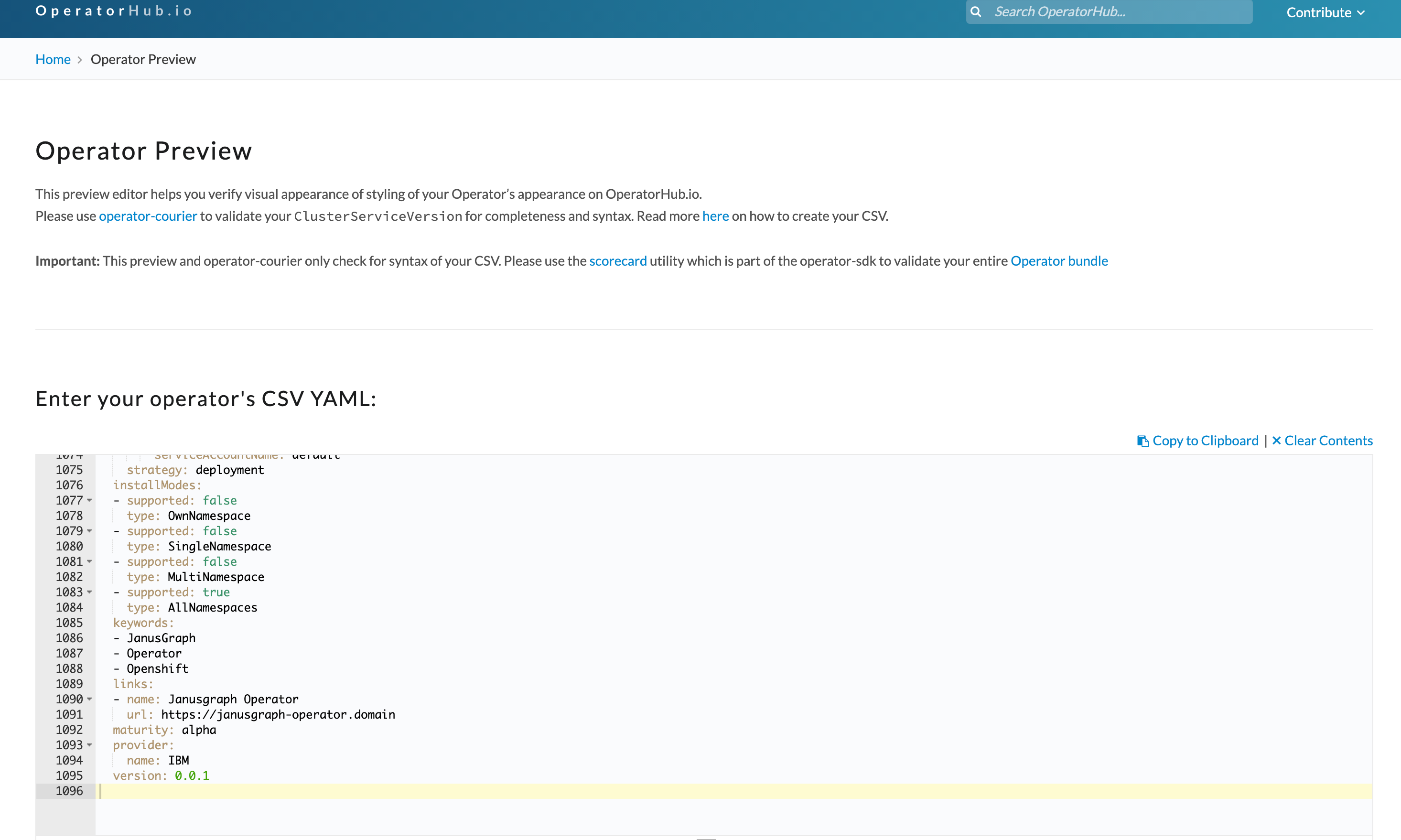
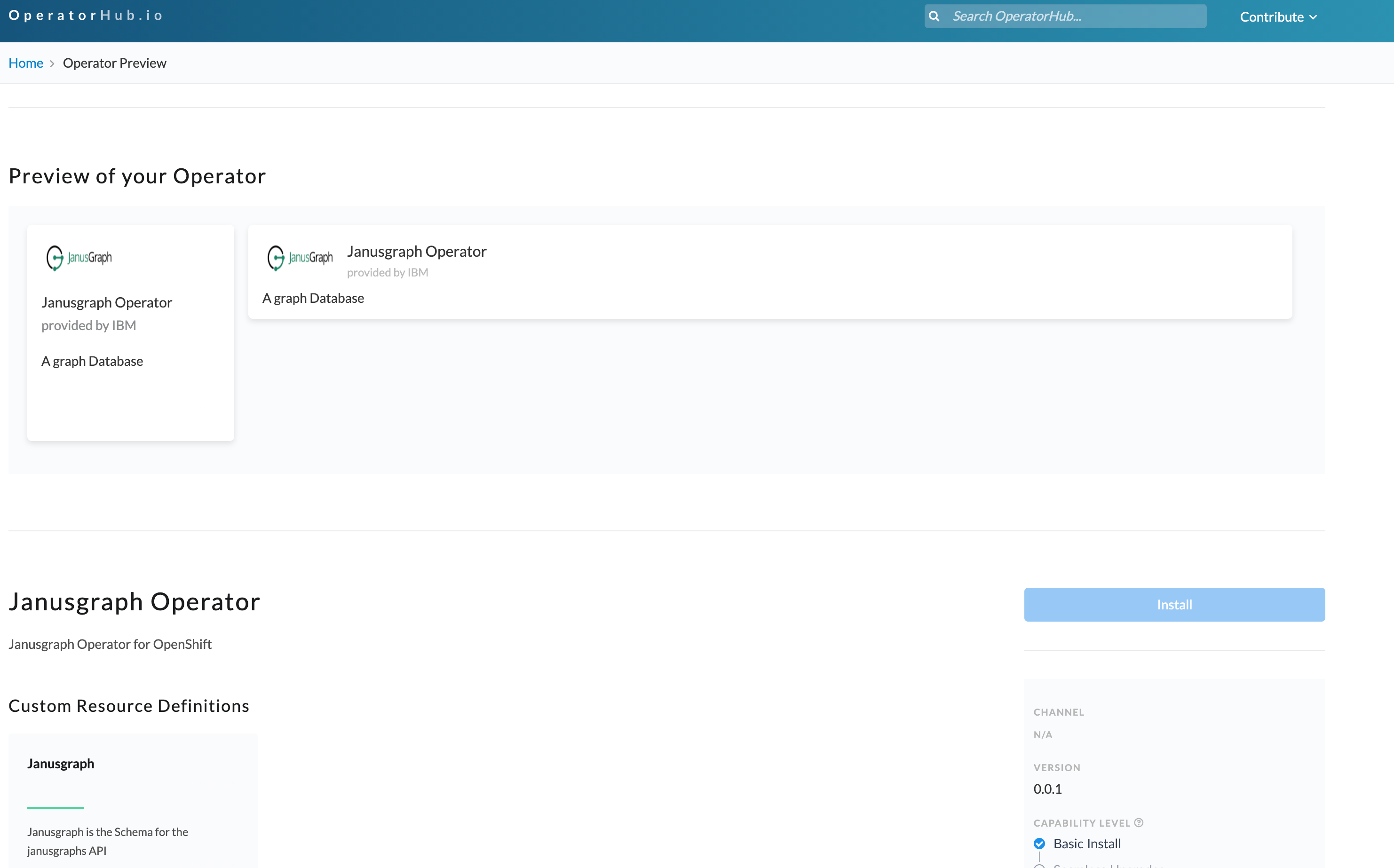
Go to the preview link https://operatorhub.io/preview and paste in the contents of janusgraph-operator.clusterserviceversion.yaml. You should then see the following preview:
Conclusion
Congratulations! You have now successfully certified your operator image and bundle. The next step is to publish the JanusGraph operator on the Red Hat Marketplace or OperatorHub.io.
Find out more about OpenShift and Container certification and how to sell in the Red Hat Marketplace.