Learning Path
Modernizing applications to use IBM WebSphere Liberty
IBM Application Modernization Accelerator (AMA) Developer Tools is an IDE extension that automates Java modernization code fixes and provides in-context guidance for complex changes.
AMA Developer Tools supports both plan-driven and code-driven application modernization. In this tutorial, you use both approaches to modernize your Java applications quickly and reliably. First, you load an AMA migration plan for the ModResorts sample application into your IDE. AMA Developer Tools helps you to modernize the runtime to Liberty while keeping Java 8 to minimize risk. Next, you analyze the modernized Liberty application in AMA Developer Tools to upgrade from Java 8 to Java 25.
By completing this tutorial, you will modernize a Java application to WebSphere Liberty and upgrade it to Java 25 directly in your IDE. You learn how to:
- Load the migration plan into AMA Developer Tools and review the application analysis to modernize the application to run on Liberty.
- Run automated code fixes with a single click.
- Apply self-directed fixes for issues that require developer judgment, using in-IDE guidance and code suggestions.
- Analyze the modernized application to apply automated and self-directed fixes to upgrade the application to Java 25.
- Run the modernized application on Liberty.
Prerequisites
Obtain a valid access key for IBM Application Modernization Accelerator from your organization’s IBM Sales Representative to activate the modernization and Java upgrade features in AMA Developer Tools. A Proof of Concept or Full access key can be used for Steps 1-5 but you must have a Full access key to complete Step 6. The tutorial describes how to apply the access key that you have obtained.
Obtain a copy of the
was_public.jarfile and its associated POM file from your WebSphere Application Server installation. For example, in a typical installation, you might find them at the following location:/opt/WebSphere/AppServer/dev.Install AMA Developer Tools in your preferred integrated development environment (IDE) from the usual marketplaces:
Install Java 8 SDK (for example, IBM Semeru Runtimes)
Steps
Step 1. Set up the ModResorts sample application in AMA Developer Tools
This step requires a valid Full or Proof of Concept access key.
Clone the
sample-app-modapplication (which contains the ModResorts sample application) and change to the tutorial branch:git clone https://github.com/IBM/sample-app-mod/ -b tutorialInstall in your local Maven cache the dependencies needed to build the initial WebSphere Application Server version of the application:
The
acme-1.2.jarandacme-1.2.pomdependency files are provided in the dependencies folder of the sample-app-mod project (make sure you are on the tutorial branch). Run the following command from thesample-app-modfolder:mvn install:install-file -Dfile=dependencies/acme-1.2.jar -DpomFile=dependencies/acme-1.2.pomThe
was_public.jarandwas_public-9.0.0.pomdependency files are available from a typical installation of WebSphere Application Server at/opt/WebSphere/AppServer/dev. Run the following command to install them:mvn install:install-file -Dfile=*filepath*/was_public.jar -DpomFile=*filepath*/was_public-9.0.0.pom
Apply the access key to enable you to use AMA Developer Tools. In your IDE, expand the
srcfolder ofsample-app-mod, right-clickmain, then click Modernize Java Applications > Modernize to Liberty to start the Modernization to Liberty wizard.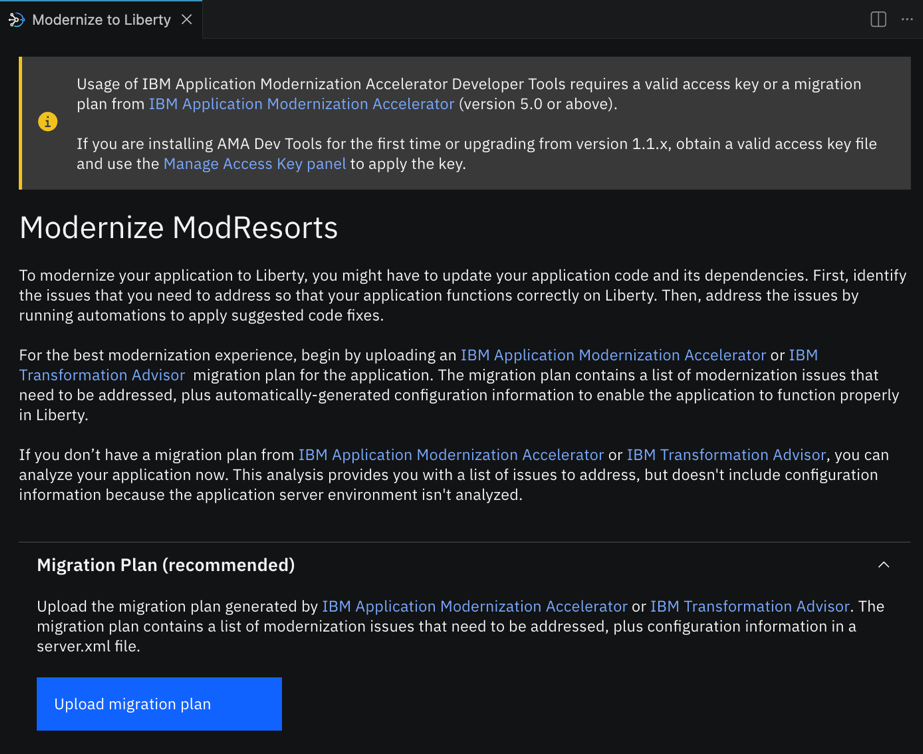
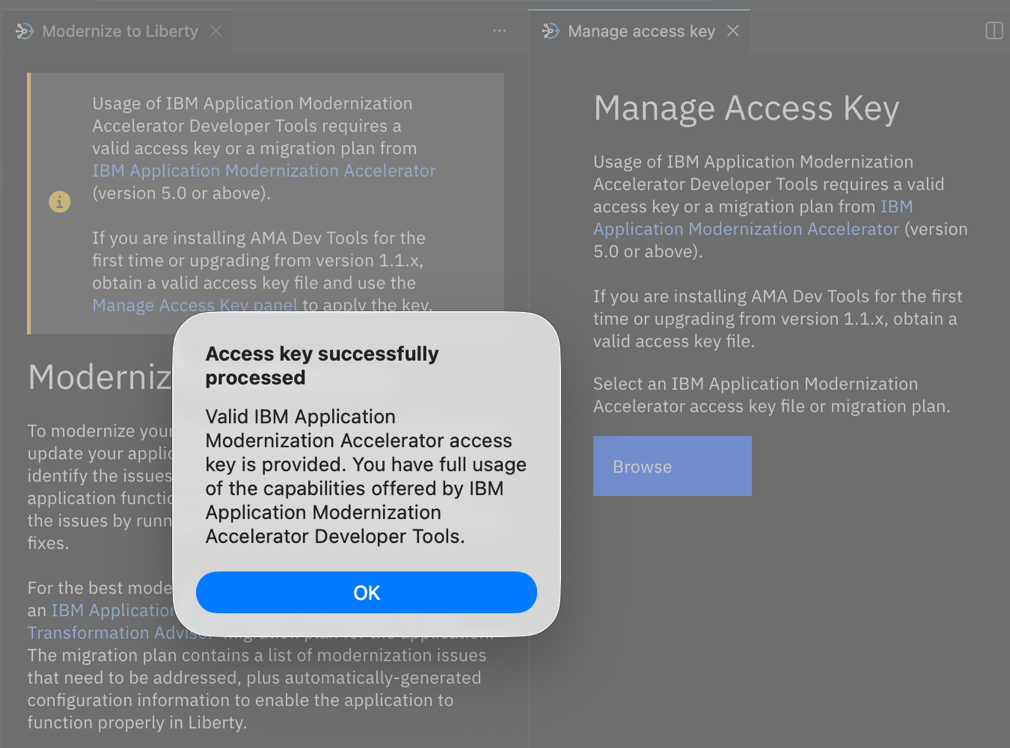
In the information message at the top of the page, click the Manage Access Key panel link and browse for your access key file (for example,
AMA_POC_accessKey.key) to apply the access key to your installation of AMA Developer Tools.A confirmation is displayed to show that the access key has been successfully processed. You can close the Manage access key view.
Step 2. Modernize the application to run on Liberty
The migration plan that was generated by AMA defines the scope of the modernization work to the developer. In this case, it defines how to modernize the ModResorts sample application to run on Liberty and the issues that need to be addressed to complete that modernization.
The migration plan includes generated configuration files so that the ModResorts application can run on Liberty with Java SE 8 and Java EE 7. The server.xml contains Liberty server configuration such as application-specific features that the ModResorts application requires to run on Liberty.
Being able to import the migration plan into AMA Developer Tools ensures that the modernization planned by the architecture team using AMA can be completed as intended by the developer in AMA Developer Tools.
Typically, you would upload the migration plan that you generated from AMA but the sample application provided for this tutorial is, for demonstration purposes, slightly different from the version supplied in AMA. For simplicity in this tutorial, the migration-plan.zip file is provided for you in sample-app-mod/migration-plan folder.
Click Upload migration plan and open the
migration-plan.zipfile from thesample-app-mod/migration-plandirectory.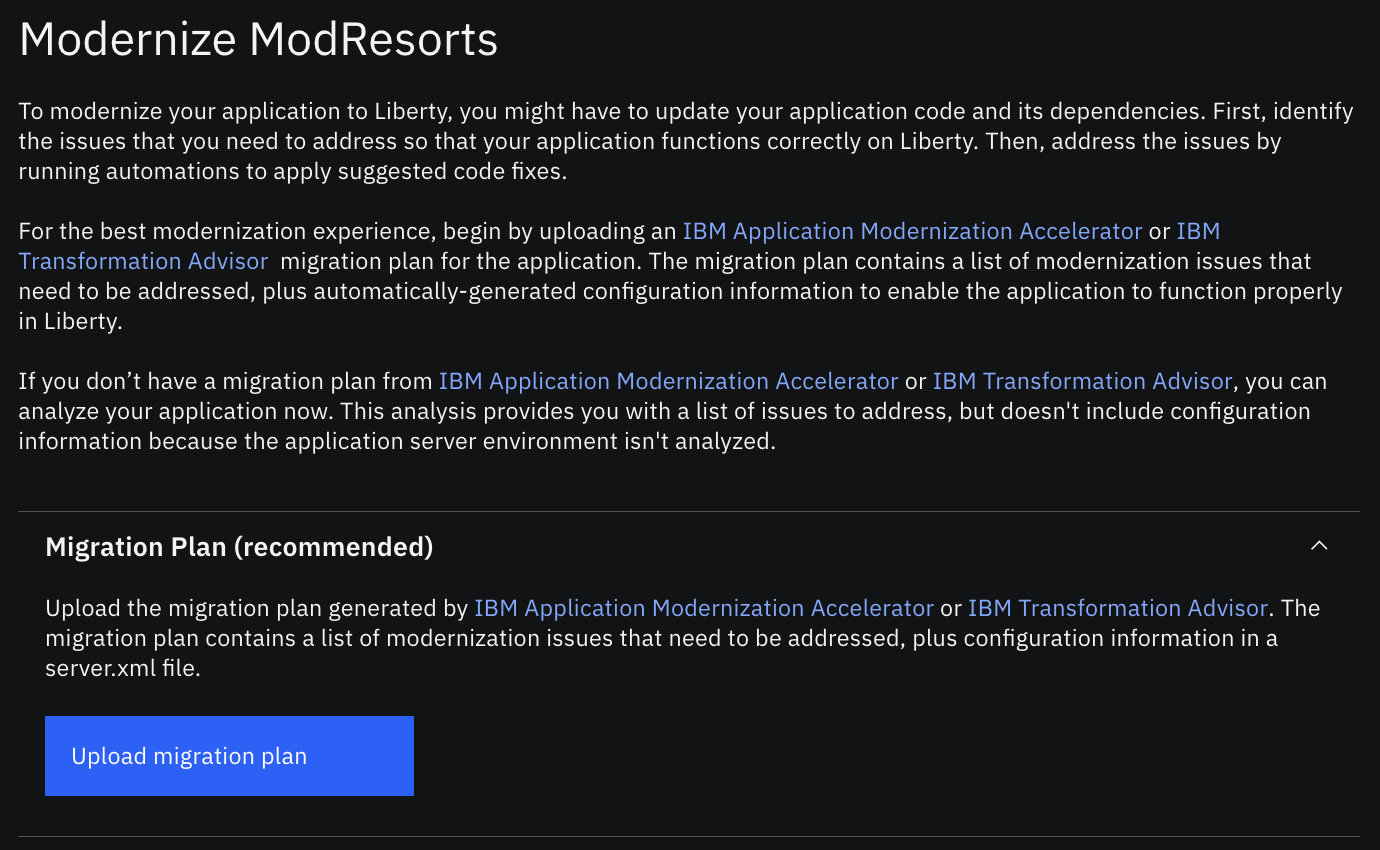
Check that
server.xmlis selected then click Proceed.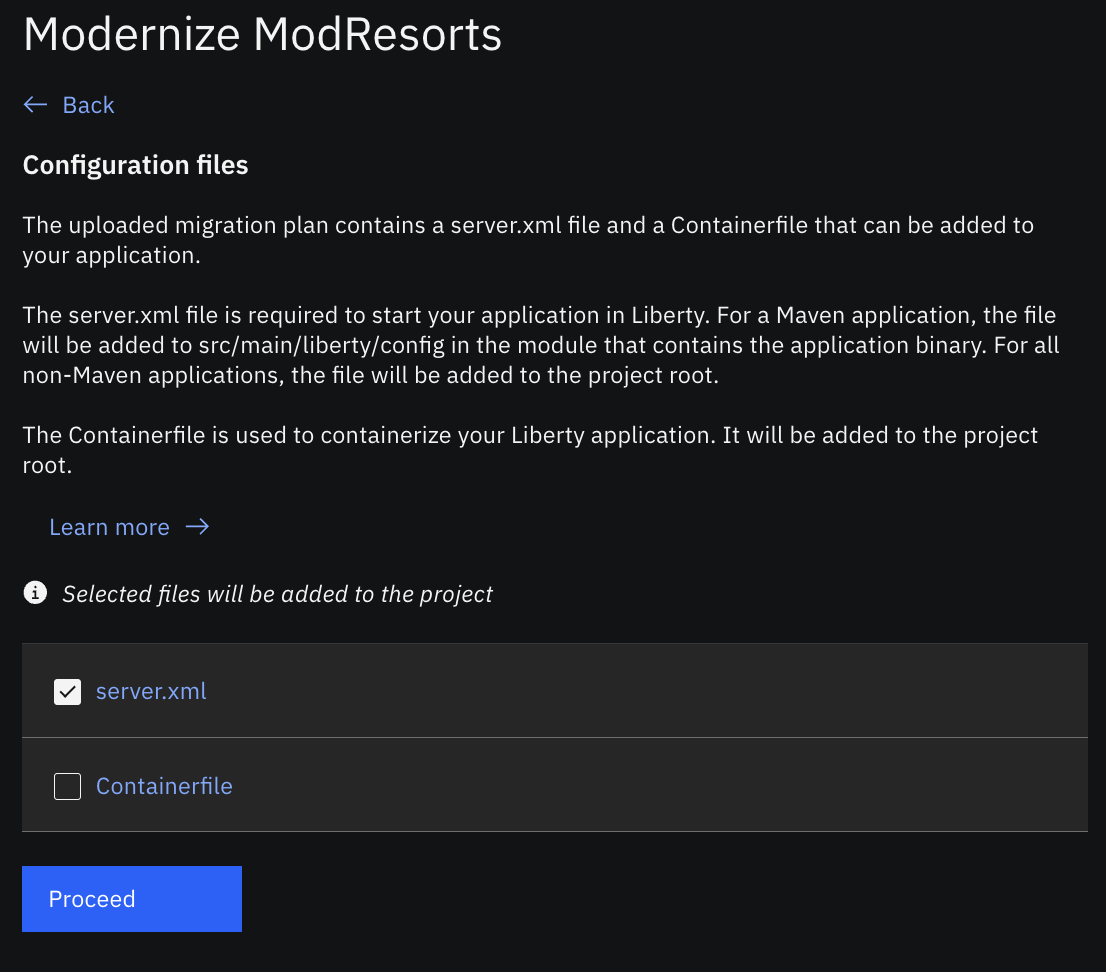
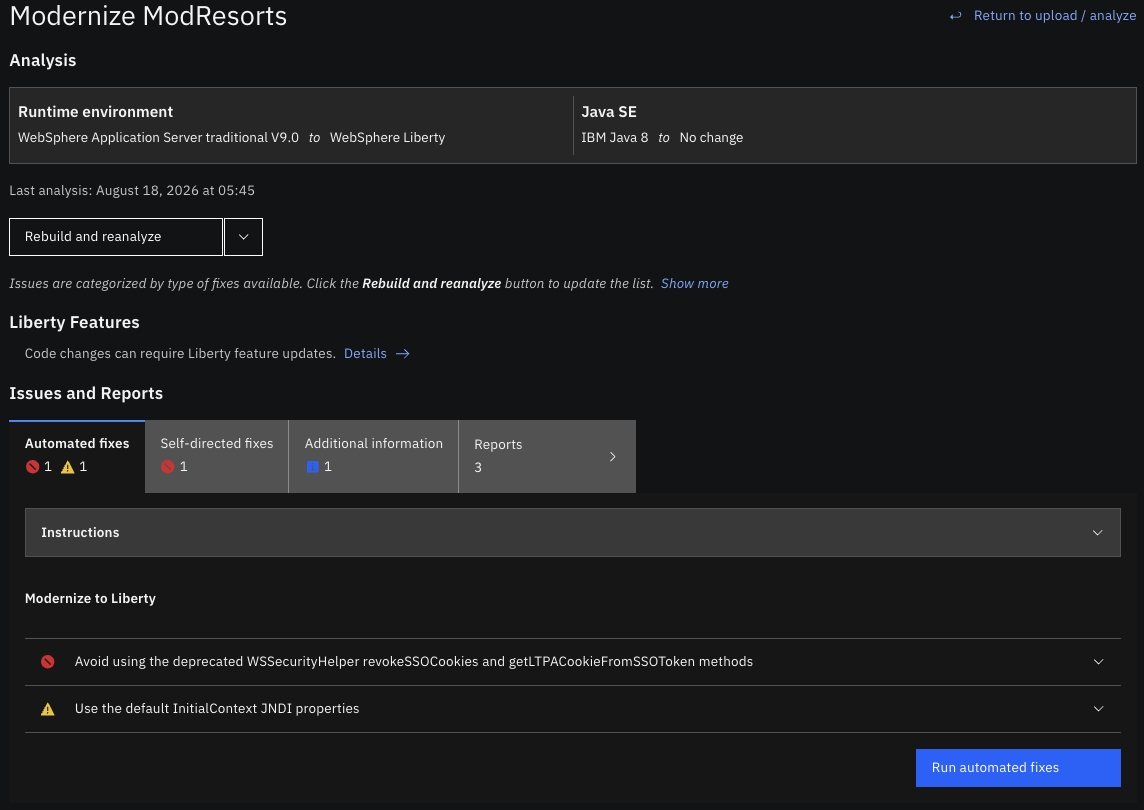
After loading the migration plan, AMA Developer Tools displays the application analysis parameters: to modernize the application from WebSphere Application Server traditional V9.0 with IBM Java 8 to WebSphere Liberty with IBM Java 8. The approach is to modernize the application as little as possible to get it to run on Liberty. So, no Java upgrade is attempted at first.
Based on the migration plan, AMA Developer Tools suggests two automated fixes and one self-directed fix for the ModResorts application.
Step 3. Run the automated fixes to modernize to Liberty
AMA Developer Tools identifies two automated fixes for ModResorts where one is a critical fix that must be addressed prior to modernization and the other is a warning:
The critical compatibility issue is because
LogoutServlet.javauses a proprietary WebSphere security API that is no longer supported on Liberty. InLogoutServlet.java, the doGet method at line 21 invokesWSSecurityHelper.revokeSSOCookies(HttpServletRequest, HttpServletResponse), which is a method from thecom.ibm.websphere.security.WSSecurityHelperclass. That class is not available in Liberty.LogoutServletserves as the application's logout handler, managing session termination, so the logout functionality will fail at runtime on Liberty, undermining a core security operation of the application.The recommended remediation, applied by the automated fix, replaces the deprecated call with the standards-compliant
HttpServletRequest.logout()method introduced in the Java Servlet 3.0 specification which not only replicates the SSO cookie revocation behavior of its predecessor but provides a more complete and secure session teardown.The warning issue is because the JNDI property initialization uses a WebSphere-specific approach. The automated fix updates the JNDI property initialization to use the Liberty-compatible default initial context instead.
You can expand each fix to read more about it.
Click Run Automated Fixes (at the bottom of the view). AMA Developer Tools applies both changes to the source code.
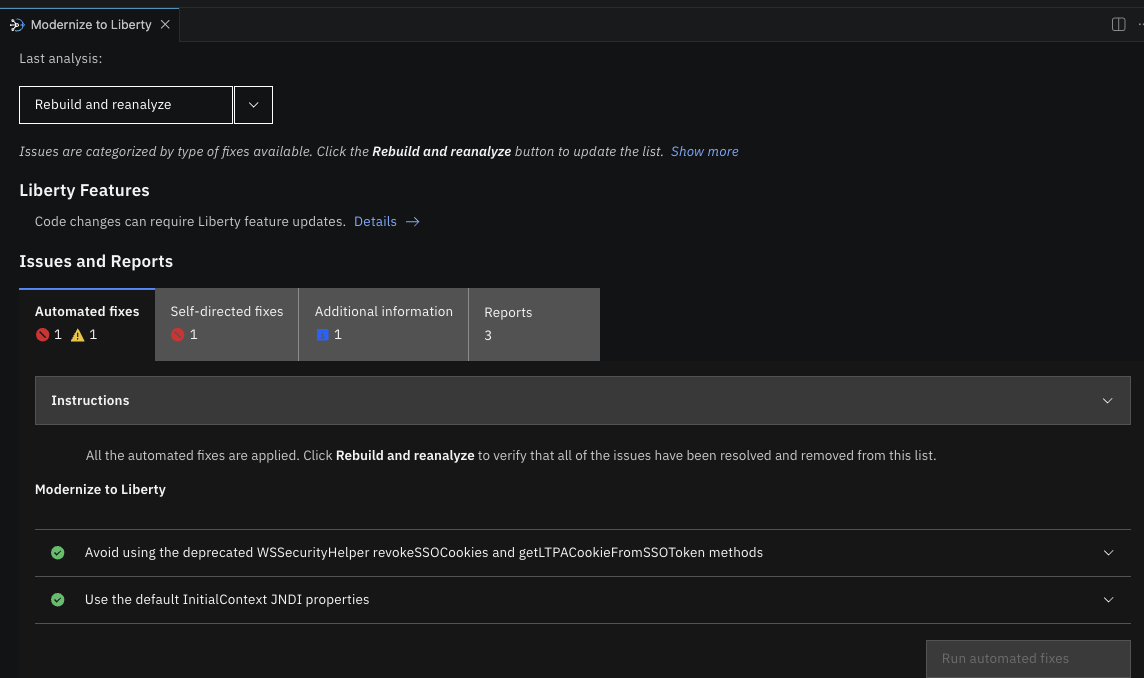
The issue icons are replaced with green checkmarks to show that the automated fixes have been applied.
Step 4. Apply the self-directed fixes to modernize to Liberty
AMA Developer Tools provides self-directed fixes to guide you through code changes that require developer judgment. Each fix includes an explanation of the issue, the affected file, and targeted code suggestions to help you apply the correct replacement.
Click the Self-directed fixes tab.
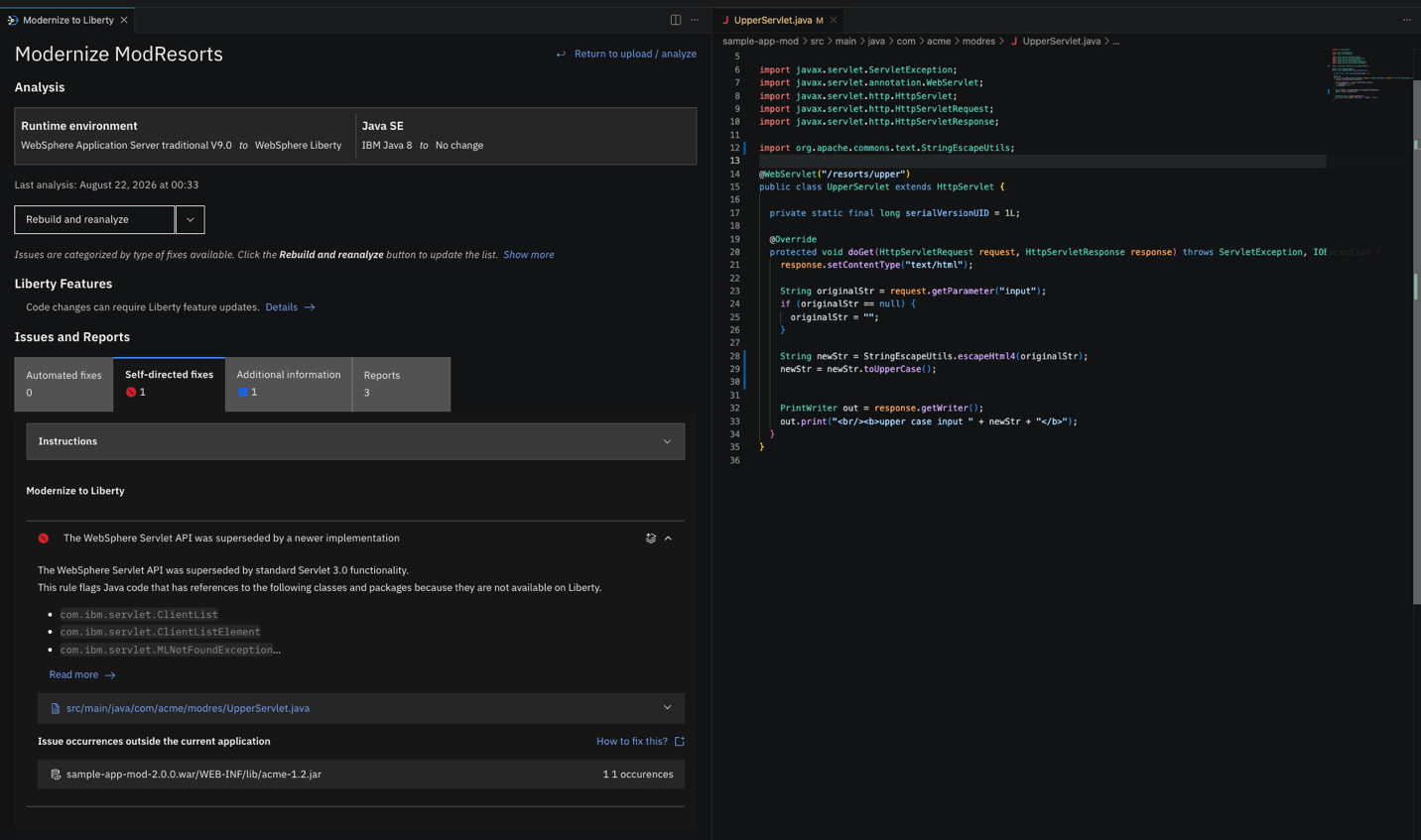
The icon on the right side of the issue indicates that, in addition to the issue that was found in the local source file (
UpperServlet.java), there are occurrences found in a dependency bundled within the ModResorts application (acme-1.2.jar).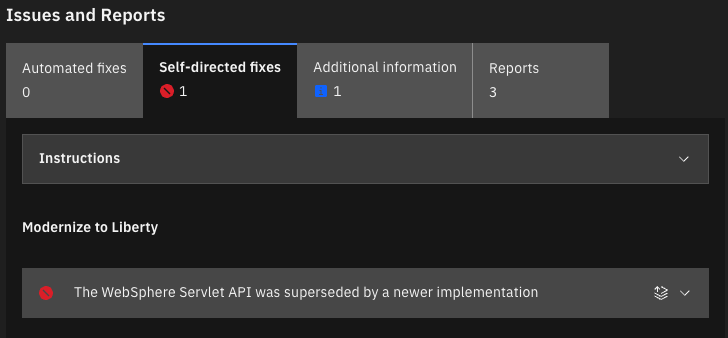
Expand the issue to display the fix details.
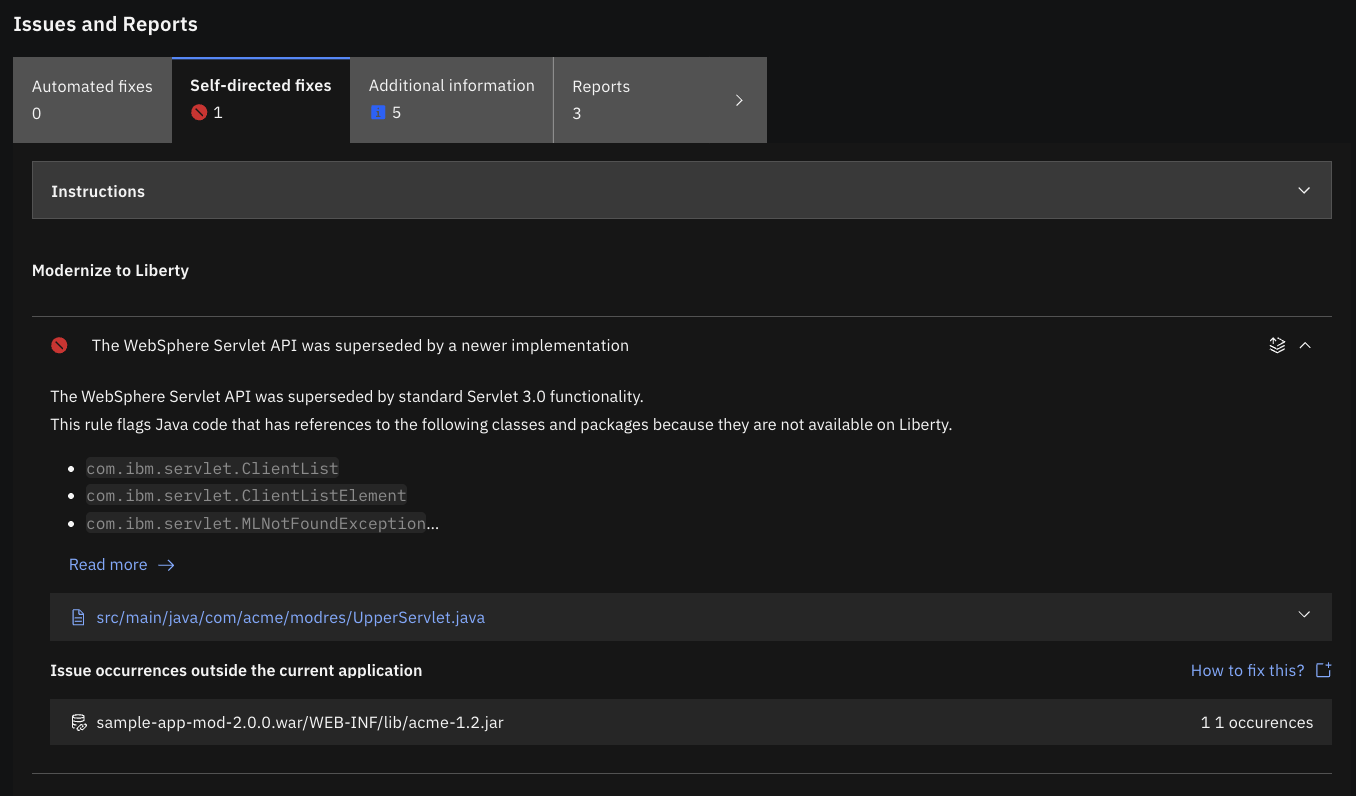
Click the src/main/java/com/acme/modres/UpperServlet.java link. The
UpperServlet.javafile opens in the editor.The class
com.ibm.websphere.servlet.response.ResponseUtilsis used in thedoGetmethod. This is a WebSphere Application Server runtime class that is not available on Liberty, so you must replace it with a standard library equivalent that is available on Liberty. For example:Find the import line (line 12):
import com.ibm.websphere.servlet.response.ResponseUtils;Replace it with the following line of code:
import org.apache.commons.text.StringEscapeUtils;Find the doGet method logic (line 28-29):
 String newStr = originalStr.toUpperCase();
 newStr = ResponseUtils.encodeDataString(newStr);
Replace it with the following code:
 String newStr = StringEscapeUtils.escapeHtml4(originalStr);
 newStr = newStr.toUpperCase();
Update the
pom.xmlfile to add the Apache Commons Text library.The replacement class,
StringEscapeUtils, is part of the Apache Commons Text library, so add Apache Commons Text as a dependency inpom.xml:<dependency> <groupId>org.apache.commons</groupId> <artifactId>commons-text</artifactId> <version>1.15.0</version> </dependency>Click Rebuild and reanalyze.
The local source file
UpperServlet.javais now resolved. But there is still a fix required in theacme-1.2.jardependency, which is not part of the ModResorts application’s source code.Click How to fix this for guidance. Typically, if your organization owns this dependency, you can open it as a separate project and use IBM AMA Developer Tools to produce a Liberty-compatible version; if, however, it is a third-party dependency, you must identify and adopt a version that is a compatible alternative.
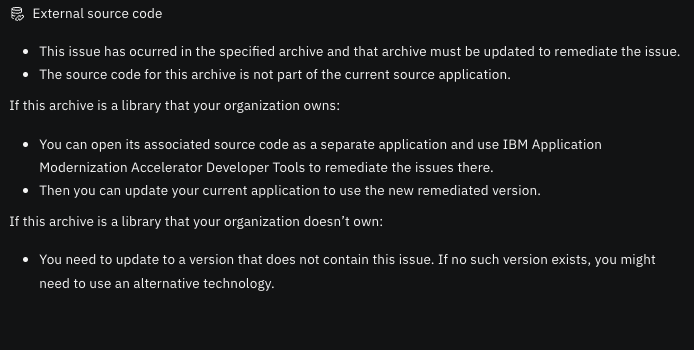
For this tutorial, a version of the dependency that has the issue fixed,
acme-1.3.jar, is provided in the dependencies directory of the project.Edit the
pom.xmland change the acme dependency version from 1.2 to 1.3.<dependency> <groupId>com.acme.common</groupId> <artifactId>acme</artifactId> <version>1.3</version> </dependency>Install the new version of the JAR file and its associated POM file to your local Maven repository by running the following command:
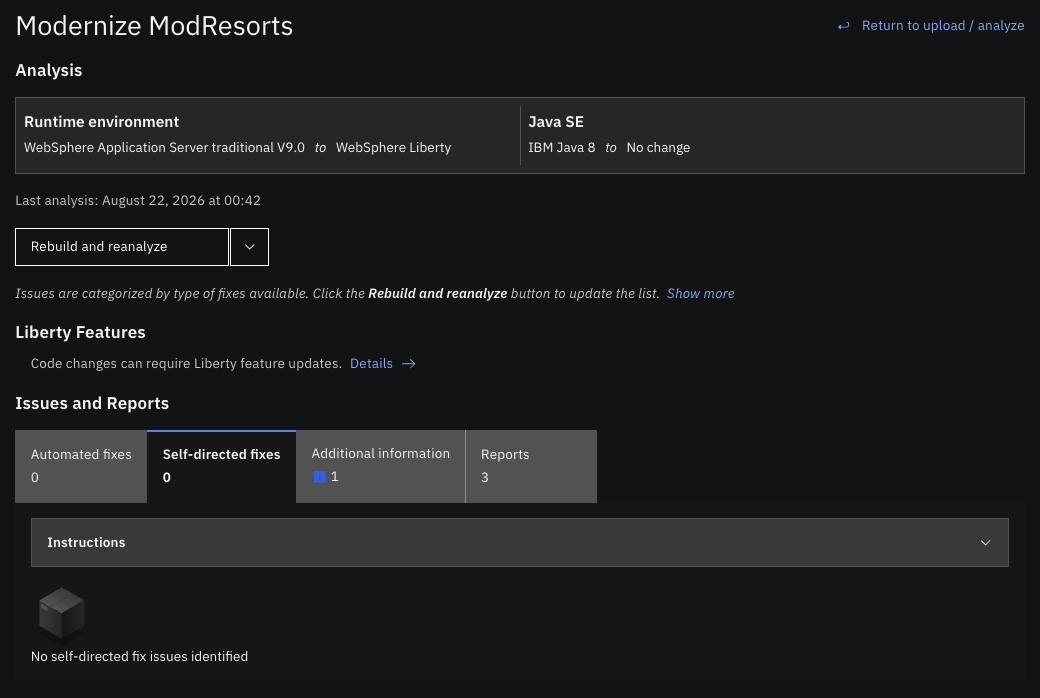
mvn install:install-file -Dfile=dependencies/acme-1.3.jar -DpomFile=dependencies/acme-1.3.pomClick Rebuild and reanalyze.
All the issues are resolved.
Step 5. Run the modernized application on Liberty
Run the application on Liberty with Java SE 8 using the Liberty Maven Plugin by running the following command:
mvn io.openliberty.tools:liberty-maven-plugin:run
Monitor the Liberty server logs and wait until the following message appears, confirming that the server has started successfully:
"defaultServer server is ready to run a smarter planet"
Open a browser and navigate to http://localhost:9080/resorts/ to see the ModResorts application running on Liberty with Java SE 8.

Press CTRL+C to stop the application.
Close the Modernize to Liberty view.
Step 6. Modernize the application to Java 25
This step requires a valid Full access key.
With the ModResorts application successfully modernized from WebSphere Application Server to Liberty, the final step in the modernization journey is upgrading the Java version from Java SE 8 to Java SE 25.
Right-click the
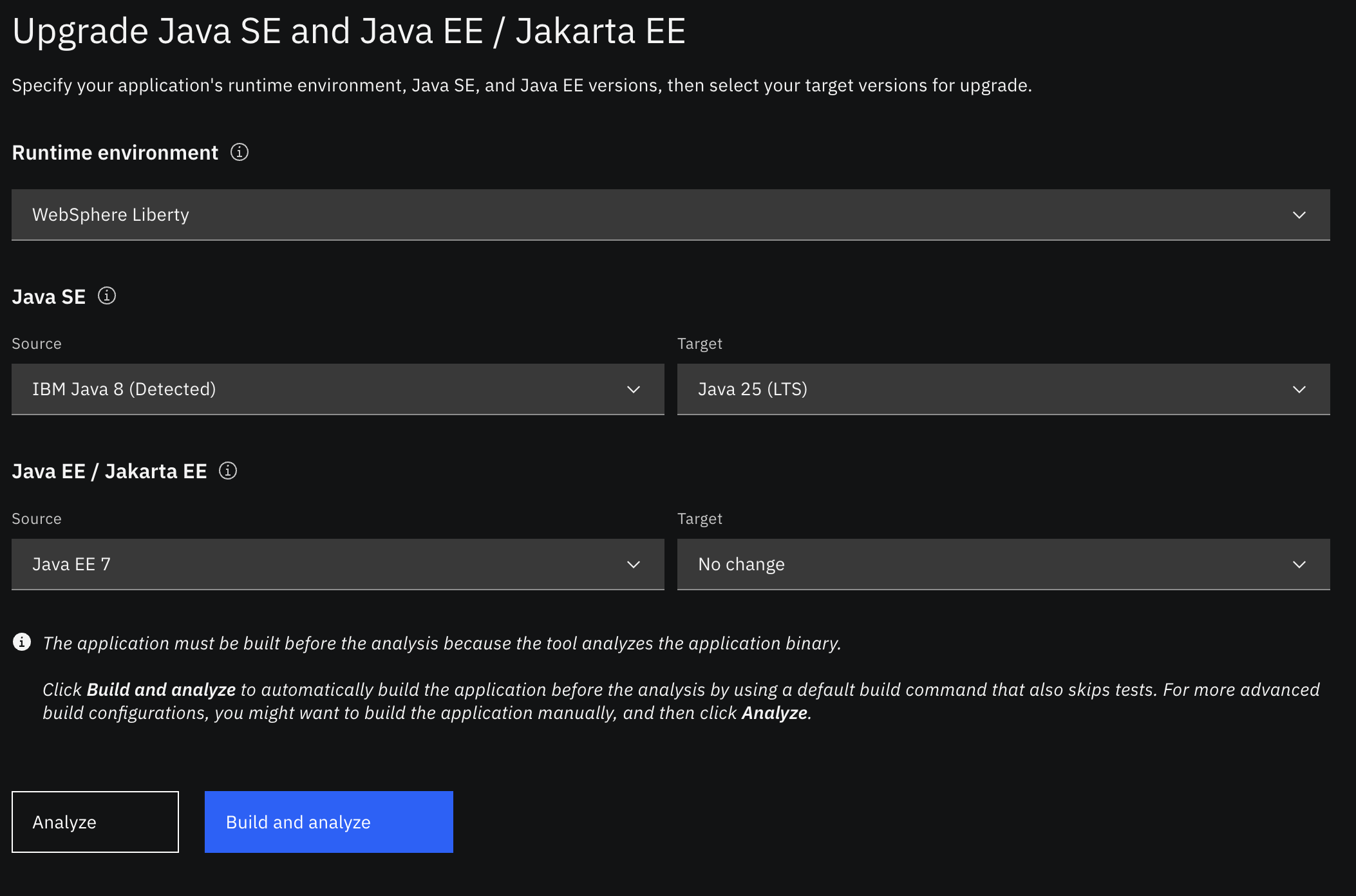
sample-app-moddirectory, hover over Modernize Java Applications, and select Upgrade Java SE and Java EE/Jakarta EE.In the configuration panel, set the following options:
- For Runtime environment, click WebSphere Liberty.
- For Java SE Source, check that IBM Java 8(Detected) is selected.
- For Java SE Target, click Java 25 (LTS).
- For Java EE and Jakarta EE Source, click Java EE 7
For Java EE and Jakarta EE Target, click No change
Then, click Build and Analyze. AMA Developer Tools analyzes the project.
Run automated fixes
Under the Automated fixes tab, review the general migration recommendations and automated updates for the Java SE levels up through Java 25. These automated fixes update the
pom.xmlto set the new Java compiler release version, upgrade relevant dependencies, and apply syntax modernizations across the intermediate Java versions (Java 11, 17, 21, and 25).Click Run automated fixes.
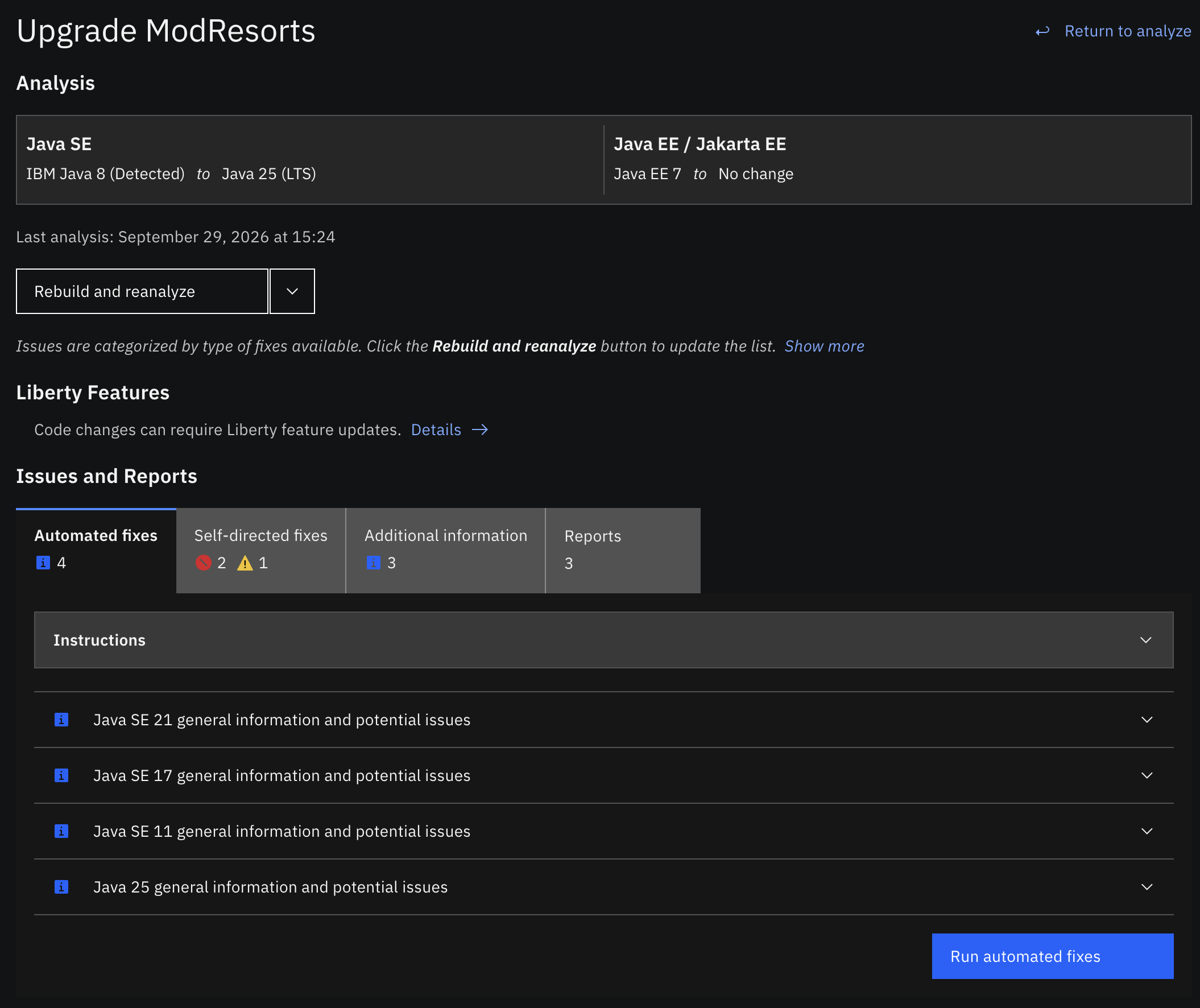
The following changes are made:
In
pom.xml, the Maven compiler source and target (<maven.compiler.source>and<maven.compiler.target>) are updated from Java 8 (1.8) to Java 25 (25), reflecting the upgraded Java SE version to use when compiling the application.<properties> <maven.compiler.target>25</maven.compiler.target> <maven.compiler.source>25</maven.compiler.source> <project.build.sourceEncoding>UTF-8</project.build.sourceEncoding> <project.version>2.0.0</project.version> <project.reporting.outputEncoding>UTF-8</project.reporting.outputEncoding> </properties>In
pom.xml, key Jakarta dependencies are refreshed to versions that retain thejavax.*namespace internally (javax.annotationandjavax.inject) while compiling cleanly on modern JDKs.<dependency> <groupId>jakarta.annotation</groupId> <artifactId>jakarta.annotation-api</artifactId> <version>1.3.5</version> <scope>provided</scope> </dependency> <dependency> <groupId>jakarta.inject</groupId> <artifactId>jakarta.inject-api</artifactId> <version>1.0.3</version> </dependency>In
pom.xml, utility and framework dependencies are refreshed:<dependency> <groupId>com.google.code.gson</groupId> <artifactId>gson</artifactId> <version>2.10.1</version> </dependency> <dependency> <groupId>com.acme.common</groupId> <artifactId>acme</artifactId> <version>1.3</version> </dependency> <dependency> <groupId>org.apache.commons</groupId> <artifactId>commons-text</artifactId> <version>1.15.0</version> </dependency>In
pom.xml, the testing toolchain is modernized for newer Java SE runtimes.<dependency> <groupId>org.junit.jupiter</groupId> <artifactId>junit-jupiter-api</artifactId> <version>5.10.0</version> <scope>test</scope> </dependency> <dependency> <groupId>org.mockito</groupId> <artifactId>mockito-core</artifactId> <version>5.17.0</version> <scope>test</scope> </dependency> <dependency> <groupId>org.mockito</groupId> <artifactId>mockito-junit-jupiter</artifactId> <version>5.17.0</version> <scope>test</scope> </dependency> <dependency> <groupId>org.springframework</groupId> <artifactId>spring-test</artifactId> <version>5.3.20</version> <scope>test</scope> </dependency>In
pom.xml, packaging and resource plugins are updated.<plugin> <artifactId>maven-war-plugin</artifactId> <version>3.5.1</version> </plugin> <plugin> <artifactId>maven-resources-plugin</artifactId> <version>3.2.0</version> </plugin>In several of the servlet and entity class files, the
@Serialannotation fromjava.io.Serialis added toserialVersionUIDfields.@Serial private static final long serialVersionUID = 1L;
Click Rebuild and reanalyze.
Make manual fixes
After applying the automated transformations, switch to the Self-directed fixes tab in the Issues and Reports panel.
For the migration target from IBM Java 8 to Java 25 (LTS) on Java EE 7, the analyzer identifies 3 self-directed issues (2 critical errors and 1 warning) that require manual code remediation.
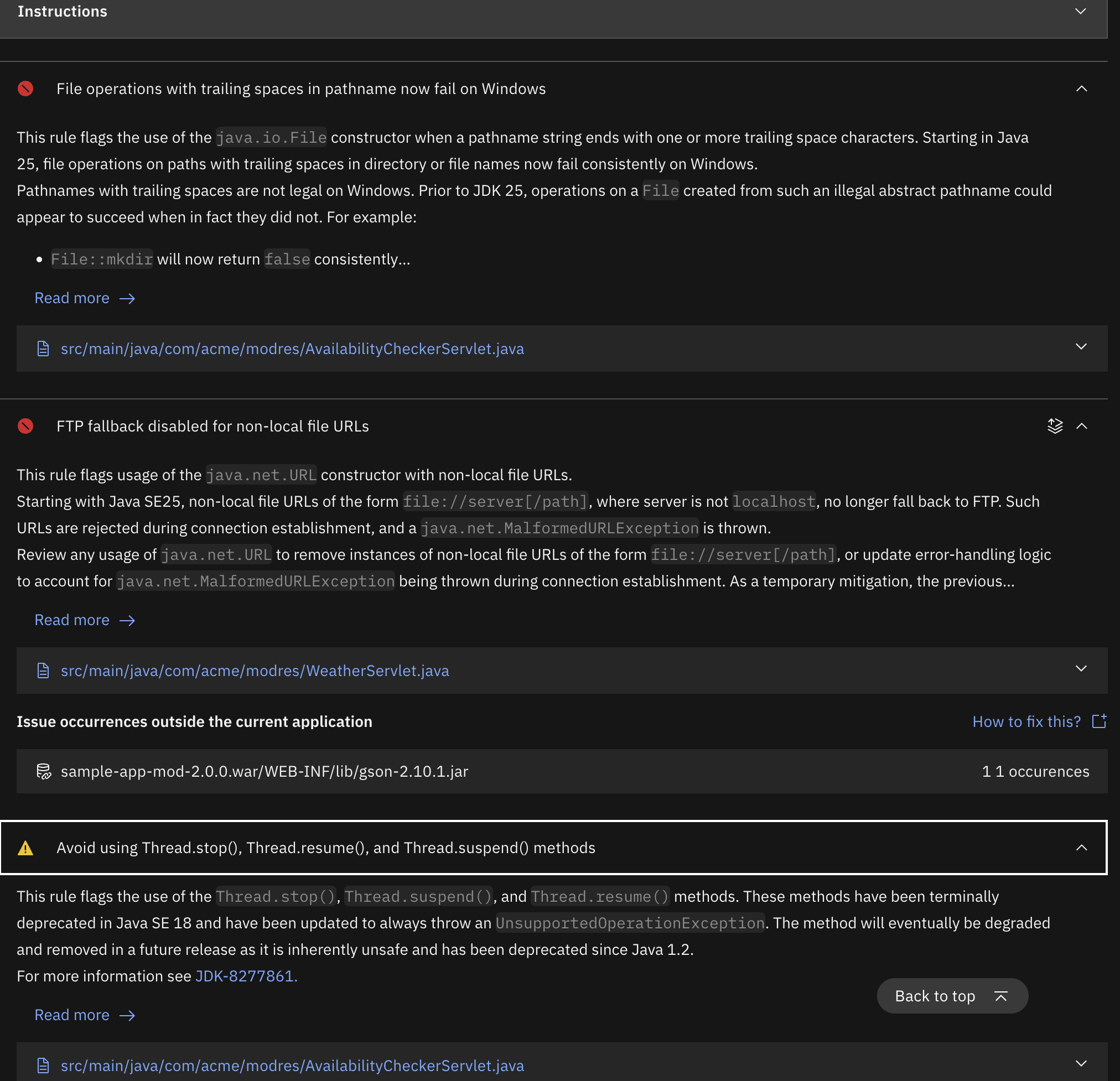
Update your code by making the following changes manually.
Code change 1: Trim trailing spaces from path names
- File:
src/main/java/com/acme/modres/AvailabilityCheckerServlet.java - Line Number: Line 116 (updated to lines 115–119)
- Reason for this change:
- Windows path strict enforcement (Java 25+): Starting in Java 25, the Windows file system APIs strictly enforce that file and directory names cannot end with trailing whitespace. File operations such as File.mkdir() or File.createNewFile() now fail consistently when given pathnames ending with space characters.
- Whitespace sanitization (
.trim()): Applying.trim()removes any accidental leading or trailing space characters from thezipPathstring before it is passed to the java.io.File constructor, preventing illegal path exceptions on Windows systems. - Null-safety guard: The ternary expression
zipPath != null ? zipPath.trim(): nullprevents aNullPointerExceptionin casezipPathis not initialized.
Old code:
ZipValidator zipValidator = new ZipValidator(new File(zipPath));
if (zipValidator.isValid()) {
    return 0;
}
Updated code:
// verify zip
ZipValidator zipValidator = new ZipValidator(new File(zipPath != null ? zipPath.trim() : null));
if (zipValidator.isValid()) {
    return 0;
}
Code change 2: Replace Thread.stop() with Thread.interrupt()
- File:
src/main/java/com/acme/modres/AvailabilityCheckerServlet.java - Lines: Lines 58–74
- Reason for this change:
- Cooperative cancellation: Replacing
t1.stop()witht1.interrupt()provides cooperative cancellation, giving the target thread an opportunity to exit cleanly without corrupting shared state or throwingUnsupportedOperationExceptionon Java 18+. - Preserving interrupt status: Calling
Thread.currentThread().interrupt()within the catch block ensures that the interrupt signal is not swallowed, allowing upstream callers and the servlet container to respond appropriately to thread interruption.
- Cooperative cancellation: Replacing
Old code:
if (statusCode == 200) {
  DateChecker dateChecker = new DateChecker(reservationCheckerData);
  Thread t1 = new Thread(dateChecker);
  t1.start();
  try {
    t1.join(1000);
  } catch (InterruptedException e) {
    e.printStackTrace();
  }
  if (t1.isAlive()) {
    t1.stop();
  }
  if (!reservationCheckerData.isAvailible()) {
    statusCode = 201;
  }
}
Updated code:
if (statusCode == 200) {
  DateChecker dateChecker = new DateChecker(reservationCheckerData);
  Thread t1 = new Thread(dateChecker);
  t1.start();
  try {
    t1.join(1000);
  } catch (InterruptedException e) {
    e.printStackTrace();
    Thread.currentThread().interrupt();
  }
  if (t1.isAlive()) {
    t1.interrupt();
  }
  if (!reservationCheckerData.isAvailible()) {
    statusCode = 201;
  }
}
Code change 3: Add URI imports
- File:
src/main/java/com/acme/modres/WeatherServlet.java - Line number: (around line 16)
- Reason for this change: The fix requires
java.net.URIto create and validate the URI object, andjava.net.URISyntaxExceptionto catch any malformed URI syntax during parsing.
Old Code:
import java.net.URL;
Updated Code:
import java.net.URI;
import java.net.URISyntaxException;
import java.net.URL;
Code change 4: Convert new URL() to new URI().toURL()
- File:
src/main/java/com/acme/modres/WeatherServlet.java - Lines: 150-158
- Reason for this change:
- Java 25 behavioral change:
- In older Java, opening a non-local
file://server/pathURL silently fell back to FTP; Java 25 removes this entirely and immediately throwsMalformedURLException, meaning any code relying on that implicit fallback will now fail hard without the fix. - New URL(String) Deprecation (Java 20+) new
URL("...")was deprecated in Java 20 for skipping strict RFC 2396/3986 URI validation before constructing the connection handler; the modern replacement is newURI(resturl).toURL(), which validates structure first and is the required pattern going forward into Java 25.
- In older Java, opening a non-local
Old Code:
URL obj = null;
HttpURLConnection con = null;
try {
  obj = new URL(resturl);
  con = (HttpURLConnection) obj.openConnection();
  con.setRequestMethod("GET");
} catch (MalformedURLException e1) {
  String errorMsg = "Caught MalformedURLException. Please make sure the url is correct.";
  ExceptionHandler.handleException(e1, errorMsg, logger);
}
Updated Code:
URL obj = null;
HttpURLConnection con = null;
try {
  obj = new URI(resturl).toURL();
  con = (HttpURLConnection) obj.openConnection();
  con.setRequestMethod("GET");
} catch (URISyntaxException | MalformedURLException | IllegalArgumentException e1) {
  String errorMsg = "Caught MalformedURLException / URISyntaxException. Please make sure the url is correct.";
  ExceptionHandler.handleException(e1, errorMsg, logger);
}
Code change 5: Remove Gson dependency
- File:
pom.xml - Lines: 36-40
- Reason for this change: Gson (
com.google.code.gson:gson:2.10.1) was a third-party library used for JSON parsing. It has been removed entirely since the code now uses the Jakarta EE / Java EE built-in JSON APIs, eliminating an unnecessary external dependency and reducing the attack surface.
Old Code:
<dependency>
    <groupId>com.google.code.gson</groupId>
    <artifactId>gson</artifactId>
    <version>2.10.1</version>
</dependency>
Updated Code: (Block removed completely)
Code change 6: Update JSON utility imports
- File:
src/main/java/com/acme/modres/util/JsonInputStream.java - Lines: 3-10
- Reason for this change: The old imports pulled in file I/O classes (
BufferedReader,File,FileInputStream, and so on) and the externalcom.google.code.gson.Gsonlibrary for JSON parsing. These are being replaced with standard Java/Jakarta JSON APIs, removing the Gson dependency and cleaning up file-handling imports that are no longer needed.
Old Code:
import java.io.BufferedReader;
import java.io.File;
import java.io.FileInputStream;
import java.io.FileNotFoundException;
import java.io.IOException;
import java.io.InputStreamReader;

import com.google.gson.Gson;
Updated Code:
import java.io.File;
import java.io.FileInputStream;
import java.io.FileNotFoundException;
import java.io.InputStream;
import java.util.ArrayList;
import java.util.List;

import javax.json.Json;
import javax.json.JsonArray;
import javax.json.JsonObject;
import javax.json.JsonReader;

import com.acme.modres.mbean.OpMetadata;
import com.acme.modres.mbean.OpMetadataList;
import com.acme.modres.mbean.reservation.Reservation;
import com.acme.modres.mbean.reservation.ReservationList;
Code change 7: Implement container-native parseJsonAs method
- File:
src/main/java/com/acme/modres/util/JsonInputStream.java - Lines: 29-56
- Reason for this change:
- Java 25 scanner compatibility: In Java 8, Google's
gson.jarworked without issues, but under Java 25 it triggers binary scanner violations due to internal deprecatedjava.net.URLconstructors. - Remove external bundled JARs: Replaces Gson with standard
javax.json (JsonReader), which is provided directly by Open Liberty (javaee-api), completely eliminating gson.jar fromWEB-INF/lib/. - Container-native parsing: Uses modern try-with-resources to safely parse ops.json and reservations.json into their respective model objects without requiring third-party libraries.
- Java 25 scanner compatibility: In Java 8, Google's
Old code:
public Object parseJsonAs(Class<?> cls) {
    if (file.exists()) {
      JsonInputStream is = null;
      Object jsonObject = null;
      try {
        is = new JsonInputStream(file);
        Gson gson = new Gson();
        BufferedReader reader = new BufferedReader(new InputStreamReader(is));
        jsonObject = gson.fromJson(reader, cls);
      } catch (Exception e) {
        e.printStackTrace();
      } catch (Throwable e) {
        e.printStackTrace();
      } finally {
        if (is != null) {
          try {
            is.close();
            is.read(); // test if file is closed
          } catch (IOException _) {
            // closed successfully
            return jsonObject;
          } catch (Throwable e) {
            e.printStackTrace();
          }
        }
      }
    }
    return null;
  }
Updated code:
public Object parseJsonAs(Class<?> cls) {
    if (file != null && file.exists()) {
      try (InputStream is = new FileInputStream(file);
            JsonReader reader = Json.createReader(is)) {

        JsonObject root = reader.readObject();

        if (cls == OpMetadataList.class) {
          OpMetadataList opList = new OpMetadataList();
          if (root.containsKey("opMetadatList")) {
            JsonArray array = root.getJsonArray("opMetadatList");
            for (int i = 0; i < array.size(); i++) {
              JsonObject item = array.getJsonObject(i);
              String name = item.getString("name", "");
              String desc = item.getString("description", "");
              String type = item.getString("type", "void");
              int impact = item.getInt("impact", 0);
              opList.add(new OpMetadata(name, desc, type, impact));
            }
          }
          return opList;
        } else if (cls == ReservationList.class) {
          List<Reservation> list = new ArrayList<>();
          if (root.containsKey("reservations")) {
            JsonArray array = root.getJsonArray("reservations");
            for (int i = 0; i < array.size(); i++) {
              JsonObject item = array.getJsonObject(i);
              String from = item.getString("fromDate", "");
              String to = item.getString("toDate", "");
              list.add(new Reservation(from, to));
            }
          }
          return new ReservationList(list);
        }
      } catch (Exception e) {
        e.printStackTrace();
      }
    }
    return null;
  }
After making all the changes, click Rebuild and reanalyze.
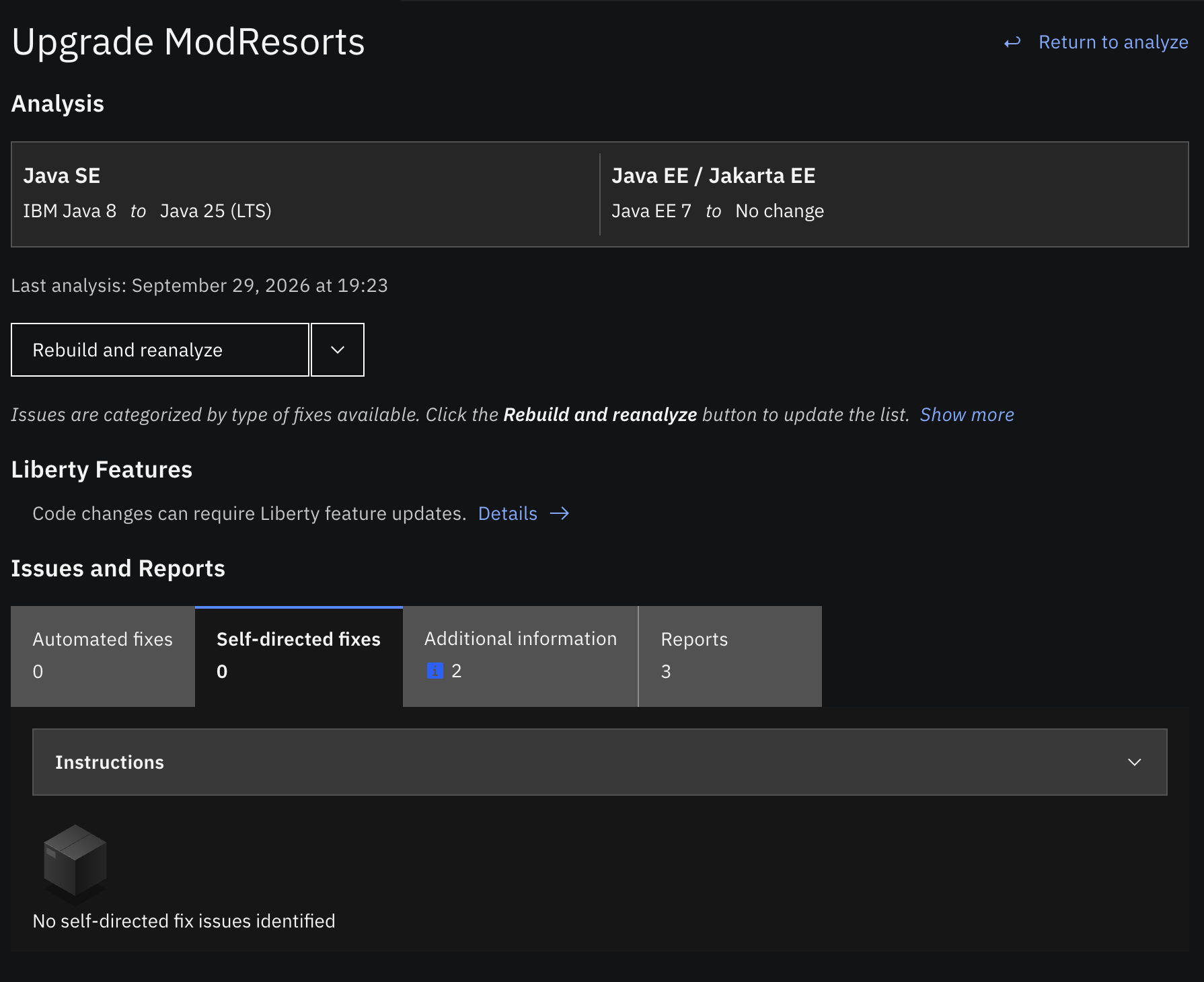
Run the application on Liberty with Java SE 25 using the Liberty Maven Plugin by running the following command:
mvn io.openliberty.tools:liberty-maven-plugin:run
Verify the application at http://localhost:9080/resorts/ to see the ModResorts application running on Liberty with Java SE 25.
Press CTRL+C to stop the application. Close the Upgrade Java SE and Java EE/Jakarta EE view.
Summary and next steps
Congratulations! You have used IBM AMA Developer Tools to implement the ModResorts migration plan from start to finish. Specifically, you have:
Installed AMA Developer Tools and loaded the migration plan from AMA.
Reviewed the application analysis parameters and applied automated fixes with a single click.
Applied self-directed fixes.
Modernized the application to run on Liberty and then executed code changes to modernize the Java version.
Built and run the application on a Liberty server.
What's next? Try AMA Developer Tools on your own application. If you have a migration plan from AMA for one of your own applications, follow the same process to implement the migration in your IDE.
Learn about Liberty Tools, an extension for your IDE to help develop, build, test, deploy, and manage your Liberty Java applications. You can download Liberty Tools from the Visual Studio Code, IntelliJ IDEA, and Eclipse IDE market places.