Tutorial
Get an IBM MQ queue for development on IBM MQ for z/OS
Configure your queue for app connectionsThis tutorial shows you how to create and configure a standalone IBM MQ queue manager using IBM MQ for z/OS 9.4.5 CD (Continuous Delivery). You'll set up messaging infrastructure, define queues, and enable application connections for enterprise messaging.
To see how IBM MQ works, this tutorial guides you through creating and configuring a queue manager. You will configure logging, page sets, and all necessary infrastructure to get messages flowing.
You can download, install, and run IBM MQ queue manager (server) in a variety of ways:
- In a container or Red Hat OpenShift Container Platform.
- In IBM Cloud, AWS (or AWS using Ansible or AWS using Terraform), Microsoft Azure, or Google Cloud.
- On various operating systems: Linux/Ubuntu, Windows, or z/OS (this tutorial). For macOS, use MQ on Containers.
Prerequisites
You will need access to a sandbox z/OS system. If you are not able to access a sandbox z/OS environment, please reach out to IBM Worldwide Systems Center via your IBM account team to provision a sample lab environment.
To complete this tutorial, you need beginner to intermediate z/OS and MQ experience. Also, you should be familiar with Interactive System Productivity Facility/Time Sharing Option (ISPF/TSO), System Display and Search Facility (SDSF), and UNIX System Services (USS).
Steps
Step 1. Install IBM MQ for z/OS
Install or configure this software on z/OS:
IBM MQ for z/OS. We are using IBM MQ 9.4.5 continuous delivery in this tutorial, but the instructions should work on all supported versions of IBM MQ for z/OS. IBM MQ for z/OS follows the standard System Modification Program/Extended (SMP/E) process for installing software on z/OS.
A REXX EXEC script called
QMEDIT. The contents of the REXX EXEC are included in this document and can be tailored for different z/OS environments. (TheQMEDITREXX EXEC is not shipped as part of the base IBM MQ product. It is a convenience tool that is used in this tutorial to replace the++variable++placeholder values in the sample members.)
Step 2. Copy and customize the sample JCL
You are going to set up a queue manager called ZQSX. You need to set up a new ZQSX library and include in it the sample JCL provided by the IBM MQ for z/OS product. In the examples in this tutorial, the MQ product has been installed under the high-level qualifier MQ945CD.
From ISPF option
6, enter the following TSO command. This command makes sure that the new queue manager libraries are not located in the master catalog default, but rather in user catalogUCAT.MQPLEX1.===> TSO DEF ALIAS(NAME('ZQSX') REL('UCAT.MQPLEX1')) `From ISPF option
3.3, enter the following to match the text below:Option ===> C From Other Partitioned or Sequential Data Set: Name . . . 'MQ945CD.SCSQPROC(*)'Press Enter. Enter the following to match the text below:
  To Other Partitioned or Sequential Data Set:
     Name  . . . . 'ZQSX.SCSQPROC'
Type
1next to option 1 so that the new data set is allocated using the attributes ofMQ945CD.SCSQPROC. Then, press Enter.Allocation Options: 1 1. Allocate using the attributes of: MQ945CD.SCSQPROCConfirm that the members were copied successfully. You should see a message indicating
113 member(s) copied intointoZQSX.SCSQPROC.Return to the ISPF main screen, enter
=3.4on the command line and navigate to the newly created data set. Then, press Enter.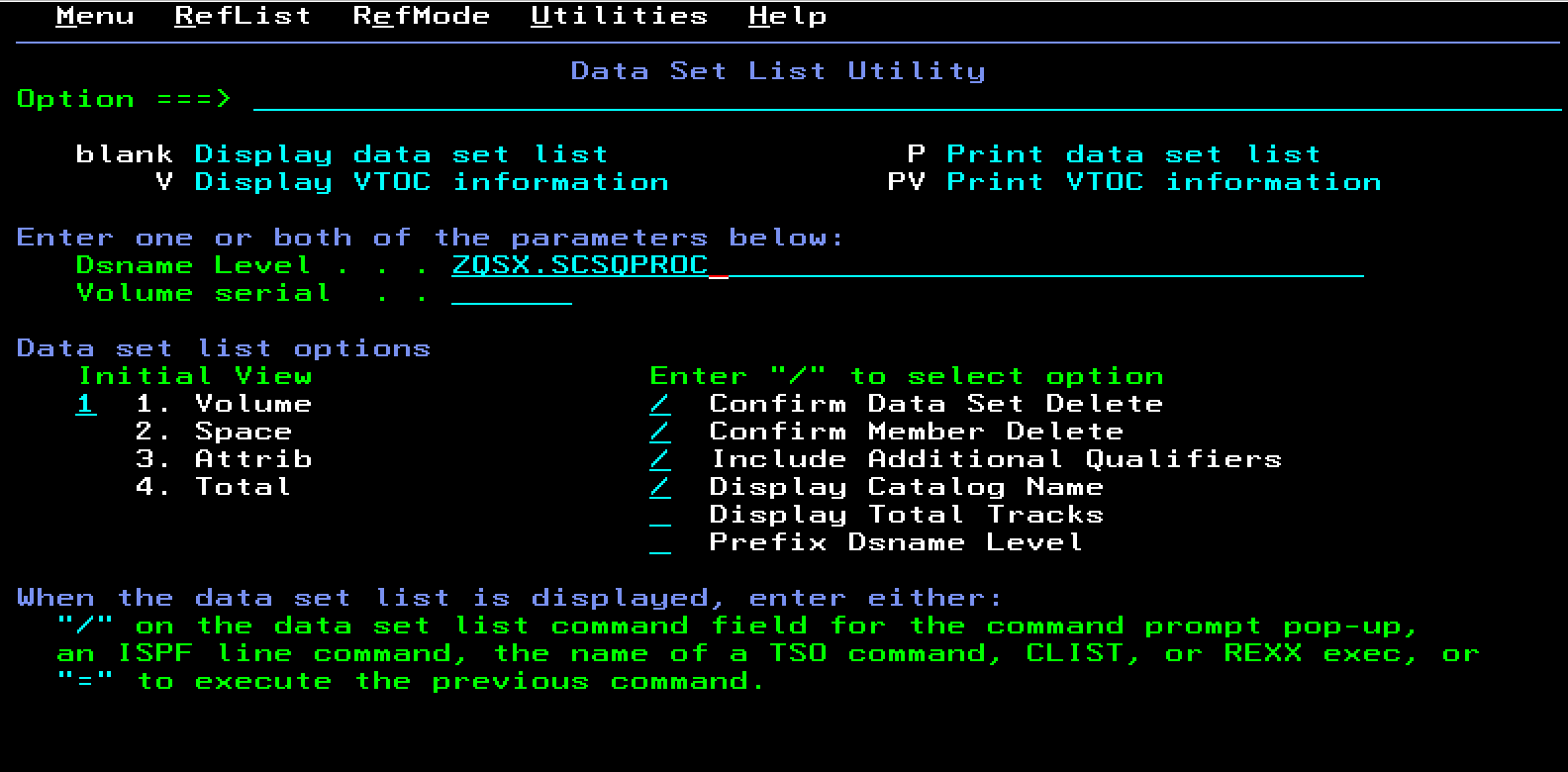
Browse the library by entering
Bnext to the data set name.The following members must be customized to create a basic queue manager:
CSQ4BSDS- Creates bootstrap data setsCSQ4CHIN- Sample channel initiator procedureCSQ4MSTR- Sample queue manager procedureCSQ4INPX- Sample channel initiator commandsCSQ4INYG- Commands to define commonly required objectsCSQ4PAGE- Creates page setsCSQ4ZPRM- Creates queue manager initiation attributes
Return to the ISPF main screen, enter
=2on the command line. Create a new member of the library calledQMEDIT.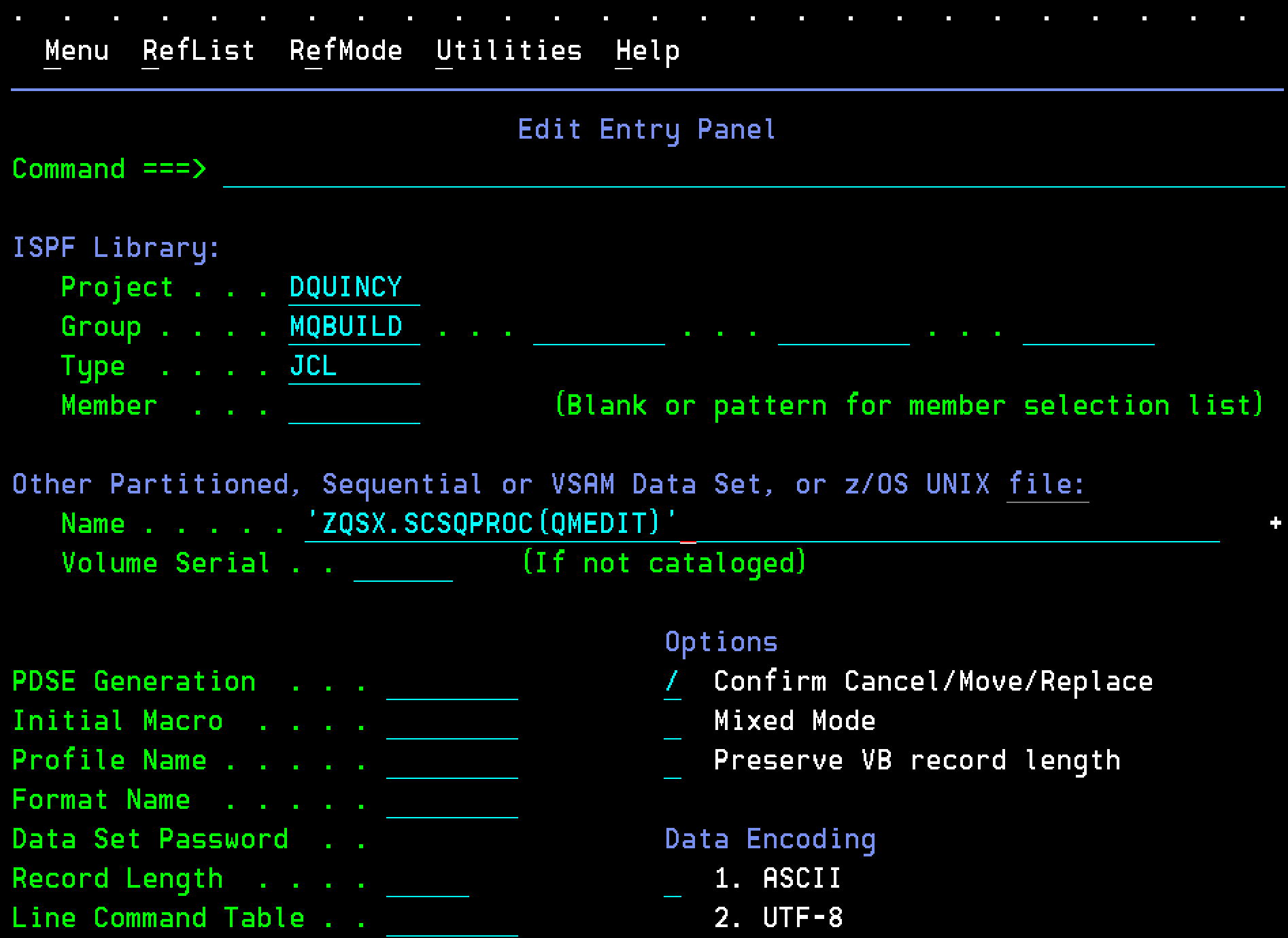
You do not have to use
QMEDIT. You can instead manually customize each JCL job.Insert the text from below into the blank member:
 ISREDIT MACRO NOPROCESS
 ADDRESS ISREDIT
 /* **** UNIVERSAL CHANGES ****  */
 /* **** HIGH LEVEL QUALIFIER FOR THE WMQ LIBRARIES ****  */
 "change '++THLQUAL++' 'MQ945CD' all"
 /* **** LANGUAGE LETTER ****  */
 "change '++LANGLETTER++' 'E' all"
 /* **** HIGH LEVEL QUALIFIER FOR THE BSDS, LOGS, AND ****  */
 /* **** PAGE SETS                                    ****  */
 "change '++HLQ++' 'ZQSX' all"
 /* **** CSQ4BSDS CHANGES ****  */
 "change '++BSDSNAME++' 'MY.BSDS.DS' all"
 "change '++VOLBSDS1++' 'V1BSDS' all"
 "change '++VOLBSDS2++' 'V2BSDS' all"
 "change '++VOLLOG1A++' 'V1LOGA' all"
 "change '++VOLLOG1B++' 'V1LOGB' all"
 "change '++VOLLOG2A++' 'V1LOGC' all"
 "change '++VOLLOG2B++' 'V1LOGD' all"
 /* **** CSQ4CHIN CHANGES ****  */
 "change '++LEQUAL++' 'CEE' all"
 "change '++SSLQUAL++' 'SYS1' all"
 "change '++OUTCLASS++' '*' all"
 "change '++EXITLIB++' 'MY.EXITS' all"
 /* **** CSQ4INPX CHANGES ****  */
 "change '++port-number++' '1424' all"
 "change '++LOCALluname++' 'LUNAME' all"
 "change '++channel-name++' 'TEST.CHANNEL' all"
 /* **** CSQ4INYG CHANGES ****  */
 "change '++qmgr++'  'QMGR' all"
 /* **** CSQ4MSTR CHANGES ****  */
 "change '++OUTCLASS++' '*' all"
 "change '++EXITLIB++' 'MY.EXITS' all"
 "change '++LEQUAL++' 'CEE' all"
 "change '++DB2QUAL++' 'DB2V13' all"
 /* **** CSQ4PAGE CHANGES ****  */
 "change '++VOL0++' 'STORAGE' all"
 "change '++VOL1++' 'STORAGE' all"
 "change '++VOL2++' 'STORAGE' all"
 "change '++VOL3++' 'STORAGE' all"
 "change '++VOL4++' 'STORAGE' all"
 /* **** CSQ4ZPRM CHANGES ****  */
 "change '++NAME++'      'QMGRZPRM' all"
This script is tailored for the WSC z/OS environment. It sets the correct installation qualifier, queue manager name, and listener port.
To activate
QMEDIT, press F3, return to the ISPF main menu, select option6to enter the TSO command line, and then enter:ALTLIB ACTIVATE APPLICATION(EXEC) DA('ZQSX.SCSQPROC')Press Enter.
ALTLIBactivates the REXX EXEC library so thatQMEDITcan be run against the members you need to customize.Return to
ZQSX.SCSQPROCthrough ISPF option3.4.Starting with
CSQ4BSDS, edit each of the following members and runQMEDITfrom the command line inside the member:CSQ4BSDSCSQ4CHINCSQ4MSTRCSQ4INPXCSQ4INYGCSQ4PAGECSQ4ZPRM
After you run
QMEDITinCSQ4BSDS, browse through the JCL using F7 and F8 to confirm the changes, and then press F3 to save and return to the member list. You should see all++variables replaced with correct parameters.Important: You must execute
QMEDITin the same session in which you ran theALTLIBcommand. Otherwise, you will receive the messageQMEDIT not found.Repeat the same process for the remaining members.
Make an additional customization to
CSQ4PAGE. Edit the member and issue this command:C 'VOL=SER' 'STORCLAS' ALLAnd then issue this command:
C 'VOLUMES' 'STORCLAS' ALLThis changes the sample JCL from explicit volume usage to system-managed storage. This will depend on your z/OS environment.
Save
CSQ4PAGEwith F3.Navigate into
CSQ4ZPRM. Comment out line 85 by placing an asterisk (*) in the first column so it looks like this:* DD DSN=++HLQ++.USERAUTH,DISP=SHRImportant: Only do this in a sandbox environment.
USERAUTHis the low-level qualifier identifying the APF-authorized load library where the assembledZPARMmodule is stored.Navigate into
CSQ4CHIN, and then enterF USER EXIT LIBRARYon the command line to locate the user exit library definitions.Comment out lines 94 and 119 by placing
*in the first column so they look like this:Line 94:
* DD DSN=++CSFQUAL++.SCSSFMOD0,DISP=SHRLine 119:
* CSQXLIB DD DSN=++EXITLIB++.DISP=SHRPress F3 to save
CSQ4CHINand return to the member list.Optionally, use
SORT CHANGEDfrom the member list panel to confirm which members were updated.
Step 3. Run jobs to create the bootstrap data sets and page sets
Setting up a new queue manager requires that you set up the configuration for logs, page sets, and so on. To set up these resources, you have to run several JCL jobs.
Submit
CSQ4BSDSin the command line of the JCL member using this command:Command ===> SUBMIT. Press Enter. This creates the bootstrap data sets for the new queue manager.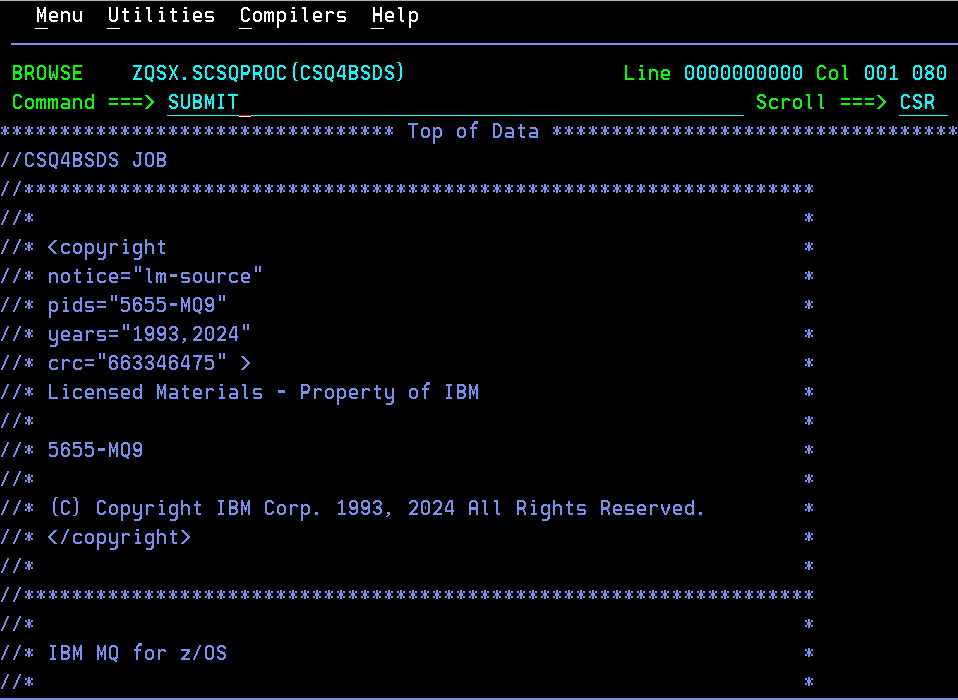
Submit
CSQ4PAGE. This creates the page sets for the queue manager.Submit
CSQ4ZPRM. This creates the queue manager initiation attributes.Return to the ISPF main menu and use option
3.4to view allZQSXlibraries.Confirm that the new bootstrap and page set data sets now exist under the high-level qualifier
ZQSX. If they do not, review the job output and compare your JCL with a known working queue manager.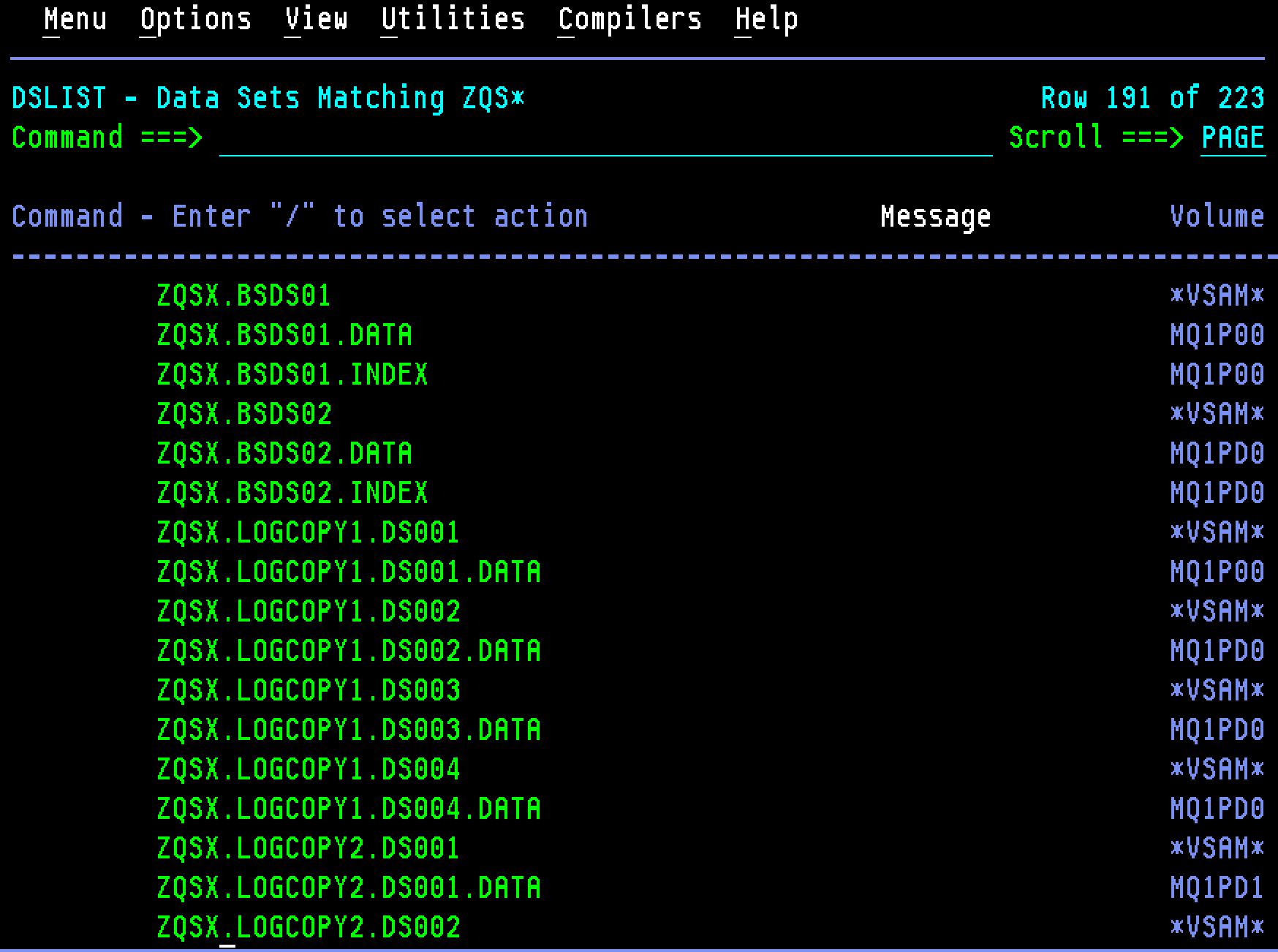
Step 4. Add MSTR and CHIN to SYS1.PROCLIB
SYS1.PROCLIB is the standard location for all z/OS subsystem started task procedures. Next, we'll ensure our new queue manager procedures are located here, so that they are available to z/OS users and address spaces.
Navigate to
SYS1.PROCLIBusing ISPF option3.4. You need two members forZQSX:ZQSXMSTRandZQSXCHIN.From the ISPF main menu, go to option
3.3and copy:ZQSX.SCSQPROC(CSQ4MSTR)toSYS1.PROCLIB(ZQSXMSTR)ZQSX.SCSQPROC(CSQ4CHIN)toSYS1.PROCLIB(ZQSXCHIN)
Return to
SYS1.PROCLIBand verify that bothZQSXMSTRandZQSXCHINexist.
Step 5. Dynamically add the MQ subsystem to MVS
The new queue manager uses two address spaces in z/OS. You must add the relevant JCL to the SYS1.PROCLIB, so that the operating system can access the new queue manager.
Open SDSF by entering
Don the ISPF command line. In SDSF, enter a slash (/) in the command input area and press Enter to execute MVS commands.
Dynamically define the MQ subsystem:
SETSSI ADD,S=ZQSX,I=CSQ3INI,P='CSQ3EPX,ZQSX,S'This dynamic definition does not survive an IPL. To make it permanent, you must update the appropriate
LPALST##,IEFSSN##, andPROG##members inSYS1.PARMLIB.If you make a mistake when issuing the dynamic subsystem command, you can roll it back with this command:
SETSSI DELETE,S=ZQSX,FORCE.
Step 6. APF authorize the IBM MQ for z/OS installation libraries
APF authorization allows for the product to take advantage of privileged operations in the operating system. It is necessary for MQ to operate on z/OS.
From the MVS command line, execute the following commands:
SETPROG APF,ADD,DSNAME=MQ945CD.SCSQANLE,SMSThe SCSQANLE library contains authorized system modules. It is required for system-level operations.
SETPROG APF,ADD,DSNAME=MQ945CD.SCSQAUTH,SMSThe SCSQAUTH library contains queue manager control programs. It is required for MQ operations.
Validate the correct libraries were added by running the command
DISPLAY PROG,APFand viewing the log for the complete output.This dynamic definition does not survive an IPL. To make APF authorization permanent, add entries in the format of
APF ADD DSNAME(MQ945CD.SCSQ****) SMSto the activePROG##member inSYS1.PARMLIB.
Step 7. Define subsystem security
By default, the queue manager has security turned on. To workaround this in a sandbox environment, you are going to disable security.
Important: Never disable subsystem security outside of a controlled sandbox environment.
Return to the ISPF main menu, select option 6, and use the TSO command line to enter:
RDEFINE MQADMIN ZQSX.NO.SUBSYS.SECURITY
Step 8. Start the queue manager and channel initiator
At this point, everything is set up, you just need to start the 2 address spaces for the queue manager: the queue manager master address space and the channel initiator address space.
Return to SDSF and enter the following commands from the MVS command line:
First, start the queue manager:
ZQSX START QMGRThen, start the channel initiator:
ZQSX START CHINITFinally, start the listener:
ZQSX START LISTENER TRPTYPE(TCP) PORT(1425)
Step 9. Connect to the queue manager
To verify that the queue manager is working, check in SDSF that ZQSXMSTR and ZQSXCHIN are actively running in address spaces. Alternatively, connect to the queue manager using MQ Explorer or the MQ Web Console.
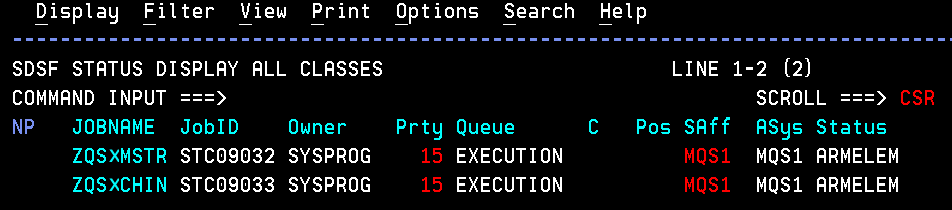
Congratulations. You have created a queue manager from scratch!
Step 10. Put messages on a queue
Now, you need to send messages to your queue manager. While you can set up and use the IBM MQ Web Console on z/OS to do this, you can use MQ Explorer or CSQUTIL utility native on z/OS instead.
In the MVS command line in SDSF, run the following command to create a local queue on the new ZQSX queue manager.
ZQSX DEFINE QLOCAL('TEST.QUEUE')Navigate to your IBM MQ Web Console and locate your recently defined queue.
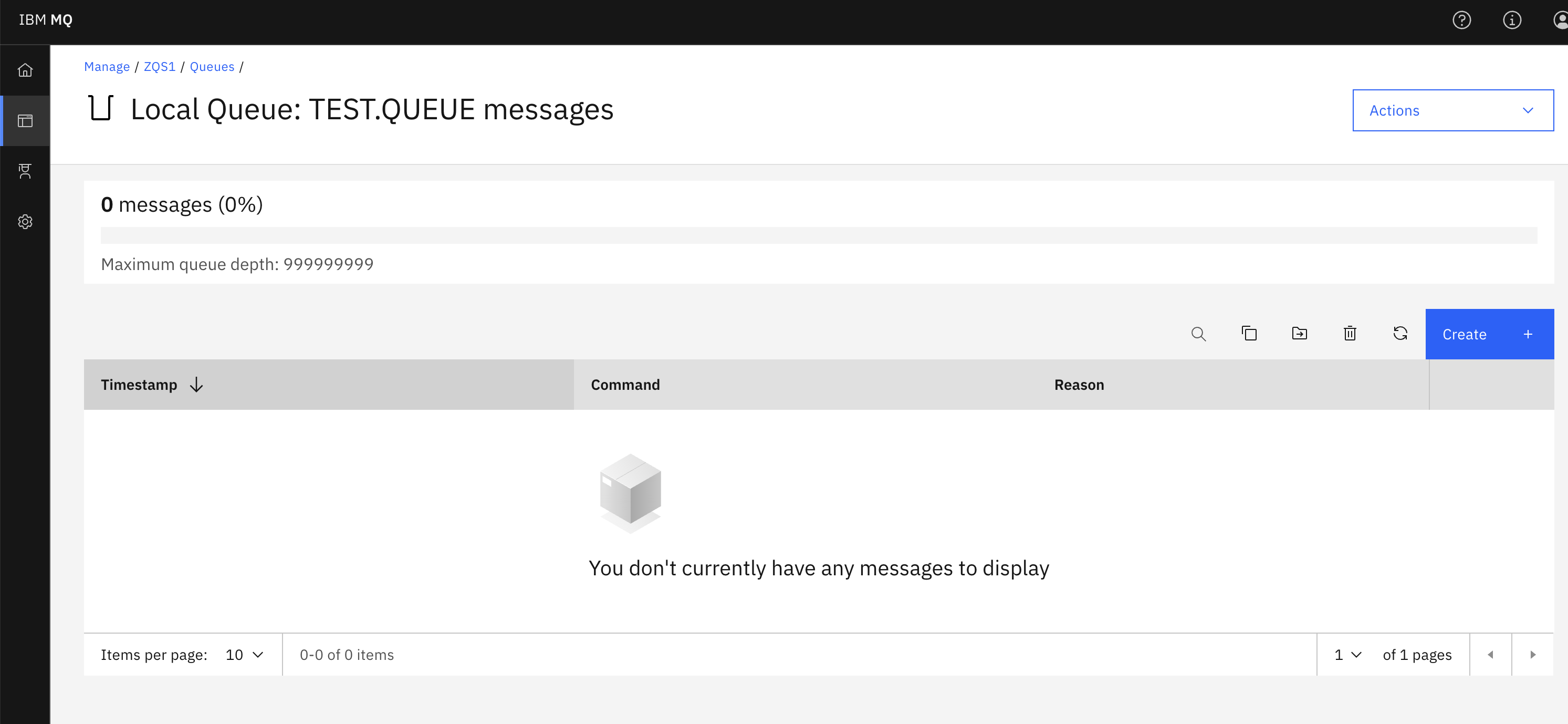
Press the Create button.
Place some sample text in the Application data field, and press Create.
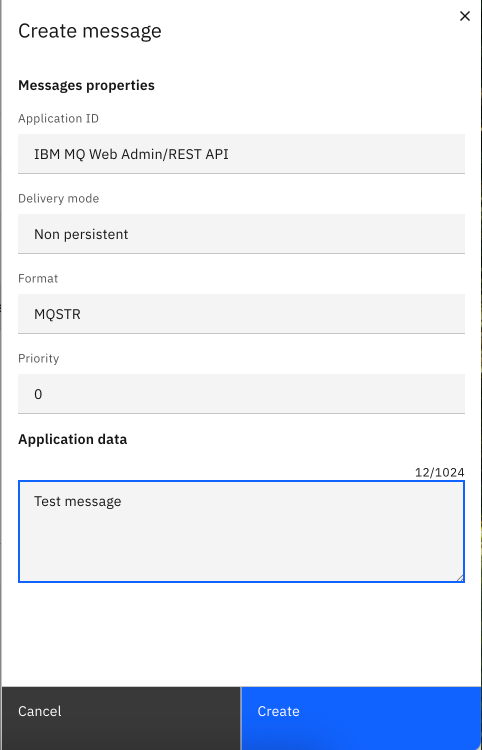
Congratulations! You have successfully placed message on a queue on your newly defined queue manager.
Summary
In this tutorial, you stood up an MQ queue manager in z/OS. This queue manager comprises of two address spaces in z/OS.
- The MSTR address space is the heart of the queue manager, coordinating queues and internal processes.
- The CHINIT address space is the communications engine, coordinating networking so messages can be sent between systems.
When you start developing your own applications to connect to the queue manager, you'll follow these steps:
- Configure the connection to the queue manager.
- Open a queue.
- Put a message on the queue.
- Get the message from the queue.
- Close the connection to the queue manager.
This process demonstrates point-to-point style of messaging.
On z/OS, applications can be developed natively on z/OS and connect to the queue manager via bindings mode. Or, applications off-platform can connect into a queue manager running on z/OS via client mode.